audio TOYOTA MIRAI 2023 Owners Manual
[x] Cancel search | Manufacturer: TOYOTA, Model Year: 2023, Model line: MIRAI, Model: TOYOTA MIRAI 2023Pages: 572, PDF Size: 17.71 MB
Page 18 of 572
18Pictorial index
Owners Manual_USA_M62064_en
Warning messages ............................................... ............... P.464
Emergency flasher switch ....................................... .......... P.446
Audio system
*1
Air conditioning system*2................................................. P.340
Usage................................................................................... P.340
Air conditioning system ............................. ............... P.333, 340
Usage.......................................................... ................. P.333, 340
Rear window defogger ........................................... ...... P.335, 342
Trunk opener main switch ................................................. P.135
Shift lever.................................................... ........................ P.185
Changing the shift position.................................... ............... P.185
Precautions for towing .. ....................................... ................ P.449
Power switch ................................................... ................... P.180
Starting the fuel cell system/c hanging the modes ................P.180
Emergency stop of the fuel cell system ............................... P.446
When the fuel cell system will not start ....................... ......... P.480
Warning messages ............................................... ............... P.464
Tilt and telescopic st eering control switch
*2/tilt and telescopic
steering lock release lever
*2............................................. P.147
Adjustment ..................................................... ...................... P.147
Driving position memory
*2.................................................... P.142
Hood lock release lever ........................................ ............. P.406
*1: Refer to “MULTIMEDIA OWNER’S MANUAL”.
*2: If equipped
Page 21 of 572
21Pictorial index
Owners Manual_USA_M62064_en
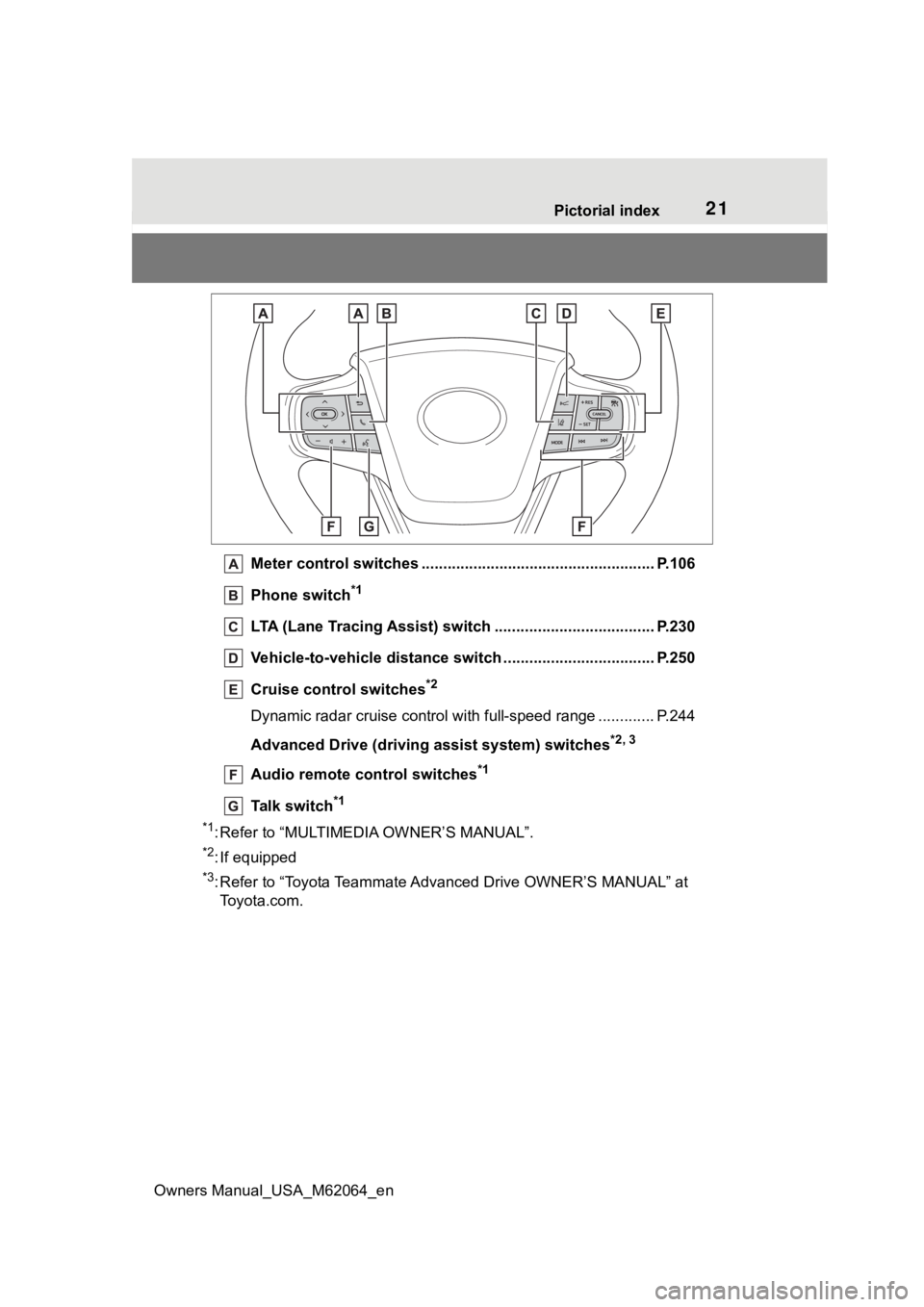
Meter control switches .. .................................................... P.106
Phone switch
*1
LTA (Lane Tracing Assist) switch ............................... ...... P.230
Vehicle-to-vehicle distance switch ................................... P.250
Cruise control switches
*2
Dynamic radar cruise control with full-speed range ............. P. 2 4 4
Advanced Drive (driving assist system) switches
*2, 3
Audio remote control switches*1
Talk switch*1
*1
: Refer to “MULTIMEDIA OWNER’S MANUAL”.
*2: If equipped
*3: Refer to “Toyota Teammate Advan ced Drive OWNER’S MANUAL” at
To y o t a . c o m .
Page 107 of 572
1073-1. Instrument cluster
Owners Manual_USA_M62064_en
3
Vehicle status information and indicatorsInformation related to each icon
can be displayed by selecting
the icon with the meter control
switches.
Some of the information may be
displayed automatically depending
on the situation.
*1: Vehicles with 8-inch multi-infor- mation display
*2: Vehicles with 12.3-inch multi-information display
Select to display fuel consump-
tion data in various forms.
■Fuel Economy
Following information is dis-
played.
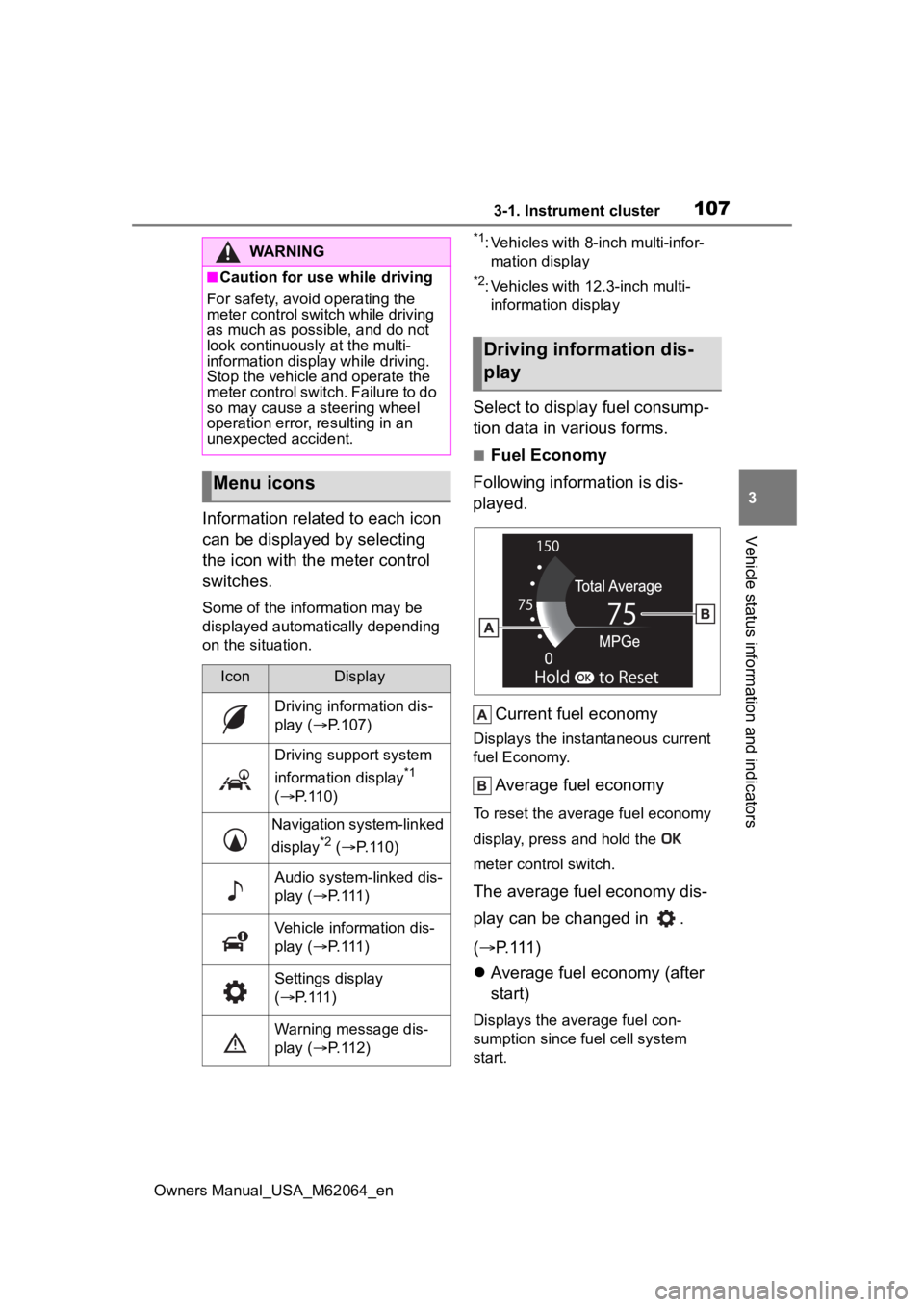
Current fuel economy
Displays the instantaneous current
fuel Economy.
Average fuel economy
To reset the average fuel economy
display, press and hold the
meter control switch.
The average fuel economy dis-
play can be changed in .
( P.111)
Average fuel economy (after
start)
Displays the average fuel con-
sumption since fuel cell system
start.
WARNING
■Caution for use while driving
For safety, avoid operating the
meter control swit ch while driving
as much as possible, and do not
look continuously at the multi-
information display while driving.
Stop the vehicle and operate the
meter control switch. Failure to do
so may cause a steering wheel
operation error, resulting in an
unexpected accident.
Menu icons
IconDisplay
Driving information dis-
play ( P.107)
Driving support system
information display
*1
( P. 1 1 0 )
Navigation system-linked
display
*2 ( P. 1 1 0 )
Audio system-linked dis-
play ( P. 1 1 1 )
Vehicle information dis-
play ( P. 1 1 1 )
Settings display
( P. 1 1 1 )
Warning message dis-
play ( P. 1 1 2 )
Driving information dis-
play
Page 110 of 572
1103-1. Instrument cluster
Owners Manual_USA_M62064_enmph (30km/h).
The Eco Score is reset each time
the vehicle starts off to start a new
evaluation.
When the fuel cell system stops,
the current total score result is dis-
played.
*
*
: The score result is displayed only when “Eco Score” is selected for
“Trip Summary”. ( P. 1 1 1 )
■ECO Accelerator Guidance/Eco
Score will not operate when
The ECO Accelerator Guidance/Eco
Score will not opera te in the follow-
ing situations:
●The Fuel cell System Indicator is
not operating.
●The vehicle is being driven using
the dynamic radar cruise control
with full-speed range.
■Driving support system
information display
Select to display the operational
status of the following systems:
LTA (Lane Tracing Assist)
*
( P.230)
Dynamic radar cruise control
with full-speed range
*
( P.244)
*: Vehicles with Toyota Teammate
Advanced Drive, re fer to “Toyota
Teammate Advanced Drive
OWNER’S MANUAL”.
■Navigation system-linked
display (if equipped)
Select to display the following
navigation system-linked infor-
mation.
Route guidance
Compass display (north-up
display/heading-up display)
Select to display the following
navigation system-linked infor-
mation.
Route guidance
Compass display (north-up
display/heading-up display)
Select to enable selection of an
audio source or track on the dis-
play.
■Drive information
2 items that are selected using
the “Drive Info Items” setting
(average speed, distance and
total time) can be displayed ver-
tically.
The displayed information
Driving support system
information display
Navigation system-linked
display (Vehicles with
12.3-inch multi-informa-
tion display)
Audio system-linked dis-
play
Vehicle information dis-
play
Page 112 of 572
1123-1. Instrument cluster
Owners Manual_USA_M62064_en
(Audio settings)
Select to enable/disable
screen.
(Vehicle information dis-
play settings)
• Display Contents
Select to set up the following items.
Energy monitor:
Select to enable/disable the Energy
monitor ( P.119)
• Drive Info Type
Select to change the drive informa-
tion type display between trip and
total. ( P. 111 ) .
• Drive Info Items
Select to set the items on the upper
and lower side of the drive informa-
tion screen from three items, aver-
age speed, distance and total time.
Trip Summary
Select to set the i tems displayed
when the power switch is turned off.
Pop-Up Display
Select to enable/disable pop-up
displays for each relevant system.
Multi-information display off
Select to turn the m ulti-information
display off.
To turn the multi-in formation display
on again, press any of the meter
control switches.
Default Settings
Select to reset the meter display
settings.
■Suspension of the settings dis-
play
●In the following situations, opera-
tion of the settings display will be
temporarily suspended.
• When a warning message appears on the multi-information
display
• When the vehicle begins to move
●Settings for functions not
equipped to the vehicle are not
displayed.
●When a function is turned off, the
related settings for that function
are not selectable.
Select to display warning mes-
sages and measures to be
taken if a malfunction is
detected. ( P.464)
Displays suggestions to the
driver in the following situations.
To select a response to a dis-
played suggestion, use the
meter control switches.
■Suggestion to turn on the
headlights
If the headlight switch is in other
than or , and the vehicle
speed is 3 mph (5 km/h) or
NOTICE
■During setting up the display
To prevent 12-volt battery dis-
charge, ensure that the fuel cell
system is operating while setting
up the display features.
Warning message display
Suggestion function
Page 116 of 572
1163-1. Instrument cluster
Owners Manual_USA_M62064_en
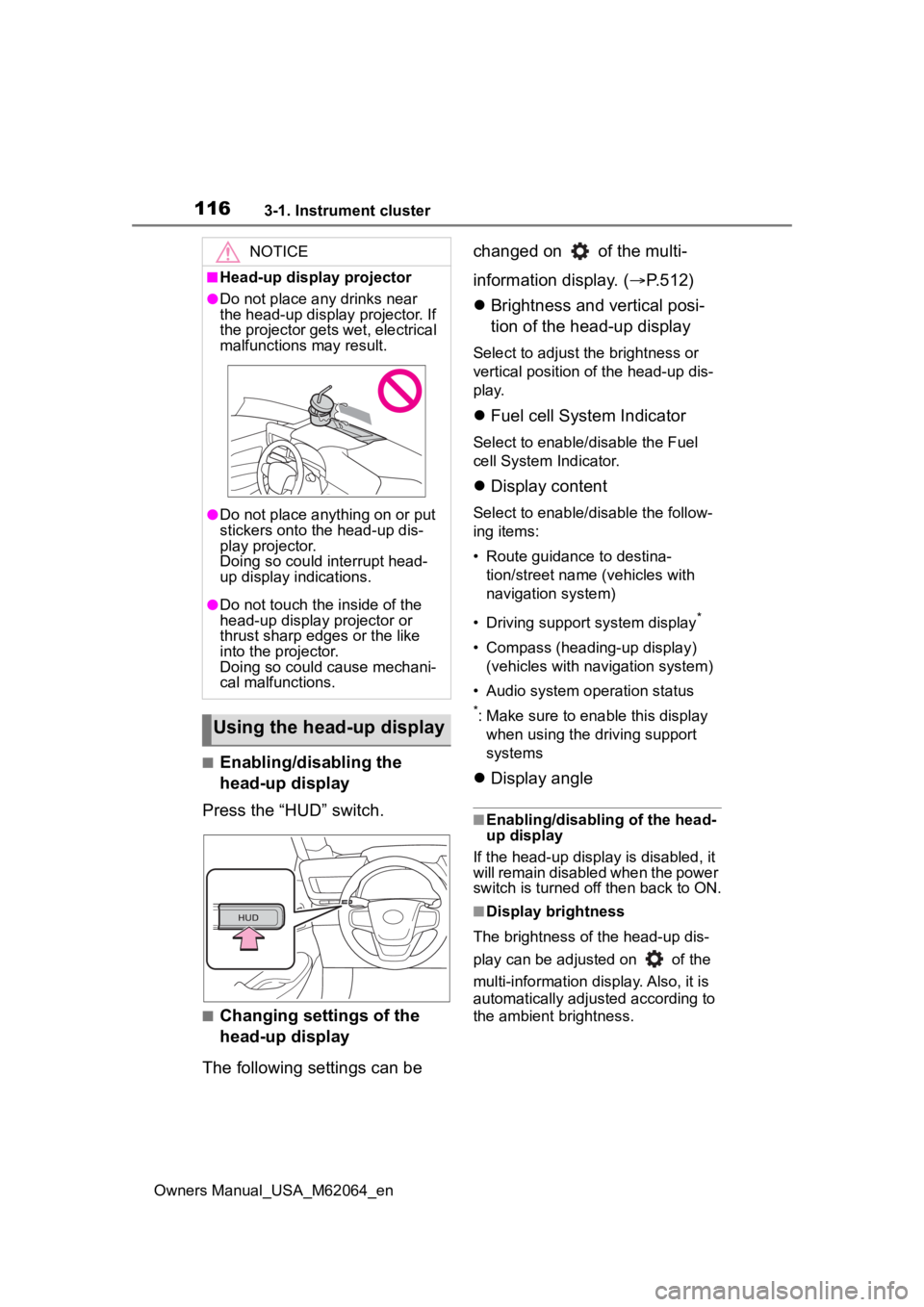
■Enabling/disabling the
head-up display
Press the “HUD” switch.
■Changing settings of the
head-up display
The following settings can be changed on of the multi-
information display. (
P.512)
Brightness and vertical posi-
tion of the head-up display
Select to adjust the brightness or
vertical position of the head-up dis-
play.
Fuel cell System Indicator
Select to enable/disable the Fuel
cell System Indicator.
Display content
Select to enable/d isable the follow-
ing items:
• Route guidance to destina- tion/street name (vehicles with
navigation system)
• Driving support system display
*
• Compass (heading-up display) (vehicles with navigation system)
• Audio system operation status
*: Make sure to enable this display when using the driving support
systems
Display angle
■Enabling/disabling of the head-
up display
If the head-up display is disabled, it
will remain disabled when the power
switch is turned o ff then back to ON.
■Display brightness
The brightness of the head-up dis-
play can be adjusted on of the
multi-information di splay. Also, it is
automatically adjusted according to
the ambient brightness.
NOTICE
■Head-up display projector
●Do not place any drinks near
the head-up display projector. If
the projector gets wet, electrical
malfunctions may result.
●Do not place anything on or put
stickers onto the head-up dis-
play projector.
Doing so could interrupt head-
up display indications.
●Do not touch the inside of the
head-up display projector or
thrust sharp edges or the like
into the projector.
Doing so could cause mechani-
cal malfunctions.
Using the head-up display
Page 118 of 572
1183-1. Instrument cluster
Owners Manual_USA_M62064_eninformation display.
■Warning message
Some warning messages are
displayed when necessary,
according to certain conditions.
Details of content displayed on the
head-up display may differ from
that displayed on the multi-informa-
tion display.
■Audio system operation
status
Displayed when an audio
remote control switch on the
steering wheel is operated.
■Hands-free system status
Displayed when the hands-free
system is operated.
■When a pop-up display is dis-
played
When a pop-up display is displayed,
a current display may no longer be
displayed. In this case, the display
will return after the pop-up display
disappears.
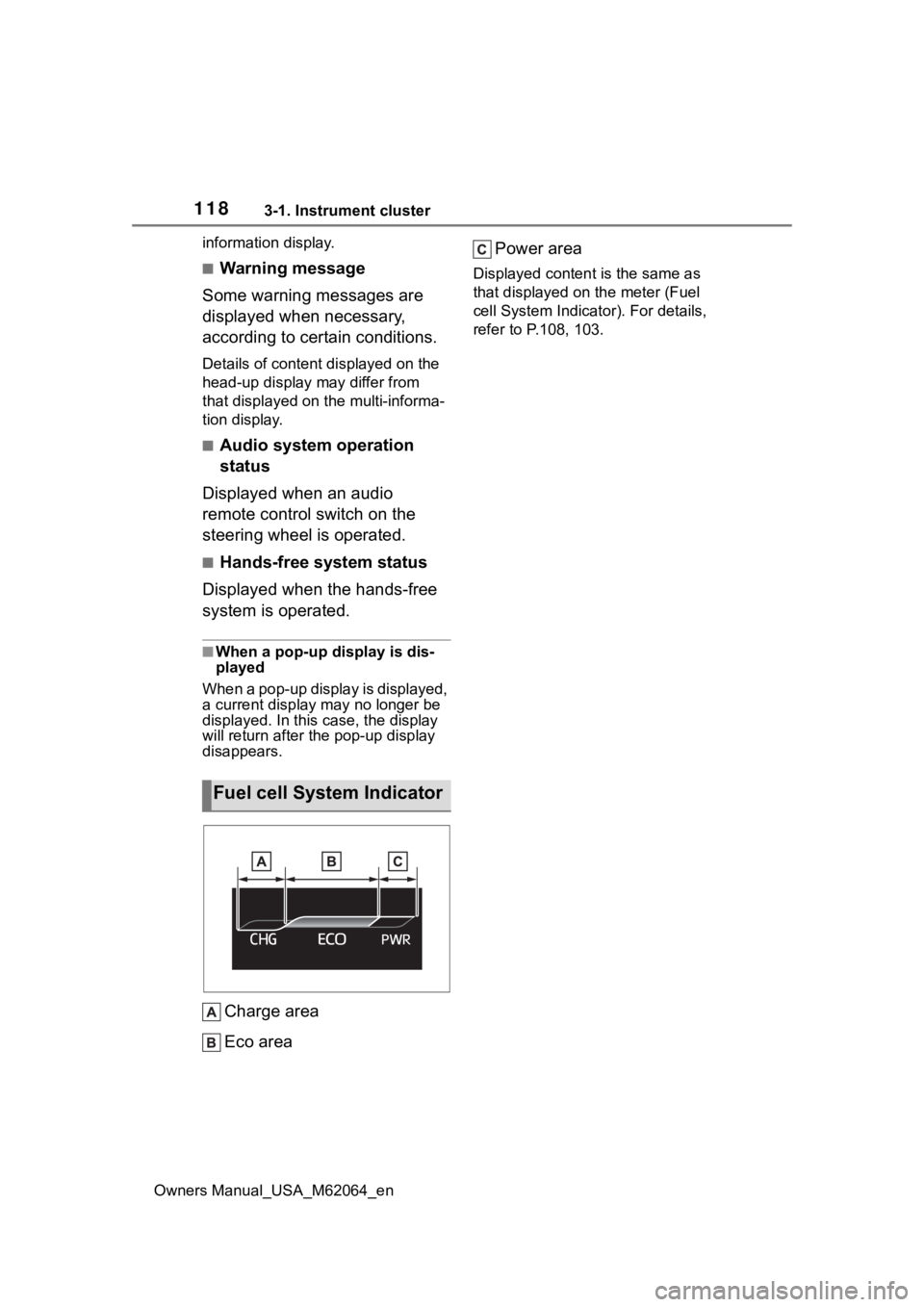
Charge area
Eco area Power area
Displayed content is the same as
that displayed on
the meter (Fuel
cell System Indicator). For details,
refer to P .108, 103.
Fuel cell System Indicator
Page 125 of 572
1254-1. Key information
Owners Manual_USA_M62064_en
4
Before driving
approximately 10 days after a new
electronic key has been registered.
If this message is displayed but you
have not had a new electronic key
registered, ask your Toyota dealer to
check if an unknow n electronic key
(other than those in your posses-
sion) has been registered.
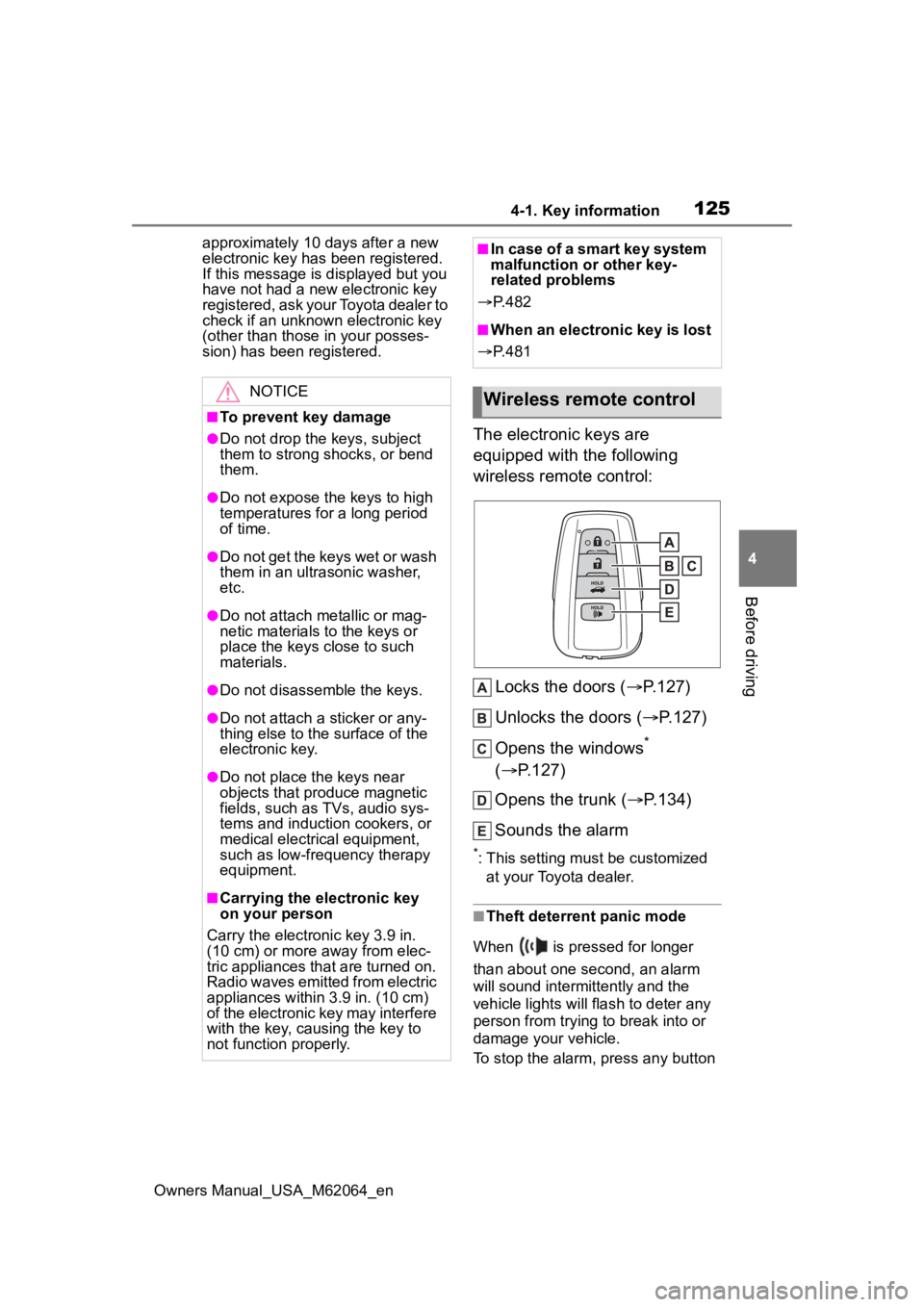
The electronic keys are
equipped with the following
wireless remote control:
Locks the doors ( P.127)
Unlocks the doors ( P.127)
Opens the windows
*
( P.127)
Opens the trunk ( P.134)
Sounds the alarm
*: This setting must be customized at your Toyota dealer.
■Theft deterrent panic mode
When is pressed for longer
than about one second, an alarm
will sound intermittently and the
vehicle lights will flash to deter any
person from trying to break into or
damage your vehicle.
To stop the alarm, press any button
NOTICE
■To prevent key damage
●Do not drop the keys, subject
them to strong shocks, or bend
them.
●Do not expose the keys to high
temperatures for a long period
of time.
●Do not get the keys wet or wash
them in an ultrasonic washer,
etc.
●Do not attach metallic or mag-
netic materials to the keys or
place the keys close to such
materials.
●Do not disassemble the keys.
●Do not attach a sticker or any-
thing else to the surface of the
electronic key.
●Do not place th e keys near
objects that produce magnetic
fields, such as TVs, audio sys-
tems and induction cookers, or
medical electrical equipment,
such as low-frequency therapy
equipment.
■Carrying the electronic key
on your person
Carry the electronic key 3.9 in.
(10 cm) or more away from elec-
tric appliances that are turned on.
Radio waves emitted from electric
appliances within 3.9 in. (10 cm)
of the electronic key may interfere
with the key, causing the key to
not function properly.
■In case of a smart key system
malfunction or other key-
related problems
P. 4 8 2
■When an electronic key is lost
P. 4 8 1
Wireless remote control
Page 138 of 572
1384-2. Opening, closing and locking the doors and trunk
Owners Manual_USA_M62064_en
●Electronic keys that will not be
used for long periods of time can
be set to the battery-saving mode
in advance.
■Conditions affecting operation
The smart key system uses weak
radio waves. In the following situa-
tions, the communication between
the electronic key and the vehicle
may be affected, preventing the
smart key system, wireless remote
control and immobilizer system from
operating properly. (Ways of coping:
P.482)
●When the electronic key battery is
depleted
●Near a TV tower, electric power
plant, gas station , radio station,
large display, airpo rt or other facil-
ity that generates strong radio
waves or electrical noise
●When carrying a portable radio,
cellular phone, cordless phone or
other wireless communication
device
●When the electronic key is in con-
tact with, or is covered by the fol-
lowing metallic objects
• Cards to which al uminum foil is
attached
• Cigarette boxes that have alumi- num foil inside
• Metallic wallets or bags
• Coins
• Hand warmers made of metal
• Media such as CDs and DVDs
●When other wireless keys (that
emit radio waves) are being used
nearby
●When carrying the electronic key
together with the following devices that emit radio waves
• Another electronic key or a wire- less key that emits radio waves
• Personal computers or personal digital assistants (PDAs)
• Digital audio players
• Portable game systems
●If window tint wit h a metallic con-
tent or metallic objects are
attached to the rear window
●When the electronic key is placed
near a battery charger or elec-
tronic devices
●When the vehicle is parked in a
pay parking spot where radio
waves are emitted.
■Note for the entry function
●Even when the electronic key is
within the effective range (detec-
tion areas), the system may not
operate properly in the following
cases:
• The electronic key is too close to the window or outside door han-
dle, near the ground, or in a high
place when the doors are locked
or unlocked.
• The electronic key is near the ground or in a high place, or too
close to the center of the rear
bumper when the trunk is opened.
• The electronic key is on the instru- ment panel, rear package tray or
floor, or in the door pockets or
glove box when the fuel cell sys-
tem is started or power switch
modes are changed.
●Do not leave the electronic key on
top of the instrument panel or near
the door pockets when exiting the
vehicle. Depending on the radio
wave reception conditions, it may
be detected by the antenna out-
side the cabin and the doors will
become lockable from the outside,
possibly trapping the electronic
key inside the vehicle.
●As long as the electronic key is
within the effective range, the
doors may be locked or unlocked
by anyone. However, only the
Page 165 of 572
1654-6. Favorite settings
Owners Manual_USA_M62064_en
4
Before driving
4-6.Favorite settings
An individual can be identified
using the following authentica-
tion devices.
Bluetooth devices
An individual can be detected if the
same Bluetooth d evice that was
used as a handsfree phone the last
time the vehicle was entered is con-
nected to the audio system.
When an individual is identified
from an authentication device,
settings for the following func-
tions are recalled.
Vehicle settings that can be
set using the multimedia dis-
play
When an individual is identified, the
vehicle settings used when the
p o w e r s w i t c h w a s l a s t t u r n e d o ff a r e
recalled.
My Settings
By recognizing an individ-
ual through Bluetooth
devices, the vehicle settings
recorded for that driver can
be recalled when that indi-
vidual enters the vehicle. By
assigning an authentication
device to a driver in
advance, the vehicle can be
entered with the preferred
settings of the driver. Set-
tings for up to 3 drivers can
be recorded with My Set-
tings. For details on how to
assign/delete Bluetooth
devices, set driver names,
perform initialization,
change drivers manually, or
delete a driver, refer to the
“MULTIMEDIA OWNER’S
MANUAL”.
Types of assigned
authentication devices
Recalled functions