Eco TOYOTA PRIUS 2008 2.G Repair Manual
[x] Cancel search | Manufacturer: TOYOTA, Model Year: 2008, Model line: PRIUS, Model: TOYOTA PRIUS 2008 2.GPages: 512, PDF Size: 7.23 MB
Page 244 of 512
244 3-3. Using the audio system
PRIUS_U_(L/O_0802)
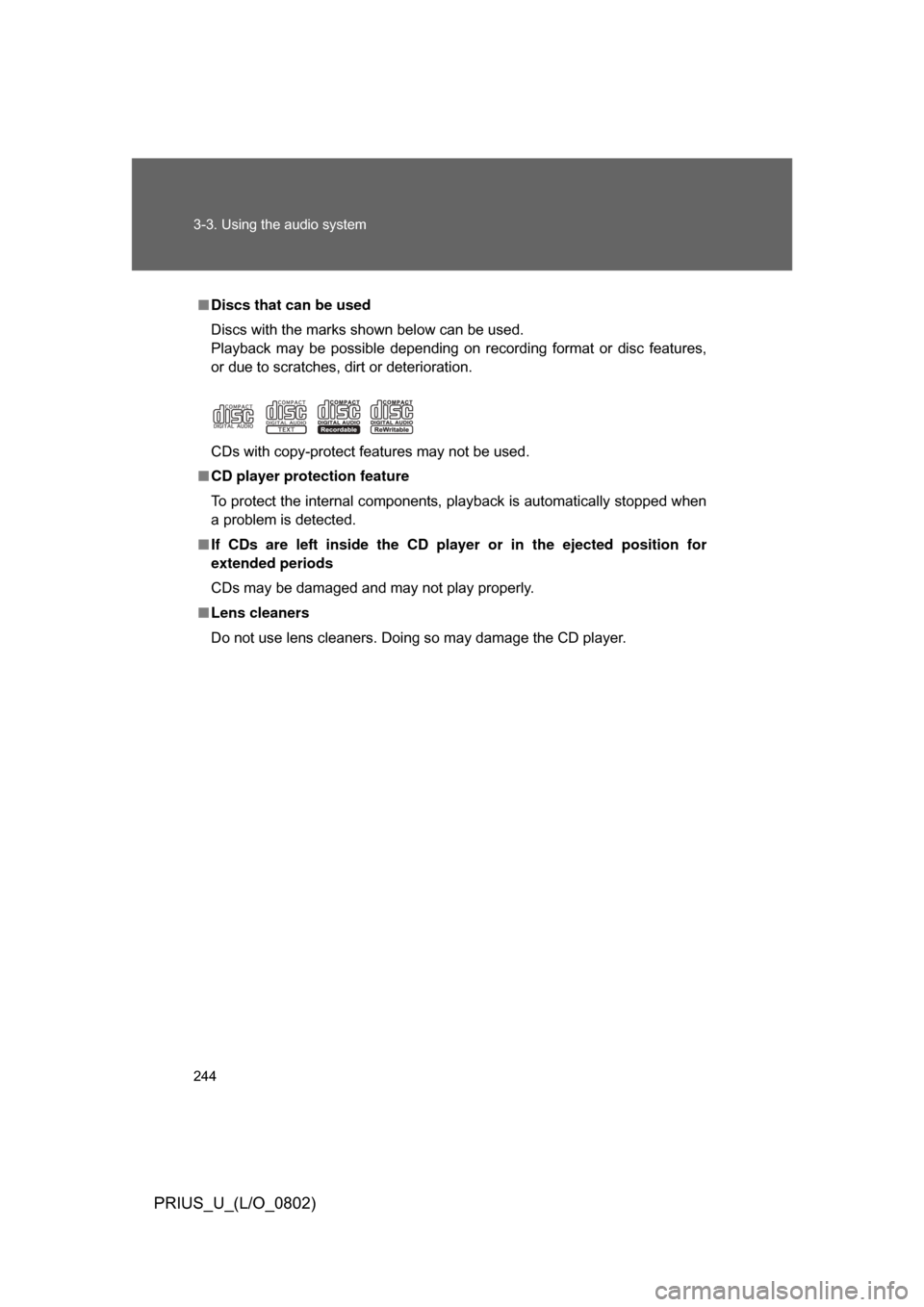
■Discs that can be used
Discs with the marks shown below can be used.
Playback may be possible depending on recording format or disc features,
or due to scratches, dirt or deterioration.
CDs with copy-protect features may not be used.
■ CD player protection feature
To protect the internal components, playback is automatically stopped when
a problem is detected.
■ If CDs are left inside the CD player or in the ejected position for
extended periods
CDs may be damaged and may not play properly.
■ Lens cleaners
Do not use lens cleaners. Doing so may damage the CD player.
Page 245 of 512
245
3-3. Using the audio system
3
Interior features
PRIUS_U_(L/O_0802)
NOTICE
■
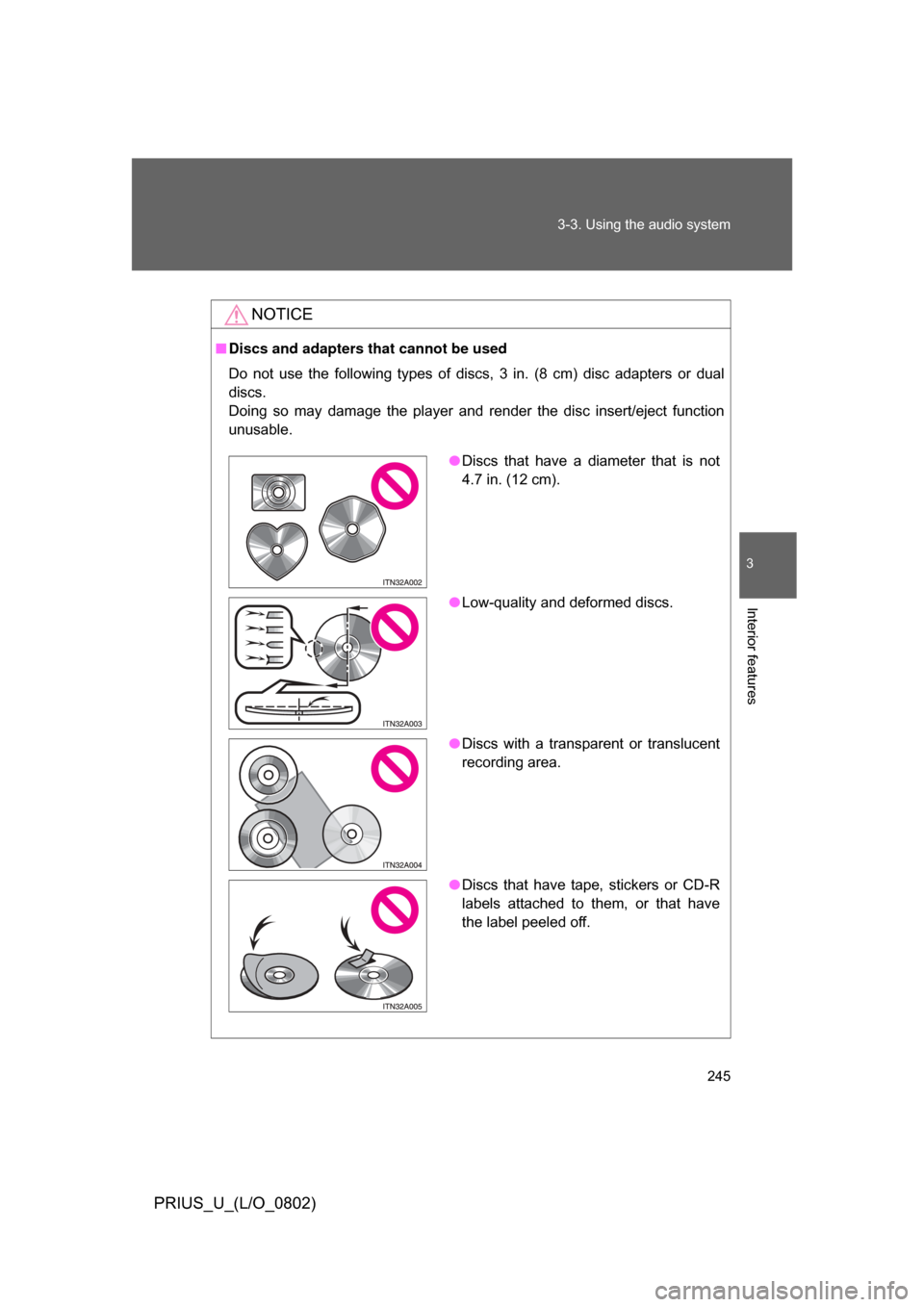
Discs and adapters that cannot be used
Do not use the following types of discs, 3 in. (8 cm) disc adapters or dual
discs.
Doing so may damage the player and render the disc insert/eject function
unusable.
●Discs that have a diameter that is not
4.7 in. (12 cm).
● Low-quality and deformed discs.
● Discs with a transparent or translucent
recording area.
● Discs that have tape, stickers or CD-R
labels attached to them, or that have
the label peeled off.
Page 248 of 512
248 3-3. Using the audio system
PRIUS_U_(L/O_0802)
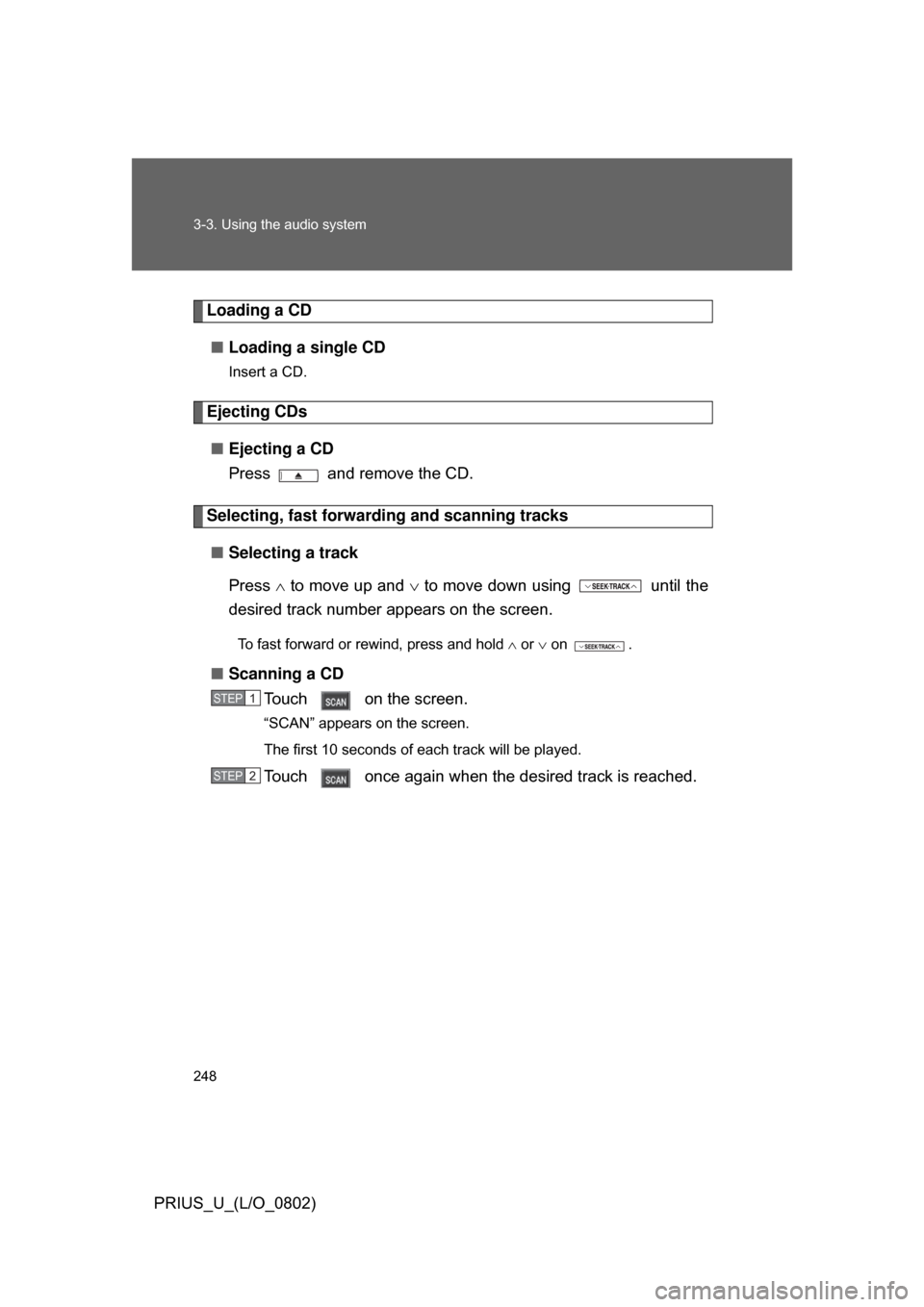
Loading a CD■ Loading a single CD
Insert a CD.
Ejecting CDs
■ Ejecting a CD
Press and remove the CD.
Selecting, fast forwarding and scanning tracks
■ Selecting a track
Press to move up and to move down using until the
desired track number appears on the screen.
To fast forward or rewind, press and hold or on .
■ Scanning a CD
Touch on the screen.
“SCAN” appears on the screen.
The first 10 seconds of each track will be played.
Touch once again when the desired track is reached.
STEP1
STEP2
Page 250 of 512
250 3-3. Using the audio system
PRIUS_U_(L/O_0802)
■Canceling random, repeat and scan playback
Touch , , or on the screen once again.
■ Displaying the title and artist name
If a CD-TEXT disc is inserted, the title of the disc and track will be displayed.
Up to 29 letters can be displayed.
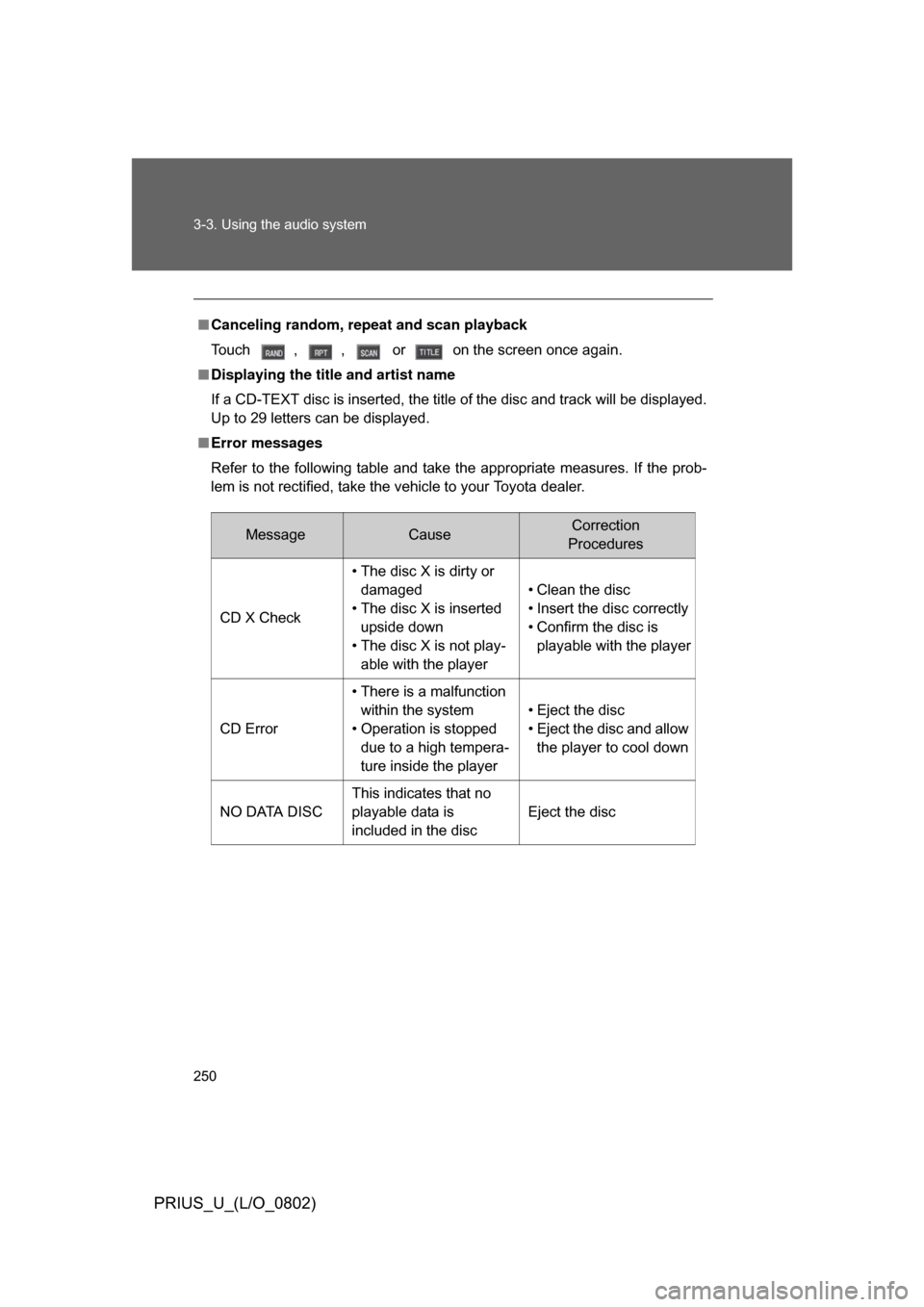
■ Error messages
Refer to the following table and take the appropriate measures. If the prob-
lem is not rectified, take the vehicle to your Toyota dealer.
MessageCauseCorrection
Procedures
CD X Check • The disc X is dirty or
damaged
• The disc X is inserted upside down
• The disc X is not play- able with the player • Clean the disc
• Insert the disc correctly
• Confirm the disc is
playable with the player
CD Error • There is a malfunction
within the system
• Operation is stopped due to a high tempera-
ture inside the player • Eject the disc
• Eject the disc and allow
the player to cool down
NO DATA DISC This indicates that no
playable data is
included in the disc Eject the disc
Page 251 of 512
251
3-3. Using the audio system
3
Interior features
PRIUS_U_(L/O_0802)
■
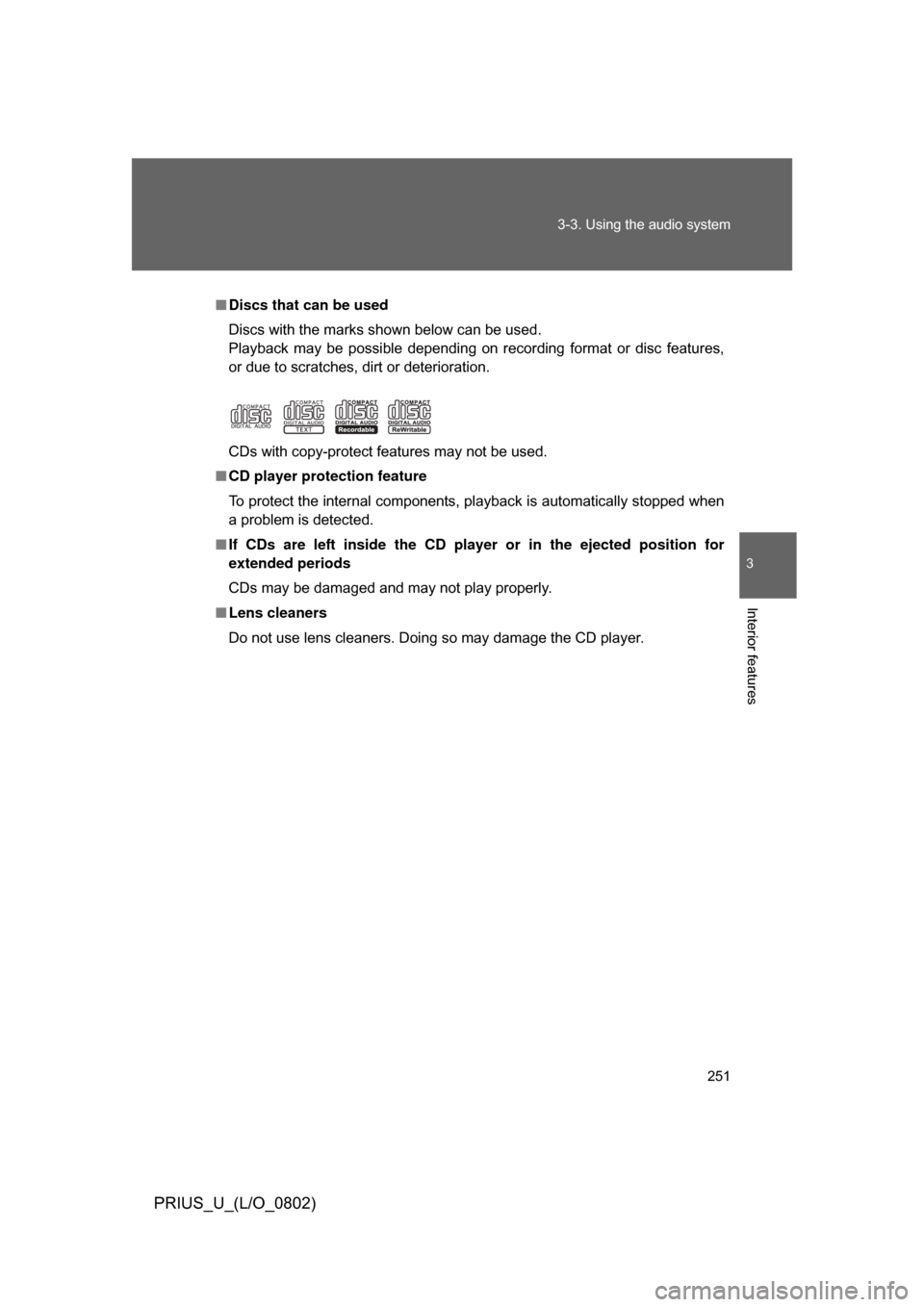
Discs that can be used
Discs with the marks shown below can be used.
Playback may be possible depending on recording format or disc features,
or due to scratches, dirt or deterioration.
CDs with copy-protect features may not be used.
■ CD player protection feature
To protect the internal components, playback is automatically stopped when
a problem is detected.
■ If CDs are left inside the CD pla yer or in the ejected position for
extended periods
CDs may be damaged and may not play properly.
■ Lens cleaners
Do not use lens cleaners. Doing so may damage the CD player.
Page 252 of 512
252 3-3. Using the audio system
PRIUS_U_(L/O_0802)
NOTICE
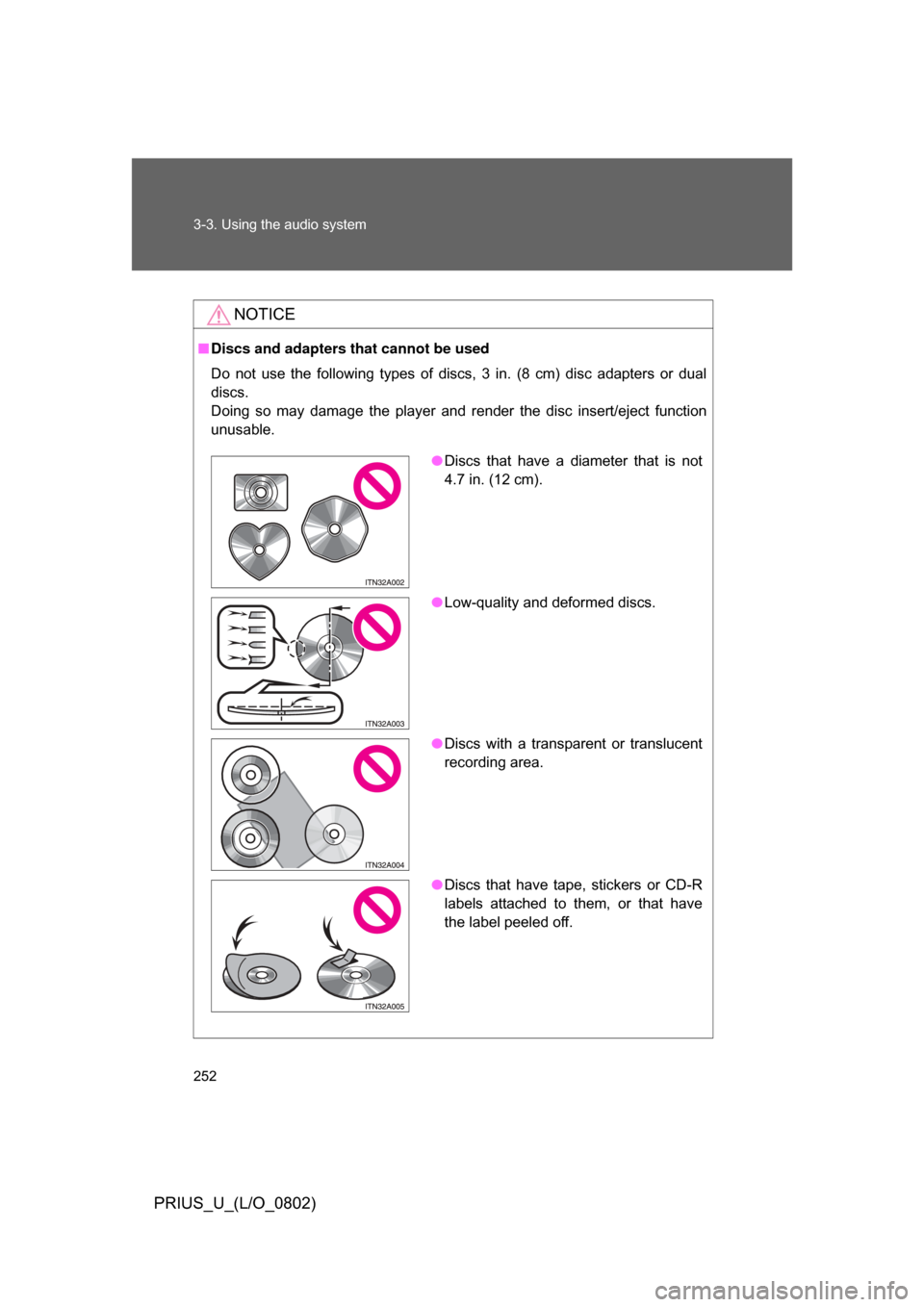
■Discs and adapters that cannot be used
Do not use the following types of discs, 3 in. (8 cm) disc adapters or dual
discs.
Doing so may damage the player and render the disc insert/eject function
unusable.
● Discs that have a diameter that is not
4.7 in. (12 cm).
● Low-quality and deformed discs.
● Discs with a transparent or translucent
recording area.
● Discs that have tape, stickers or CD-R
labels attached to them, or that have
the label peeled off.
Page 258 of 512

258 3-3. Using the audio system
PRIUS_U_(L/O_0802)
■MP3 and WMA files
MP3 (MPEG Audio LAYER 3) is a standard audio compression format.
Files can be compressed to approximately 1/10 of their original size by using
MP3 compression.
WMA (Windows Media
TMAudio) is a Microsoft audio compression format.
This format compresses audio data to a size smaller than that of the MP3
format.
There is a limit to the MP3 and WMA file standards and to the media/formats
recorded by them that can be used.
● MP3 file compatibility
• Compatible standards
MP3 (MPEG1 LAYER3, MPEG2 LSF LAYER3)
• Compatible sampling frequencies MPEG1 LAYER3: 32, 44.1, 48 (kHz)
MPEG2 LSF LAYER3: 16, 22.05, 24 (kHz)
• Compatible bit rates MPEG1 LAYER3: 64, 80, 96, 112, 128, 160, 192, 224, 256, 320 (kbps)
• MPEG2 LSF LAYER3: 64, 80, 96, 112, 128, 144, 160 (kbps)
*: Compatible with VBR
• Compatible channel modes: stereo, joint stereo, dual channel and monaural
● WMA file compatibility
• Compatible standards
WMA Ver. 7, 8, 9
• Compatible sampling frequencies 32, 44.1, 48 (kHz)
• Compatible bit rates Ver. 7, 8: CBR 48, 64, 80, 96, 128, 160, 192 (kbps)
Ver. 9: CBR 48, 64, 80, 96, 128, 160, 192, 256, 320 (kbps)
*: Only compatible with 2-channel playback
● Compatible media
Media that can be used for MP3 and WMA playback are CD-Rs and CD-
RWs.
Playback in some instances may not be possible, depending on the status
of the CD-R or CD-RW. Playback may not be possible or the audio may
jump if the disc is scratched or marked with fingerprints.
Page 259 of 512
259
3-3. Using the audio system
3
Interior features
PRIUS_U_(L/O_0802)
●
Compatible disc formats
The following disc formats can be used.
• Disc formats: CD-ROM Mode 1 and Mode 2
CD-ROM XA Mode 2, Form 1 and Form 2
• File formats: ISO9660 level 1, level 2, (Romeo, Joliet) MP3 and WMA files written in any format other than those listed above
may not play correctly, and their file names and folder names may not be
displayed correctly.
Items related to standards and limitations are as follows:
• Maximum directory hierarchy: 8 levels
• Maximum length of folder names/file names: 32 characters
• Maximum number of folders: 192 (including the root)
• Maximum number of files per disc: 255
● File names
The only files that can be recogniz ed as MP3/WMA and played are those
with the extension .mp3 or .wma.
● Multi-sessions
As the audio system is compatible with multi-sessions, it is possible to play
discs that contain MP3 and WMA files. However, only the first session can
be played.
● ID3 and WMA tags
ID3 tags can be added to MP3 files, making it possible to record the track
title and artist name, etc.
The system is compatible with ID3 Ver. 1.0, 1.1, and Ver. 2.2, 2.3 ID3 tags.
(The number of characters is based on ID3 Ver. 1.0 and 1.1.)
WMA tags can be added to WMA files, making it possible to record the
track title and artist name in the same way as with ID3 tags.
Page 260 of 512

260 3-3. Using the audio system
PRIUS_U_(L/O_0802)
●MP3 and WMA playback
When a disc containing MP3 or WMA files is inserted, all files on the disc
are first checked. Once the file check is finished, the first MP3 or WMA file
is played. To make the file check finish more quickly, we recommend you
do not write in any files other than MP3 or WMA files or create any unnec-
essary folders.
Discs that contain a mixture of music data and MP3 or WMA format data
cannot be played.
● Extensions
If the file extensions .mp3 and .wma are used for files other than MP3 and
WMA files, they will be mistakenly recognized and played as MP3 and
WMA files. This may result in large amounts of interference and damage
to the speakers.
● Playback
• To play MP3 files with steady sound quality, we recommend a fixed bit
rate of 128 kbps and a sampling frequency of 44.1 kHz.
• CD-R or CD-RW playback may not be possible in some instances, depending on the characteristics of the disc.
• There is a wide variety of freeware and other encoding software for MP3 and WMA files on the market, and depending on the status of the encod-
ing and the file format, poor sound quality or noise at the start of playback
may result. In some cases, playback may not be possible at all.
• When files other than MP3 or WMA files are recorded on a disc, it may take more time to recognize the disc and in some cases, playback may
not be possible at all.
• Microsoft, Windows, and Windows Media are the registered trademarks of Microsoft Corporation in the U.S. and other countries.
Page 261 of 512
261
3-3. Using the audio system
3
Interior features
PRIUS_U_(L/O_0802)
■
CD-R and CD-RW discs
● CD-R/CD-RW discs that have not been subject to the “finalizing process”
(a process that allows discs to be played on a conventional CD player)
cannot be played.
● It may not be possible to play CD-R/CD-RW discs recorded on a music
CD recorder or a personal computer because of disc characteristics,
scratches or dirt on the disc, or dirt, condensation, etc. on the lens of the
unit.
● It may not be possible to play discs recorded on a personal computer
depending on the application settings and the environment. Record with
the correct format. (For details, contact the appropriate application manu-
facturers of the applications.)
● CD-R/CD-RW discs may be damaged by direct exposure to sunlight,
high temperatures or other storage conditions. The unit may be unable to
play damaged discs.
● If you insert a CD-RW disc into the MP3/WMA player, playback will begin
more slowly than with a conventional CD or CD-R disc.
● Recordings on CD-R/CD-RW cannot be played using the DDCD (Double
Density CD) system.
■ Unsuitable discs, and player precautions
P. 245