Setting TOYOTA PRIUS 2016 4.G Repair Manual
[x] Cancel search | Manufacturer: TOYOTA, Model Year: 2016, Model line: PRIUS, Model: TOYOTA PRIUS 2016 4.GPages: 800, PDF Size: 16.69 MB
Page 341 of 800
PRIUS_OM_OM47A29U_(U)
3414-5. Using the driving support systems
4
Driving
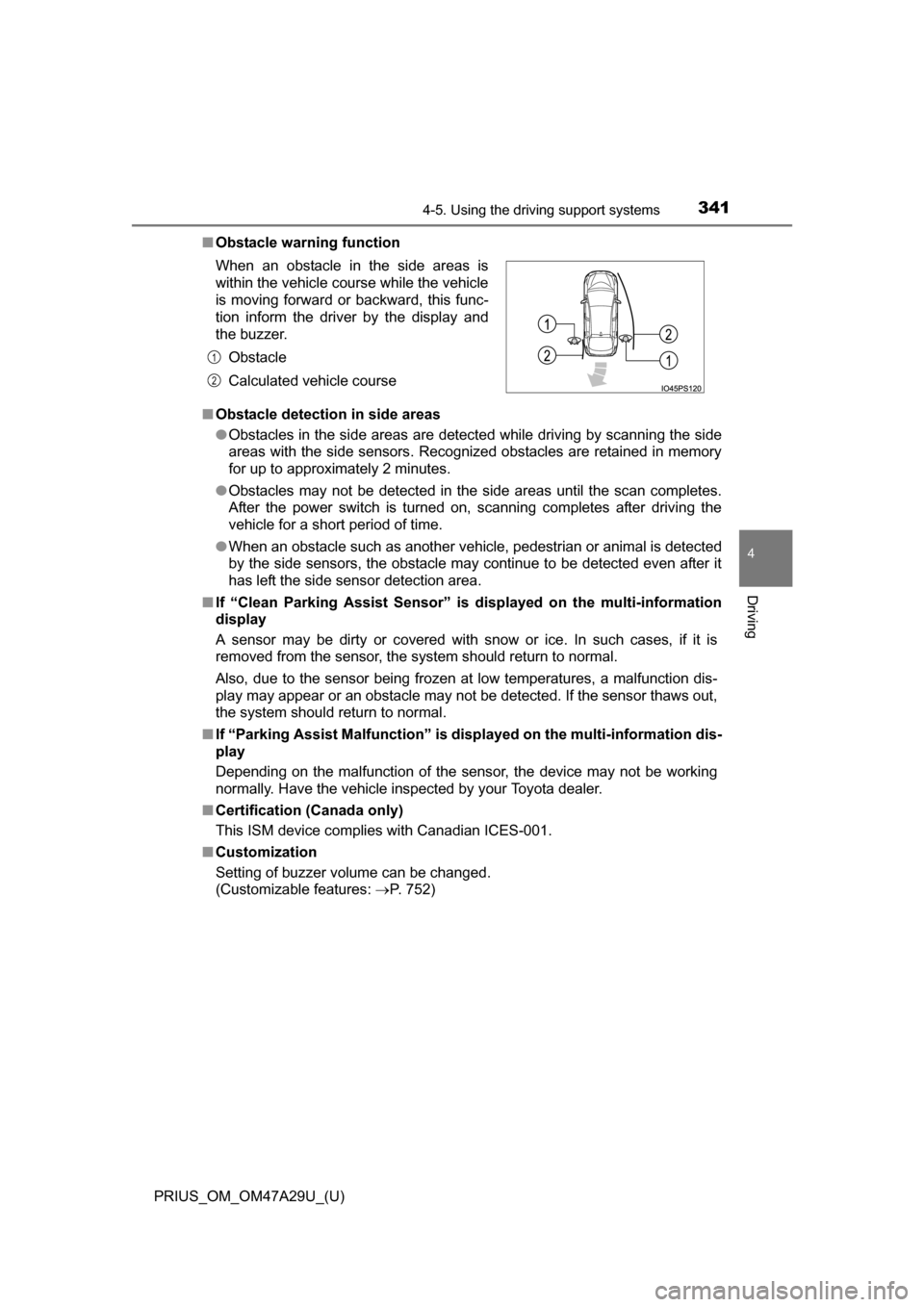
■Obstacle warning function
■ Obstacle detection in side areas
●Obstacles in the side areas are detec ted while driving by scanning the side
areas with the side sensors. Recognized obstacles are retained in memory
for up to approximately 2 minutes.
● Obstacles may not be detected in the side areas until the scan completes.
After the power switch is turned on, scanning completes after driving the
vehicle for a short period of time.
● When an obstacle such as another vehicle, pedestrian or animal is detected
by the side sensors, the obstacle may continue to be detected even after it
has left the side sensor detection area.
■ If “Clean Parking Assist Sensor” is displayed on the multi-information
display
A sensor may be dirty or covered with snow or ice. In such cases, if it is
removed from the sensor, the system should return to normal.
Also, due to the sensor being frozen at low temperatures, a malfunction dis-
play may appear or an obstacle may not be detected. If the sensor thaws out,
the system should return to normal.
■ If “Parking Assist Malf unction” is displayed on the multi-information dis-
play
Depending on the malfunction of the sensor, the device may not be working
normally. Have the vehicle inspected by your Toyota dealer.
■ Certification (Canada only)
This ISM device complies with Canadian ICES-001.
■ Customization
Setting of buzzer volume can be changed.
(Customizable features: P. 752)
When an obstacle in the side areas is
within the vehicle course while the vehicle
is moving forward or backward, this func-
tion inform the driver by the display and
the buzzer.
Obstacle
Calculated vehicle course
1
2
Page 348 of 800
348
PRIUS_OM_OM47A29U_(U)
4-5. Using the driving support systems
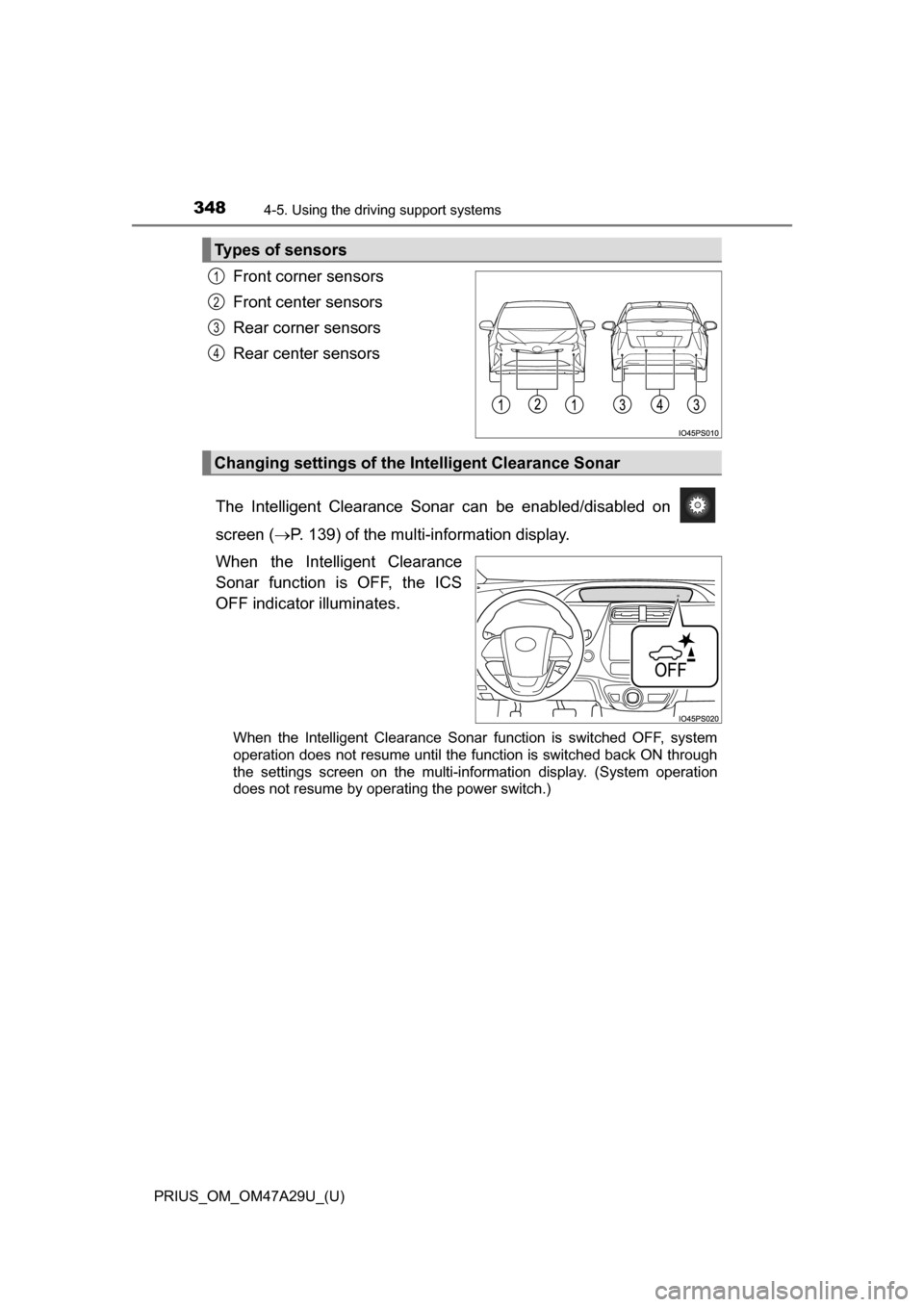
Front corner sensors
Front center sensors
Rear corner sensors
Rear center sensors
The Intelligent Clearance Sonar can be enabled/disabled on
screen ( P. 139) of the multi-information display.
When the Intelligent Clearance
Sonar function is OFF, the ICS
OFF indicator illuminates.
When the Intelligent Clearance Sonar function is switched OFF, system
operation does not resume until the function is switched back ON through
the settings screen on the multi-information display. (System operation
does not resume by operating the power switch.)
Types of sensors
1
2
3
4
Changing settings of the In telligent Clearance Sonar
Page 415 of 800
PRIUS_OM_OM47A29U_(U)
4154-6. Driving tips
4
Driving
Accelerate the vehicle slowly, keep a safe distance between you and
the vehicle ahead, and drive at a reduced speed suitable to road con-
ditions.
Park the vehicle and shift the shift position to P and block the wheel
under the vehicle without setting the parking brake. The parking brake
may freeze up, preventing it from being released.
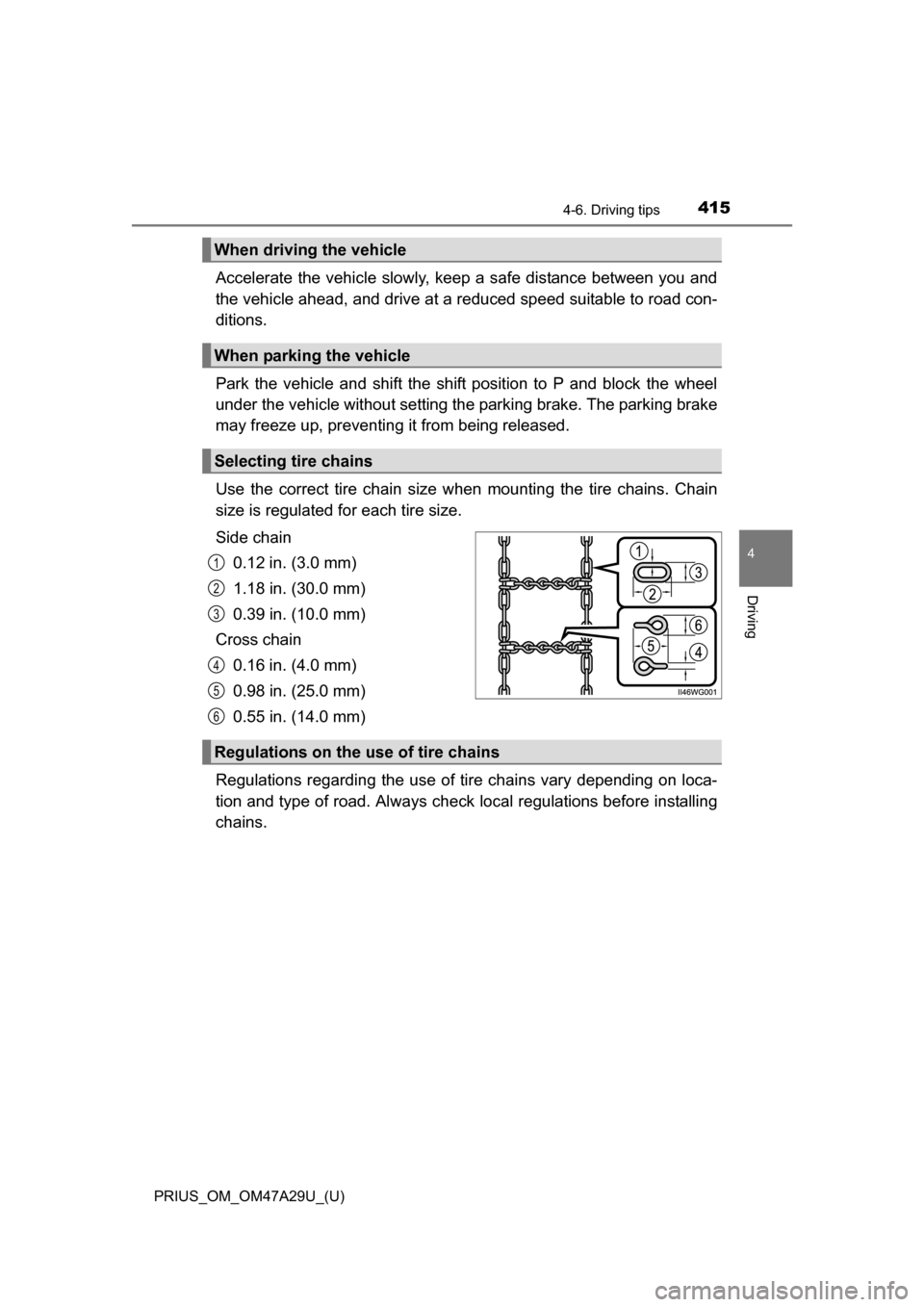
Use the correct tire chain size when mounting the tire chains. Chain
size is regulated for each tire size.
Side chain
0.12 in. (3.0 mm)
1.18 in. (30.0 mm)
0.39 in. (10.0 mm)
Cross chain 0.16 in. (4.0 mm)
0.98 in. (25.0 mm)
0.55 in. (14.0 mm)
Regulations regarding the use of tire chains vary depending on loca-
tion and type of road. Al ways check local regulations before installing
chains.
When driving the vehicle
When parking the vehicle
Selecting tire chains
1
2
3
4
5
6
Regulations on the use of tire chains
Page 418 of 800
418
PRIUS_OM_OM47A29U_(U)
5-1. Basic OperationsAudio system types .......... 420
Audio system .................... 421
Using the steering wheel audio switches ................ 424
AUX Port/USB Port .......... 425
Basic audio operations ..... 426
5-2. Setup Setup menu ...................... 428
General settings ............... 429
Audio settings ................... 431
Display settings ................ 432
Voice settings ................... 433
5-3. Using the Multimedia system
Selecting the audio source............................. 434
List screen operation ........ 435
Optimal use of the audio system ............................ 437
5-4. Using the radio Radio operation ................ 438
5Audio system
Page 419 of 800
419
PRIUS_OM_OM47A29U_(U)
5Audio system
5-5. Playing an audio CD and MP3/WMA/AAC discs
CD player operation.......... 440
5-6. Using an external device iPod player operation........ 446
USB memory device player operation.............. 451
Using the AUX .................. 456
5-7. Connecting Bluetooth
®
Preparations to use wireless
communication ............... 457
Registering a Bluetooth
®
audio player for the
first time .......................... 460
Registering a Bluetooth
®
phone for the first time.... 461
Registering a Bluetooth
® device ........... 462
Connecting a Bluetooth
® device ........... 464
Displaying a Bluetooth®
device details.................. 466
Detailed Bluetooth
®
settings ........................... 467 5-8. Bluetooth
® Audio
Listening to Bluetooth®
Audio .............................. 468
5-9. Bluetooth
® phone
Using a Bluetooth®
Phone ............................. 470
Making a call .................... 473
Receiving a call ................ 476
Speaking on the phone .... 477
Bluetooth
® phone
message function ........... 480
Using the steering wheel switches.......................... 484
Bluetooth
® phone
settings ........................... 485
Contact/Call History Settings .......................... 486
What to do if... (Troubleshooting) ........... 495
5-10. Bluetooth
®
Bluetooth®........................ 499
5-11. Using the voice command system
Voice command system ... 505
Page 421 of 800
421
PRIUS_OM_OM47A29U_(U)
5-1. Basic Operations
5
Audio system
Audio system
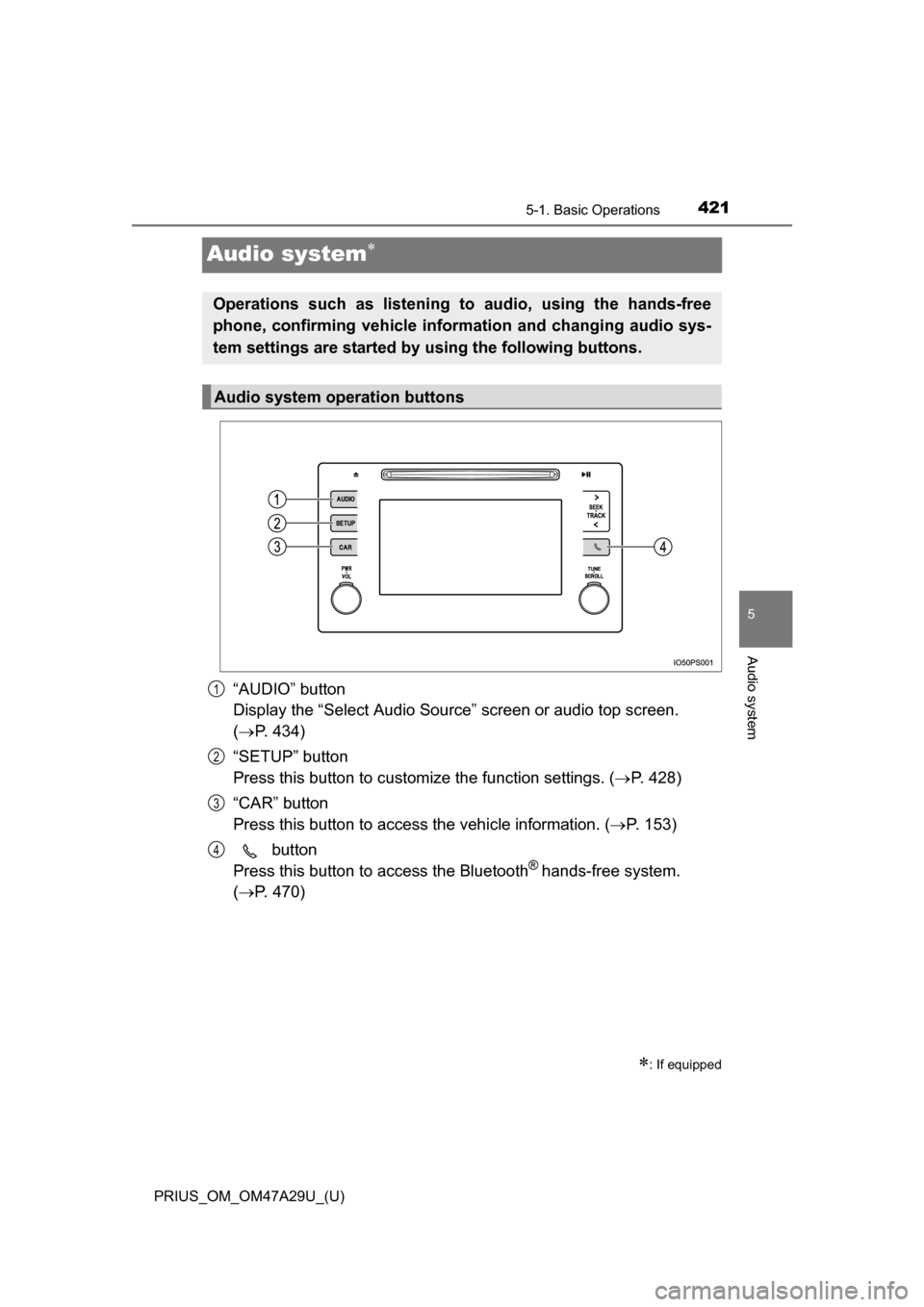
“AUDIO” button
Display the “Select Audio Source” screen or audio top screen.
( P. 434)
“SETUP” button
Press this button to customize the function settings. ( P. 428)
“CAR” button
Press this button to access the vehicle information. ( P. 153)
button
Press this button to access the Bluetooth
® hands-free system.
( P. 470)
: If equipped
Operations such as listening to audio, using the hands-free
phone, confirming vehicle inform ation and changing audio sys-
tem settings are started by using the following buttons.
Audio system operation buttons
1
2
3
4
Page 422 of 800
4225-1. Basic Operations
PRIUS_OM_OM47A29U_(U)
By touching the screen with your finger, you can control the audio sys-
tem, etc.
■Touch
Quickly touch and release once.
●Changing and selecting various settings
■Drag*
Touch the screen with your finger, and move the screen to the
desired position.
●Scrolling the lists
● Using scroll bar in lists
■Flick*
Touch the screen with your finger and quickly move the screen by
flicking your finger.
●Scrolling the main screen page
● Returning to the menu screen from the sub-menu screen (screen
one level below)
*: The above operations may not be performed on all screens.
■Capacitive touch switches
The control panel uses capacitive touch sensors.
In the following cases, incorrect operation or non-response may occur.
●If the operating section is dirty or has liquid attached to it, incorrect operation
or non-response may occur.
● If the operating section receives electromagnetic waves, incorrect operation
or non-response may occur.
● If wearing gloves during operation, non-response may occur.
● If fingernails are used to operate the system, non-response may occur.
● If a touch pen is used to operate the system, non-response may occur.
● If the palm of your hand touches the operating section during operation,
incorrect operation may occur.
● If the palm of your hand touches the operating section, incorrect operation
may occur.
● If operations are performed quickly, non-response may occur.
Operating the touch screen
Page 423 of 800
PRIUS_OM_OM47A29U_(U)
4235-1. Basic Operations
5
Audio system
■When using the touch screen
●If the screen is cold, the display may be dark, or the system may seem to be
operating slightly slower than normal.
● The screen may seem dark and hard to see when viewed through sun-
glasses. Change your angle of viewing, adjust the display on the “Display
Settings” screen ( P. 432) or remove your sunglasses.
● Flick operations may not be performed smoothly in high altitudes.
NOTICE
■ To avoid damaging the touch screen
●To prevent damaging the screen, lightly touch the screen buttons with your
finger.
● Do not use objects other than your finger to touch the screen.
● Wipe off fingerprints using a glass cleaning cloth. Do not use chemical
cleaners to clean the screen, as they may damage the touch screen.
Page 428 of 800
428
PRIUS_OM_OM47A29U_(U)
5-2. Setup
Setup menu
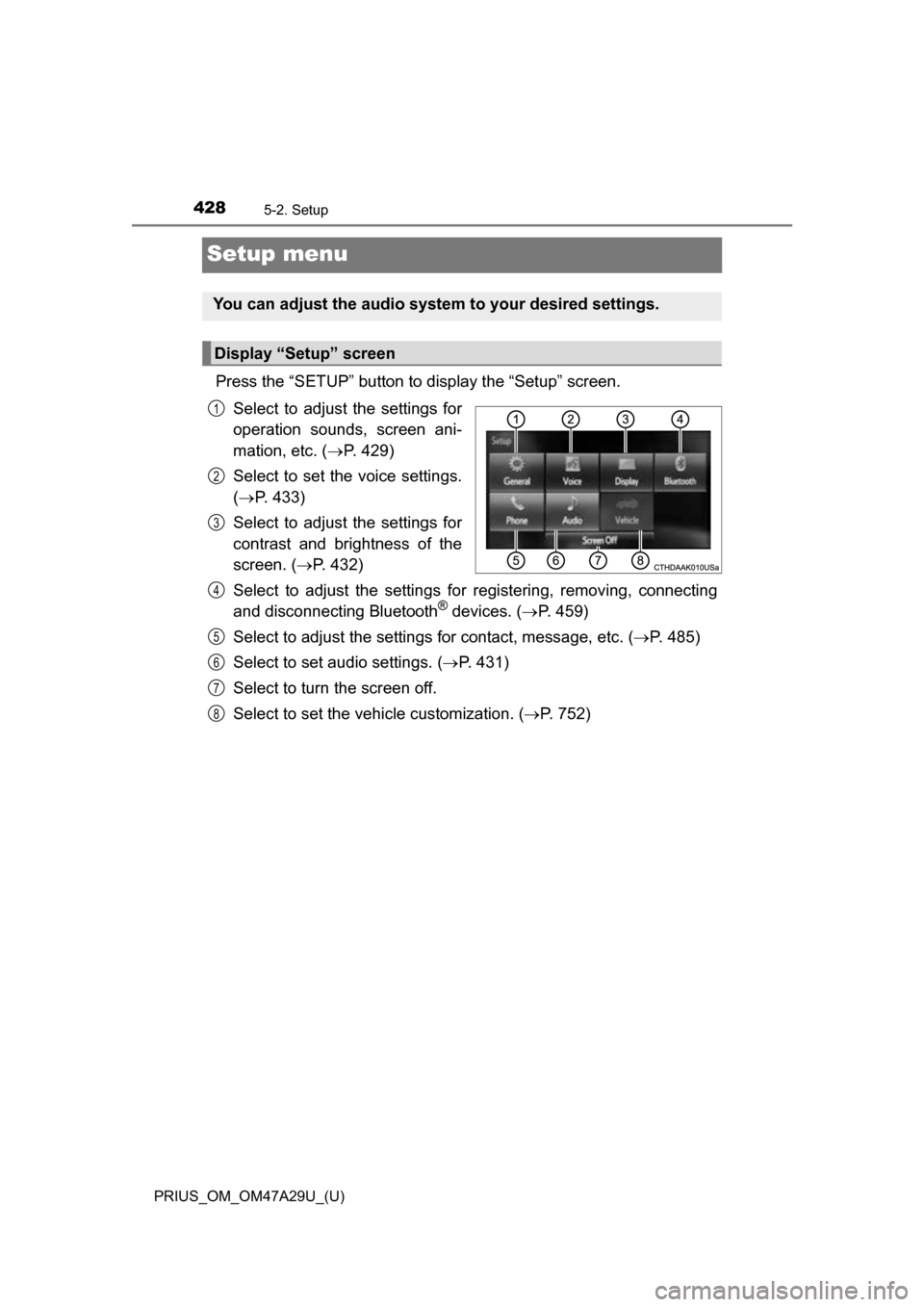
Press the “SETUP” button to display the “Setup” screen.Select to adjust the settings for
operation sounds, screen ani-
mation, etc. ( P. 429)
Select to set the voice settings.
( P. 433)
Select to adjust the settings for
contrast and brightness of the
screen. ( P. 432)
Select to adjust the settings for registering, removing, connecting
and disconnecting Bluetooth
® devices. ( P. 459)
Select to adjust the settings for contact, message, etc. (P. 485)
Select to set audio settings. ( P. 431)
Select to turn the screen off.
Select to set the vehicle customization. ( P. 752)
You can adjust the audio system to your desired settings.
Display “Setup” screen
1
2
3
4
5
6
7
8
Page 429 of 800
429
PRIUS_OM_OM47A29U_(U)
5-2. Setup
5
Audio system
General settings
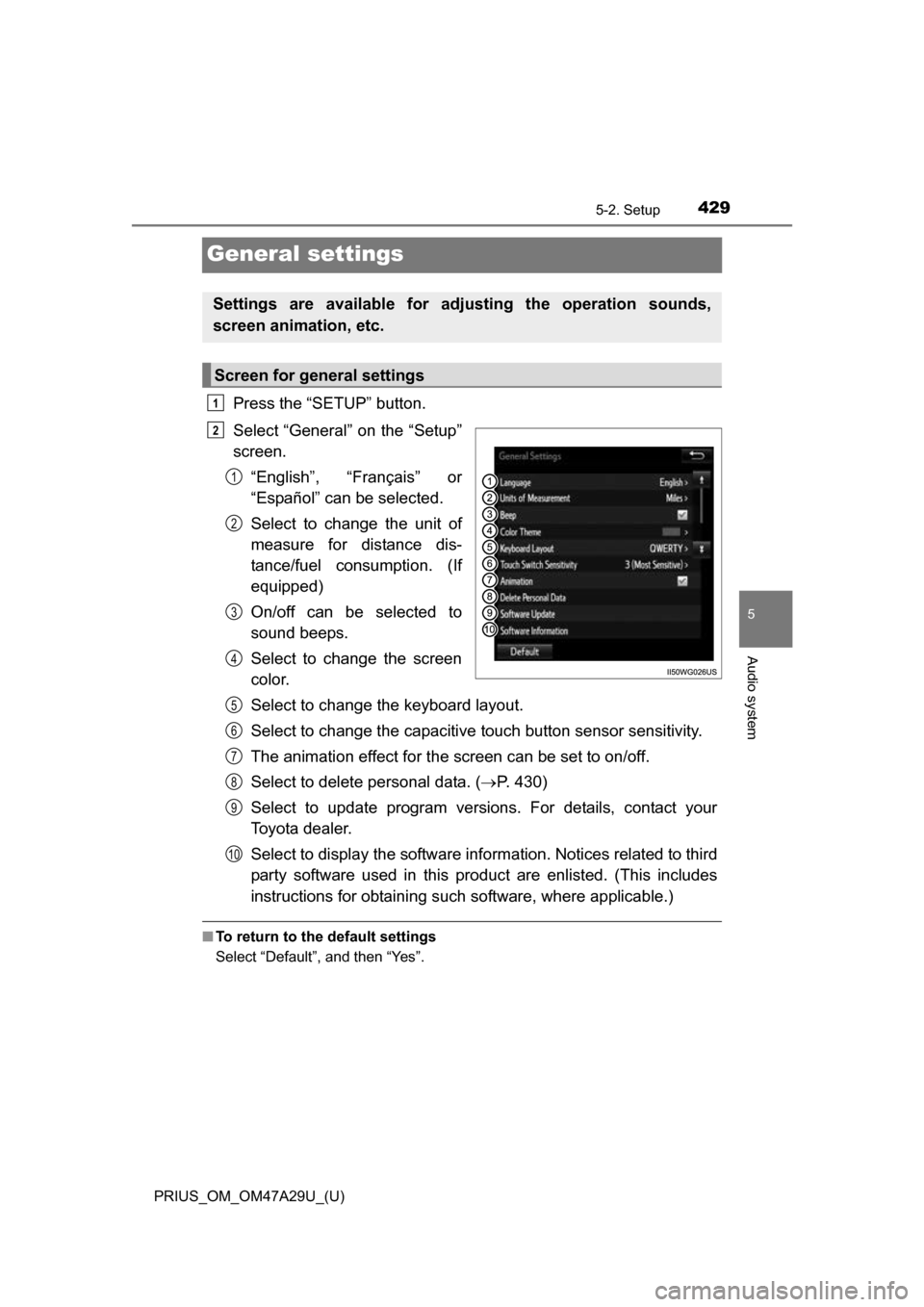
Press the “SETUP” button.
Select “General” on the “Setup”
screen.“English”, “Français” or
“Español” can be selected.
Select to change the unit of
measure for distance dis-
tance/fuel consumption. (If
equipped)
On/off can be selected to
sound beeps.
Select to change the screen
color.
Select to change the keyboard layout.
Select to change the capacitive touch button sensor sensitivity.
The animation effect for the screen can be set to on/off.
Select to delete personal data. ( P. 430)
Select to update program versions. For details, contact your
Toyota dealer.
Select to display the software info rmation. Notices related to third
party software used in this pr oduct are enlisted. (This includes
instructions for obtaining such software, where applicable.)
■ To return to the default settings
Select “Default”, and then “Yes”.
Settings are available for adjusting the operation sounds,
screen animation, etc.
Screen for general settings
1
2
1
2
3
4
5
6
7
8
9
10