display TOYOTA PRIUS 2017 4.G Owners Manual
[x] Cancel search | Manufacturer: TOYOTA, Model Year: 2017, Model line: PRIUS, Model: TOYOTA PRIUS 2017 4.GPages: 796, PDF Size: 20.13 MB
Page 380 of 796
380
PRIUS_OM_OM47B54U_(U)
4-5. Using the driving support systems
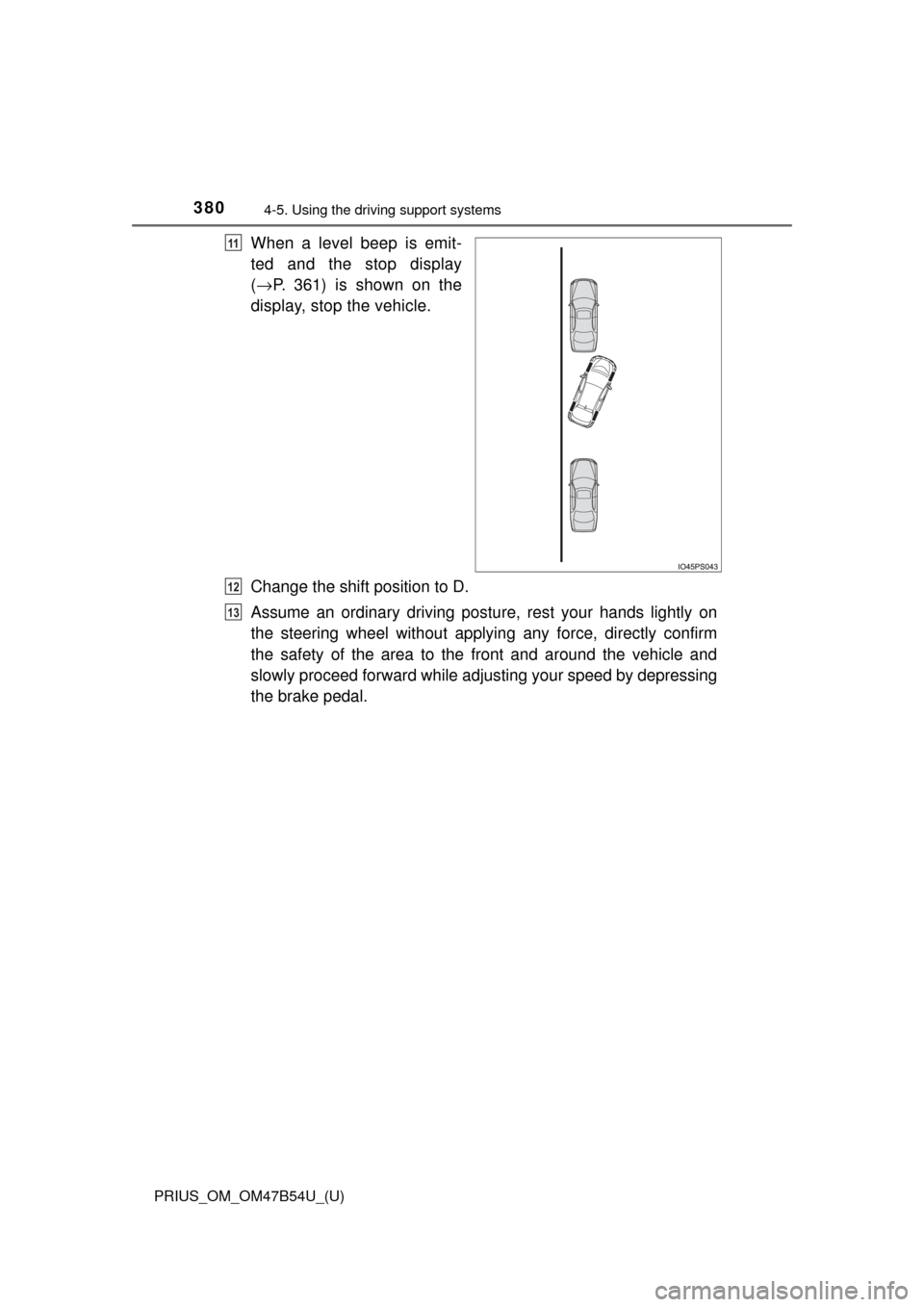
When a level beep is emit-
ted and the stop display
(→ P. 361) is shown on the
display, stop the vehicle.
Change the shift position to D.
Assume an ordinary driving postu re, rest your hands lightly on
the steering wheel without applying any force, directly confirm
the safety of the area to the front and around the vehicle and
slowly proceed forward while adjus ting your speed by depressing
the brake pedal.11
12
13
Page 382 of 796
382
PRIUS_OM_OM47B54U_(U)
4-5. Using the driving support systems
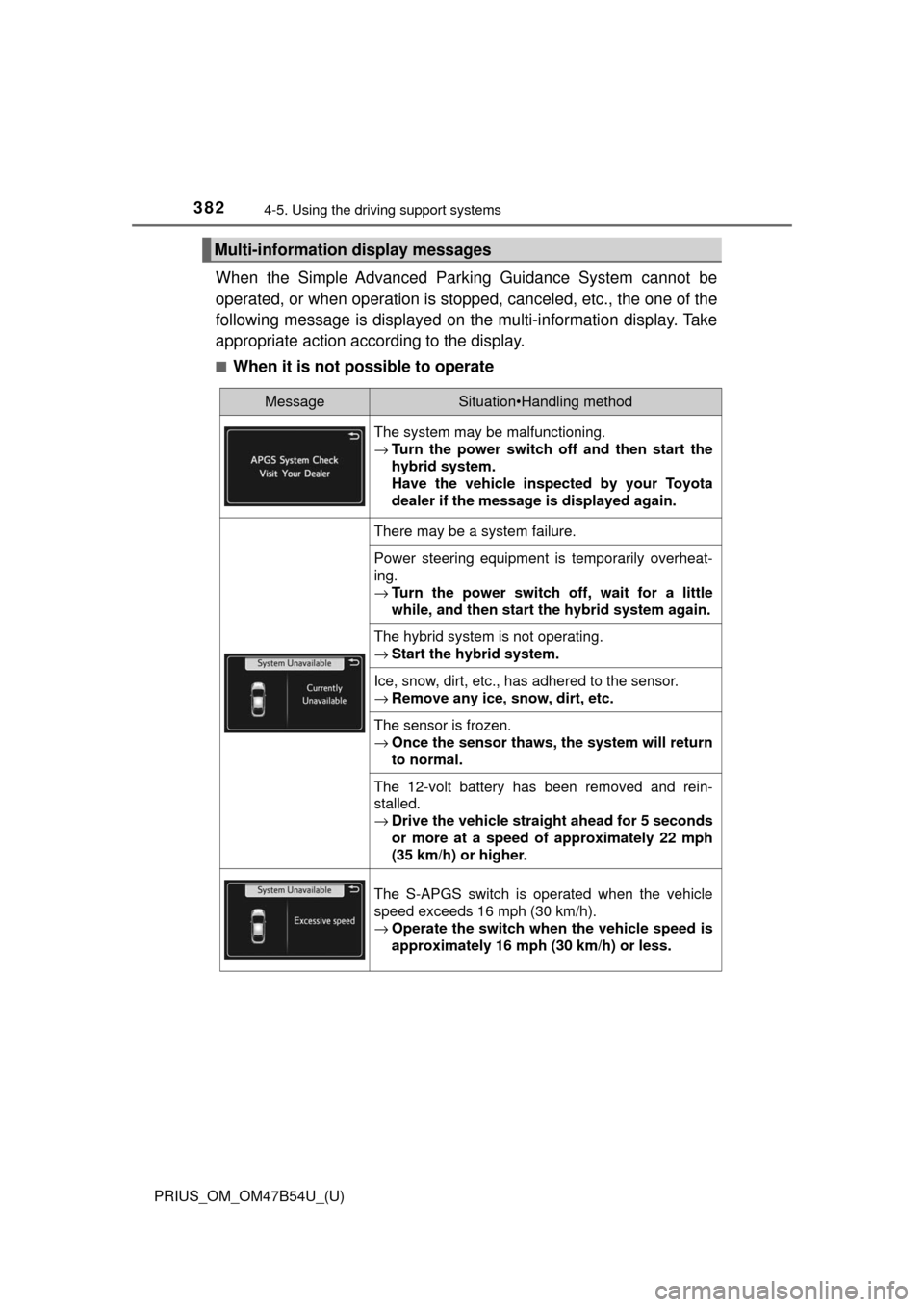
When the Simple Advanced Park ing Guidance System cannot be
operated, or when operation is stopped, canceled, etc., the one of the
following message is displayed on the multi-information display. Take
appropriate action according to the display.
■When it is not possible to operate
Multi-information display messages
MessageSituation•Handling method
The system may be malfunctioning.
→ Turn the power switch off and then start the
hybrid system.
Have the vehicle inspected by your Toyota
dealer if the message is displayed again.
There may be a system failure.
Power steering equipment is temporarily overheat-
ing.
→Turn the power switch off, wait for a little
while, and then start the hybrid system again.
The hybrid system is not operating.
→Start the hybrid system.
Ice, snow, dirt, etc., has adhered to the sensor.
→Remove any ice, snow, dirt, etc.
The sensor is frozen.
→Once the sensor thaws, the system will return
to normal.
The 12-volt battery has been removed and rein-
stalled.
→Drive the vehicle straight ahead for 5 seconds
or more at a speed of approximately 22 mph
(35 km/h) or higher.
The S-APGS switch is operated when the vehicle
speed exceeds 16 mph (30 km/h).
→Operate the switch when the vehicle speed is
approximately 16 mph (30 km/h) or less.
Page 389 of 796
PRIUS_OM_OM47B54U_(U)
3894-5. Using the driving support systems
4
Driving
WARNING
●Do not rely solely upon the Simple Advanced Parking Guidance System.
As with unequipped vehicles, move forward and back up carefully while
directly confirming the safety of your surroundings and the area to the rear
of the vehicle.
● Do not back up while viewing the multi-information display. Backing up
while only viewing the monitor screen may cause a collision or lead to an
accident, as the image displayed on the monitor screen may differ from
actual conditions. Make sure to visually check the surrounding areas and
the area to the rear of the vehicle with and without the mirror while backing
up.
● Drive slowly while adjusting your speed by depressing the brake pedal
when backing up or moving forward.
● If it seems the vehicle may make contact with a pedestrian, another vehi-
cle or any other obstacles, stop the vehicle by depressing the brake pedal,
and then press the S-APGS switch to turn off the system.
● Use the system in a parking lot with a flat surface.
● Observe the following precautions, as the steering wheel automatically
turns during use.
• There is risk of a necktie, scarf, your arm, etc. being caught on the
steering wheel. Please do not allow your upper body to be close to the
steering wheel. Also, do not allow children close to the steering wheel.
• There is a possibility of injury when the steering wheel turns if you have long fingernails.
• In case of an emergency, stop the vehicle by depressing the brake pedal, and then press the S-APGS switch to turn off the system.
● Always confirm that there is appropriate space before attempting to park
the vehicle and operate the system.
Page 391 of 796
PRIUS_OM_OM47B54U_(U)
3914-5. Using the driving support systems
4
Driving
WARNING
●Observe the following precautions, as the sensors may stop functioning
properly which may lead to an accident.
• Do not subject the sensor to strong shocks by hitting it, etc. The sen-
sors may not function properly.
• When using a high-pressure washer to wash the vehicle, do not spray
water directly on the sensors. Equipment may not function properly if
subjected to an impact from strong water pressure. If the vehicle
bumper strikes something, equipment may not operate properly due to
a sensor malfunction. Have the vehicle inspected at your Toyota dealer.
● In the following situations, the sensors may not operate normally and may
lead to an accident. Drive carefully.
• Obstacles cannot be detected in the side areas until a scan of the side
areas is completed. ( →P. 339)
• Even after the scan of the side areas is completed, obstacles such as other vehicles, people or animals that approach from the sides cannot
be detected.
• The sensor is frozen (if it thaws, the system returns to normal). A warning message may display at particularly low temperatures due to
the sensor freezing and it may not detect parked vehicles.
• The sensor is blocked by someone’s hand.
• The vehicle is tilted a large amount.
• The temperature is extremely hot or cold.
• The vehicle is driven on undulating r oads, slopes, gravel roads, in areas
with tall grass, etc.
• An ultrasonic wave source is nearby, such as the horn or sensors of another vehicle, a motorcycle engine or the air brake of a large vehicle.
• Heavy rain or a water strikes the vehicle.
• The angle of the sensor may be deviated when assist control starts even if there is a parked vehicle in the target parking spot. Have the
vehicle inspected at your Toyota dealer.
• Do not install any accessories within the sensor detection range.
Page 392 of 796

392
PRIUS_OM_OM47B54U_(U)
4-5. Using the driving support systems
Rear view monitor system
The rear view image is displayed
when the shift lever is in R and the
power switch is in ON mode.
The rear view monitor system will
be deactivated when the shift lever
is in any position other than R.
The rear view monitor system assists the driver by displaying an
image of the view behind the veh icle with fixed guide lines on
the screen while backing up, for example while parking.
The screen illustrations used in this text are intended as examples,
and may differ from the image that is actually displayed on the
screen.
Page 393 of 796
PRIUS_OM_OM47B54U_(U)
3934-5. Using the driving support systems
4
Driving
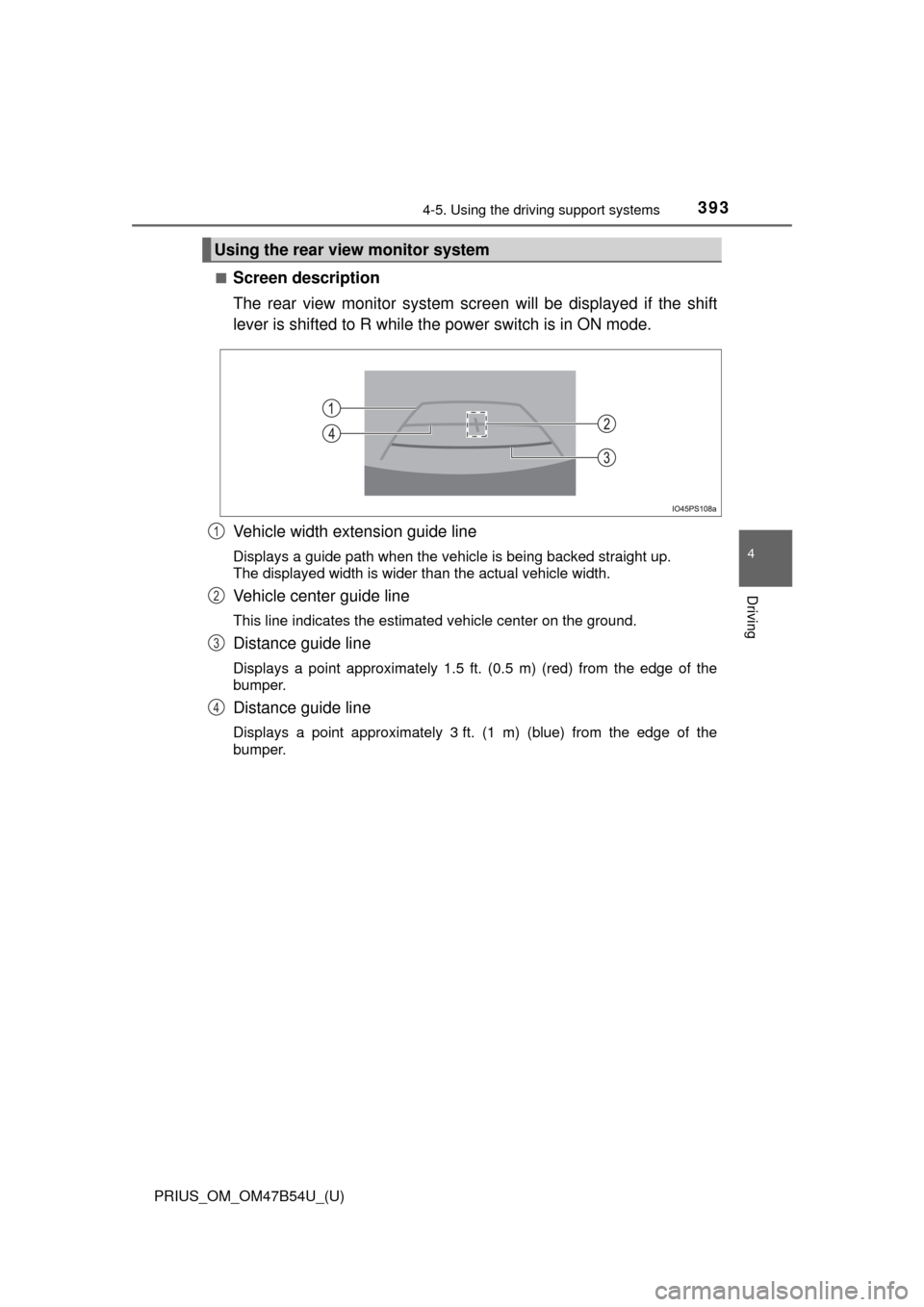
■Screen description
The rear view monitor system scr een will be displayed if the shift
lever is shifted to R while the power switch is in ON mode.
Vehicle width extension guide line
Displays a guide path when the vehicle is being backed straight up.
The displayed width is wider than the actual vehicle width.
Vehicle center guide line
This line indicates the estimated vehicle center on the ground.
Distance guide line
Displays a point approximately 1.5 ft. (0.5 m) (red) from the edge of the
bumper.
Distance guide line
Displays a point approximately 3 ft. (1 m) (blue) from the edge of the
bumper.
Using the rear view monitor system
1
2
3
4
Page 394 of 796
394
PRIUS_OM_OM47B54U_(U)
4-5. Using the driving support systems
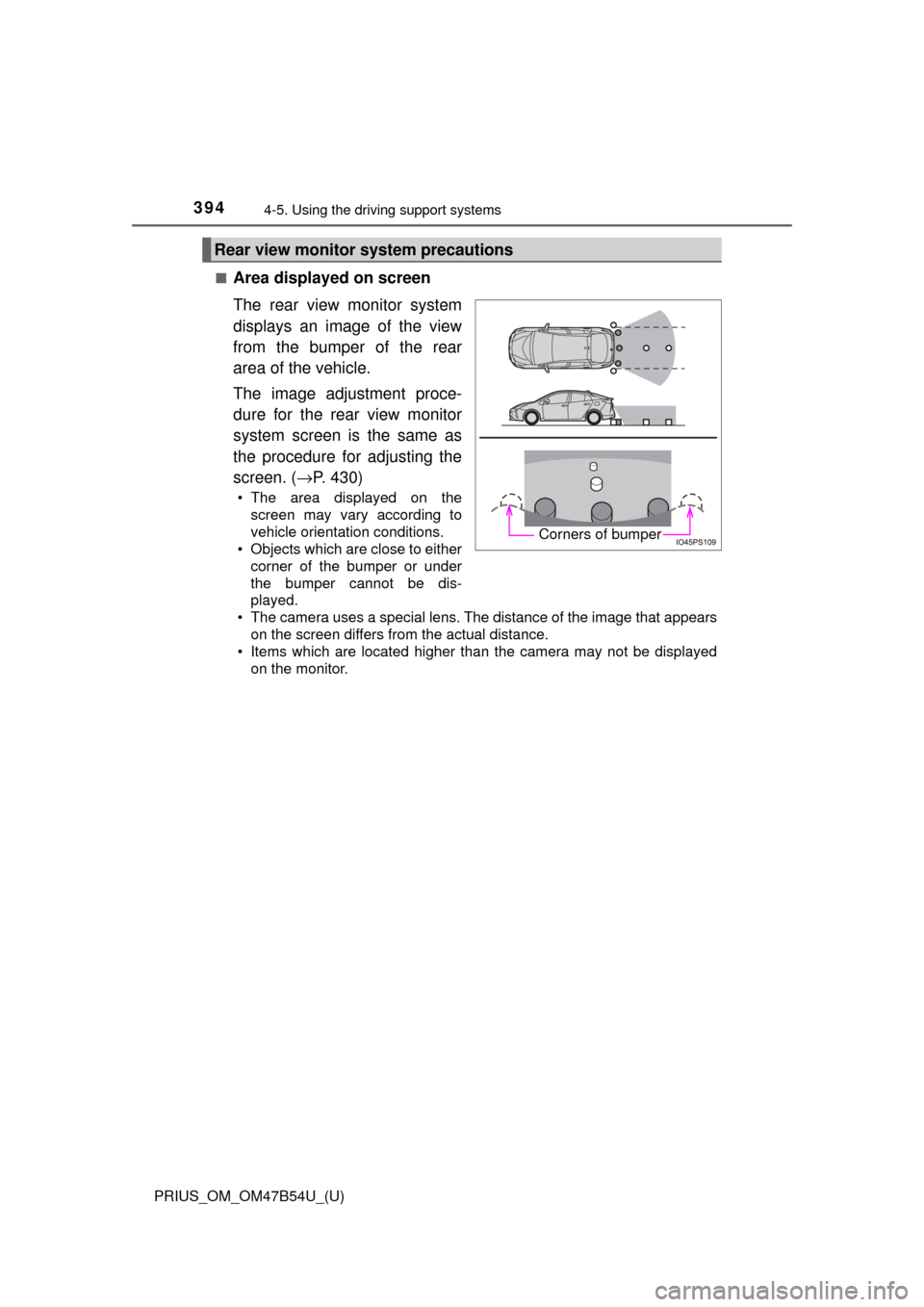
■Area displayed on screen
The rear view monitor system
displays an image of the view
from the bumper of the rear
area of the vehicle.
The image adjustment proce-
dure for the rear view monitor
system screen is the same as
the procedure for adjusting the
screen. (→P. 430)
• The area displayed on the
screen may vary according to
vehicle orientation conditions.
• Objects which are close to either corner of the bumper or under
the bumper cannot be dis-
played.
• The camera uses a special lens. The distance of the image that appears
on the screen differs from the actual distance.
• Items which are located higher than the camera may not be displayed on the monitor.
Rear view monitor system precautions
Corners of bumper
Page 397 of 796
PRIUS_OM_OM47B54U_(U)
3974-5. Using the driving support systems
4
Driving
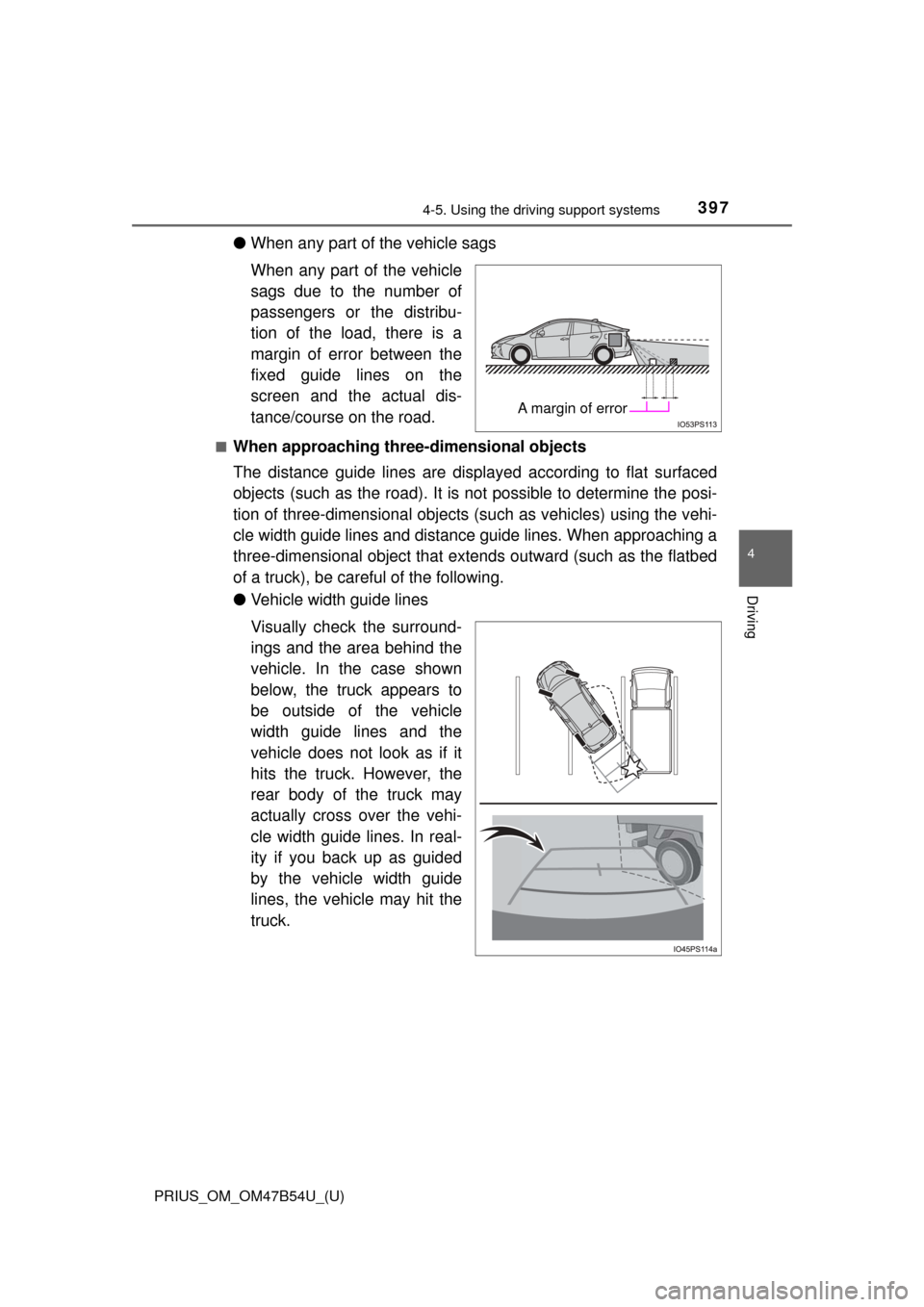
●When any part of the vehicle sags
When any part of the vehicle
sags due to the number of
passengers or the distribu-
tion of the load, there is a
margin of error between the
fixed guide lines on the
screen and the actual dis-
tance/course on the road.
■When approaching thre e-dimensional objects
The distance guide lines are displayed according to flat surfaced
objects (such as the road). It is not possible to determine the posi-
tion of three-dimensional objects (s uch as vehicles) using the vehi-
cle width guide lines and distance guide lines. When approaching a
three-dimensional object that extends outward (such as the flatbed
of a truck), be careful of the following.
● Vehicle width guide lines
Visually check the surround-
ings and the area behind the
vehicle. In the case shown
below, the truck appears to
be outside of the vehicle
width guide lines and the
vehicle does not look as if it
hits the truck. However, the
rear body of the truck may
actually cross over the vehi-
cle width guide lines. In real-
ity if you back up as guided
by the vehicle width guide
lines, the vehicle may hit the
truck.
A margin of error
Page 400 of 796
400
PRIUS_OM_OM47B54U_(U)
4-5. Using the driving support systems
WARNING
■When using the rear view monitor system
The rear view monitor system is a supplemental device intended to assist
the driver when backing up. When backing up, be sure to visually check all
around the vehicle both directly and using the mirrors before proceeding.
Observe the following precautions to avoid an accident that could result in
death or serious injuries.
● Never depend on the rear view monitor system entirely when backing up.
The image and the position of the guide lines displayed on the screen may
differ from the actual state.
Use caution, just as you would when backing up any vehicle.
● Be sure to back up slowly, depressing the brake pedal to control vehicle
speed.
● The instructions given are only guide lines.
When and how much to turn the steering wheel will vary according to traf-
fic conditions, road surface conditions, vehicle condition, etc. when park-
ing. It is necessary to be fully aware of this before using the rear view
monitor system.
● When parking, be sure to check that the parking space will accommodate
your vehicle before maneuvering into it.
● Do not use the rear view monitor system in the following cases:
• On icy or slick road surfaces, or in snow
• When using tire chains or emergency tires
• When the back door is not closed completely
• On roads that are not flat or straight, such as curves or slopes
● In low temperatures, the screen may darken or the image may become
faint. The image could distort when the vehicle is moving, or you may
become unable to see the image on the screen. Be sure to visually check
all around the vehicle both directly and using the mirrors before proceed-
ing.
● If the tire sizes are changed, the position of the fixed guide lines displayed
on the screen may change.
● The camera uses a special lens. The distances between objects and
pedestrians that appear in the image displayed on the screen will differ
from the actual distances. ( →P. 395)
Page 404 of 796
404
PRIUS_OM_OM47B54U_(U)
4-5. Using the driving support systems
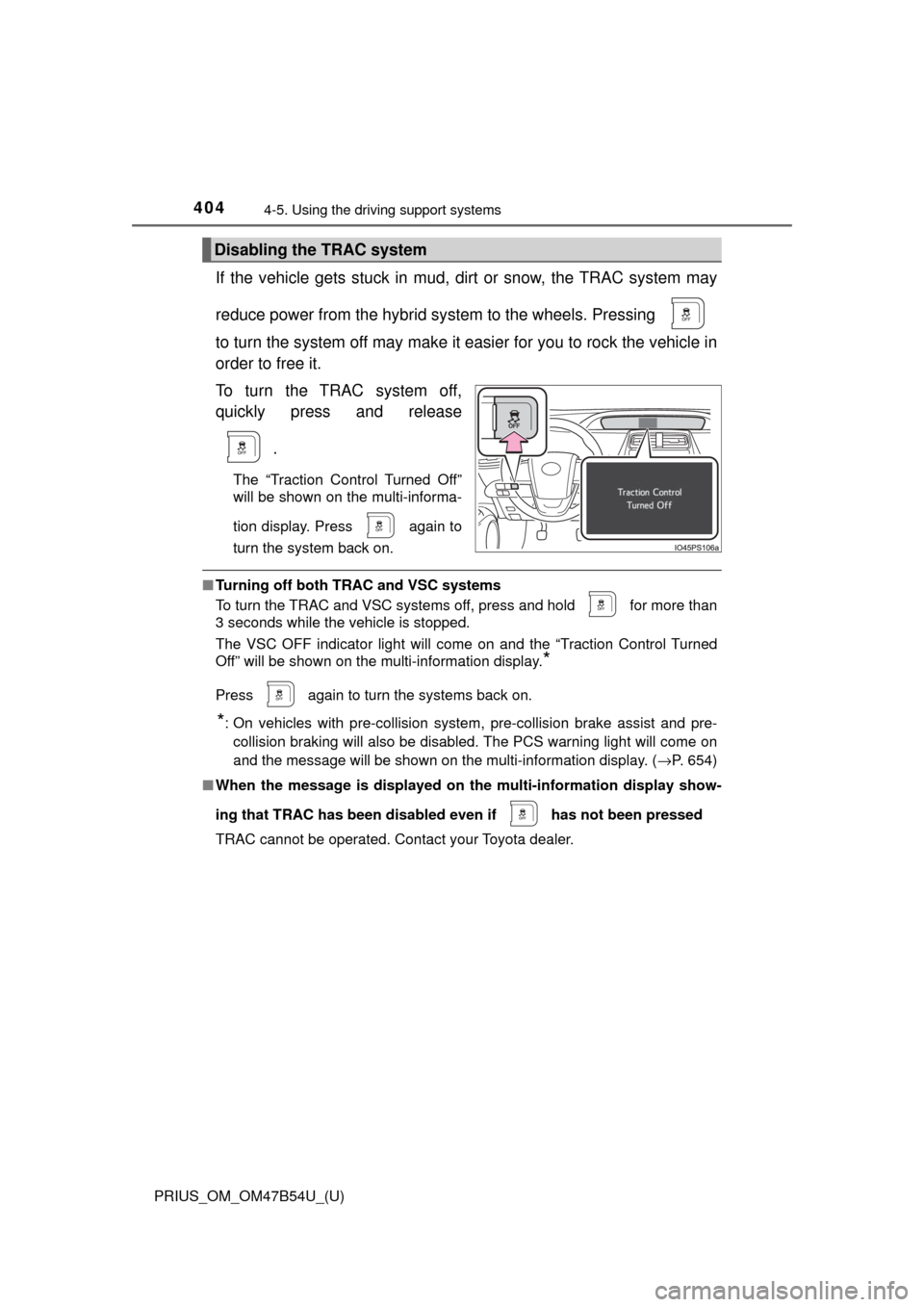
If the vehicle gets stuck in mud, di rt or snow, the TRAC system may
reduce power from the hybrid sy stem to the wheels. Pressing
to turn the system off may make it easier for you to rock the vehicle in
order to free it.
To turn the TRAC system off,
quickly press and release
.
The “Traction Control Turned Off”
will be shown on the multi-informa-
tion display. Press
again to
turn the system back on.
■ Turning off both TRAC and VSC systems
To turn the TRAC and VSC systems off, press and hold for more than
3 seconds while the vehicle is stopped.
The VSC OFF indicator light will come on and the “Traction Control Turned
Off” will be shown on the multi-information display.
*
Press again to turn the systems back on.
*: On vehicles with pre-collision system, pre-collision brake assist and pre-
collision braking will also be disabled. The PCS warning light will come on
and the message will be shown on the multi-information display. ( →P. 654)
■ When the message is displayed on th e multi-information display show-
ing that TRAC has been disable d even if has not been pressed
TRAC cannot be operated. Contact your Toyota dealer.
Disabling the TRAC system