button TOYOTA PRIUS 2017 4.G Service Manual
[x] Cancel search | Manufacturer: TOYOTA, Model Year: 2017, Model line: PRIUS, Model: TOYOTA PRIUS 2017 4.GPages: 796, PDF Size: 20.13 MB
Page 437 of 796
PRIUS_OM_OM47B54U_(U)
4375-4. Using the radio
5
Audio system
Search for desired stations by turning the “TUNE•SCROLL” knob or
pressing the “>” or “<” button on “SEEK•TRACK”.
Select “(add new)”.
To change the preset station to a different one, select and hold the preset
station.
Select “Yes”.
Select “OK” after setting the new preset station.
■Refreshing the station list
Select “Refresh” on the “Station List” screen.
To cancel the refresh, select “Cancel Refresh”.
■ Reception sensitivity
Maintaining perfect radio reception at all times is difficult due to the continu-
ally changing position of the antenna, differences in signal strength and sur-
rounding objects, such as trains, transmitters, etc.
Setting station presets
1
2
3
4
Page 438 of 796
438
PRIUS_OM_OM47B54U_(U)
5-5. Playing an audio CD and MP3/WMA/AAC discs
CD player operation
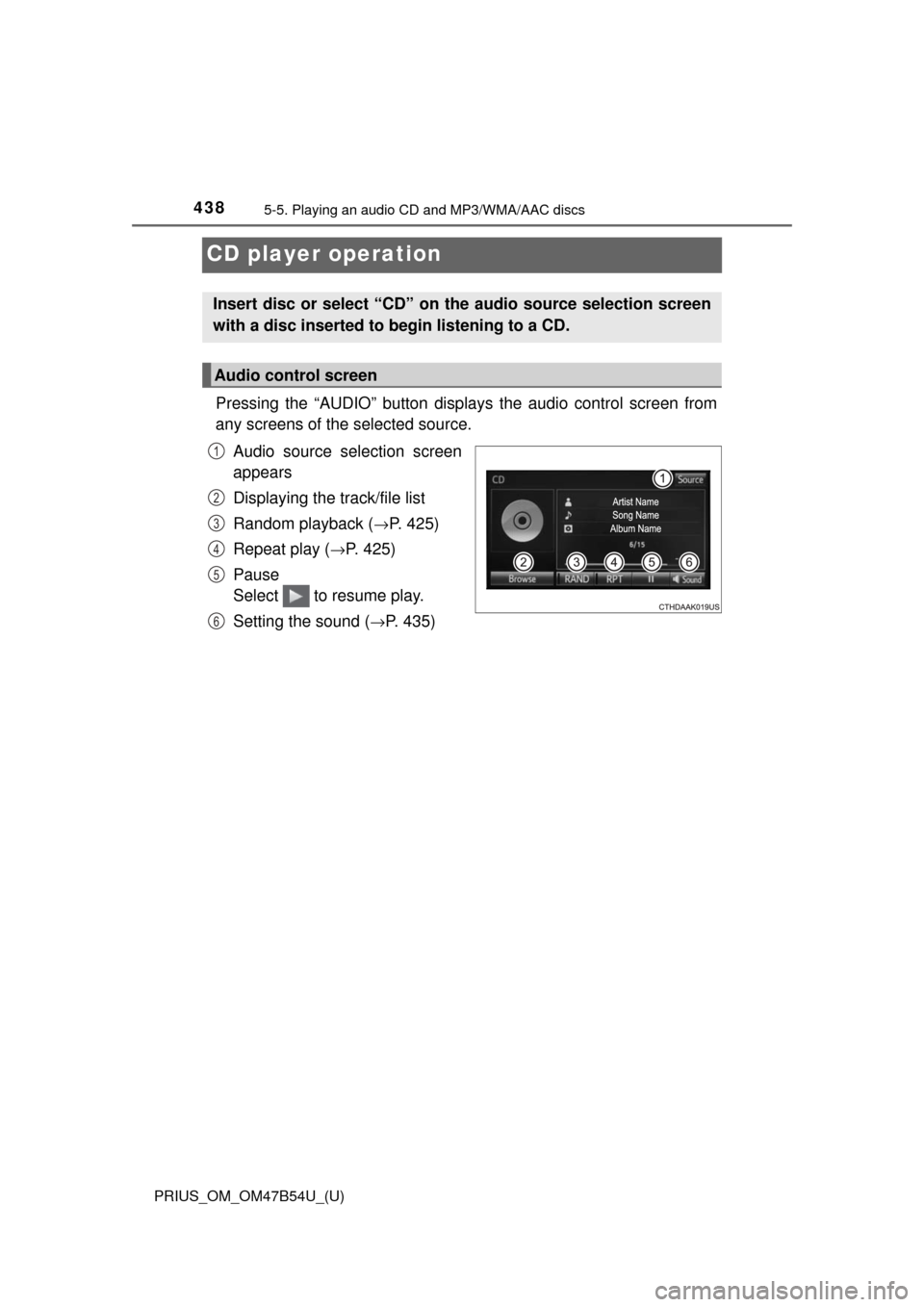
Pressing the “AUDIO” button displays the audio control screen from
any screens of the selected source.
Audio source selection screen
appears
Displaying the track/file list
Random playback (
→P. 425)
Repeat play (
→P. 425)
Pause
Select to resume play.
Setting the sound (
→P. 435)
Insert disc or select “CD” on the audio source selection screen
with a disc inserted to begin listening to a CD.
Audio control screen
1
2
3
4
5
6
Page 444 of 796
444
PRIUS_OM_OM47B54U_(U)
5-6. Using an external device
iPod player operation
→P. 4 2 3
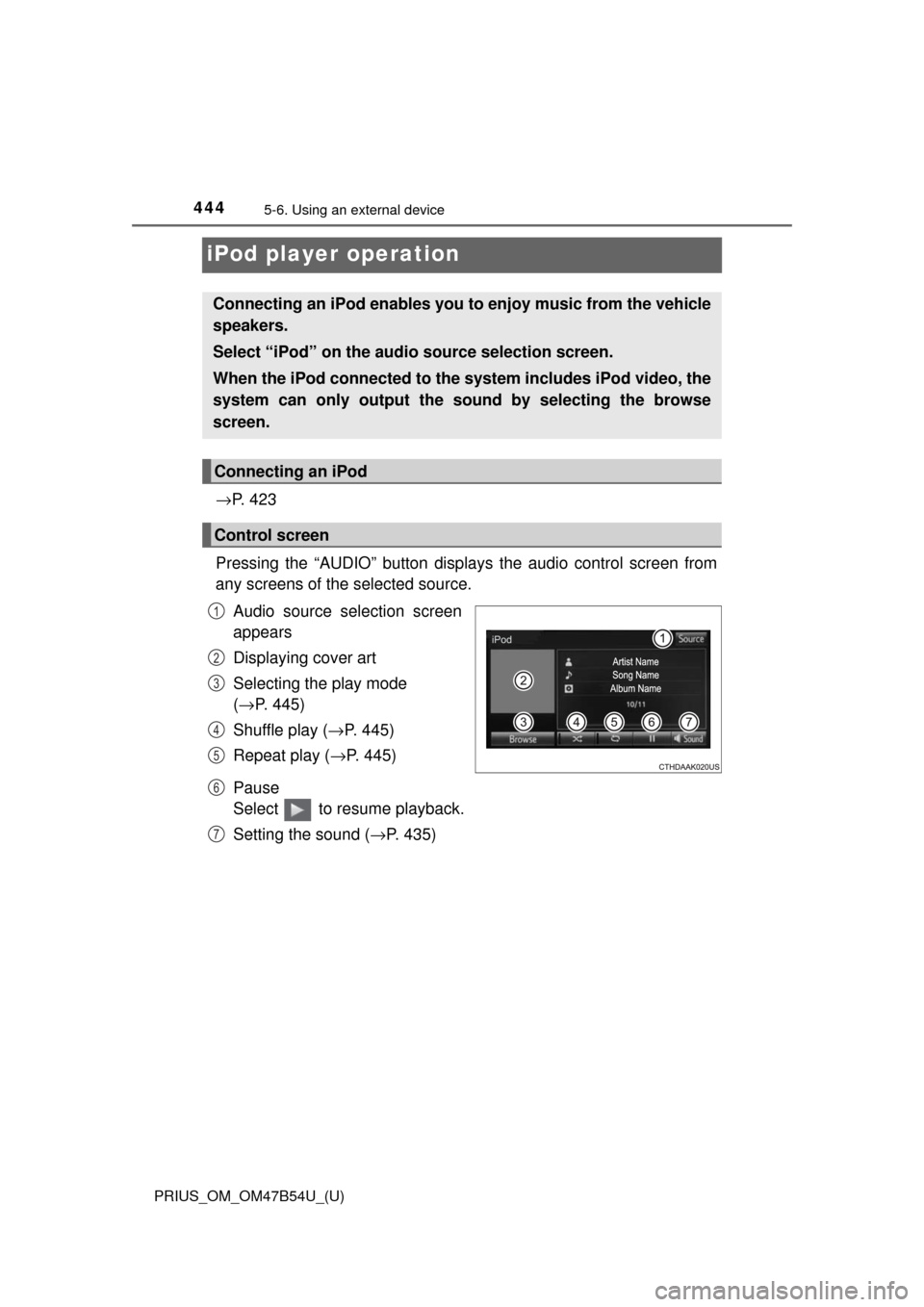
Pressing the “AUDIO” button disp lays the audio control screen from
any screens of the selected source.
Audio source selection screen
appears
Displaying cover art
Selecting the play mode
(→ P. 445)
Shuffle play ( →P. 445)
Repeat play ( →P. 445)
Pause
Select to resume playback.
Setting the sound ( →P. 435)
Connecting an iPod enables you to enjoy music from the vehicle
speakers.
Select “iPod” on the audi o source selection screen.
When the iPod connected to the system includes iPod video, the
system can only output the sound by selecting the browse
screen.
Connecting an iPod
Control screen
1
2
3
4
5
6
7
Page 449 of 796
449
PRIUS_OM_OM47B54U_(U)
5-6. Using an external device
5
Audio system
USB memory device player operation
→P. 4 2 3
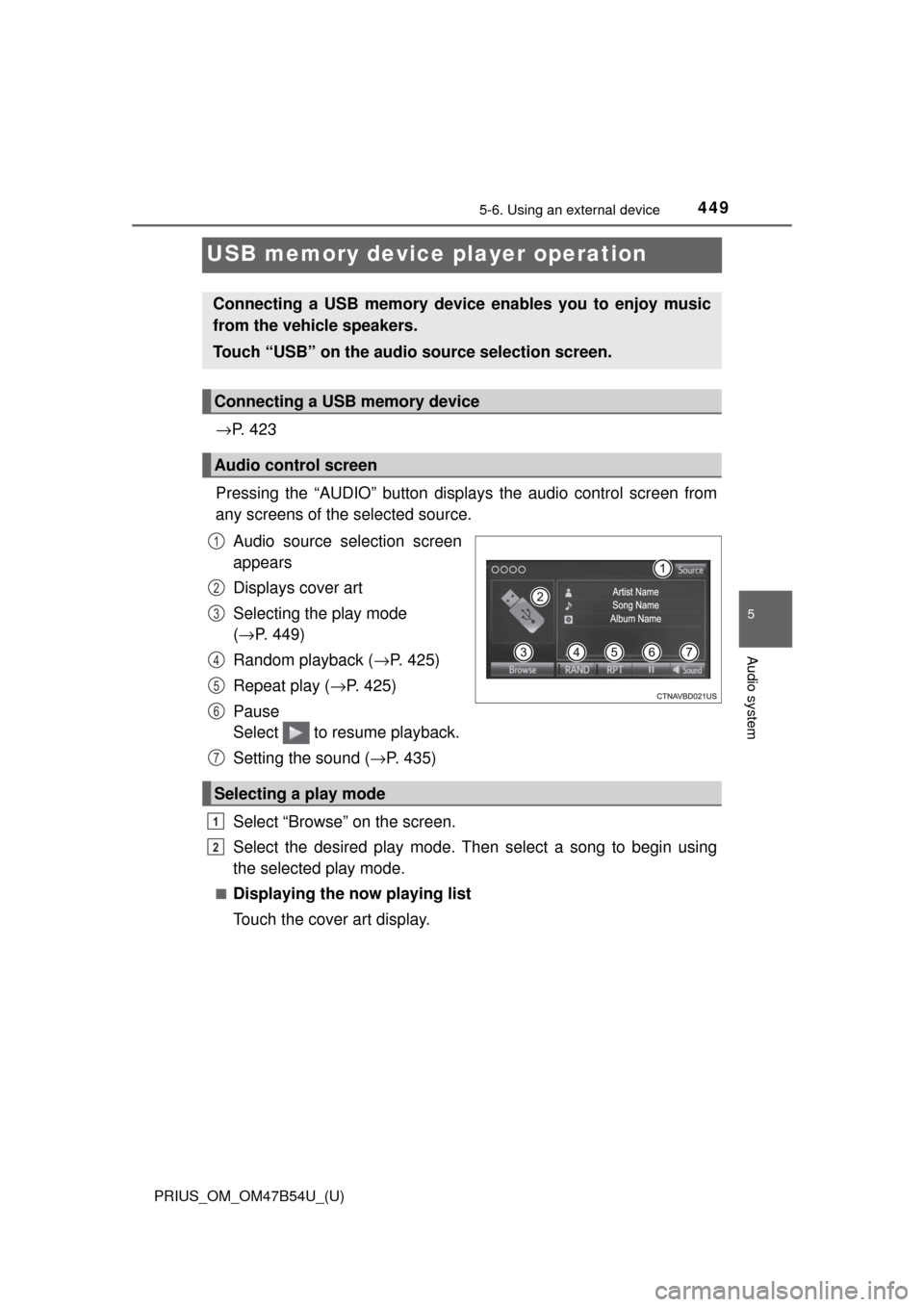
Pressing the “AUDIO” button disp lays the audio control screen from
any screens of the selected source.
Audio source selection screen
appears
Displays cover art
Selecting the play mode
(→ P. 449)
Random playback ( →P. 425)
Repeat play ( →P. 425)
Pause
Select to resume playback.
Setting the sound ( →P. 435)
Select “Browse” on the screen.
Select the desired play mode. Then select a song to begin using
the selected play mode.
■Displaying the now playing list
Touch the cover art display.
Connecting a USB memory device enables you to enjoy music
from the vehicle speakers.
Touch “USB” on the audio source selection screen.
Connecting a USB memory device
Audio control screen
1
2
3
4
5
6
Selecting a play mode
7
1
2
Page 454 of 796
454
PRIUS_OM_OM47B54U_(U)
5-6. Using an external device
Using the AUX
→P. 4 2 3
■Operating portable audio players connected to the audio system
The volume can be adjusted using the vehicle’s audio controls. All other
adjustments must be made on the portable audio player itself.
■ When using a portable audio player connected to the power outlet
Noise may occur during playback. Use the power source of the portable
audio player.
To use the AUX port, connect a portable player, press the
“AUDIO” button, then select “AUX ” to display the audio control
screen.
Connecting a portable audio player
WARNING
■ While driving
Do not connect a portable audio player or operate the device controls.
Page 457 of 796
PRIUS_OM_OM47B54U_(U)
4575-7. Connecting Bluetooth®
5
Audio system
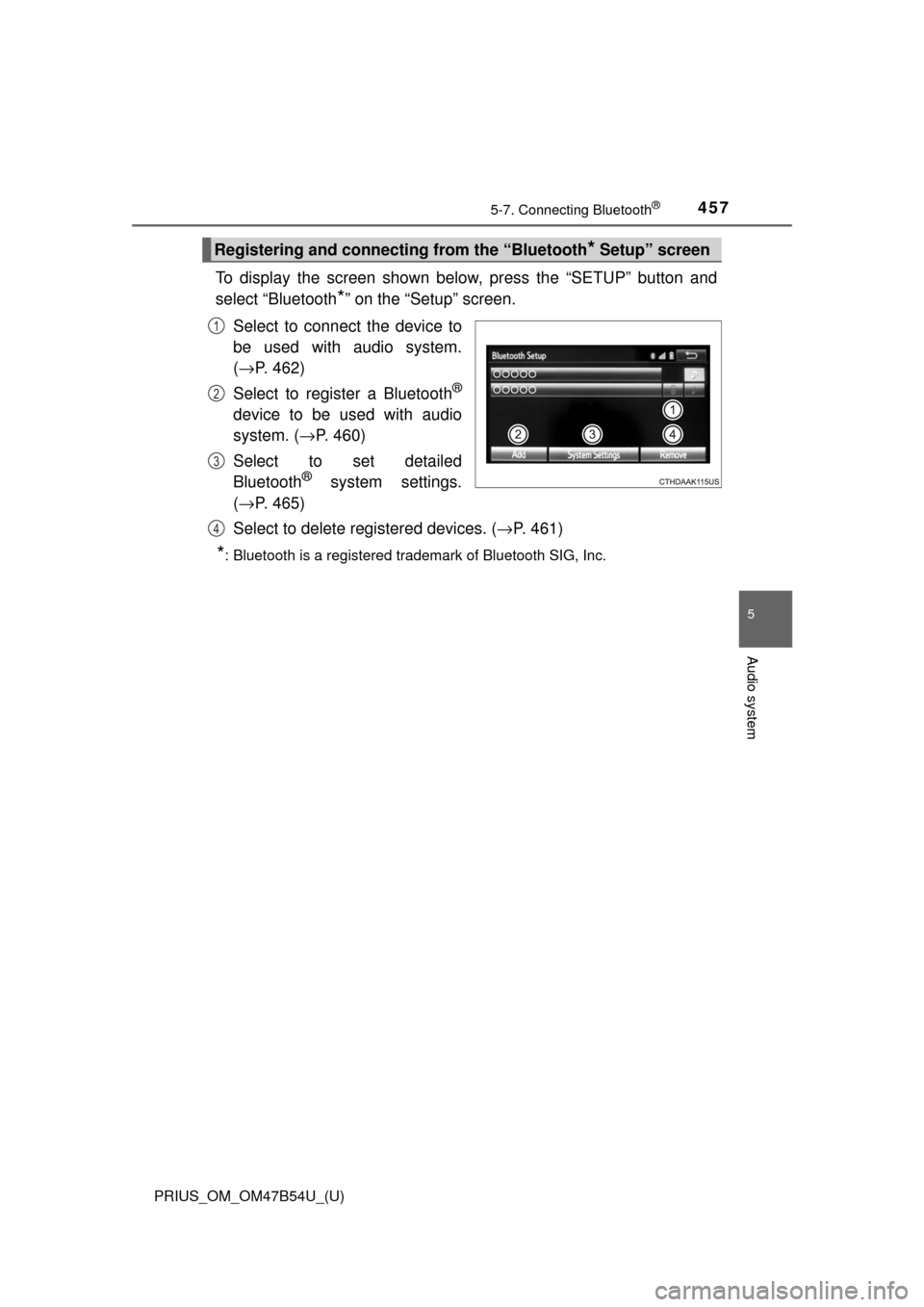
To display the screen shown below, press the “SETUP” button and
select “Bluetooth
*” on the “Setup” screen.
Select to connect the device to
be used with audio system.
( → P. 462)
Select to register a Bluetooth
®
device to be used with audio
system. ( →P. 460)
Select to set detailed
Bluetooth
® system settings.
( → P. 465)
Select to delete registered devices. ( →P. 461)
*: Bluetooth is a registered trademark of Bluetooth SIG, Inc.
Registering and connecting from the “Bluetooth* Setup” screen
1
2
3
4
Page 458 of 796
458
PRIUS_OM_OM47B54U_(U)
5-7. Connecting Bluetooth®
Registering a Bluetooth® audio player for
the first time
Turn the Bluetooth® connection setting of your audio player on.
Press the “AUDIO” button.
Select “ Audio”.
Follow the steps in “How to register a Bluetooth
® device” from .
( → P. 460)
To use the Bluetooth® Audio, it is necessary to register an audio
player with the system.
Once the player has been registered, it is possible to use the
Bluetooth
® Audio.
For details about registering a Bluetooth
® device ( →P. 460)
1
2
3
42
Page 459 of 796
459
PRIUS_OM_OM47B54U_(U)
5-7. Connecting Bluetooth®
5
Audio system
Registering a Bluetooth® phone for the first
time
Turn the Bluetooth® connection setting of your cellular phone on.
Press the “ ” button.
Select “Yes” to register a phone.
Follow the steps in “How to register a Bluetooth
® device” from .
( → P. 460)
To use the hands-free system, it is necessary to register a
Bluetooth® phone with the system.
Once the phone has been registered, it is possible to use the
hands-free system.
For details about registering a Bluetooth
® device ( →P. 460)
1
2
3
43
Page 462 of 796
462
PRIUS_OM_OM47B54U_(U)
5-7. Connecting Bluetooth®
Connecting a Bluetooth® device
Press the “SETUP” button.
Select “Bluetooth
*”.
*: Bluetooth is a registered trademark of Bluetooth SIG, Inc.
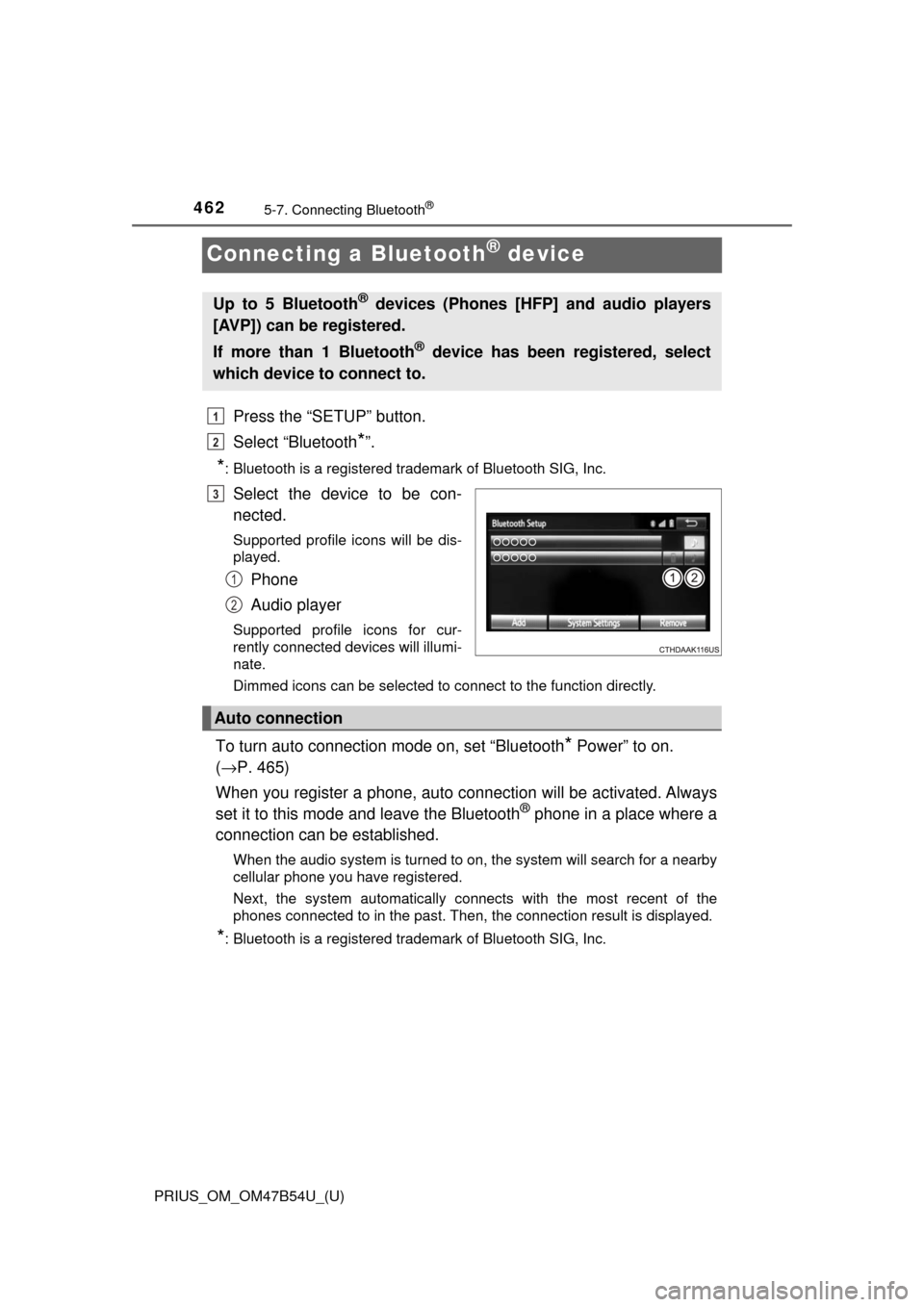
Select the device to be con-
nected.
Supported profile icons will be dis-
played.
Phone
Audio player
Supported profile icons for cur-
rently connected devices will illumi-
nate.
Dimmed icons can be selected to connect to the function directly.
To turn auto connection mode on, set “Bluetooth* Power” to on.
( → P. 465)
When you register a phone, auto connection will be activated. Always
set it to this mode and leave the Bluetooth
® phone in a place where a
connection can be established.
When the audio system is turned to on, the system will search for a nearby
cellular phone you have registered.
Next, the system automatically connects with the most recent of the
phones connected to in the past. Then, the connection result is displayed.
*: Bluetooth is a registered trademark of Bluetooth SIG, Inc.
Up to 5 Bluetooth® devices (Phones [HFP] and audio players
[AVP]) can be registered.
If more than 1 Bluetooth
® device has been registered, select
which device to connect to.
1
2
3
1
2
Auto connection
Page 468 of 796
468
PRIUS_OM_OM47B54U_(U)
5-9. Bluetooth® phone
Using a Bluetooth® Phone
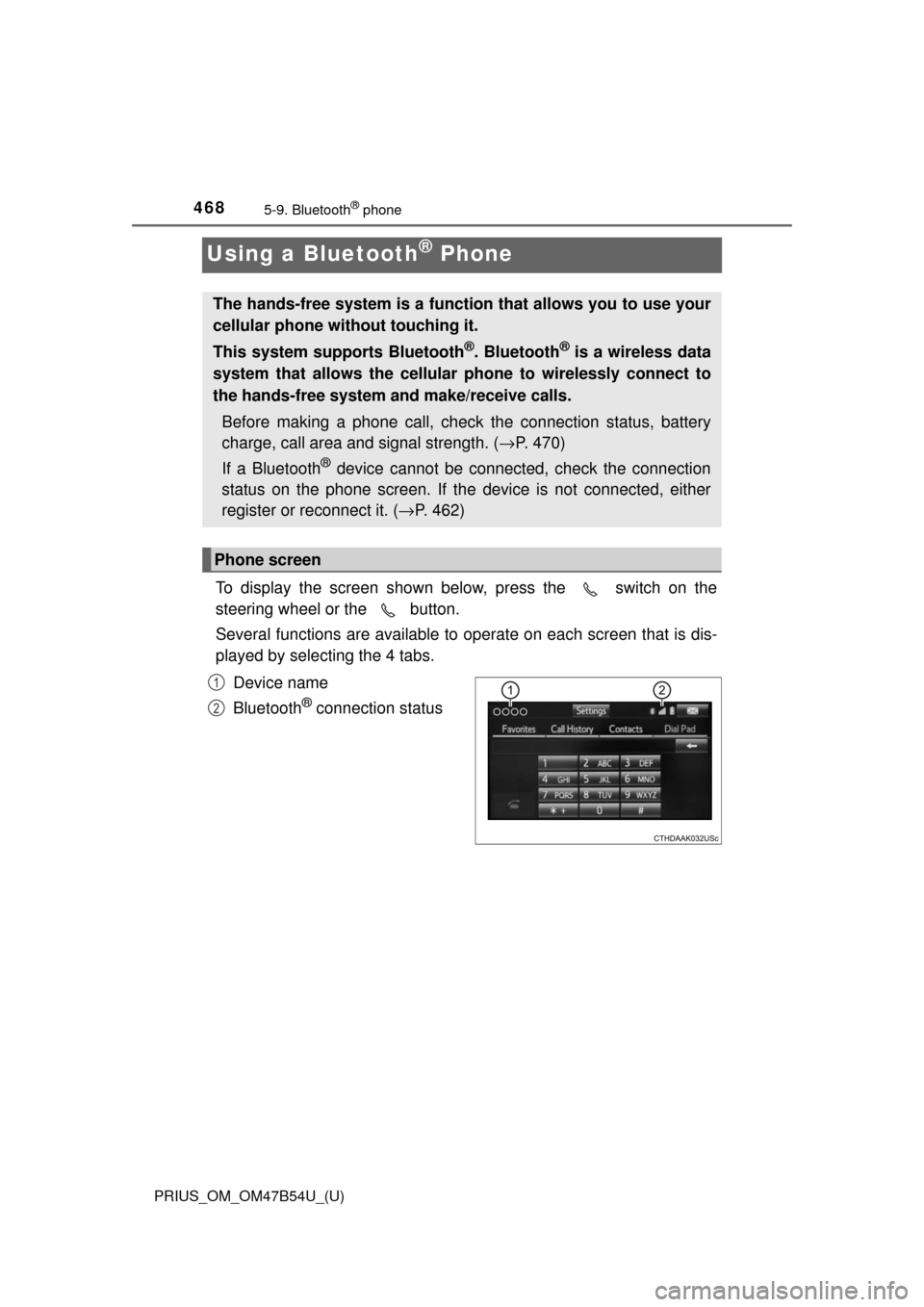
To display the screen shown below, press the switch on the
steering wheel or the button.
Several functions are available to operate on each screen that is dis-
played by selecting the 4 tabs.
Device name
Bluetooth
® connection status
The hands-free system is a function that allows you to use your
cellular phone without touching it.
This system supports Bluetooth
®. Bluetooth® is a wireless data
system that allows the cellular phone to wirelessly connect to
the hands-free system and make/receive calls.
Before making a phone call, check the connection status, battery
charge, call area and signal strength. ( →P. 470)
If a Bluetooth
® device cannot be connected, check the connection
status on the phone screen. If th e device is not connected, either
register or reconnect it. ( →P. 462)
Phone screen
1
2