display TOYOTA PRIUS C 2020 Workshop Manual
[x] Cancel search | Manufacturer: TOYOTA, Model Year: 2020, Model line: PRIUS C, Model: TOYOTA PRIUS C 2020Pages: 600, PDF Size: 12.02 MB
Page 267 of 600
2674-6. Using the driving support systems
4
Driving
PRIUS c_U
■Turning off both TRAC and VSC systems
To turn the TRAC and VSC systems off, press and hold for more than 3
seconds while the vehicle is stopped.
The VSC OFF indicator light will come on and the “TRAC OFF” wil l be shown
on the multi-information display.
*
Press again to turn the system back on.
*: When the TRAC and VSC systems are turned off, pre-collision brake assist
and pre-collision braking will be disabled and the PCS warning light will illu-
minate. ( P. 240)
■ When the message is displayed on the multi-information display show-
ing that TRAC has been disab led even if has not been pressed
TRAC is temporary deactivated. If the information continues to show, contact
your Toyota dealer.
■ Operating conditions of hill-start assist control
When the following four conditions are met, the hill-start assi st control will
operate:
● The shift lever is in a position other than P or N (when starting off forward/
backward on an upward incline)
● The vehicle is stopped
● The accelerator pedal is not depressed
● The parking brake is not engaged
■ Automatic system cancelation of hill-start assist control
The hill-start assist control will turn off in any of the following situations:
● The shift lever is shifted to P or N
● The accelerator pedal is depressed
● The parking brake is engaged
● 2 seconds at maximum elapsed after the brake pedal is released
■ Sounds and vibrations caused by the ABS, brake assist, VSC, TRAC and
hill-start assist control systems
●A sound may be heard from the engine compartment when the brake pedal
is depressed repeatedly, when the hybrid system is started or just after the
vehicle begins to move. This sound does not indicate that a mal function has
occurred in any of these systems.
● Any of the following conditions may occur when the above system s are
operating. None of these indicates that a malfunction has occur red.
• Vibrations may be felt through the vehicle body and steering.
• A motor sound may be heard also after the vehicle comes to a s top.
Page 278 of 600

278
PRIUS c_U5-1. Using the audio system
Audio system types ........... 280
5-2. Basic Operations (Multimedia system)
Multimedia system ............ 281
Steering wheel audio switches ................ 283
USB port/AUX port ............ 284
Basic audio operations...... 286
5-3. Setup (Multimedia system)
Setup menu....................... 288
General settings ................ 289
Audio settings ................... 291
Display settings ................. 292
Voice settings.................... 293
5-4. Using the Multimedia system
Selecting the audio source ................... 294
List screen operation......... 295
Optimal use of the multimedia system .......... 297
5-5. Using the radio (Multimedia system)
Radio operation................. 298
5Audio system
Page 279 of 600

279
5Audio system
PRIUS c_U5-6. Playing an audio CD and
MP3/WMA/AAC discs
(Multimedia system)
CD player operation .......... 300
5-7. Using an external device (Multimedia system)
Listening to an iPod .......... 306
Listening to a USB memory device................ 311
Using the AUX port ........... 316
5-8. Connecting Bluetooth
®
(Multimedia system)
Preparations to use wireless
communication ................ 317
Registering a Bluetooth
®
audio player for the
first time .......................... 322
Registering a Bluetooth
®
phone for the first time .... 323
Registering a Bluetooth
®
device.............................. 324
Connecting a Bluetooth
®
device.............................. 326
Displaying a Bluetooth
®
device details .................. 328
Detailed Bluetooth
®
system settings ............... 329 5-9. Bluetooth
® Audio
(Multimedia system)
Listening to Bluetooth
®
Audio............................... 330
5-10. Bluetooth
® phone
(Multimedia system)
Using a Bluetooth
®
Phone ............................. 332
Making a call ..................... 335
Receiving a call ................. 338
Speaking on the phone ..... 339
Bluetooth
® phone
message function ............ 343
Using the steering wheel switches ................ 348
Bluetooth
® phone
settings ........................... 349
Contact/ Call History Settings ....... 351
What to do if... (Troubleshooting) ............ 361
5-11. Bluetooth
®
(Multimedia system)
Bluetooth
®......................... 365
5-12. Using the voice command system
(Multimedia system)
Voice command system .... 370
Page 281 of 600
281
5
Audio system
PRIUS c_U
5-2. Basic Operations (Multimedia system)
Multimedia system
: If equipped
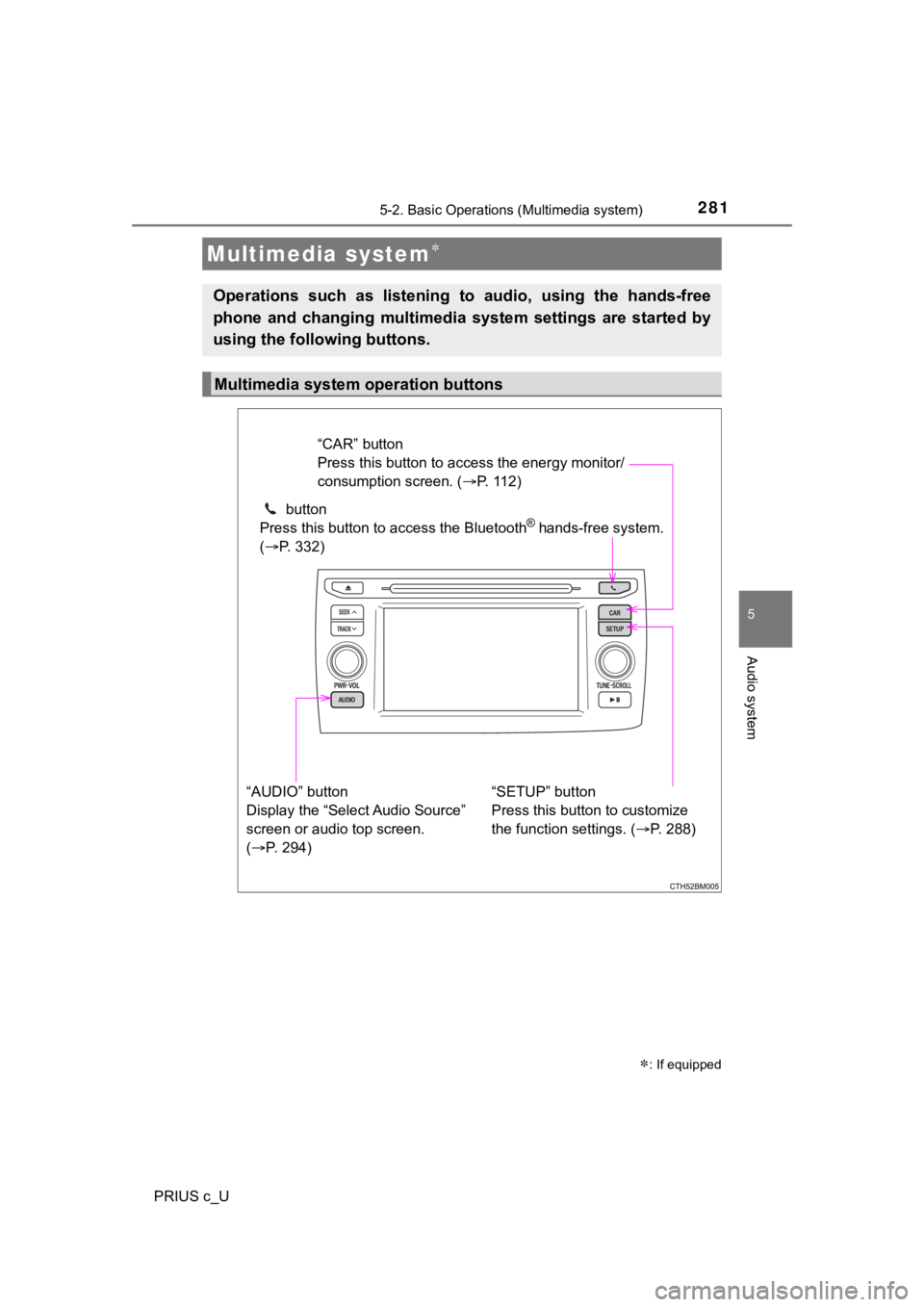
Operations such as listening to audio, using the hands-free
phone and changing multimedia system settings are started by
using the following buttons.
Multimedia system operation buttons
“AUDIO” button
Display the “Select Audio Source”
screen or audio top screen.
( P. 294) button
Press this button to access the Bluetooth
® hands-free system.
( P. 332)
“CAR” button
Press this button to access the energy monitor/
consumption screen. ( P. 112)
“SETUP” button
Press this button to customize
the function settings. ( P. 288)
Page 282 of 600
2825-2. Basic Operations (Multimedia system)
PRIUS c_U
By touching the screen with your finger, you can control the mu ltime-
dia system, etc.
■Drag*
Touch the screen with your finger, and move the screen to the
desired position.
● Scrolling the lists
■Flick*
Touch the screen with your finger and quickly move the screen b y
flicking your finger.
● Scrolling the main screen page
*: The above operations may not be performed on all screens.
■When using the touch screen
●If the screen is cold, the display may be dark, or the system may seem to be
operating slightly slower than normal.
● The screen may seem dark and hard to see when viewed through su n-
glasses. Change your angle of viewing, adjust the display on th e “Display
Settings” screen ( P. 292) or remove your sunglasses.
● Flick operations may not be performed smoothly in high altitude s.
Operating the touch screen
NOTICE
■To avoid damaging the touch screen
● To prevent damaging the screen, lightly touch the screen button s with your
finger.
● Do not use objects other than your finger to touch the screen.
● Wipe off fingerprints using a glass cleaning cloth. Do not use chemical
cleaners to clean the screen, as they may damage the touch scre en.
Page 286 of 600
2865-2. Basic Operations (Multimedia system)
PRIUS c_U
Basic audio operations
Basic audio operations and func tions common to each mode are
explained in this section.
Operating the multimedia system
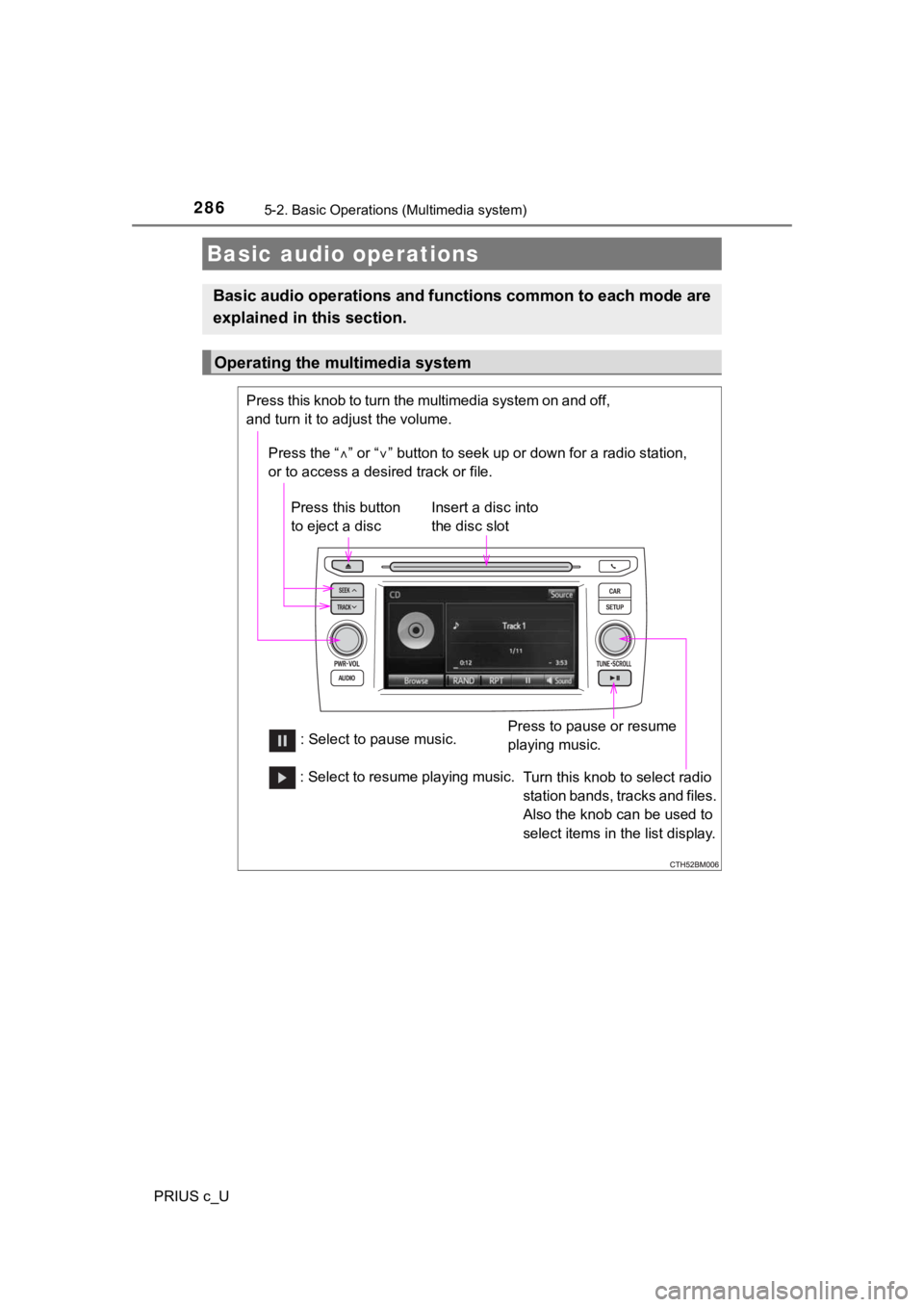
Press the “ ” or “ ” button to seek up or down for a radio station,
or to access a desired track or file.
Press this knob to turn the multimedia system on and off,
and turn it to adjust the volume.
Press this button
to eject a disc
Press to pause or resume
playing music.
Insert a disc into
the disc slot
: Select to pause music. Turn this knob to select radio
station bands, tracks and files.
Also the knob can be used to
select items in the list display.
: Select to resume playing music.
Page 288 of 600
288
PRIUS c_U
5-3. Setup (Multimedia system)
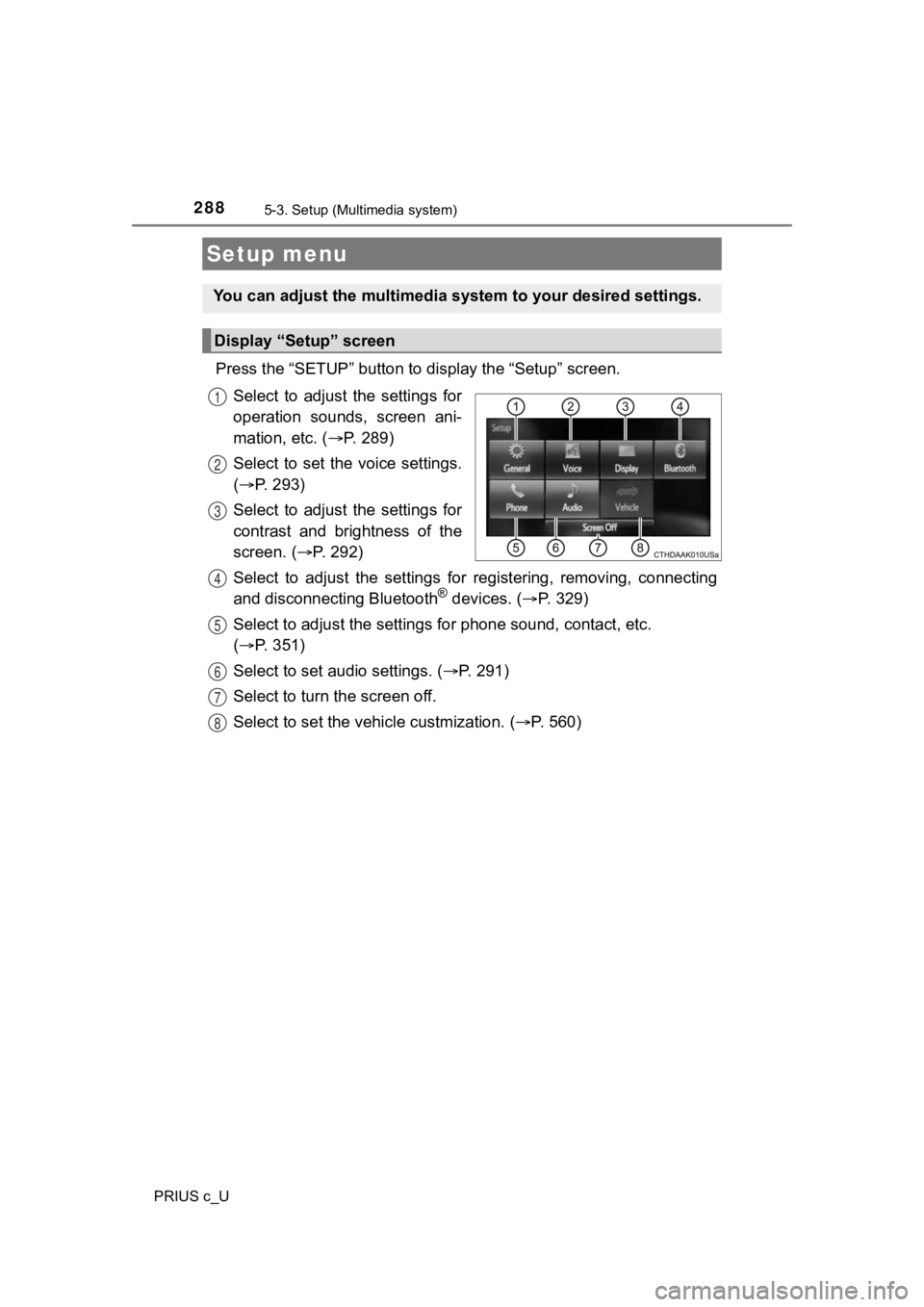
Press the “SETUP” button to display the “Setup” screen.
Select to adjust the settings for
operation sounds, screen ani-
mation, etc. ( P. 289)
Select to set the voice settings.
( P. 293)
Select to adjust the settings for
contrast and brightness of the
screen. ( P. 2 9 2 )
Select to adjust the settings for registering, removing, connec ting
and disconnecting Bluetooth
® devices. ( P. 3 2 9 )
Select to adjust the settings f or phone sound, contact, etc.
( P. 351)
Select to set audio settings. ( P. 2 9 1 )
Select to turn the screen off.
Select to set the vehicle custmization. ( P. 560)
Setup menu
You can adjust the multimedia system to your desired settings.
Display “Setup” screen
1
2
3
4
5
6
7
8
Page 289 of 600
2895-3. Setup (Multimedia system)
5
Audio system
PRIUS c_U
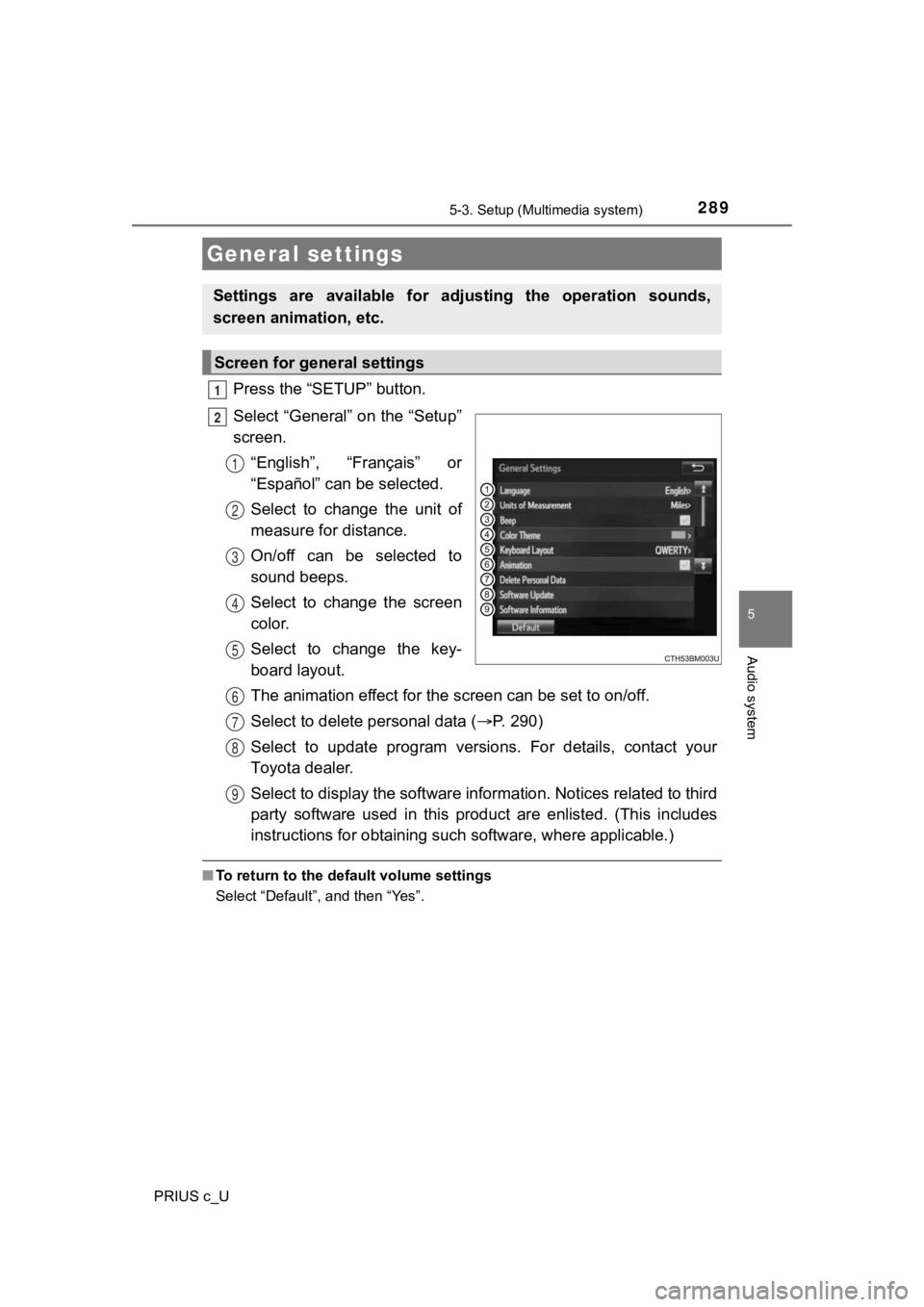
Press the “SETUP” button.
Select “General” on the “Setup”
screen.“English”, “Français” or
“Español” can be selected.
Select to change the unit of
measure for distance.
On/off can be selected to
sound beeps.
Select to change the screen
color.
Select to change the key-
board layout.
The animation effect for the screen can be set to on/off.
Select to delete personal data ( P. 2 9 0 )
Select to update program versions. For details, contact your
Toyota dealer.
Select to display the software information. Notices related to third
party software used in this product are enlisted. (This include s
instructions for obtaining suc h software, where applicable.)
■To return to the default volume settings
Select “Default”, and then “Yes”.
General settings
Settings are available for ad justing the operation sounds,
screen animation, etc.
Screen for general settings
1
2
1
2
3
4
5
6
7
8
9
Page 290 of 600

2905-3. Setup (Multimedia system)
PRIUS c_U
Select “Delete Personal Data” on the “General Settings” screen.
Select “Delete”.
Check carefully beforehand, as data cannot be retrieved once de leted.
A confirmation screen will be displayed. Select “Yes”.
The following personal data will be deleted or changed to its d efault
settings.
• General settings
• Audio settings
• Phone settings
Delete personal data
1
2
3
Page 291 of 600
2915-3. Setup (Multimedia system)
5
Audio system
PRIUS c_U
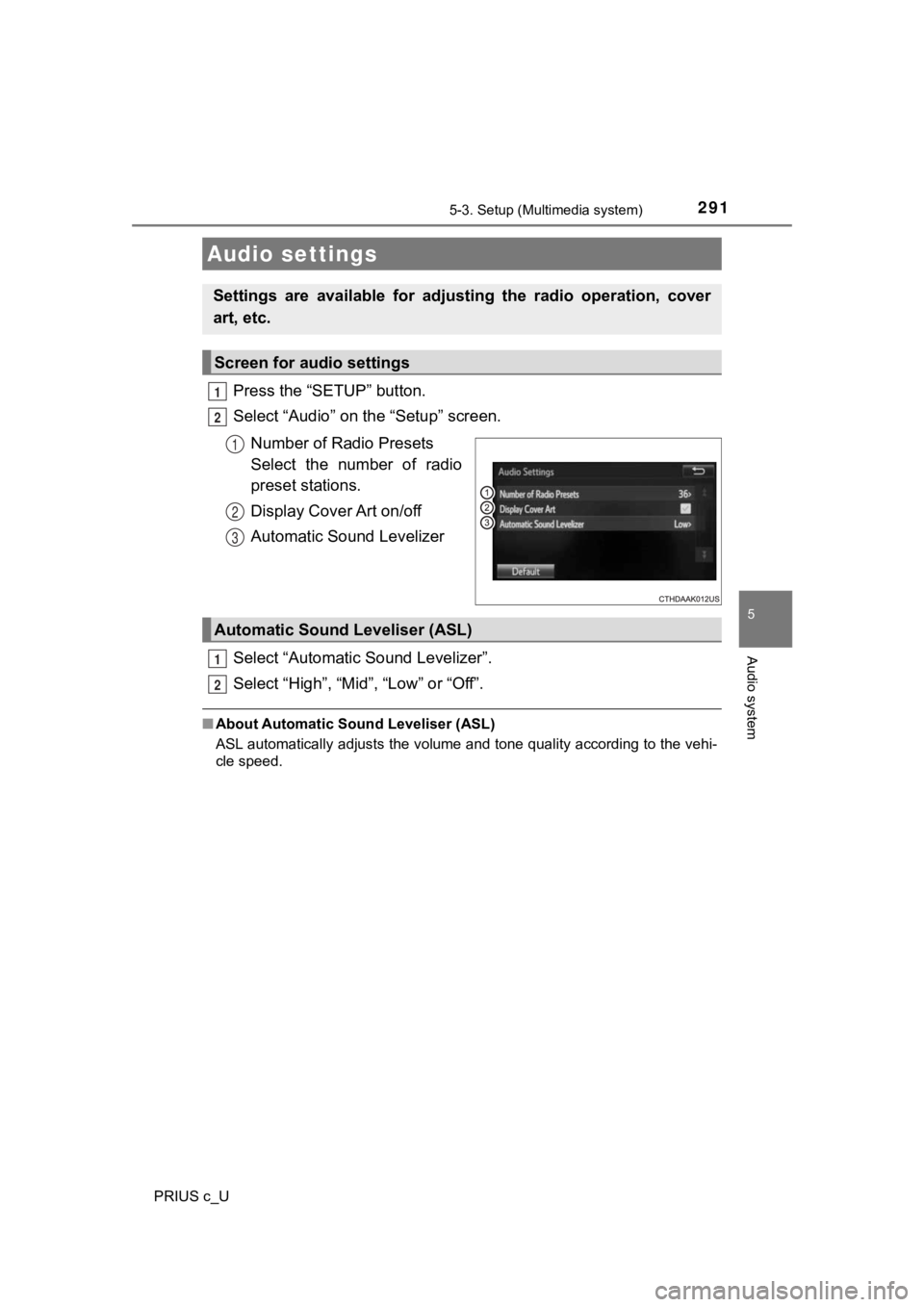
Press the “SETUP” button.
Select “Audio” on the “Setup” screen.Number of Radio Presets
Select the number of radio
preset stations.
Display Cover Art on/off
Automatic Sound Levelizer
Select “Automatic Sound Levelizer”.
Select “High”, “Mid”, “Low” or “Off”.
■ About Automatic So und Leveliser (ASL)
ASL automatically adjusts the volume and tone quality according to the vehi-
cle speed.
Audio settings
Settings are available for adjusting the radio operation, cover
art, etc.
Screen for audio settings
1
2
1
2
3
Automatic Sound Leveliser (ASL)
1
2