display TOYOTA PRIUS C 2020 Repair Manual
[x] Cancel search | Manufacturer: TOYOTA, Model Year: 2020, Model line: PRIUS C, Model: TOYOTA PRIUS C 2020Pages: 600, PDF Size: 12.02 MB
Page 292 of 600
2925-3. Setup (Multimedia system)
PRIUS c_U
Press the “SETUP” button.
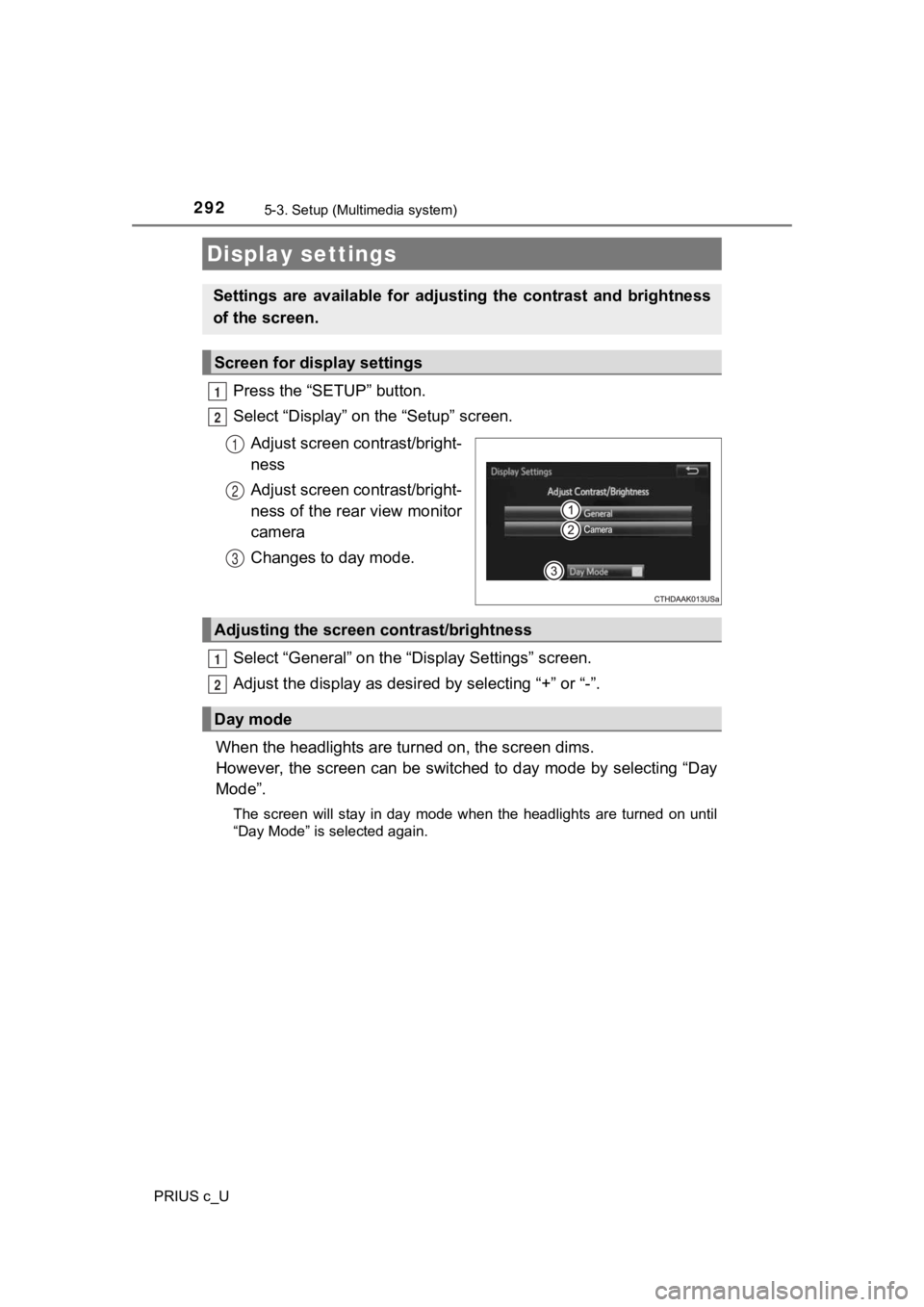
Select “Display” on the “Setup” screen.Adjust screen contrast/bright-
ness
Adjust screen contrast/bright-
ness of the rear view monitor
camera
Changes to day mode.
Select “General” on the “D isplay Settings” screen.
Adjust the display as desir ed by selecting “+” or “-”.
When the headlights are tur ned on, the screen dims.
However, the screen can be switched to day mode by selecting “D ay
Mode”.
The screen will stay in day mode when the headlights are turned on until
“Day Mode” is selected again.
Display settings
Settings are available for adjus ting the contrast and brightness
of the screen.
Screen for display settings
1
2
1
2
3
Adjusting the screen contrast/brightness
Day mode
1
2
Page 294 of 600
294
PRIUS c_U
5-4. Using the Multimedia system
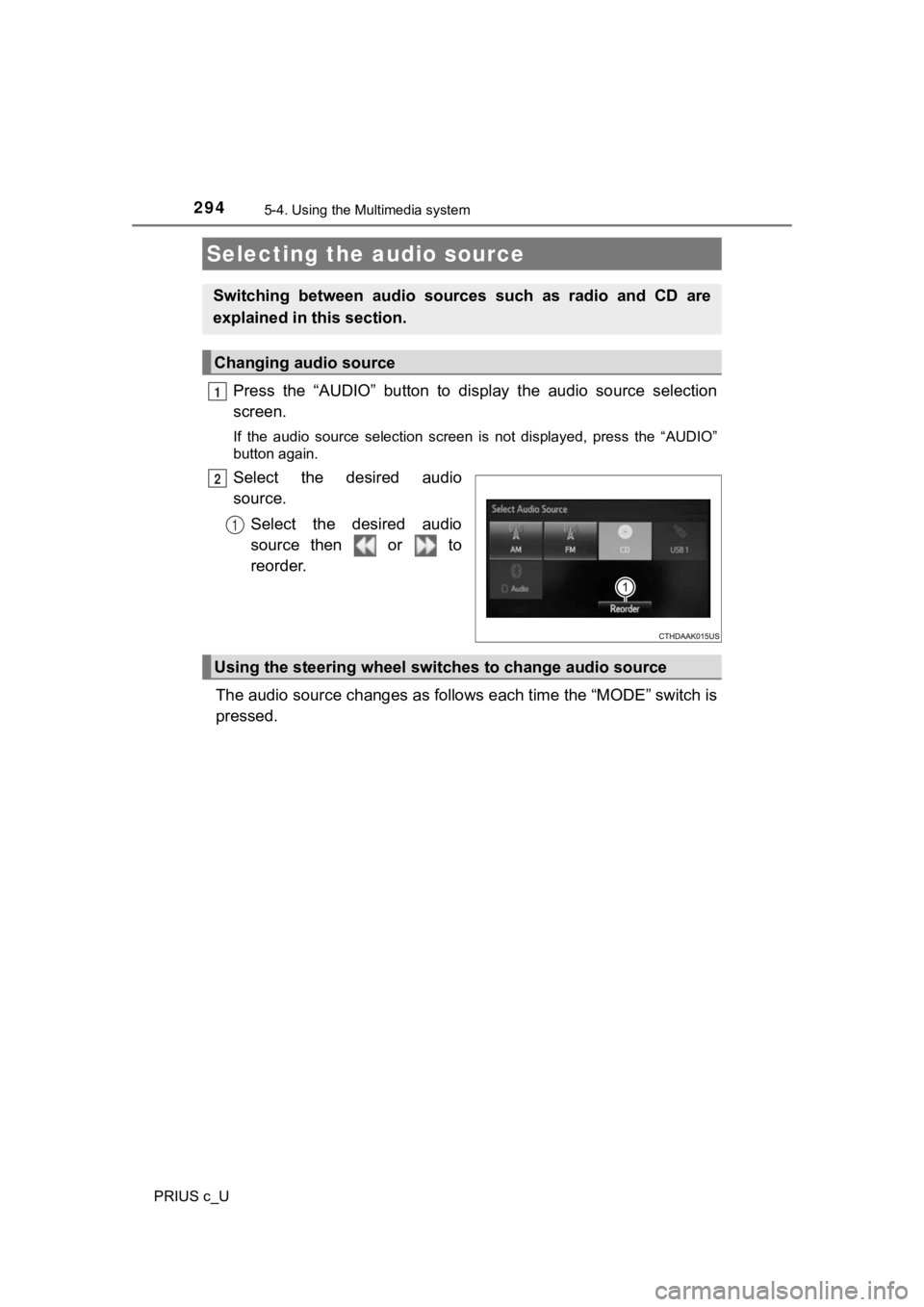
Press the “AUDIO” button to display the audio source selection
screen.
If the audio source selection screen is not displayed, press the “AUDIO”
button again.
Select the desired audio
source.
Select the desired audio
source then or to
reorder.
The audio source changes as follows each time the “MODE” switch is
pressed.
Selecting the audio source
Switching between audio sources such as radio and CD are
explained in t his section.
Changing audio source
1
2
1
Using the steering wheel switches to change audio source
Page 295 of 600
2955-4. Using the Multimedia system
5
Audio system
PRIUS c_U
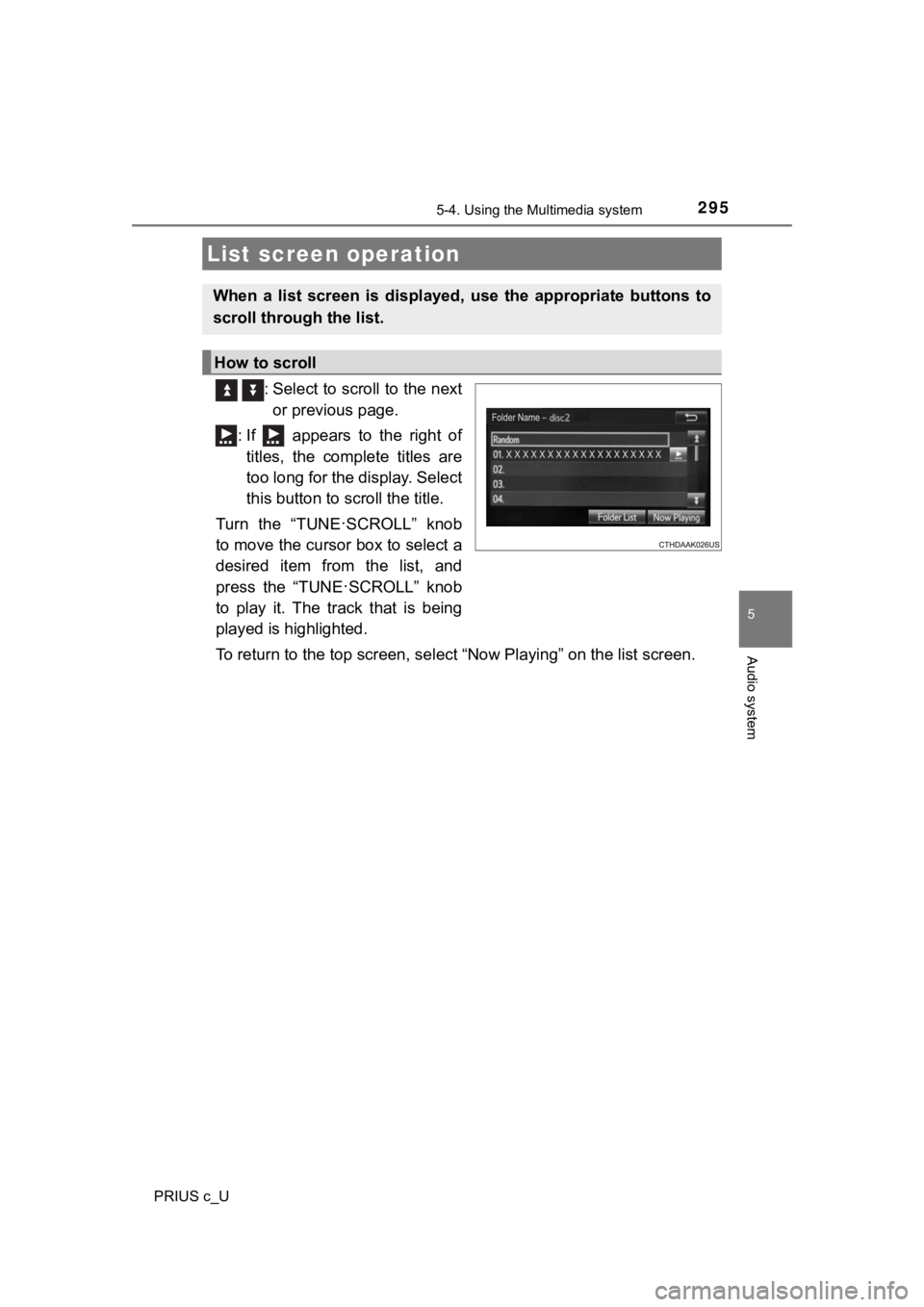
: Select to scroll to the next
or previous page.
: If appears to the right of titles, the complete titles are
too long for the display. Select
this button to scroll the title.
Turn the “TUNE
·SCROLL” knob
to move the cursor box to select a
desired item from the list, and
press the “TUNE
·SCROLL” knob
to play it. The track that is being
played is highlighted.
To return to the top screen, se lect “Now Playing” on the list s creen.
List screen operation
When a list screen is displayed, use the appropriate buttons to
scroll through the list.
How to scroll
Page 296 of 600
2965-4. Using the Multimedia system
PRIUS c_U■
Selecting a track/file/song
Press the “
” or “ ” button on “SEEK/TRACK” or turn the
“TUNE·SCROLL” knob to select the desired track/file/song number.
To fast-forward or reverse, press and hold the “ ” or “ ” button on
“SEEK/TRACK”.
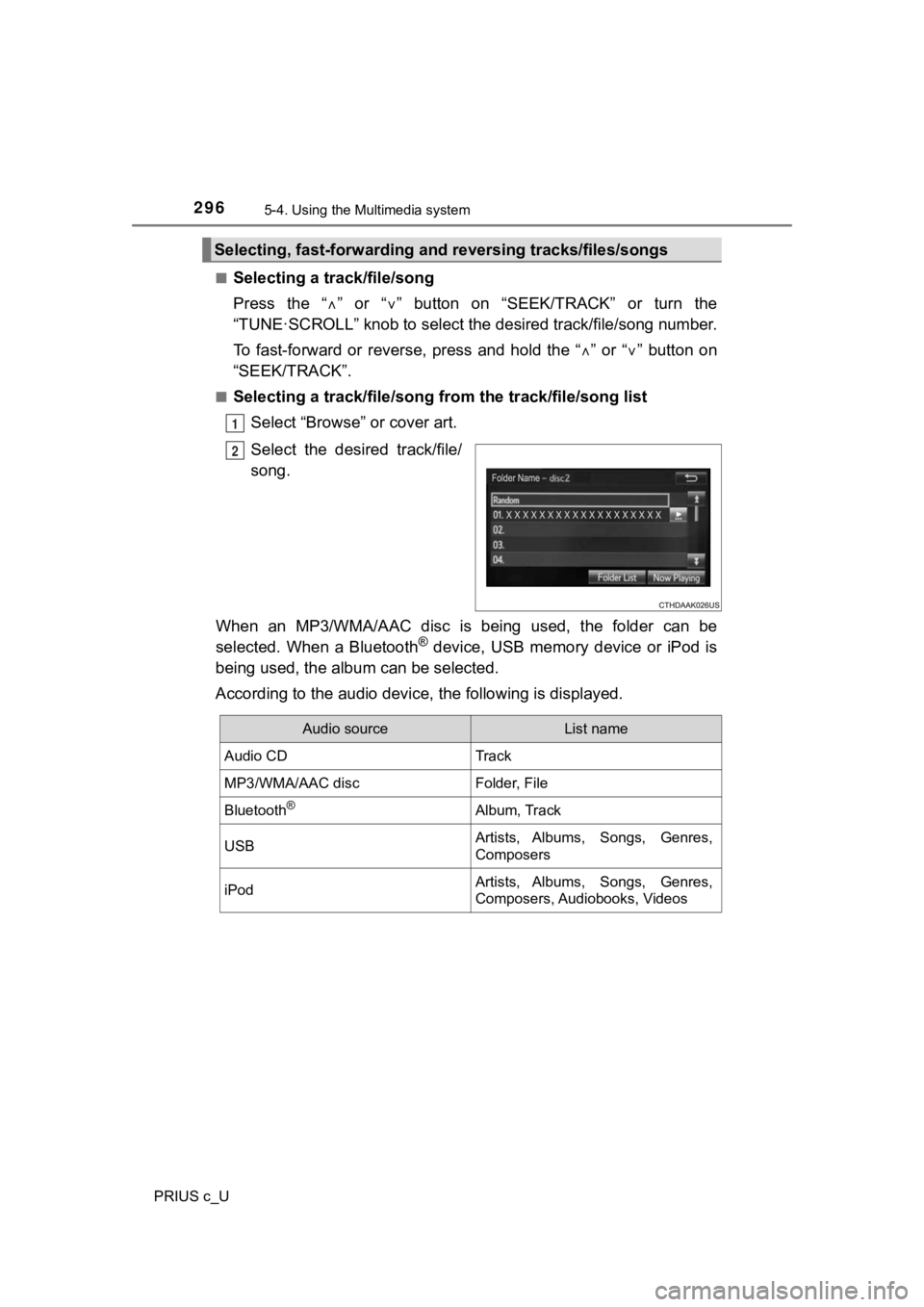
■Selecting a track/file/song from the track/file/song list
Select “Browse” or cover art.
Select the desir ed track/file/
song.
When an MP3/WMA/AAC disc is being used, the folder can be
selected. When a Bluetooth
® device, USB memory device or iPod is
being used, the alb um can be selected.
According to the audio device, the following is displayed.
Selecting, fast-forwarding and reversing trac ks/files/songs
1
2
Audio sourceList name
Audio CDTrack
MP3/WMA/AAC discFolder, File
Bluetooth®Album, Track
USBArtists, Albums, Songs, Genres,
Composers
iPodArtists, Albums, Songs, Genres,
Composers, Audiobooks, Videos
Page 298 of 600
298
PRIUS c_U
5-5. Using the radio (Multimedia system)
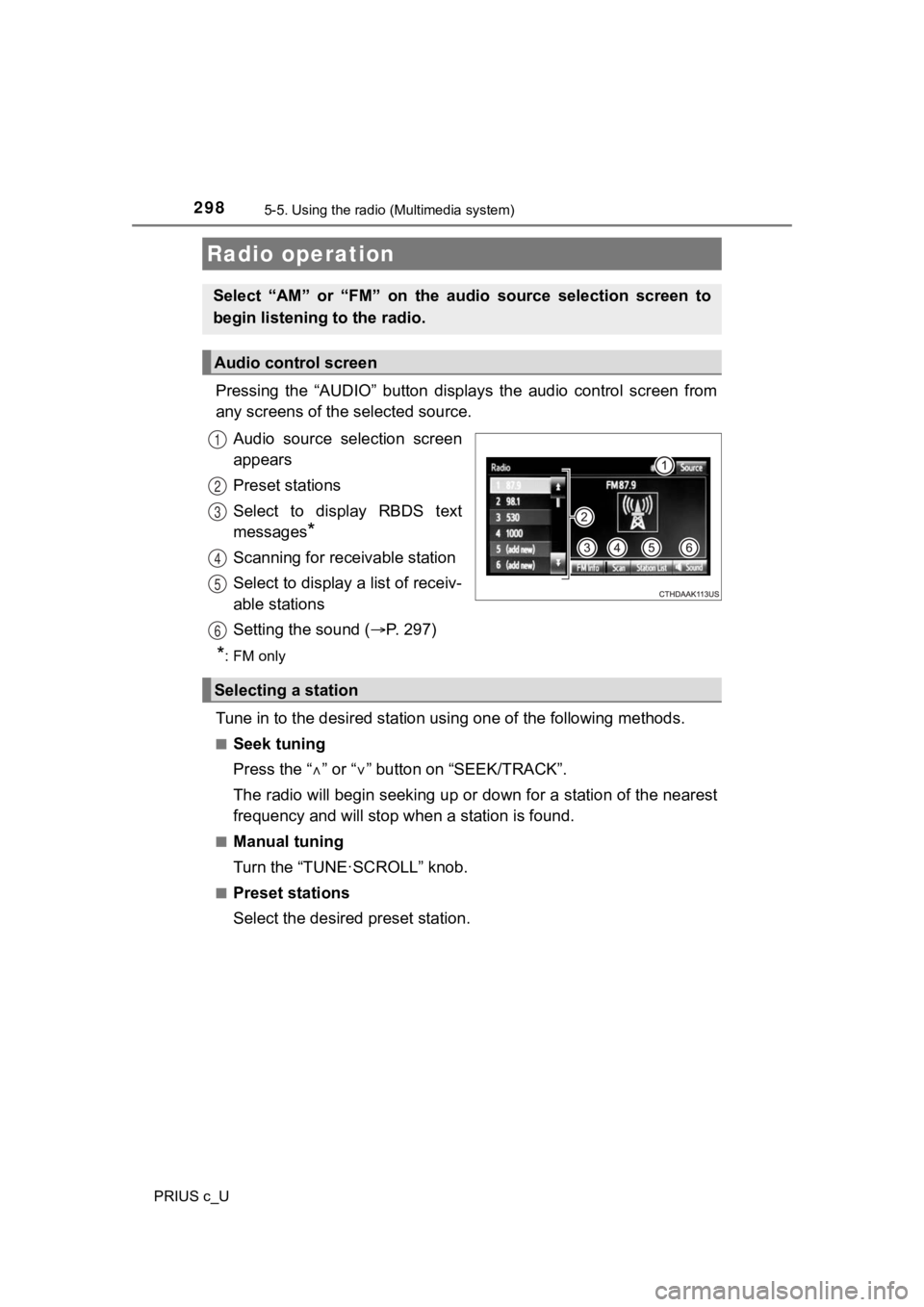
Pressing the “AUDIO” button disp lays the audio control screen from
any screens of the selected source.
Audio source selection screen
appears
Preset stations
Select to display RBDS text
messages
*
Scanning for receivable station
Select to display a list of receiv-
able stations
Setting the sound ( P. 2 9 7 )
*:FM only
Tune in to the desired station us ing one of the following methods.
■Seek tuning
Press the “” or “ ” button on “SEEK/TRACK”.
The radio will begin seeking up or down for a station of the ne arest
frequency and will stop when a station is found.
■Manual tuning
Turn the “TUNE·SCROLL” knob.
■Preset stations
Select the desired preset station.
Radio operation
Select “AM” or “FM” on the audio source selection screen to
begin listening to the radio.
Audio control screen
1
2
3
4
5
Selecting a station
6
Page 300 of 600
300
PRIUS c_U
5-6. Playing an audio CD and MP3/WMA/AAC discs (Multimedia system)
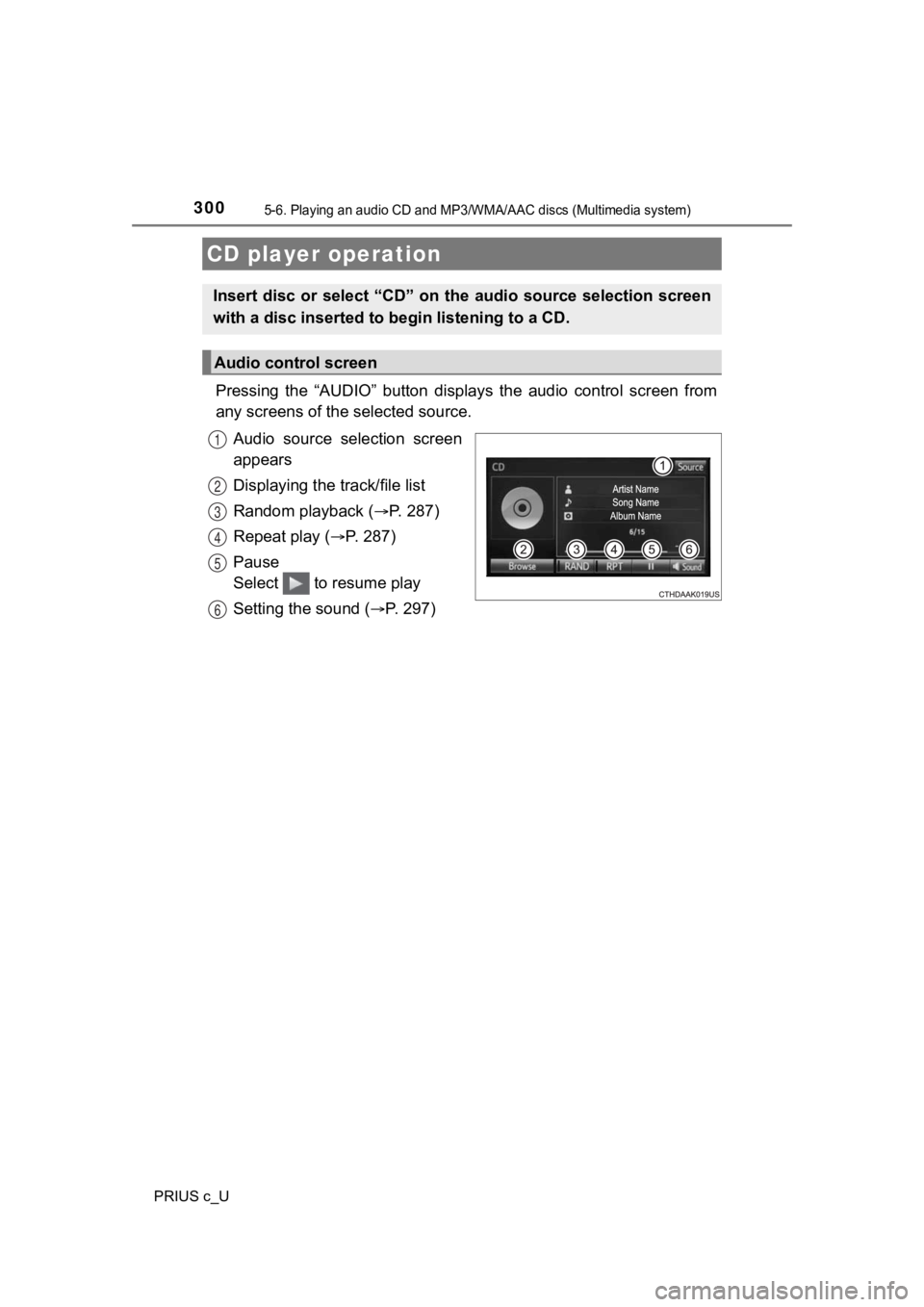
Pressing the “AUDIO” button displays the audio control screen from
any screens of the selected source.
Audio source selection screen
appears
Displaying the track/file list
Random playback (
P. 287)
Repeat play (
P. 287)
Pause
Select to resume play
Setting the sound (
P. 297)
CD player operation
Insert disc or select “CD” on the audio source selection screen
with a disc inserted to begin listening to a CD.
Audio control screen
1
2
3
4
5
6
Page 301 of 600
3015-6. Playing an audio CD and MP3/WMA/AAC discs (Multimedia system)
5
Audio system
PRIUS c_U
■Displaying the title and artist name
If a CD-TEXT disc is inserted, the title of the disc and track will be displayed.
■ Error messages
If an error message is displayed, refer to the following table and take the
appropriate measures. If the problem is not rectified, take the vehicle to your
Toyota dealer.
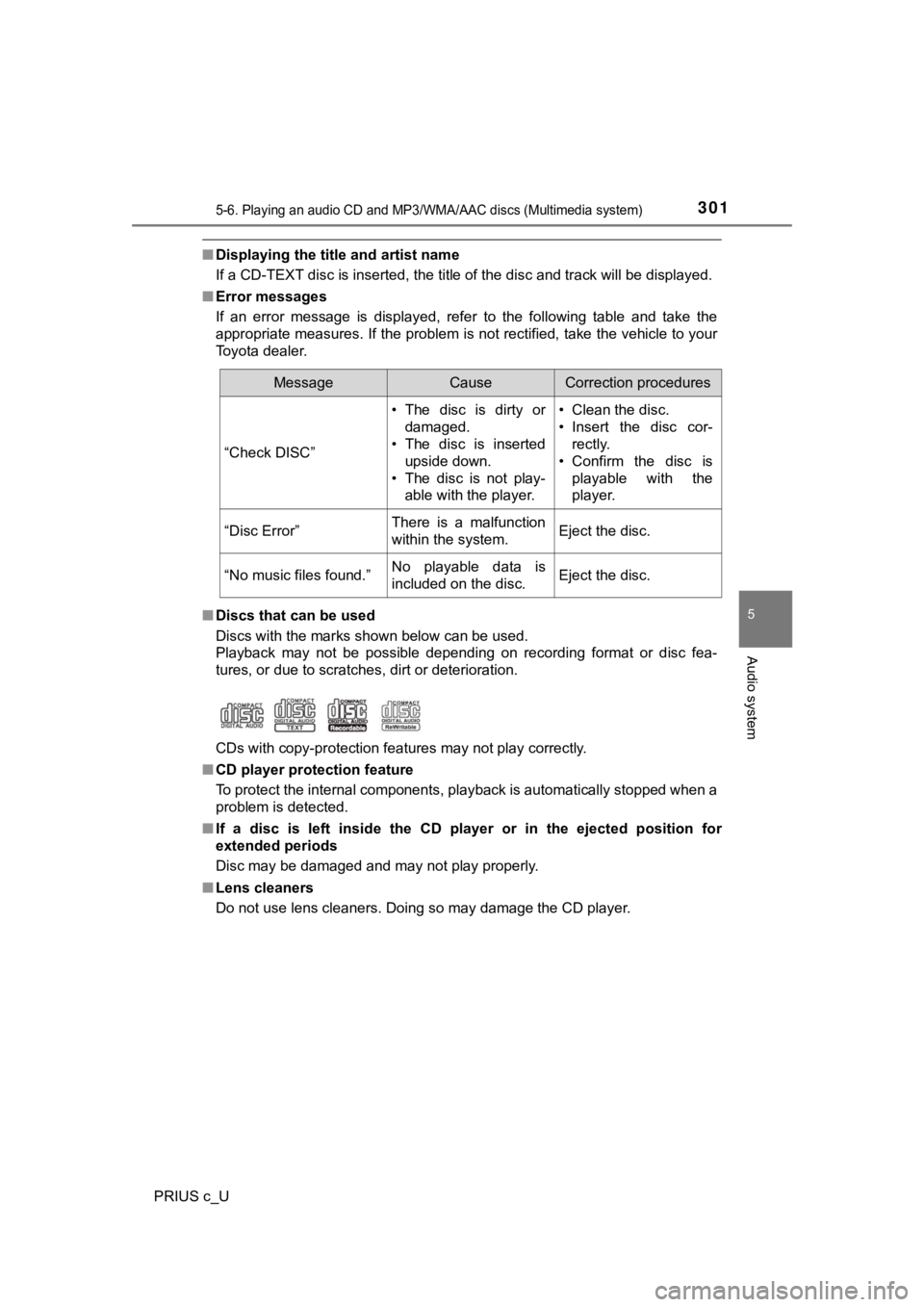
■ Discs that can be used
Discs with the marks shown below can be used.
Playback may not be possible depending on recording format or d isc fea-
tures, or due to scratches, dirt or deterioration.
CDs with copy-protection features may not play correctly.
■ CD player protection feature
To protect the internal components, playback is automatically s topped when a
problem is detected.
■ If a disc is left inside the CD player or in the ejected positi on for
extended periods
Disc may be damaged and may not play properly.
■ Lens cleaners
Do not use lens cleaners. Doing so may damage the CD player.
MessageCauseCorrection procedures
“Check DISC” • The disc is dirty or
damaged.
• The disc is inserted
upside down.
• The disc is not play- able with the player. • Clean the disc.
• Insert the disc cor-
rectly.
• Confirm the disc is playable with the
player.
“Disc Error”There is a malfunction
within the system.Eject the disc.
“No music files found.”No playable data is
included on the disc.Eject the disc.
Page 303 of 600

3035-6. Playing an audio CD and MP3/WMA/AAC discs (Multimedia system)
5
Audio system
PRIUS c_U●
AAC file compatibility
• Compatible standards
MPEG4/AAC-LC
• Compatible sampling frequencies
11.025/12/16/22.05/24/32/44.1/48 (kHz)
• Compatible bit rates 16-320 (kbps)
Compatible channel modes: 1ch and 2ch
● Compatible media
Media that can be used for MP3, WMA and AAC playback are CD-Rs and
CD-RWs.
Playback in some instances may not be possible if the CD-R or C D-RW is
not finalized. Playback may not be possible or the audio may ju mp if the
disc is scratched or marked with fingerprints.
● Compatible disc formats
The following disc formats can be used.
• Disc formats: CD-ROM Mode 1 and Mode 2
CD-ROM XA Mode 2, Form 1 and Form 2
• File formats: ISO9660 Level 1, Level 2, (Romeo, Joliet)
UDF (2.01 or lower)
MP3, WMA and AAC files written in any format other than those l isted
above may not play correctly, and their file names and folder n ames may
not be displayed correctly.
Items related to standards and limitations are as follows.
• Maximum directory hierarchy: 8 levels (including the root)
• Maximum length of folder names/file names: 32 characters
• Maximum number of folders: 192 (including the root)
• Maximum number of files per disc: 255
● File names
The only files that can be recognized as MP3/WMA/AAC and played are
those with the extension .mp3, .wma or .m4a.
● Discs containing multi-session recordings
As the multimedia system is compatible with multi session discs , it is possi-
ble to play discs that contain MP3, WMA and AAC files. However, only the
first session can be played.
Page 306 of 600
306
PRIUS c_U
5-7. Using an external device (Multimedia system)
P. 2 8 4
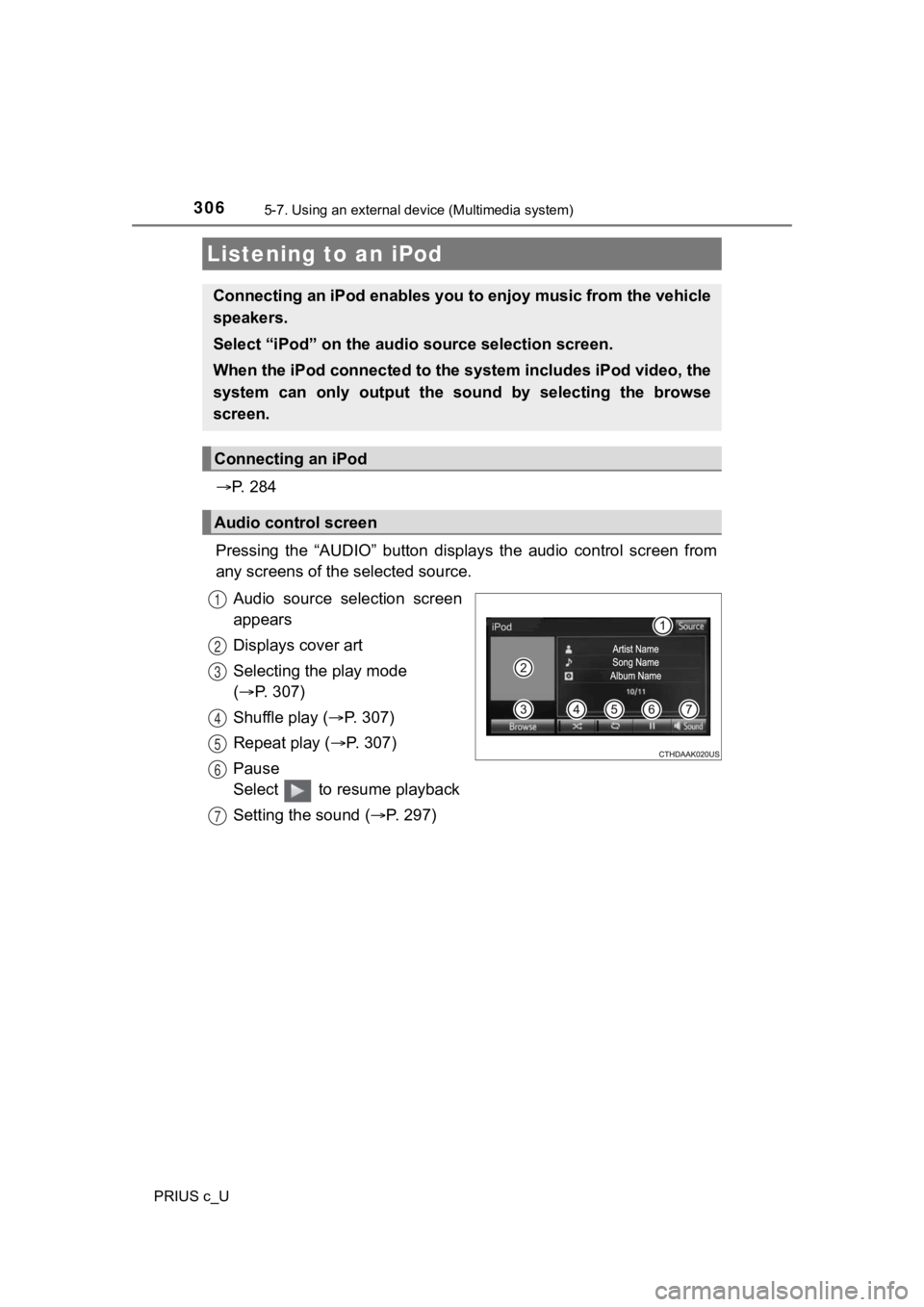
Pressing the “AUDIO” button disp lays the audio control screen from
any screens of the selected source.
Audio source selection screen
appears
Displays cover art
Selecting the play mode
( P. 307)
Shuffle play ( P. 307)
Repeat play ( P. 307)
Pause
Select to resume playback
Setting the sound ( P. 2 9 7 )
Listening to an iPod
Connecting an iPod enables you to enjoy music from the vehicle
speakers.
Select “iPod” on the audio source selection screen.
When the iPod connected to the system includes iPod video, the
system can only output the s ound by selecting the browse
screen.
Connecting an iPod
Audio control screen
1
2
3
4
5
6
7
Page 308 of 600
3085-7. Using an external device (Multimedia system)
PRIUS c_U
■Cord hook
P. 284
■ About iPod
●“Made for iPod” and “Made for iPhone” mean that an electronic a ccessory
has been designed to connect specifically to iPod or iPhone, re spectively,
and has been certified by the developer to meet Apple performance stan-
dards.
● Apple is not responsible for the operation of this device or it s compliance
with safety and regulatory standards. Please note that the use of this acces-
sory with iPod or iPhone may affect wireless performance.
● iPhone, iPod, iPod classic, iPod nano, and iPod touch are trade marks of
Apple Inc., registered in the U.S. and other countries. Lightning is a trade-
mark of Apple Inc.
■ iPod cover art
●Depending on the iPod and songs in the iPod, iPod cover art may be dis-
played.
● This function can be changed to on/off. ( P. 291)
● It may take time to display iPod cover art, and the iPod may no t be operated
while the cover art display is in process.
● Only iPod cover art that is saved in JPEG format can be display ed.