ECO mode TOYOTA PRIUS PRIME 2019 (in English) Owner's Guide
[x] Cancel search | Manufacturer: TOYOTA, Model Year: 2019, Model line: PRIUS PRIME, Model: TOYOTA PRIUS PRIME 2019Pages: 792, PDF Size: 17.18 MB
Page 235 of 792
PRIUS PRIME_OM_OM47D13U_(U)
2353. Instrument cluster
3
Instrument cluster
*1: “LO” is displayed if the temperature is adjusted to the lowest setting, and
“HI” is displayed if the temperature is adjusted to the highest setting.
*2: The selectable modes differ depending on whether a passenger i s present.
( P. 497, 509)
■
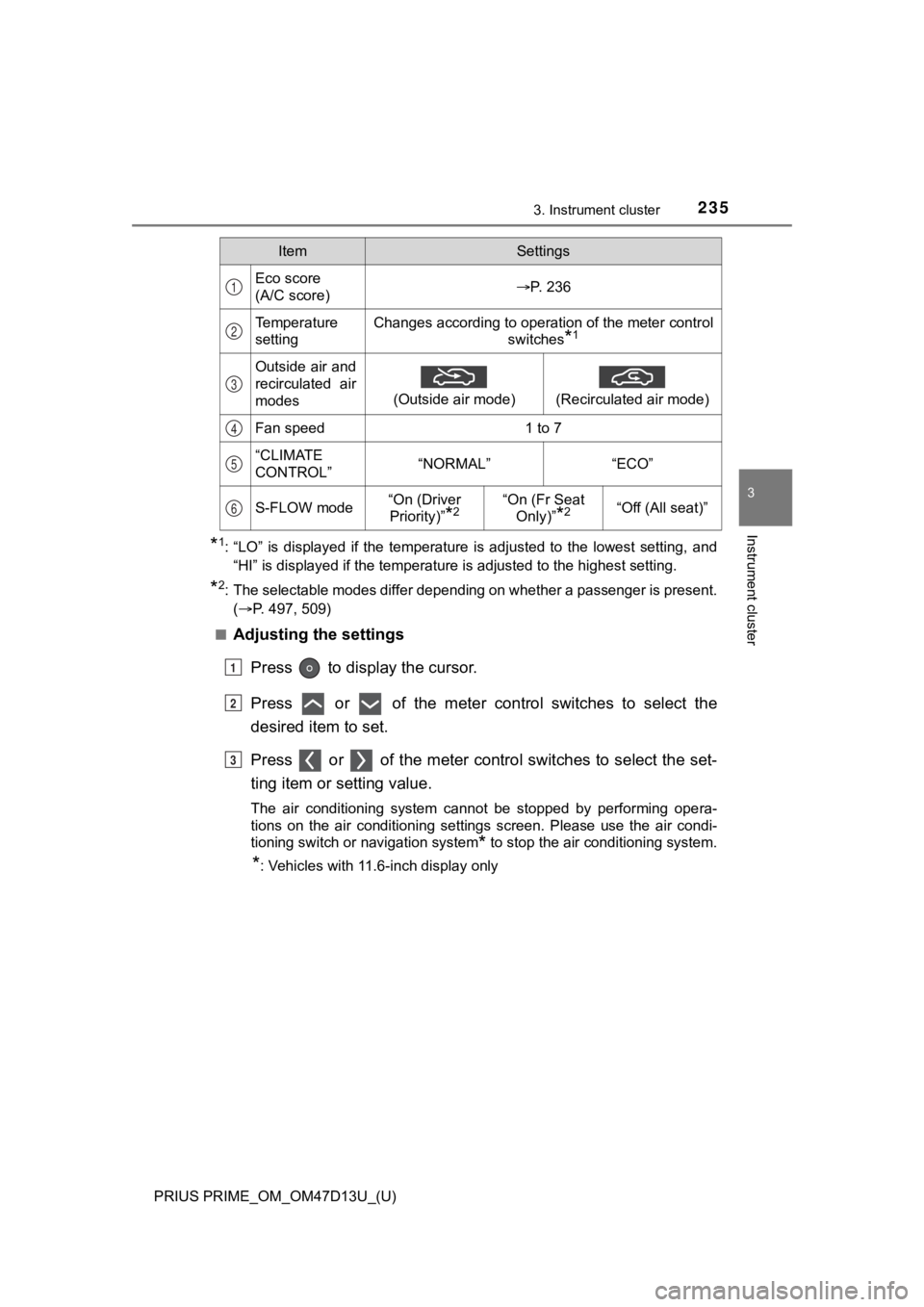
Adjusting the settings
Press to display the cursor.
Press or of the meter control switches to select the
desired item to set.
Press or of the meter contro l switches to select the set-
ting item or setting value.
The air conditioning system cannot be stopped by performing ope ra-
tions on the air conditioning settings screen. Please use the a ir condi-
tioning switch or navigation system
* to stop the air conditioning system.
*: Vehicles with 11.6-inch display only
ItemSettings
Eco score
(A/C score)P. 236
Temperature
settingChanges according to operation of the meter control switches
*1
Outside air and
recirculated air
modes
(Outside air mode)
(Recirculated air mode)
Fan speed1 to 7
“CLIMATE
CONTROL”“NORMAL”“ECO”
S-FLOW mode“On (Driver Priority)”
*2“On (Fr Seat Only)”
*2“Off (All seat)”
1
2
3
4
5
6
1
2
3
Page 236 of 792
236
PRIUS PRIME_OM_OM47D13U_(U)
3. Instrument cluster
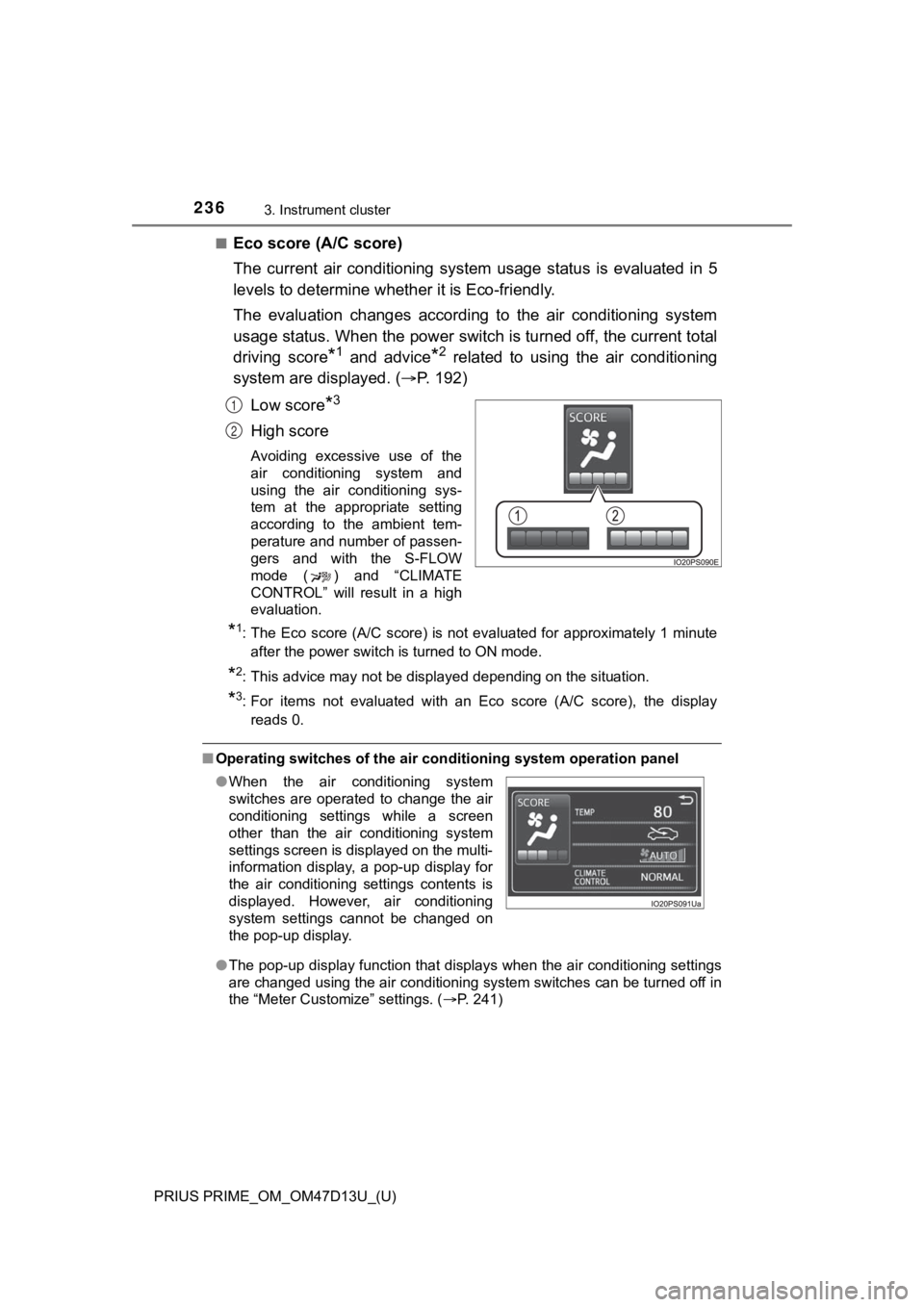
■Eco score (A/C score)
The current air conditioning system usage status is evaluated i n 5
levels to determine whether it is Eco-friendly.
The evaluation changes according to the air conditioning system
usage status. When the power switch is turned off, the current total
driving score
*1 and advice*2 related to using the air conditioning
system are displayed. ( P. 1 9 2 )
Low score
*3
High score
Avoiding excessive use of the
air conditioning system and
using the air conditioning sys-
tem at the appropriate setting
according to the ambient tem-
perature and number of passen-
gers and with the S-FLOW
mode ( ) and “CLIMATE
CONTROL” will result in a high
evaluation.
*1: The Eco score (A/C score) is not evaluated for approximately 1 minute after the power switch is turned to ON mode.
*2: This advice may not be displayed depending on the situation.
*3: For items not evaluated with an Eco score (A/C score), the displayreads 0.
■ Operating switches of the air conditioning system operation pan el
● The pop-up display function that displays when the air conditioning settings
are changed using the air conditioning system switches can be turned off in
the “Meter Customize” settings. ( P. 241)
1
2
●When the air conditioning system
switches are operated to change the air
conditioning settings while a screen
other than the air conditioning system
settings screen is displayed on the multi-
information display, a pop-up display for
the air conditioning settings contents is
displayed. However, air conditioning
system settings cannot be changed on
the pop-up display.
Page 237 of 792

PRIUS PRIME_OM_OM47D13U_(U)
2373. Instrument cluster
3
Instrument cluster
■Eco score (A/C score)
●The setting status of the following air conditioning system fun ctions are
reflected in the score.
• Temperature setting
• Fan speed setting
• Outside air and recirculated air modes
• “A/C” button
• S-FLOW mode
• “CLIMATE CONTROL”
● The Eco score (A/C score) is evaluated according to the ambient tempera-
ture and cabin temperature. Accordingly, even if the same setti ngs are
always used for the air conditioning system, the evaluation will change
according to such factors as the season and weather.
● When the air conditioning system is not being used or the airflow mode is
set to or , the Eco score (A/C score) is not evaluated. (While the
air conditioning system is not evaluated, its usage status is n ot reflected in
the total Eco score result.)
● The Eco score (A/C score) is a function that helps select an ai r conditioning
system setting which reduces electricity and fuel consumption, not a func-
tion that satisfies both comfortability and low fuel consumptio n.
Page 241 of 792
PRIUS PRIME_OM_OM47D13U_(U)
2413. Instrument cluster
3
Instrument cluster
*: If equipped
■
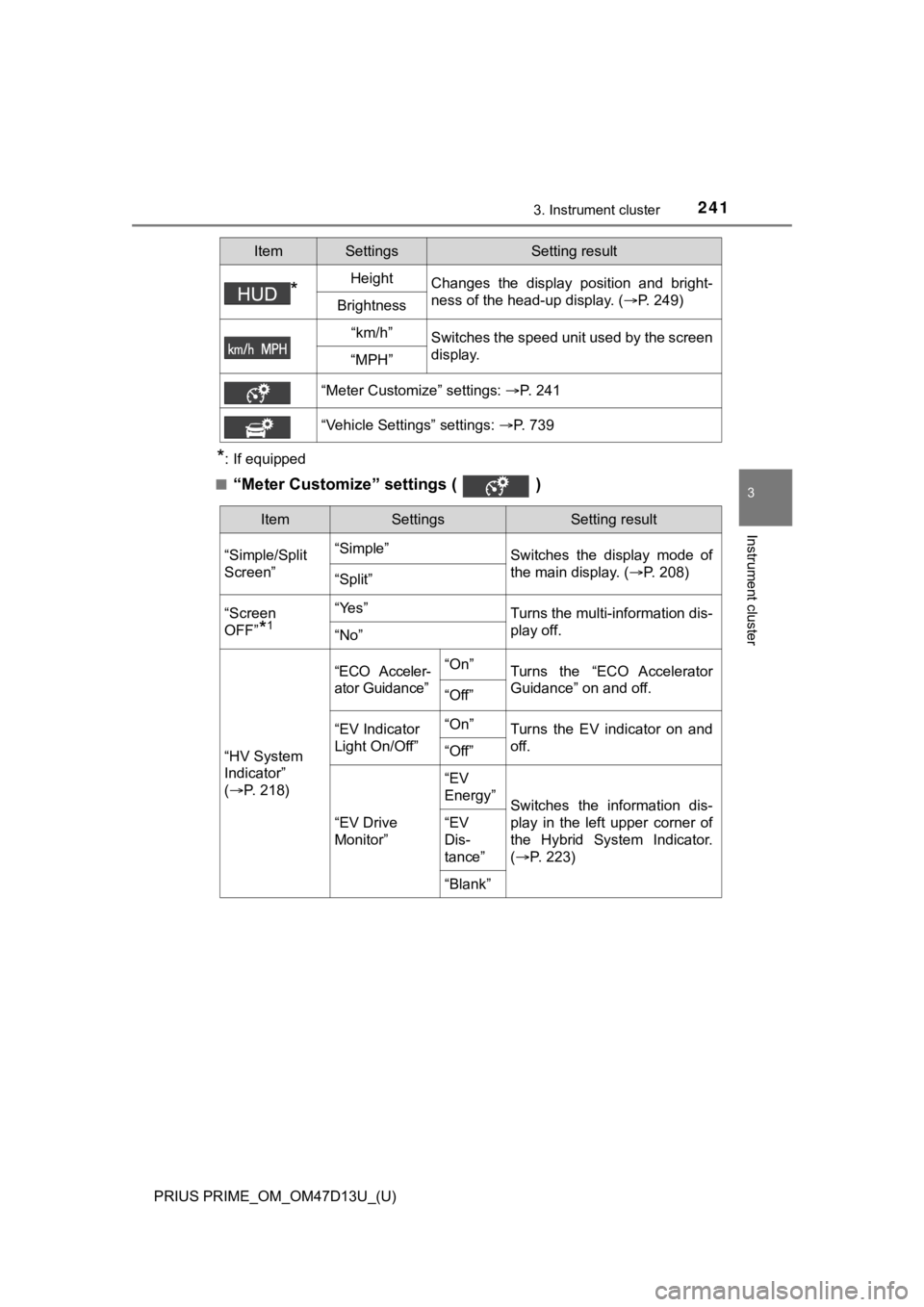
“Meter Customize” settings ( )
*HeightChanges the display position and bright-
ness of the head-up display. ( P. 249)
Brightness
“km/h”Switches the speed unit used by the screen
display.
“MPH”
“Meter Customize” settings: P. 241
“Vehicle Settings” settings: P. 739
ItemSettingsSetting result
ItemSettingsSetting result
“Simple/Split
Screen” “Simple”
Switches the display mode of
the main display. (P. 208)
“Split”
“Screen
OFF”
*1
“Yes”Turns the multi-information dis-
play off.
“No”
“HV System
Indicator”
( P. 2 1 8 )
“ECO Acceler-
ator Guidance”“On”Turns the “ECO Accelerator
Guidance” on and off.
“Off”
“EV Indicator
Light On/Off” “On”Turns the EV indicator on and
off.
“Off”
“EV Drive
Monitor”“EV
Energy”
Switches the information dis-
play in the left upper corner of
the Hybrid System Indicator.
(
P. 2 2 3 )
“EV
Dis-
tance”
“Blank”
Page 242 of 792
242
PRIUS PRIME_OM_OM47D13U_(U)
3. Instrument cluster
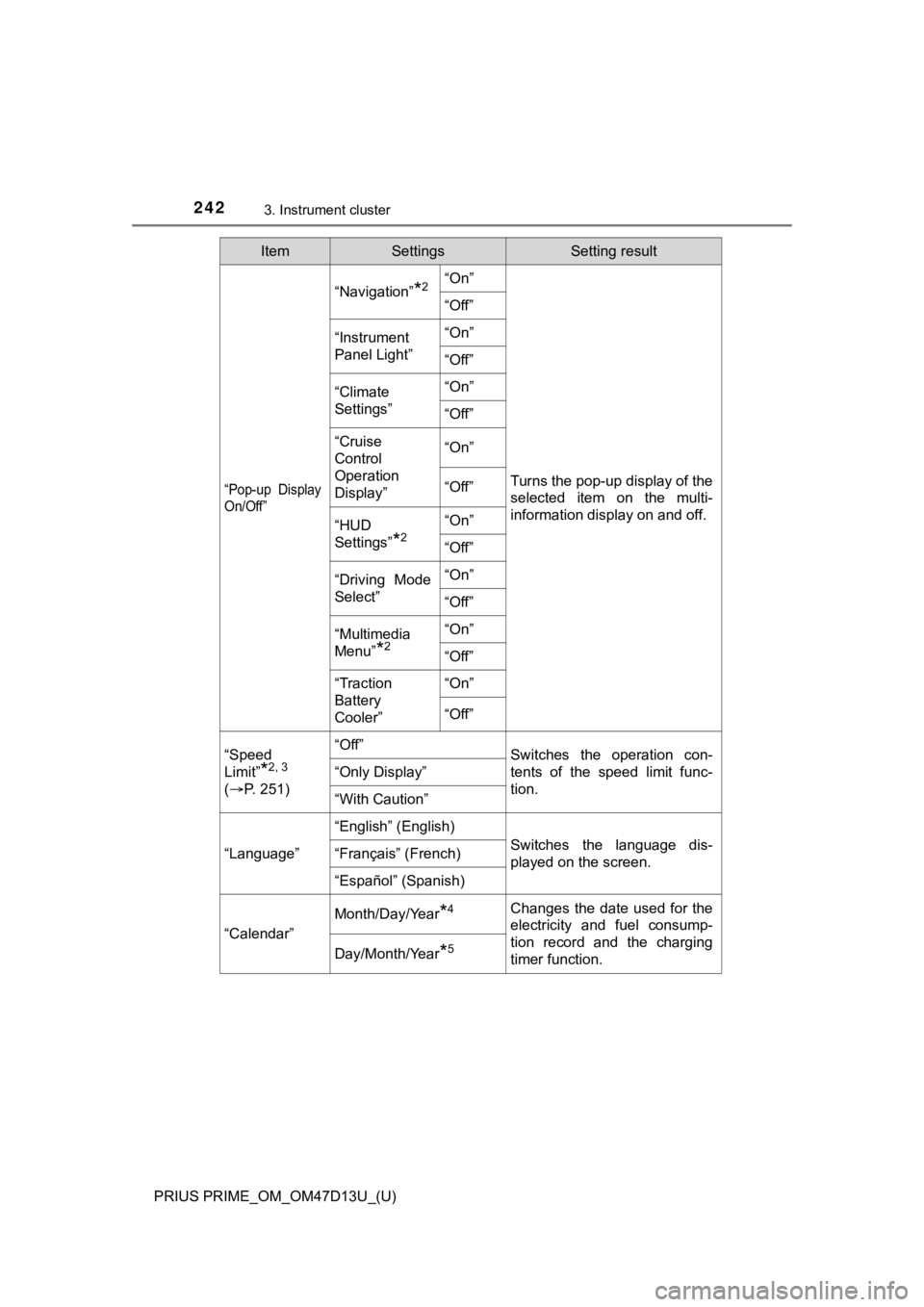
“Pop-up Display
On/Off”
“Navigation”*2“On”
Turns the pop-up display of the
selected item on the multi-
information display on and off.
“Off”
“Instrument
Panel Light”“On”
“Off”
“Climate
Settings”“On”
“Off”
“Cruise
Control
Operation
Display”“On”
“Off”
“HUD
Settings”
*2
“On”
“Off”
“Driving Mode
Select”
“On”
“Off”
“Multimedia
Menu”
*2
“On”
“Off”
“Traction
Battery
Cooler”“On”
“Off”
“Speed
Limit”
*2, 3
(
P. 2 5 1 )
“Off”Switches the operation con-
tents of the speed limit func-
tion.
“Only Display”
“With Caution”
“Language”
“English” (English)
Switches the language dis-
played on the screen.“Français” (French)
“Español” (Spanish)
“Calendar”
Month/Day/Year*4Changes the date used for the
electricity and fuel consump-
tion record and the charging
timer function.
Day/Month/Year*5
ItemSettingsSetting result
Page 258 of 792
258
PRIUS PRIME_OM_OM47D13U_(U)
3. Instrument cluster
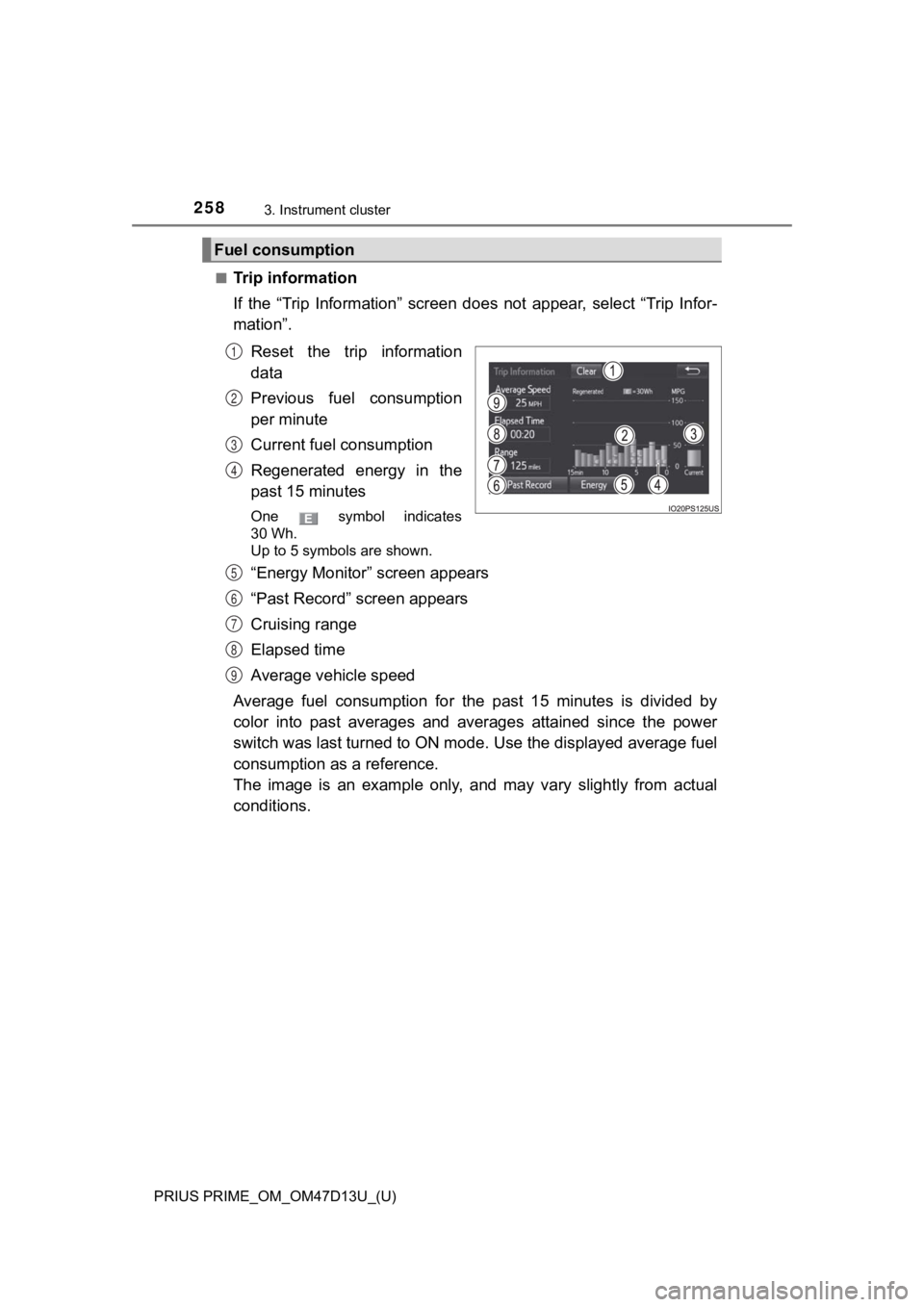
■Trip information
If the “Trip Information” screen does not appear, select “Trip Infor-
mation”.
Reset the trip information
data
Previous fuel consumption
per minute
Current fuel consumption
Regenerated energy in the
past 15 minutes
One symbol indicates
30 Wh.
Up to 5 symbols are shown.
“Energy Monitor” screen appears
“Past Record” screen appears
Cruising range
Elapsed time
Average vehicle speed
Average fuel consumption for the past 15 minutes is divided by
color into past averages and averages attained since the power
switch was last turned to ON mode. Use the displayed average fuel
consumption as a reference.
The image is an example only, and may vary slightly from actual
conditions.
Fuel consumption
1
2
3
4
5
6
7
8
9
Page 264 of 792
264
PRIUS PRIME_OM_OM47D13U_(U)
3. Instrument cluster
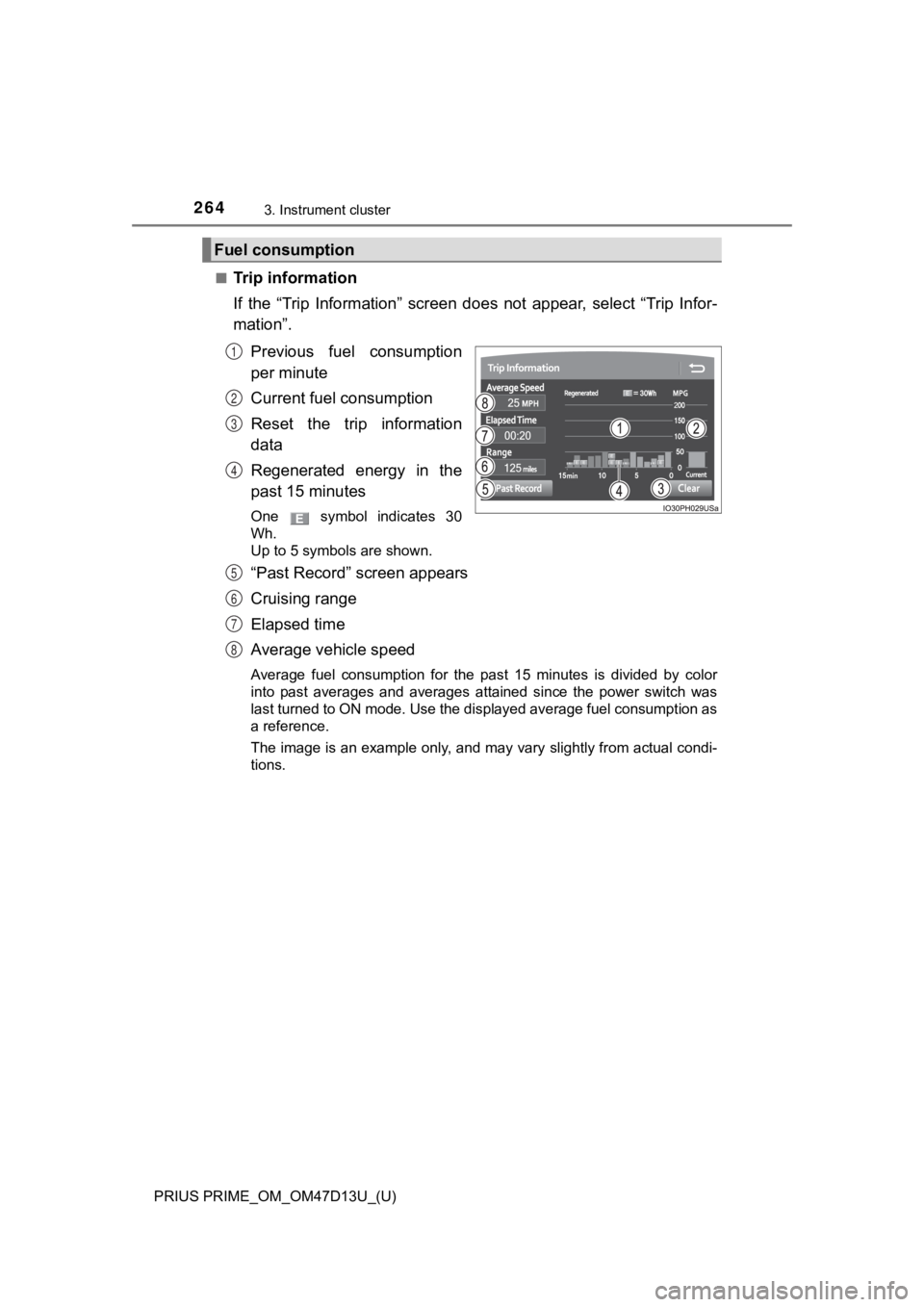
■Trip information
If the “Trip Information” screen does not appear, select “Trip Infor-
mation”.
Previous fuel consumption
per minute
Current fuel consumption
Reset the trip information
data
Regenerated energy in the
past 15 minutes
One symbol indicates 30
Wh.
Up to 5 symbols are shown.
“Past Record” screen appears
Cruising range
Elapsed time
Average vehicle speed
Average fuel consumption for the past 15 minutes is divided by color
into past averages and averages attained since the power switch was
last turned to ON mode. Use the displayed average fuel consumpt ion as
a reference.
The image is an example only, and may vary slightly from actual condi-
tions.
Fuel consumption
1
2
3
4
5
6
7
8
Page 267 of 792
PRIUS PRIME_OM_OM47D13U_(U)
2673. Instrument cluster
3
Instrument cluster
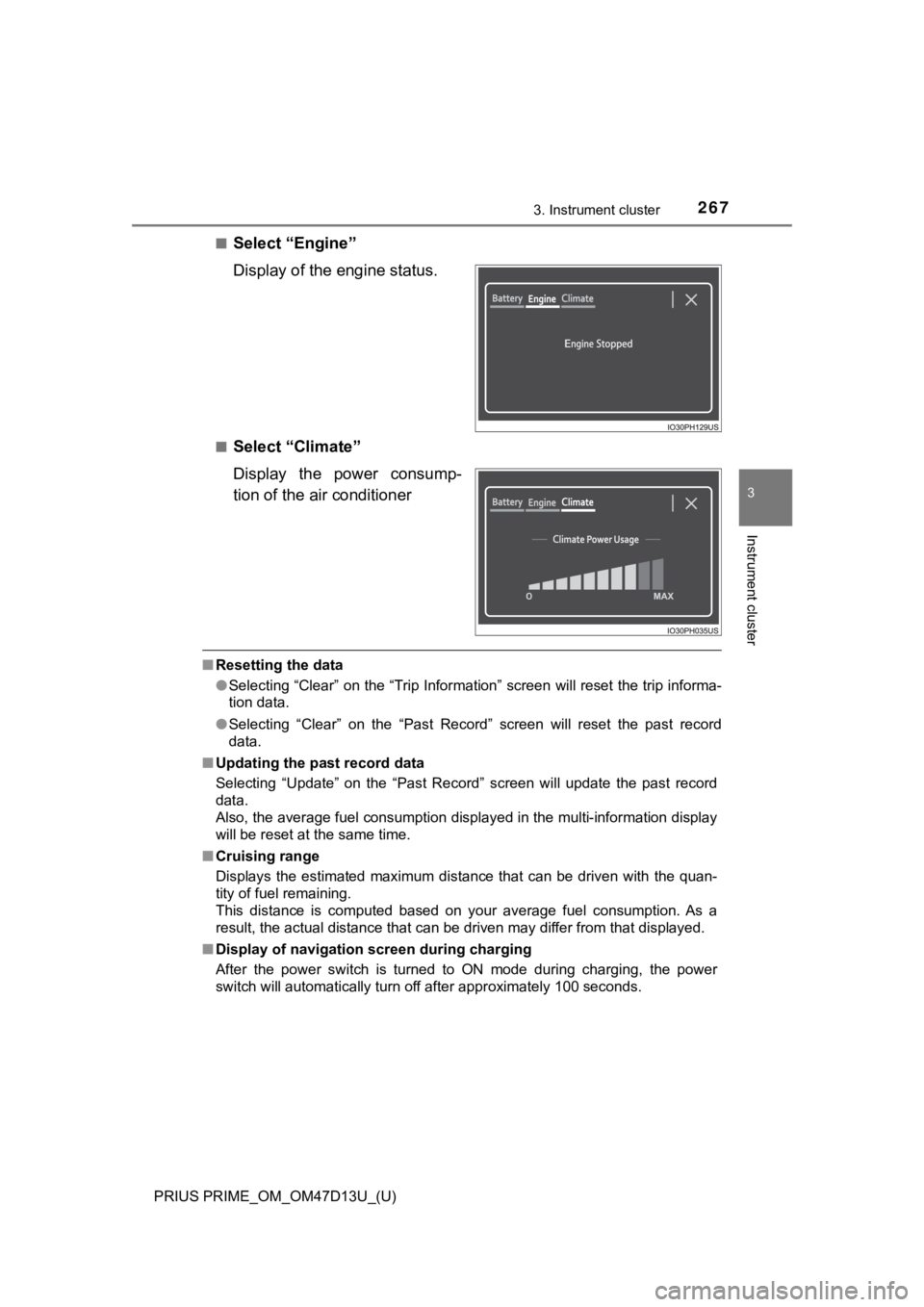
■Select “Engine”
Display of the engine status.
■Select “Climate”
Display the power consump-
tion of the air conditioner
■Resetting the data
●Selecting “Clear” on the “Trip Information” screen will reset t he trip informa-
tion data.
● Selecting “Clear” on the “Past Record” screen will reset the past record
data.
■ Updating the past record data
Selecting “Update” on the “Past Record” screen will update the past record
data.
Also, the average fuel consumption displayed in the multi-infor mation display
will be reset at the same time.
■ Cruising range
Displays the estimated maximum distance that can be driven with the quan-
tity of fuel remaining.
This distance is computed based on your average fuel consumptio n. As a
result, the actual distance that can be driven may differ from that displayed.
■ Display of navigation screen during charging
After the power switch is turned to ON mode during charging, th e power
switch will automatically turn off after approximately 100 seconds.
Page 271 of 792
PRIUS PRIME_OM_OM47D13U_(U)
2714-1. Key information
4
Operation of each component
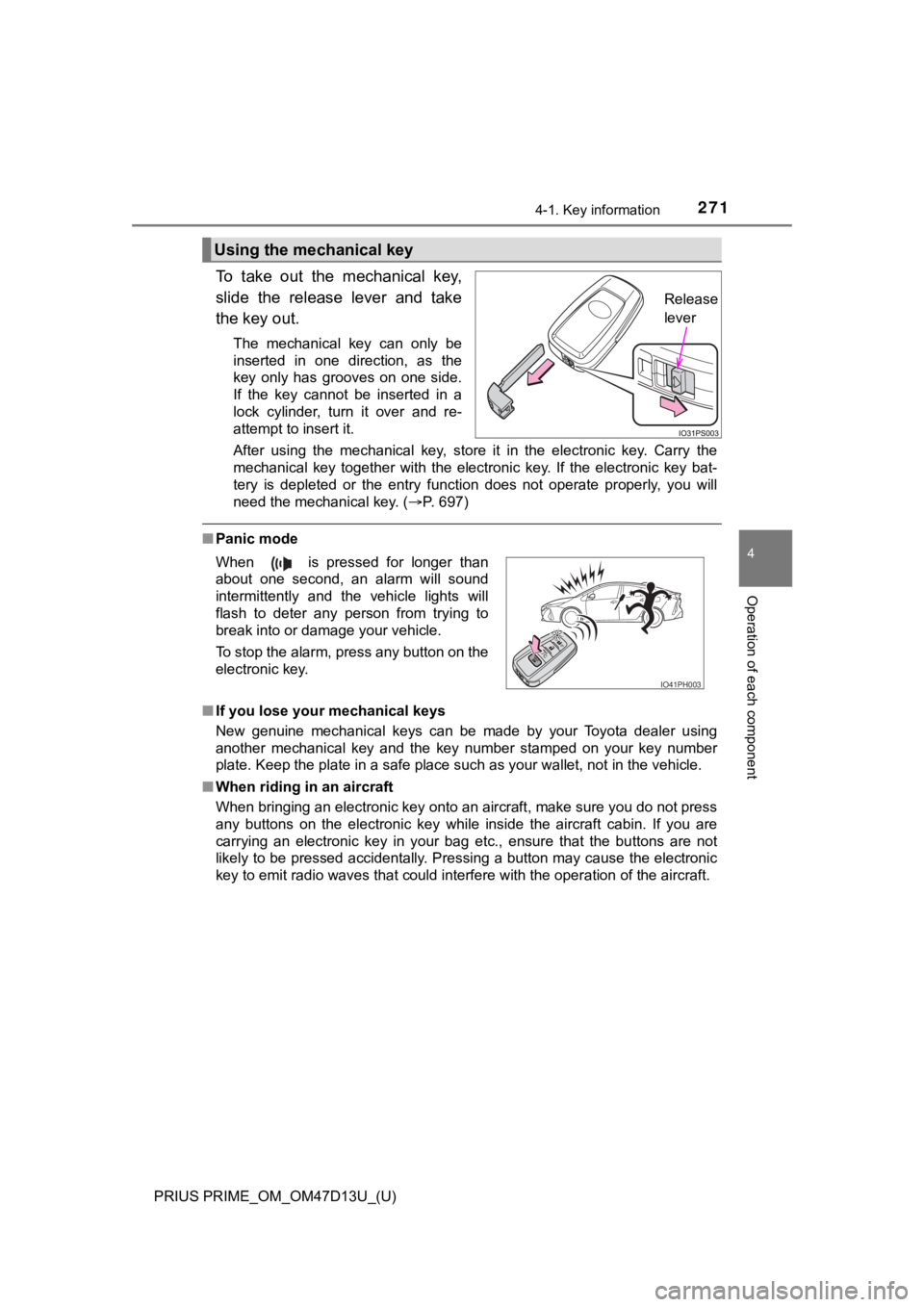
To take out the mechanical key,
slide the release lever and take
the key out.
The mechanical key can only be
inserted in one direction, as the
key only has grooves on one side.
If the key cannot be inserted in a
lock cylinder, turn it over and re-
attempt to insert it.
After using the mechanical key, store it in the electronic key. Carry the
mechanical key together with the electronic key. If the electro nic key bat-
tery is depleted or the entry function does not operate properl y, you will
need the mechanical key. ( P. 697)
■Panic mode
■ If you lose your mechanical keys
New genuine mechanical keys can be made by your Toyota dealer u sing
another mechanical key and the key number stamped on your key n umber
plate. Keep the plate in a safe place such as your wallet, not in the vehicle.
■ When riding in an aircraft
When bringing an electronic key onto an aircraft, make sure you do not press
any buttons on the electronic key while inside the aircraft cab in. If you are
carrying an electronic key in your bag etc., ensure that the bu ttons are not
likely to be pressed accidentally. Pressing a button may cause the electronic
key to emit radio waves that could interfere with the operation of the aircraft.
Using the mechanical key
Release
lever
When is pressed for longer than
about one second, an alarm will sound
intermittently and the vehicle lights will
flash to deter any person from trying to
break into or damage your vehicle.
To stop the alarm, press any button on the
electronic key.
IO41PH003
Page 275 of 792
275
PRIUS PRIME_OM_OM47D13U_(U)
4-2. Opening, closing and locking the doors
4
Operation of each component
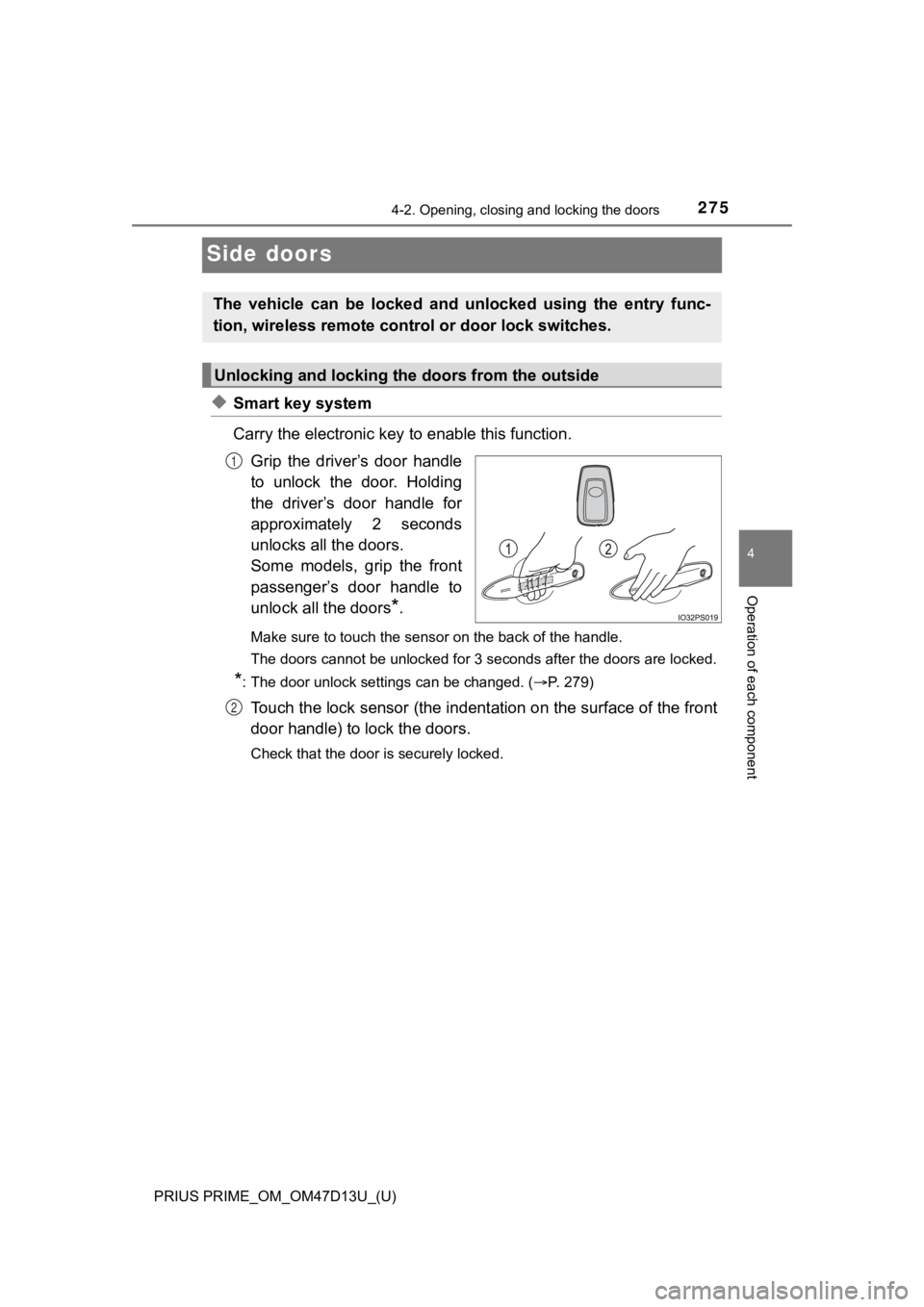
Side doors
◆Smart key system
Carry the electronic key to enable this function.
Grip the driver’s door handle
to unlock the door. Holding
the driver’s door handle for
approximately 2 seconds
unlocks all the doors.
Some models, grip the front
passenger’s door handle to
unlock all the doors
*.
Make sure to touch the sensor on the back of the handle.
The doors cannot be unlocked for 3 seconds after the doors are locked.
*: The door unlock settings can be changed. ( P. 279)
Touch the lock sensor (the indentation on the surface of the front
door handle) to lock the doors.
Check that the door is securely locked.
The vehicle can be locked and unlocked using the entry func-
tion, wireless remote control or door lock switches.
Unlocking and locking the doors from the outside
1
2