air condition TOYOTA PRIUS PRIME 2023 Owner's Manual
[x] Cancel search | Manufacturer: TOYOTA, Model Year: 2023, Model line: PRIUS PRIME, Model: TOYOTA PRIUS PRIME 2023Pages: 680, PDF Size: 14.97 MB
Page 159 of 680
1593-1. Instrument cluster
3
Vehicle status information and indicators
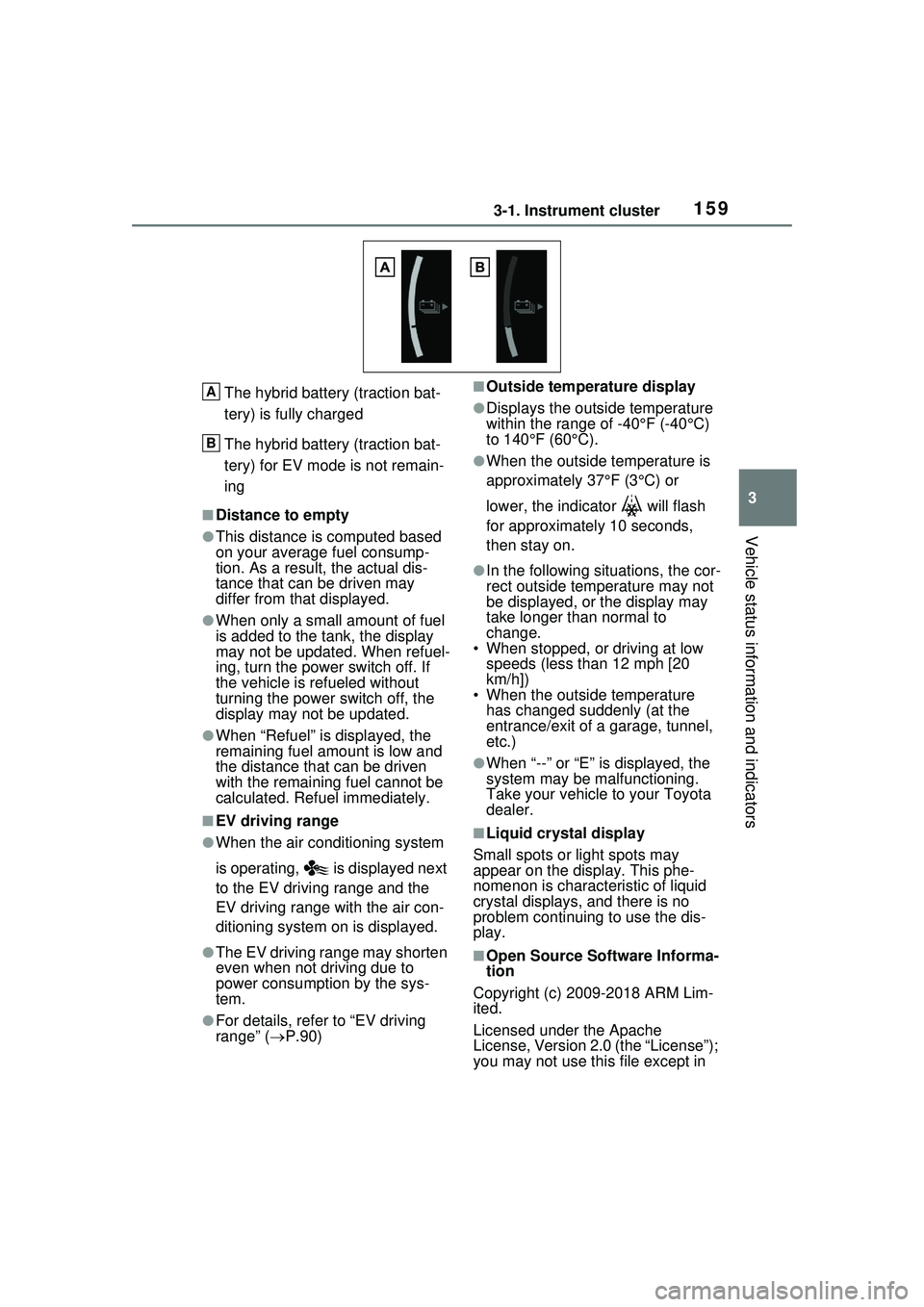
The hybrid battery (traction bat-
tery) is fully charged
The hybrid battery (traction bat-
tery) for EV mode is not remain-
ing
■Distance to empty
●This distance is computed based
on your average fuel consump-
tion. As a result, the actual dis-
tance that can be driven may
differ from that displayed.
●When only a small amount of fuel
is added to the tank, the display
may not be updated. When refuel-
ing, turn the power switch off. If
the vehicle is refueled without
turning the power switch off, the
display may not be updated.
●When “Refuel” is displayed, the
remaining fuel amount is low and
the distance that can be driven
with the remaining fuel cannot be
calculated. Refuel immediately.
■EV driving range
●When the air conditioning system
is operating, is displayed next
to the EV driving range and the
EV driving range with the air con-
ditioning system on is displayed.
●The EV driving range may shorten
even when not driving due to
power consumption by the sys-
tem.
●For details, refer to “EV driving
range” (P.90)
■Outside temperature display
●Displays the outside temperature
within the range of -40°F (-40°C)
to 140°F (60°C).
●When the outside temperature is
approximately 37°F (3°C) or
lower, the indicator will flash
for approximately 10 seconds,
then stay on.
●In the following situations, the cor-
rect outside temperature may not
be displayed, or the display may
take longer th an normal to
change.
• When stopped, or driving at low speeds (less than 12 mph [20
km/h])
• When the outside temperature has changed suddenly (at the
entrance/exit of a garage, tunnel,
etc.)
●When “--” or “E” is displayed, the
system may be malfunctioning.
Take your vehicle to your Toyota
dealer.
■Liquid crystal display
Small spots or light spots may
appear on the display. This phe-
nomenon is characteristic of liquid
crystal displays, and there is no
problem continuing to use the dis-
play.
■Open Source Software Informa-
tion
Copyright (c) 2009-2018 ARM Lim-
ited.
Licensed under the Apache
License, Version 2.0 (the “License”);
you may not use this file except in
A
B
Page 205 of 680
2054-2. Opening, closing and locking the doors
4
Before driving
an area of approximately 11.5 ft.
(3.5 m) of the outside of the vehi-
cle for 40 seconds or longer.
• The smart key system has not been used for 5 days or longer.
●If the smart key system has not
been used for 14 days or longer,
the doors cannot be unlocked at
any doors except the driver’s
door. In this case, take hold of the
driver’s door handle, or use the
wireless remote control or the
mechanical key, to unlock the
doors.
■Turning an electronic key to
battery-saving mode
●When battery-saving mode is set,
battery depletion is minimized by
stopping the electronic key from
receiving radio waves.
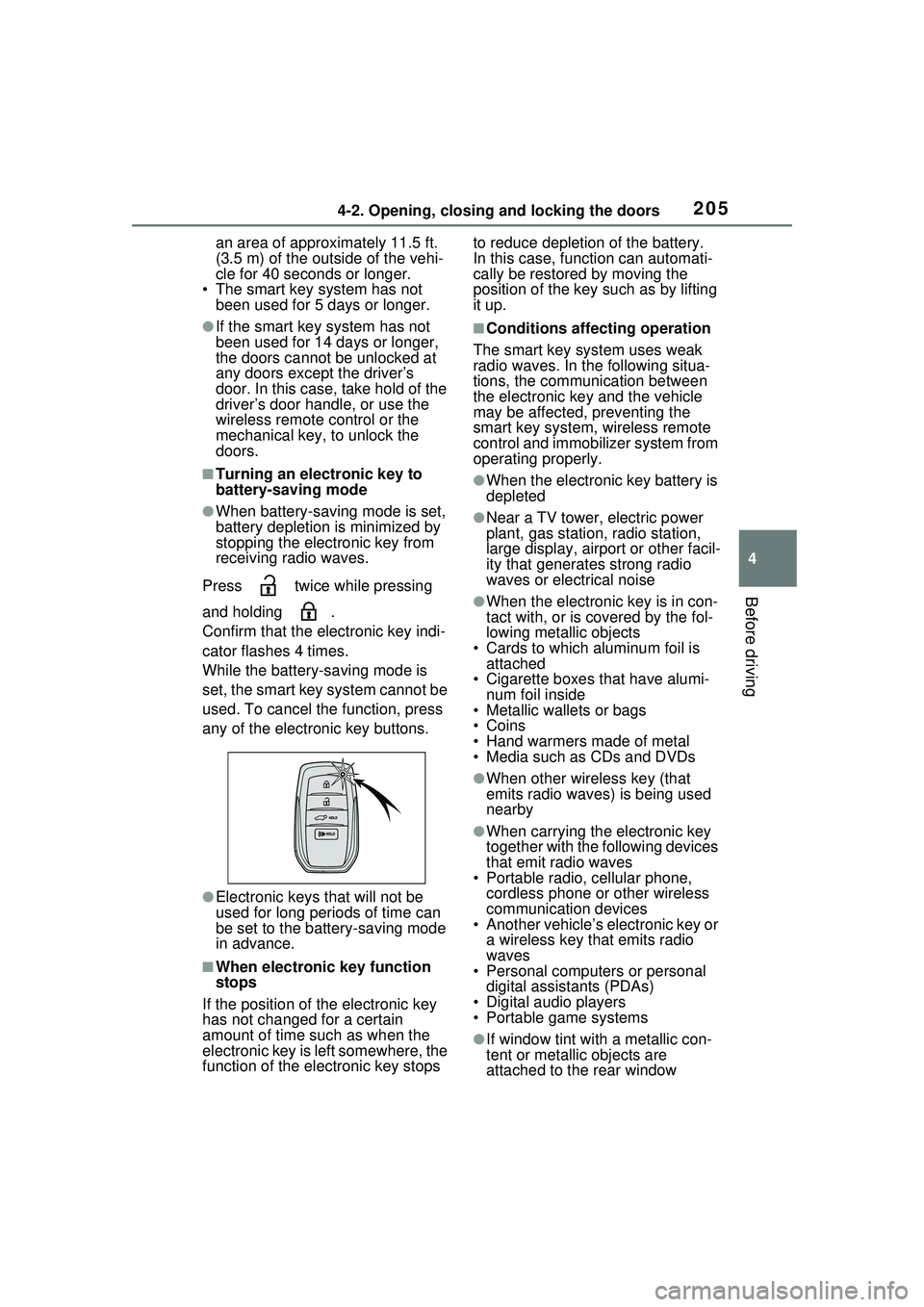
Press twice while pressing
and holding .
Confirm that the electronic key indi-
cator flashes 4 times.
While the battery-saving mode is
set, the smart key system cannot be
used. To cancel the function, press
any of the electronic key buttons.
●Electronic keys that will not be
used for long periods of time can
be set to the battery-saving mode
in advance.
■When electronic key function
stops
If the position of the electronic key
has not changed for a certain
amount of time such as when the
electronic key is left somewhere, the
function of the electronic key stops to reduce depletion of the battery.
In this case, function can automati-
cally be restored by moving the
position of the key such as by lifting
it up.
■Conditions affecting operation
The smart key system uses weak
radio waves. In the following situa-
tions, the communication between
the electronic key and the vehicle
may be affected, preventing the
smart key system, wireless remote
control and immobilizer system from
operating properly.
●When the electronic key battery is
depleted
●Near a TV tower, electric power
plant, gas station, radio station,
large display, airport or other facil-
ity that generates strong radio
waves or electrical noise
●When the electronic key is in con-
tact with, or is covered by the fol-
lowing metallic objects
• Cards to which aluminum foil is attached
• Cigarette boxes that have alumi-
num foil inside
• Metallic wallets or bags
•Coins
• Hand warmers made of metal
• Media such as CDs and DVDs
●When other wireless key (that
emits radio waves) is being used
nearby
●When carrying the electronic key
together with the following devices
that emit radio waves
• Portable radio, cellular phone, cordless phone or other wireless
communication devices
• Another vehicle’s electronic key or a wireless key that emits radio
waves
• Personal computers or personal digital assistants (PDAs)
• Digital audio players
• Portable game systems
●If window tint with a metallic con-
tent or metallic objects are
attached to the rear window
Page 349 of 680
3495-5. Using the driving support systems
5
Driving
Jam Assist is started, the follow-
ing message will be displayed:
“Allow Driver Monitor Camera
Recording?”
When recording is approved, the
system records images of the area
around the driver in certain crash or
near crash-like situations, such as
an SRS airbag being deployed or
the vehicle hitting an object on the
road. ( P.7)
WARNING
■For safe use
●Driving safely is solely the
responsibility of the driver. Do
not overly rely on this system,
and pay careful attention to the
surrounding conditions in order
to ensure safe driving.
●The Traffic Jam Assist function
is not an automated driving sys-
tem. This function provides the
driver with information and driv-
ing assistance a ccording to the
road shape and conditions, traf-
fic conditions, and the condition
of the driver themself. Always
pay careful attention to the sur-
rounding conditions as use of
the system is the responsibility
of the driver.
●Depending on the condition of
the surrounding area, the road,
or the driver, the Traffic Jam
Assist function may not operate
or operation may be sus-
pended. Also, it may not always
be able to achieve the same
level of performance. Read the
operating conditions of the func-
tion carefully. Do not overly rely
on this function and always
drive carefully.
●As the recognition performance
and control performance of the
Traffic Jam Assist function are
limited, driver operation is nec-
essary to ensure safety while
the system is operating. Also,
the steering assist of this sys-
tem is designed to operate only
for slow steering operations
during a traffic jam. While this
function is operating, the lane
deviation control function of the
LDA will not operate. If, for
some reason, the vehicle is
about to deviate the lane, it is
the driver’s responsibility to
drive properly.
●Even if Traffic Jam Assist is
operating properly, the sur-
rounding conditions as recog-
nized by the driver and detected
by the system may differ. There-
fore, it is necessary for the
driver to pay attention, assess
risks, and ensure safety. Over-
reliance on this system to drive
the vehicle safely may lead to
an accident resulting in death or
serious injury.
●While the Traffi c Jam Assist
function is operating, as driver
operation may become neces-
sary, the driver must ensure
they have clear visibility of their
surroundings.
●In certain situations, a message
urging the driver to hold the
steering wheel may be dis-
played by the Traffic Jam Assist
function. In this case, hold the
steering wheel and drive the
vehicle manually to ensure
safety.
Page 365 of 680
3655-5. Using the driving support systems
5
Driving
■The system can be operated
when
●The power switch is in ON.
●The intuitive parking assist func-
tion is on.
●The vehicle speed is less than
about 6 mph (10 km/h).
●The shift position is in a position
other than P.
■If “Parking Assist Unavailable
Sensor Blocked” is displayed
on the multi-information display
A sensor may be covered with ice,
snow, dirt, etc. Remove the ice,
snow, dirt, etc., from the sensor to
return the system to normal.
Also, due to ice forming on a sensor
at low temperatures, a warning
message may be displayed or the
sensor may not be able to detect an
object. Once the ice melts, the sys-
tem will return to normal. If an abnormality is displayed even
though there are no water droplets,
ice, snow or dirt, the sensor may be
operating abnormally. Have the
vehicle inspected by your Toyota
dealer.
■If “System Stopped See
Owner’s Manual” is displayed
on the multi-information display
Water may be continuously flowing
over the sensor surf ace, such as in
a heavy rain. When the system
determines that it is normal, the sys-
tem will return to normal.
■If “System Malfunction Visit
Your Dealer” is displayed on
the multi-info rmation display
There may be a sensor or voltage
malfunction. Have the vehicle
inspected by your Toyota dealer.
■Sensor detection information
●The sensor’s detection areas are
limited to the areas around the
vehicle’s front and rear bumpers.
●Certain vehicle conditions and the
surrounding environment may
affect the ability of a sensor to cor-
rectly detect an object.
●Objects may not be detected if
they are too close to the sensor.
●There will be a short delay
between object detection and dis-
play. Even at low speeds, there is
a possibility that the object will
come within the sensor’s detection
areas before the display is shown
and the warning beep sounds.
●It might be difficult to hear the
buzzer due to the volume of the
audio system or air flow noise of
the air conditioning system.
●It may be difficult to hear the
buzzer if buzzers for other sys-
tems are sounding.
●If the meter malfunctions, the
buzzer may not sound.
WARNING
●Keep your tires properly
inflated.
●A non-genuine Toyota suspen-
sion (lowered suspension, etc.)
is installed.
■Notes when washing the vehi-
cle
Do not apply intensive bursts of
water or steam to the sensor
area. Doing so ma y result in the
sensor malfunctioning.
●When using a high pressure
washer to wash the vehicle, do
not spray the sensors directly,
as doing so may cause a sensor
to malfunction.
●When using steam to clean the
vehicle, do not direct steam too
close to the sensors as doing so
may cause a sensor to malfunc-
tion.
Page 366 of 680
3665-5. Using the driving support systems
■Objects which the system may
not properly detect
The shape of the object may pre-
vent the sensor from detecting it.
Pay particular attention to the fol-
lowing objects:
●Wires, fences, ropes, etc.
●Cotton, snow and other materials
that absorb sound waves
●Sharply-angled objects
●Low objects
●Tall objects with upper sections
projecting outwards in the direc-
tion of your vehicle
People may not be detected if they
are wearing certain types of cloth-
ing.
■Situations in which the system
may not operate properly
Certain vehicle conditions and the
surrounding environment may affect
the ability of a sensor to correctly
detect objects. Particular instances
where this may occur are listed
below.
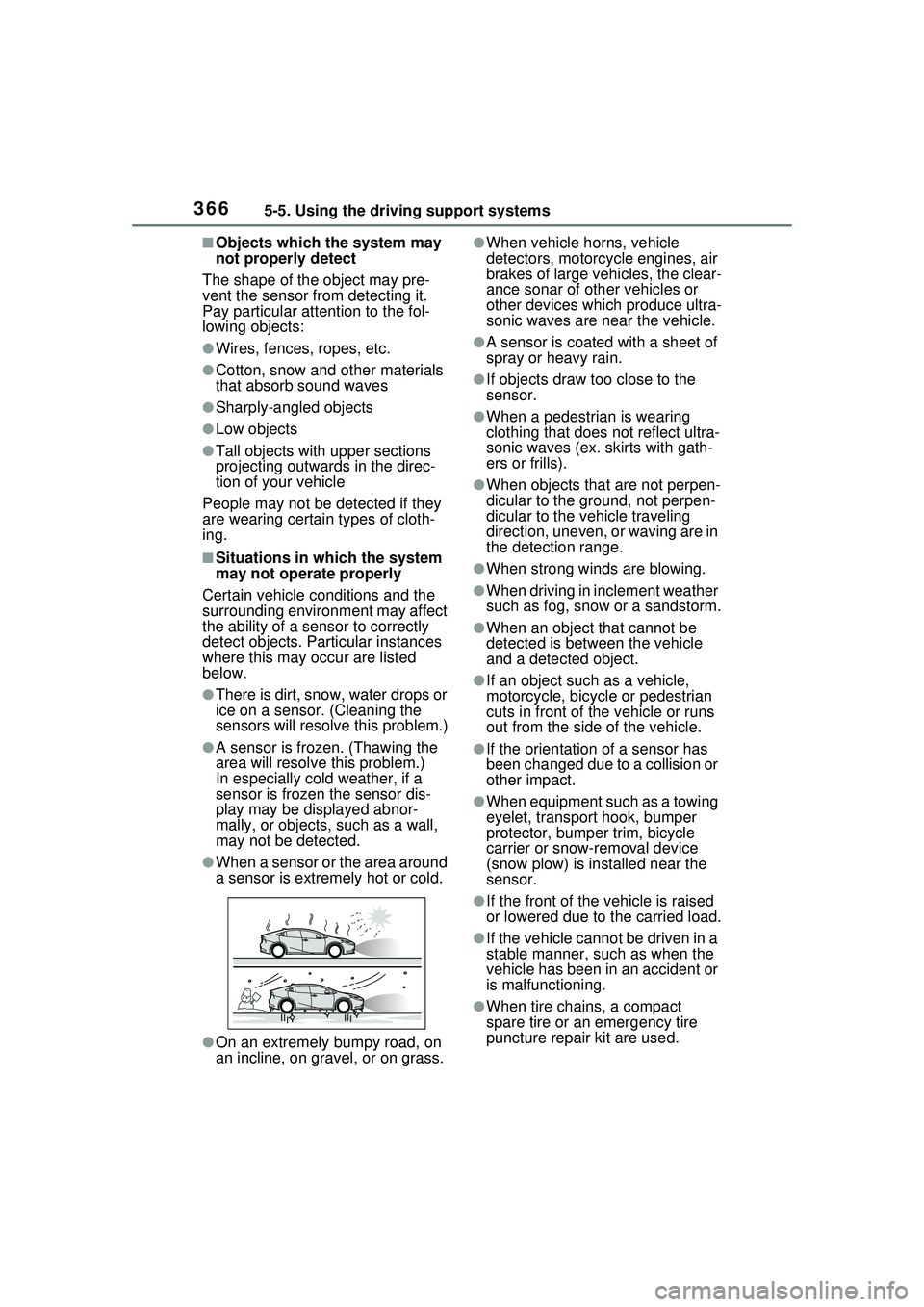
●There is dirt, snow, water drops or
ice on a sensor. (Cleaning the
sensors will resolve this problem.)
●A sensor is frozen. (Thawing the
area will resolve this problem.)
In especially cold weather, if a
sensor is frozen the sensor dis-
play may be displayed abnor-
mally, or objects, such as a wall,
may not be detected.
●When a sensor or the area around
a sensor is extremely hot or cold.
●On an extremely bumpy road, on
an incline, on gravel, or on grass.
●When vehicle horns, vehicle
detectors, motorcycle engines, air
brakes of large vehicles, the clear-
ance sonar of other vehicles or
other devices which produce ultra-
sonic waves are near the vehicle.
●A sensor is coated with a sheet of
spray or heavy rain.
●If objects draw too close to the
sensor.
●When a pedestrian is wearing
clothing that does not reflect ultra-
sonic waves (ex. skirts with gath-
ers or frills).
●When objects that are not perpen-
dicular to the ground, not perpen-
dicular to the vehicle traveling
direction, uneven, or waving are in
the detection range.
●When strong winds are blowing.
●When driving in inclement weather
such as fog, snow or a sandstorm.
●When an object that cannot be
detected is between the vehicle
and a detected object.
●If an object such as a vehicle,
motorcycle, bicycle or pedestrian
cuts in front of the vehicle or runs
out from the side of the vehicle.
●If the orientation of a sensor has
been changed due to a collision or
other impact.
●When equipment such as a towing
eyelet, transport hook, bumper
protector, bumper trim, bicycle
carrier or snow-removal device
(snow plow) is installed near the
sensor.
●If the front of the vehicle is raised
or lowered due to the carried load.
●If the vehicle cannot be driven in a
stable manner, such as when the
vehicle has been in an accident or
is malfunctioning.
●When tire chains, a compact
spare tire or an emergency tire
puncture repair kit are used.
Page 377 of 680
3775-5. Using the driving support systems
5
Driving
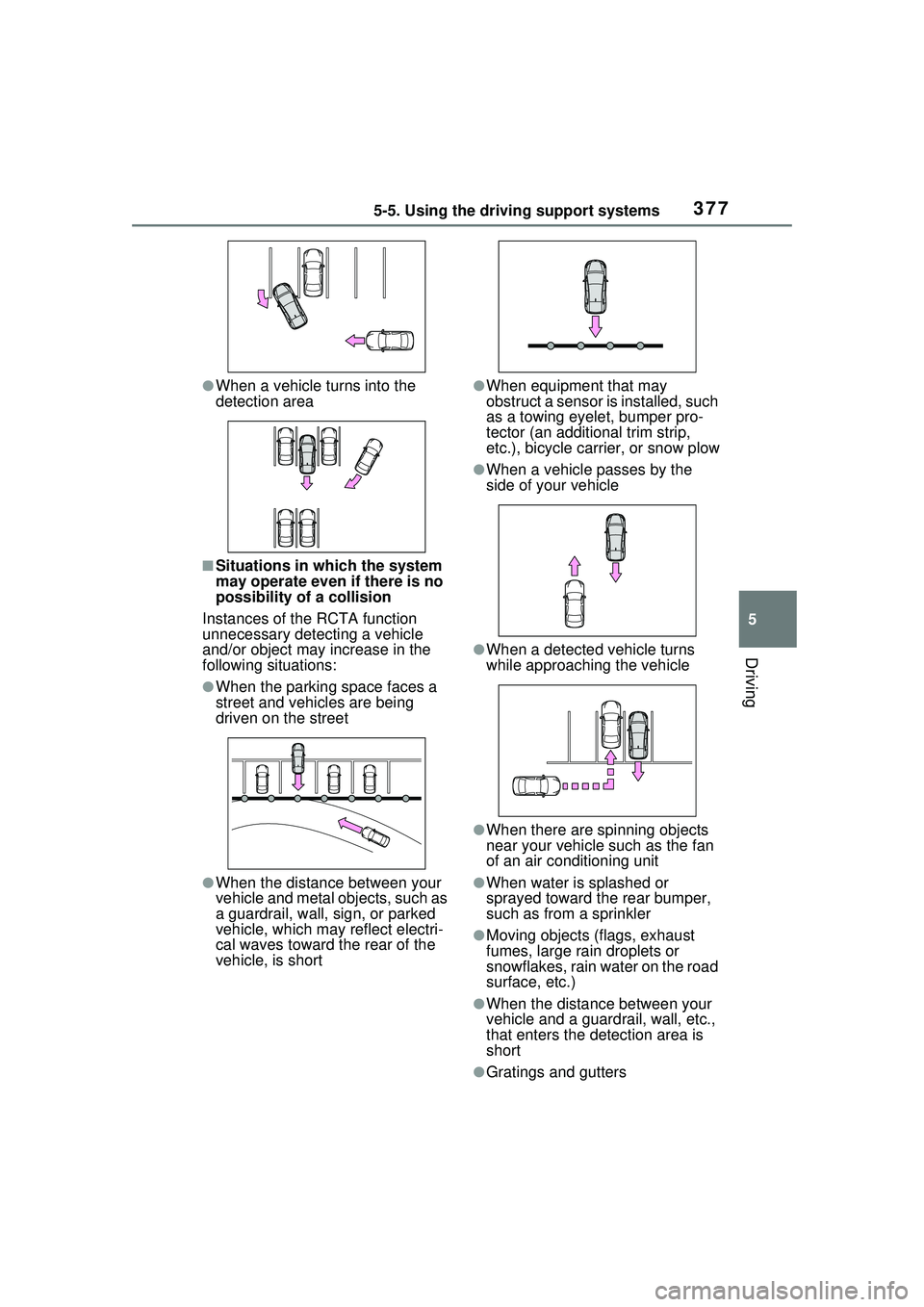
●When a vehicle turns into the
detection area
■Situations in which the system
may operate even if there is no
possibility of a collision
Instances of the RCTA function
unnecessary detecting a vehicle
and/or object may increase in the
following situations:
●When the parking space faces a
street and vehicles are being
driven on the street
●When the distance between your
vehicle and metal objects, such as
a guardrail, wall, sign, or parked
vehicle, which may reflect electri-
cal waves toward the rear of the
vehicle, is short
●When equipment that may
obstruct a sensor is installed, such
as a towing eyelet, bumper pro-
tector (an additional trim strip,
etc.), bicycle carrier, or snow plow
●When a vehicle passes by the
side of your vehicle
●When a detected vehicle turns
while approaching the vehicle
●When there are spinning objects
near your vehicle such as the fan
of an air conditioning unit
●When water is splashed or
sprayed toward the rear bumper,
such as from a sprinkler
●Moving objects (flags, exhaust
fumes, large rain droplets or
snowflakes, rain water on the road
surface, etc.)
●When the distance between your
vehicle and a guardrail, wall, etc.,
that enters the detection area is
short
●Gratings and gutters
Page 400 of 680
4005-5. Using the driving support systems
■Precautions for use
For details on the following, refer to
“Panoramic view monitor” of “Park-
ing assist system” in the “MULTIME-
DIA OWNER’S MANUAL”.
●Displayable range of the screens
●Cameras
●Differences between displayed
images and the actual road
●Differences between displayed
images and the actual objects
■Detection range of the cameras
and sensors
●If a parked vehicle is behind the
target parking space and the dis-
tance between it and the vehicle
becomes far, it may no longer be
able to be detected. Depending on
shape or condition of a parked
vehicle, the detection range may
become short or the vehicle may
not be detected.
●Objects other than parked vehi-
cles, such as columns, walls, etc.,
may not be detected. Also, if they
are detected, they may cause the
target parking space to be mis-
aligned.
■Situations in which parking
space lines may not be recog-
nized properly
●In situations such as the following,
parking space lines on the road
surface may not be detected:
• When the parking space does not use lines (parking space boundar-
ies are marked with rope, blocks,
etc.)
• When the parking space lines are
faded or dirty, making them
unclear
• When the road surface is bright, such as concrete, and the contrast
between it and the white parking
space lines is small
• When the parking space lines are
any color other than yellow or
white
• When the area surrounding the
parking space is dark, such as at night, in an underground parking
lot, parking garage, etc.
• When it is rainin g or has rained
and the road surface is wet and
reflective or there are puddles
• When the sun is shining directly
into a camera, such as in the early
morning or evening
• When the parking space is cov-
ered with snow or de-icing agent
• When there marks from repairs or other marks on the road surface,
or there is a traffic bollard, or other
object on the road surface
• When the color or brightness of
the road surface is uneven
• When a camera has been splashed by hot or cold water and
the lens has fogged up
• When the appearance of the park- ing space is affected by the
shadow of the vehicle or trees
• When a camera lens is dirty or covered with wa ter droplets
●In situations such as the following,
the target parking space may not
be recognized correctly:
• When there marks from repairs or other marks on the road surface,
or there is a parking block, traffic
bollard, or other object on the road
surface
• When it is rainin g or has rained
and the road surface is wet and
reflective or there are puddles
• When the area around the vehicle is dark or backlit
• When the color or brightness of
the road surface is uneven
• When the parking space is on a slope
• When there are diagonal lines (access aisle) near the parking
space
• When the appearance of the park- ing space is affected by the
shadow of a parked vehicle (such
as shadows from the grille, side
step, etc.)
• When accessories which obstruct the view of the camera are
installed
• When the parking space lines are faded or dirty, making them
Page 422 of 680
4225-5. Using the driving support systems
around your vehicle and exit from
the parking space manually.
■If “Cannot control speed” is
displayed
The system judged that it cannot
adjust the speed of the vehicle when
using the system in an area with a
slope or step and assistance was
canceled.
Use the system in a level location.
■If “Obstacle detected” is dis-
played
As a moving object or stationary
object that may collide with your
vehicle has been detected, the
hybrid system output control/braking
control operates to suspend
Advanced Park assistance.
Check the condition of the surround-
ing area. To resume assistance,
select the “Start” button on the Multi-
media Display.
■If “No available parking space
to register” is displayed
This message is displayed when
is selected at a parking space that
cannot be detected.
Operate the system at a parking
space where differences in the road
surface can be recognized.
( P.414)
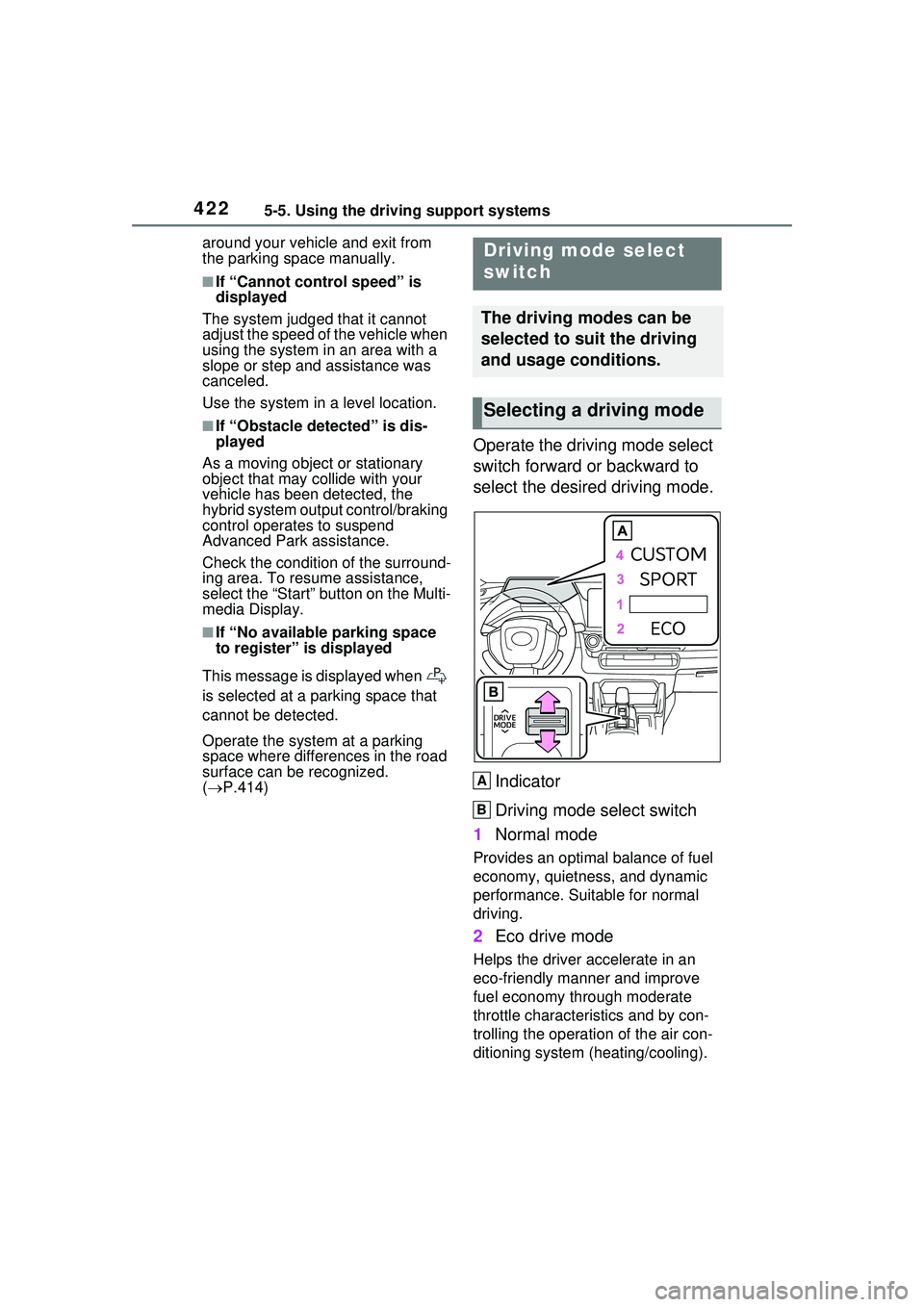
Operate the driving mode select
switch forward or backward to
select the desired driving mode.
Indicator
Driving mode select switch
1 Normal mode
Provides an optimal balance of fuel
economy, quietness, and dynamic
performance. Suitable for normal
driving.
2Eco drive mode
Helps the driver accelerate in an
eco-friendly manner and improve
fuel economy through moderate
throttle characteristics and by con-
trolling the operation of the air con-
ditioning system (heating/cooling).
Driving mode select
switch
The driving modes can be
selected to suit the driving
and usage conditions.
Selecting a driving mode
A
B
Page 423 of 680
4235-5. Using the driving support systems
5
Driving
When Eco drive mode is selected,
Eco drive mode indicator comes
on.
3Sport mode
Controls the hybrid system to pro-
vide quick, powerful acceleration.
This mode also expands the possi-
ble rate of deceleration by operat-
ing the accelerator pedal and
enables acceleration/deceleration
control based on the driver’s inten-
tions. This changes the steering
feel, making it suitable for when
agile driving response is desired,
such as when driving on roads with
many curves.
When Sport mode is selected,
Sport mode indicator comes on.
4Custom mode
Allows you to drive with the power
train, steering wheel and air condi-
tioning system func tions set to your
preferred settings.
Custom mode settings can only be
changed on the drive mode cus-
tomization display of Multimedia
Display. ( P.632)
When the Custom mode is
selected, Custom mode indicator
comes on.
■Operation of the air condition-
ing system in Eco drive mode
When Eco drive mode is selected,
the air conditioning system will auto-
matically be changed to eco air con-
ditioning mode.
Eco air conditioning mode controls
the heating/cooling operations and
fan speed of the air conditioning
system to enhance fuel efficiency.
To improve air conditioning perfor-
mance, perform the following opera-
tions:
●Adjust the fan speed ( P.435)
●Deactivate Eco drive mode
●Turn off eco air conditioning mode
( P.440)
■Automatic deactivation of a
driving mode
●Sport mode and Custom mode
are automatically deactivated and
the driving mode returns to normal
mode when the power switch is
turned to OFF.
●Normal mode and Eco drive mode
are not deactivated until another
driving mode is selected. (Even if
the power switch is turned to OFF,
normal mode and Eco drive mode
will not be automatically deacti-
vated.)
■Customization
The custom mode can be changed.
(Customizable features: P.618)
Page 425 of 680
4255-5. Using the driving support systems
5
Driving
wheel.
■The Secondary Collision
Brake
When the SRS airbag sensor
detects a collision and the sys-
tem operates, the brakes and
brake lights are automatically
controlled to reduce the vehicle
speed and help reduce the pos-
sibility of further damage due to
a secondary collision.
■When the TRAC/VSC/ABS sys-
tems are operating
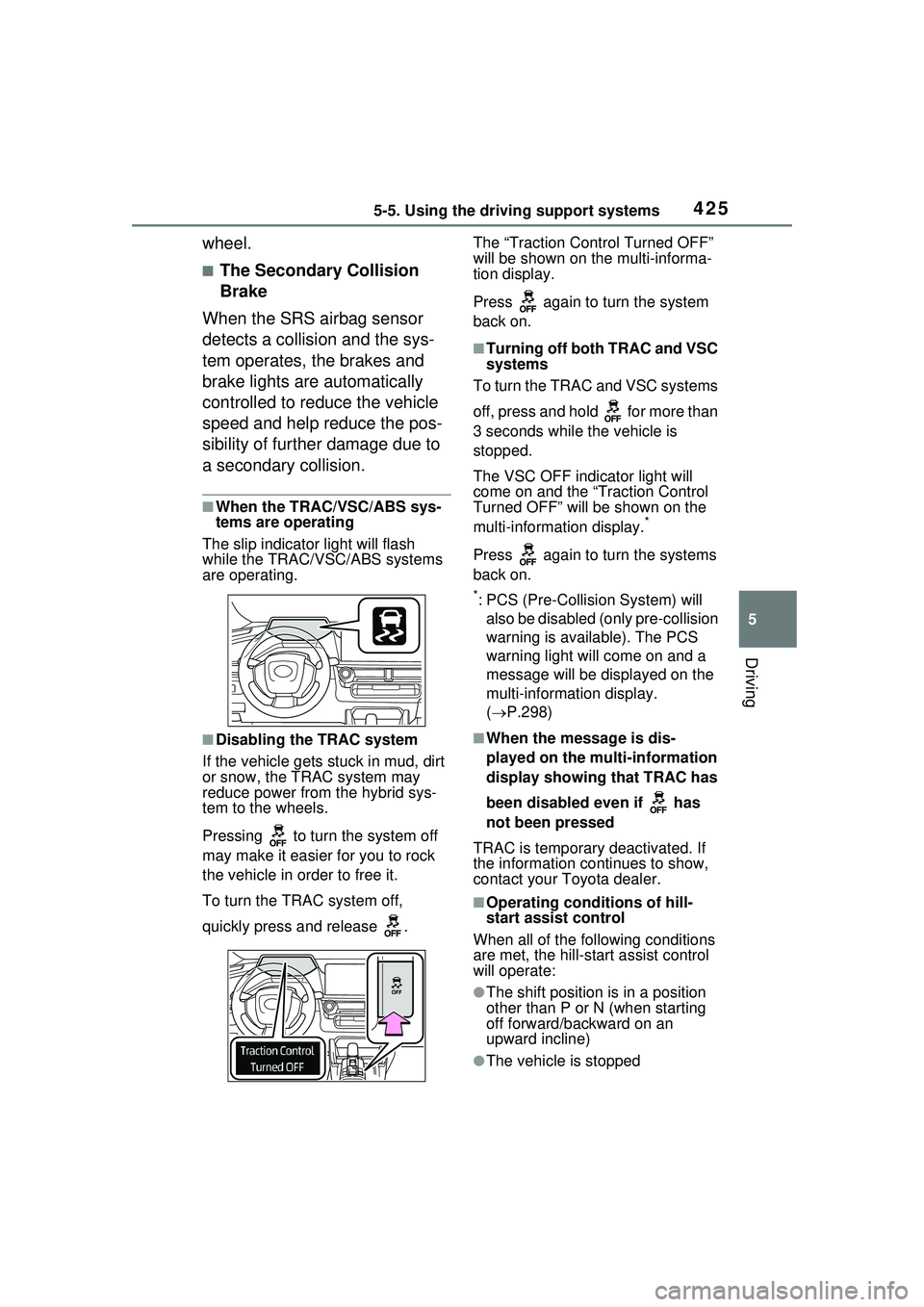
The slip indicator light will flash
while the TRAC/VSC/ABS systems
are operating.
■Disabling the TRAC system
If the vehicle gets stuck in mud, dirt
or snow, the TRAC system may
reduce power from the hybrid sys-
tem to the wheels.
Pressing to turn the system off
may make it easier for you to rock
the vehicle in order to free it.
To turn the TRAC system off,
quickly press and release . The “Traction Control Turned OFF”
will be shown on the multi-informa-
tion display.
Press again to turn the system
back on.
■Turning off both TRAC and VSC
systems
To turn the TRAC and VSC systems
off, press and hold for more than
3 seconds while the vehicle is
stopped.
The VSC OFF indicator light will
come on and the “Traction Control
Turned OFF” will be shown on the
multi-informat ion display.
*
Press again to turn the systems
back on.
*: PCS (Pre-Collision System) will
also be disabled (only pre-collision
warning is available). The PCS
warning light will come on and a
message will be disp layed on the
multi-information display.
( P.298)
■When the message is dis-
played on the mu lti-information
display showing that TRAC has
been disabled even if has
not been pressed
TRAC is temporary deactivated. If
the information continues to show,
contact your Toyota dealer.
■Operating conditions of hill-
start assist control
When all of the following conditions
are met, the hill-start assist control
will operate:
●The shift position is in a position
other than P or N (when starting
off forward/backward on an
upward incline)
●The vehicle is stopped