AUX TOYOTA PRIUS V 2013 Accessories, Audio & Navigation (in English)
[x] Cancel search | Manufacturer: TOYOTA, Model Year: 2013, Model line: PRIUS V, Model: TOYOTA PRIUS V 2013Pages: 411, PDF Size: 6.96 MB
Page 136 of 411

136
1. PHONE OPERATION
PRIUS_v_Navi_OM47828U_(U)
12.08.22 16:15
Canada
CAUTION
● NOTE
Operation is subject to the following two
conditions; (1) this device may not
cause interference, and (2) this device
must accept any interference, including
interference that may cause undesired
operation of the device.
L’utilisation de ce dispositif est autorisée
seulement aux deux conditions
suivantes : (1) il ne doit pas produire de
brouillage, et (2) l’utilisateur du dispositif
doit être prêt à accepter tout brouillage
radioélectrique reçu, même si ce
brouillage est susceptible de
compromettre le fonctionnement du
dispositif.
● This equipment complies with IC
radiation exposure limits set forth for
uncontrolled environment and meets
RSS-102 of the IC radio frequency (RF)
Exposure rules. This equipment has
very low levels of RF energy that it
deemed to comply without maximum
permissive exposure evaluation (MPE).
But it is desirable that it should be
installed and operated with at least 20
cm and more between the radiator and
person’s body (excluding extremities:
hands, wrists, feet and ankles).
Cet équipement se conforme aux limites
d’exposition aux radiations établies par
Industrie Canada pour un
environnement non contrôlé ainsi qu’aux
directives d’exposition aux fréquences
radioélectriques (RF) émises par
Industrie Canada dans la norme
CNR-102. Cet équipement émet un
niveau d’énergie RF faible à un point tel
qu’il se conforme sans devoir effectuer
d’évaluation d’exposition maximum
admissible (MPE). Lorsque l’équipement
est utilisé, il est toutefois souhaitable de
laisser au moins 20 cm entre l’antenne
et le corps (à l’exception des
extrémités : mains, poignets, pieds et
chevilles).
CAUTION
●Co-location: This transmitter must not be
co-located or operated in conjunction
with any other antenna or transmitter.
Co-implantation: cet émetteur ne doit
pas être co-implanté ou actionné en
même temps qu’aucune autre antenne
ou émetteur.
Page 188 of 411
188
PRIUS_v_Navi_OM47828U_(U)
12.08.22 16:15
1. QUICK REFERENCE .................. 190
2. SOME BASICS ............................ 192
VOICE COMMAND SYSTEM .............. 193
AUDIO SPLIT SCREEN DISPLAY ....... 193
TURNING THE SYSTEM ON AND OFF.................................................... 193
SWITCHING BETWEEN FUNCTIONS ...................................... 194
DSP CONTROL ................................... 195
TONE AND BALANCE ......................... 195
SELECTING SCREEN SIZE ................ 196
DVD PLAYER....................................... 197
AUX PORT ........................................... 198
USB PORT ........................................... 198
3. RADIO OPERATION ... ................ 199
LISTENING TO THE RADIO ................ 199
PRESETTING A STATION .................. 199
SELECTING A STATION ..................... 200
RADIO BROADCAST DATA
SYSTEM ............................................ 200
TRAFFIC ANNOUNCEMENT .............. 201
4. HD Radio™ TECHNOLOGY INFORMATION ......................... 202
USING HD Radio™ TECHNOLOGY .... 202
AVAILABLE HD Radio™
TECHNOLOGY.................................. 203
TROUBLESHOOTING GUIDE ............. 204
1AUDIO/VIDEO SYSTEM
OPERATION
AUDIO/VIDEO SYSTEM
5
Page 194 of 411
194
1. AUDIO/VIDEO SYSTEM OPERATION
PRIUS_v_Navi_OM47828U_(U)
12.08.22 16:15
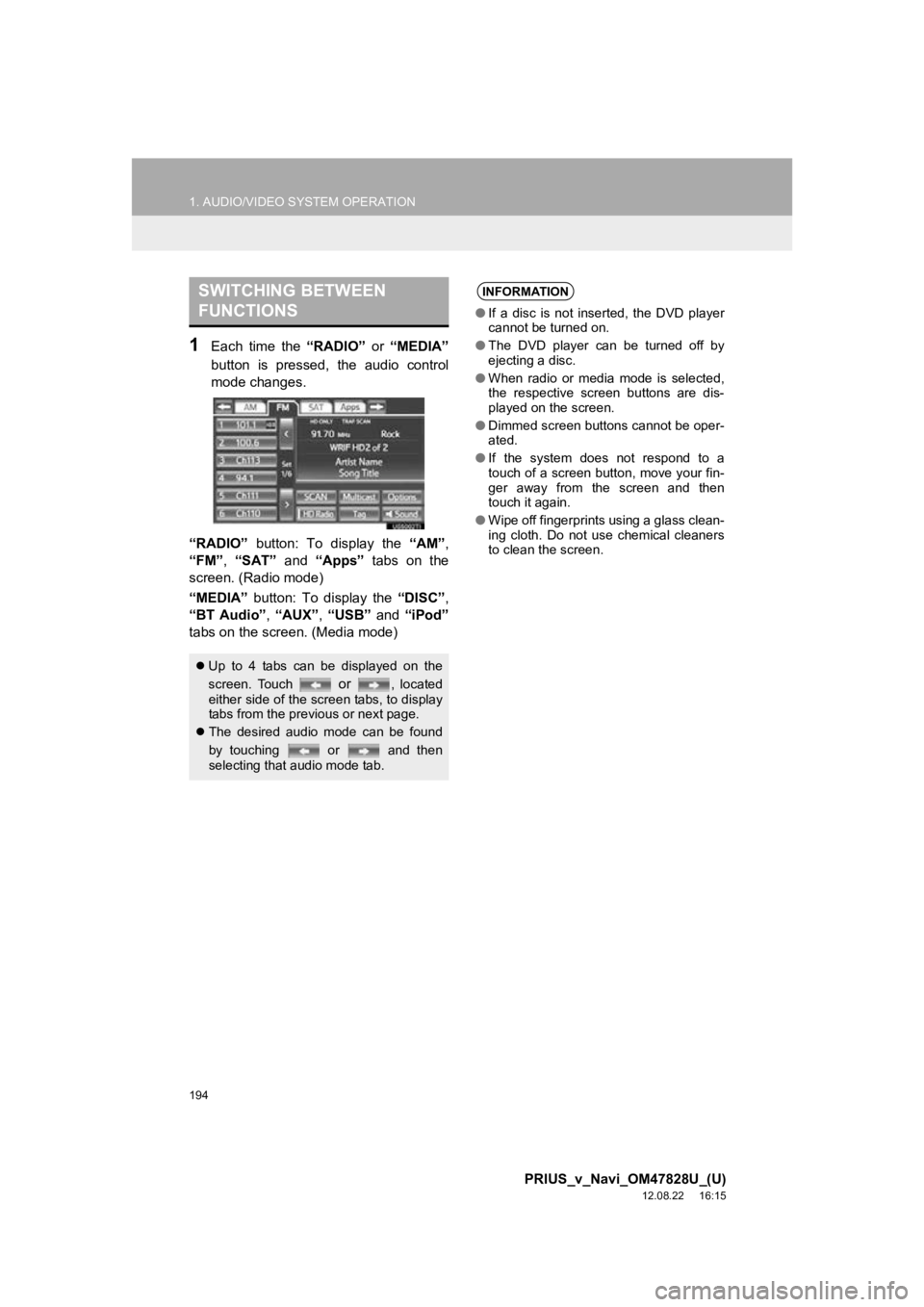
1Each time the “RADIO” or “MEDIA”
button is pressed, the audio control
mode changes.
“RADIO” button: To display the “AM”,
“FM”, “SAT” and “Apps” tabs on the
screen. (Radio mode)
“MEDIA” button: To display the “DISC”,
“BT Audio” , “AUX” , “USB” and “iPod”
tabs on the screen. (Media mode)
SWITCHING BETWEEN
FUNCTIONS
Up to 4 tabs can be displayed on the
screen. Touch
or , located
either side of the screen tabs, to display
tabs from the previous or next page.
The desired audio mode can be found
by touching or and then
selecting that audio mode tab.
INFORMATION
●If a disc is not inserted, the DVD player
cannot be turned on.
● The DVD player can be turned off by
ejecting a disc.
● When radio or media mode is selected,
the respective screen buttons are dis-
played on the screen.
● Dimmed screen buttons cannot be oper-
ated.
● If the system does not respond to a
touch of a screen button, move your fin-
ger away from the screen and then
touch it again.
● Wipe off fingerprints using a glass clean-
ing cloth. Do not use chemical cleaners
to clean the screen.
Page 198 of 411
198
1. AUDIO/VIDEO SYSTEM OPERATION
PRIUS_v_Navi_OM47828U_(U)
12.08.22 16:15
1Press the “MEDIA” button to display
the media control screen and touch the
“AUX” tab or press the “MEDIA” but-
ton repeatedly to change to AUX
mode.
1Press the “MEDIA” button to display
the media control screen and touch the
“USB” or “iPod” tab or press the
“MEDIA” button repeatedly to change
to USB memory/iPod mode.
AUX PORT
The sound of portable audio players
connected to the AUX port can be en-
joyed. For details, refer to “Owner’s
Manual”.
CAUTION
● Do not connect portable audio device or
operate the controls while driving.
NOTICE
●Do not leave portable audio device in
the vehicle. The temperature inside the
vehicle may become high, resulting in
damage to the player.
● Do not push down on or apply unneces-
sary pressure to the portable audio
device while it is connected as this may
damage the portable audio device or its
terminal.
● Do not insert foreign objects into the port
as this may damage the portable audio
device or its terminal.
INFORMATION
●When the portable audio player is not
connected to the AUX port, the tab will
be dimmed.
USB PORT
A USB memory/iPod can be connect-
ed to the USB port. For details, see
“CONNECTING A USB MEMORY” on
page 233 and “CONNECTING iPod”
on page 238.
INFORMATION
●When a USB memory/iPod is not con-
nected with the USB port, the tab will be
dimmed.
Page 245 of 411
245
1. AUDIO/VIDEO SYSTEM OPERATION
5
AUDIO/VIDEO SYSTEM
PRIUS_v_Navi_OM47828U_(U)
12.08.22 16:15
Canada
The portable player will be automatically
connected under the following conditions:
• The “POWER” switch is in either
ACCESSORY or ON mode.
• When “Bluetooth* Power” is switched
from off to on.
• When the portable player is discon- nected for some reason.
CAUTION
● NOTE
Operation is subject to the following two
conditions; (1) this device may not
cause interference, and (2) this device
must accept any interference, including
interference that may cause undesired
operation of the device.
L’utilisation de ce dispositif est autorisée
seulement aux deux conditions
suivantes : (1) il ne doit pas produire de
brouillage, et (2) l’utilisateur du dispositif
doit être prêt à accepter tout brouillage
radioélectrique reçu, même si ce
brouillage est susceptible de
compromettre le fonctionnement du
dispositif.
● This equipment complies with IC
radiation exposure limits set forth for
uncontrolled environment and meets
RSS-102 of the IC radio frequency (RF)
Exposure rules. This equipment has
very low levels of RF energy that it
deemed to comply without maximum
permissive exposure evaluation (MPE).
But it is desirable that it should be
installed and operated with at least 20
cm and more between the radiator and
person’s body (excluding extremities:
hands,wrists, feet and ankles).
Cet équipement se conforme aux limites
d’exposition aux radiations établies par
Industrie Canada pour un
environnement non contrôlé ainsi qu’aux
directives d’exposition aux fréquences
radioélectriques (RF) émises par
Industrie Canada dans la norme
CNR-102. Cet équipement émet un
niveau d’énergie RF faible à un point tel
qu’il se conforme sans devoir effectuer
d’évaluation d’exposition maximum
admissible (MPE). Lorsque l’équipement
est utilisé, il est toutefois souhaitable de
laisser au moins 20 cm entre l’antenne
et le corps (à l’exception des
extrémités : mains, poignets, pieds et
chevilles).
CAUTION
● Co-location: This transmitter must not be
co-located or operated in conjunction
with any other antenna or transmitter.
Co-implantation: cet émetteur ne doit
pas être co-implanté ou actionné en
même temps qu’aucune autre antenne
ou émetteur.
CONNECTING A Bluetooth®
AUDIO PLAYER
To use the Bluetooth® audio system, it
is necessary to register a portable
player with the system. Once the porta-
ble player has been registered, it is
possible to listen to the music.
Once the portable player has been reg-
istered, it is possible to listen to music
through the navigation system. (See
“REGISTERING A Bluetooth
® DE-
VICE” on page 178.)
INFORMATION
● For operating the portable player, see
the instruction manual that comes with
it.
WHEN “Bluetooth* Power” IS
ON
Page 279 of 411
279
1. VOICE COMMAND SYSTEM OPERATION
6
VOICE COMMAND SYSTEM
PRIUS_v_Navi_OM47828U_(U)
12.08.22 16:15
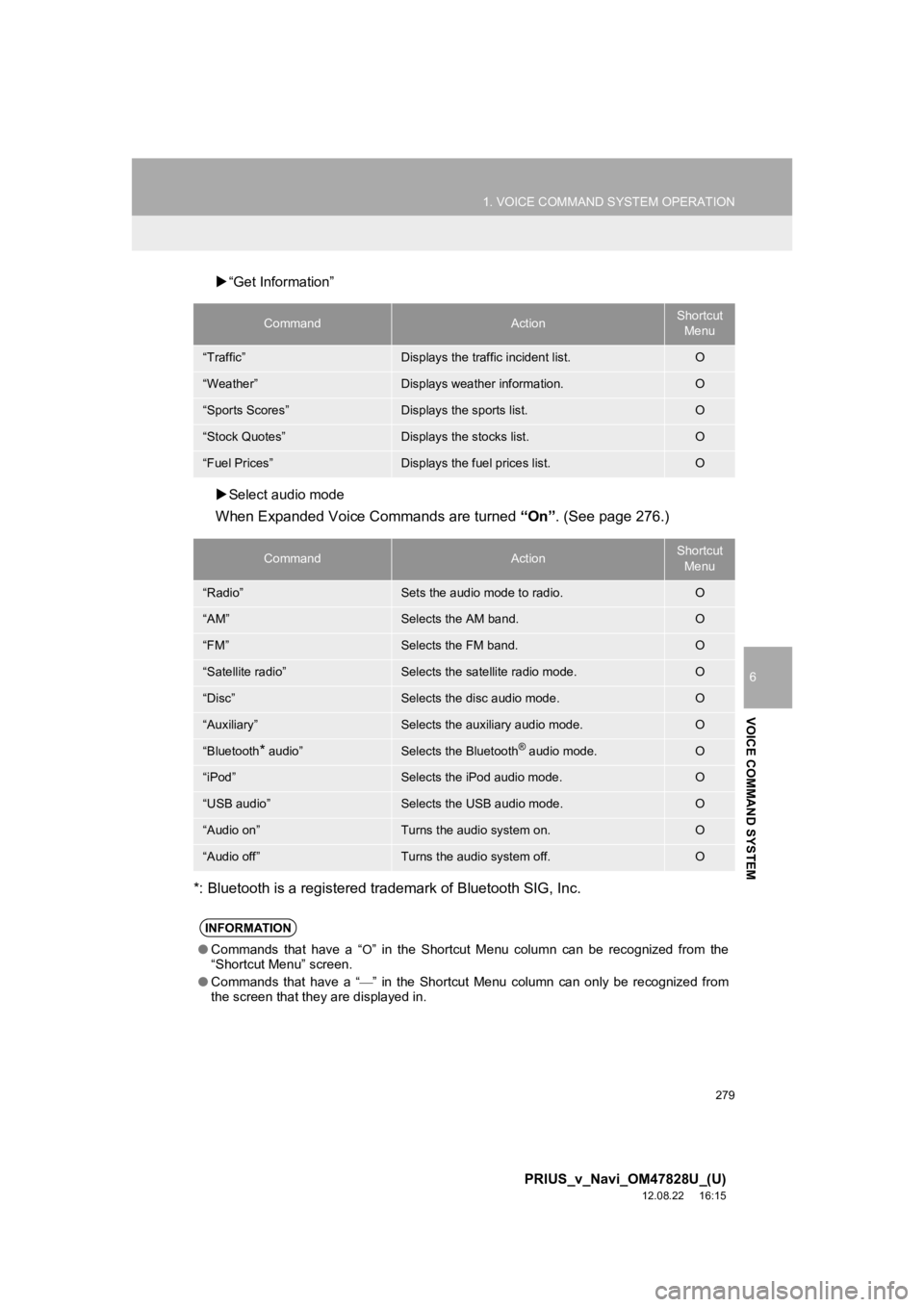
“Get Information”
Select audio mode
When Expanded Voice Commands are turned “On”. (See page 276.)
*: Bluetooth is a registered trademark of Bluetooth SIG, Inc.
CommandActionShortcut Menu
“Traffic”Displays the traffic incident list.O
“Weather”Displays weather information.O
“Sports Scores”Displays the sports list.O
“Stock Quotes”Displays the stocks list.O
“Fuel Prices”Displays the fuel prices list.O
CommandActionShortcut Menu
“Radio”Sets the audio mode to radio.O
“AM”Selects the AM band.O
“FM”Selects the FM band.O
“Satellite radio”Selects the satellite radio mode.O
“Disc”Selects the disc audio mode.O
“Auxiliary”Selects the auxiliary audio mode.O
“Bluetooth* audio”Selects the Bluetooth® audio mode.O
“iPod”Selects the iPod audio mode.O
“USB audio”Selects the USB audio mode.O
“Audio on”Turns the audio system on.O
“Audio off”Turns the audio system off.O
INFORMATION
● Commands that have a “O” in the Shortcut Menu column can be recognized from the
“Shortcut Menu” screen.
● Commands that have a “
” in the Shortcut Menu column can only be recognized from
the screen that they are displayed in.
Page 284 of 411
284
1. INFORMATION DISPLAY
PRIUS_v_Navi_OM47828U_(U)
12.08.22 16:15
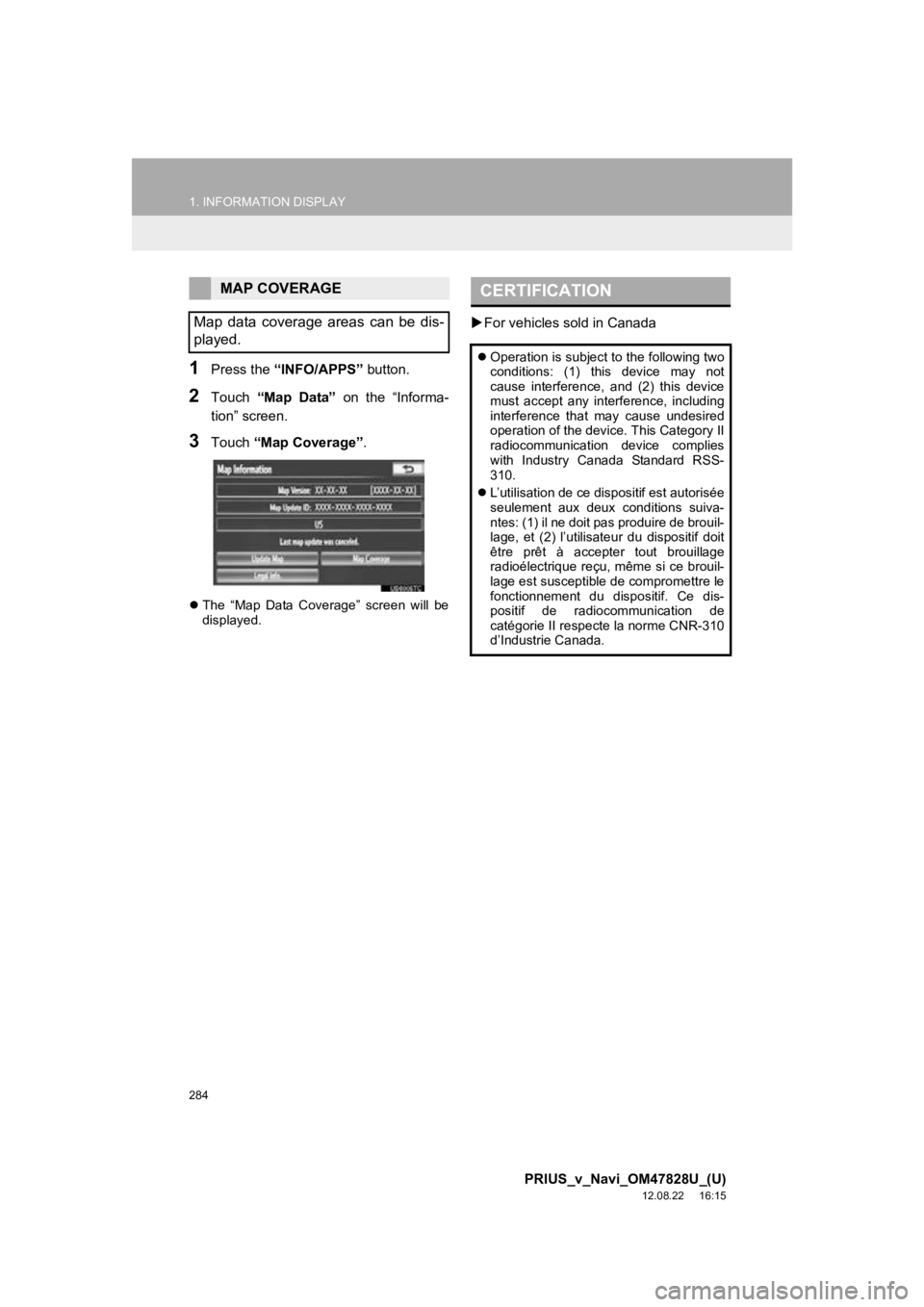
1Press the “INFO/APPS” button.
2Touch “Map Data” on the “Informa-
tion” screen.
3Touch “Map Coverage”.
The “Map Data Coverage” screen will be
displayed.
For vehicles sold in Canada
MAP COVERAGE
Map data coverage areas can be dis-
played.CERTIFICATION
Operation is subject to the following two
conditions: (1) this device may not
cause interference, and (2) this device
must accept any interference, including
interference that may cause undesired
operation of the device. This Category II
radiocommunication device complies
with Industry Canada Standard RSS-
310.
L’utilisation de ce dispositif est autorisée
seulement aux deux conditions suiva-
ntes: (1) il ne doit pas produire de brouil-
lage, et (2) l’utilisateur du dispositif doit
être prêt à accepter tout brouillage
radioélectrique reçu, même si ce brouil-
lage est susceptible de compromettre le
fonctionnement du dispositif. Ce dis-
positif de radiocommunication de
catégorie II respecte la norme CNR-310
d’Industrie Canada.
Page 378 of 411

378
ALPHABETICAL INDEX
PRIUS_v_Navi_OM47828U_(U)
12.08.22 16:15
A
Adding destinations................................... 85
Address book .......................................... 101
Address book entries .............................. 101
Advanced parking guidance system ....... 322Advanced parking guidance system camera .......... ...................... 369
Area displayed on screen .................... 368
Differences between the display and the actual road .......................... 370
Driving precautions.............................. 366
Easy set function ................................. 331
Example of how to use the system when parallel parking ....................... 365
Example of how to use the system when parking (Perpendicular
parking) ............................................ 360
If a message appears on the screen ................................... 310
Initializing the system .......................... 375
Introduction.......................................... 322
Maneuvering when parking ................. 324
Manual guide line display mode .......... 360
Operating procedure ................... 333, 345
Parallel parking assist mode ............... 344
Parking assist mode (Perpendicular parking) ................... 330
Pre-support function .................... 330, 344
Pre-support switch............................... 323
Sensor ................................................. 373
Tips for setting the target parking position ............. 340, 352
Usage precautions .............................. 366
What to do when this sort of message is displayed ...................... 355
When a red frame is displayed in the assist mode ............................ 359
When a three-dimensional object is nearby .......................................... 372
AM........................................................... 199
Apps ........................................................ 304 Audio .......................................................190
Audio language code ..............................227
Audio settings..........................................264
HD Radio™ system sett ings................264
iPod settings ........................................265
Audio/video remote controls (Steering switches) ..............................252
Audio/video system .................................190
Audio/video system operating hints ........254
Caring for your DVD player and disc............................................256
CD-R and CD-RW discs ......................260
iPod .....................................................255
MP3/WMA files ....................................258
Radio reception ...................................254
Terms ..................................................260
USB memory .......................................256
Automatic Sound Levelizer (ASL) ...........195
AUX port..................................................198
B
Basic function ............................................26
Bluetooth®...............................................130
Bluetooth® audio .....................................242
Connecting a Bluetooth® audio
player ...............................................245
Playing Bluetooth
® audio.....................247
Bluetooth® phone ....................................137
Bluetooth® phone message function.......152
Checking messages ............................152
New message notification....................154
Replying (Quick reply) .........................153
Bluetooth
® settings .................................177
Detailed Bluetooth® settings................184
Registered devices ..............................177
Selecting a Bluetooth
® phone .............181
Selecting portable player .....................183
Brightness .........................................31, 224
ALPHABETICAL INDEX