start TOYOTA PROACE 2018 Owners Manual
[x] Cancel search | Manufacturer: TOYOTA, Model Year: 2018, Model line: PROACE, Model: TOYOTA PROACE 2018Pages: 516, PDF Size: 90.91 MB
Page 383 of 516
383
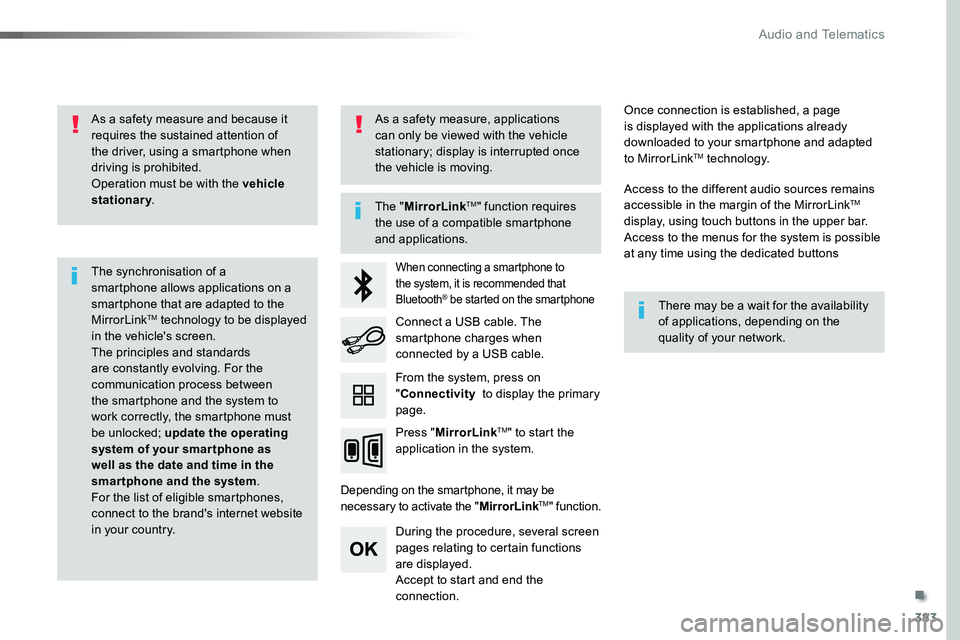
As a safety measure and because it requires the sustained attention of the driver, using a smartphone when driving is prohibited.Operation must be with the vehicle stationary.
The synchronisation of a smartphone allows applications on a smartphone that are adapted to the MirrorLinkTM technology to be displayed in the vehicle's screen.The principles and standards are constantly evolving. For the communication process between the smartphone and the system to work correctly, the smartphone must be unlocked; update the operating system of your smar tphone as well as the date and time in the smartphone and the system.For the list of eligible smartphones, connect to the brand's internet website in your country.
The "MirrorLinkTM" function requires the use of a compatible smartphone
and applications.
There may be a wait for the availability of applications, depending on the quality of your network.
When connecting a smartphone to the system, it is recommended that Bluetooth® be started on the smartphone
Depending on the smartphone, it may be necessary to activate the "MirrorLinkTM" function.
During the procedure, several screen pages relating to certain functions are displayed.Accept to start and end the connection.
Connect a USB cable. The smartphone charges when connected by a USB cable.
Press "MirrorLinkTM" to start the application in the system.
Once connection is established, a page is displayed with the applications already downloaded to your smartphone and adapted to MirrorLinkTM technology.
Access to the different audio sources remains accessible in the margin of the MirrorLinkTM display, using touch buttons in the upper bar.Access to the menus for the system is possible at any time using the dedicated buttons
From the system, press on "Connectivity to display the primary page.
As a safety measure, applications can only be viewed with the vehicle stationary; display is interrupted once the vehicle is moving.
.
Audio and Telematics
Page 398 of 516
398
Media
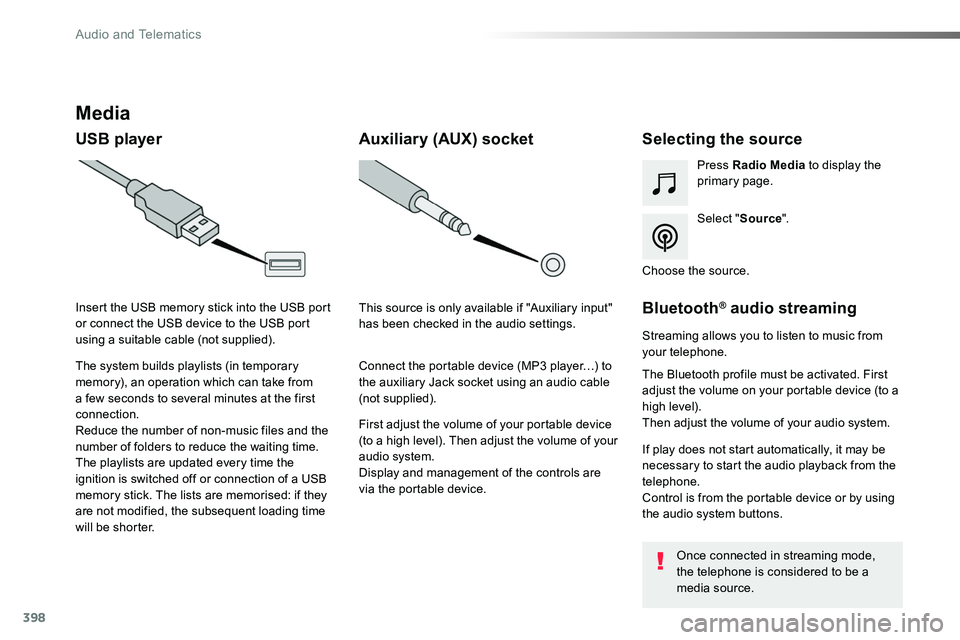
USB playerSelecting the source
Select "Source".
Press Radio Media to display the primary page.
The system builds playlists (in temporary memory), an operation which can take from a few seconds to several minutes at the first connection.
Reduce the number of non-music files and the number of folders to reduce the waiting time.The playlists are updated every time the ignition is switched off or connection of a USB memory stick. The lists are memorised: if they are not modified, the subsequent loading time will be shorter.
Insert the USB memory stick into the USB port or connect the USB device to the USB port using a suitable cable (not supplied).
Auxiliary (AUX) socket
First adjust the volume of your portable device (to a high level). Then adjust the volume of your audio system.Display and management of the controls are via the portable device.
This source is only available if "Auxiliary input" has been checked in the audio settings.
Connect the portable device (MP3 player…) to the auxiliary Jack socket using an audio cable (not supplied).
Choose the source.
Bluetooth® audio streaming
Streaming allows you to listen to music from your telephone.
The Bluetooth profile must be activated. First adjust the volume on your portable device (to a high level).Then adjust the volume of your audio system.
If play does not start automatically, it may be necessary to start the audio playback from the telephone.Control is from the portable device or by using the audio system buttons.
Once connected in streaming mode, the telephone is considered to be a media source.
Audio and Telematics
Page 399 of 516
399
Connecting Apple® players
Connect the Apple® player to the USB port using a suitable cable (not supplied).Play starts automatically.
Control is via the audio system.
The classifications available are those of the portable device connected (artists / albums / genres / playlists / audiobooks / podcasts).The default classification used is by artist. To modify the classification used, return to the first level of the menu then select the desired classification (playlists for example) and confirm to go down through the menu to the desired track.
The version of software in the audio system may not be compatible with the generation of your Apple® player.
The audio equipment will only play audio files with ".wma, .aac, .flac, .ogg and .mp3" file extensions and with a bit rate of between 32 Kbps and 320 Kbps.It also supports VBR (Variable Bit Rate) mode.No other type of file (.mp4, ...) can be played.".wma" files must be of the standard wma 9 type.The sampling rates supported are 32, 44 and 48 KHz.
It is advisable to restrict file names to 20 characters, without using of special
characters (e.g.: " " ? ; ù) to avoid any playing and displaying problems.
Information and advice
Use only USB memory sticks formatted FAT 32 (file allocation table).
The system supports USB mass storage devices, BlackBerry® devices or Apple® players via USB ports. The adaptor cable is not supplied.
Control of the peripheral device is with the audio system controls.Other peripherals, not recognised on connection, must be connected to the auxiliary socket using a Jack cable (not supplied) or via Bluetooth streaming, depending on compatibility.
It is recommended that the USB cable for the portable device is used.
.
Audio and Telematics
Page 401 of 516
401
14
12
13
3
2
5
6
7
4
8
9
10
11
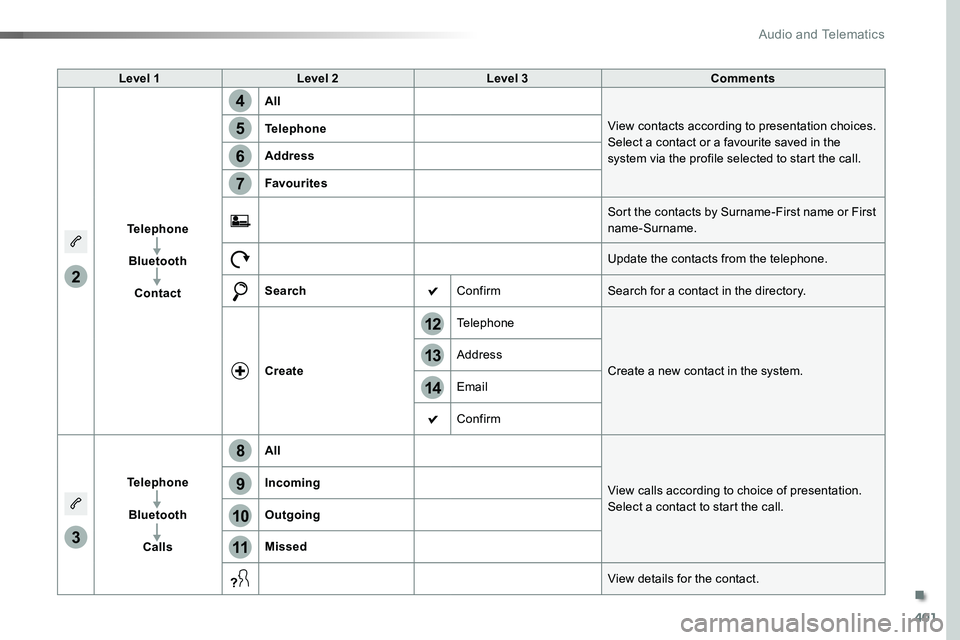
Level 1Level 2Level 3Comments
Telephone
Bluetooth
Contact
All
View contacts according to presentation choices.Select a contact or a favourite saved in the system via the profile selected to start the call.
Telephone
Address
Favourites
Sort the contacts by Surname-First name or First name-Surname.
Update the contacts from the telephone.
SearchConfirmSearch for a contact in the directory.
Create
Telephone
Create a new contact in the system.Address
Email
Confirm
Telephone
Bluetooth
Calls
All
View calls according to choice of presentation.Select a contact to start the call.
Incoming
Outgoing
Missed
View details for the contact.
.
Audio and Telematics
Page 403 of 516
403
1
1
1
19
20
21
22
15
16
17
18
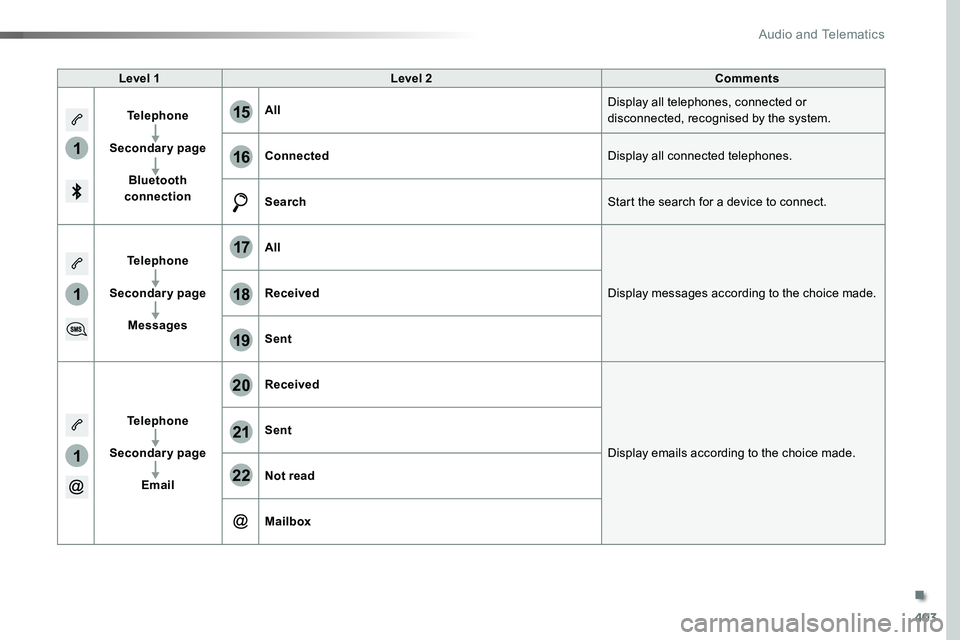
Level 1Level 2Comments
Telephone
Secondary page
Bluetooth connection
AllDisplay all telephones, connected or disconnected, recognised by the system.
ConnectedDisplay all connected telephones.
SearchStart the search for a device to connect.
Telephone
Secondary page
Messages
All
Display messages according to the choice made.Received
Sent
Telephone
Secondary page
Email
Received
Display emails according to the choice made.
Sent
Not read
Mailbox
.
Audio and Telematics
Page 409 of 516
409
2
3
on the steering mounted button.
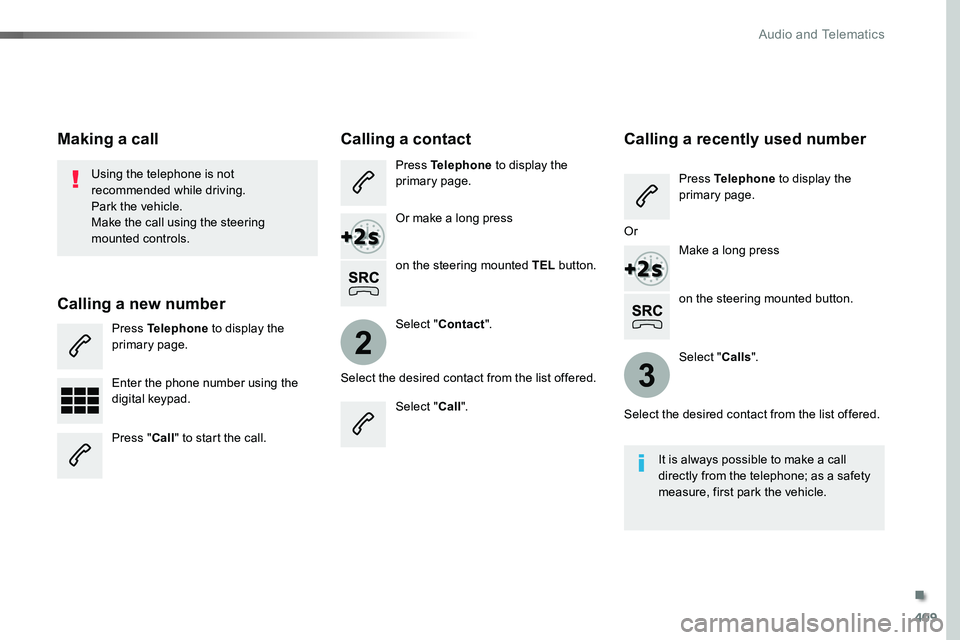
Using the telephone is not recommended while driving.Park the vehicle.Make the call using the steering
mounted controls.
Making a call
Calling a new number
Press Telephone to display the primary page.
Enter the phone number using the digital keypad.
Press "Call" to start the call.
Calling a contact
Press Telephone to display the primary page.
Or make a long press
on the steering mounted TEL button.
Select "Contact".
Select the desired contact from the list offered.
Select "Call".
Calling a recently used number
Press Telephone to display the primary page.
Make a long press
Select "Calls".
Select the desired contact from the list offered.
It is always possible to make a call directly from the telephone; as a safety measure, first park the vehicle.
Or
.
Audio and Telematics
Page 410 of 516
410
2
12
13
14
1
The access to "Messages" depends on the compatibility of the smartphone and the integral system.Depending on the smartphone, access to your messages or email may be
slow.
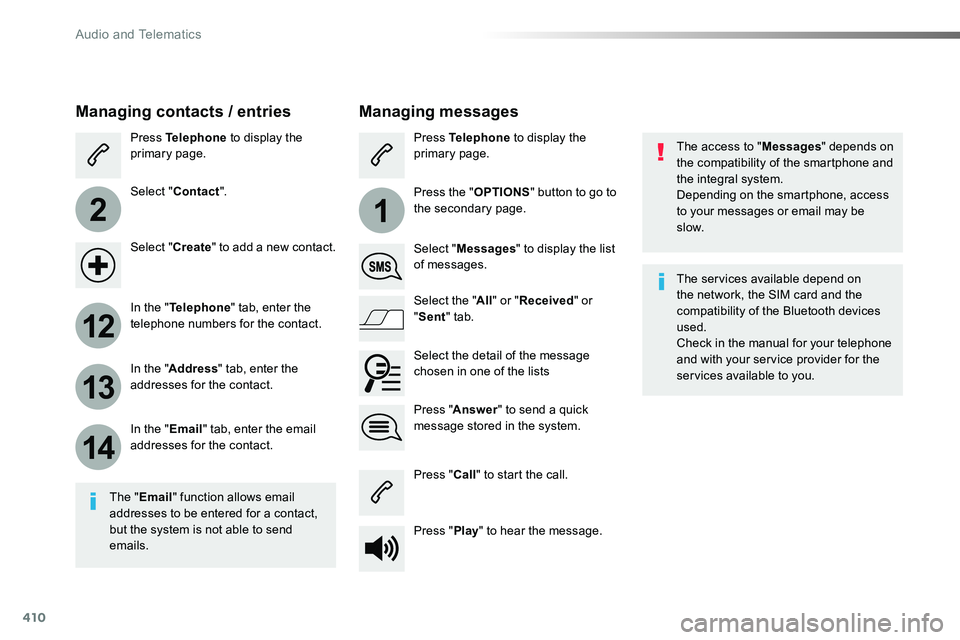
Managing messages
The "Email" function allows email addresses to be entered for a contact, but the system is not able to send emails.
Managing contacts / entries
Press Telephone to display the primary page.
Select "Contact".
Select "Create" to add a new contact.
In the "Telephone" tab, enter the telephone numbers for the contact.
In the "Address" tab, enter the addresses for the contact.
In the "Email" tab, enter the email addresses for the contact.
Press "Answer" to send a quick message stored in the system.
Press Telephone to display the primary page.
Press the "OPTIONS" button to go to the secondary page.
Select "Messages" to display the list of messages.
Select the "All" or "Received" or "Sent" tab.
Select the detail of the message chosen in one of the lists
Press "Call" to start the call.
Press "Play" to hear the message.
The services available depend on the network, the SIM card and the compatibility of the Bluetooth devices used.Check in the manual for your telephone and with your service provider for the services available to you.
Audio and Telematics
Page 423 of 516
423
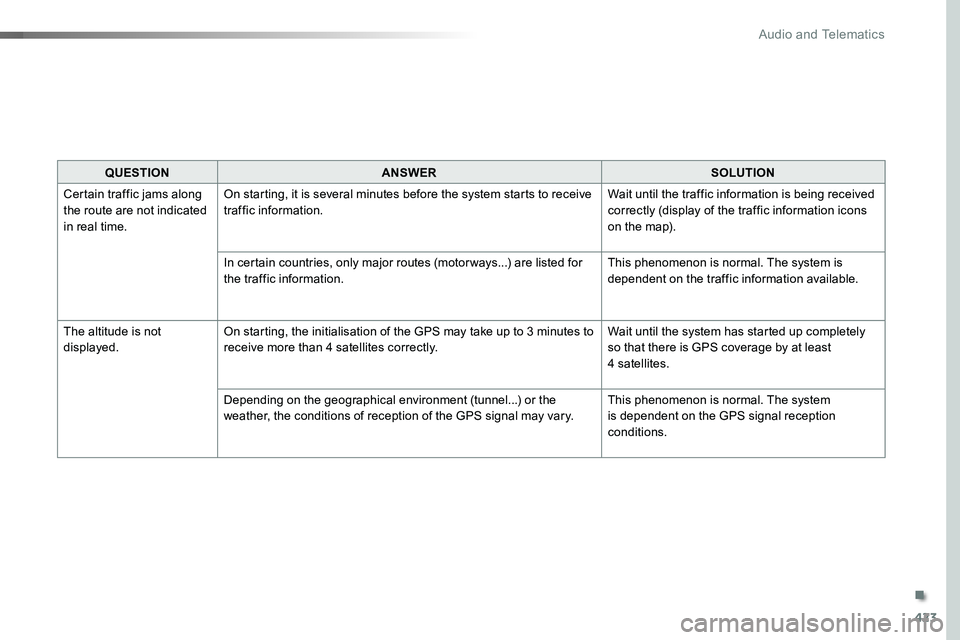
QUESTIONANSWERSOLUTION
Certain traffic jams along the route are not indicated in real time.
On starting, it is several minutes before the system starts to receive traffic information.Wait until the traffic information is being received correctly (display of the traffic information icons on the map).
In certain countries, only major routes (motor ways...) are listed for the traffic information.This phenomenon is normal. The system is dependent on the traffic information available.
The altitude is not displayed.On starting, the initialisation of the GPS may take up to 3 minutes to receive more than 4 satellites correctly.Wait until the system has started up completely so that there is GPS coverage by at least 4 satellites.
Depending on the geographical environment (tunnel...) or the weather, the conditions of reception of the GPS signal may vary.This phenomenon is normal. The system is dependent on the GPS signal reception
conditions.
.
Audio and Telematics
Page 425 of 516
425
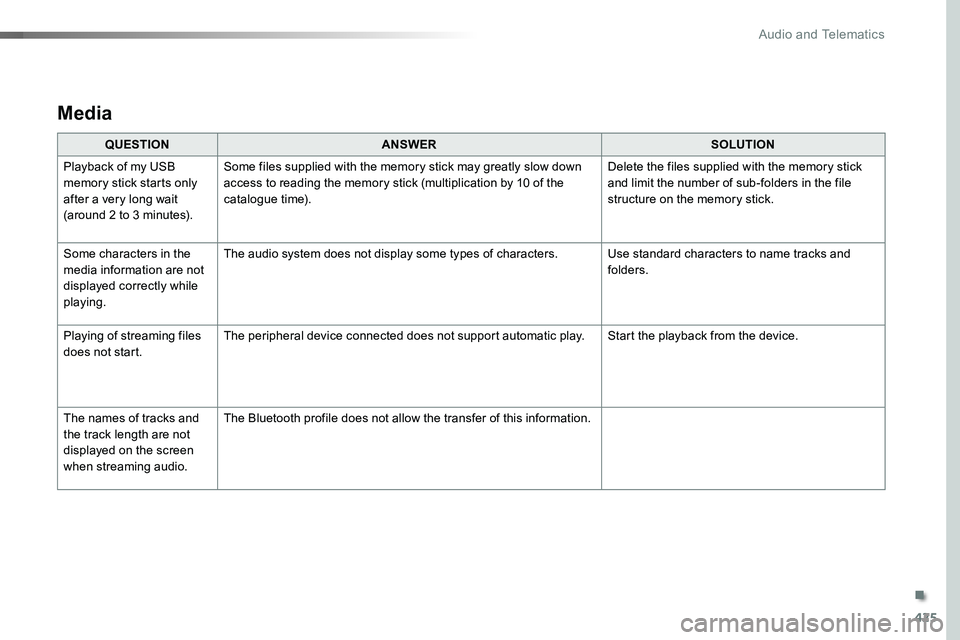
Media
QUESTIONANSWERSOLUTION
Playback of my USB memory stick starts only after a very long wait (around 2 to 3 minutes).
Some files supplied with the memory stick may greatly slow down access to reading the memory stick (multiplication by 10 of the catalogue time).
Delete the files supplied with the memory stick and limit the number of sub-folders in the file structure on the memory stick.
Some characters in the media information are not displayed correctly while playing.
The audio system does not display some types of characters.Use standard characters to name tracks and folders.
Playing of streaming files does not start.The peripheral device connected does not support automatic play.Start the playback from the device.
The names of tracks and the track length are not displayed on the screen when streaming audio.
The Bluetooth profile does not allow the transfer of this information.
.
Audio and Telematics
Page 428 of 516
428
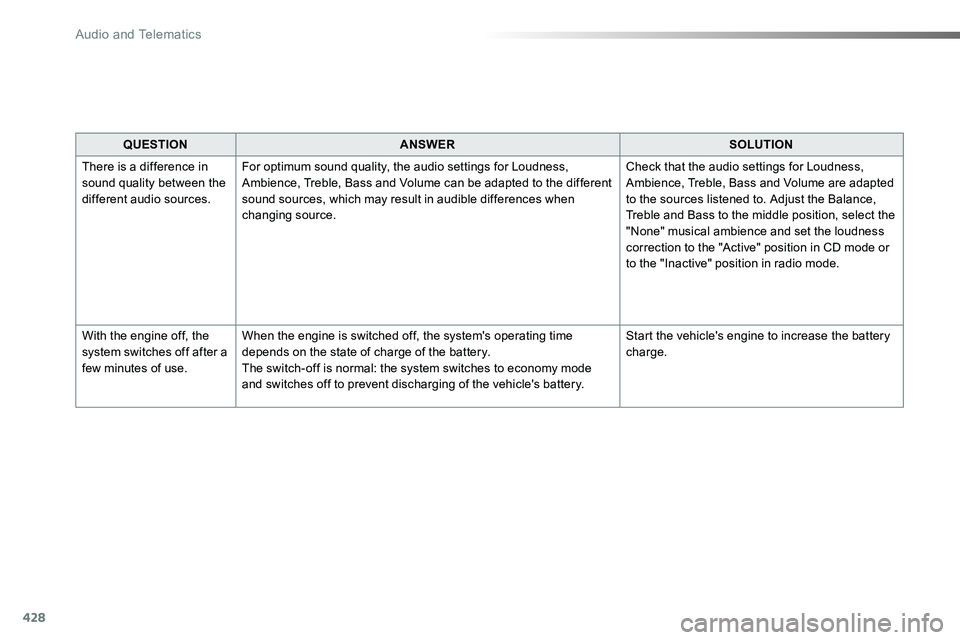
QUESTIONANSWERSOLUTION
There is a difference in sound quality between the different audio sources.
For optimum sound quality, the audio settings for Loudness, Ambience, Treble, Bass and Volume can be adapted to the different sound sources, which may result in audible differences when changing source.
Check that the audio settings for Loudness, Ambience, Treble, Bass and Volume are adapted to the sources listened to. Adjust the Balance, Treble and Bass to the middle position, select the "None" musical ambience and set the loudness correction to the "Active" position in CD mode or to the "Inactive" position in radio mode.
With the engine off, the system switches off after a few minutes of use.
When the engine is switched off, the system's operating time depends on the state of charge of the battery.The switch-off is normal: the system switches to economy mode and switches off to prevent discharging of the vehicle's battery.
Start the vehicle's engine to increase the battery charge.
Audio and Telematics