start TOYOTA PROACE 2018 Owners Manual
[x] Cancel search | Manufacturer: TOYOTA, Model Year: 2018, Model line: PROACE, Model: TOYOTA PROACE 2018Pages: 516, PDF Size: 90.91 MB
Page 347 of 516
347
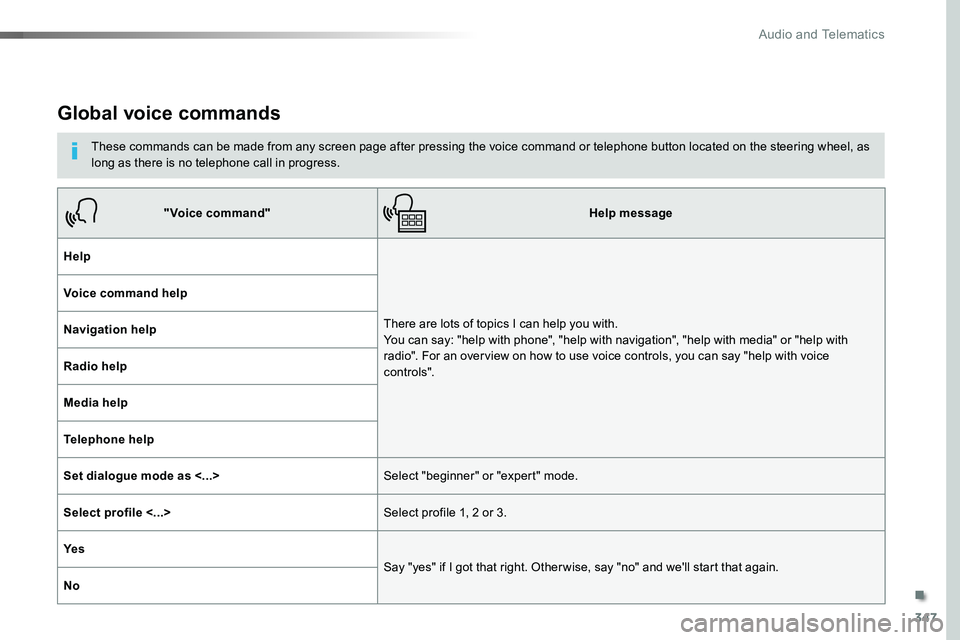
Global voice commands
These commands can be made from any screen page after pressing the voice command or telephone button located on the steering wheel, as long as there is no telephone call in progress.
"Voice command"Help message
Help
There are lots of topics I can help you with. You can say: "help with phone", "help with navigation", "help with media" or "help with radio". For an overview on how to use voice controls, you can say "help with voice c ont ro ls".
Voice command help
Navigation help
Radio help
Media help
Telephone help
Set dialogue mode as <...>Select "beginner" or "expert" mode.
Select profile <...>Select profile 1, 2 or 3.
Ye s
Say "yes" if I got that right. Other wise, say "no" and we'll start that again.
No
.
Audio and Telematics
Page 348 of 516
348
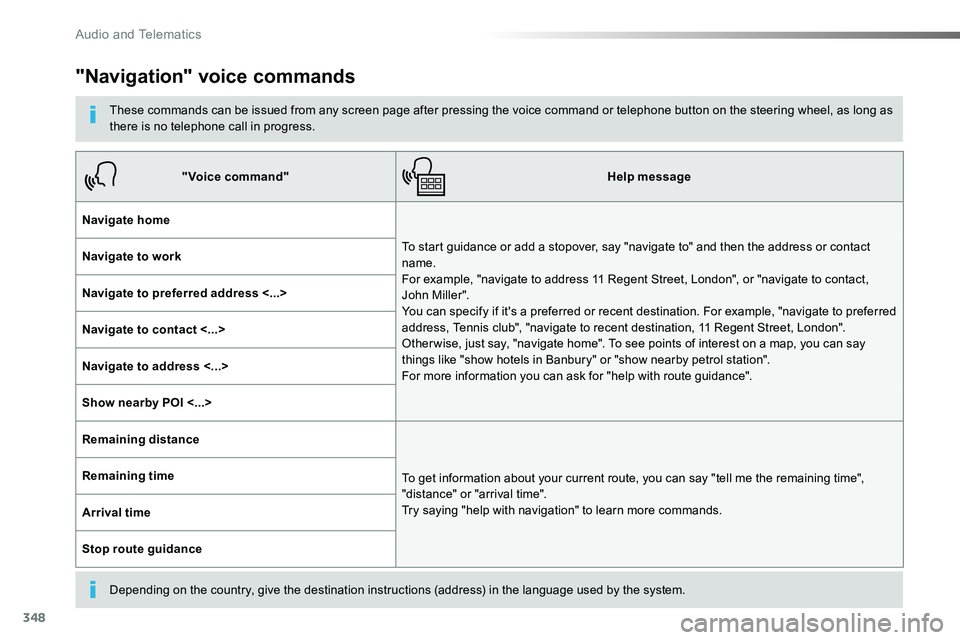
"Navigation" voice commands
These commands can be issued from any screen page after pressing the voice command or telephone button on the steering wheel, as long as there is no telephone call in progress.
Depending on the country, give the destination instructions (address) in the language used by the system.
"Voice command"Help message
Navigate home
To start guidance or add a stopover, say "navigate to" and then the address or contact name. For example, "navigate to address 11 Regent Street, London", or "navigate to contact, John Miller". You can specify if it's a preferred or recent destination. For example, "navigate to preferred address, Tennis club", "navigate to recent destination, 11 Regent Street, London". Other wise, just say, "navigate home". To see points of interest on a map, you can say things like "show hotels in Banbury" or "show nearby petrol station". For more information you can ask for "help with route guidance".
Navigate to work
Navigate to preferred address <...>
Navigate to contact <...>
Navigate to address <...>
Show nearby POI <...>
Remaining distance
To get information about your current route, you can say "tell me the remaining time", "distance" or "arrival time". Try saying "help with navigation" to learn more commands.
Remaining time
Arrival time
Stop route guidance
Audio and Telematics
Page 351 of 516
351
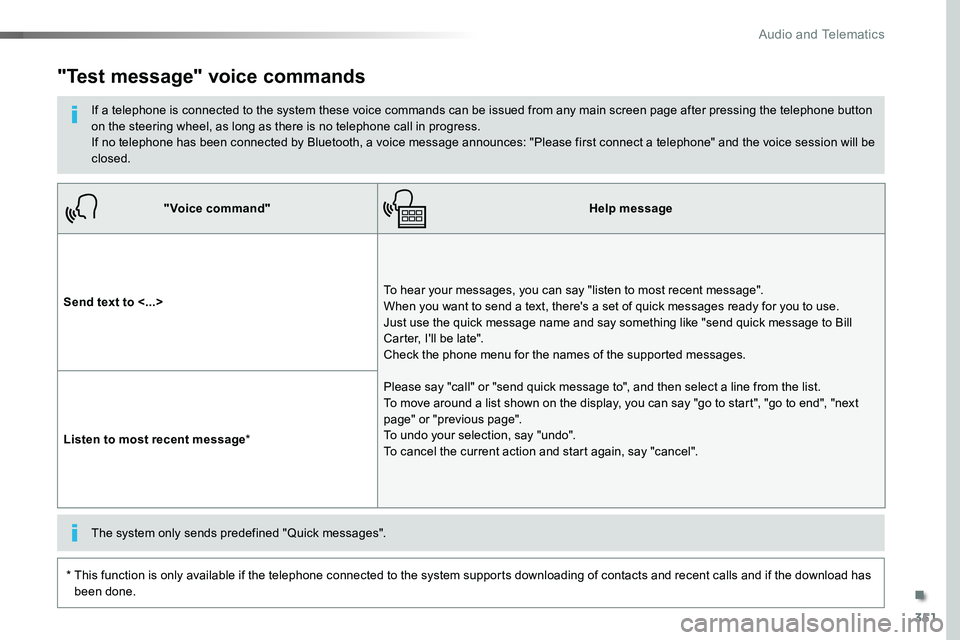
"Voice command"Help message
Send text to <...>To hear your messages, you can say "listen to most recent message". When you want to send a text, there's a set of quick messages ready for you to use. Just use the quick message name and say something like "send quick message to Bill Carter, I'll be late". Check the phone menu for the names of the supported messages.
Please say "call" or "send quick message to", and then select a line from the list. To move around a list shown on the display, you can say "go to start", "go to end", "next page" or "previous page". To undo your selection, say "undo". To cancel the current action and start again, say "cancel".Listen to most recent message*
"Test message" voice commands
If a telephone is connected to the system these voice commands can be issued from any main screen page after pressing the telephone button on the steering wheel, as long as there is no telephone call in progress.If no telephone has been connected by Bluetooth, a voice message announces: "Please first connect a telephone" and the voice session will be closed.
* This function is only available if the telephone connected to the system supports downloading of contacts and recent calls and if the download has
been done.
The system only sends predefined "Quick messages".
.
Audio and Telematics
Page 353 of 516
353
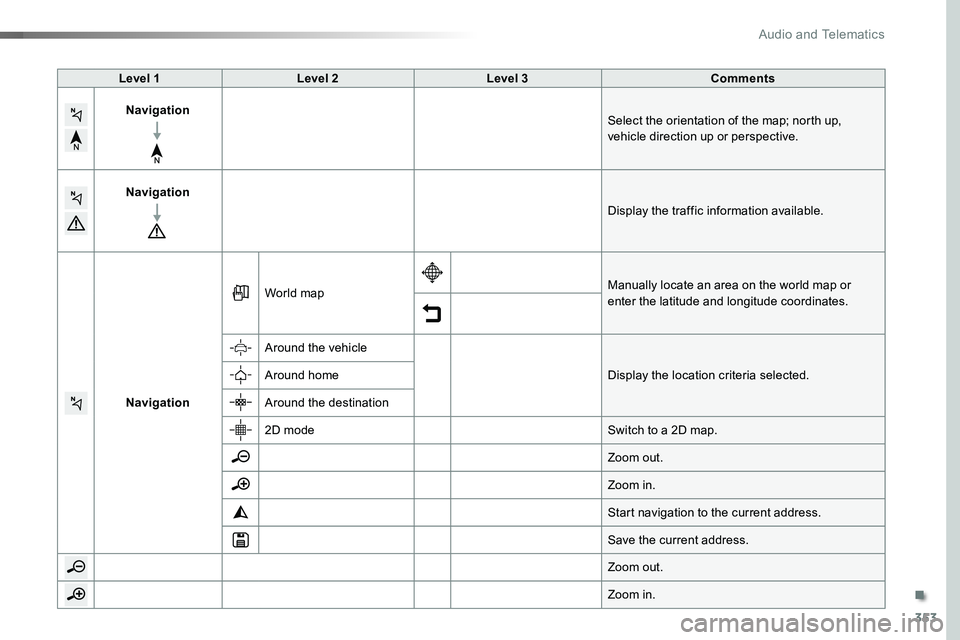
Level 1Level 2Level 3Comments
NavigationSelect the orientation of the map; north up, vehicle direction up or perspective.
Navigation
Display the traffic information available.
Navigation
World mapManually locate an area on the world map or enter the latitude and longitude coordinates.
Around the vehicle
Display the location criteria selected.Around home
Around the destination
2D modeSwitch to a 2D map.
Zoom out.
Zoom in.
Start navigation to the current address.
Save the current address.
Zoom out.
Zoom in.
.
Audio and Telematics
Page 361 of 516
361
1
1
1
1
17
18
8
11
9
12
10
13
16
14
15
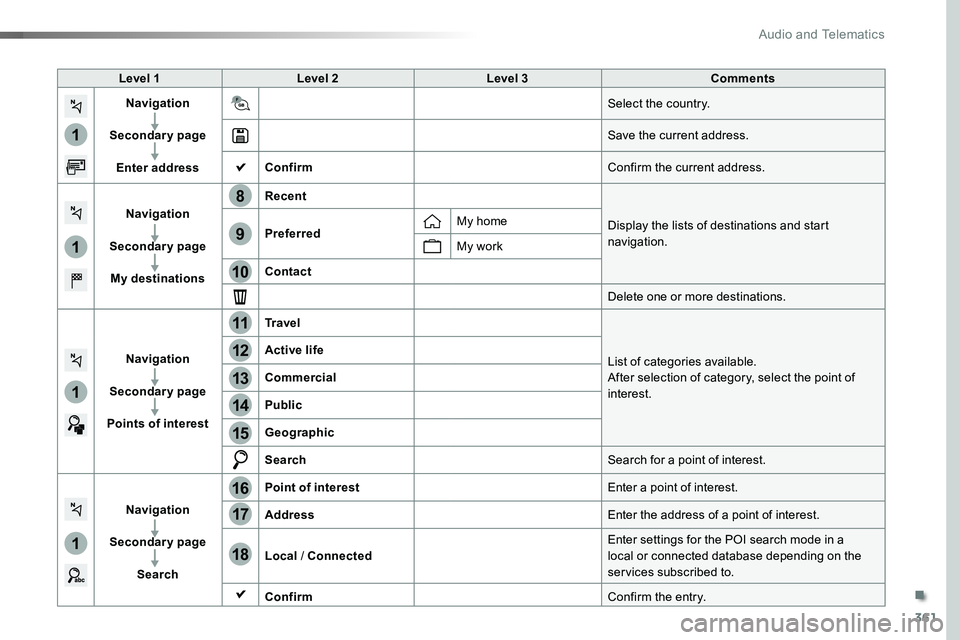
Level 1Level 2Level 3Comments
Navigation
Secondary page
Enter address
Select the country.
Save the current address.
ConfirmConfirm the current address.
Navigation
Secondary page
My destinations
Recent
Display the lists of destinations and start navigation.PreferredMy home
My work
Contact
Delete one or more destinations.
Navigation
Secondary page
Points of interest
Tr a v e l
List of categories available.After selection of category, select the point of interest.
Active life
Commercial
Public
Geographic
SearchSearch for a point of interest.
Navigation
Secondary page
Search
Point of interestEnter a point of interest.
AddressEnter the address of a point of interest.
Local / ConnectedEnter settings for the POI search mode in a local or connected database depending on the services subscribed to.
ConfirmConfirm the entry.
.
Audio and Telematics
Page 364 of 516
364
1
1
8
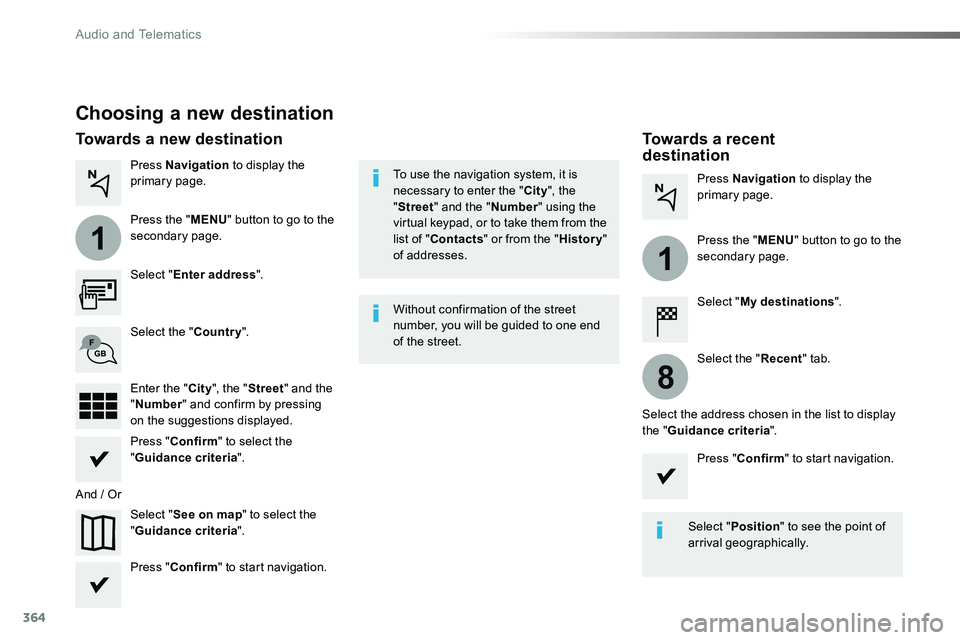
Choosing a new destination
Select "Enter address".
Select "See on map" to select the "Guidance criteria".
Select the "Country".
Press "Confirm" to select the "Guidance criteria".
Press "Confirm" to start navigation.
Press "Confirm" to start navigation.
And / Or
Press Navigation to display the primary page.
Press the "MENU" button to go to the
secondary page.
Towards a new destinationTowards a recent destination
Select "My destinations".
Press Navigation to display the primary page.
Press the "MENU" button to go to the secondary page.
Enter the "City", the "Street" and the "Number" and confirm by pressing on the suggestions displayed.
Select the "Recent" tab.
Select the address chosen in the list to display the "Guidance criteria".
To use the navigation system, it is necessary to enter the "City", the "Street" and the "Number" using the virtual keypad, or to take them from the list of "Contacts" or from the "History" of addresses.
Without confirmation of the street number, you will be guided to one end of the street.
Select "Position" to see the point of arrival geographically.
Audio and Telematics
Page 365 of 516
365
1
10
1
1
9
Or
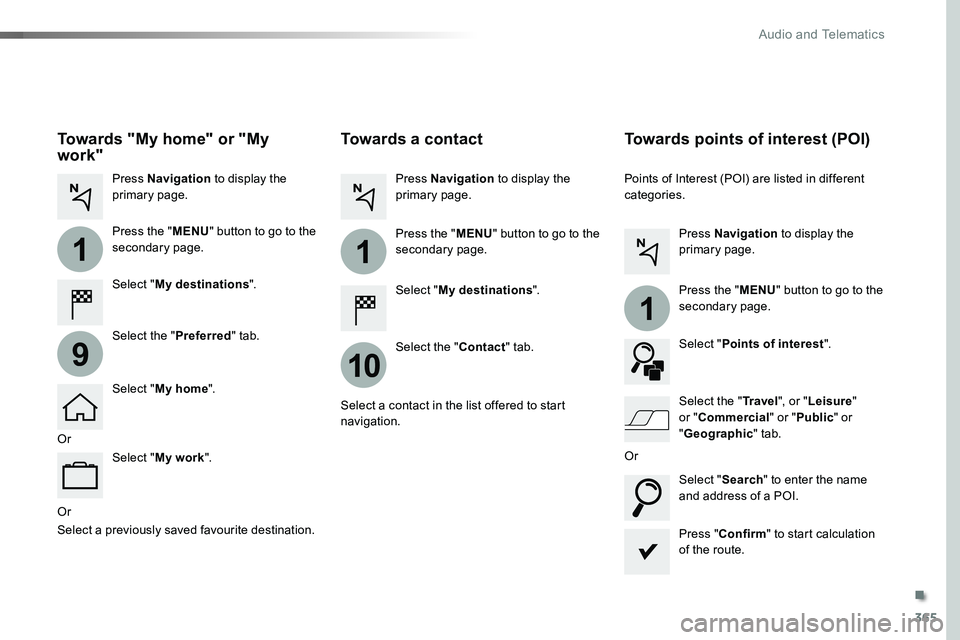
Towards a contact
Select "My destinations".
Select the "Contact" tab.
Press Navigation to display the primary page.
Press the "MENU" button to go to the secondary page.
Select a contact in the list offered to start navigation.
Press "Confirm" to start calculation of the route.
Towards points of interest (POI)
Points of Interest (POI) are listed in different categories.
Press Navigation to display the primary page.
Press the "MENU" button to go to the secondary page.
Select "Points of interest".
Select "Search" to enter the name and address of a POI.
Select the "Tr a v e l", or "Leisure" or "Commercial" or "Public" or
"Geographic" tab.Or
Or
Towards "My home" or "My work"
Select "My destinations".
Press Navigation to display the primary page.
Press the "MENU" button to go to the secondary page.
Select the "Preferred" tab.
Select "My home".
Select "My work".
Select a previously saved favourite destination.
.
Audio and Telematics
Page 366 of 516
366
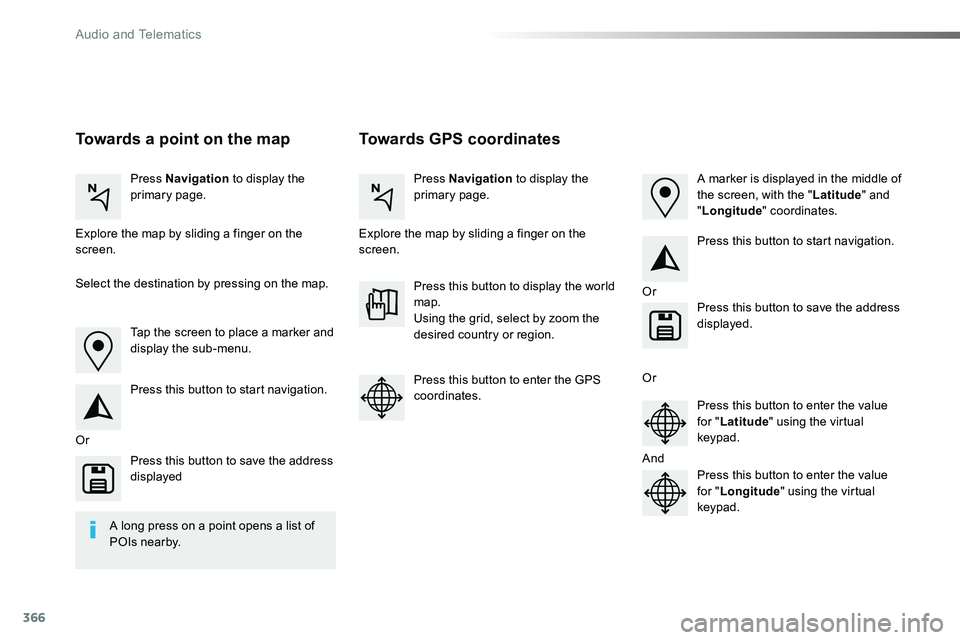
Towards GPS coordinatesTowards a point on the map
Press Navigation to display the primary page.Press Navigation to display the primary page.
Explore the map by sliding a finger on the screen.Explore the map by sliding a finger on the screen.
Tap the screen to place a marker and display the sub-menu.
Or
Or
Or
And
Select the destination by pressing on the map.
Press this button to start navigation.
Press this button to start navigation.
Press this button to display the world map.Using the grid, select by zoom the desired country or region.
Press this button to save the address displayed
Press this button to save the address displayed.
Press this button to enter the GPS coordinates.Press this button to enter the value for "Latitude" using the virtual keypad.
Press this button to enter the value for "Longitude" using the virtual keypad.
A marker is displayed in the middle of the screen, with the "Latitude" and "Longitude" coordinates.
A long press on a point opens a list of
POIs nearby.
Audio and Telematics
Page 379 of 516
379
1
1
1
6
7
8
2
3
4
5
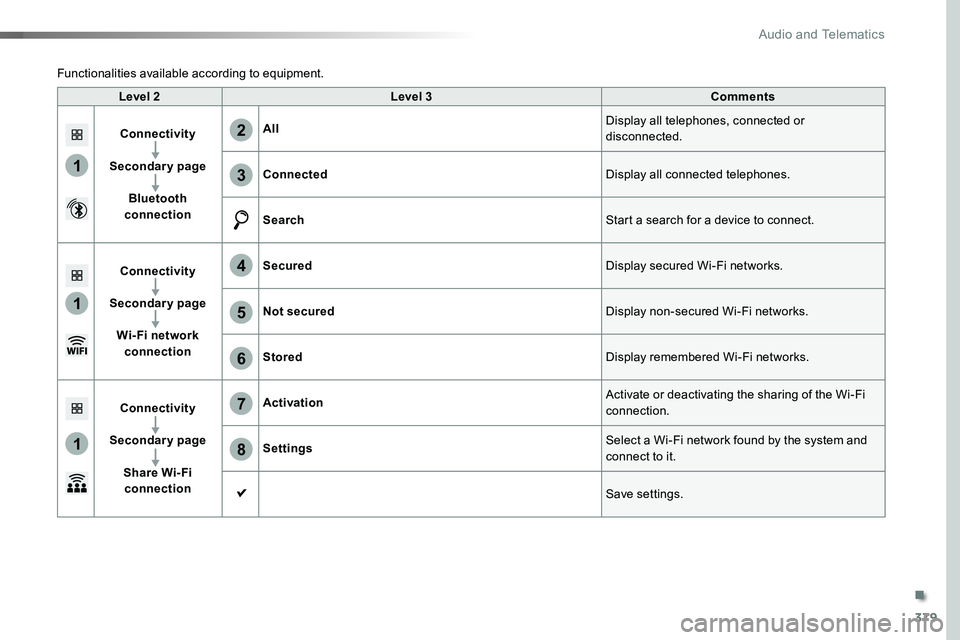
Level 2Level 3Comments
Connectivity
Secondary page
Bluetooth connection
AllDisplay all telephones, connected or disconnected.
ConnectedDisplay all connected telephones.
SearchStart a search for a device to connect.
Connectivity
Secondary page
Wi- Fi network connection
SecuredDisplay secured Wi-Fi networks.
Not securedDisplay non-secured Wi-Fi networks.
StoredDisplay remembered Wi-Fi networks.
Connectivity
Secondary page
Share Wi- Fi connection
ActivationActivate or deactivating the sharing of the Wi-Fi connection.
SettingsSelect a Wi-Fi network found by the system and connect to it.
Save settings.
Functionalities available according to equipment.
.
Audio and Telematics
Page 381 of 516
381
11
7
8
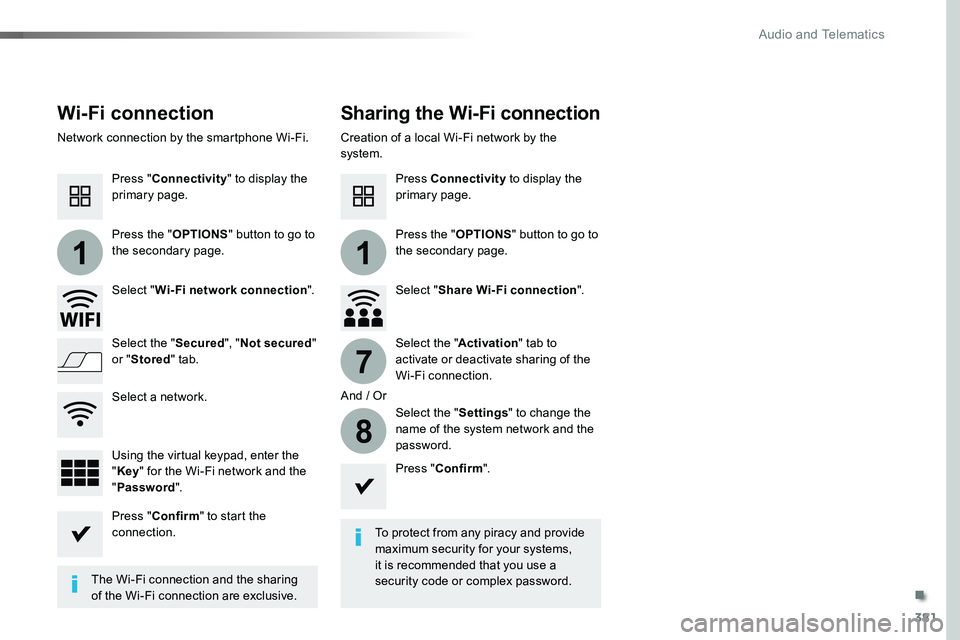
Wi-Fi connectionSharing the Wi-Fi connection
To protect from any piracy and provide maximum security for your systems, it is recommended that you use a security code or complex password.The Wi-Fi connection and the sharing
of the Wi-Fi connection are exclusive.
Press "Confirm".
Press "Confirm" to start the connection.
Press "Connectivity" to display the primary page.
Network connection by the smartphone Wi-Fi.Creation of a local Wi-Fi network by the system.
Press Connectivity to display the primary page.
Press the "OPTIONS" button to go to the secondary page.Press the "OPTIONS" button to go to the secondary page.
Select "Wi-Fi network connection".Select "Share Wi-Fi connection".
And / Or
Select the "Secured", "Not secured" or "Stored" tab.Select the "Activation" tab to activate or deactivate sharing of the Wi-Fi connection.
Select the "Settings" to change the name of the system network and the password.Using the virtual keypad, enter the "Key" for the Wi-Fi network and the "Password".
Select a network.
.
Audio and Telematics