eco TOYOTA PROACE 2018 Owners Manual
[x] Cancel search | Manufacturer: TOYOTA, Model Year: 2018, Model line: PROACE, Model: TOYOTA PROACE 2018Pages: 516, PDF Size: 90.91 MB
Page 339 of 516
339
Localised Assistance Call
For technical reasons, particularly to improve the quality of Telematic services to customers, the manufacturer reserves the right to
carry out updates to the vehicle's on-board telematic system.
The fault with the system does not prevent the vehicle being driven.
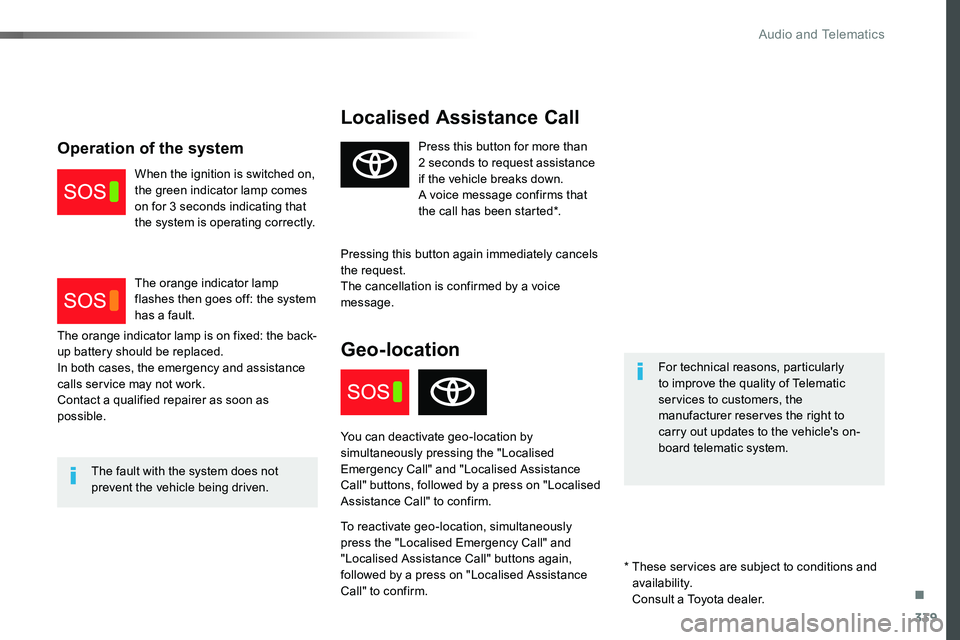
Press this button for more than 2 seconds to request assistance if the vehicle breaks down.A voice message confirms that the call has been started*.
Pressing this button again immediately cancels the request.The cancellation is confirmed by a voice message.
Geo-location
You can deactivate geo-location by simultaneously pressing the "Localised Emergency Call" and "Localised Assistance Call" buttons, followed by a press on "Localised Assistance Call" to confirm.
To reactivate geo-location, simultaneously press the "Localised Emergency Call" and "Localised Assistance Call" buttons again, followed by a press on "Localised Assistance Call" to confirm.
The orange indicator lamp is on fixed: the back-up battery should be replaced.In both cases, the emergency and assistance calls service may not work.Contact a qualified repairer as soon as possible.
Operation of the system
When the ignition is switched on, the green indicator lamp comes on for 3 seconds indicating that the system is operating correctly.
The orange indicator lamp flashes then goes off: the system has a fault.
* These services are subject to conditions and availability.
Consult a Toyota dealer.
.
Audio and Telematics
Page 341 of 516
341
Toyota Pro Touch with navigation system
GPS satellite navigation - Connectivity - Multimedia audio - Bluetooth® telephone
ContentsFirst steps 342
Steering mounted controls 344
Menus 345
Voice commands 346
Navigation 352
Connected navigation 368
Connectivity 378
Radio Media 388
Telephone 400
Settings 412
Frequently asked questions 422
The system is protected in such a way that it will only operate in your vehicle.As a safety measure and because it requires sustained attention by the driver, the pairing of a Bluetooth mobile telephone with the Bluetooth hands-free system of your audio system must be done with the vehicle stationary and the ignition on.The display of the energy economy mode message signals that a change to standby is imminent. For more information on the Energy economy mode refer to the corresponding section.
.
Audio and Telematics
Page 342 of 516
342
FM/87.5 MHz
87.5MHz 12:13
23 °C 87.5 MHz
First steps
With the engine running, a press mutes the sound.With the ignition off, a press turns the system on.
Volume.
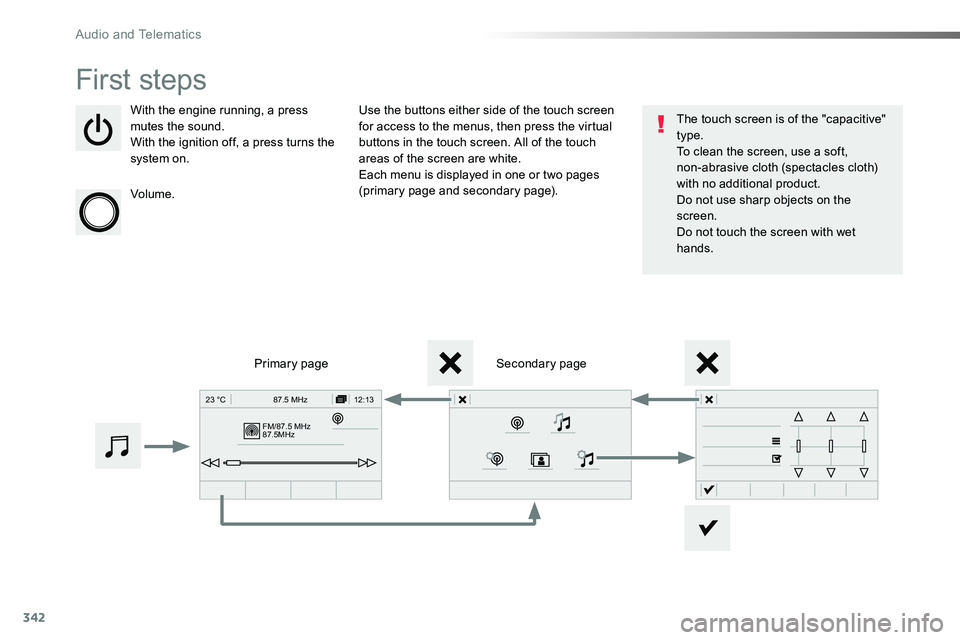
Use the buttons either side of the touch screen for access to the menus, then press the virtual buttons in the touch screen. All of the touch areas of the screen are white.Each menu is displayed in one or two pages (primary page and secondary page).
Secondary pagePrimary page
The touch screen is of the "capacitive" type.To clean the screen, use a soft, non-abrasive cloth (spectacles cloth) with no additional product.Do not use sharp objects on the screen.Do not touch the screen with wet hands.
Audio and Telematics
Page 346 of 516
346
Voice commands
First stepsSteering mounted controlsInformation - Using the system
Press the Push To Talk button and tell me what you'd like after the tone. Remember you can interrupt me at any time by pressing this button. If you
press it again while I'm waiting for you to speak, it'll end the conversation. If you need to start over, say "cancel". If you want to undo something, say "undo". And to get information and tips at any time, just say "help". If you ask to me do something and there's some information missing that I need, I'll give you some examples or take you through it step by step. There's more information available in "novice" mode. You can set the dialogue mode to "expert" when you feel comfortable.
To ensure that voice commands are always recognised by the system, please observe the following recommendations:- speak in a normal tone without breaking up words or raising your voice.- always wait for the "beep" (audible signal) before speaking.- for best operation, it is recommended that the windows and opening roof (if fitted) be closed to avoid inter ference from extraneous noises.- before making a voice command, ask other passengers to not speak.
The voice commands, with a choice of 12 languages (English, French, Italian, Spanish, German, Dutch, Portuguese, Polish, Turkish, Russian, Arabic, Brazilian), are made using the language previously chosen and set in the system.
The voice commands in Arabic for: "Navigate to address" and "Display POI in the city", are not available.
Example of a "voice command" for navigation:"Navigate to address 11 Regent Street, London".
Example of a "voice command" for
the radio and media:"Play ar tist Madonna".
Example of a "voice command" for the telephone:"Call David Miller".
Pressing this button activates the voice commands function.
Audio and Telematics
Page 361 of 516
361
1
1
1
1
17
18
8
11
9
12
10
13
16
14
15
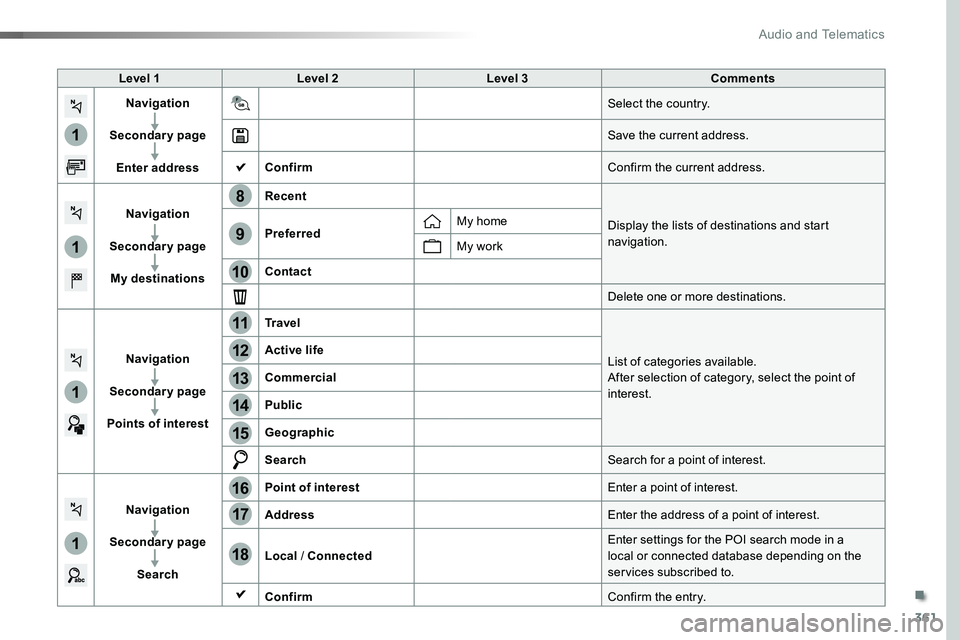
Level 1Level 2Level 3Comments
Navigation
Secondary page
Enter address
Select the country.
Save the current address.
ConfirmConfirm the current address.
Navigation
Secondary page
My destinations
Recent
Display the lists of destinations and start navigation.PreferredMy home
My work
Contact
Delete one or more destinations.
Navigation
Secondary page
Points of interest
Tr a v e l
List of categories available.After selection of category, select the point of interest.
Active life
Commercial
Public
Geographic
SearchSearch for a point of interest.
Navigation
Secondary page
Search
Point of interestEnter a point of interest.
AddressEnter the address of a point of interest.
Local / ConnectedEnter settings for the POI search mode in a local or connected database depending on the services subscribed to.
ConfirmConfirm the entry.
.
Audio and Telematics
Page 363 of 516
363
1
1
1
19
21
20
23
22
24
25
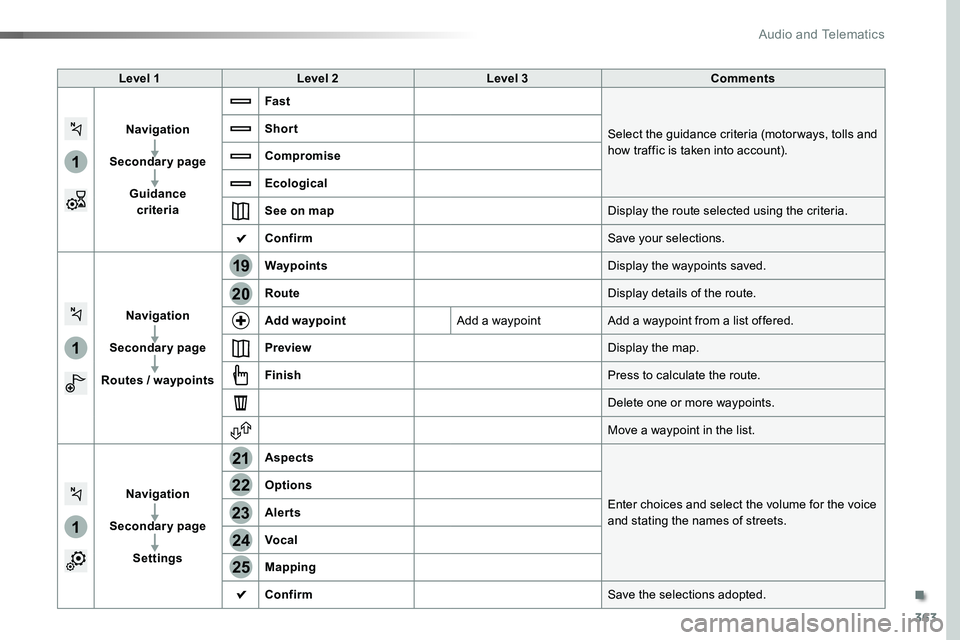
Level 1Level 2Level 3Comments
Navigation
Secondary page
Guidance criteria
Fast
Select the guidance criteria (motor ways, tolls and how traffic is taken into account).
Short
Compromise
Ecological
See on mapDisplay the route selected using the criteria.
ConfirmSave your selections.
Navigation
Secondary page
Routes / waypoints
WaypointsDisplay the waypoints saved.
RouteDisplay details of the route.
Add waypointAdd a waypointAdd a waypoint from a list offered.
PreviewDisplay the map.
FinishPress to calculate the route.
Delete one or more waypoints.
Move a waypoint in the list.
Navigation
Secondary page
Settings
Aspects
Enter choices and select the volume for the voice and stating the names of streets.
Options
Alerts
Vocal
Mapping
ConfirmSave the selections adopted.
.
Audio and Telematics
Page 364 of 516
364
1
1
8
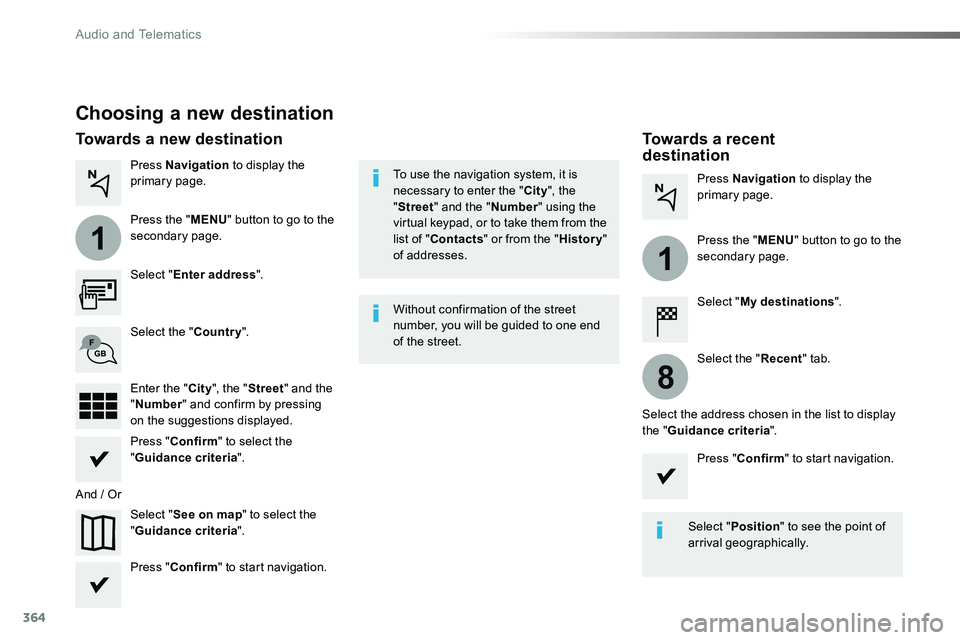
Choosing a new destination
Select "Enter address".
Select "See on map" to select the "Guidance criteria".
Select the "Country".
Press "Confirm" to select the "Guidance criteria".
Press "Confirm" to start navigation.
Press "Confirm" to start navigation.
And / Or
Press Navigation to display the primary page.
Press the "MENU" button to go to the
secondary page.
Towards a new destinationTowards a recent destination
Select "My destinations".
Press Navigation to display the primary page.
Press the "MENU" button to go to the secondary page.
Enter the "City", the "Street" and the "Number" and confirm by pressing on the suggestions displayed.
Select the "Recent" tab.
Select the address chosen in the list to display the "Guidance criteria".
To use the navigation system, it is necessary to enter the "City", the "Street" and the "Number" using the virtual keypad, or to take them from the list of "Contacts" or from the "History" of addresses.
Without confirmation of the street number, you will be guided to one end of the street.
Select "Position" to see the point of arrival geographically.
Audio and Telematics
Page 365 of 516
365
1
10
1
1
9
Or
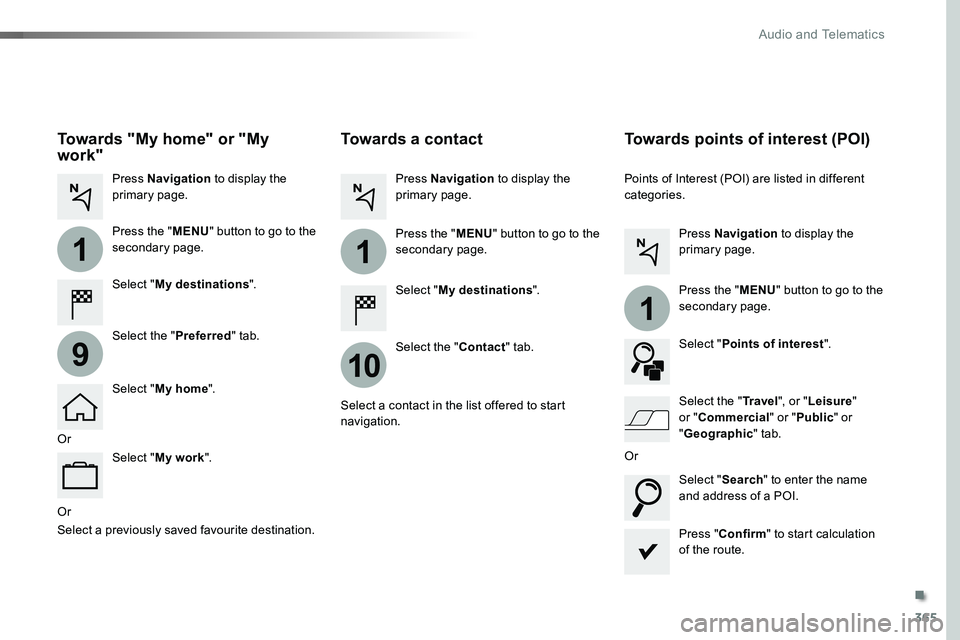
Towards a contact
Select "My destinations".
Select the "Contact" tab.
Press Navigation to display the primary page.
Press the "MENU" button to go to the secondary page.
Select a contact in the list offered to start navigation.
Press "Confirm" to start calculation of the route.
Towards points of interest (POI)
Points of Interest (POI) are listed in different categories.
Press Navigation to display the primary page.
Press the "MENU" button to go to the secondary page.
Select "Points of interest".
Select "Search" to enter the name and address of a POI.
Select the "Tr a v e l", or "Leisure" or "Commercial" or "Public" or
"Geographic" tab.Or
Or
Towards "My home" or "My work"
Select "My destinations".
Press Navigation to display the primary page.
Press the "MENU" button to go to the secondary page.
Select the "Preferred" tab.
Select "My home".
Select "My work".
Select a previously saved favourite destination.
.
Audio and Telematics
Page 369 of 516
369
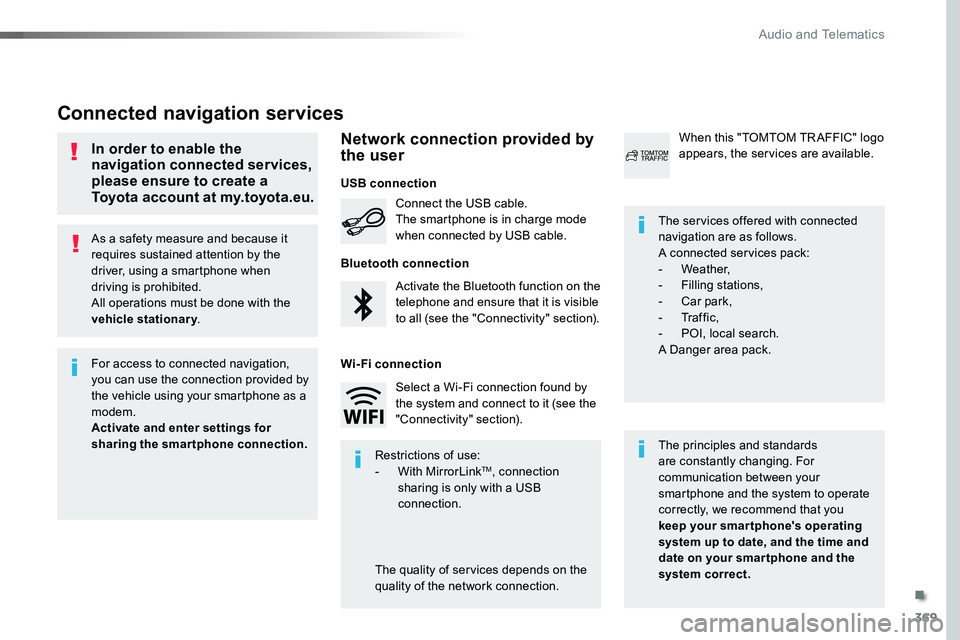
As a safety measure and because it requires sustained attention by the driver, using a smartphone when driving is prohibited.All operations must be done with the vehicle stationary.
Connected navigation services
The principles and standards are constantly changing. For communication between your smartphone and the system to operate correctly, we recommend that you keep your smar tphone's operating system up to date, and the time and date on your smar tphone and the system correct.
The services offered with connected navigation are as follows.A connected services pack:- Weather,- Filling stations,- Car park,- Tr a f f i c ,- POI, local search.A Danger area pack.
Activate the Bluetooth function on the telephone and ensure that it is visible to all (see the "Connectivity" section).
Connect the USB cable.The smartphone is in charge mode when connected by USB cable.
In order to enable the navigation connected services, please ensure to create a Toyota account at my.toyota.eu.
When this "TOMTOM TR AFFIC" logo appears, the services are available.
For access to connected navigation, you can use the connection provided by the vehicle using your smartphone as a modem.Activate and enter settings for sharing the smartphone connection.Restrictions of use:- With MirrorLinkTM, connection sharing is only with a USB connection.
The quality of services depends on the quality of the network connection.
Select a Wi-Fi connection found by the system and connect to it (see the "Connectivity" section).
USB connection
Network connection provided by the user
Bluetooth connection
Wi-Fi connection
.
Audio and Telematics
Page 376 of 516
376
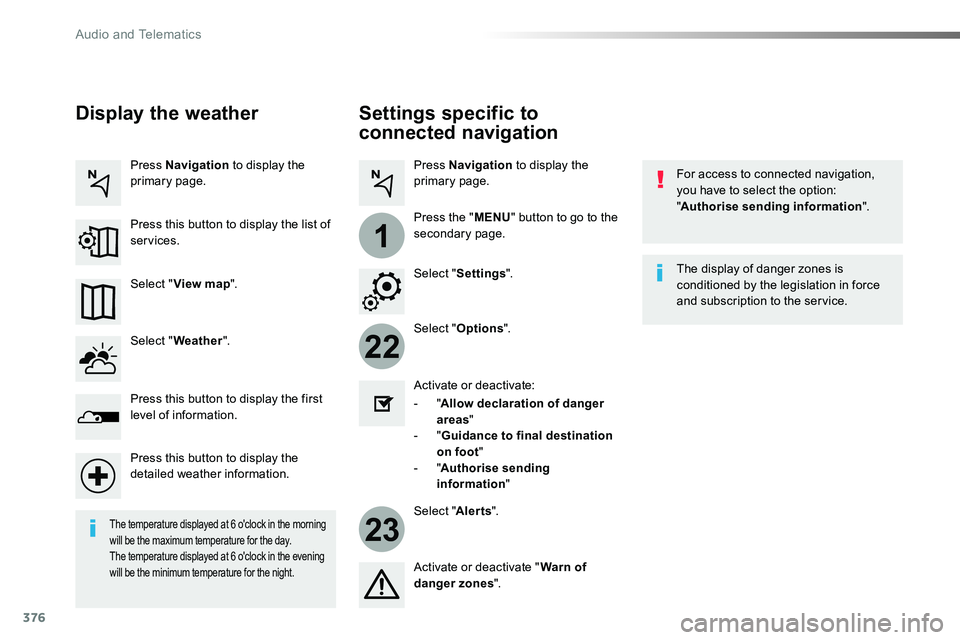
22
23
1
Settings specific to
connected navigation
For access to connected navigation, you have to select the option: "Authorise sending information".
Select "Options".
Select "Alerts".
- "Allow declaration of danger areas"
- "Guidance to final destination on foot"- "Authorise sending information"
Activate or deactivate:
Activate or deactivate "Warn of danger zones".
The display of danger zones is conditioned by the legislation in force and subscription to the service.
The temperature displayed at 6 o'clock in the morning will be the maximum temperature for the day.The temperature displayed at 6 o'clock in the evening will be the minimum temperature for the night.
Select "Settings".
Press Navigation to display the primary page.
Press the "MENU" button to go to the
secondary page.
Display the weather
Select "Weather".
Press this button to display the first level of information.
Press this button to display the detailed weather information.
Select "View map".
Press Navigation to display the primary page.
Press this button to display the list of services.
Audio and Telematics