android auto TOYOTA PROACE CITY 2020 User Guide
[x] Cancel search | Manufacturer: TOYOTA, Model Year: 2020, Model line: PROACE CITY, Model: TOYOTA PROACE CITY 2020Pages: 272, PDF Size: 61.18 MB
Page 230 of 272
230
Applications
USB ports
Depending on equipment, for more information on the USB ports compatible with CarPlay®, MirrorLinkTM or Android Auto applications, refer to the "Ease of use and comfort" section.
NOTIC E
For the list of suitable smartphones, visit the Brand's national website.
NOTIC E
Synchronising a smartphone enables users to display applications that support the smartphone’s MirrorLinkCarPlay®, TM or Android Auto technology on the vehicle’s screen. For CarPlay® technology, the CarPlay® function must first be activated on the smartphone.In all cases, the smartphone must be unlocked, to enable the communication process between the smartphone and the system to function.As principles and standards are constantly changing, we recommend keeping the smartphone's operating system up-to-
date, together with the date and time on the smartphone and the system.
Connectivity
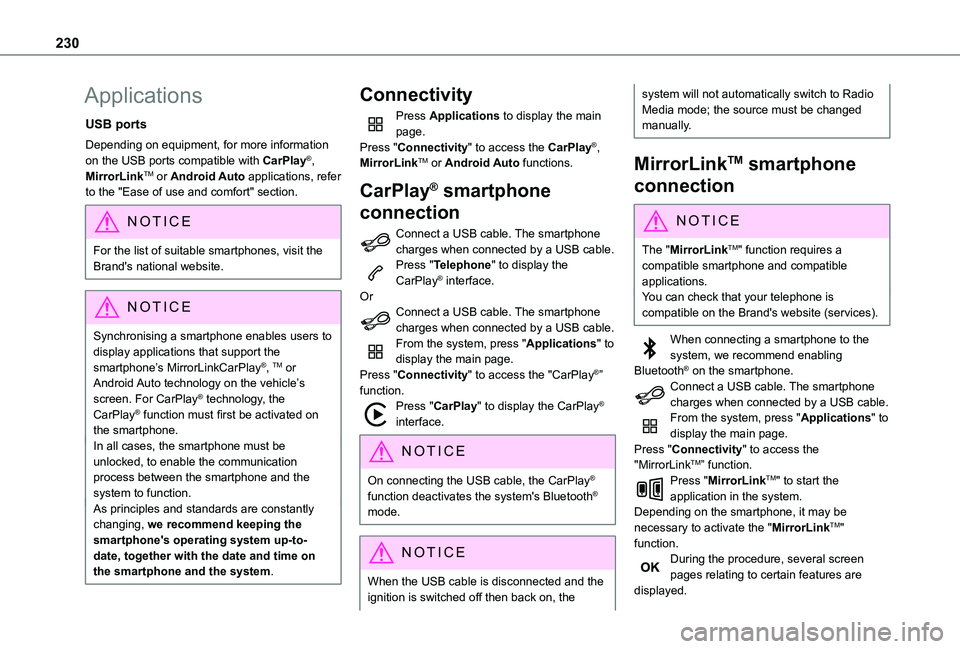
Press Applications to display the main page.Press "Connectivity" to access the CarPlay®, MirrorLinkTM or Android Auto functions.
CarPlay® smartphone
connection
Connect a USB cable. The smartphone charges when connected by a USB cable.Press "Telephone" to display the CarPlay® interface.OrConnect a USB cable. The smartphone charges when connected by a USB cable.From the system, press "Applications" to display the main page.Press "Connectivity" to access the "CarPlay®” function.Press "CarPlay" to display the CarPlay® interface.
NOTIC E
On connecting the USB cable, the CarPlay® function deactivates the system's Bluetooth® mode.
NOTIC E
When the USB cable is disconnected and the ignition is switched off then back on, the
system will not automatically switch to Radio Media mode; the source must be changed manually.
MirrorLinkTM smartphone
connection
NOTIC E
The "MirrorLinkTM" function requires a compatible smartphone and compatible applications.You can check that your telephone is compatible on the Brand's website (services).
When connecting a smartphone to the system, we recommend enabling Bluetooth® on the smartphone.Connect a USB cable. The smartphone charges when connected by a USB cable.From the system, press "Applications" to display the main page.Press "Connectivity" to access the "MirrorLinkTM” function.Press "MirrorLinkTM" to start the application in the system.Depending on the smartphone, it may be necessary to activate the "MirrorLinkTM" function.During the procedure, several screen pages relating to certain features are displayed.
Page 231 of 272
231
TOYOTA Connect Nav
12
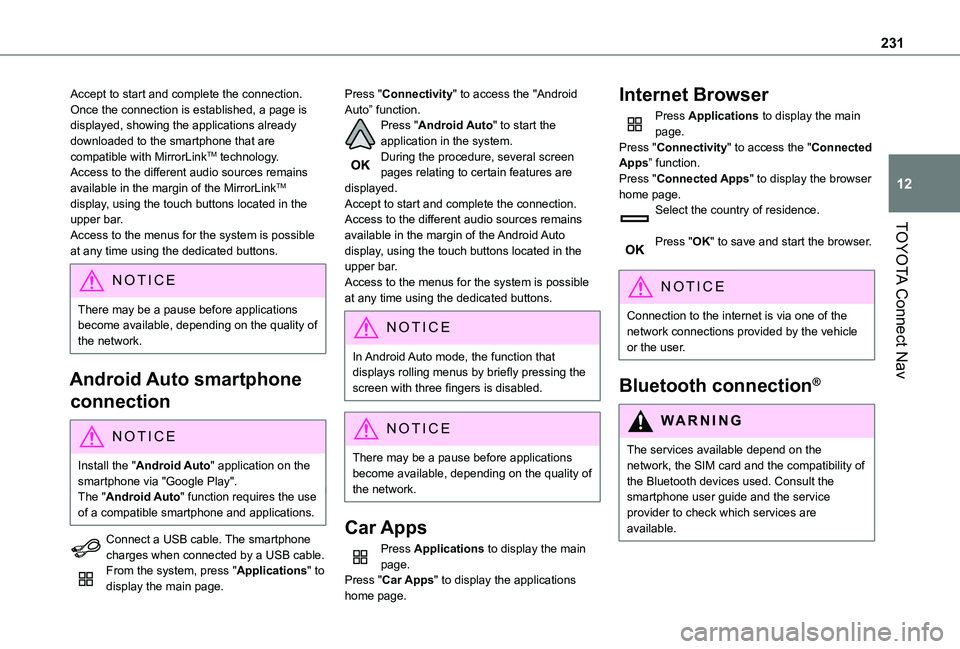
Accept to start and complete the connection.Once the connection is established, a page is displayed, showing the applications already downloaded to the smartphone that are compatible with MirrorLinkTM technology.Access to the different audio sources remains available in the margin of the MirrorLinkTM display, using the touch buttons located in the upper bar.Access to the menus for the system is possible at any time using the dedicated buttons.
NOTIC E
There may be a pause before applications become available, depending on the quality of the network.
Android Auto smartphone
connection
NOTIC E
Install the "Android Auto" application on the smartphone via "Google Play".The "Android Auto" function requires the use of a compatible smartphone and applications.
Connect a USB cable. The smartphone
charges when connected by a USB cable.From the system, press "Applications" to display the main page.
Press "Connectivity" to access the "Android Auto” function.Press "Android Auto" to start the application in the system.During the procedure, several screen pages relating to certain features are displayed.Accept to start and complete the connection.Access to the different audio sources remains available in the margin of the Android Auto display, using the touch buttons located in the upper bar.Access to the menus for the system is possible at any time using the dedicated buttons.
NOTIC E
In Android Auto mode, the function that displays rolling menus by briefly pressing the screen with three fingers is disabled.
NOTIC E
There may be a pause before applications become available, depending on the quality of the network.
Car Apps
Press Applications to display the main page.Press "Car Apps" to display the applications home page.
Internet Browser
Press Applications to display the main page.Press "Connectivity" to access the "Connected Apps” function.Press "Connected Apps" to display the browser home page.Select the country of residence.
Press "OK" to save and start the browser.
NOTIC E
Connection to the internet is via one of the network connections provided by the vehicle or the user.
Bluetooth connection®
WARNI NG
The services available depend on the network, the SIM card and the compatibility of the Bluetooth devices used. Consult the smartphone user guide and the service provider to check which services are available.
Page 245 of 272
245
Alphabetical index
A
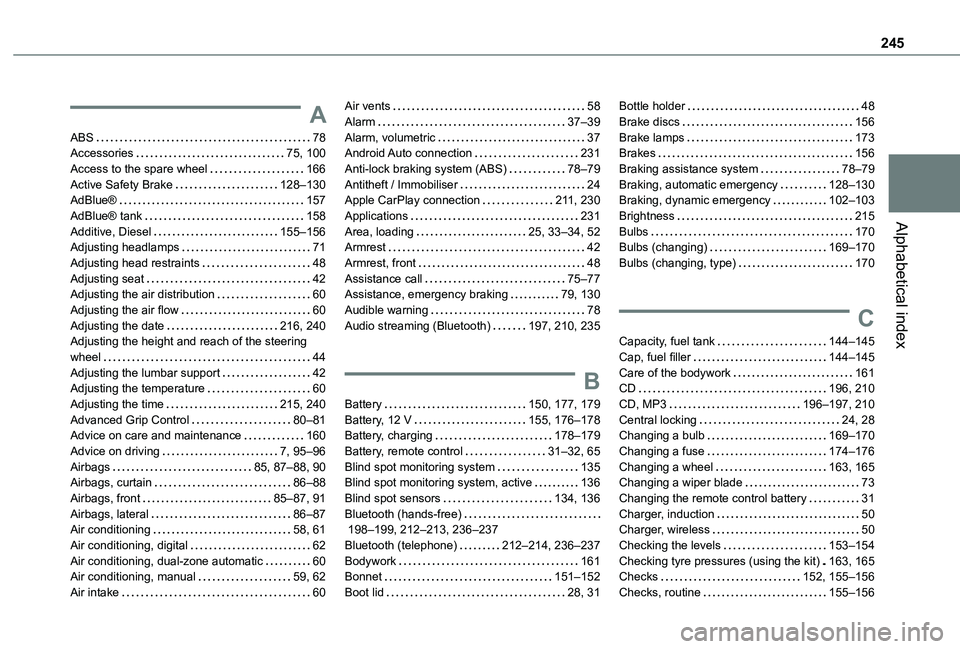
ABS 78Accessories 75, 100Access to the spare wheel 166Active Safety Brake 128–130AdBlue® 157AdBlue® tank 158Additive, Diesel 155–156Adjusting headlamps 71Adjusting head restraints 48Adjusting seat 42Adjusting the air distribution 60Adjusting the air flow 60Adjusting the date 216, 240Adjusting the height and reach of the steering wheel 44Adjusting the lumbar support 42Adjusting the temperature 60Adjusting the time 215, 240Advanced Grip Control 80–81Advice on care and maintenance 160
Advice on driving 7, 95–96Airbags 85, 87–88, 90Airbags, curtain 86–88Airbags, front 85–87, 91Airbags, lateral 86–87Air conditioning 58, 61Air conditioning, digital 62Air conditioning, dual-zone automatic 60Air conditioning, manual 59, 62Air intake 60
Air vents 58Alarm 37–39Alarm, volumetric 37Android Auto connection 231Anti-lock braking system (ABS) 78–79Antitheft / Immobiliser 24Apple CarPlay connection 2 11, 230Applications 231Area, loading 25, 33–34, 52Armrest 42Armrest, front 48Assistance call 75–77Assistance, emergency braking 79, 130Audible warning 78Audio streaming (Bluetooth) 197, 210, 235
B
Battery 150, 177, 179Battery, 12 V 155, 176–178Battery, charging 178–179
Battery, remote control 31–32, 65Blind spot monitoring system 135Blind spot monitoring system, active 136Blind spot sensors 134, 136Bluetooth (hands-free) 198–199, 212–213, 236–237Bluetooth (telephone) 212–214, 236–237Bodywork 161Bonnet 151–152Boot lid 28, 31
Bottle holder 48Brake discs 156Brake lamps 173Brakes 156Braking assistance system 78–79Braking, automatic emergency 128–130Braking, dynamic emergency 102–103Brightness 215Bulbs 170Bulbs (changing) 169–170Bulbs (changing, type) 170
C
Capacity, fuel tank 144–145Cap, fuel filler 144–145Care of the bodywork 161CD 196, 210CD, MP3 196–197, 210Central locking 24, 28Changing a bulb 169–170
Changing a fuse 174–176Changing a wheel 163, 165Changing a wiper blade 73Changing the remote control battery 31Charger, induction 50Charger, wireless 50Checking the levels 153–154Checking tyre pressures (using the kit) 163, 165Checks 152, 155–156Checks, routine 155–156