steering TOYOTA PROACE CITY VERSO 2021 Service Manual
[x] Cancel search | Manufacturer: TOYOTA, Model Year: 2021, Model line: PROACE CITY VERSO, Model: TOYOTA PROACE CITY VERSO 2021Pages: 272, PDF Size: 57.64 MB
Page 201 of 272
201
Bluetooth® audio system
10
Input AUX socket (AUX)
Depending on equipmentConnect a portable device (MP3 player, etc.) to the auxiliary jack socket using an audio cable (not supplied).
NOTIC E
Any additional devices connected to the system must comply with the standard
applicable to the product and/or the standard IEC 60950-1.
Press the SOURCE button several times in succession and select "AUX".First adjust the volume on your portable device (to a high level). Then adjust the volume on your audio system. Controls are managed via the portable device.
WARNI NG
Do not connect the same device to both the auxiliary jack socket and the USB port at the same time.
CD player
Insert circular compact discs only.Some anti-pirating systems, on original discs
or CDs copied using a personal recorder, may cause faults which are no reflection on the quality of the original player.
Insert a CD in the player, play begins automatically.
WARNI NG
External CD players connected via the USB port are not recognised by the system.
To play a disc which has already been inserted, press the SOURCE button several times in succession and select "CD".
Press one of the buttons to select a track on the CD.Press the LIST button to display the list of tracks on the CD.Press and hold one of these buttons for fast forward or rewind.
Playing an MP3 compilation
Insert an MP3 compilation in the CD player.The audio equipment searches for all of the music tracks, which may take anything between a few seconds and several tens of seconds, before play begins.
WARNI NG
On a single disc, the CD player can read up to 255 MP3 files spread over 8 directory levels.
However, it is advisable to keep to a limit of two levels to reduce the access time before the CD is played.
The folder structure is not observed during playback.All of the files are displayed on a single level.
To play a disc which has already been inserted, press the SOURCE button several times in succession and select "CD".Press one of the buttons to select a folder on the CD.Press one of the buttons to select a track on the CD.Press the LIST button to display the list of directories of the MP3 compilation.Press and hold one of these buttons for fast forward or rewind.
Bluetooth® audio streaming
Streaming allows music files on the telephone to be played via the vehicle's loudspeakers.Connect the telephone.(Refer to the "Pairing a Bluetooth® telephone" section).Activate the streaming source by pressing
SOURCE.In certain cases, play of the audio files must be initiated from the keypad.Audio files can be selected using the buttons on the audio system control panel and the steering mounted controls. The contextual information can be displayed in the screen.If the telephone supports the function. The audio quality depends on the quality of transmission by the telephone.
Page 204 of 272
204
– "Connect telephone + media player" / "Disconnect telephone + media player" : to connect / disconnect the telephone (hands-free kit and streaming).– "Delete connection": to delete the pairing.
NOTIC E
When you delete a pairing in the system, remember to delete it from your telephone as
well.
Press OK to confirm.
Receiving a call
An incoming call is announced by a ring and a superimposed display in the screen.Select the "YES" tab in the screen using the buttons.Confirm with OK.
Press this button at the steering mounted controls to accept the call.
Making a call
In the "Telephone" menu.Select "Call".Select "Dial".OrSelect "Directory".OrSelect "Calls list".Confirm with OK.
Press this button for more than two seconds for access to your directory, then navigate using the thumb wheel.
Ending a call
In the "Telephone" menu.Select "End call".Confirm with OK to end the call.During a call, press one of these buttons for more than two seconds.
NOTIC E
The system accesses the telephone's contacts directory, depending on its compatibility, and while it is connected via Bluetooth.
NOTIC E
With certain telephones connected by Bluetooth you can send a contact to the directory of the audio system.Contacts imported in this way are saved in a permanent directory visible to all, whatever the telephone connected.The menu for the directory is not accessible if it is empty.
Managing calls
During a call, press OK to display the contextual menu.
End call
In the contextual menu, select "Hang up" to end the call.Confirm with OK.
Microphone off
(so that the caller cannot hear)In the contextual menu:
– select "Micro OFF" to switch off the microphone.– deselect "Micro OFF" to switch the microphone on.Confirm with OK.
Page 205 of 272
205
Bluetooth® audio system
10
Telephone mode
In the contextual menu:
– select "Telephone mode" to transfer the call to the telephone (for example, to leave the vehicle while continuing a conversation).– deselect "Telephone mode" to transfer the call to the vehicle.Confirm with OK.
If the contact has been cut off, when you reconnect on returning to the vehicle, the Bluetooth connection will be restored automatically and sound returned to the system (depending on the compatibility of the telephone).In some cases, the Telephone mode must be activated from the telephone.
Interactive voice response
From the contextual menu, select "DTMF tones" and confirm to use the digital keypad to navigate in the interactive voice
response menu.Confirm with OK.
Consultation call
From the contextual menu, select "Switch" and validate to return to a call left on hold.Confirm with OK.
Directory
To access the directory, press and hold SRC/TEL.Select "Directory" to see the list of contacts.Confirm with OK.
To modify the contacts saved in the system, press MENU then select "Telephone" and confirm.Select "Directory management" and confirm.You can:– "Consult an entry",– "Delete an entry",– "Delete all entries".The system accesses the telephone's contacts directory, depending on its compatibility, and while it is connected via Bluetooth.With certain telephones connected by Bluetooth you can send a contact to the directory of the audio system.
Contacts imported in this way are saved in a permanent directory visible to all, whatever the telephone connected.The menu for the directory is not accessible if it is empty.
Voice recognition
This function allows you to use your smartphone's voice recognition via the system.To start voice recognition, depending on the type of steering mounted controls:Make a long press on the end of the lighting control lever.ORPress this button.
NOTIC E
Voice recognition requires the use of a compatible smartphone first connected to the vehicle by Bluetooth.
Page 209 of 272
209
TOYOTA Connect Radio
11
NOTIC E
In the "Settings" menu, it is possible to create a profile for an individual or for a group of people with shared interests, and configure a wide range of settings (radio presets, audio settings, ambiences, etc.). Settings are applied automatically.
NOTIC E
In very hot conditions, the volume may be limited to protect the system. It may enter standby mode (with the screen and sound off) for 5 minutes or more.The system will resume normal operation when the temperature in the passenger compartment has dropped.
Steering mounted controls
Steering mounted controls -
Type 1
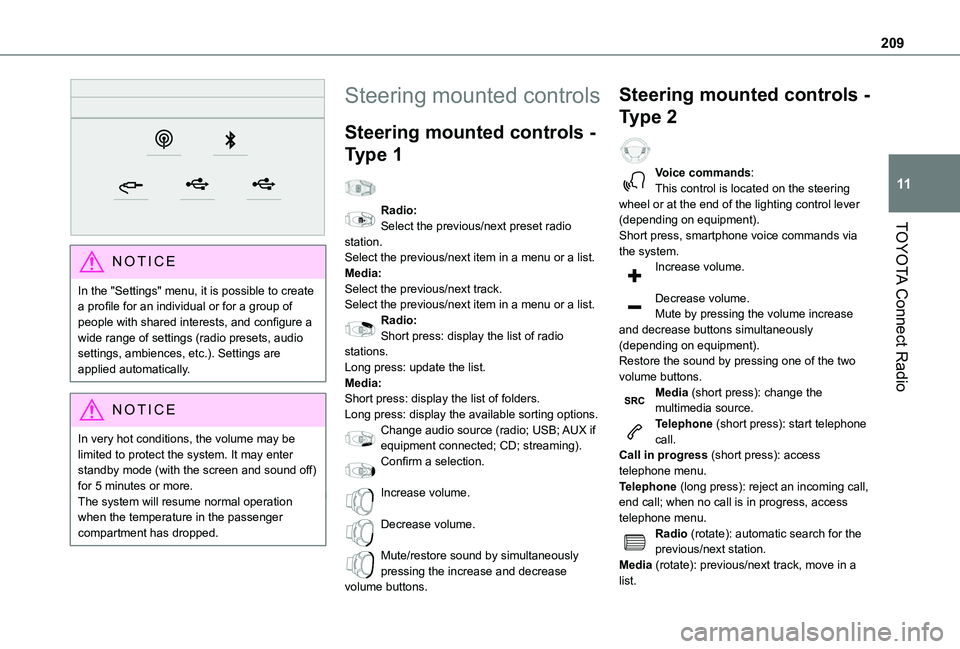
Radio:Select the previous/next preset radio station.Select the previous/next item in a menu or a list.Media:Select the previous/next track.Select the previous/next item in a menu or a list.Radio:Short press: display the list of radio stations.Long press: update the list.Media:Short press: display the list of folders.Long press: display the available sorting options.Change audio source (radio; USB; AUX if
equipment connected; CD; streaming).Confirm a selection.
Increase volume.
Decrease volume.
Mute/restore sound by simultaneously pressing the increase and decrease volume buttons.
Steering mounted controls -
Type 2
Voice commands:This control is located on the steering wheel or at the end of the lighting control lever (depending on equipment).Short press, smartphone voice commands via the system.Increase volume.
Decrease volume.Mute by pressing the volume increase and decrease buttons simultaneously (depending on equipment).Restore the sound by pressing one of the two volume buttons.Media (short press): change the multimedia source.Telephone (short press): start telephone call.
Call in progress (short press): access telephone menu.Telephone (long press): reject an incoming call, end call; when no call is in progress, access telephone menu.Radio (rotate): automatic search for the previous/next station.Media (rotate): previous/next track, move in a list.
Page 218 of 272
218
Select one or more profiles.
Press "OK" to confirm.
Depending on the type of telephone, you may by prompted to accept the transfer of contacts and messages.
NOTIC E
The ability of the system to connect just one profile depends on the telephone.All three profiles may connect by default.
NOTIC E
The profiles compatible with the system are: HFP, OPP, PBAP, A2DP, AVRCP, MAP and PAN.
Visit the Brand's website for more information (compatibility, additional help, etc.).
Automatic reconnection
On returning to the vehicle, if the last telephone connected is present again, it is automatically recognised and within about 30 seconds after switching on the ignition, the pairing is established automatically (Bluetooth activated).
To modify the connection profile:Press Telephone to display the main page.
Press the "PHONE" button to access the secondary page.Press "Bluetooth connection" to display the list of paired devices.Press the "Details" button for a paired device.Select one or more profiles.
Press "OK" to confirm.
Managing paired telephones
This function lets you connect or disconnect a device or delete a pairing.Press Telephone to display the main page.Press the "PHONE" button to access the secondary page.Press "Bluetooth connection" to display the list of paired devices.Press on the name of the telephone selected in the list to disconnect it.Press again to connect it.
Deleting a telephone
Press the basket at the top right of the screen to display a basket alongside the telephone chosen.Press the basket alongside the telephone chosen to delete it.
Receiving a call
An incoming call is announced by a ring and a superimposed display in the screen.Make a short press on the steering mounted PHONE button to accept an incoming call.AndMake a long press
on the steering mounted PHONE button to reject the call.OrPress "End call".
Making a call
WARNI NG
Using the telephone is not recommended while driving.Parking the vehicle.Make the call using the steering mounted controls.
Calling a new number
Press Telephone to display the main page. Enter the phone number using the digital keypad.Press "Call" to start the call.
Page 219 of 272
219
TOYOTA Connect Radio
11
Calling a contact
Press Telephone to display the main page. Or press and hold
the steering mounted PHONE button.
Press "Contacts".Select the desired contact from the displayed list.Press "Call".
Calling a recently used
number
Press Telephone to display the main page.OrPress and hold
the steering mounted button.
Press "Recent calls".
Select the desired contact from the displayed list.
NOTIC E
It is always possible to make a call directly from the telephone; as a safety measure, first park the vehicle.
Setting the ringtone
Press Telephone to display the main page. Press the "OPTIONS" button to access the secondary page.Press "Ring volume" to display the volume bar.Press the arrows or move the slider to set the ring volume.
Settings
Configuring profiles
Press Settings to display the main page.
Press "Profiles".
Select "Profile 1", "Profile 2", "Profile 3” or "Common profile".Press this button to enter a name for the profile using the virtual keypad.
Press "OK" to save.
Press the back arrow to confirm.
Press this button to activate the profile.
Press the back arrow again to confirm.
Press this button to reset the selected profile.
Adjusting the brightness
Press Settings to display the main page.
Press Brightness.
Move the slider to adjust the brightness of the screen and/or the instrument panel (depending on version).Press in the shaded area to confirm.
Modifying system settings
Press Settings to display the main page.
Press "Configuration" to access the secondary page.Press "System configuration".
Press the "Units" tab to change the units of distance, fuel consumption and temperature.Press the "Factory settings" tab to restore the initial settings.
WARNI NG
Returning the system to factory settings activates the English language by default (depending on version).
Press the "System info" tab to display the versions of the various modules installed in the system.Press the "Privacy" tab,
Page 224 of 272
224
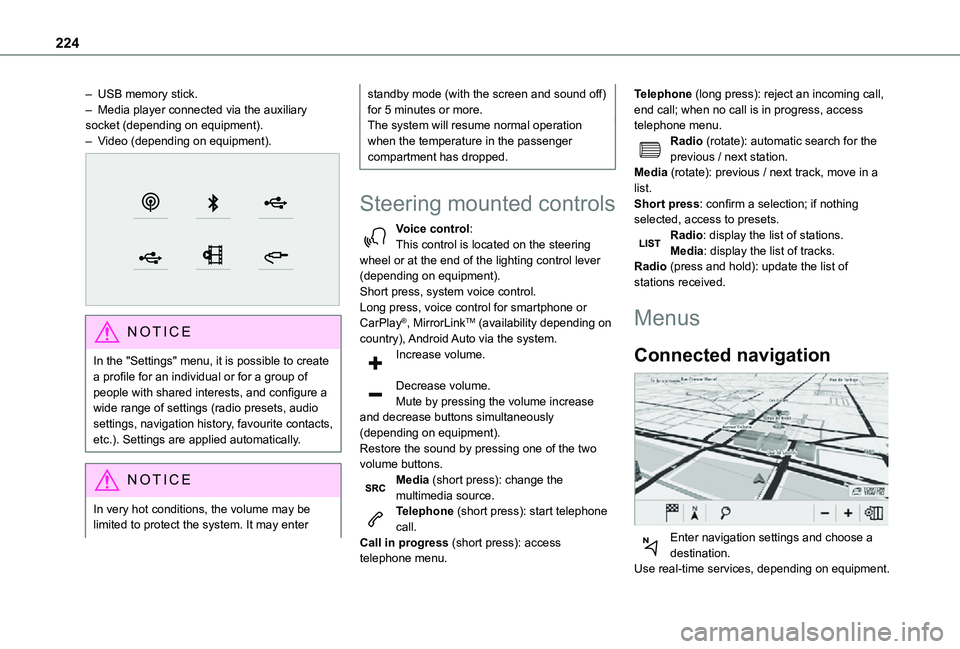
– USB memory stick.– Media player connected via the auxiliary socket (depending on equipment).– Video (depending on equipment).
NOTIC E
In the "Settings" menu, it is possible to create a profile for an individual or for a group of people with shared interests, and configure a wide range of settings (radio presets, audio settings, navigation history, favourite contacts, etc.). Settings are applied automatically.
NOTIC E
In very hot conditions, the volume may be limited to protect the system. It may enter
standby mode (with the screen and sound off) for 5 minutes or more.The system will resume normal operation when the temperature in the passenger compartment has dropped.
Steering mounted controls
Voice control:This control is located on the steering wheel or at the end of the lighting control lever (depending on equipment).Short press, system voice control.Long press, voice control for smartphone or CarPlay®, MirrorLinkTM (availability depending on country), Android Auto via the system.Increase volume.
Decrease volume.Mute by pressing the volume increase and decrease buttons simultaneously (depending on equipment).
Restore the sound by pressing one of the two volume buttons.Media (short press): change the multimedia source.Telephone (short press): start telephone call.Call in progress (short press): access telephone menu.
Telephone (long press): reject an incoming call, end call; when no call is in progress, access telephone menu.Radio (rotate): automatic search for the previous / next station.Media (rotate): previous / next track, move in a list.Short press: confirm a selection; if nothing selected, access to presets.Radio: display the list of stations.Media: display the list of tracks.Radio (press and hold): update the list of stations received.
Menus
Connected navigation
Enter navigation settings and choose a
destination.Use real-time services, depending on equipment.
Page 226 of 272
226
Voice commands
Steering wheel-mounted
controls
Voice commands:Voice commands can be issued from any screen page after a short press on the "Voice commands" button located on the steering wheel or at the end of the lighting control lever (depending on equipment), as long as there is no telephone call in progress.
WARNI NG
To ensure that voice commands are always recognised by the system, please follow these recommendations: – use natural language in a normal tone without breaking up words or raising your voice.– always wait for the "beep" (audible signal) before speaking.– for best results, closing the windows and sunroof is recommended, to avoid extraneous interference (depending on version).– before issuing a voice command, ask any other passengers to refrain from speaking.
First steps
Example of a "voice command" for navigation:"Navigate to address 11 regent street, London"Example of a "voice command" for the radio and media:"Play artist Madonna"Example of a "voice command" for the telephone:"Call David Miller"
WARNI NG
The voice commands, with a choice of 17 languages (Arabic, Brazilian, Czech, Danish, Dutch, English, Farsi, French, German, Italian, Norwegian, Polish, Portuguese, Russian, Spanish, Swedish, Turkish), are made using the language previously chosen and set in the system.For some voice commands, there are alternative synonyms.Example: Guide to / Navigate to / Go to / ...The voice commands in Arabic for: "Navigate to address" and "Display POI in the city", are not available.
Information - Using the
system
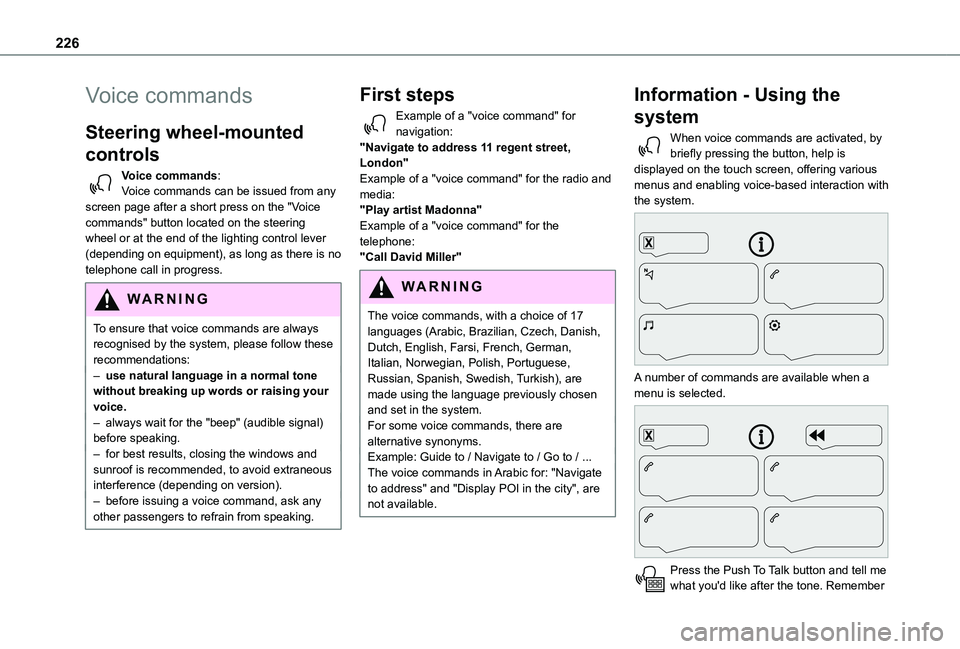
When voice commands are activated, by briefly pressing the button, help is displayed on the touch screen, offering various menus and enabling voice-based interaction with the system.
A number of commands are available when a menu is selected.
Press the Push To Talk button and tell me what you'd like after the tone. Remember
Page 243 of 272
243
TOYOTA Connect Nav
12
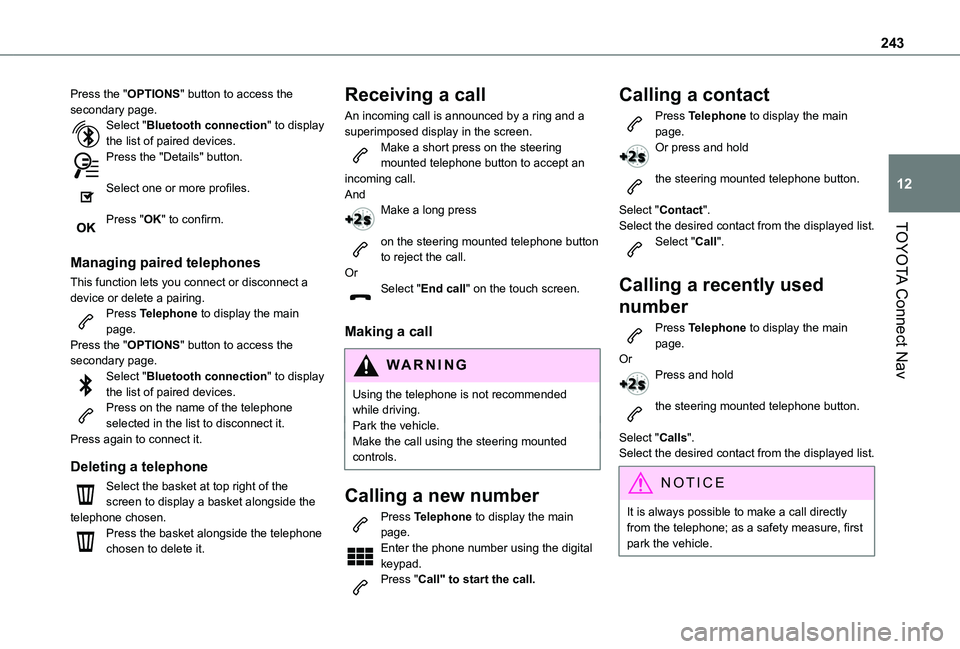
Press the "OPTIONS" button to access the secondary page.Select "Bluetooth connection" to display the list of paired devices.Press the "Details" button.
Select one or more profiles.
Press "OK" to confirm.
Managing paired telephones
This function lets you connect or disconnect a device or delete a pairing.Press Telephone to display the main page.Press the "OPTIONS" button to access the secondary page.Select "Bluetooth connection" to display the list of paired devices.Press on the name of the telephone selected in the list to disconnect it.Press again to connect it.
Deleting a telephone
Select the basket at top right of the screen to display a basket alongside the telephone chosen.Press the basket alongside the telephone chosen to delete it.
Receiving a call
An incoming call is announced by a ring and a superimposed display in the screen.Make a short press on the steering mounted telephone button to accept an incoming call.AndMake a long press
on the steering mounted telephone button to reject the call.OrSelect "End call" on the touch screen.
Making a call
WARNI NG
Using the telephone is not recommended while driving.Park the vehicle.Make the call using the steering mounted controls.
Calling a new number
Press Telephone to display the main page. Enter the phone number using the digital keypad.Press "Call" to start the call.
Calling a contact
Press Telephone to display the main page.Or press and hold
the steering mounted telephone button.
Select "Contact".Select the desired contact from the displayed list.Select "Call".
Calling a recently used
number
Press Telephone to display the main page.OrPress and hold
the steering mounted telephone button.
Select "Calls".
Select the desired contact from the displayed list.
NOTIC E
It is always possible to make a call directly from the telephone; as a safety measure, first park the vehicle.
Page 250 of 272
250
A
ABS 78Accessories 75, 104Access to the 3rd row 46Access to the spare wheel 173Active Safety Brake 133–135AdBlue® 164AdBlue® tank 166Additive, Diesel 162–163Adjusting headlamps 70Adjusting head restraints 47Adjusting seat 40, 46Adjusting the air distribution 57–58Adjusting the air flow 57–58Adjusting the date 220, 246Adjusting the height and reach of the steering wheel 42Adjusting the lumbar support 40Adjusting the temperature 57–58Adjusting the time 220, 246Advanced Grip Control 80–81
Advice on care and maintenance 167Advice on driving 7, 99–100Airbags 86, 88–89, 91Airbags, curtain 87, 89Airbags, front 86, 88, 92Airbags, lateral 87–88Air conditioning 55, 58, 59, 61Air conditioning, digital 60Air conditioning, dual-zone automatic 57–58
Air conditioning, electronic (with display screen) 61Air conditioning, manual 56–57Air intake 57–58Air vents 55Alarm 34–36Android Auto connection 236Anti-lock braking system (ABS) 78–79Antitheft / Immobiliser 25Apple CarPlay connection 216, 235Applications 237Armrest 40Armrest, front 48Assistance call 76–77Assistance, emergency braking 79, 135Audible warning 78Audio streaming (Bluetooth) 201, 214, 241
B
Battery 157, 184, 187
Battery, 12 V 162, 184–186Battery, charging 186Battery, remote control 30, 64Bench seat, one-piece, fixed 46Blind spot monitoring system 140Blind spot monitoring system, active 141Blind spot sensors 139, 141Bluetooth (hands-free) 202–203, 217–218, 242Bluetooth (telephone) 217–218, 242–243
Bodywork 168Bonnet 158–159Boot lid 27, 29Bottle holder 48Brake discs 163Brake lamps 180Brakes 163Braking assistance system 78–79Braking, automatic emergency 133–135Braking, dynamic emergency 106–108Brightness 219Bulbs 177Bulbs (changing) 176–178Bulbs (changing, type) 177
C
Capacity, fuel tank 151–152Cap, fuel filler 152Care of the bodywork 168CD 201, 214
CD, MP3 201, 214Central locking 24, 27Changing a bulb 176–178Changing a fuse 182–184Changing a wheel 170, 173Changing a wiper blade 72–73Changing the remote control battery 30Charger, induction 51Charger, wireless 51Checking the levels 160–161