buttons TOYOTA PROACE VERSO EV 2024 User Guide
[x] Cancel search | Manufacturer: TOYOTA, Model Year: 2024, Model line: PROACE VERSO EV, Model: TOYOTA PROACE VERSO EV 2024Pages: 360, PDF Size: 70.22 MB
Page 42 of 360
42
NOTIC E
The button(s) at the front or on the door pillar is not operational and pressing it results in an audible signal, if:– the vehicle is moving,– the child lock is on (activated) (for the buttons on the door pillars),– the vehicle has been locked or deadlocked
from outside (using the key, remote control or Smart Entry & Start, depending on equipment).The button for the left-hand door is not operational and pressing it results in an audible signal if the fuel filler flap is open.
General
recommendations for the
sliding side doors
WARNI NG
Doors must only be operated when the vehicle is stationary.
For your safety and that of your passengers, as well as for correct operation of the doors, you are strongly advised not to drive with a door open.Always check that it is safe to operate the door and in particular, be sure not to leave children or animals near the door controls without supervision.The audible warning, the lighting of the "door open" warning lamp and the message on the screen are there to remind you. Contact any authorized Toyota retailer or Toyota authorized repairer, or any reliable repairer if you want to deactivate this warning.Lock the vehicle when you use an automatic car wash.
WARNI NG
Before opening or closing and while moving doors, ensure that no person, animal or object is in the door frame or any other position that would block the desired movement, inside or outside the vehicle.If this advice is not followed, injuries or damage may occur if any part of a person or
an object is trapped or caught.Electrical door opening is disabled at speeds above 2 mph (3 km/h):– However, if the vehicle started moving while the doors were open, the speed must be reduced below 19 mph (30 km/h) before they can be closed.– Any attempt to open a door electrically using the interior handle while driving results in it only being possible to open the door manually.– This situation is accompanied by the audible warning, the lighting of the "door open" warning lamp and the message on the screen. To release the door and be able to operate it again, it is necessary to stop the vehicle.
Page 90 of 360

90
NOTIC E
For more information, refer to the Rear heating - air conditioning section.
Visibility programme
► Press button 7 "Visibility" to demist or defrost the windscreen and side windows more
quickly.The system automatically manages the air conditioning, air flow and air intake, and provides optimum distribution towards the windscreen and side windows.► Press button 7 "Visibility" again to stop the programme.Or► Press button 6 "AUTO" to return to the automatic comfort programme.
Air conditioning
With the engine running, the air conditioning is designed to operate effectively in all seasons, with the windows closed.It enables you to:– lower the temperature in summer,– enhance the effectiveness of the demisting function in winter, above 3°C.
On/Off
► Press button 5 to activate/deactivate the air conditioning system.When the air conditioning is in operation, to cool the air more quickly, you can use interior air recirculation for a few moments by pressing button 4. Then restore the intake of exterior air.
NOTIC E
The air conditioning does not operate when the air flow adjustment is set to off.
WARNI NG
Switching the system off could result in discomfort (humidity, misting).
Air distribution
► Pressing button 3 successively directs the air flow towards:– windscreen, side windows and footwells, – footwells,– central vents, side vents and footwells,– windscreen, side windows, central vents, side vents and footwells,– central and side vents, – windscreen and side windows (demisting or defrosting).
Air flow
► Press the buttons 2 to increase/decrease the air flow.The air flow symbol (a fan) appears. It is filled in or emptied gradually, according to the value set.
Interior air recirculation
The intake of exterior air prevents the formation
of mist on the windscreen and side windows.Recirculating the interior air isolates the passenger compartment from outside odours and fumes and allows the desired passenger compartment temperature to be achieved more rapidly.► Press this button to activate/deactivate the function (confirmed by the illumination/extinction of the indicator lamp).
Page 172 of 360
172
Activation/Deactivation
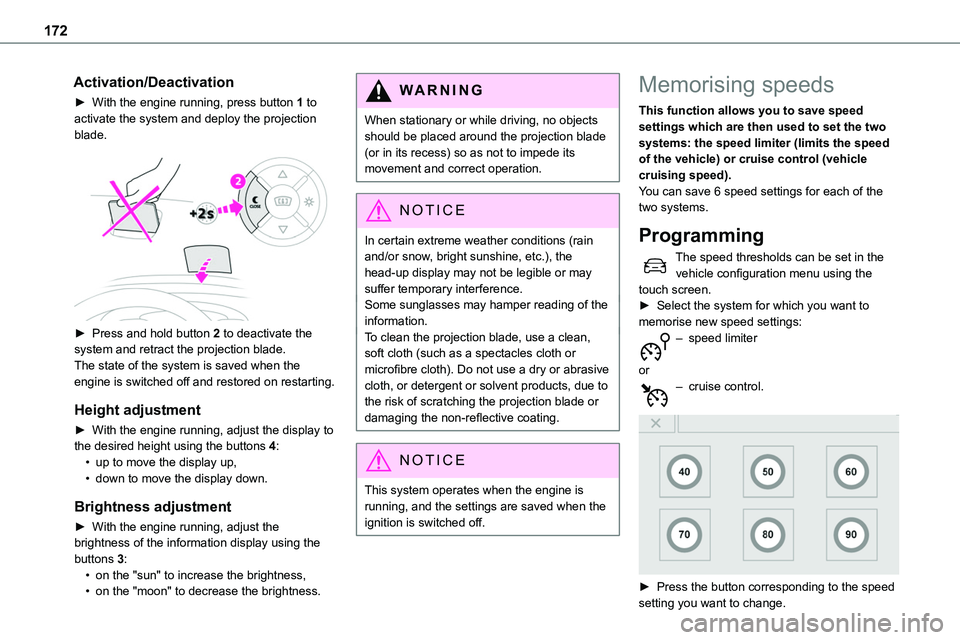
► With the engine running, press button 1 to activate the system and deploy the projection blade.
► Press and hold button 2 to deactivate the system and retract the projection blade.The state of the system is saved when the engine is switched off and restored on restarting.
Height adjustment
► With the engine running, adjust the display to the desired height using the buttons 4:• up to move the display up,• down to move the display down.
Brightness adjustment
► With the engine running, adjust the
brightness of the information display using the buttons 3:• on the "sun" to increase the brightness,• on the "moon" to decrease the brightness.
W ARNI NG
When stationary or while driving, no objects should be placed around the projection blade (or in its recess) so as not to impede its movement and correct operation.
NOTIC E
In certain extreme weather conditions (rain and/or snow, bright sunshine, etc.), the head-up display may not be legible or may suffer temporary interference.Some sunglasses may hamper reading of the information.To clean the projection blade, use a clean, soft cloth (such as a spectacles cloth or microfibre cloth). Do not use a dry or abrasive cloth, or detergent or solvent products, due to the risk of scratching the projection blade or damaging the non-reflective coating.
NOTIC E
This system operates when the engine is running, and the settings are saved when the ignition is switched off.
Memorising speeds
This function allows you to save speed settings which are then used to set the two systems: the speed limiter (limits the speed of the vehicle) or cruise control (vehicle cruising speed).You can save 6 speed settings for each of the two systems.
Programming
The speed thresholds can be set in the vehicle configuration menu using the touch screen.► Select the system for which you want to memorise new speed settings:– speed limiter
or– cruise control.
► Press the button corresponding to the speed setting you want to change.
Page 177 of 360
177
Driving
6
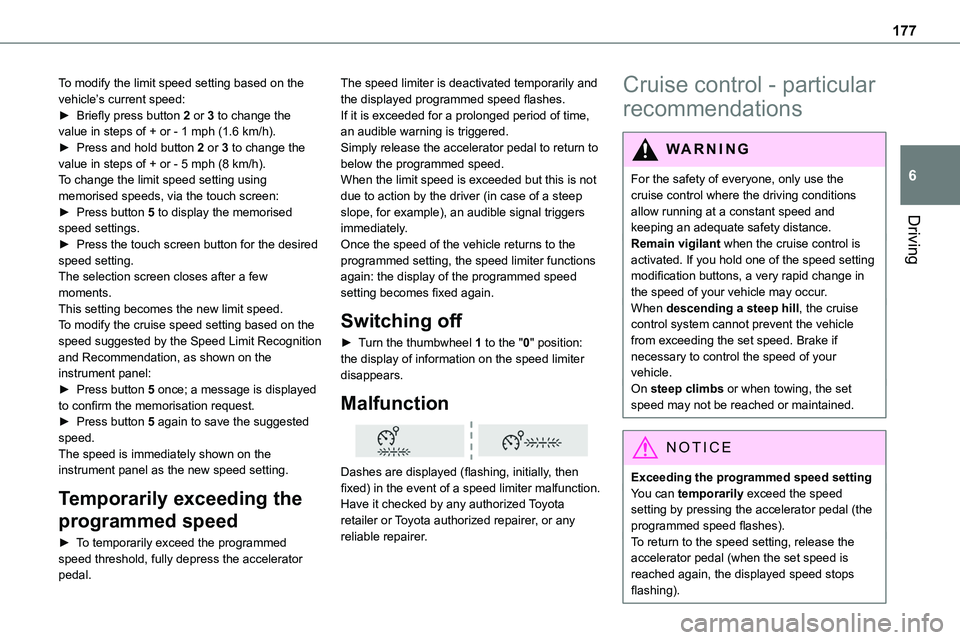
To modify the limit speed setting based on the vehicle’s current speed:► Briefly press button 2 or 3 to change the value in steps of + or - 1 mph (1.6 km/h).► Press and hold button 2 or 3 to change the value in steps of + or - 5 mph (8 km/h).To change the limit speed setting using memorised speeds, via the touch screen:► Press button 5 to display the memorised
speed settings.► Press the touch screen button for the desired speed setting.The selection screen closes after a few moments.This setting becomes the new limit speed.To modify the cruise speed setting based on the speed suggested by the Speed Limit Recognition and Recommendation, as shown on the instrument panel:► Press button 5 once; a message is displayed to confirm the memorisation request.► Press button 5 again to save the suggested speed.The speed is immediately shown on the instrument panel as the new speed setting.
Temporarily exceeding the
programmed speed
► To temporarily exceed the programmed speed threshold, fully depress the accelerator pedal.
The speed limiter is deactivated temporarily and the displayed programmed speed flashes.If it is exceeded for a prolonged period of time, an audible warning is triggered.Simply release the accelerator pedal to return to below the programmed speed.When the limit speed is exceeded but this is not due to action by the driver (in case of a steep slope, for example), an audible signal triggers
immediately.Once the speed of the vehicle returns to the programmed setting, the speed limiter functions again: the display of the programmed speed setting becomes fixed again.
Switching off
► Turn the thumbwheel 1 to the "0" position: the display of information on the speed limiter disappears.
Malfunction
Dashes are displayed (flashing, initially, then fixed) in the event of a speed limiter malfunction.Have it checked by any authorized Toyota retailer or Toyota authorized repairer, or any
reliable repairer.
Cruise control - particular
recommendations
WARNI NG
For the safety of everyone, only use the cruise control where the driving conditions allow running at a constant speed and keeping an adequate safety distance.Remain vigilant when the cruise control is activated. If you hold one of the speed setting modification buttons, a very rapid change in the speed of your vehicle may occur.When descending a steep hill, the cruise control system cannot prevent the vehicle from exceeding the set speed. Brake if necessary to control the speed of your vehicle.On steep climbs or when towing, the set speed may not be reached or maintained.
NOTIC E
Exceeding the programmed speed settingYou can temporarily exceed the speed setting by pressing the accelerator pedal (the programmed speed flashes).
To return to the speed setting, release the accelerator pedal (when the set speed is reached again, the displayed speed stops flashing).
Page 181 of 360
181
Driving
6
NOTIC E
If the driver operates a direction indicator to overtake a slower vehicle, the cruise control allows the vehicle to temporarily approach the vehicle in front to assist the overtaking manoeuvre, without ever exceeding the speed setting.
WARNI NG
Some vehicles present on the road may not be properly seen or may be misinterpreted by the radar (e.g. a lorry), which may lead to a poor assessment of distance and lead to the vehicle accelerating or braking inappropriately.
Steering-mounted controls
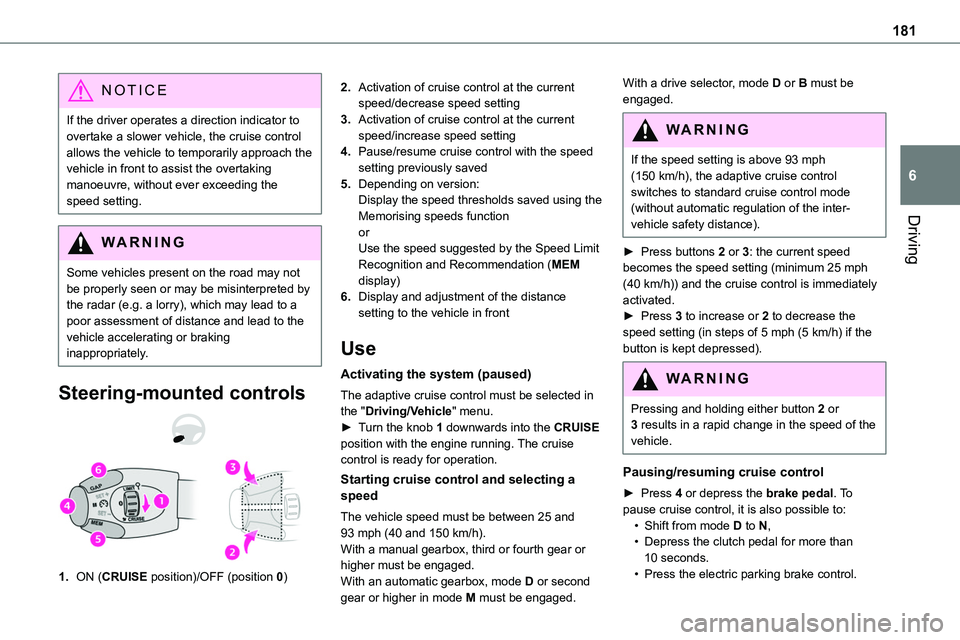
1.ON (CRUISE position)/OFF (position 0)
2.Activation of cruise control at the current speed/decrease speed setting
3.Activation of cruise control at the current speed/increase speed setting
4.Pause/resume cruise control with the speed setting previously saved
5.Depending on version:Display the speed thresholds saved using the Memorising speeds function
orUse the speed suggested by the Speed Limit Recognition and Recommendation (MEM display)
6.Display and adjustment of the distance setting to the vehicle in front
Use
Activating the system (paused)
The adaptive cruise control must be selected in the "Driving/Vehicle" menu.► Turn the knob 1 downwards into the CRUISE position with the engine running. The cruise control is ready for operation.
Starting cruise control and selecting a speed
The vehicle speed must be between 25 and 93 mph (40 and 150 km/h).With a manual gearbox, third or fourth gear or higher must be engaged.With an automatic gearbox, mode D or second gear or higher in mode M must be engaged.
With a drive selector, mode D or B must be engaged.
WARNI NG
If the speed setting is above 93 mph (150 km/h), the adaptive cruise control switches to standard cruise control mode (without automatic regulation of the inter-vehicle safety distance).
► Press buttons 2 or 3: the current speed becomes the speed setting (minimum 25 mph (40 km/h)) and the cruise control is immediately activated.► Press 3 to increase or 2 to decrease the speed setting (in steps of 5 mph (5 km/h) if the button is kept depressed).
WARNI NG
Pressing and holding either button 2 or 3 results in a rapid change in the speed of the vehicle.
Pausing/resuming cruise control
► Press 4 or depress the brake pedal. To pause cruise control, it is also possible to:• Shift from mode D to N,• Depress the clutch pedal for more than 10 seconds.• Press the electric parking brake control.
Page 263 of 360
263
Bluetooth® audio system
10
Bluetooth® audio system
NOTIC E
The different functions and settings described vary according to the version and configuration of your vehicle.
WARNI NG
As a safety measure and because it requires sustained attention by the driver, the pairing of a Bluetooth mobile telephone with the Bluetooth hands-free system of your audio system must be done with the vehicle stationary and the ignition on.
WARNI NG
Your audio system is coded in such a way that it will only operate in your vehicle.All work on the system must be carried out exclusively by a dealer or qualified workshop, to avoid any risk of electrocution, fire or mechanical faults.
NOTIC E
To avoid discharging the battery, the audio system may switch off after a few minutes if the engine is not running.
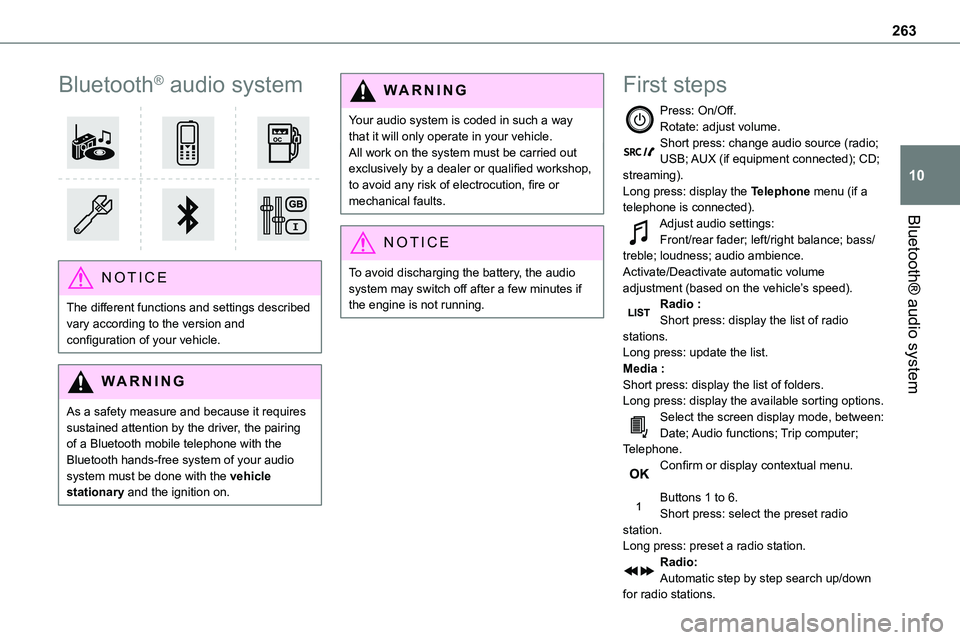
First steps
Press: On/Off.Rotate: adjust volume.Short press: change audio source (radio; USB; AUX (if equipment connected); CD; streaming).Long press: display the Telephone menu (if a telephone is connected).
Adjust audio settings:Front/rear fader; left/right balance; bass/treble; loudness; audio ambience.Activate/Deactivate automatic volume adjustment (based on the vehicle’s speed).Radio :Short press: display the list of radio stations.Long press: update the list.Media :Short press: display the list of folders.Long press: display the available sorting options.Select the screen display mode, between:Date; Audio functions; Trip computer; Telephone.Confirm or display contextual menu.
Buttons 1 to 6.Short press: select the preset radio station.Long press: preset a radio station.Radio:Automatic step by step search up/down for radio stations.
Page 264 of 360
264
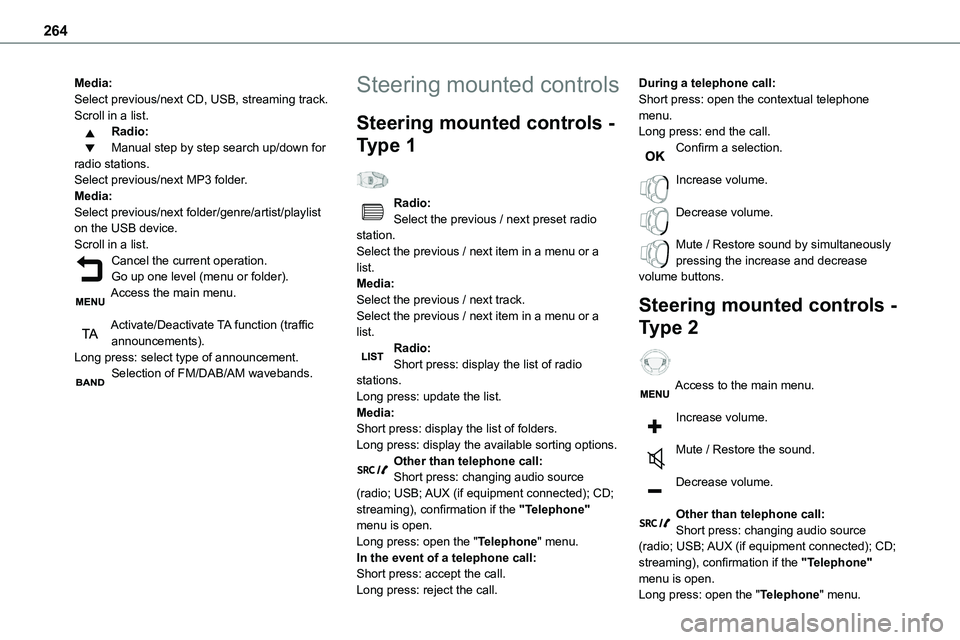
Media:Select previous/next CD, USB, streaming track.Scroll in a list.Radio:Manual step by step search up/down for radio stations.Select previous/next MP3 folder.Media:Select previous/next folder/genre/artist/playlist
on the USB device.Scroll in a list.Cancel the current operation.Go up one level (menu or folder).Access the main menu.
Activate/Deactivate TA function (traffic announcements).Long press: select type of announcement.Selection of FM/DAB/AM wavebands.
Steering mounted controls
Steering mounted controls -
Type 1
Radio:Select the previous / next preset radio
station.Select the previous / next item in a menu or a list.Media:Select the previous / next track.Select the previous / next item in a menu or a list.Radio:Short press: display the list of radio stations.Long press: update the list.Media:Short press: display the list of folders.Long press: display the available sorting options.Other than telephone call:Short press: changing audio source (radio; USB; AUX (if equipment connected); CD; streaming), confirmation if the "Telephone" menu is open.Long press: open the "Telephone" menu.In the event of a telephone call:Short press: accept the call.Long press: reject the call.
During a telephone call:Short press: open the contextual telephone menu.Long press: end the call.Confirm a selection.
Increase volume.
Decrease volume.
Mute / Restore sound by simultaneously pressing the increase and decrease volume buttons.
Steering mounted controls -
Type 2
Access to the main menu.
Increase volume.
Mute / Restore the sound.
Decrease volume.
Other than telephone call:Short press: changing audio source (radio; USB; AUX (if equipment connected); CD; streaming), confirmation if the "Telephone" menu is open.Long press: open the "Telephone" menu.
Page 265 of 360
265
Bluetooth® audio system
10
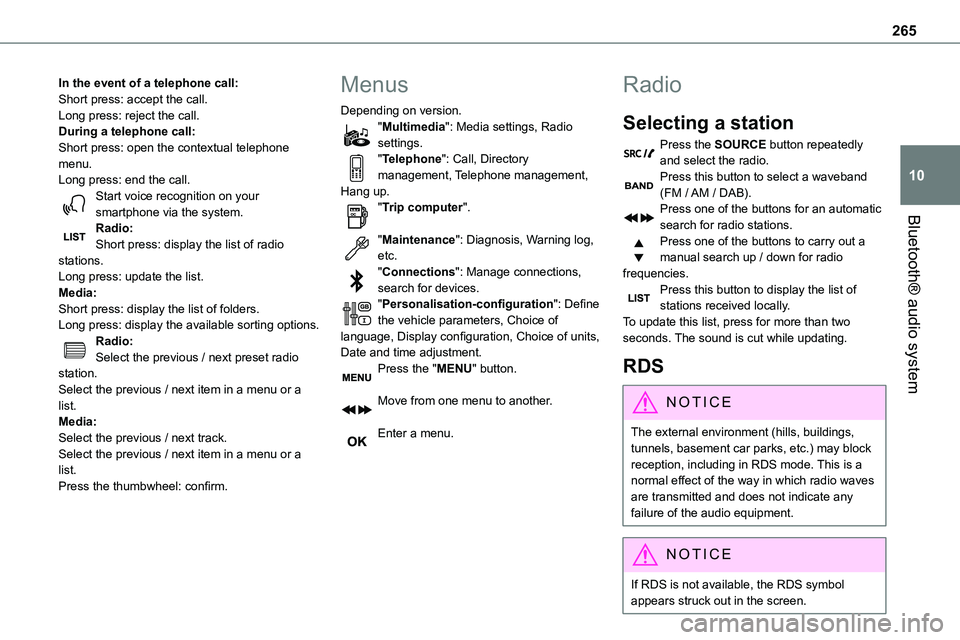
In the event of a telephone call:Short press: accept the call.Long press: reject the call.During a telephone call:Short press: open the contextual telephone menu.Long press: end the call.Start voice recognition on your smartphone via the system.
Radio:Short press: display the list of radio stations.Long press: update the list.Media:Short press: display the list of folders.Long press: display the available sorting options.Radio:Select the previous / next preset radio station.Select the previous / next item in a menu or a list.Media:Select the previous / next track.Select the previous / next item in a menu or a list.Press the thumbwheel: confirm.
Menus
Depending on version."Multimedia": Media settings, Radio settings."Telephone": Call, Directory management, Telephone management, Hang up."Trip computer".
"Maintenance": Diagnosis, Warning log, etc."Connections": Manage connections, search for devices."Personalisation-configuration": Define the vehicle parameters, Choice of language, Display configuration, Choice of units, Date and time adjustment.Press the "MENU" button.
Move from one menu to another.
Enter a menu.
Radio
Selecting a station
Press the SOURCE button repeatedly and select the radio.Press this button to select a waveband (FM / AM / DAB).Press one of the buttons for an automatic
search for radio stations.Press one of the buttons to carry out a manual search up / down for radio frequencies.Press this button to display the list of stations received locally.To update this list, press for more than two seconds. The sound is cut while updating.
RDS
NOTIC E
The external environment (hills, buildings, tunnels, basement car parks, etc.) may block reception, including in RDS mode. This is a normal effect of the way in which radio waves are transmitted and does not indicate any failure of the audio equipment.
NOTIC E
If RDS is not available, the RDS symbol appears struck out in the screen.
Page 267 of 360
267
Bluetooth® audio system
10
Select "RadioText (TXT) display" and confirm OK to save.
DAB (Digital Audio
Broadcasting) radio
Terrestrial Digital Radio
Depending on version
NOTIC E
If the current DAB radio station is not available on FM, "DAB FM" is struck out.
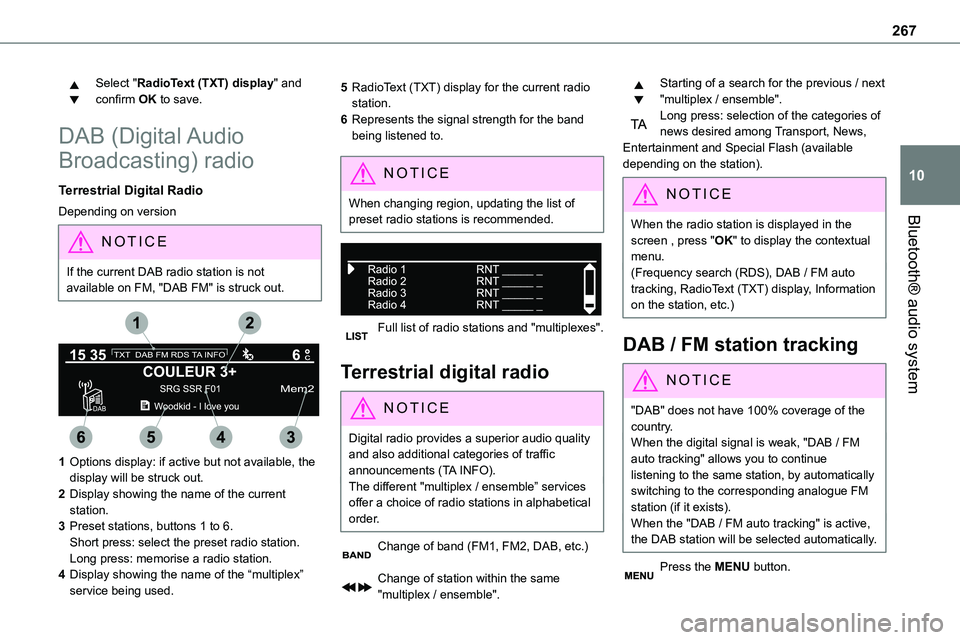
1Options display: if active but not available, the display will be struck out.
2Display showing the name of the current station.
3Preset stations, buttons 1 to 6.Short press: select the preset radio station.Long press: memorise a radio station.
4Display showing the name of the “multiplex” service being used.
5RadioText (TXT) display for the current radio station.
6Represents the signal strength for the band being listened to.
NOTIC E
When changing region, updating the list of preset radio stations is recommended.
Full list of radio stations and "multiplexes".
Terrestrial digital radio
NOTIC E
Digital radio provides a superior audio quality and also additional categories of traffic announcements (TA INFO).The different "multiplex / ensemble” services offer a choice of radio stations in alphabetical order.
Change of band (FM1, FM2, DAB, etc.)
Change of station within the same "multiplex / ensemble".
Starting of a search for the previous / next "multiplex / ensemble".Long press: selection of the categories of news desired among Transport, News, Entertainment and Special Flash (available depending on the station).
NOTIC E
When the radio station is displayed in the screen , press "OK" to display the contextual menu.(Frequency search (RDS), DAB / FM auto tracking, RadioText (TXT) display, Information on the station, etc.)
DAB / FM station tracking
NOTIC E
"DAB" does not have 100% coverage of the country.When the digital signal is weak, "DAB / FM auto tracking" allows you to continue listening to the same station, by automatically switching to the corresponding analogue FM station (if it exists).When the "DAB / FM auto tracking" is active, the DAB station will be selected automatically.
Press the MENU button.
Page 268 of 360
268
Select "Multimedia" and confirm.
Select "DAB / FM auto tracking" and confirm.
NOTIC E
If "DAB / FM auto tracking" tracking is enabled, there is a lag of a few seconds when the system switches to the analogue FM station sometimes with a change in volume.
WARNI NG
If the "DAB" station you are listening to is not available on FM ("DAB/FM" option struck out), or if "DAB / FM auto tracking" is not on, the sound will be cut when the digital signal is too weak.
Media
USB port
Insert the USB memory stick into the USB port or connect the USB device to the USB port using a suitable cable (not supplied).The system changes automatically to "USB" source.
WARNI NG
To protect the system, do not use a USB hub.
NOTIC E
Any additional devices connected to the system must comply with the standard applicable to the product and/or the standard IEC 60950-1.
The system builds playlists (in temporary memory); this operation can take from a few seconds to several minutes at the first connection.Reduce the number of non-music files and the number of folders to reduce the waiting time. Playlists are updated every time a new USB memory stick is connected.
NOTIC E
When the USB port is used, the portable device charges automatically.
Play mode
The play modes available are:– Normal: the tracks are played in order,
depending on the classification of the selected files.– Random: the tracks in an album or folder are played in a random order.– Random on all media: all of the tracks saved in the media are played in random order.– Repeat: the tracks played are only those from the current album or folder.Press this button to display the contextual menu for the Media function.Press this button to select the chosen play mode.Press this button to confirm.
The choice made is displayed at the top of the screen.
Choosing a track to play
Press one of these buttons to go to the previous / next track.Press one of these buttons to go to the previous / next folder.