audio TOYOTA RAV4 2020 Owners Manual (in English)
[x] Cancel search | Manufacturer: TOYOTA, Model Year: 2020, Model line: RAV4, Model: TOYOTA RAV4 2020Pages: 736, PDF Size: 30.79 MB
Page 1 of 736
RAV4_OM_OM0R024U_(U)
1
2
3
4
5
6
7
8
9
10
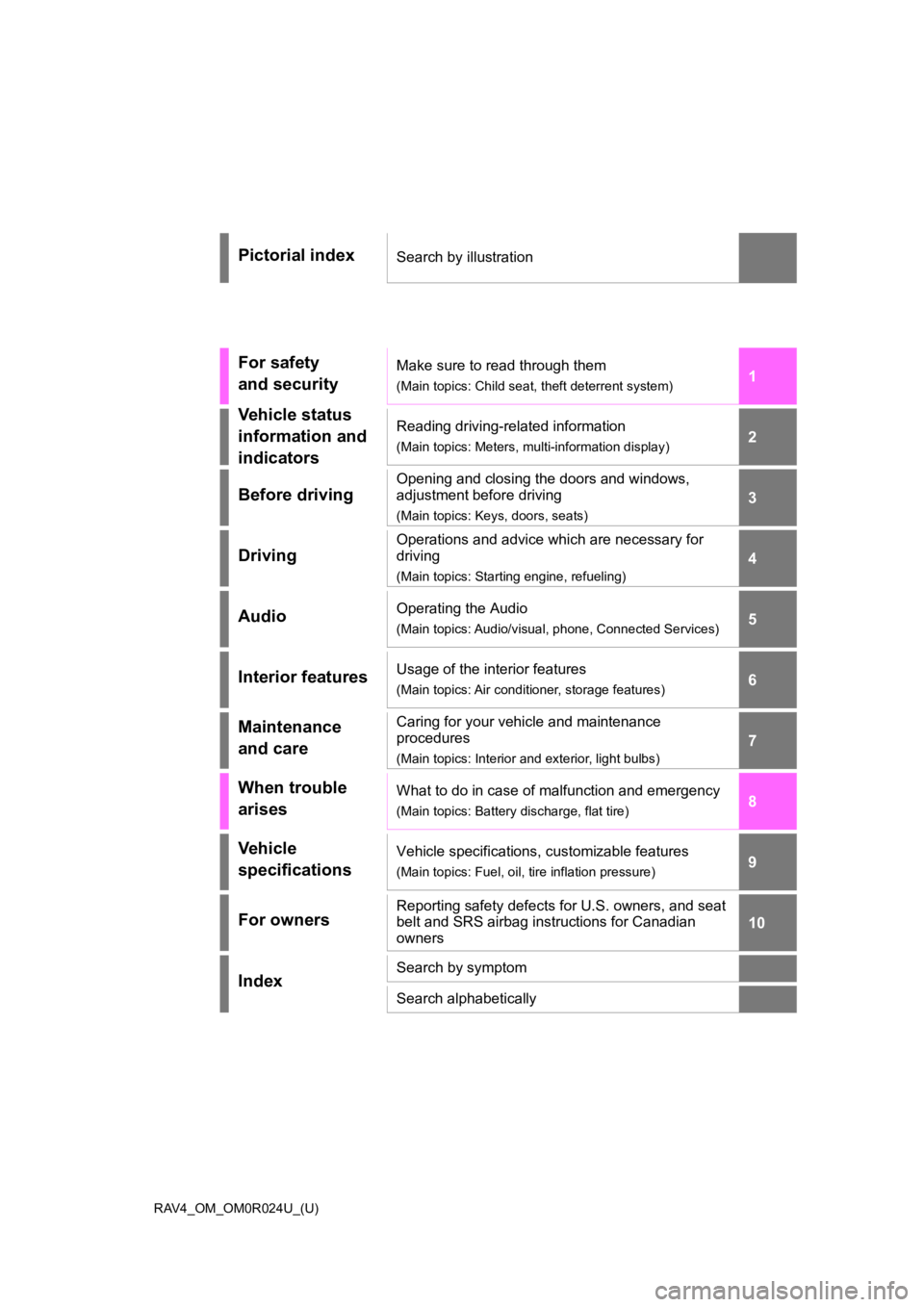
Pictorial indexSearch by illustration
For safety
and securityMake sure to read through them
(Main topics: Child seat, theft deterrent system)
Vehicle status
information and
indicatorsReading driving-related information
(Main topics: Meters, multi-information display)
Before driving
Opening and closing the doors and windows,
adjustment before driving
(Main topics: Keys, doors, seats)
Driving
Operations and advice which are necessary for
driving
(Main topics: Starting engine, refueling)
AudioOperating the Audio
(Main topics: Audio/visual, phone, Connected Services)
Interior featuresUsage of the interior features
(Main topics: Air conditioner, storage features)
Maintenance
and careCaring for your vehicle and maintenance
procedures
(Main topics: Interior and exterior, light bulbs)
When trouble
arisesWhat to do in case of malfunction and emergency
(Main topics: Battery discharge, flat tire)
Vehicle
specificationsVehicle specifications, customizable features
(Main topics: Fuel, oil, tire inflation pressure)
For ownersReporting safety defects for U.S. owners, and seat
belt and SRS airbag instructions for Canadian
owners
IndexSearch by symptom
Search alphabetically
Page 3 of 736
3TABLE OF CONTENTS
1
2
3
4
5
6
7
8
9
10
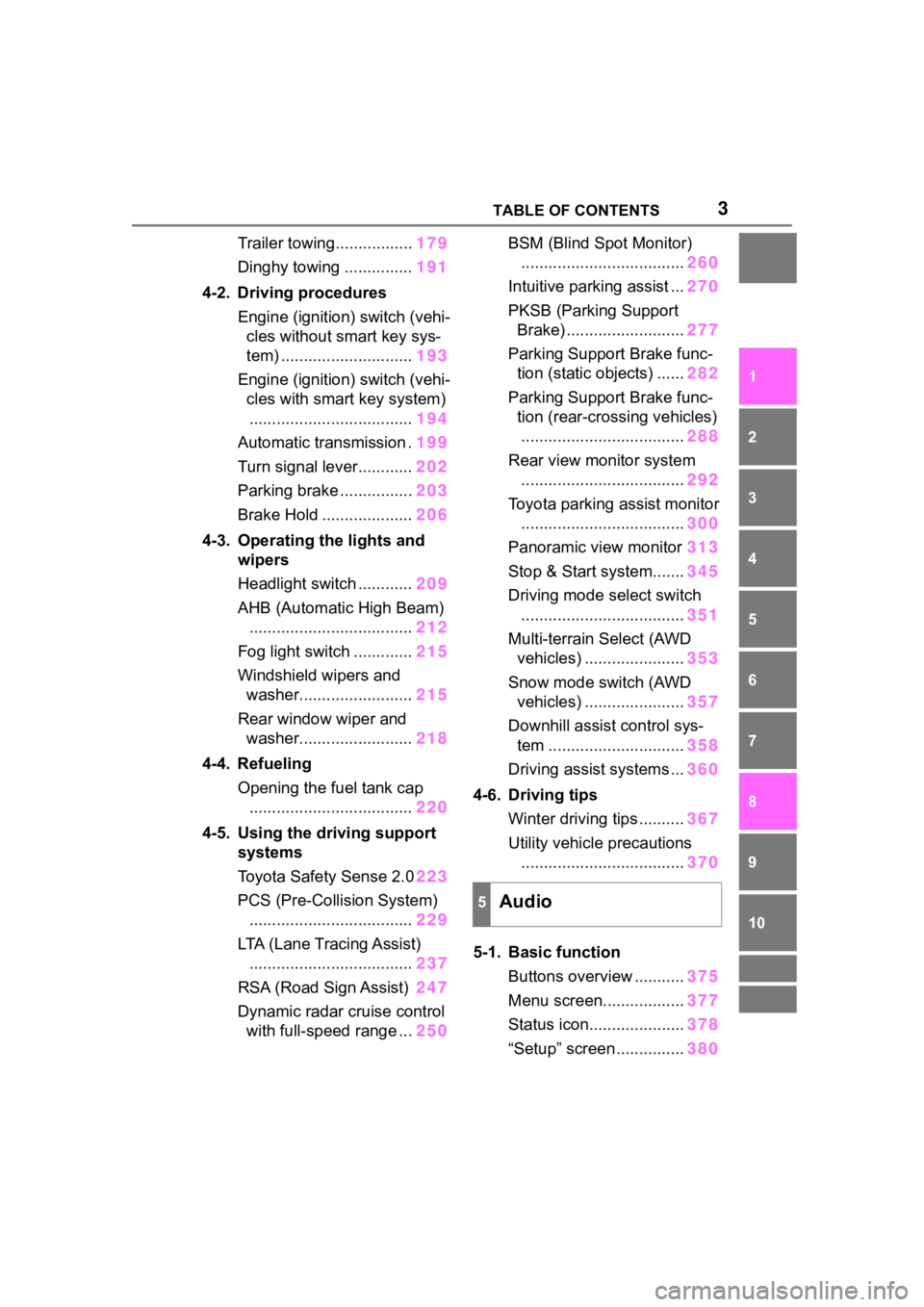
Trailer towing.................179
Dinghy towing ............... 191
4-2. Driving procedures Engine (ignition) switch (vehi-cles without smart key sys-
tem) ............................. 193
Engine (ignition) switch (vehi- cles with smart key system)
.................................... 194
Automatic transmission . 199
Turn signal lever............ 202
Parking brake ................ 203
Brake Hold .................... 206
4-3. Operating the lights and wipers
Headlight switch ............ 209
AHB (Automatic High Beam) .................................... 212
Fog light switch ............. 215
Windshield wipers and washer......................... 215
Rear window wiper and washer......................... 218
4-4. Refueling Opening the fuel tank cap.................................... 220
4-5. Using the driving support
systems
Toyota Safety Sense 2.0 223
PCS (Pre-Collision System) .................................... 229
LTA (Lane Tracing Assist) .................................... 237
RSA (Road Sign Assist) 247
Dynamic radar cruise control with full-speed range ... 250BSM (Blind Spot Monitor)
.................................... 260
Intuitive parking assist ... 270
PKSB (Parking Support Brake) .......................... 277
Parking Support Brake func- tion (static objects) ...... 282
Parking Support Brake func- tion (rear-crossing vehicles)
.................................... 288
Rear view monitor system .................................... 292
Toyota parking assist monitor .................................... 300
Panoramic view monitor 313
Stop & Start system....... 345
Driving mode s elect switch
.................................... 351
Multi-terrain Select (AWD vehicles) ...................... 353
Snow mode switch (AWD vehicles) ...................... 357
Downhill assist control sys- tem .............................. 358
Driving assist systems ... 360
4-6. Driving tips Winter driving tips .......... 367
Utility vehicle precautions ....
................................ 370
5-1. Basic function Buttons overview ........... 375
Menu screen.................. 377
Status icon..................... 378
“Setup” screen ............... 380
5Audio
Page 4 of 736
4TABLE OF CONTENTS
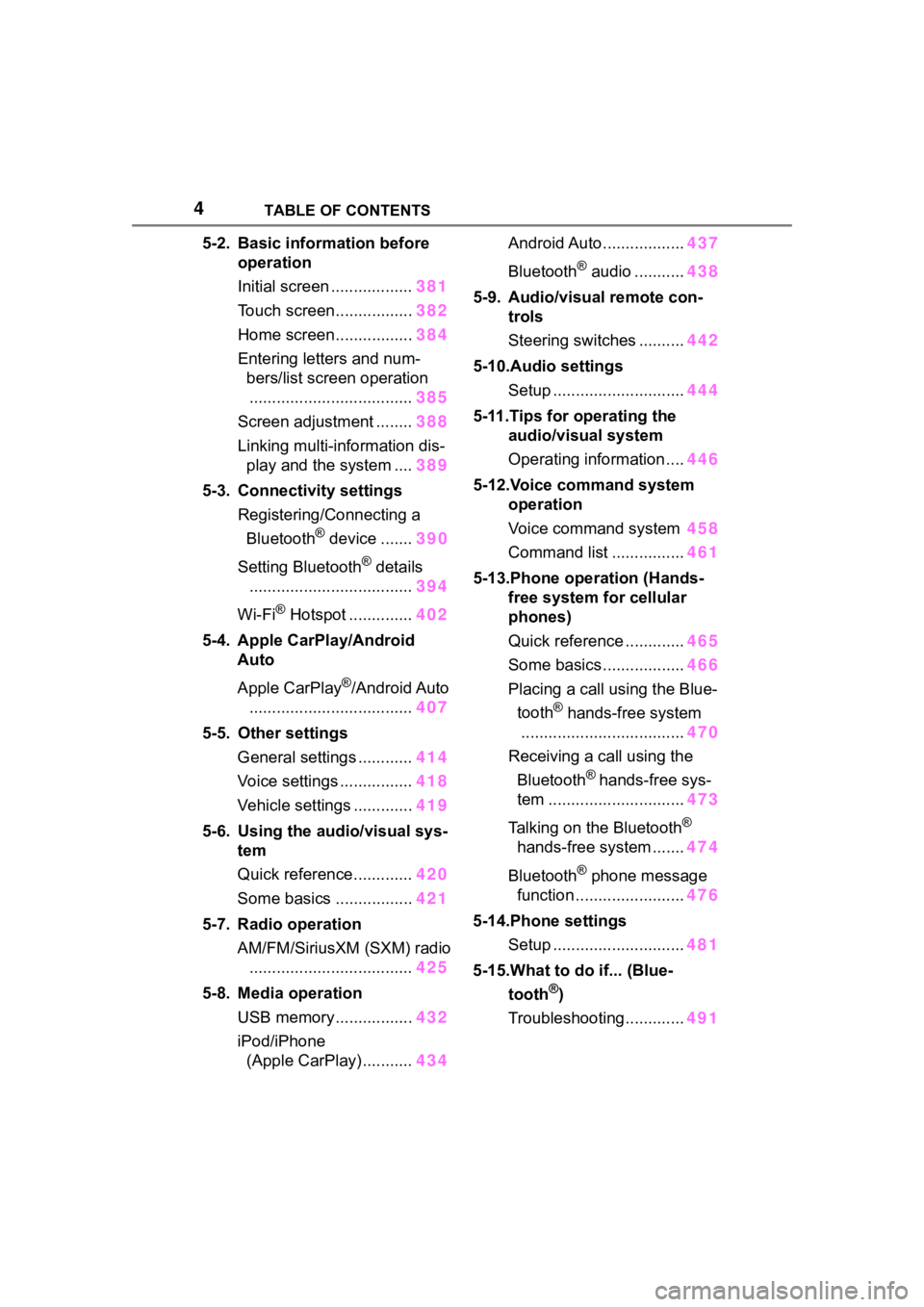
5-2. Basic information before operation
Initial screen .................. 381
Touch screen................. 382
Home screen................. 384
Entering letters and num- bers/list screen operation
.................................... 385
Screen adjustment ........ 388
Linking multi-information dis- play and the system .... 389
5-3. Connectivity settings Registering/Connecting a Bluetooth
® device ....... 390
Setting Bluetooth
® details
.................................... 394
Wi-Fi
® Hotspot .............. 402
5-4. Apple CarPlay/Android Auto
Apple CarPlay
®/Android Auto
.................................... 407
5-5. Other settings General settings ............ 414
Voice settings ................ 418
Vehicle settings ............. 419
5-6. Using the audio/visual sys- tem
Quick reference............. 420
Some basics ................. 421
5-7. Radio operation AM/FM/SiriusXM (SXM) radio.................................... 425
5-8. Media operation USB memory................. 432
iPod/iPhone (Apple CarPlay) ........... 434Android Auto ..................
437
Bluetooth
® audio ........... 438
5-9. Audio/visual remote con- trols
Steering switches .......... 442
5-10.Audio settings Setup ............................. 444
5-11.Tips for operating the audio/visual system
Operating information .... 446
5-12.Voice command system operation
Voice command system 458
Command list ................ 461
5-13.Phone operation (Hands- free system for cellular
phones)
Quick reference ............. 465
Some basics .................. 466
Placing a call using the Blue- tooth
® hands-free system
.................................... 470
Receiving a call using the Bluetooth
® hands-free sys-
tem .............................. 473
Talking on the Bluetooth
®
hands-free system ....... 474
Bluetooth
® phone message
function ........................ 476
5-14.Phone settings Setup ............................. 481
5-15.What to do if... (Blue- tooth
®)
Troubleshooting............. 491
Page 18 of 736
18Pictorial index
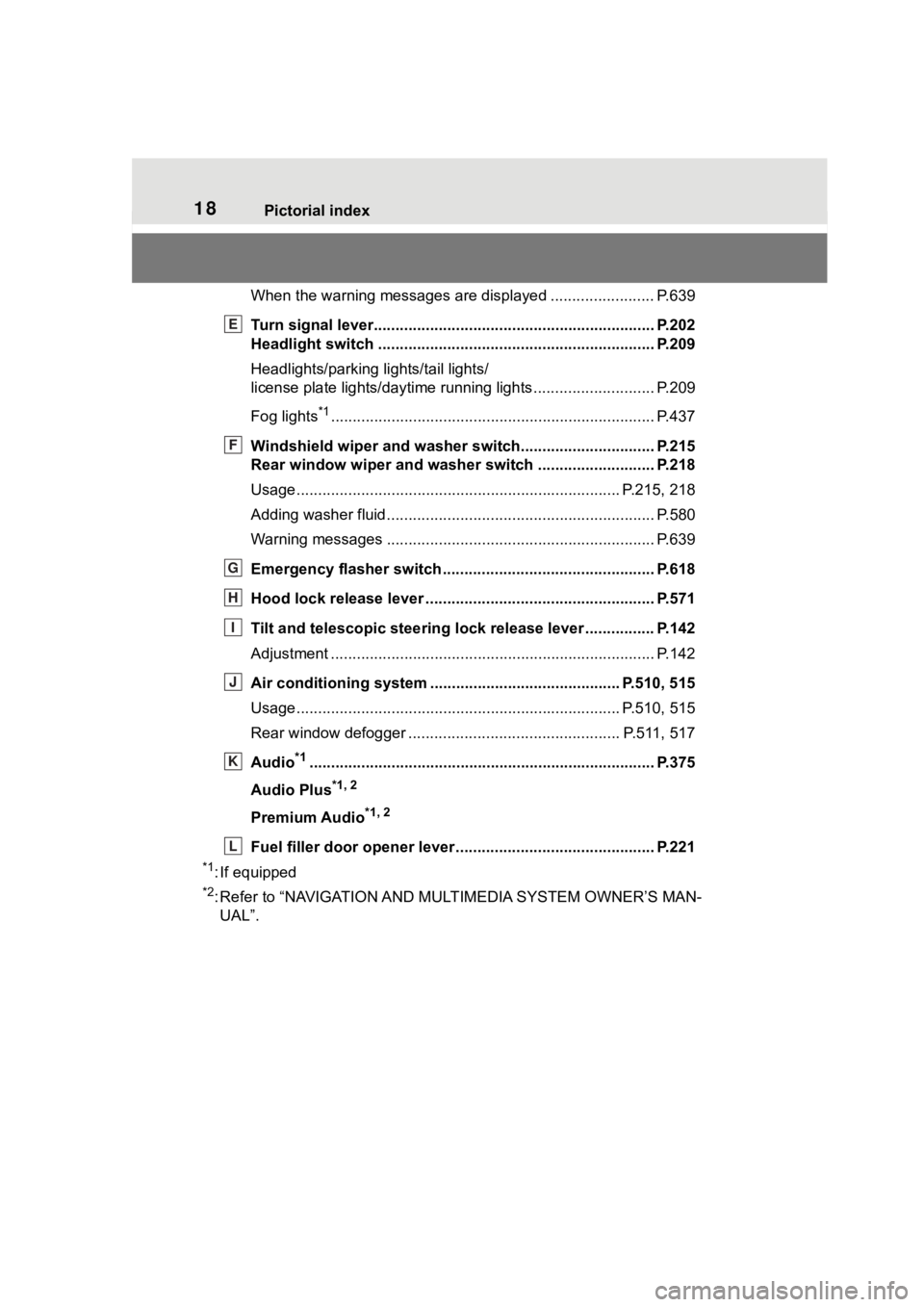
When the warning messages are displayed ........................P. 6 3 9
Turn signal lever.............................................. ................... P.202
Headlight switch ............................................... ................. P.209
Headlights/parking lights/tail lights/
license plate lights/daytime running lights .................... ........ P.209
Fog lights
*1............................................................... ............ P.437
Windshield wiper and washer switch............................... P.215
Rear window wiper and washer switch ........................... P.218
Usage.......................................................... ................. P.215, 218
Adding washer fluid .............................................................. P.580
Warning messages ............................................... ............... P.639
Emergency flasher switch ....................................... .......... P.618
Hood lock release lever ........................................ ............. P.571
Tilt and telescopic steering lock release lever ................P. 1 4 2
Adjustment ..................................................... ...................... P.142
Air conditioning system ............................. ............... P.510, 515
Usage.......................................................... ................. P.510, 515
Rear window defogger ........................................... ...... P.511, 517
Audio
*1............................................................... ................. P.375
Audio Plus
*1, 2
Premium Audio*1, 2
Fuel filler door opener lever .................................. ............ P.221
*1: If equipped
*2: Refer to “NAVIGATION AND MULTIMEDIA SYSTEM OWNER’S MAN-
UAL”.
E
F
G
H
I
J
K
L
Page 20 of 736
20Pictorial index
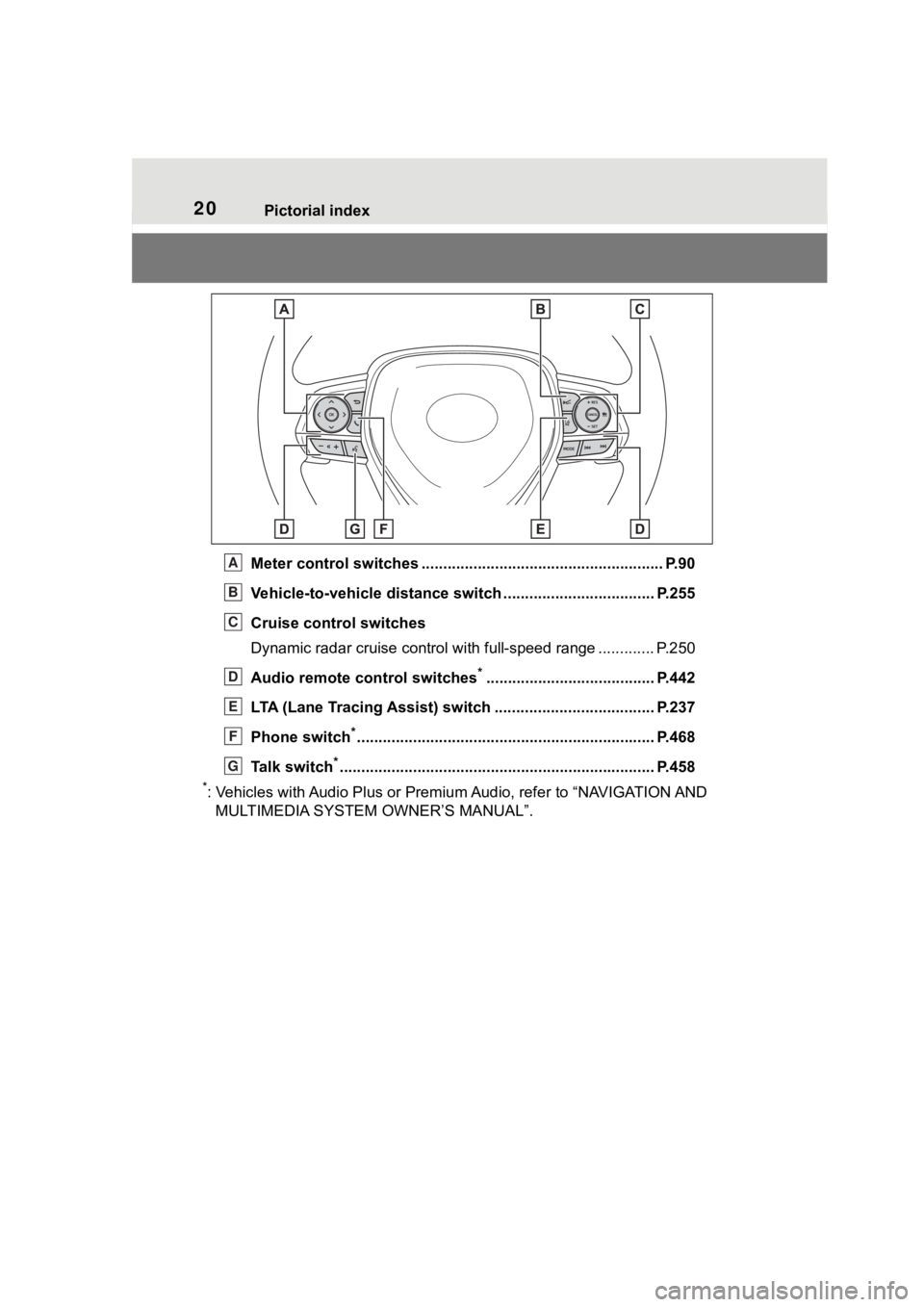
Meter control switches ........................................................ P.90
Vehicle-to-vehicle distance switch ................................... P.255
Cruise control switches
Dynamic radar cruise control with full-speed range ............. P. 2 5 0
Audio remote control switches
*....................................... P.442
LTA (Lane Tracing Assist) switch ............................... ...... P.237
Phone switch
*............................................................... ...... P.468
Talk switch
*............................................................... .......... P.458
*: Vehicles with Audio Plus or Premium Audio, refer to “NAVIGATION AND
MULTIMEDIA SYSTEM OWNER’S MANUAL”.
A
B
C
D
E
F
G
Page 84 of 736
842-1. Instrument cluster
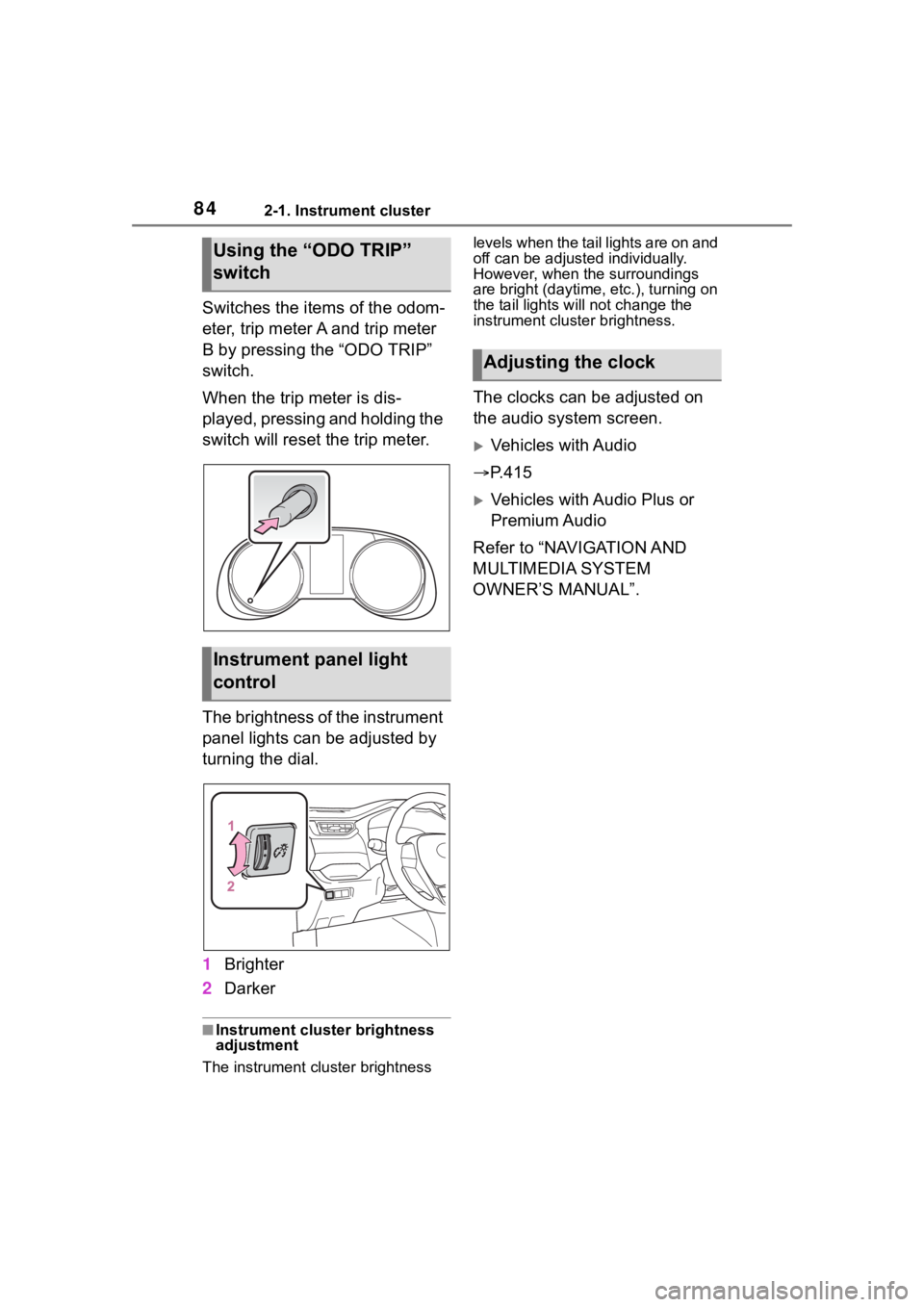
Switches the items of the odom-
eter, trip meter A and trip meter
B by pressing the “ODO TRIP”
switch.
When the trip meter is dis-
played, pressing and holding the
switch will reset the trip meter.
The brightness of the instrument
panel lights can be adjusted by
turning the dial.
1Brighter
2 Darker
■Instrument cluster brightness
adjustment
The instrument cluster brightness levels when the tail lights are on and
off can be adjusted individually.
However, when the surroundings
are bright (daytime, etc.), turning on
the tail lights will not change the
instrument cluster brightness.
The clocks can be adjusted on
the audio system screen.
Vehicles with Audio
P.415
Vehicles with Audio Plus or
Premium Audio
Refer to “NAVIGATION AND
MULTIMEDIA SYSTEM
OWNER’S MANUAL”.
Using the “ODO TRIP”
switch
Instrument panel light
control
Adjusting the clock
Page 88 of 736
882-1. Instrument cluster
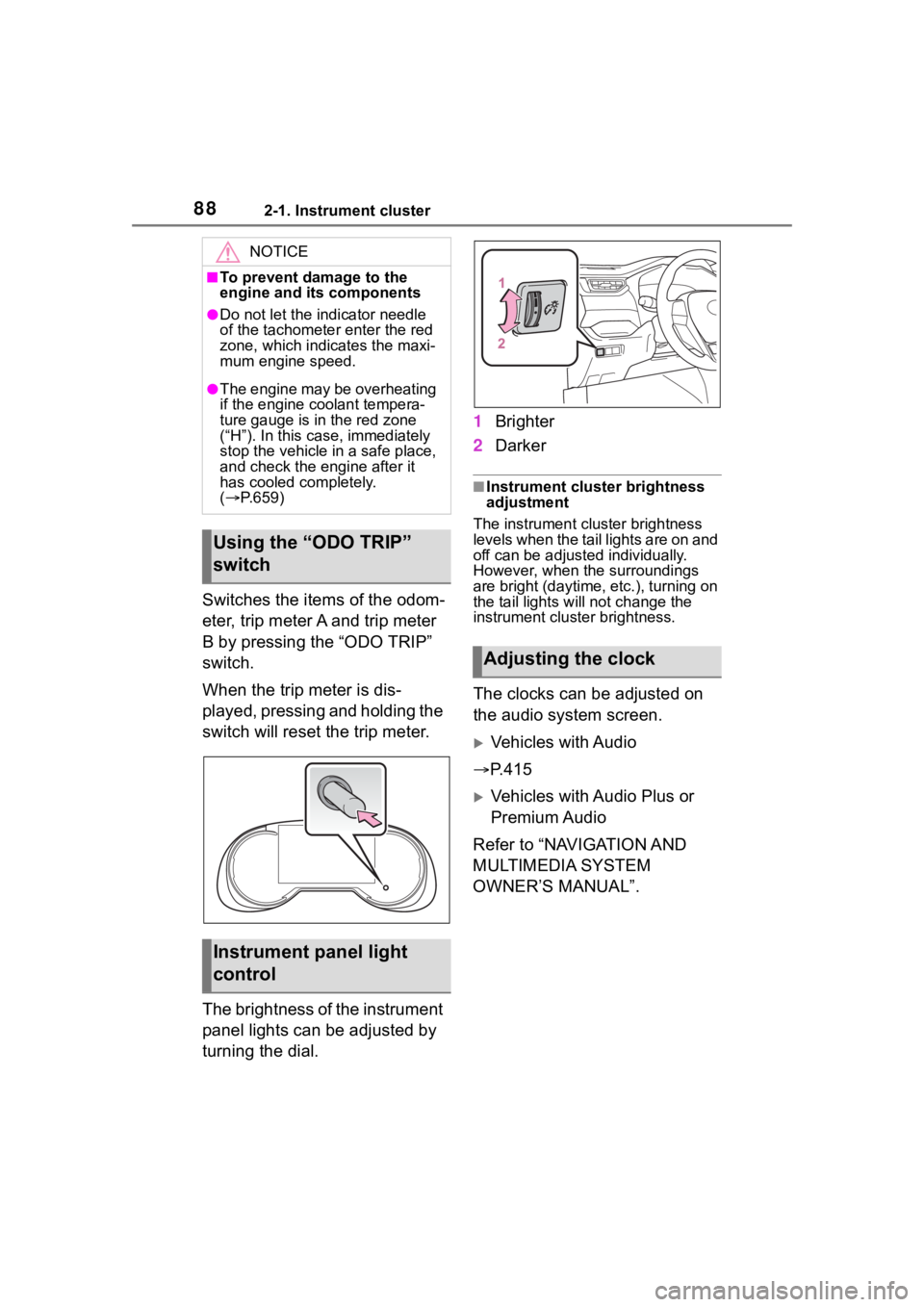
Switches the items of the odom-
eter, trip meter A and trip meter
B by pressing the “ODO TRIP”
switch.
When the trip meter is dis-
played, pressing and holding the
switch will reset the trip meter.
The brightness of the instrument
panel lights can be adjusted by
turning the dial.1
Brighter
2 Darker
■Instrument cluster brightness
adjustment
The instrument cluster brightness
levels when the tail lights are on and
off can be adjusted individually.
However, when the surroundings
are bright (daytime, etc.), turning on
the tail lights will not change the
instrument cluster brightness.
The clocks can be adjusted on
the audio system screen.
Vehicles with Audio
P.415
Vehicles with Audio Plus or
Premium Audio
Refer to “NAVIGATION AND
MULTIMEDIA SYSTEM
OWNER’S MANUAL”.
NOTICE
■To prevent damage to the
engine and its components
●Do not let the i ndicator needle
of the tachomete r enter the red
zone, which indicates the maxi-
mum engine speed.
●The engine may be overheating
if the engine coolant tempera-
ture gauge is in the red zone
(“H”). In this case, immediately
stop the vehicle in a safe place,
and check the engine after it
has cooled completely.
( P.659)
Using the “ODO TRIP”
switch
Instrument panel light
control
Adjusting the clock
Page 90 of 736
902-1. Instrument cluster
■The multi-information display is
displayed when
The engine switch is in ON.
■When changing driving mode
●Background color of the multi-
information display is changed fol-
lowing the select ed driving mode.
( P.351)
●AWD models: Background color of
the multi-informat ion display is
changed following the selected
driving mode or Multi-terrain
Select mode. ( P.351, 353)
■Liquid crystal display
Small spots or light spots may
appear on the display. This phenom-
enon is characteristi c of liquid crys-
tal displays, and there is no problem
continuing to use the display.
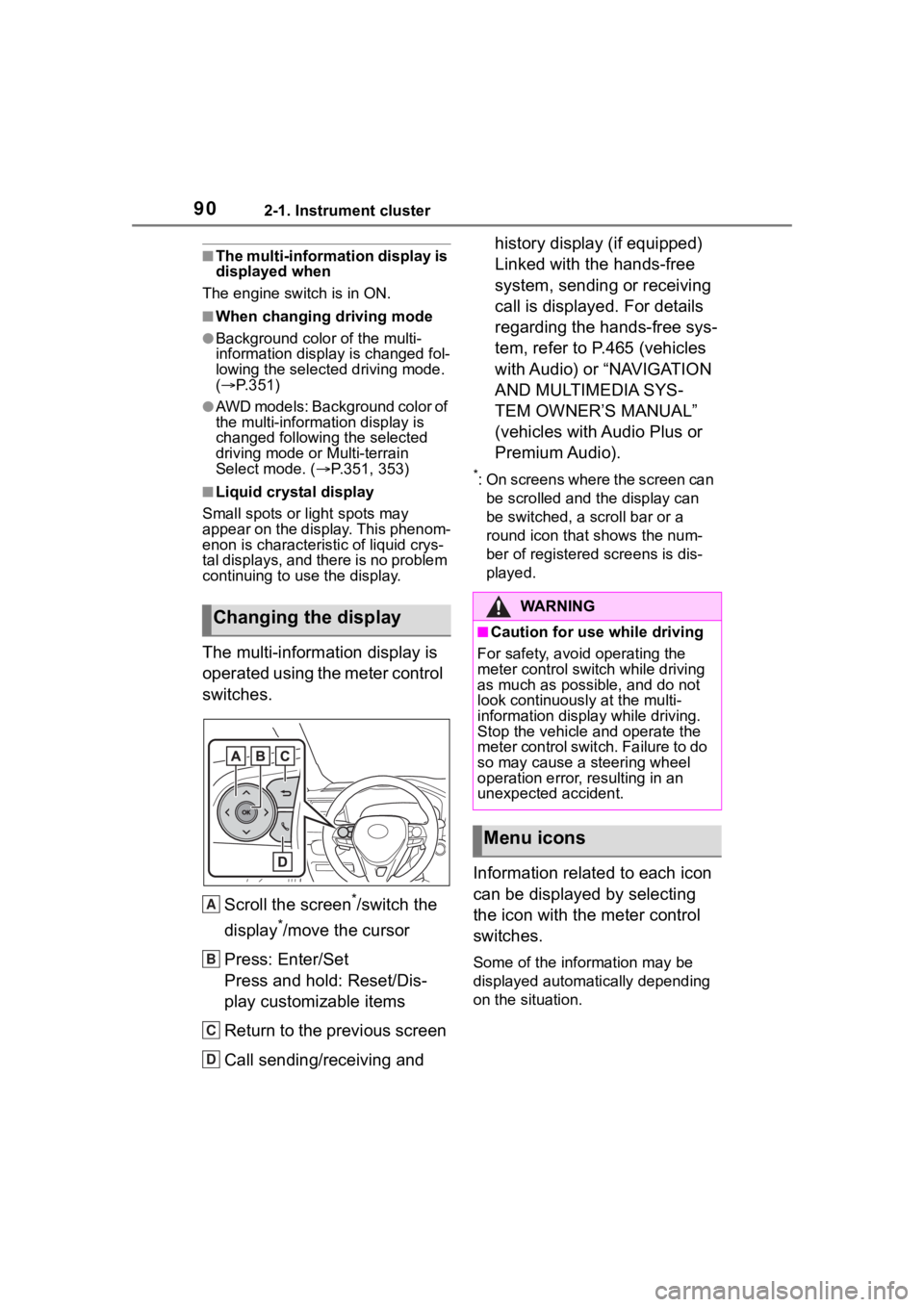
The multi-information display is
operated using the meter control
switches.
Scroll the screen
*/switch the
display
*/move the cursor
Press: Enter/Set
Press and hold: Reset/Dis-
play customizable items
Return to the previous screen
Call sending/receiving and history display (if equipped)
Linked with the hands-free
system, sending or receiving
call is displayed. For details
regarding the hands-free sys-
tem, refer to P.465 (vehicles
with Audio) or “NAVIGATION
AND MULTIMEDIA SYS-
TEM OWNER’S MANUAL”
(vehicles with Audio Plus or
Premium Audio).
*: On screens where the screen can
be scrolled and the display can
be switched, a scroll bar or a
round icon that shows the num-
ber of registered screens is dis-
played.
Information related to each icon
can be displayed by selecting
the icon with the meter control
switches.
Some of the information may be
displayed automatically depending
on the situation.
Changing the display
A
B
C
D
:$ 5 1 , 1 *
■Caution for use while driving
For safety, avoid operating the
meter control switch while driving
as much as possible, and do not
look continuously at the multi-
information displa y while driving.
Stop the vehicle and operate the
meter control swit ch. Failure to do
so may cause a steering wheel
operation error, resulting in an
unexpected accident.
Menu icons
Page 91 of 736
912-1. Instrument cluster
2
Vehicle status information and indicators
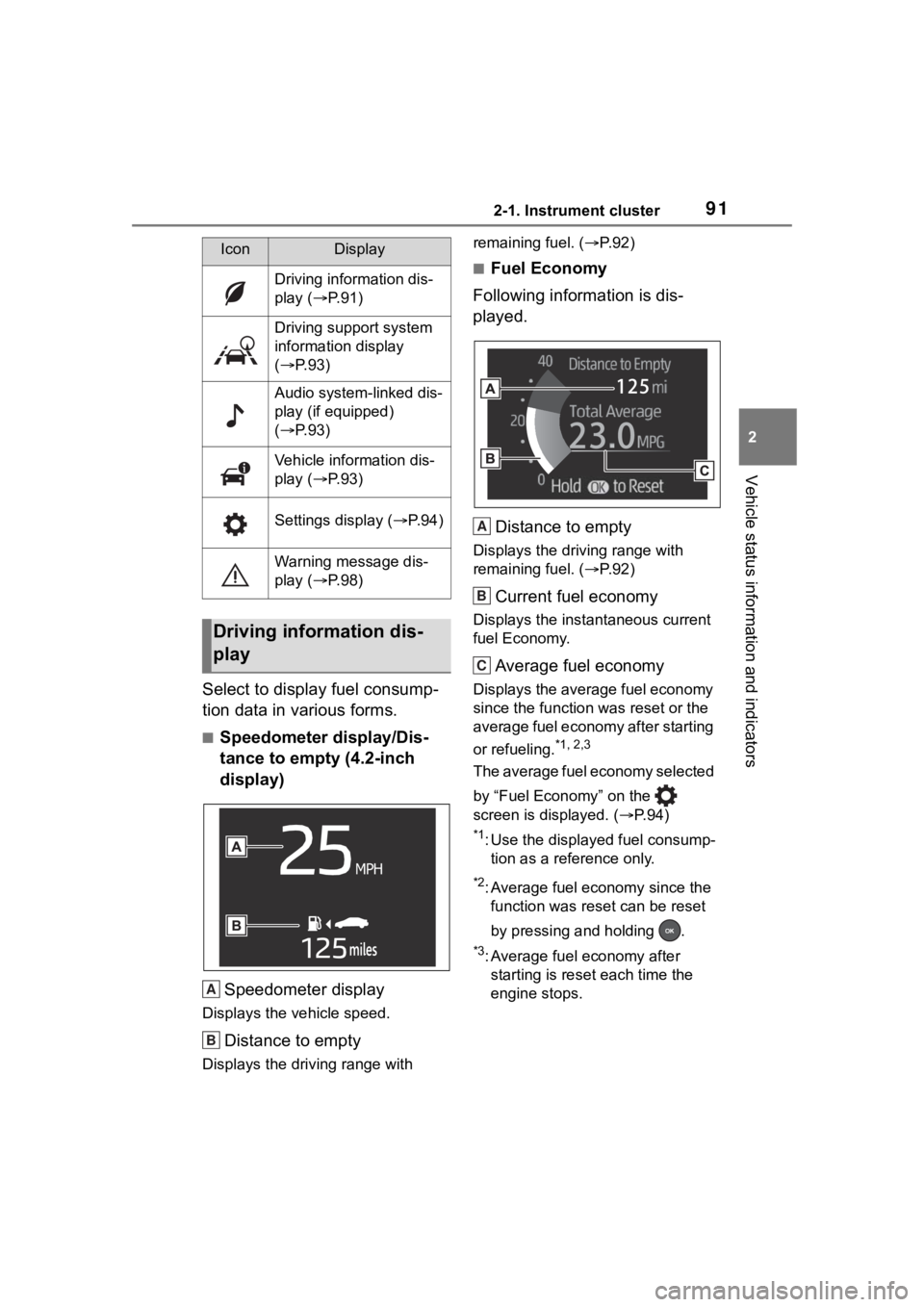
Select to display fuel consump-
tion data in various forms.
■Speedometer display/Dis-
tance to empty (4.2-inch
display)Speedometer display
Displays the vehicle speed.
Distance to empty
Displays the driving range with remaining fuel. (
P. 9 2 )
■Fuel Economy
Following information is dis-
played.
Distance to empty
Displays the driving range with
remaining fuel. ( P. 9 2 )
Current fuel economy
Displays the instantaneous current
fuel Economy.
Average fuel economy
Displays the average fuel economy
since the function was reset or the
average fuel economy after starting
or refueling.
*1, 2,3
The average fuel economy selected
by “Fuel Economy” on the
screen is displayed. ( P. 9 4 )
*1: Use the displayed fuel consump-
tion as a reference only.
*2: Average fuel economy since the function was res et can be reset
by pressing and holding .
*3: Average fuel economy after starting is reset each time the
engine stops.
IconDisplay
Driving information dis-
play ( P.91)
Driving support system
information display
( P.93)
Audio system-linked dis-
play (if equipped)
( P.93)
Vehicle information dis-
play ( P.93)
Settings display ( P.94)
Warning message dis-
play ( P.98)
Driving information dis-
play
A
B
A
B
C
Page 93 of 736
932-1. Instrument cluster
2
Vehicle status information and indicators
■Driving support system
information display
Select to display the operational
status of the following systems:
LTA (Lane Tracing Assist)
( P.237)
Dynamic radar cruise control
with full-speed range
( P.250)
■Navigation system-linked
display (if equipped)
Select to display the following
navigation system-linked infor-
mation.
Route guidance
Compass display (north-up
display/heading-up display)
Select to enable selection of an
audio source or track on the dis-
play.
■Drive information
2 items that are selected using
the “Drive Info Items” setting
(average speed, distance and
total time) can be displayed ver-
tically.
The displayed information changes according to the “Drive
Info Type” setting (since the sys-
tem was started or between
resets). (
P. 9 4 )
Use the displayed information as a
reference only.
Following items will be displayed.
“Trip”
• “Average Speed”: Displays the
average vehicle speed since
engine start
*
• “Distance”: Displ ays the distance
driven since engine start
*
• “Total Time”: Displays the elapsed time since engine start
*
*
: These items are r eset each time
the engine stops.
“Total”
• “Average Speed”: Displays the
average vehicle speed since the
display was reset
*
• “Distance”: Displ ays the distance
driven since the display was
reset
*
• “Total Time”: Displays the elapsed
time since the display was reset
*
*
: To reset, display the desired item and press and hold .
Driving support system
information display
Audio system-linked dis-
play (if equipped)
Vehicle information dis-
play