bluetooth TOYOTA RAV4 HYBRID 2018 (in English) Service Manual
[x] Cancel search | Manufacturer: TOYOTA, Model Year: 2018, Model line: RAV4 HYBRID, Model: TOYOTA RAV4 HYBRID 2018Pages: 680, PDF Size: 13.71 MB
Page 405 of 680
RAV4-HV_OM_OM42B81U_(U)
4055-10. Phonebook
5
Audio system
Operation methods differ between PBAP compatible and PBAP
incompatible but OPP compatible Bluetooth® phones.
If your cellular phone is neither PBAP nor OPP compatible, the con-
tacts cannot be transferred.
■For PBAP compatible Bluetooth® Phones
Select “Update Contacts from Phone”.
Check that a confirmation scr een is displayed when the opera-
tion is complete.
This operation may be unnecessary depending on the type of cellular
phone.
Depending on the type of cellular phone, OBEX authentication may be
required when transferring contact data. Enter “1234” into the
Bluetooth
® phone.
If another Bluetooth
® device is connected when transferring contact
data, depending on the phone, the connected Bluetooth® device may
need to be disconnected.
Depending on the type of Bluetooth
® phone being connected, it may be
necessary to perform additional steps on the phone.
Update contacts from phone
1
2
Page 406 of 680
406
RAV4-HV_OM_OM42B81U_(U)
5-10. Phonebook
■For PBAP incompatible but OPP compatible Bluetooth®
PhonesSelect “Update Contacts from Phone”.
Transfer the contact data to the system using a Bluetooth
®
phone.
This operation may be unnecessary depending on the type of cellular
phone.
Depending on the type of cellular phone, OBEX authentication may be
required when transferring contact data. Enter “1234” into the
Bluetooth
® phone.
To cancel this function, select “Cancel”.
Check that a confirmation scr een is displayed when the opera-
tion is complete.
■Updating the contacts in a different way (From the “Call His-
tory” screen)
For PBAP compatible Bluetooth
® phones, this functi on is available
when “Automatic Contact/History Transfer” is set to off. ( →P. 404)
Display the phone screen. (→ P. 387)
Select the “Call History” tab and select a contact not yet regis-
tered in the contact list.
Select “Update Contact”.
Select the desired contact.
Select a phone type for the phone number.
1
2
3
1
2
3
4
5
Page 407 of 680
RAV4-HV_OM_OM42B81U_(U)
4075-10. Phonebook
5
Audio system
New contact data can be registered. Up to 4 numbers per person can
be registered. For PBAP compatible Bluetooth® phones, this function
is available when “Automatic Contac t/History Transfer” is set to off.
( → P. 404)
Select “New Contact”.
Enter the name and select “OK”.
Enter the phone number and select “OK”.
Select the phone type for the phone number.
To add another number to th is contact, select “Yes”.
■Registering a new contact in a different way (From the “Call
History” screen)
Display the phone screen. (→ P. 387)
Select the “Call History” tab and select a contact not yet regis-
tered in the contact list.
Select “Add to Contacts”.
Follow the steps in “Registering a new contact to the contacts
list” from .
Registering a new contact to the contact list
1
2
3
4
5
1
2
3
4
3
Page 408 of 680

408
RAV4-HV_OM_OM42B81U_(U)
5-10. Phonebook
For PBAP compatible Bluetooth® phones, this function is available
when “Automatic Contact/History Transfer” is set to off. ( →P. 404)
Select “Edit Contact”.
Select the desired contact.
Select corresponding to the desired name or number.
For editing the name
Follow the steps in “Registering a new contact to the contacts list”
from . ( →P. 407)
For editing the number
Follow the steps in “Registering a new contact to the contacts list”
from . ( →P. 407)
■Editing the contacts in a different way (From the “Contact
Details” screen)
Display the phone screen. (→ P. 387)
Select the “Contacts”, “Call Histor y” tab or the “Favorites” tab and
select the desired contact.
Select “Edit Contact”.
“E-mail Addresses”: Select to display all registered e-mail addresses for
the contact.
Follow the steps in “Editing the contact data” from .
Editing the contact data
1
2
3
4
2
4
3
1
2
3
44
Page 409 of 680
RAV4-HV_OM_OM42B81U_(U)
4095-10. Phonebook
5
Audio system
For PBAP compatible Bluetooth® phones, this function is available
when “Automatic Contact/History Transfer” is set to off. ( →P. 404)
Select “Delete Contacts”.
Select the desired contac t and select “Delete”.
Select “Yes” when the confirmation screen appears.
■Deleting the contact in a different way (From the “Contact
Details” screen) Display the phone screen. (→ P. 387)
Select the “Contacts”, “Call histor y” tab or the “Favorites” tab and
select the desired contact.
Select “Edit Contact”.
Select “Yes” when the confirmation screen appears.
Up to 15 contacts (maximum of 4 numbers per contact) can be regis-
tered in the favorites list.
■Registering the contacts in the favorites list Select “Add Favorite”.
Select the desired contact to add to the favorites list.
Dimmed contacts are already stored as a favorite.
Check that a confirmation scr een is displayed when the opera-
tion is complete.
Deleting the contact data
Favorites list setting
1
2
3
1
2
3
4
1
2
3
Page 414 of 680
414
RAV4-HV_OM_OM42B81U_(U)
5-11. Bluetooth®
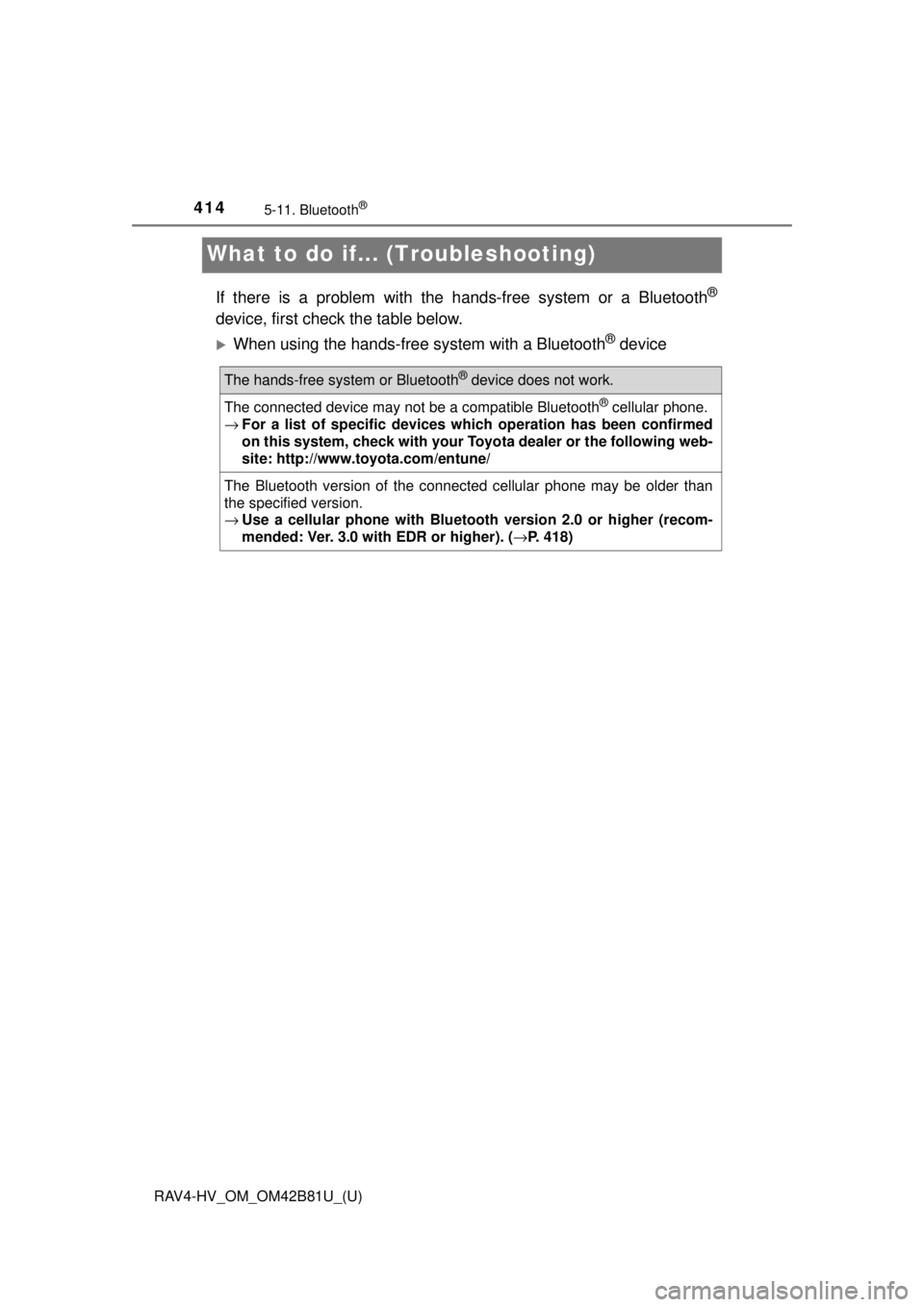
What to do if... (Troubleshooting)
If there is a problem with the hands-free system or a Bluetooth®
device, first check the table below.
When using the hands-free system with a Bluetooth® device
The hands-free system or Bluetooth® device does not work.
The connected device may not be a compatible Bluetooth® cellular phone.
→ For a list of specific devices whic h operation has been confirmed
on this system, check with your To yota dealer or the following web-
site: http://www.toyota.com/entune/
The Bluetooth version of the connected cellular phone may be older than
the specified version.
→ Use a cellular phone with Bluetooth version 2.0 or higher (recom-
mended: Ver. 3.0 with EDR or higher). ( →P. 418)
Page 415 of 680
RAV4-HV_OM_OM42B81U_(U)
4155-11. Bluetooth®
5
Audio system
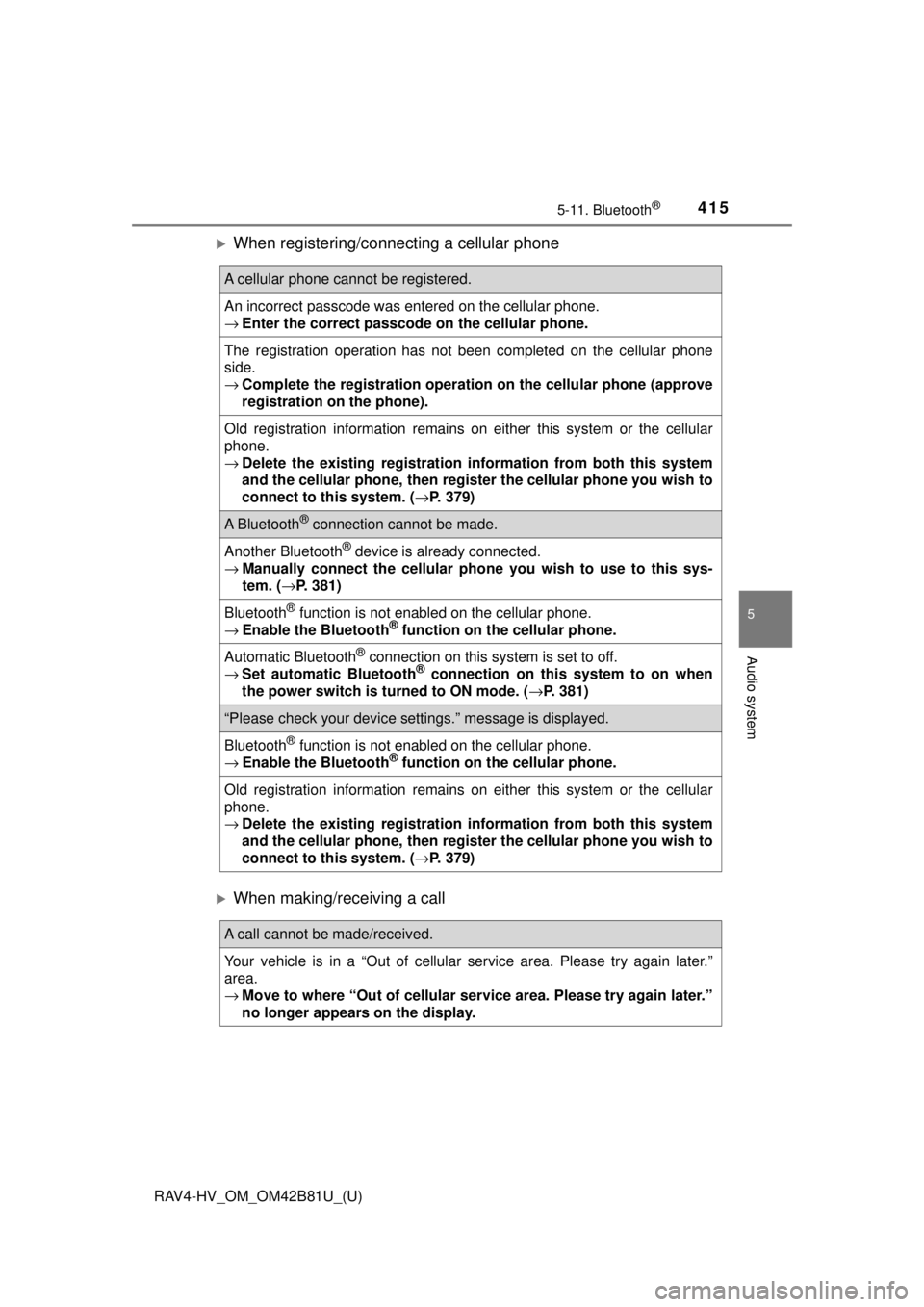
When registering/connecting a cellular phone
When making/receiving a call
A cellular phone cannot be registered.
An incorrect passcode was entered on the cellular phone.
→Enter the correct passcode on the cellular phone.
The registration operation has not been completed on the cellular phone
side.
→Complete the registration operation on the cellular phone (approve
registration on the phone).
Old registration information remains on either this system or the cellular
phone.
→Delete the existing registration information from both this system
and the cellular phone, then regist er the cellular phone you wish to
connect to this system. ( →P. 379)
A Bluetooth® connection cannot be made.
Another Bluetooth® device is already connected.
→ Manually connect the cellular phone you wish to use to this sys-
tem. ( →P. 381)
Bluetooth® function is not enabled on the cellular phone.
→ Enable the Bluetooth® function on the cellular phone.
Automatic Bluetooth® connection on this system is set to off.
→ Set automatic Bluetooth® connection on this system to on when
the power switch is tu rned to ON mode. (→P. 381)
“Please check your device settings.” message is displayed.
Bluetooth® function is not enabled on the cellular phone.
→ Enable the Bluetooth® function on the cellular phone.
Old registration information remains on either this system or the cellular
phone.
→Delete the existing registration information from both this system
and the cellular phone, then regist er the cellular phone you wish to
connect to this system. ( →P. 379)
A call cannot be made/received.
Your vehicle is in a “Out of cellular service area. Please try again later.”
area.
→ Move to where “Out of cellular ser vice area. Please try again later.”
no longer appears on the display.
Page 416 of 680
416
RAV4-HV_OM_OM42B81U_(U)
5-11. Bluetooth®
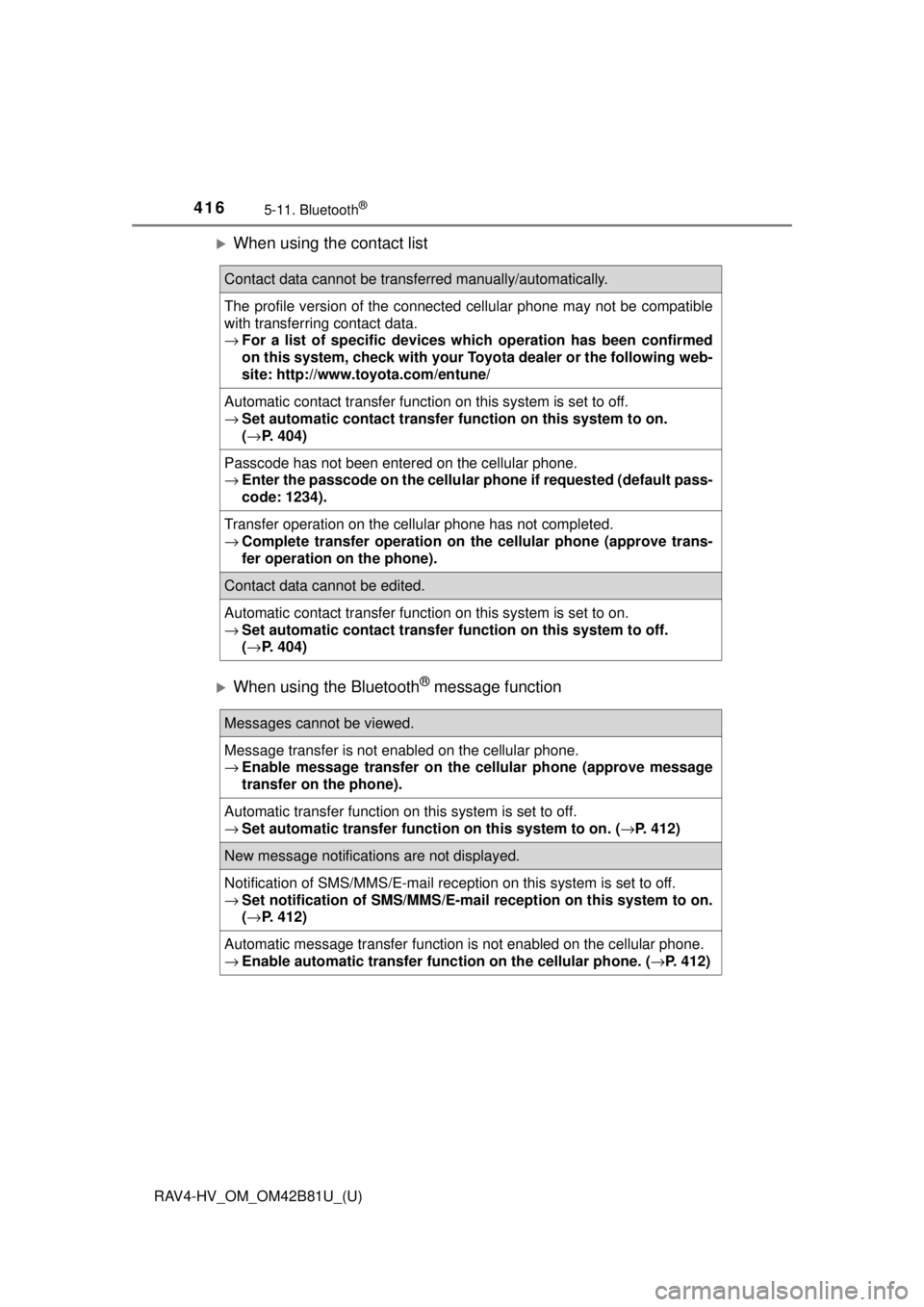
When using the contact list
When using the Bluetooth® message function
Contact data cannot be transferred manually/automatically.
The profile version of the connected cellular phone may not be compatible
with transferring contact data.
→For a list of specific devices whic h operation has been confirmed
on this system, check with your To yota dealer or the following web-
site: http://www.toyota.com/entune/
Automatic contact transfer function on this system is set to off.
→ Set automatic contact transfer fu nction on this system to on.
( → P. 404)
Passcode has not been entered on the cellular phone.
→ Enter the passcode on the cellular pho ne if requested (default pass-
code: 1234).
Transfer operation on the cellular phone has not completed.
→ Complete transfer operation on the cellular phone (approve trans-
fer operation on the phone).
Contact data cannot be edited.
Automatic contact transfer function on this system is set to on.
→ Set automatic contact transfer fu nction on this system to off.
( → P. 404)
Messages cannot be viewed.
Message transfer is not enabled on the cellular phone.
→ Enable message transfer on the cellular phone (approve message
transfer on the phone).
Automatic transfer function on this system is set to off.
→ Set automatic transfer functi on on this system to on. (→P. 412)
New message notifications are not displayed.
Notification of SMS/MMS/E-mail reception on this system is set to off.
→Set notification of SMS/MMS/E-mail reception on this system to on.
(→ P. 412)
Automatic message transfer function is not enabled on the cellular phone.
→ Enable automatic transfer func tion on the cellular phone. (→P. 412)
Page 417 of 680
RAV4-HV_OM_OM42B81U_(U)
4175-11. Bluetooth®
5
Audio system
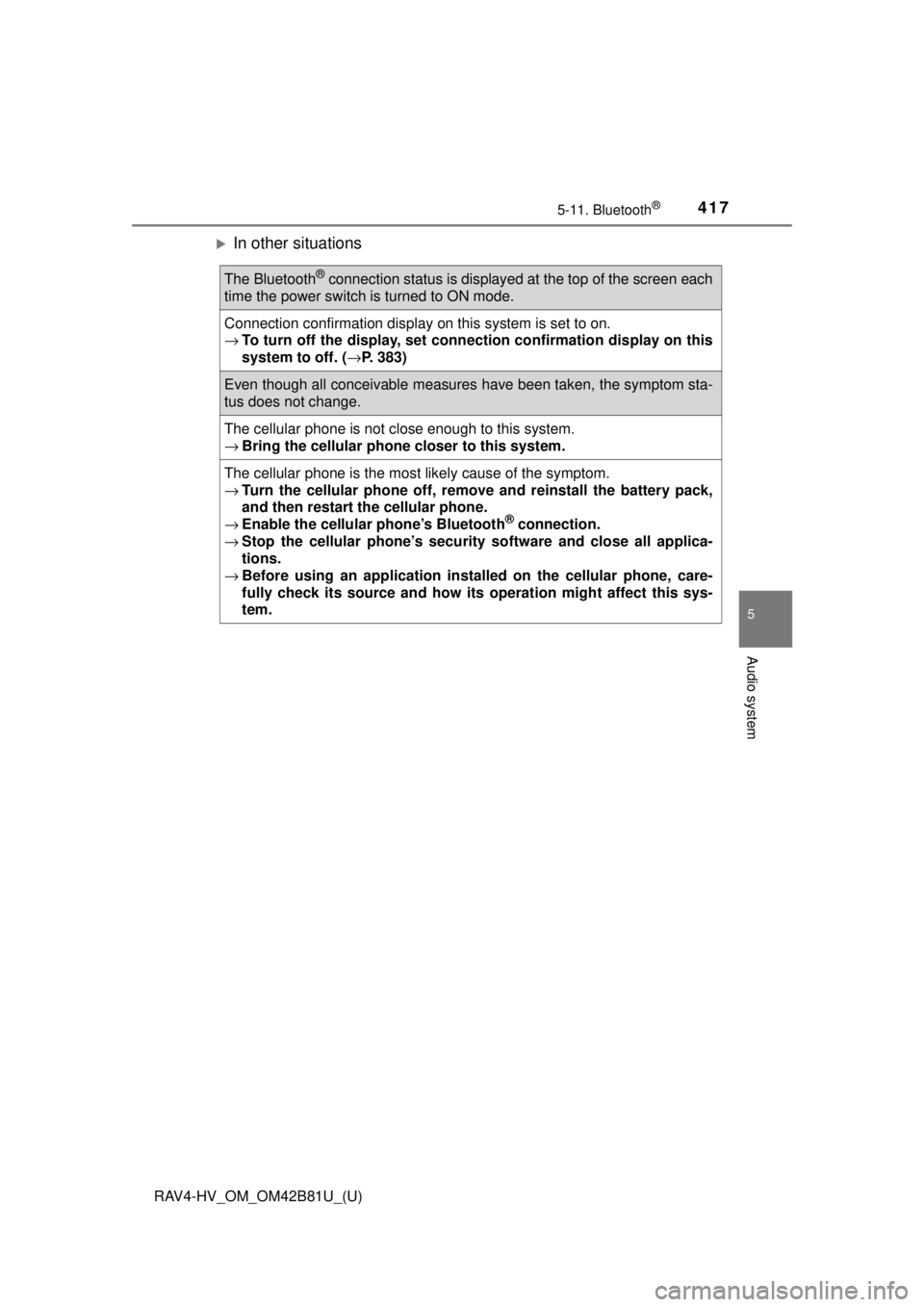
In other situations
The Bluetooth® connection status is displayed at the top of the screen each
time the power switch is turned to ON mode.
Connection confirmation display on this system is set to on.
→ To turn off the display, set conn ection confirmation display on this
system to off. ( →P. 383)
Even though all conceivable measures have been taken, the symptom sta-
tus does not change.
The cellular phone is not close enough to this system.
→Bring the cellular phone closer to this system.
The cellular phone is the most likely cause of the symptom.
→Turn the cellular phone off, remo ve and reinstall the battery pack,
and then restart the cellular phone.
→ Enable the cellular phone’s Bluetooth
® connection.
→ Stop the cellular phone’s security software and close all applica-
tions.
→ Before using an appli cation installed on the cellular phone, care-
fully check its source and how its operation might affect this sys-
tem.
Page 418 of 680
418
RAV4-HV_OM_OM42B81U_(U)
5-11. Bluetooth®
Bluetooth®
■When using the Bluetooth® audio system
● In the following conditions, the system may not function.
• If the portable audio player is turned off
• If the portable audio player is not connected
• If the portable audio player’s battery is low
● There may be a delay if a cellular phone connection is made during
Bluetooth
® audio play.
● Depending on the type of portable audio player that is connected to the \
sys-
tem, operation may differ slightly and certain functions may not be available.
■ When using the hands-free system
●The audio system is muted when making a call.
● If both parties speak at the same time, it may be difficult to hear.
● If the received call volume is overly loud, an echo may be heard.
If the Bluetooth
® phone is too close to the system, quality of the sound may
deteriorate and connection status may deteriorate.
● In the following circumstances, it may be difficult to hear the other party:
• When driving on unpaved roads
• When driving at high speeds
• If a roof or window is open
• If the air conditioning is blowing directly on the microphone
• If there is interference from the network of the cellular phone
■ Conditions under which th e system will not operate
● If using a cellular phone that does not support Bluetooth
®
●If the cellular phone is turned off
● If you are outside of cellular phone service coverage
● If the cellular phone is not connected
● If the cellular phone’s battery is low
● When outgoing calls are controlled, due to heavy traffic on telephone lines,
etc.
● When the cellular phone itself cannot be used
● When transferring contact data from the cellular phone