lock TOYOTA SEQUOIA 2008 2.G Manual Online
[x] Cancel search | Manufacturer: TOYOTA, Model Year: 2008, Model line: SEQUOIA, Model: TOYOTA SEQUOIA 2008 2.GPages: 596, PDF Size: 12.93 MB
Page 300 of 596
300 3-3. Using the rear audio/video system
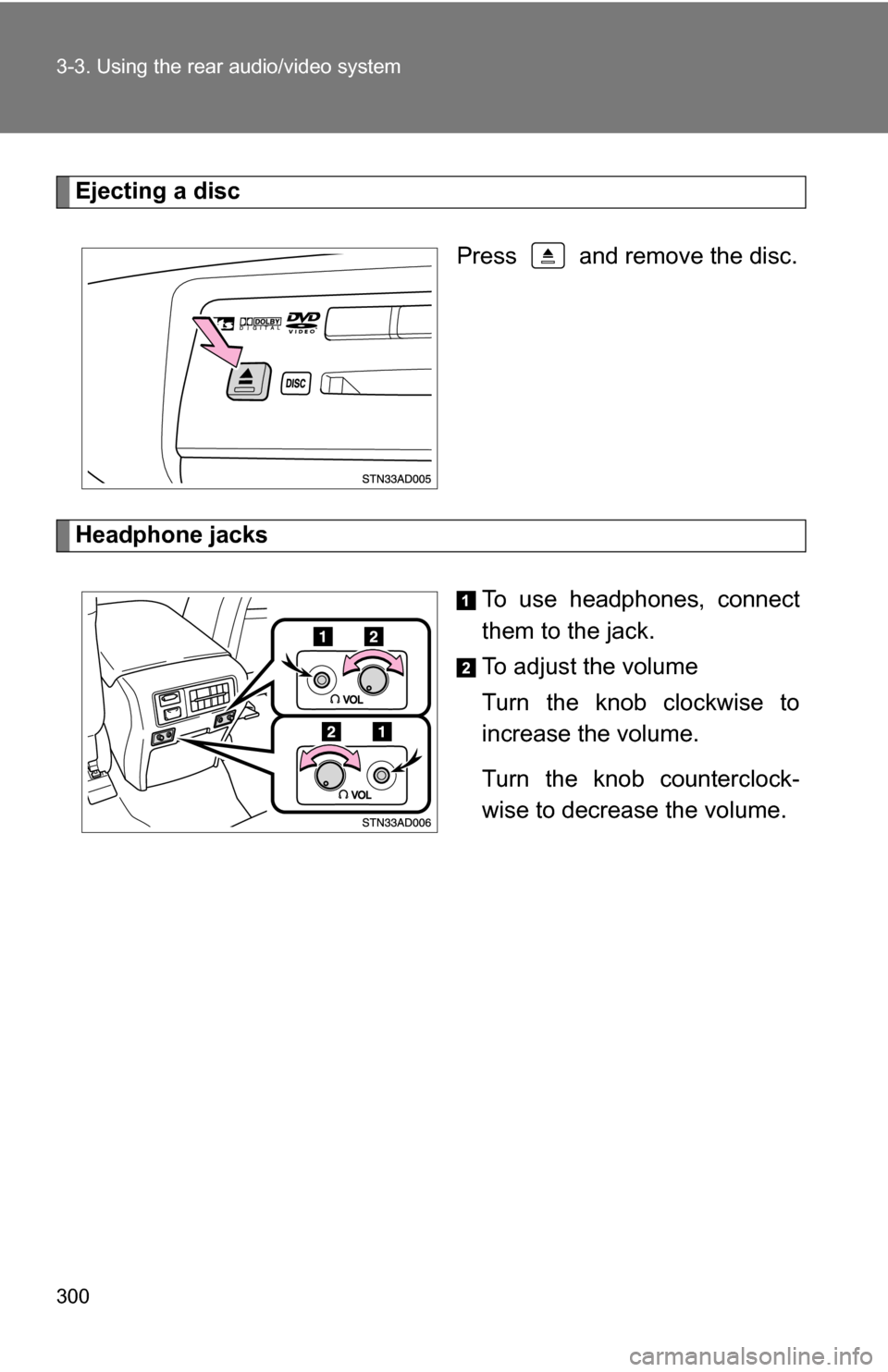
Ejecting a discPress and remove the disc.
Headphone jacks To use headphones, connect
them to the jack.
To adjust the volume
Turn the knob clockwise to
increase the volume.
Turn the knob counterclock-
wise to decrease the volume.
Page 301 of 596
301
3-3. Using the rear audio/video system
3
Interior features
■
The rear seat entertainmen t system can be used when
The engine switch is in the ACC or ON position.
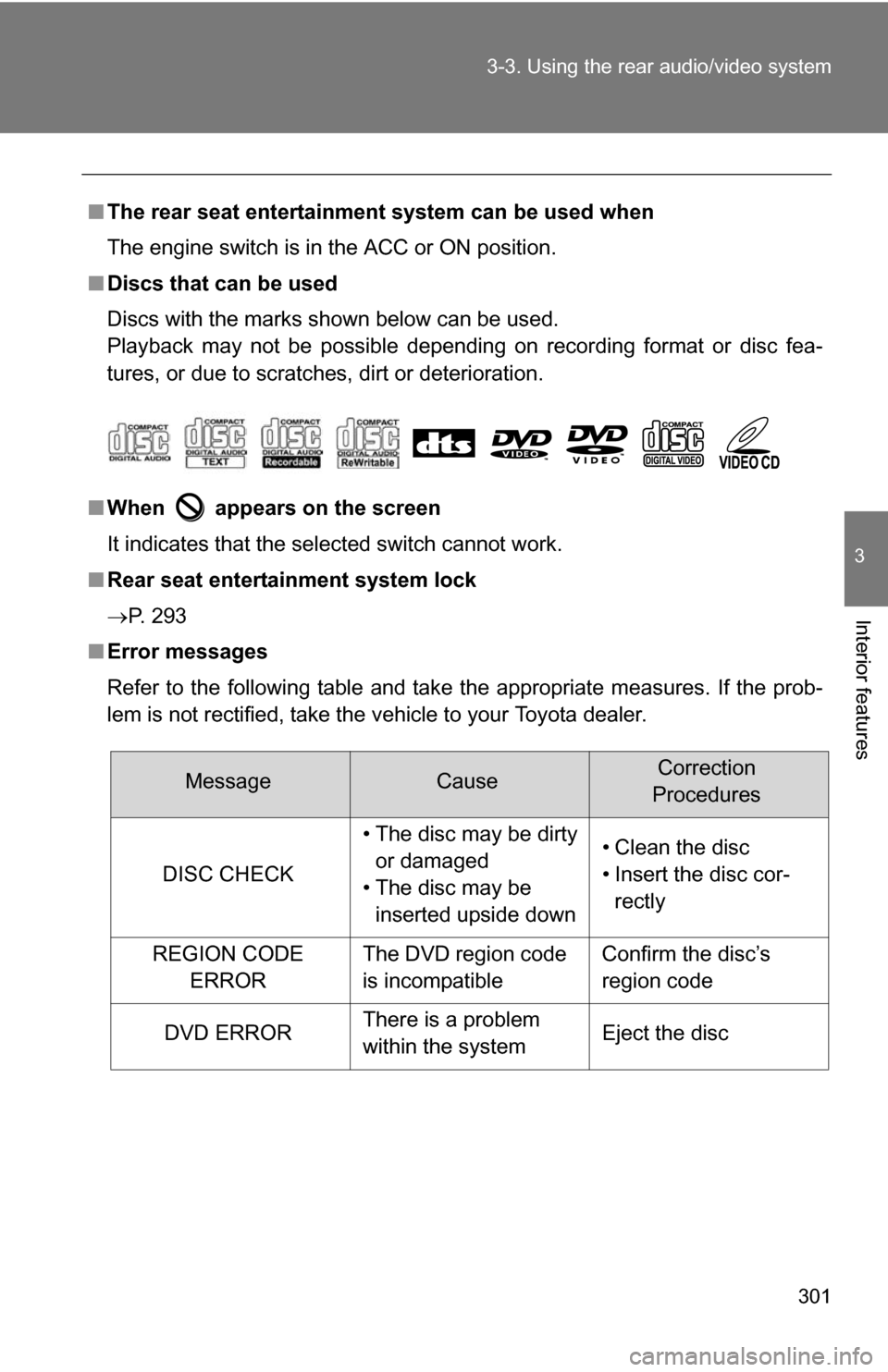
■ Discs that can be used
Discs with the marks shown below can be used.
Playback may not be possible depending on recording format or disc fea-
tures, or due to scratches, dirt or deterioration.
■ When appears on the screen
It indicates that the selected switch cannot work.
■ Rear seat entertainment system lock
P. 293
■ Error messages
Refer to the following table and take the appropriate measures. If the prob-
lem is not rectified, take the vehicle to your Toyota dealer.
MessageCauseCorrection
Procedures
DISC CHECK
• The disc may be dirty or damaged
• The disc may be inserted upside down• Clean the disc
• Insert the disc cor- rectly
REGION CODE ERRORThe DVD region code
is incompatibleConfirm the disc’s
region code
DVD ERRORThere is a problem
within the systemEject the disc
Page 321 of 596
321
3-3. Using the rear audio/video system
3
Interior features
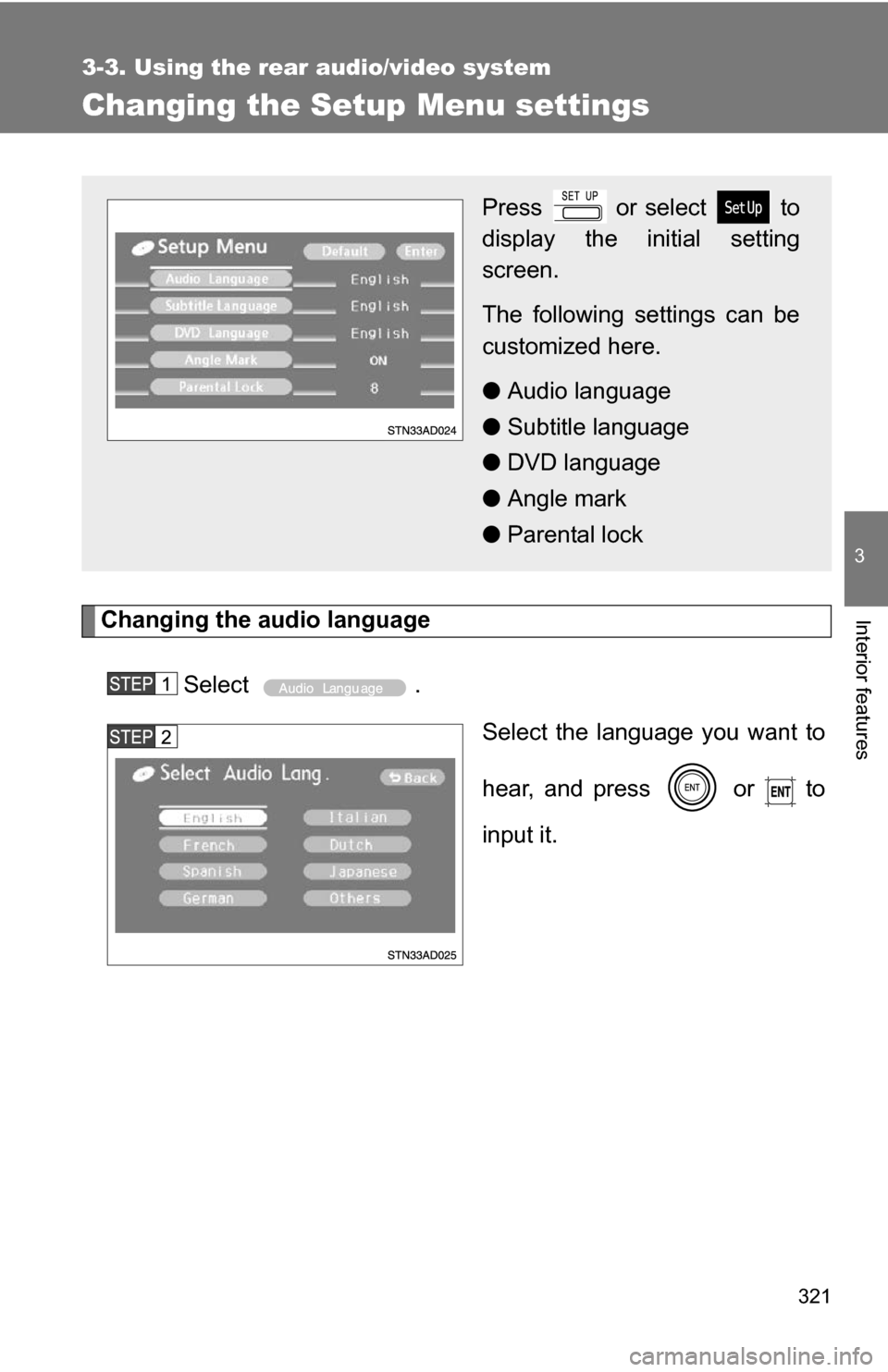
Changing the Setup Menu settings
Changing the audio languageSelect . Select the language you want to
hear, and press or to
input it.
Press or select to
display the initial setting
screen.
The following settings can be
customized here.
●Audio language
● Subtitle language
● DVD language
● Angle mark
● Parental lock
Page 339 of 596
339
3-4. Using the hand
s-free phone system (for cellular phone)
3
Interior features
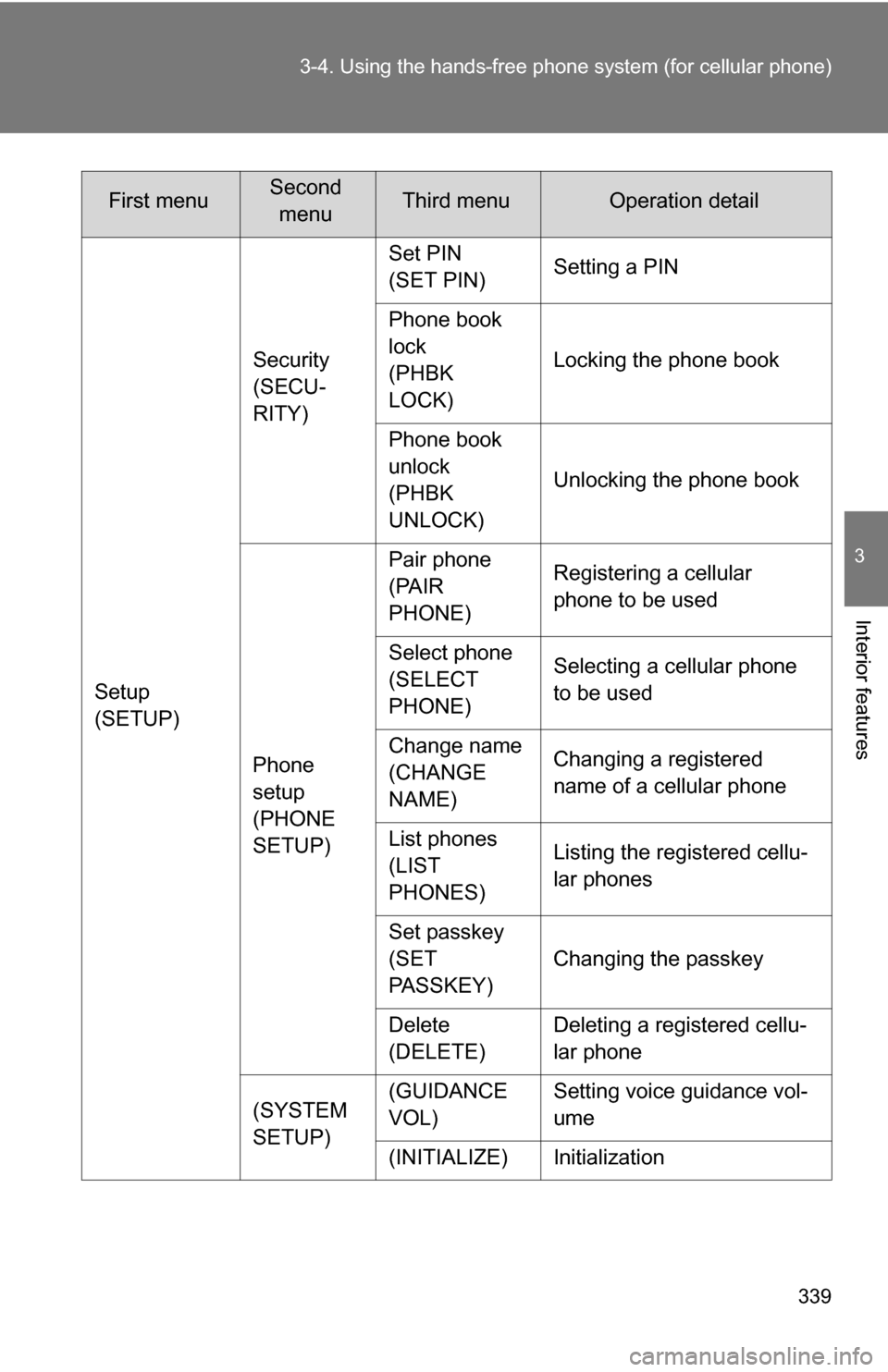
Setup
(SETUP)Security
(SECU-
RITY)
Set PIN
(SET PIN)
Setting a PIN
Phone book
lock
(PHBK
LOCK) Locking the phone book
Phone book
unlock
(PHBK
UNLOCK) Unlocking the phone book
Phone
setup
(PHONE
SETUP) Pair phone
(PAIR
PHONE)
Registering a cellular
phone to be used
Select phone
(SELECT
PHONE) Selecting a cellular phone
to be used
Change name
(CHANGE
NAME) Changing a registered
name of a cellular phone
List phones
(LIST
PHONES) Listing the registered cellu-
lar phones
Set passkey
(SET
PASSKEY) Changing the passkey
Delete
(DELETE) Deleting a registered cellu-
lar phone
(SYSTEM
SETUP) (GUIDANCE
VOL)
Setting voice guidance vol-
ume
(INITIALIZE) Initialization
First menuSecond menuThird menuOperation detail
Page 340 of 596
340 3-4. Using the hands-free phone system (for cellular phone)
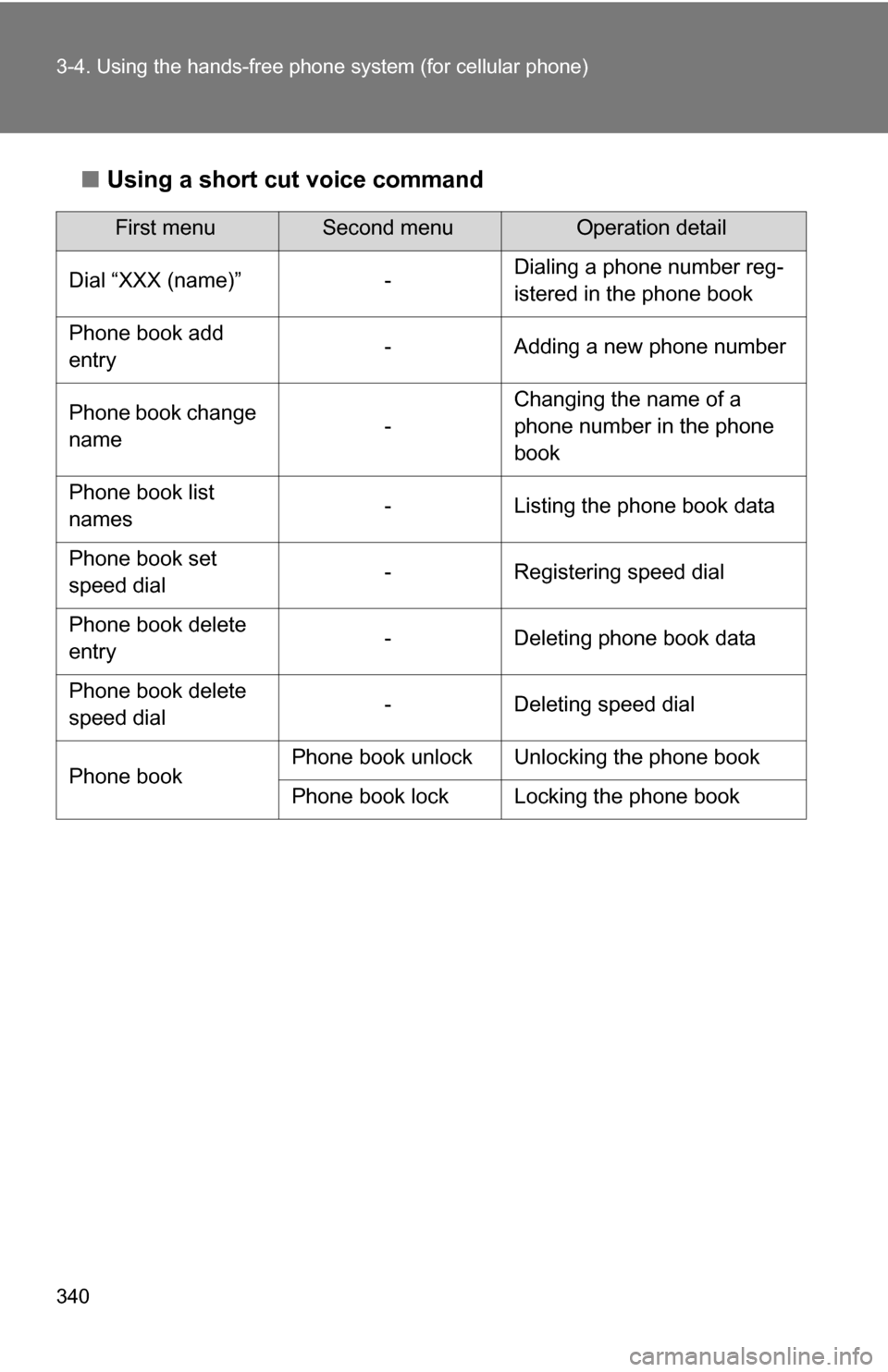
■Using a short cut voice command
First menuSecond menuOperation detail
Dial “XXX (name)” - Dialing a phone number reg-
istered in the phone book
Phone book add
entry - Adding a new phone number
Phone book change
name -Changing the name of a
phone number in the phone
book
Phone book list
names - Listing the phone book data
Phone book set
speed dial - Registering speed dial
Phone book delete
entry - Deleting phone book data
Phone book delete
speed dial - Deleting speed dial
Phone book Phone book unlock Unlocking the phone book
Phone book lock Locking the phone book
Page 352 of 596
352
3-4. Using the hands-free phone system (for cellular phone)
Security and system setup
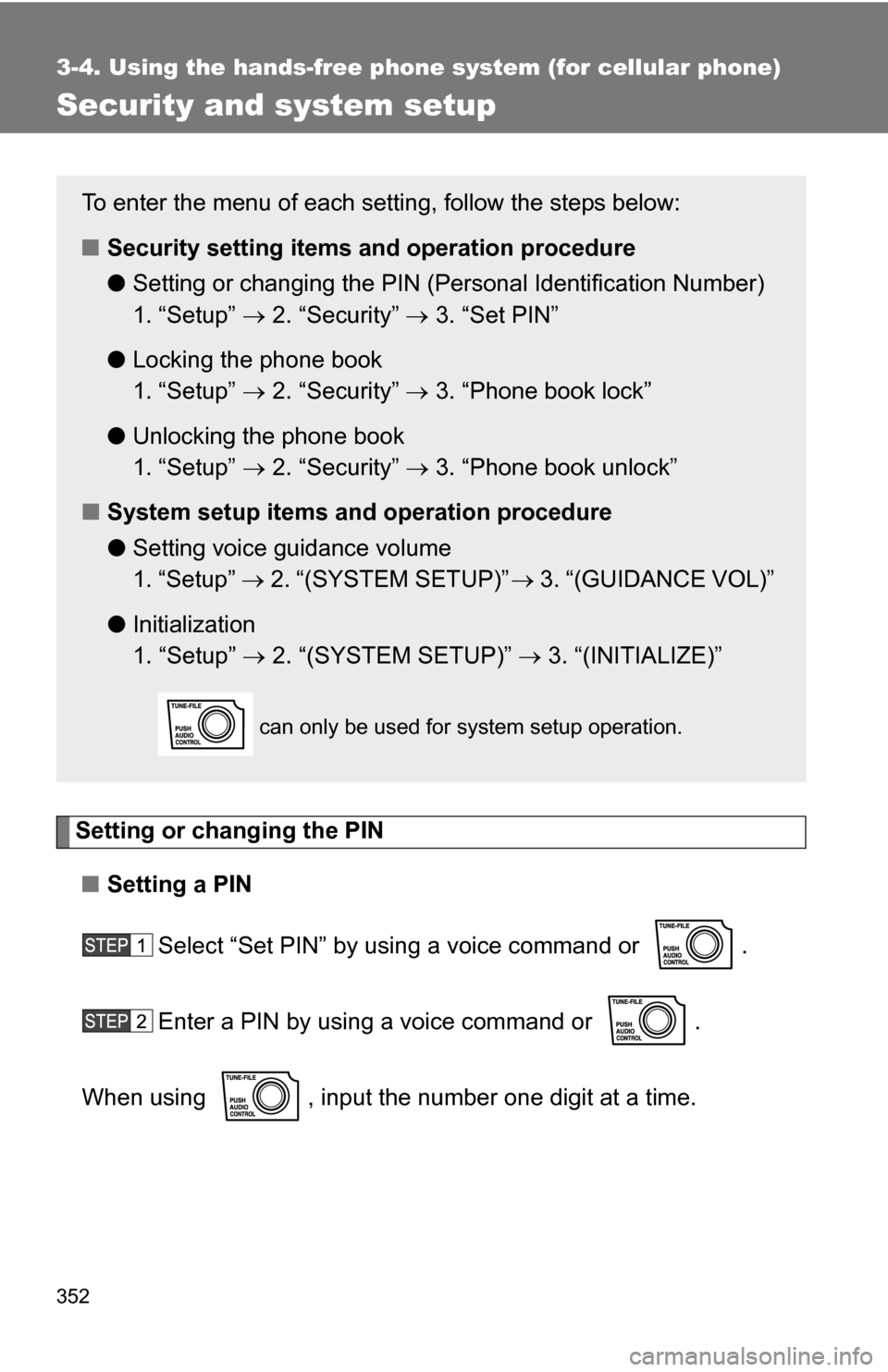
Setting or changing the PIN■ Setting a PIN
Select “Set PIN” by using a voice command or .
Enter a PIN by using a voice command or .
When using , input the number one digit at a time.
To enter the menu of each setting, follow the steps below:
■ Security setting items and operation procedure
● Setting or changing t he PIN (Personal Identification Number)
1. “Setup” 2. “Security” 3. “Set PIN”
● Locking the phone book
1. “Setup” 2. “Security” 3. “Phone book lock”
● Unlocking the phone book
1. “Setup” 2. “Security” 3. “Phone book unlock”
■ System setup items and operation procedure
●Setting voice guidance volume
1. “Setup” 2. “(SYSTEM SETUP)” 3. “(GUIDANCE VOL)”
● Initialization
1. “Setup” 2. “(SYSTEM SETUP)” 3. “(INITIALIZE)”
can only be used for system setup operation.
Page 353 of 596
353
3-4. Using the hand
s-free phone system (for cellular phone)
3
Interior features
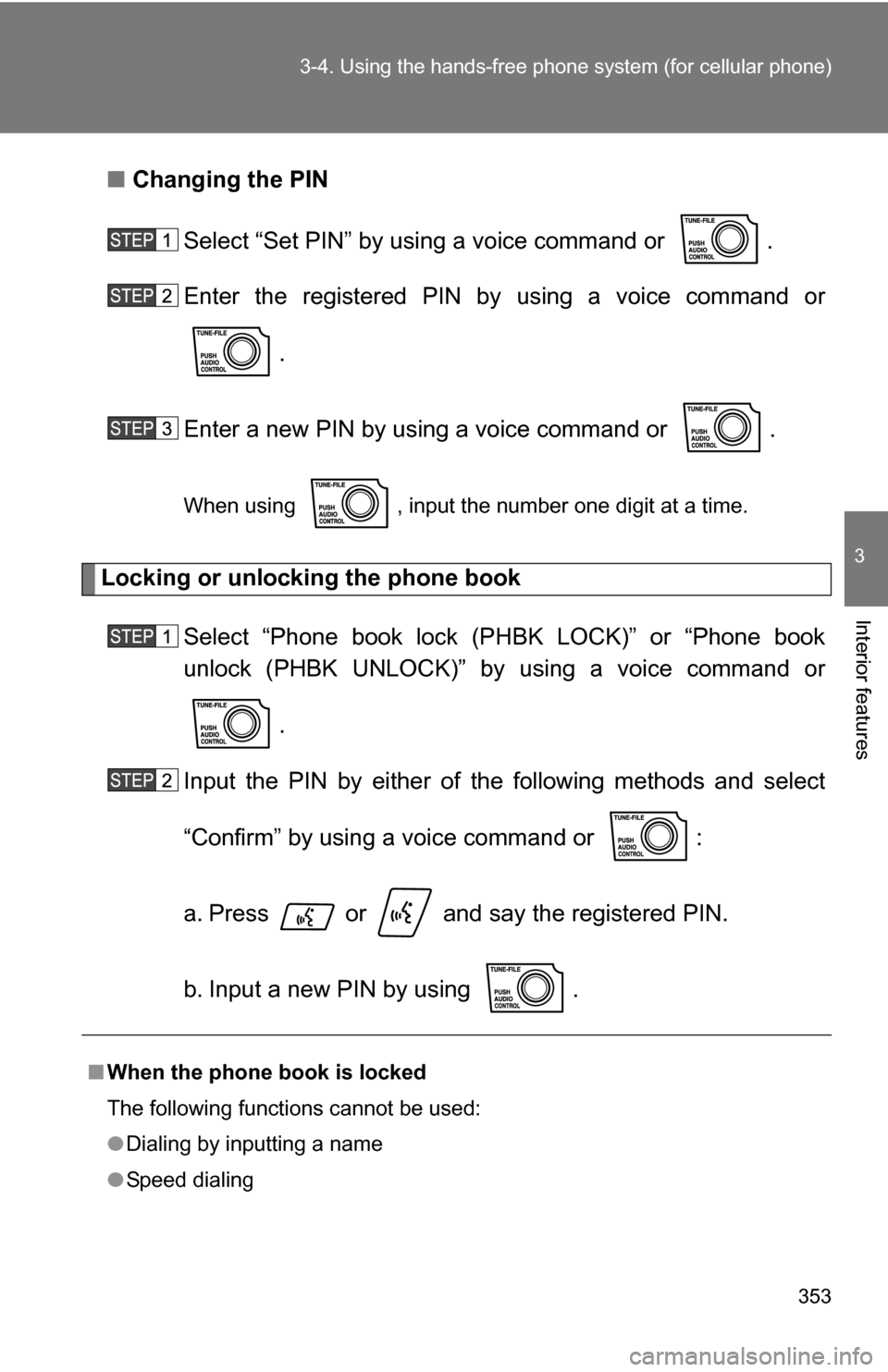
■Changing the PIN
Select “Set PIN” by using a voice command or .
Enter the registered PIN by using a voice command or
.
Enter a new PIN by using a voice command or .
When using , input the number one digit at a time.
Locking or unlocking the phone book Select “Phone book lock (PHBK LOCK)” or “Phone book
unlock (PHBK UNLOCK)” by using a voice command or .
Input the PIN by either of the following methods and select
“Confirm” by using a voice command or :
a. Press or and say the registered PIN.
b. Input a new PIN by using .
■ When the phone book is locked
The following functions cannot be used:
●Dialing by inputting a name
● Speed dialing
Page 354 of 596
354 3-4. Using the hands-free phone system (for cellular phone)
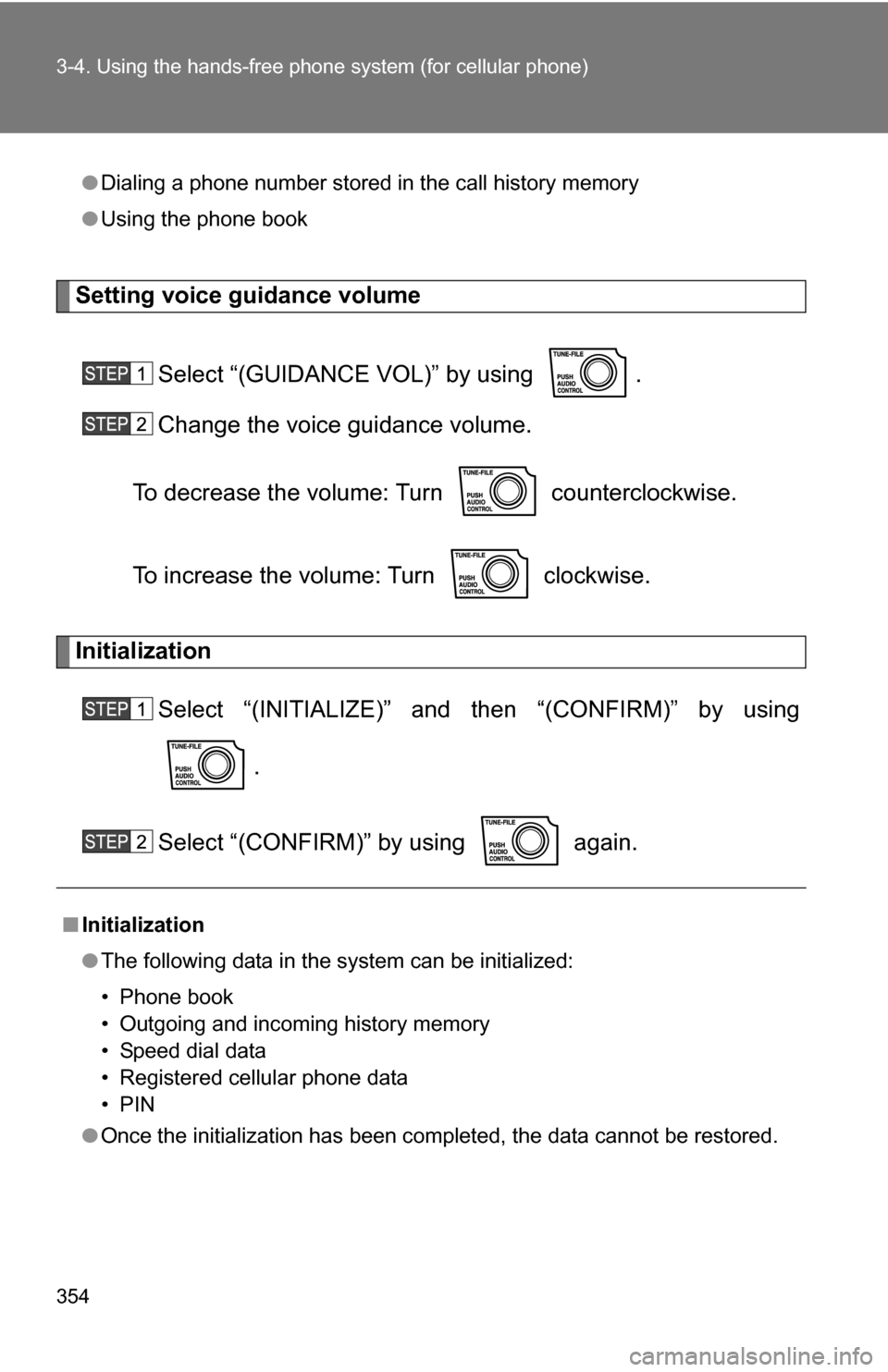
Setting voice guidance volume
Select “(GUIDANCE VOL)” by using .
Change the voice guidance volume.
To decrease the volume: Turn counterclockwise.
To increase the volume: Turn clockwise.
Initialization Select “(INITIALIZE)” and then “(CONFIRM)” by using .
Select “(CONFIRM)” by using again.
● Dialing a phone number stored in the call history memory
● Using the phone book
■ Initialization
●The following data in the system can be initialized:
• Phone book
• Outgoing and incoming history memory
• Speed dial data
• Registered cellular phone data
•PIN
● Once the initialization has been completed, the data cannot be restored.
Page 362 of 596
362
3-5. Using the interior lights
Interior lights list
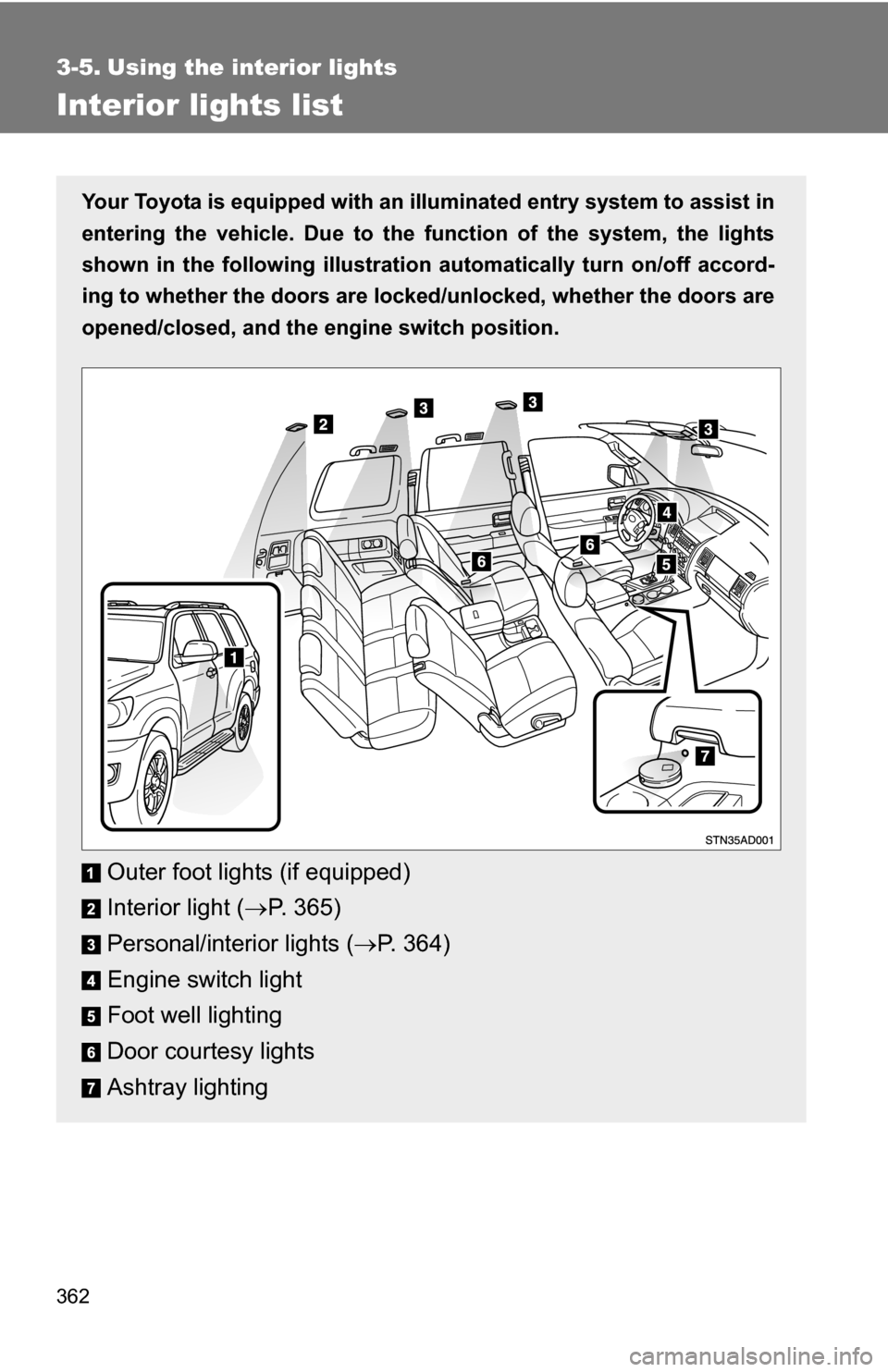
Your Toyota is equipped with an illuminated entry system to assist in
entering the vehicle. Due to the fu nction of the system, the lights
shown in the following illustration automatically turn on/off accord-
ing to whether the doo rs are locked/unlocked, whether the doors are
opened/closed, and the en gine switch position.
Outer foot lights (if equipped)
Interior light (P. 365)
Personal/interior lights ( P. 364)
Engine switch light
Foot well lighting
Door courtesy lights
Ashtray lighting
Page 367 of 596
367
3-6. Using the
storage features
3
Interior features
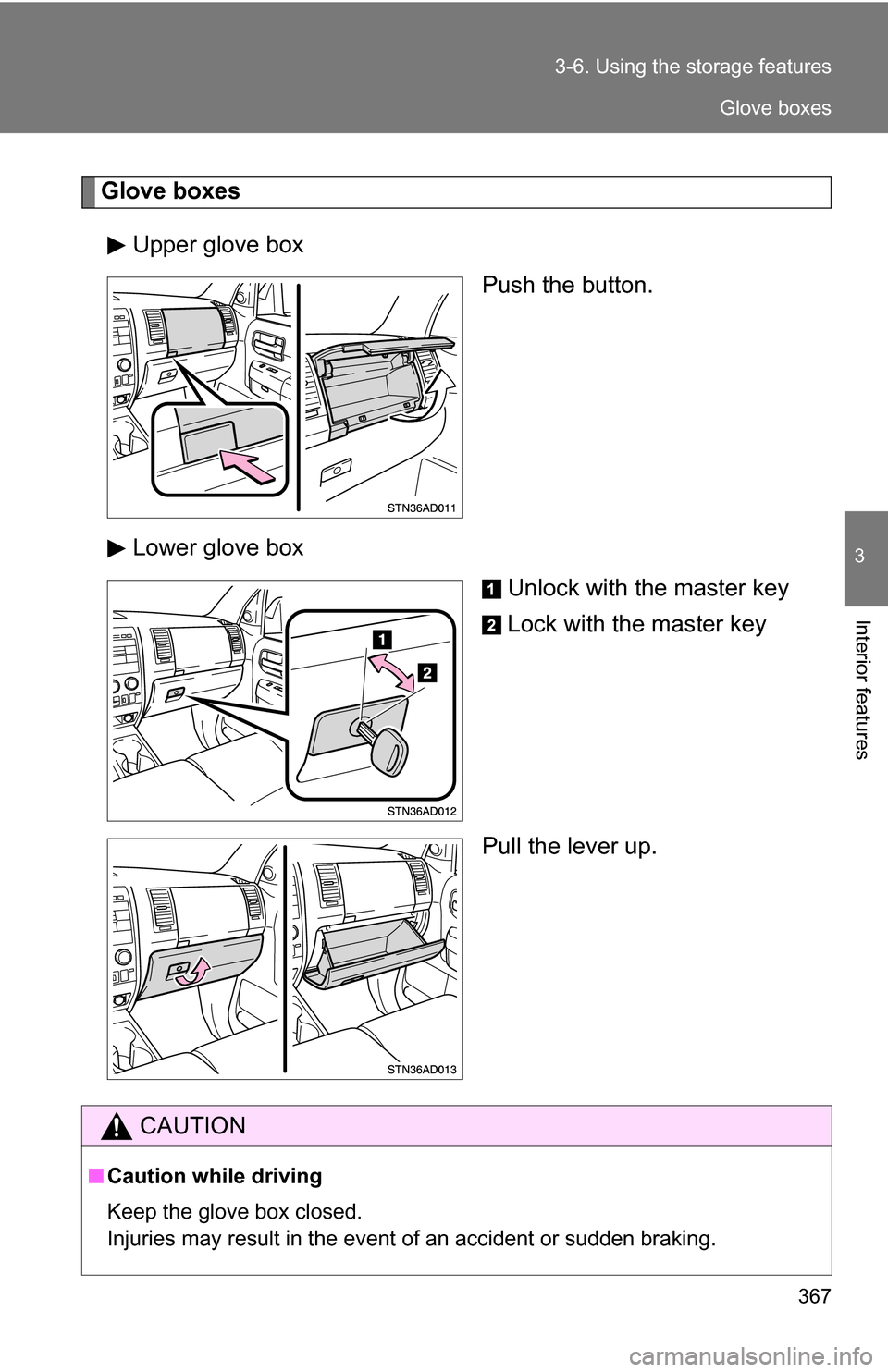
Glove boxes
Upper glove box Push the button.
Lower glove box Unlock with the master key
Lock with the master key
Pull the lever up.
CAUTION
■ Caution while driving
Keep the glove box closed.
Injuries may result in the event of an accident or sudden braking.
Glove boxes