display TOYOTA SEQUOIA 2013 2.G Owners Manual
[x] Cancel search | Manufacturer: TOYOTA, Model Year: 2013, Model line: SEQUOIA, Model: TOYOTA SEQUOIA 2013 2.GPages: 740, PDF Size: 15.34 MB
Page 444 of 740
444 3-4. Using the rear seat entertainment system
■SD cards that can be used ( P. 397)
■ Compatible files
The following files can be displayed.
●Picture file format: JPEG
• Picture resolution: between 34 34 and 8192 8192 pixels
• Gray scale JPEG is not supported
● Video file format: AVCHD
■ SD cards
●An SD card is not provided with the rear seat entertainment system and
needs to be purchased separately.
● Compatible formats
This system is compatible with SD memory cards that meet SD card spec-
ifications FAT16 formats, SDHC memory cards in FAT32 format, and
SDXC memory cards in exFAT format.
● The Panasonic SD memory card format software version 3.1 or higher is
recommended.
● Data stored in an SD card may be lost. Before playing back pictures and
videos stored in an SD card, make certain to back up the data.
● Before an SD card that contains any kind of data is played, slide the lock
switch on the SD card to “LOCK” in order to prevent any data from being
accidentally deleted or overwritten.
CAUTION
■SD cards
Keep away from children.
These are small and if swallowed by a child they can cause choking.
Page 452 of 740
452
3-5. Using the hands-free phone system (for cellular phone)
Using the hands-free phone system
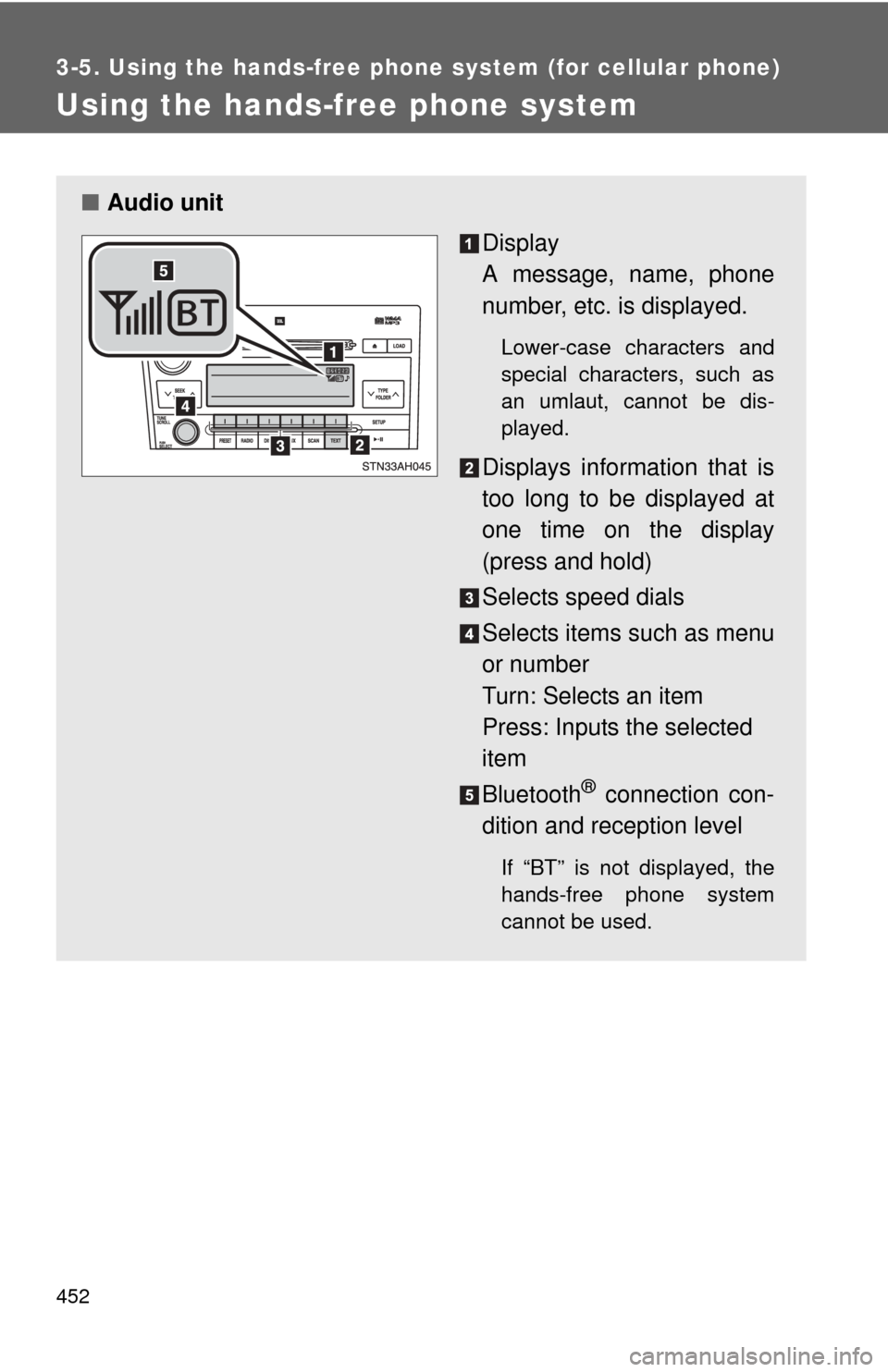
■Audio unit
Display
A message, name, phone
number, etc. is displayed.
Lower-case characters and
special characters, such as
an umlaut, cannot be dis-
played.
Displays information that is
too long to be displayed at
one time on the display
(press and hold)
Selects speed dials
Selects items such as menu
or number
Turn: Selects an item
Press: Inputs the selected
item
Bluetooth
® connection con-
dition and reception level
If “BT” is not displayed, the
hands-free phone system
cannot be used.
Page 455 of 740
455
3-5. Using the hand
s-free phone system (for cellular phone)
3
Interior features
Operating the system by using a voice command
By following the voice guidance inst ructions output from the speaker,
voice commands enable the operat ion of the hands-free phone sys-
tem without the need to check the display or operate .
■ Operation procedure when using a voice command
Press the talk switch and follow the voice guidance instructions.
■ Auxiliary commands when using a voice command
The following auxiliary commands can be used when operating the
system using a voice command:
“Cancel”: Exits the hands-free phone system
“Repeat”: Repeats the previous voice guidance instruction
“Go back”: Returns to the previous procedure
“Help”: Reads aloud the function summary if a help comment is
registered for the selected function
Using the hands-free phone system for the first time
Before using the hands-free phone system, it is necessary to register
a cellular phone in the system. Th e phone registration mode will be
entered automatically when starting the system with no cellular
phone registered. Follow the procedure below to register a cellular
phone:
Press the off-hook switch or the talk switch.
The introductory guidance and phone name registration instructions
are heard.
Select “Pair Phone” using a voice command or .
Page 456 of 740
456 3-5. Using the hands-free phone system (for cellular phone)
Register a phone name by either of the following methods.
a. Select “Record Name” by using , and say a name to
be registered.
b. Press the talk switch and say a name to be registered.
A voice guidance instruction to confirm the input is heard.
Select “Confirm” by using a voice command or .
Registration to the hands-free phone system only
Select “Phone Only” using a voice command or .
Registration to the hands-free phone system and Bluetooth
® audio
system at the same time
Select “Internal Audio (Int. Audio)” using a voice command or
.
Select “Confirm” by using a voice command or .
A passkey is displayed and heard, and a voice guidance instruction
for inputting the passkey into the cellular phone is heard. Input the passkey into the cellular phone.
Refer to the manual that comes with the cellular phone for the oper-
ation of the phone.
Guidance for registration completion is heard.
Page 458 of 740
458 3-5. Using the hands-free phone system (for cellular phone)
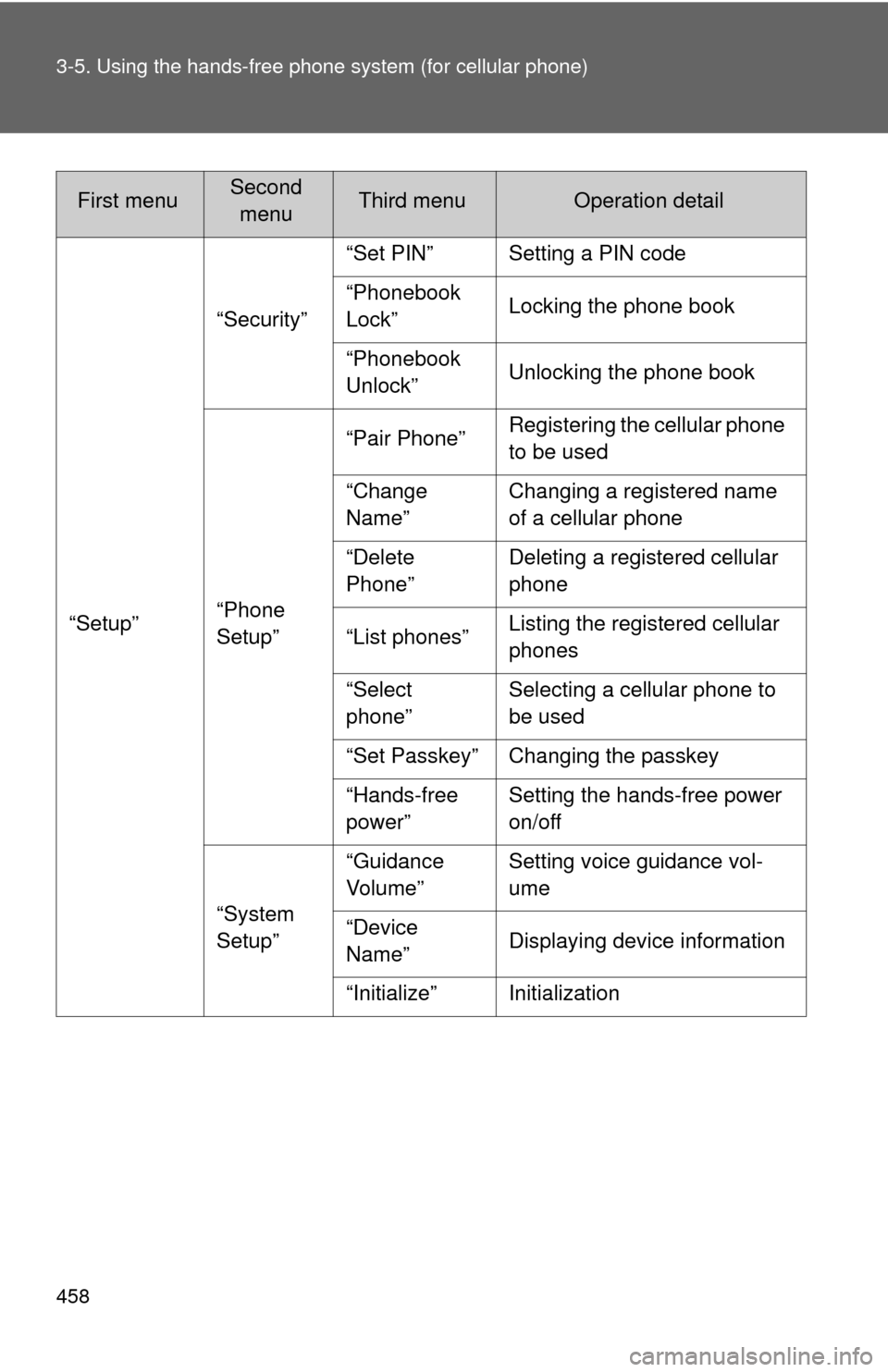
“Setup”“Security”
“Set PIN” Setting a PIN code
“Phonebook
Lock”
Locking the phone book
“Phonebook
Unlock” Unlocking the phone book
“Phone
Setup” “Pair Phone”
Registering the cellular phone
to be used
“Change
Name” Changing a registered name
of a cellular phone
“Delete
Phone” Deleting a registered cellular
phone
“List phones” Listing the registered cellular
phones
“Select
phone” Selecting a cellular phone to
be used
“Set Passkey” Changing the passkey
“Hands-free
power” Setting the hands-free power
on/off
“System
Setup” “Guidance
Vol u me ”
Setting voice guidance vol-
ume
“Device
Name” Displaying device information
“Initialize” Initialization
First menuSecond menuThird menuOperation detail
Page 469 of 740
469
3-5. Using the hands-free phone system (for cellular phone)
3
Interior features
Security and system setup
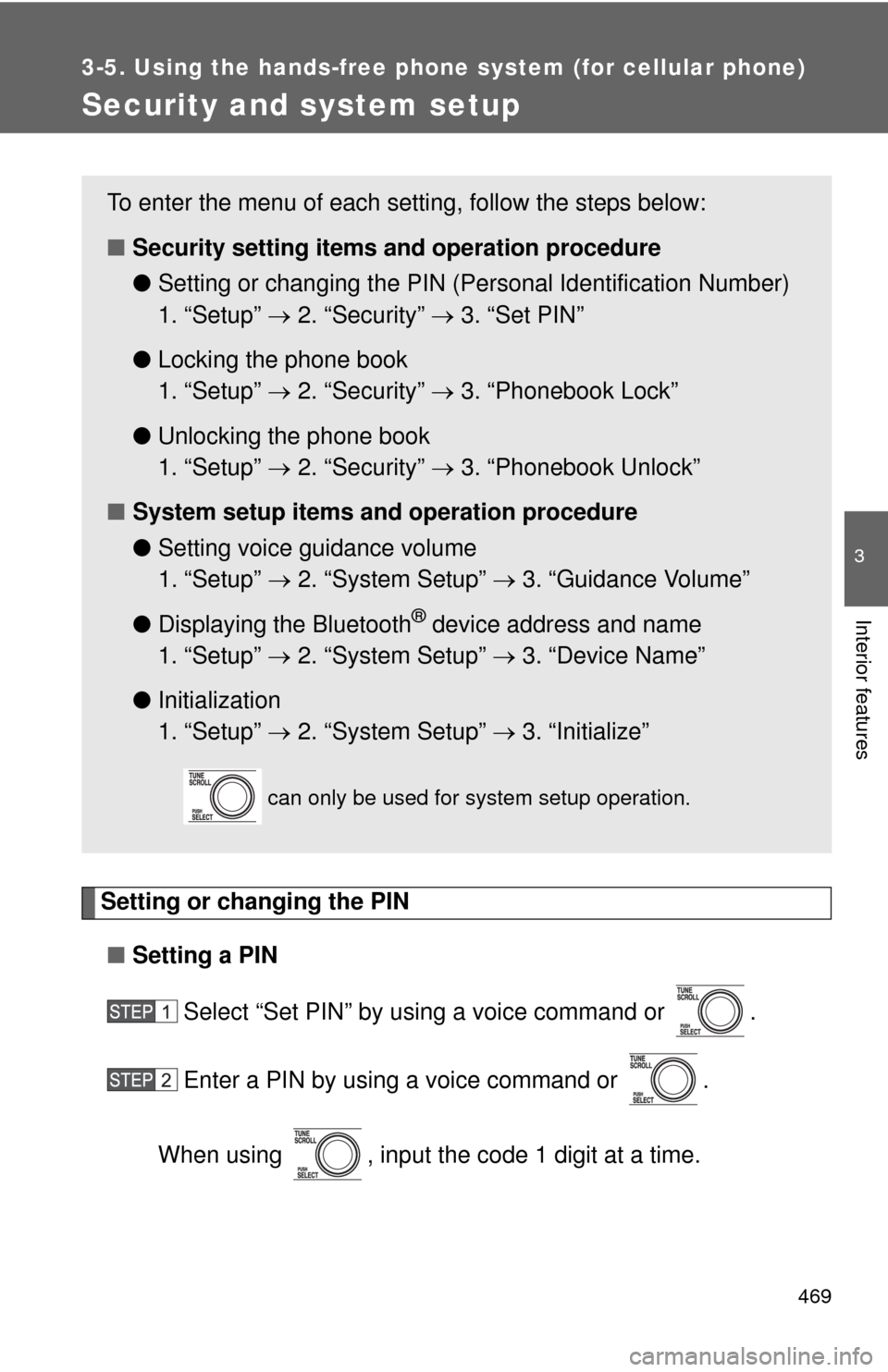
Setting or changing the PIN■ Setting a PIN
Select “Set PIN” by using a voice command or .
Enter a PIN by using a voice command or .
When using , input the code 1 digit at a time.
To enter the menu of each setting, follow the steps below:
■ Security setting items and operation procedure
● Setting or changing t he PIN (Personal Identification Number)
1. “Setup” 2. “Security” 3. “Set PIN”
● Locking the phone book
1. “Setup” 2. “Security” 3. “Phonebook Lock”
● Unlocking the phone book
1. “Setup” 2. “Security” 3. “Phonebook Unlock”
■ System setup items and operation procedure
●Setting voice guidance volume
1. “Setup” 2. “System Setup” 3. “Guidance Volume”
● Displaying the Bluetooth
® device address and name
1. “Setup” 2. “System Setup” 3. “Device Name”
● Initialization
1. “Setup” 2. “System Setup” 3. “Initialize”
can only be used for system setup operation.
Page 471 of 740
471
3-5. Using the hand
s-free phone system (for cellular phone)
3
Interior features
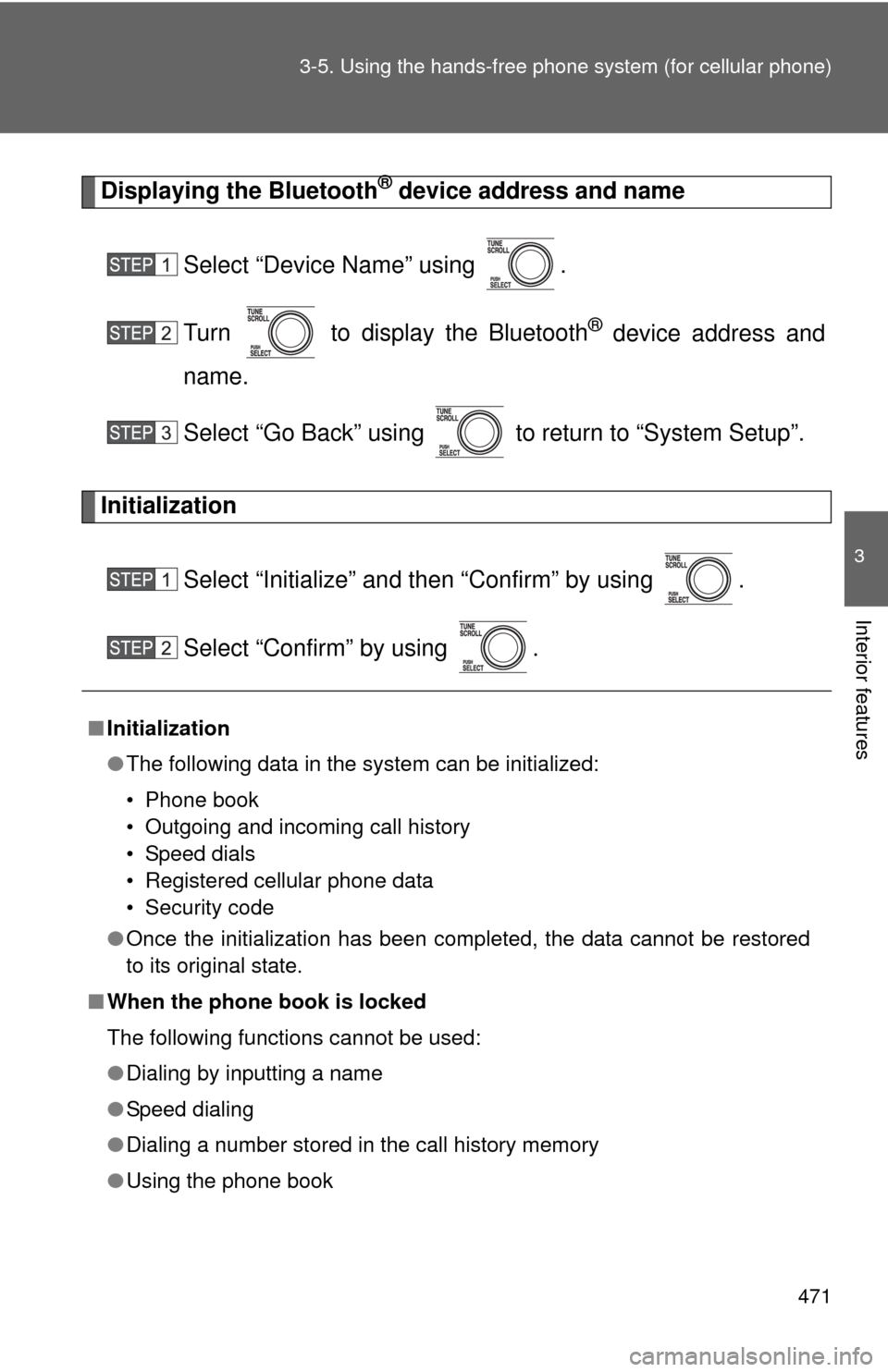
Displaying the Bluetooth® device address and name
Select “Device Name” using .
Turn to display the Bluetooth
® device address and
name.
Select “Go Back” using to return to “System Setup”.
Initialization
Select “Initialize” and then “Confirm” by using .
Select “Confirm” by using .
■Initialization
●The following data in the system can be initialized:
• Phone book
• Outgoing and incoming call history
• Speed dials
• Registered cellular phone data
• Security code
● Once the initialization has been completed, the data cannot be restored
to its original state.
■ When the phone book is locked
The following functions cannot be used:
●Dialing by inputting a name
● Speed dialing
● Dialing a number stored in the call history memory
● Using the phone book
Page 473 of 740
473
3-5. Using the hand
s-free phone system (for cellular phone)
3
Interior features
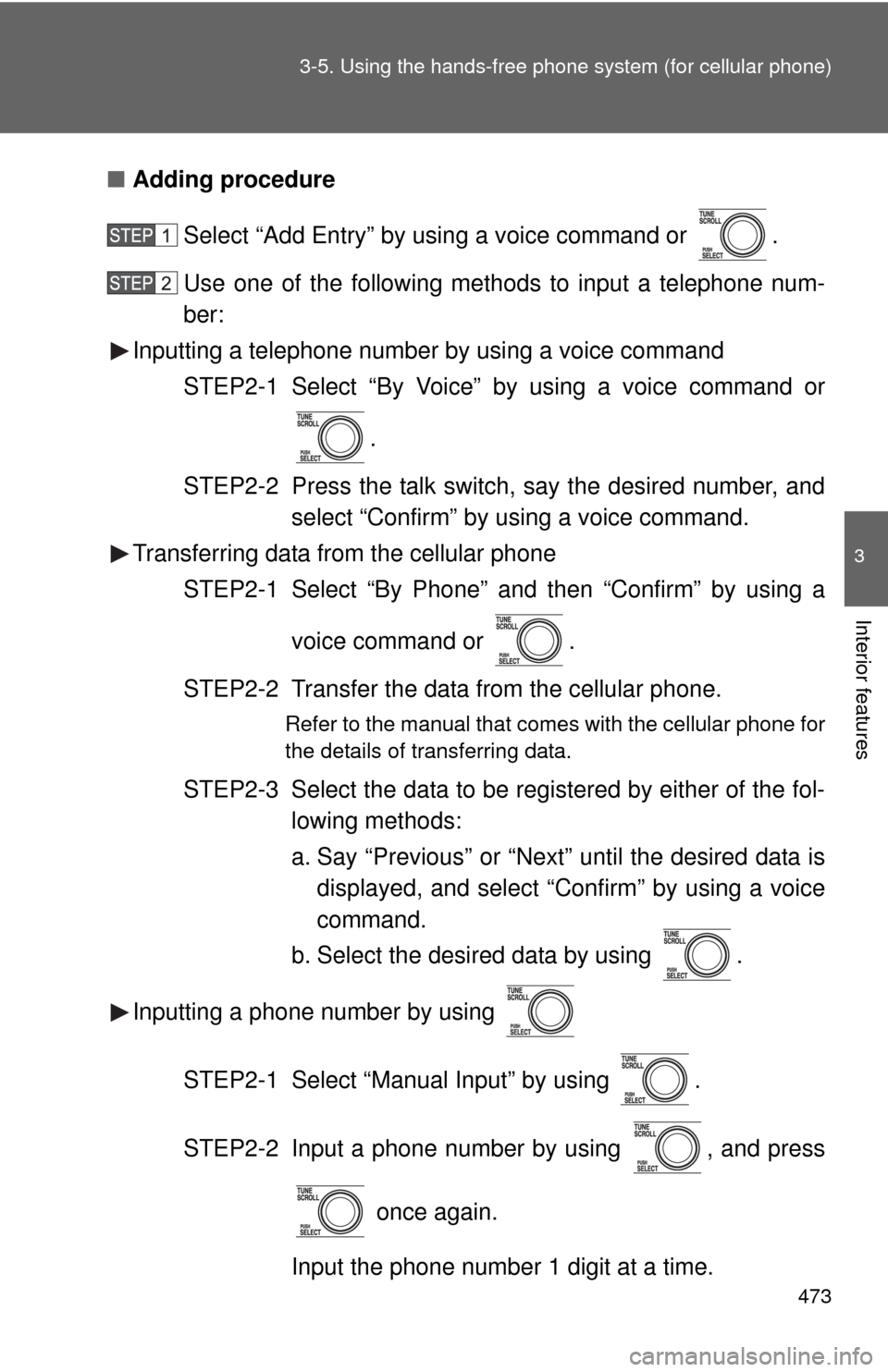
■Adding procedure
Select “Add Entry” by using a voice command or .
Use one of the following methods to input a telephone num-
ber:
Inputting a telephone number by using a voice command
STEP2-1 Select “By Voice” by using a voice command or
.
STEP2-2 Press the talk switch, say the desired number, and select “Confirm” by using a voice command.
Transferring data from the cellular phone
STEP2-1 Select “By Phone” and then “Confirm” by using a
voice command or .
STEP2-2 Transfer the data from the cellular phone.
Refer to the manual that comes with the cellular phone for
the details of transferring data.
STEP2-3 Select the data to be registered by either of the fol- lowing methods:
a. Say “Previous” or “Next” until the desired data isdisplayed, and select “Confirm” by using a voice
command.
b. Select the desired data by using .
Inputting a phone number by using
STEP2-1 Select “Manual Input” by using .
STEP2-2 Input a phone number by using , and press once again.
Input the phone number 1 digit at a time.
Page 474 of 740
474 3-5. Using the hands-free phone system (for cellular phone)
Selecting a phone number from outgoing or incoming call history
STEP2-1 Select “Call History” by using a voice command or
.
STEP2-2 Select “Outgoing” or “Incoming” by using a voice
command or .
STEP2-3 Select the data to be re gistered by either of the fol-
lowing methods:
a. Say “Previous” or “Go back” until the desired data is displayed, and select “Confirm” by using
a voice command.
b. Select the desired data by using .
Select the name to be registered by either of the following
methods, and select “Confirm” by using a voice command or :
a. Press the talk switch and say the desired name.
b. Select “Record Name” by using , and say the desired name.
Select “Confirm” by using a voice command or .
In , selecting “Set Speed Dial (Speed Dial)” instead of
“Confirm” registers the newly added phone number as a speed dial.
Page 479 of 740
479
3-6. Using the interior lights
3
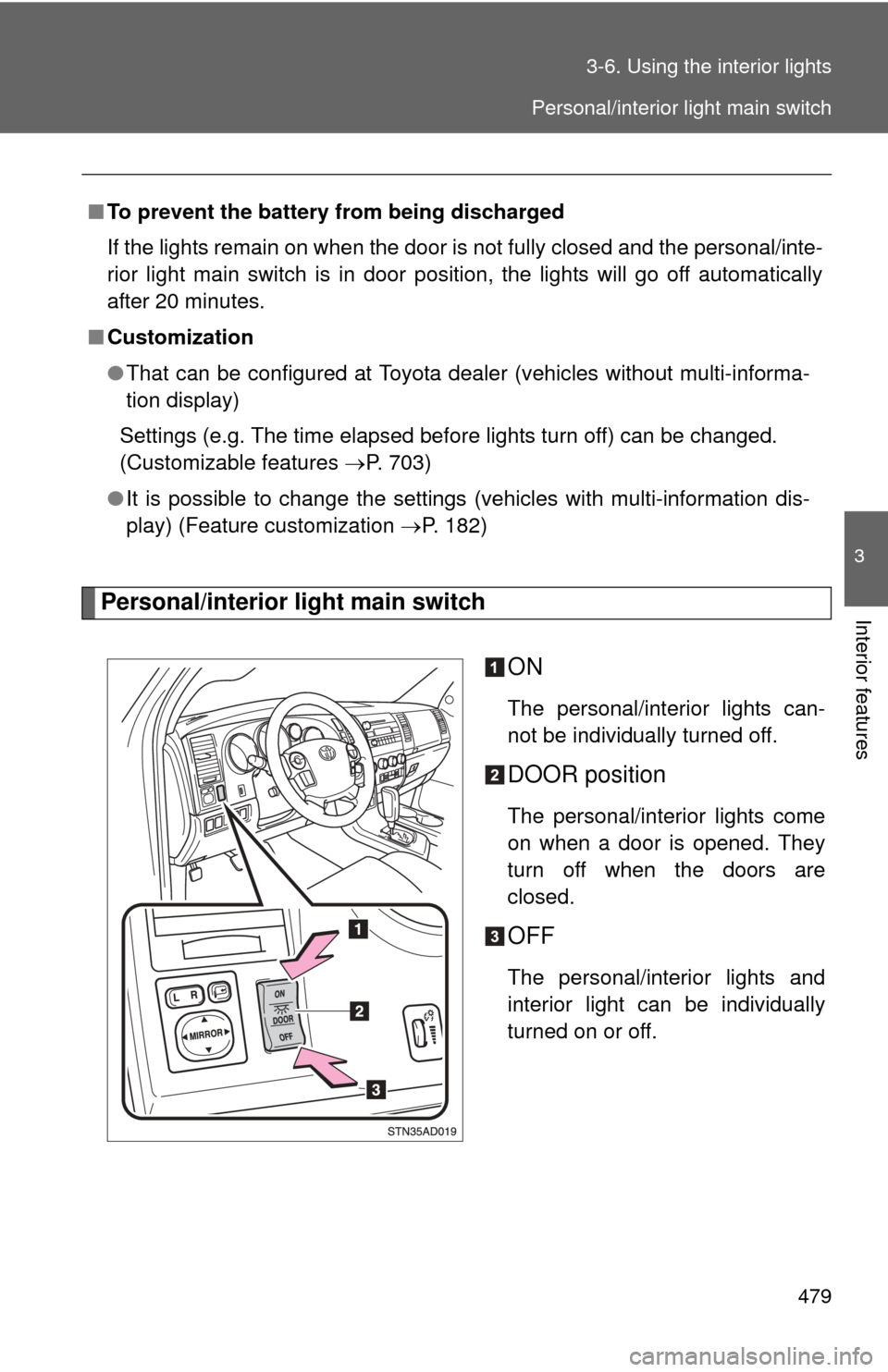
Interior featuresPersonal/interior light main switch
ON
The personal/interior lights can-
not be individually turned off.
DOOR position
The personal/interior lights come
on when a door is opened. They
turn off when the doors are
closed.
OFF
The personal/interior lights and
interior light can be individually
turned on or off.
■
To prevent the battery from being discharged
If the lights remain on when the door is not fully closed and the personal/inte-
rior light main switch is in door position, the lights will go off automatically
after 20 minutes.
■ Customization
●That can be configured at Toyota dealer (vehicles without multi-informa-
tion display)
Settings (e.g. The time elapsed before lights turn off) can be changed.
(Customizable features P. 703)
● It is possible to change the settings (vehicles with multi-information dis-
play) (Feature customization P. 182)
Personal/interior light main switch