display TOYOTA SEQUOIA 2013 2.G Manual Online
[x] Cancel search | Manufacturer: TOYOTA, Model Year: 2013, Model line: SEQUOIA, Model: TOYOTA SEQUOIA 2013 2.GPages: 740, PDF Size: 15.34 MB
Page 416 of 740
416 3-4. Using the rear seat entertainment system
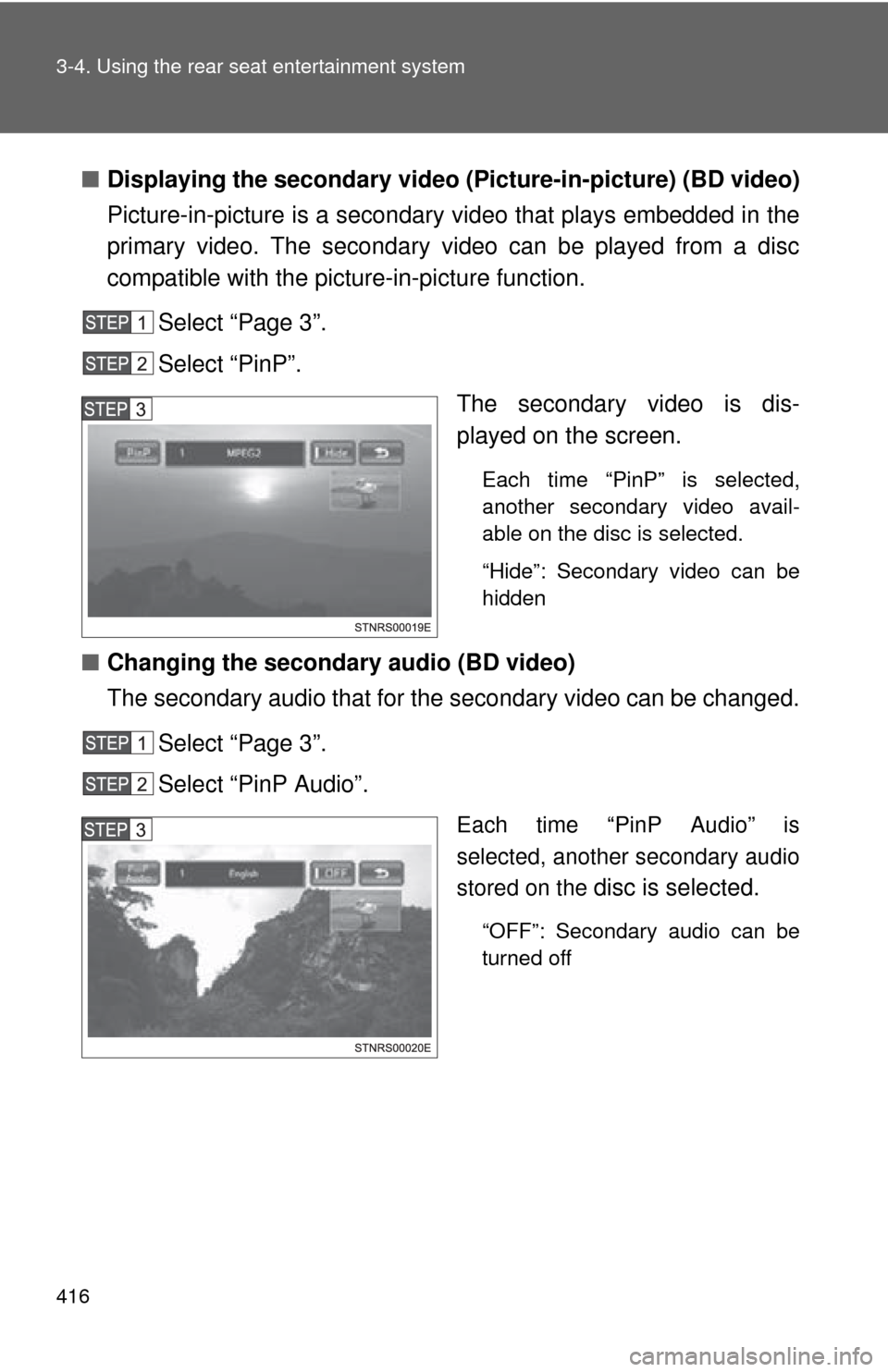
■Displaying the secondary video (Picture-in-picture) (BD video)
Picture-in-picture is a secondary video that plays embedded in the
primary video. The secondary video can be played from a disc
compatible with the picture-in-picture function.
Select “Page 3”.
Select “PinP”. The secondary video is dis-
played on the screen.
Each time “PinP” is selected,
another secondary video avail-
able on the disc is selected.
“Hide”: Secondary video can be
hidden
■Changing the secondary audio (BD video)
The secondary audio that for the secondary video can be changed.
Select “Page 3”.
Select “PinP Audio”.
Each time “PinP Audio” is
selected, another secondary audio
stored on the
disc is selected.
“OFF”: Secondary audio can be
turned off
Page 417 of 740
417
3-4. Using the rear seat entertainment system
3
Interior features
■
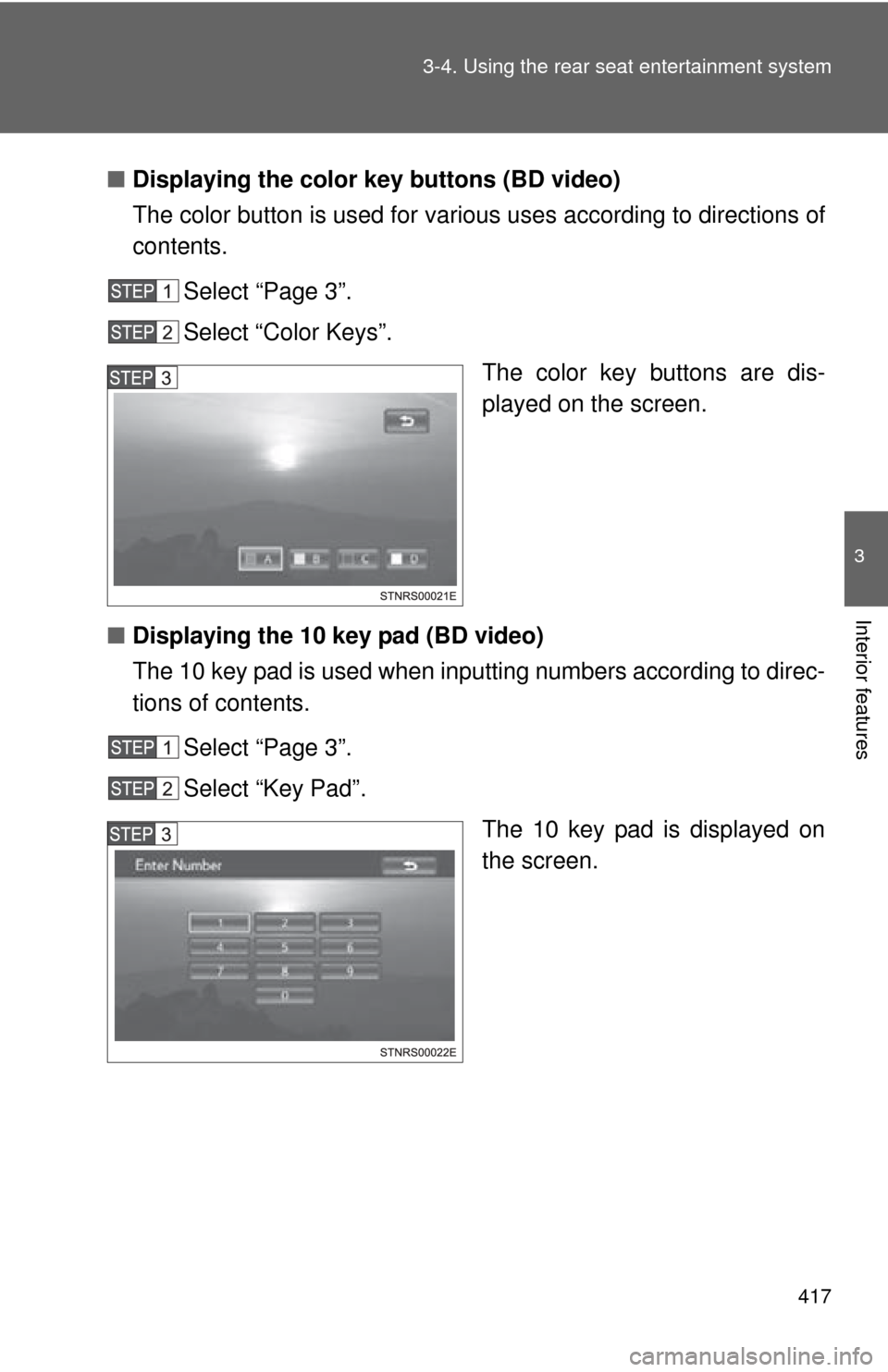
Displaying the color key buttons (BD video)
The color button is used for various uses according to directions of
contents.
Select “Page 3”.
Select “Color Keys”. The color key buttons are dis-
played on the screen.
■ Displaying the 10 key pad (BD video)
The 10 key pad is used when inputting numbers according to direc-
tions of contents.
Select “Page 3”.
Select “Key Pad”. The 10 key pad is displayed on
the screen.
Page 418 of 740
418 3-4. Using the rear seat entertainment system
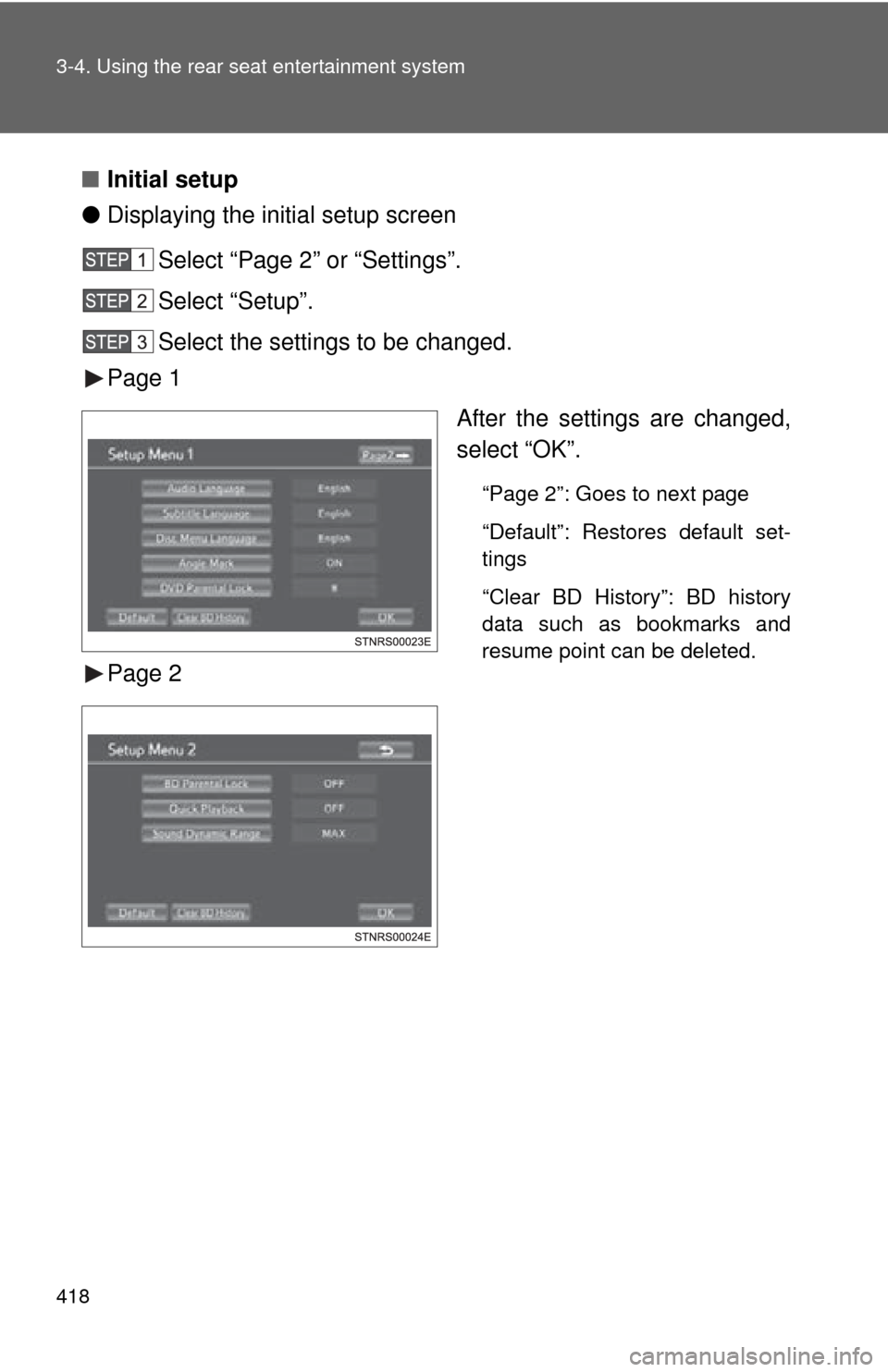
■Initial setup
● Displaying the initial setup screen
Select “Page 2” or “Settings”.
Select “Setup”.
Select the settings to be changed.
Page 1
Page 2 After the settings are changed,
select “OK”.
“Page 2”: Goes to next page
“Default”: Restores default set-
tings
“Clear BD History”: BD history
data such as bookmarks and
resume point can be deleted.
Page 423 of 740
423
3-4. Using the rear seat entertainment system
3
Interior features
●
When storing content on BD-R, BD-RE, DVD-R or DVD-RW discs, they
must be finalized using a recorder. Discs that are not finalized cannot be
played by this system.
● Discs that are recorded with multi session cannot be played by this sys-
tem.
● BD-Live™ is not supported.
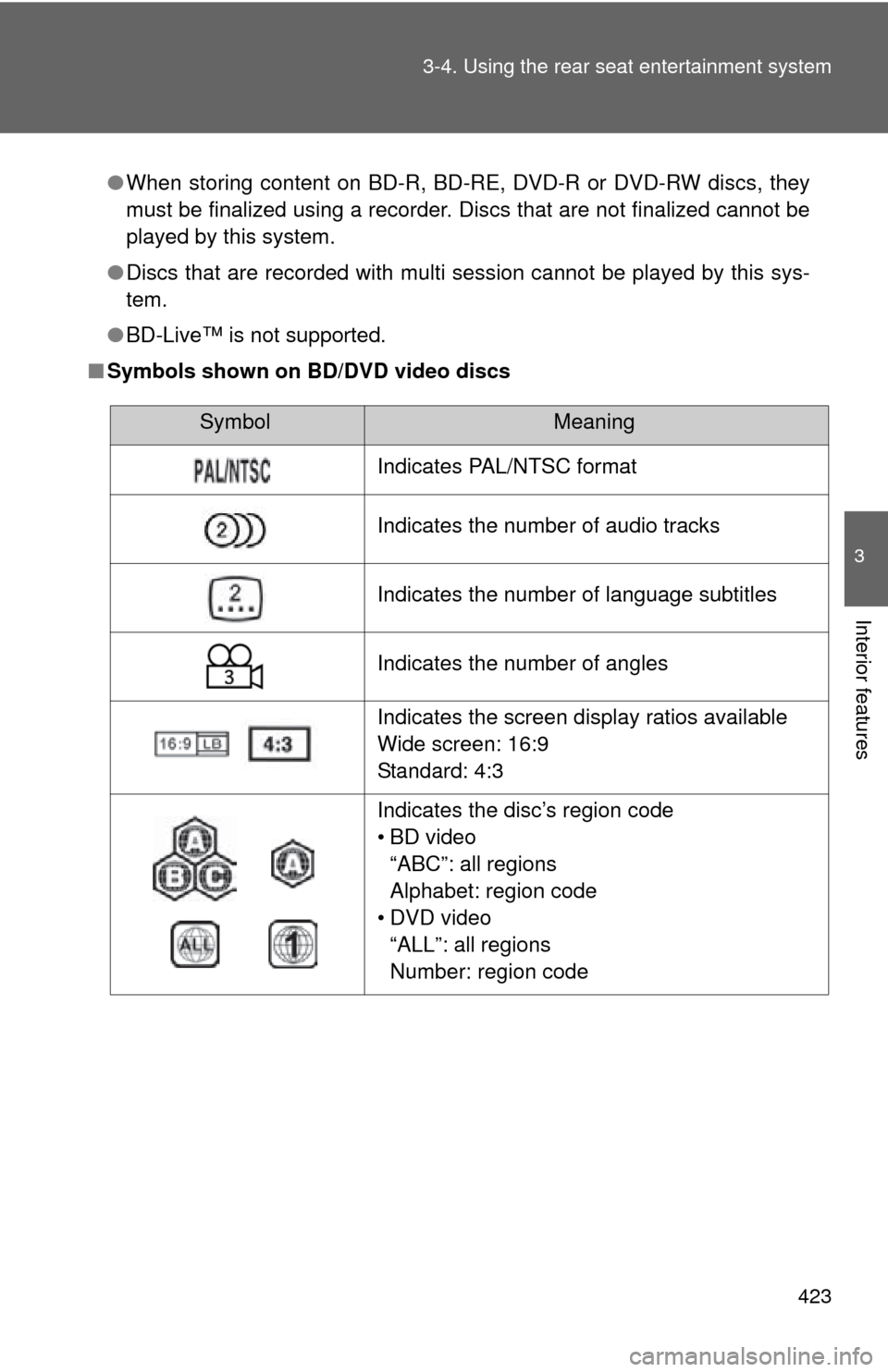
■ Symbols shown on BD/DVD video discs
SymbolMeaning
Indicates PAL/NTSC format
Indicates the number of audio tracks
Indicates the number of language subtitles
Indicates the number of angles
Indicates the screen display ratios available
Wide screen: 16:9
Standard: 4:3
Indicates the disc’s region code
• BD video
“ABC”: all regions
Alphabet: region code
• DVD video “ALL”: all regions
Number: region code
Page 434 of 740
434 3-4. Using the rear seat entertainment system
Random playbackEach time “RAND” is selected , the mode changes as follow:
Audio CD
“RAND” (random) Off
MP3/WMA
“RAND” (1 folder random) “FLD.RAND” (1 disc random) Off
■Discs that can be used ( P. 397)
■ Displaying the title and artist name
If a CD-TEXT disc is inserted, the titles of the disc and track will be dis-
played.
■ MP3 and WMA files
MP3 (MPEG Audio LAYER3) is a standard audio compression format.
Files can be compressed to approximately 1/10 of their original size by using
MP3 compression.
WMA (Windows Media Audio) is a Microsoft audio compression format.
This format compresses audio data to a size smaller than that of the MP3
format.
There is a limit to the MP3 and WMA file standards and to the media/formats
recorded by them that can be used.
●MP3 file compatibility
• Compatible standards
MP3 (MPEG1 LAYER3, MPEG2 LSF LAYER3)
• Compatible sampling frequencies MPEG1 LAYER3: 32, 44.1, 48 (kHz)
MPEG2 LSF LAYER3: 16, 22.05, 24 (kHz)
• Compatible bit rates (compatible with VBR) MPEG1 LAYER3: 64, 80, 96, 112, 128, 160, 192, 224, 256, 320 (kbps)
MPEG2 LSF LAYER3: 64, 80, 96, 112, 128, 144, 160 (kbps)
• Compatible channel modes: stereo, joint stereo, dual channel and mono
Page 435 of 740
435
3-4. Using the rear seat entertainment system
3
Interior features
●
WMA file compatibility
• Compatible standards
WMA Ver. 7, 8, 9
• Compatible sampling frequencies 32, 44.1, 48 (kHz)
• Compatible bit rates (only compatible with 2-channel playback) Ver. 7, 8, 9: CBR 48, 64, 80, 96, 128, 160, 192 (kbps)
● Compatible media
Media that can be used for MP3 and WMA playback:
• CD-ROM/R/RW
• DVD-ROM/R/RW
Playback in some instances may not be possible, depending on the status
of the disc. Playback may not be possible or the audio may jump if the disc
is scratched or marked with fingerprints.
● Compatible disc formats
The following disc formats can be used.
• Disc formats: CD-ROM Mode 1
CD-ROM XA Mode 2 Form 1
• File formats: ISO9660 Level 1, Level 2 (Romeo, Joliet) UDF (2.01 or lower)
MP3 and WMA files written in any format other than those listed above
may not play correctly, and their file names and folder names may not be
displayed correctly.
Items related to standards and limitations are as follows.
• Maximum directory hierarchy: 8 levels
• Maximum length of folder names/file names: 20 characters
• Maximum number of folders: 255 (including the root)
• Maximum number of files per disc: 512
● File names
The only files that can be recognized as MP3/WMA and played are those
with the extension .mp3 or .wma.
● Multi-sessions
As the audio system is compatible with multi-sessions, it is possible to play
discs that contain MP3 and WMA files.
Page 438 of 740
438
3-4. Using the rear seat entertainment system
Playing an SD card
: If equipped
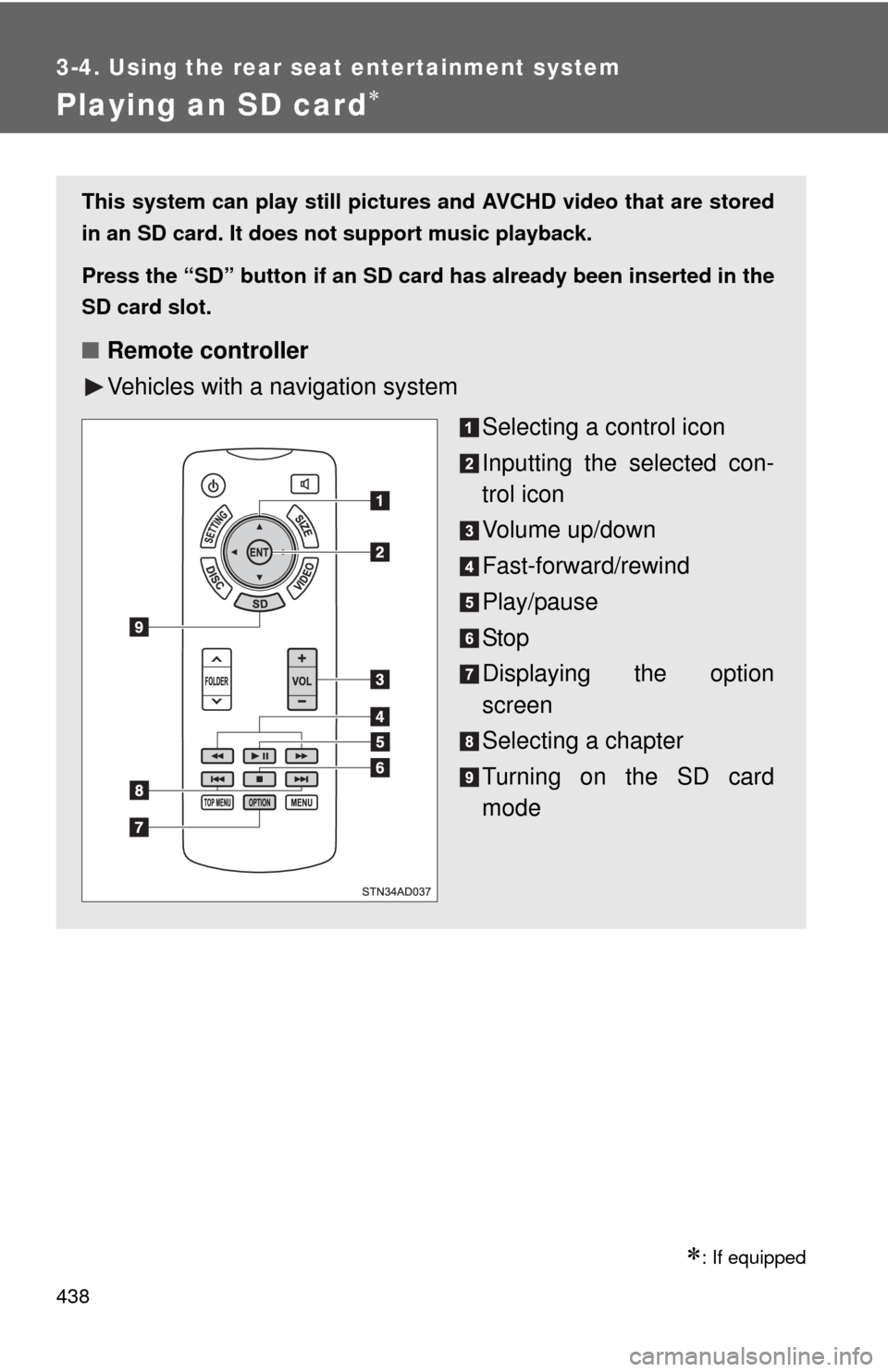
This system can play still pictures and AVCHD video that are stored
in an SD card. It does not support music playback.
Press the “SD” button
if an SD card has already been inserted in the
SD card slot.
■ Remote controller
Vehicles with a navigation system
Selecting a control icon
Inputting the selected con-
trol icon
Volume up/down
Fast-forward/rewind
Play/pause
Stop
Displaying the option
screen
Selecting a chapter
Turning on the SD card
mode
Page 439 of 740
439
3-4. Using the rear seat entertainment system
3
Interior features
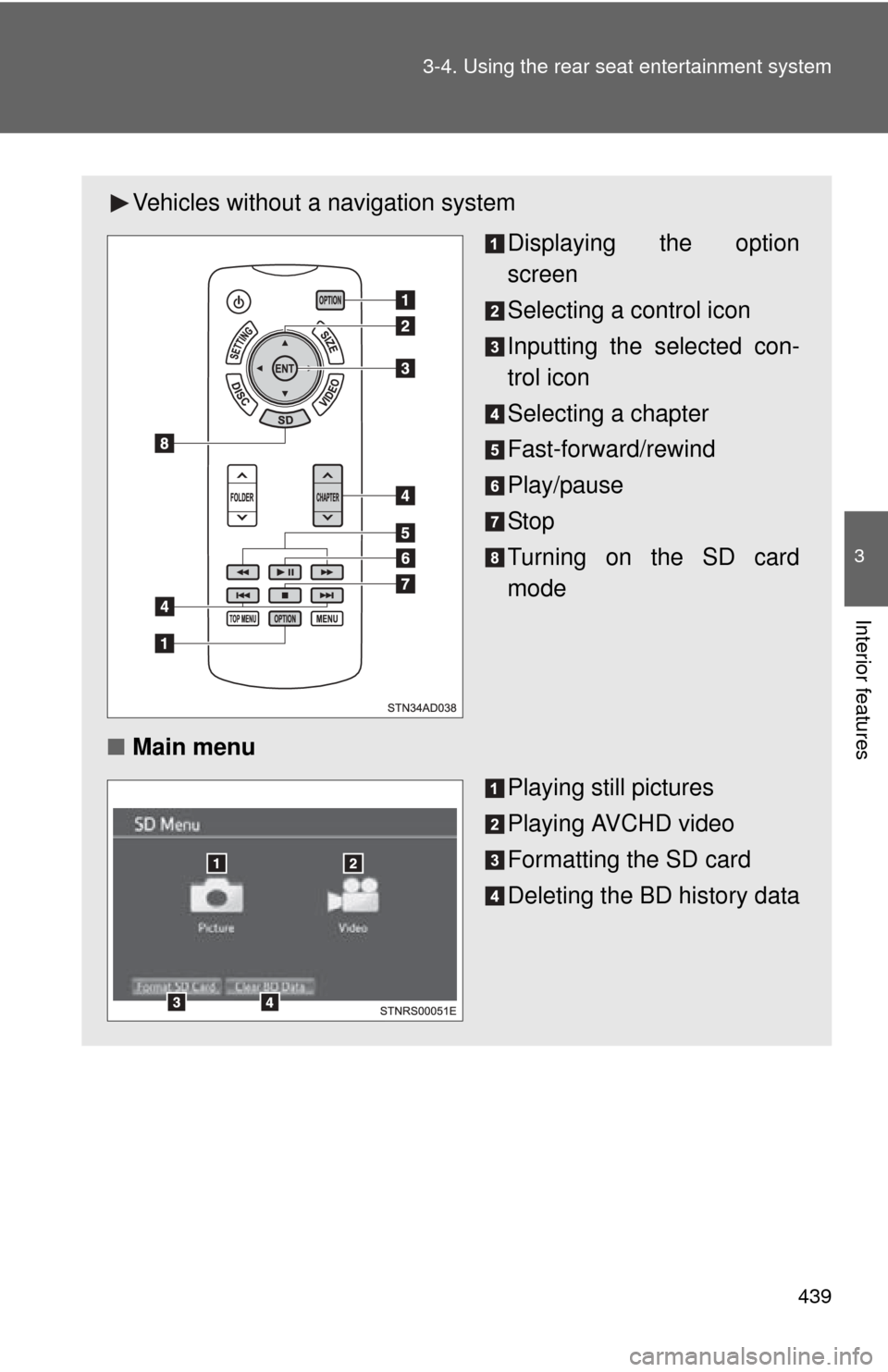
Vehicles without
a navigation system
Displaying the option
screen
Selecting a control icon
Inputting the selected con-
trol icon
Selecting a chapter
Fast-forward/rewind
Play/pause
Stop
Turning on the SD card
mode
■ Main menu
Playing still pictures
Playing AVCHD video
Formatting the SD card
Deleting the BD history data
Page 440 of 740
440 3-4. Using the rear seat entertainment system
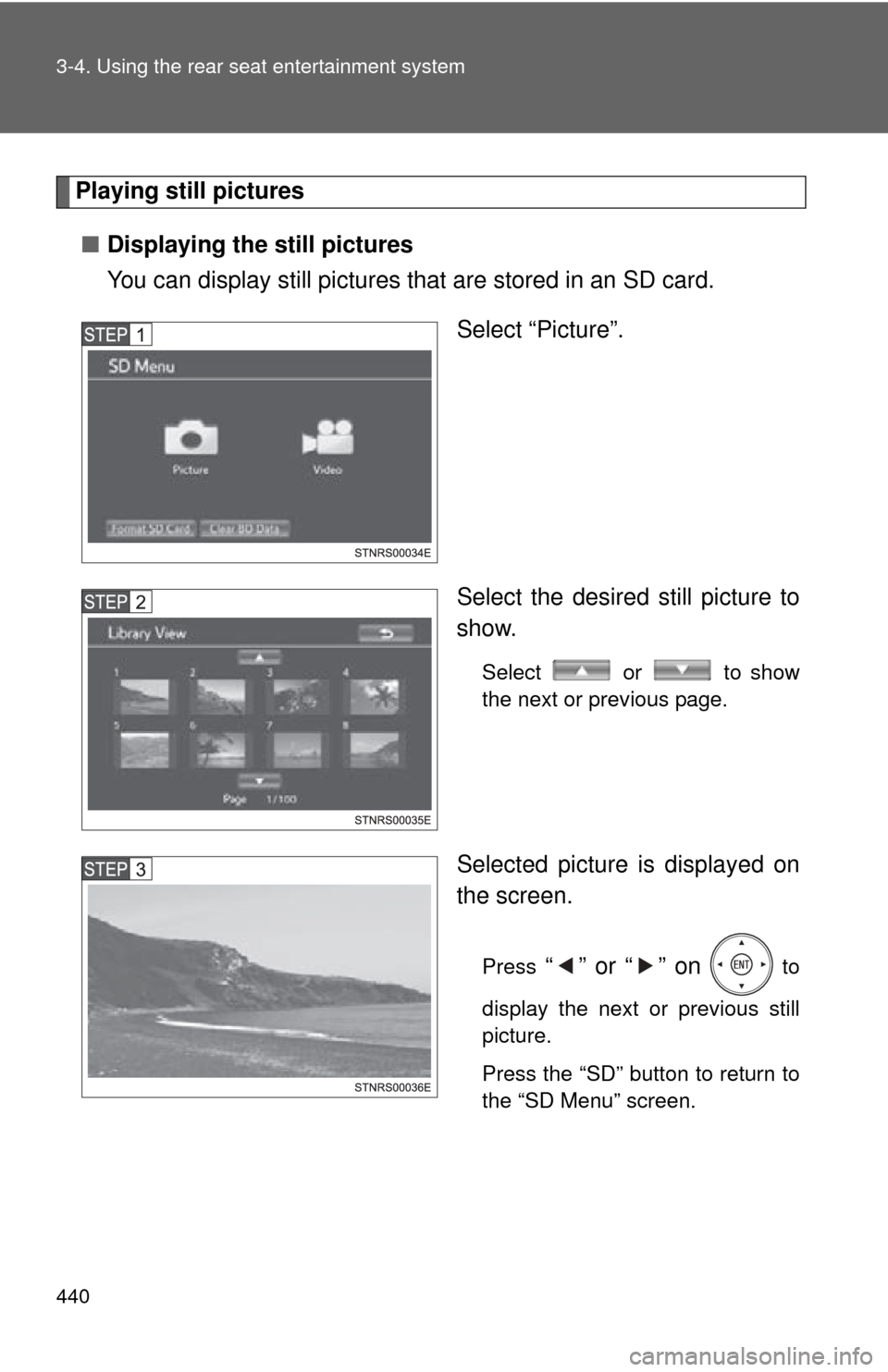
Playing still pictures■ Displaying the still pictures
You can display still pictures that are stored in an SD card.
Select “Picture”.
Select the desired still picture to
show.
Select or to show
the next or previous page.
Selected picture is displayed on
the screen.
Press “” or “” on to
display the next or previous still
picture.
Press the “SD” button to return to
the “SD Menu” screen.
Page 441 of 740
441
3-4. Using the rear seat entertainment system
3
Interior features
■
Option screen
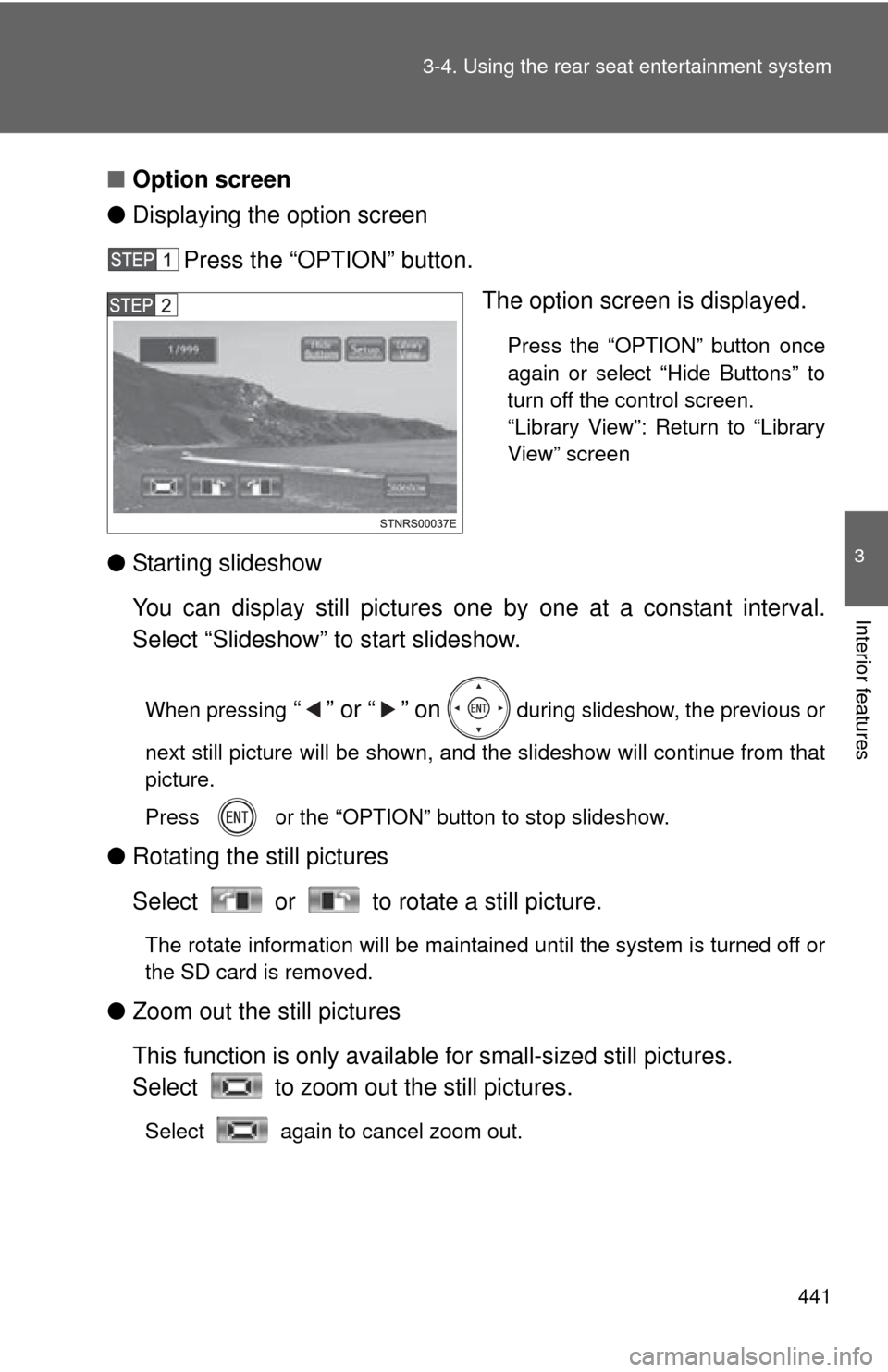
● Displaying the option screen
Press the “OPTION” button. The option screen is displayed.
Press the “OPTION” button once
again or select “Hide Buttons” to
turn off the control screen.
“Library View”: Return to “Library
View” screen
● Starting slideshow
You can display still pictures one by one at a constant interval.
Select “Slideshow” to start slideshow.
When pressing “” or “” on during slideshow, the previous or
next still picture will be shown, and the slideshow will continue from that
picture.
Press or the “OPTION” button to stop slideshow.
● Rotating the still pictures
Select or to rotate a still picture.
The rotate information will be maintained until the system is turned off or
the SD card is removed.
●Zoom out the still pictures
This function is only availabl e for small-sized still pictures.
Select to zoom out the still pictures.
Select again to cancel zoom out.