display TOYOTA SEQUOIA 2013 2.G Repair Manual
[x] Cancel search | Manufacturer: TOYOTA, Model Year: 2013, Model line: SEQUOIA, Model: TOYOTA SEQUOIA 2013 2.GPages: 740, PDF Size: 15.34 MB
Page 375 of 740
375
3-3. Using the Bluetooth
® audio system
3
Interior features
Operating the system using voice commands
By following the voice guidance inst ructions output from the speaker,
voice commands enable the operation of the Bluetooth
® audio sys-
tem without the need to check the display or operate .
■ Operation procedure when using voice commands
Press the talk switch and follow the voice guidance instructions.
■ Auxiliary commands when using voice commands
The following auxiliary commands can be used when operating the
system using a voice command:
“Cancel”: Exits the Bluetooth
® audio system
“Repeat”: Repeats the previous voice guidance instruction
“Go back”: Returns to the previous procedure
“Help”: Reads aloud the function summary if a help comment is
registered for the selected function
Page 376 of 740
376 3-3. Using the Bluetooth
® audio system
Using the Bluetooth® audio system for the first time
Before using the Bluetooth
® audio system, it is necessary to register
a Bluetooth® enabled portable player in the system. Follow the proce-
dure below to register (pair) a portable player:
Press until “BT AUDIO” is displayed.
Press that corresponds to “SETUP”.
The introductory guidance and port able player name registration
instructions are heard.
Select “Pair Audio Player” using a voice command or .
Register a portable player nam e by either of the following
methods:
a. Select “Record Name” using , and say the name to
be registered.
b. Press the talk switch and say the name to be registered.
A voice guidance instruction to confirm the input is heard.
Select “Confirm” using a voice command or .
A passkey is displayed and heard, and a voice guidance instruction
for inputting the passkey into the portable player is heard. Input the passkey into the portable player.
Refer to the manual that comes with the portable player for the oper-
ation of the portable player.
Guidance for registration completion is heard.
If the portable player has a Bluetooth
® phone, the phone can be reg-
istered at the same time. ( P. 455)
Page 377 of 740
377
3-3. Using the Bluetooth
® audio system
3
Interior features
Menu list of the Bluetooth® audio system
■ Normal operation
“BT•A Setup” can be canceled by pres sing the on-hook switch or saying
the voice comm and, “Cancel”.
First menuSecond
menuThird menuOperation detail
“Setup” “BT
•A
Setup” “Pair Audio
Player”
Registering a portable player
“Select Audio
Player” Selecting a portable player to
be used
“Change Name” Changing the registered
name of a portable player
“List Audio Players”Listing the registered porta-
ble players
“Set Passkey” Changing the passkey
“Delete Audio” Deleting a registered porta-
ble player
“Sys-
tem
Setup”
“Guidance Volume”Setting voice guidance vol-
ume
“Device Name” Displaying the Bluetooth
®
device address and name
“Initialize” Initializing the system
Page 379 of 740
379
3-3. Using the Bluetooth® audio system
3
Interior features
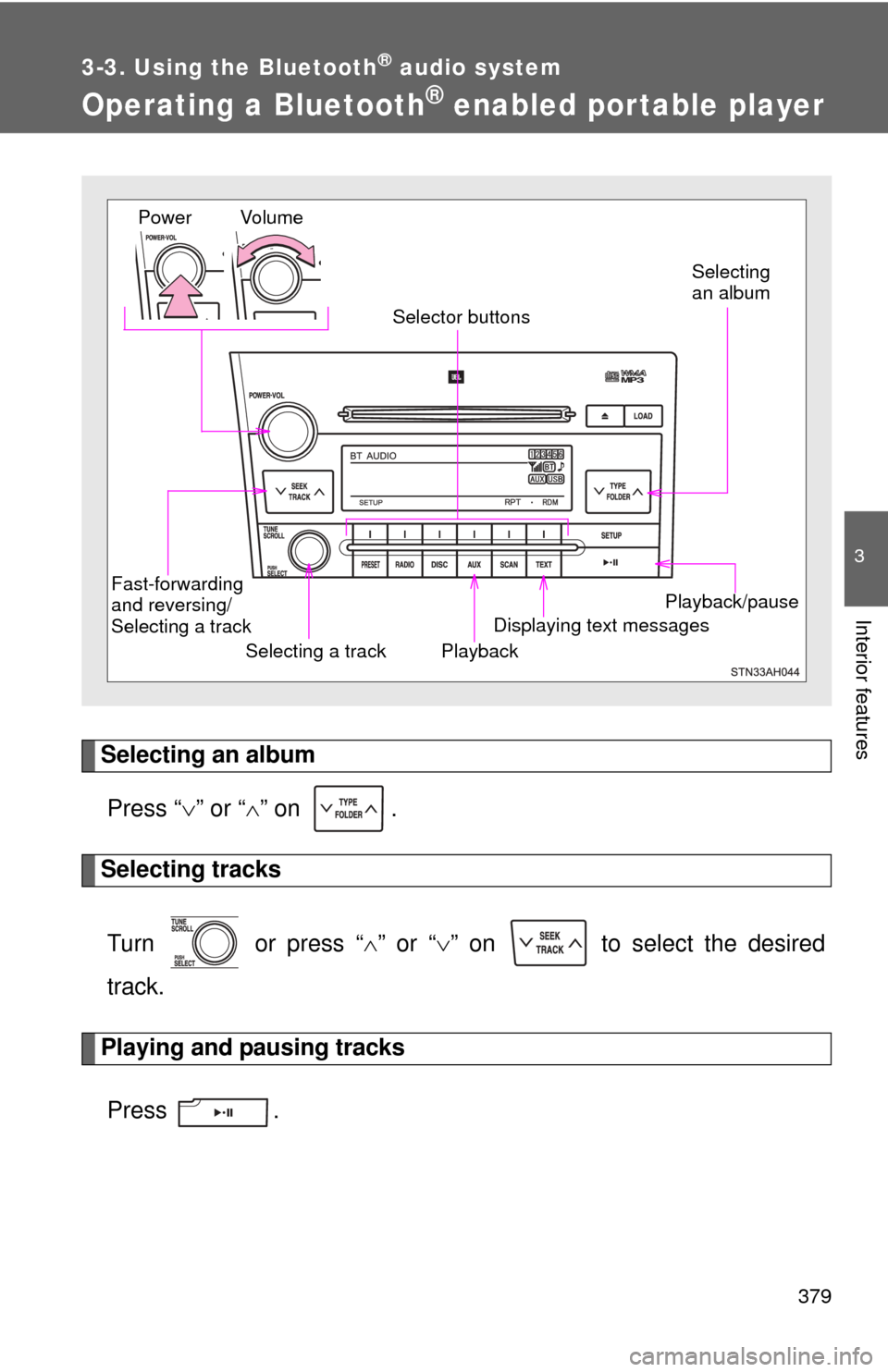
Operating a Bluetooth® enabled por table player
Selecting an albumPress “ ” or “ ” on .
Selecting tracks
Turn or press “ ” or “ ” on to select the desired
track.
Playing and pausing tracks
Press .
Playback/pause
Displaying text messages
Selecting a track
Selecting
an album
Fast-forwarding
and reversing/
Selecting a track Playback
Vo l u m e
Power
Selector buttons
Page 380 of 740
380 3-3. Using the Bluetooth
® audio system
Fast-forwarding and reversing tracksPress and hold “
” or “ ” on .
Switching the display
Press .
Each time is pressed, the display changes in the following order:
Track title Track title/Artist name Track title/Album name Track
title/Elapsed time
Using the steering wheel audio switches
P. 3 6 8
■Bluetooth® audio system functions
Depending on the portable player that is connected to the system, certain
functions may not be available.
■ Error messages
“BT AUDIO ERROR”: This indicates a problem in the system.
Page 381 of 740
381
3-3. Using the Bluetooth® audio system
3
Interior features
Setting up a Bluetooth® enabled por table player
Registering a portable playerSelect “Pair Audio Player” using a voice command or , and
perform the procedure for registering a portable player. ( P. 376)
Registering a portable player in the Bluetooth® audio system allows
the system to function. The following functions can be used for reg-
istered portable players:
■ Functions and operation procedures
Press until “BT AUDIO” is displayed.
Press that corresponds to “SETUP”.
Select one of the following functions using a voice com-
mand or .
● Registering a portable player
“Pair Audio Player”
● Selecting a portable player to be used
“Select Audio Player”
● Changing the registered name
“Change Name”
● Listing the registered portable players
“List Audio Players”
● Changing the passkey
“Set Passkey”
● Deleting a registered portable player
“Delete Audio Player (Delete Audio)”
Page 386 of 740
386
3-3. Using the Bluetooth® audio system
Bluetooth® audio system setup
■System setup items and operation procedures
●Setting voice guidance volume
1. “Setup” 2. “System Setup” 3. “Guidance Volume”
( P. 470)
● Displaying the Bluetooth
® device address and name
1. “Setup” 2. “System Setup” 3. “Device Name”
( P. 471)
● Initialization
1. “Setup” 2. “System Setup” 3. “Initialize”
( P. 471)
Page 387 of 740
387
3
Interior features
3-4. Using the rear seat entertainment system
Rear seat enter tainment system features
: If equipped
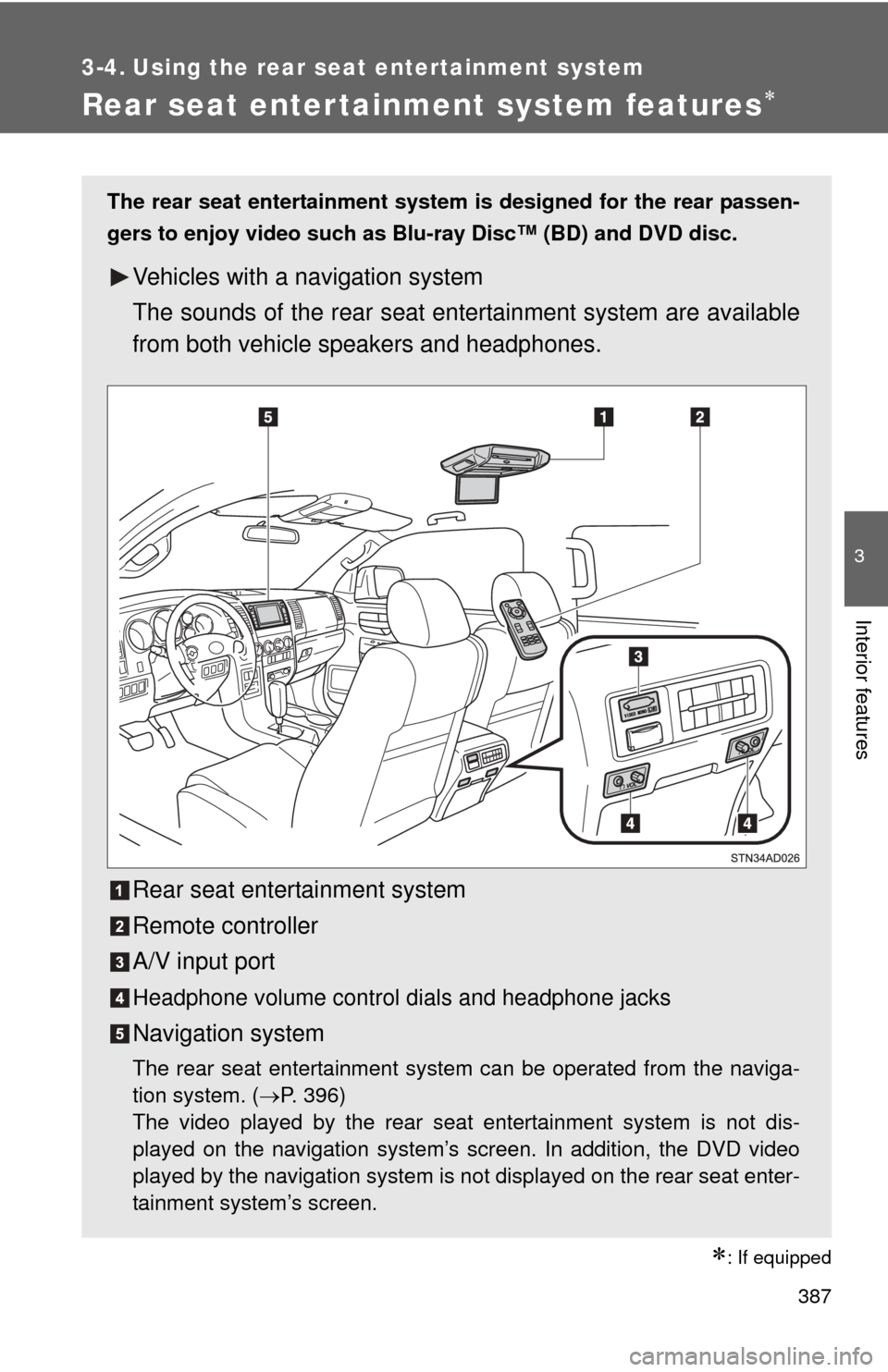
The rear seat entertainment system is designed for the rear passen-
gers to enjoy video such as Blu-ray Disc™ (BD) and DVD disc.
Vehicles with a navigation system
The sounds of the rear seat en tertainment system are available
from both vehicle speakers and headphones.
Rear seat entertainment system
Remote controller
A/V input port
Headphone volume control dials and headphone jacks
Navigation system
The rear seat entertainment system can be operated from the naviga-
tion system. (P. 396)
The video played by the rear seat entertainment system is not dis-
played on the navigation system’s screen. In addition, the DVD video
played by the navigation system is not displayed on the rear seat enter-
tainment system’s screen.
Page 389 of 740
389
3-4. Using the rear seat entertainment system
3
Interior features
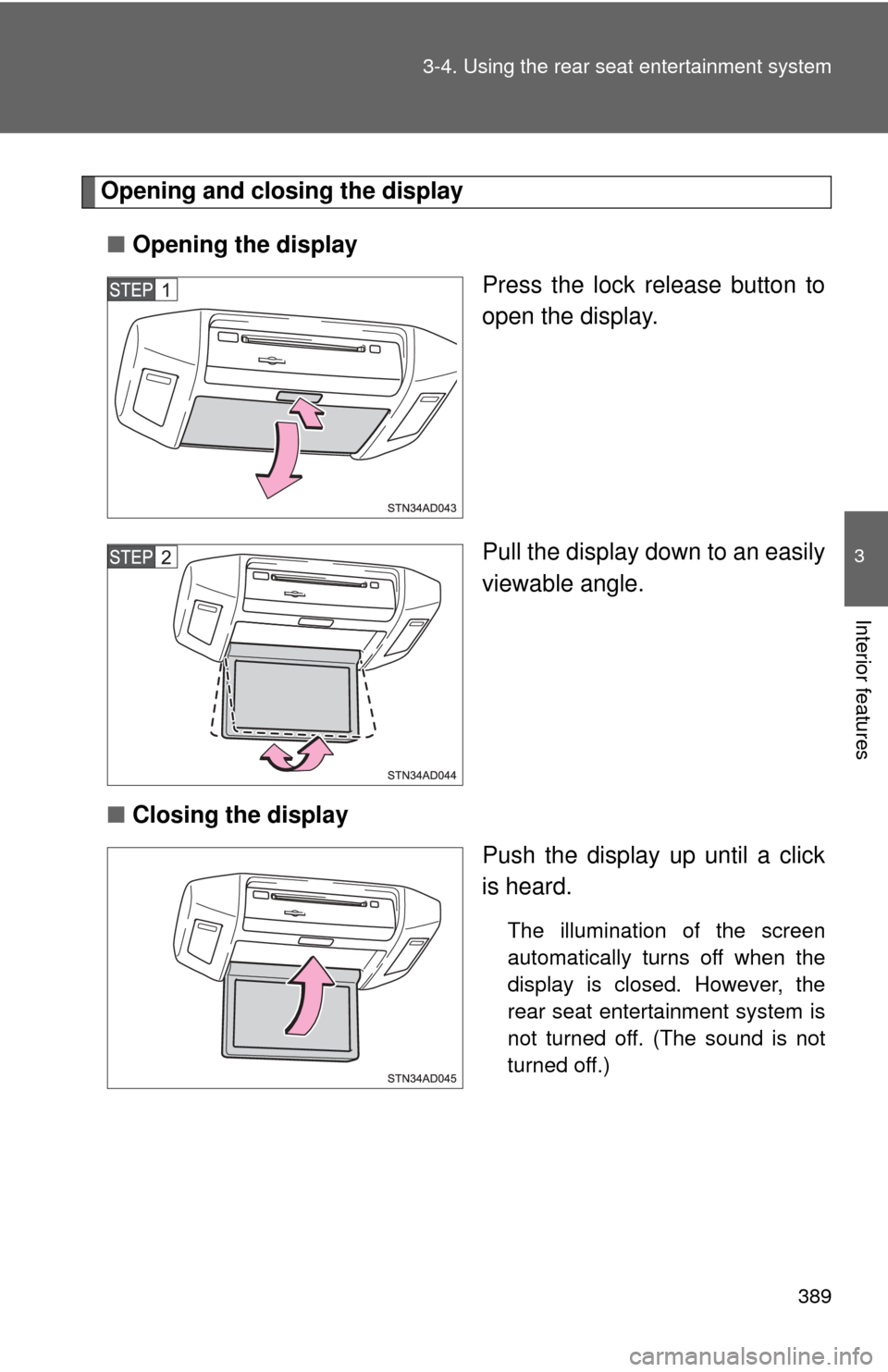
Opening and closing the display
■ Opening the display
Press the lock release button to
open the display.
Pull the display down to an easily
viewable angle.
■ Closing the display
Push the display up until a click
is heard.
The illumination of the screen
automatically turns off when the
display is closed. However, the
rear seat entertainment system is
not turned off. (The sound is not
turned off.)
Page 393 of 740
393
3-4. Using the rear seat entertainment system
3
Interior features
Turning on/off the rear seat entertainment system
Press to turn on the rear seat entertainment system.
Press once again to turn off the system.
Adjusting the volume (vehicles with a navigation system)
Press “+” or “-” on the “VOL” button to adjust the volume.
When the speaker output is off, the volume cannot be adjusted.
Turning on/off the speaker output (vehicles with a navigation system)
Press to turn on/off the speaker output.
On: The sound is available from both vehicle speakers and headphones.
Off: The sound is available from the headphones only.
Selecting a control icon Press “ ”, “ ”, “ ” or “ ” on to select the control icon on the
screen.
Then press to enter.
Changing the screen sizeEach time the “SIZE” button is pressed, the screen size changes in
the following order:
Normal: Displays the screen at the original ratio
Wide 1: Widens the 4:3 aspect screen horizontally to fill the screen
Wide 2: Widens the screen vertically and horizontally, at the same ratio, to fill th e entire screen
The screen size can be changed for each media mode individually.