phone TOYOTA SIENNA 2018 Accessories, Audio & Navigation (in English)
[x] Cancel search | Manufacturer: TOYOTA, Model Year: 2018, Model line: SIENNA, Model: TOYOTA SIENNA 2018Pages: 435, PDF Size: 11.83 MB
Page 90 of 435
90
2. RADIO OPERATION
SIENNA_Navi+MM_OM08021U_(U)
17.08.16 10:05
1Select channels registered to smart fa-
vorites.
2Select “SXM Replay” *2 or “Radio Re-
play” *
3.
No.Function
Returns to the live radio broadcast
Displays the replay offset from the
current time
Skips backward 2 minutes (AM/FM)
Select to change the current/previ-
ous track (SXM)
Fast rewinds continuously
Pauses the playback (To restart, se-
lect
)
Fast forwards continuously
Skips forward 2 minutes (AM/FM)
Select to change the next track
(SXM)
INFORMATION
●The system can stor e up to 20 minutes
of AM/FM and less than 60 minutes of
SXM. Cached data will be erased when
the radio mode or station is changed or
when the audio/visual system is turned
off.
● AM/FM: If noise or silence occurs during
the caching process, cache writing will
continue, with the noise or silence
recorded as is. In this case, the cached
broadcast will contain the noise or
silence when played back.
AUTOMATIC PLAYBACK OF
THE CACHE
If the radio broadcast is interrupted by
another audio output, such as an
incoming phone call, the system will
automatically cache the interrupted
portion and perform time-shift
playback when the interruption ends.
This function is available when “Auto
Pause” is set to on. ( →P.92)
SMART FAVORITES (SXM)*1
Up to 20 channels can be registered as
presets in the cache. Caches the latest
less than 30 minutes for each channel.
For channel registration: →P.121
INFORMATION
●When “SXM Tune Start” is turned on
( → P.92), the current song is played from
the beginning when you select the chan-
nel.
● is displayed on the channels regis-
tered to smart favorites. ( →P.86)
*1: Entune Audio Plus/Entune Premium Audio only
*2: Entune Audio Plus only
*3: Entune Premium Audio only
Page 99 of 435
99
2. RADIO OPERATION
SIENNA_Navi+MM_OM08021U_(U)
17.08.16 10:05
AUDIO/VISUAL SYSTEM
3
2. INTERNET RADIO
1Display the audio source selection
screen. (→P.80)
2Select the desired application screen
button.
The internet radio application screen is
displayed.
Perform operations according to the dis-
played application screen.
For the instrument panel operation
method: →P. 8 0
If a compatible phone is already regis-
tered, it will be connected automatically.
LISTENING TO INTERNET
RADIO
One of Toyota Entune App Suite Con-
nect features is the ability to listen to in-
ternet radio. In order to use this
service, a compatible phone and the
system needs to be set up. For details:
→P.398
INFORMATION
●Other applications can be activated
while listening to internet radio.
● Some parts of applications can be
adjusted using the switches on the
steering wheel.
● For additional information, refer to
http://www.toyota.com/entune/
or call
1-800-331-4331.
Page 112 of 435

112
3. MEDIA OPERATION
SIENNA_Navi+MM_OM08021U_(U)
17.08.16 10:05
INFORMATION
●Depending on the Bluetooth® device that is connected to the system, the music may start
playing when selecting while it is paused. Conversely, the music may pause when
selecting while it is playing.
● In the following conditions, the system may not function:
• The Bluetooth
® device is turned off.
• The Bluetooth
® device is not connected.
• The Bluetooth
® device has a low battery.
● When using the Bluetooth
® audio and Wi-Fi® Hotspot functions at the same time, the fol-
lowing problems may occur:
• It may take longer than normal to connect to the Bluetooth
® device.
• The sound may cut out.
● It may take time to connect the phone when Bluetooth
® audio is being played.
● For operating the portable player, see the instruction manual that comes with it.
● If the Bluetooth
® device is disconnected due to poor reception from the Bluetooth® net-
work when the engine switch is in the follow ing, the system will automatically reconnect
to the portable player.
Vehicles without a smart key system
The engine switch is in the “ACC” or “ON” position.
Vehicles with a smart key system
The engine switch is in ACC ESSORY or IGNITION ON mode.
●If the Bluetooth® device is disconnected on purpose, such as it was turned off, this does
not happen. Reconnect the portable player manually.
● Bluetooth
® device information is registered when the Bluetooth® device is connected to
the Bluetooth® audio/visual system. When selling or disposing of the vehicle, remove the
Bluetooth® audio information from the system. ( →P. 6 5 )
Page 113 of 435

113
3. MEDIA OPERATION
SIENNA_Navi+MM_OM08021U_(U)
17.08.16 10:05
AUDIO/VISUAL SYSTEM
3
Registering an additional device
1Display the Bluetooth® audio control
screen. ( →P.109)
2Select “Connect” .
3Select “Add Device” .
When another Bluetooth® device is con-
nected, a confirmation screen will be dis-
played. To disconnect the Bluetooth
®
device, select “Yes”.
4Follow the steps in “REGISTERING A
Bluetooth
® PHONE FOR THE FIRST
TIME” from “STEP 5”. ( →P.43)
Selecting a registered device
1Display the Bluetooth® audio control
screen. ( →P.109)
2Select “Connect” .
3Select the desired device to be con-
nected.
4Check that a confirmation screen is
displayed when the connection is com-
plete.
If an error message is displayed, follow
the guidance on the screen to try again.
REGISTERING/CONNECTING
A Bluetooth® DEVICE
To use the Bluetooth® audio system, it
is necessary to register a Bluetooth
®
device with the system.
Page 122 of 435
122
5. SETUP
SIENNA_Navi+MM_OM08021U_(U)
17.08.16 10:05
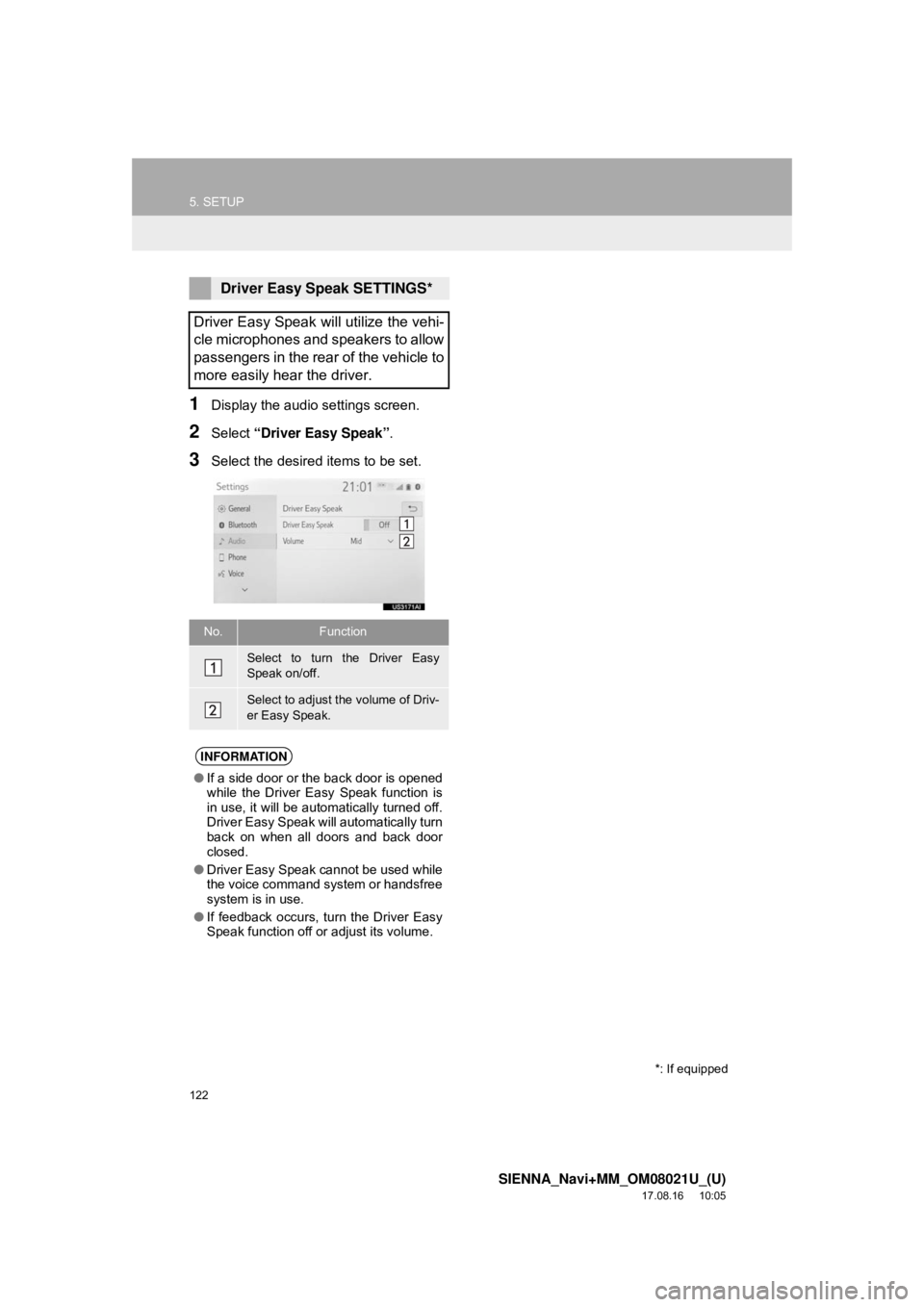
1Display the audio settings screen.
2Select “Driver Easy Speak” .
3Select the desired items to be set.
Driver Easy Speak SETTINGS*
Driver Easy Speak will utilize the vehi-
cle microphones and speakers to allow
passengers in the rear of the vehicle to
more easily hear the driver.
No.Function
Select to turn the Driver Easy
Speak on/off.
Select to adjust the volume of Driv-
er Easy Speak.
INFORMATION
● If a side door or the back door is opened
while the Driver Easy Speak function is
in use, it will be automatically turned off.
Driver Easy Speak will automatically turn
back on when all doors and back door
closed.
● Driver Easy Speak cannot be used while
the voice command system or handsfree
system is in use.
● If feedback occurs, turn the Driver Easy
Speak function off or adjust its volume.
*: If equipped
Page 123 of 435
123
SIENNA_Navi+MM_OM08021U_(U)
17.08.16 10:05
AUDIO/VISUAL SYSTEM
3
6. TIPS FOR OPERATING THE AUDIO/VISUAL SYSTEM
1. OPERATING INFORMATION
Fading and drifting stations: Generally, the
effective range of FM is about 25 miles (40
km). Once outside this range, you may no-
tice fading and drifting, which increase with
the distance from the radio transmitter.
They are often accompanied by distortion.
Multi-path: FM signals are reflective, mak-
ing it possible for 2 signals to reach the ve-
hicle’s antenna at the same time. If this
happens, the signals will cancel each other
out, causing a momentary flutter or loss of
reception.
Static and fluttering: These occur when
signals are blocked by buildings, trees or
other large objects. Increasing the bass
level may reduce static and fluttering.
Station swapping: If the FM signal being
listened to is interrupted or weakened, and
there is another st rong station nearby on
the FM band, the radio may tune in the
second station until the original signal can
be picked up again.
Fading: AM broadcasts are reflected by
the upper atmosphere — especially at
night. These reflected signals can interfere
with those received directly from the radio
station, causing the radio station to sound
alternately strong and weak.
NOTICE
● To avoid damage to the audio/visual
system:
• Be careful not to spill beverages over
the audio/visual system.
• Do not put anything other than an appropriate disc into the disc slot.
INFORMATION
● The use of a cellular phone inside or
near the vehicle may cause a noise from
the speakers of t he audio/visual system
which you are listening to. However, this
does not indicate a malfunction.
RADIO
Usually, a problem with radio reception
does not mean there is a problem with
the radio — it is just the normal result
of conditions outside the vehicle.
For example, nearby buildings and ter-
rain can interfere with FM reception.
Power lines or phone wires can inter-
fere with AM signals. And of course, ra-
dio signals have a limited range. The
farther the vehicle is from a station, the
weaker its signal will be. In addition, re-
ception conditions change constantly
as the vehicle moves.
Here, some common reception prob-
lems that probably do not indicate a
problem with the radio are described.
FM
AM
Page 126 of 435
126
6. TIPS FOR OPERATING THE AUDIO/VISUAL SYSTEM
SIENNA_Navi+MM_OM08021U_(U)
17.08.16 10:05
Remove discs from the players when not
in use. Store them in their plastic cases
away from moisture, heat and direct sun-
light.
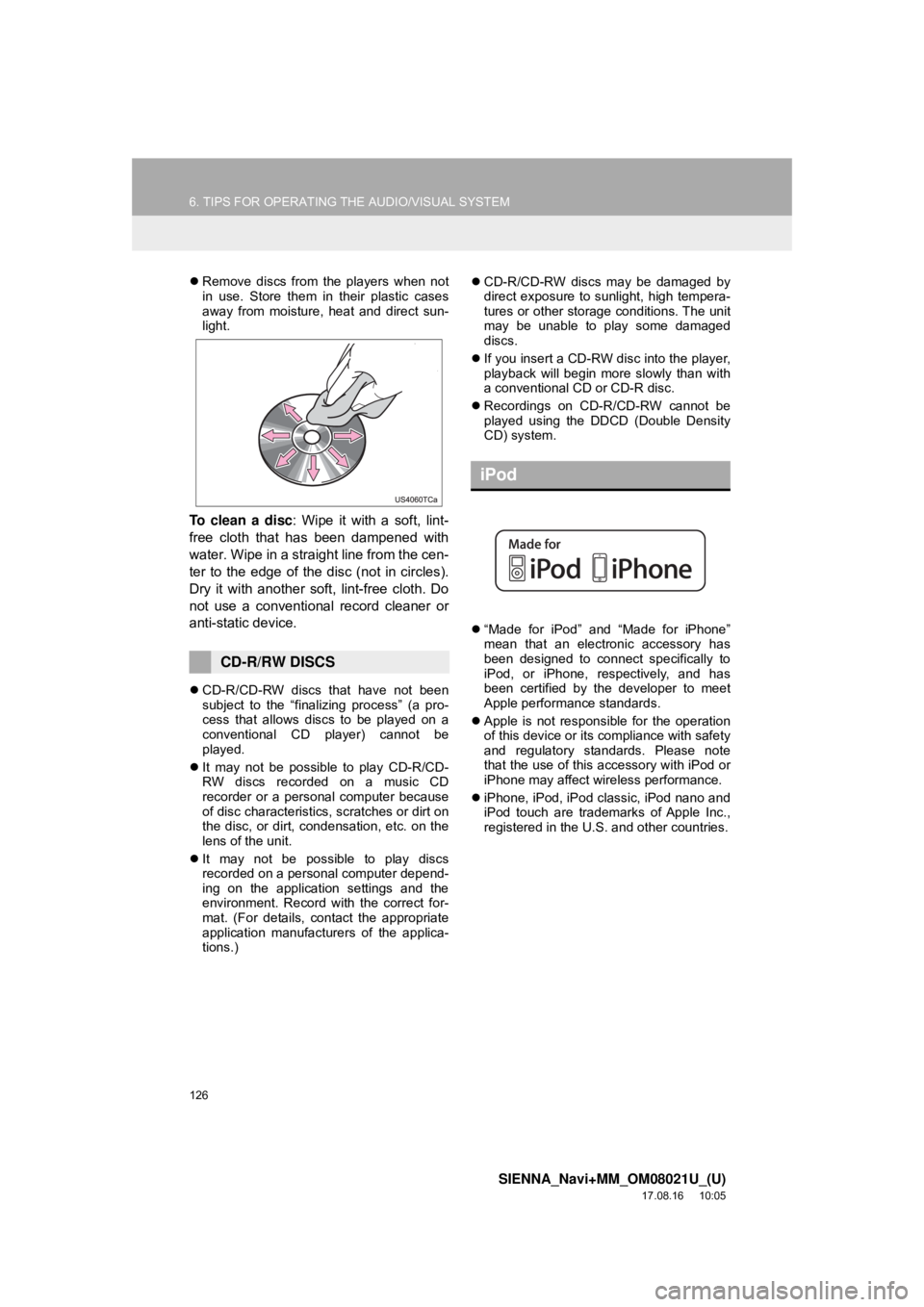
To clean a disc : Wipe it with a soft, lint-
free cloth that has been dampened with
water. Wipe in a straight line from the cen-
ter to the edge of the disc (not in circles).
Dry it with another soft, lint-free cloth. Do
not use a conventional record cleaner or
anti-static device.
CD-R/CD-RW discs that have not been
subject to the “finalizing process” (a pro-
cess that allows discs to be played on a
conventional CD player) cannot be
played.
It may not be possible to play CD-R/CD-
RW discs recorded on a music CD
recorder or a personal computer because
of disc characteristics, scratches or dirt on
the disc, or dirt, condensation, etc. on the
lens of the unit.
It may not be possible to play discs
recorded on a personal computer depend-
ing on the application settings and the
environment. Record with the correct for-
mat. (For details, contact the appropriate
application manufacturers of the applica-
tions.)
CD-R/CD-RW discs may be damaged by
direct exposure to sunlight, high tempera-
tures or other storage conditions. The unit
may be unable to play some damaged
discs.
If you insert a CD-RW disc into the player,
playback will begin more slowly than with
a conventional CD or CD-R disc.
Recordings on CD-R/CD-RW cannot be
played using the D DCD (Double Density
CD) system.
“Made for iPod” and “Made for iPhone”
mean that an electronic accessory has
been designed to connect specifically to
iPod, or iPhone, respectively, and has
been certified by the developer to meet
Apple performance standards.
Apple is not responsible for the operation
of this device or its compliance with safety
and regulatory standards. Please note
that the use of this accessory with iPod or
iPhone may affect wireless performance.
iPhone, iPod, iPod classic, iPod nano and
iPod touch are trademarks of Apple Inc.,
registered in the U.S. and other countries.
CD-R/RW DISCS
iPod
Page 127 of 435
127
6. TIPS FOR OPERATING THE AUDIO/VISUAL SYSTEM
SIENNA_Navi+MM_OM08021U_(U)
17.08.16 10:05
AUDIO/VISUAL SYSTEM
3
The Lightning connector works with
iPhone SE, iPhone 6s Plus, iPhone 6s,
iPhone 6 Plus, iPhone 6, iPhone 5s,
iPhone 5c, iPhone 5, iPod touch (5th and
6th generation), and iPod nano (7th gen-
eration).
The 30-pin connector works with iPhone
4s, iPhone 4, iPhone 3GS, iPhone 3G,
iPhone, iPod touch (1st through 4th gen-
eration), iPod classic, and iPod nano (1st
through 6th generation).
USB works with iPhone SE, iPhone 6s
Plus, iPhone 6s, iPhone 6 Plus, iPhone 6,
iPhone 5s, iPhone 5c, iPhone 5, iPhone
4s, iPhone 4, iPhone 3GS, iPhone 3G,
iPhone, iPod touch (1st through 6th gen-
eration), iPod classic, and iPod nano (1st
through 7th generation).
Bluetooth
® technology works with iPhone
SE, iPhone 6s Plus, iPhone 6s, iPhone 6
Plus, iPhone 6, iPhone 5s, iPhone 5c,
iPhone 5, iPhone 4s, iPhone 4, iPhone
3GS, iPhone 3G, iPhone, iPod touch (2nd
through 6th generation), and iPod nano
(7th generation).
The following iPod®, iPod nano®, iPod
classic®, iPod touch® and iPhone® devic-
es can be used with this system.
Entune Audio
Made for
• iPod touch (6th generation)
• iPod touch (5th generation)
• iPod nano (7th generation)
• iPhone SE
• iPhone 6s Plus
• iPhone 6s
• iPhone 6 Plus
• iPhone 6
• iPhone 5s
• iPhone 5c
• iPhone 5
• iPhone 4s
Entune Audio Plus
Made for
• iPod touch (6th generation)
• iPod touch (5th generation)
• iPod nano (7th generation)
• iPhone 7 Plus
• iPhone 7
• iPhone SE
• iPhone 6s Plus
• iPhone 6s
• iPhone 6 Plus
• iPhone 6
• iPhone 5s
• iPhone 5c
• iPhone 5
• iPhone 4s
Entune Premium Audio
Made for
• iPod touch (6th generation)
• iPod touch (5th generation)
• iPod touch (4th generation)
• iPod touch (3rd generation)
• iPod touch (2nd generation)
• iPod touch (1st generation)
• iPod nano (7th generation)
• iPod nano (6th generation)
• iPod nano (5th generation)
• iPod nano (4th generation)
• iPhone SE
• iPhone 6s Plus
• iPhone 6s
• iPhone 6 Plus
• iPhone 6
• iPhone 5s
• iPhone 5c
• iPhone 5
• iPhone 4s
• iPhone 4
• iPhone 3GS
• iPhone 3G
Depending on differences between mod-
els or software versions etc., some models
might be incompatible with this system.
COMPATIBLE MODELS
Page 134 of 435
134
SIENNA_Navi+MM_OM08021U_(U)
17.08.16 10:05
7. REAR SEAT ENTERTAINMENT SYSTEM OPERATION
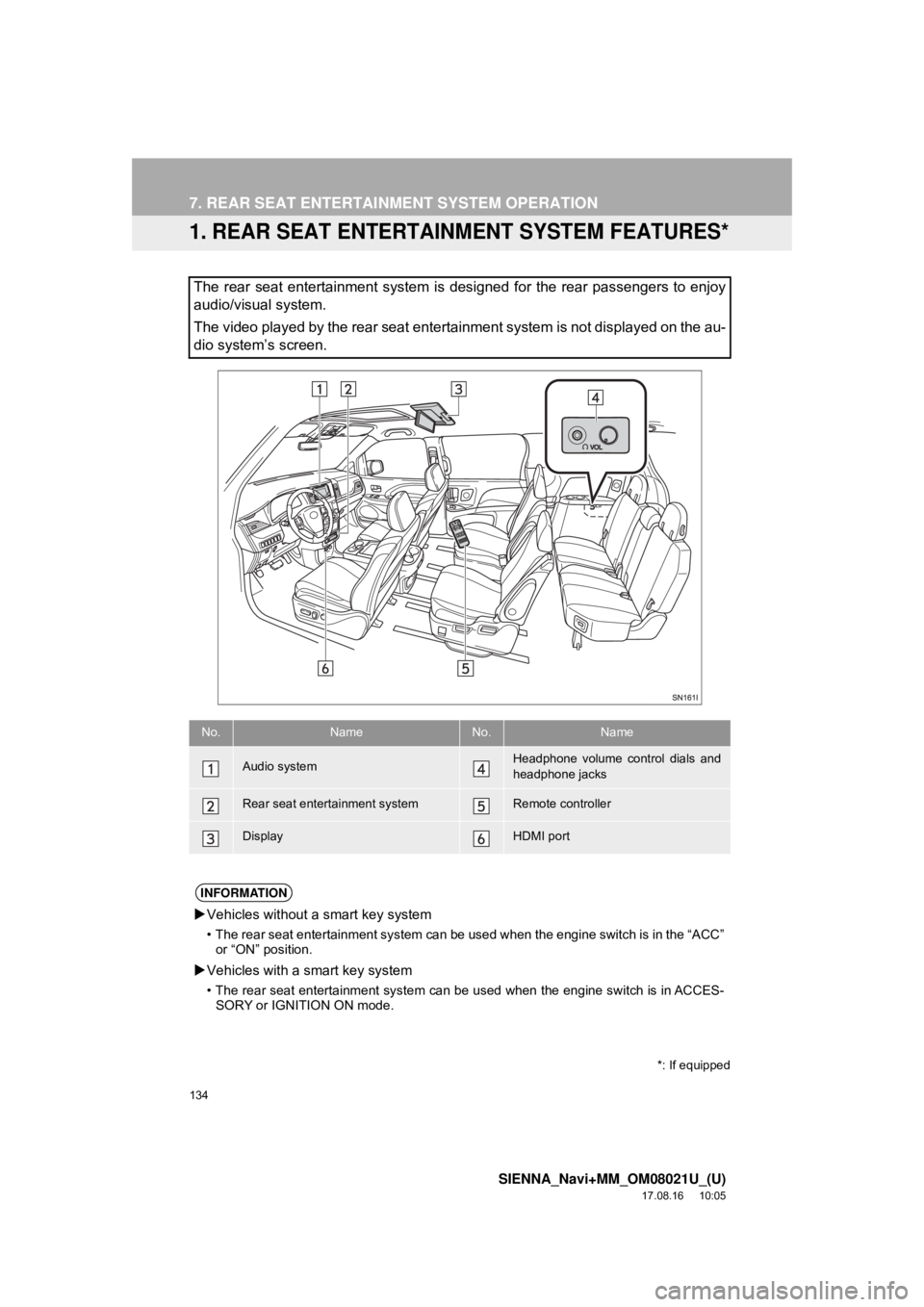
1. REAR SEAT ENTERTAINMENT SYSTEM FEATURES*
The rear seat entertainment system is designed for the rear passengers to enjoy
audio/visual system.
The video played by the rear seat entertainment system is not displayed on the au-
dio system’s screen.
*: If equipped
No.NameNo.Name
Audio systemHeadphone volume control dials and
headphone jacks
Rear seat entertainment systemRemote controller
DisplayHDMI port
INFORMATION
Vehicles without a smart key system
• The rear seat entertainment system can be us ed when the engine switch is in the “ACC”
or “ON” position.
Vehicles with a smart key system
• The rear seat entertainment system can be used when the engine switch is in ACCES-
SORY or IGNITION ON mode.
Page 138 of 435
138
7. REAR SEAT ENTERTAINMENT SYSTEM OPERATION
SIENNA_Navi+MM_OM08021U_(U)
17.08.16 10:05
1Press the button to turn on the
rear seat entertainment system.
Press the button once again to turn
off the system.
1Press “+” or “-” on the “VOL” button
to adjust the volume.
When the speaker output is off, the vol-
ume cannot be adjusted.
1Press the button to turn on/off
the speaker output.
On: The sound is available from both vehi-
cle speakers and headphones.
Off: The sound is available from the head-
phones only.
1Press the “SPLIT” button.
Every time “SPLIT” button is pressed, the
screen will be changed following order.
single screen mode → split screen mode
→ switch right and left screen → single
screen mode
When the screen is switched, the current
screen is displayed on the opposite side of
the screen that is set in the left (“L”) and
right (“R”) selector switch.
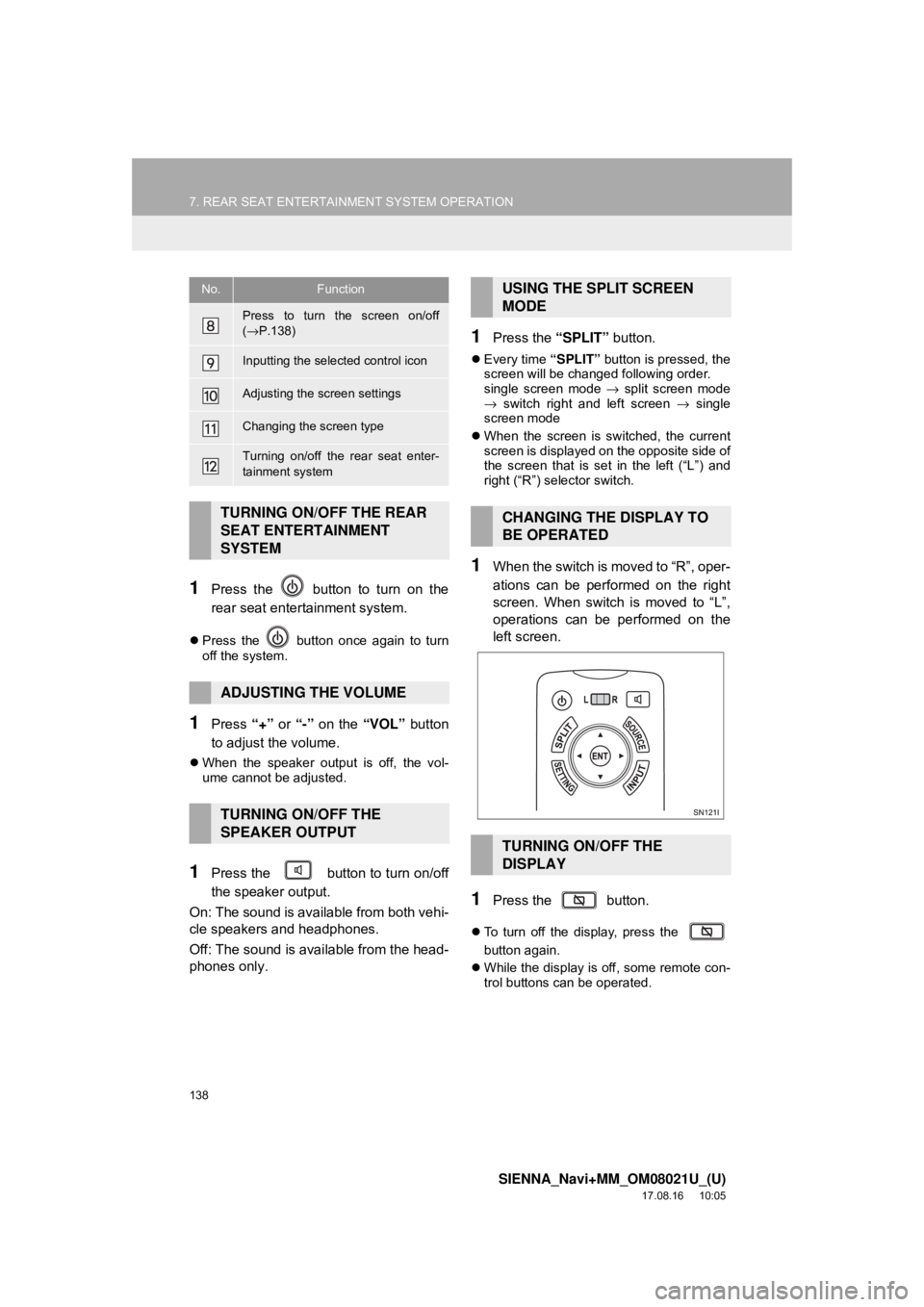
1When the switch is moved to “R”, oper-
ations can be performed on the right
screen. When switch is moved to “L”,
operations can be performed on the
left screen.
1Press the button.
To turn off the display, press the
button again.
While the display is off, some remote con-
trol buttons can be operated.
Press to turn the screen on/off
(→ P.138)
Inputting the selected control icon
Adjusting the screen settings
Changing the screen type
Turning on/off the rear seat enter-
tainment system
TURNING ON/OFF THE REAR
SEAT ENTERTAINMENT
SYSTEM
ADJUSTING THE VOLUME
TURNING ON/OFF THE
SPEAKER OUTPUT
No.FunctionUSING THE SPLIT SCREEN
MODE
CHANGING THE DISPLAY TO
BE OPERATED
TURNING ON/OFF THE
DISPLAY