phone TOYOTA SIENNA 2018 Accessories, Audio & Navigation (in English)
[x] Cancel search | Manufacturer: TOYOTA, Model Year: 2018, Model line: SIENNA, Model: TOYOTA SIENNA 2018Pages: 435, PDF Size: 11.83 MB
Page 142 of 435
142
7. REAR SEAT ENTERTAINMENT SYSTEM OPERATION
SIENNA_Navi+MM_OM08021U_(U)
17.08.16 10:05
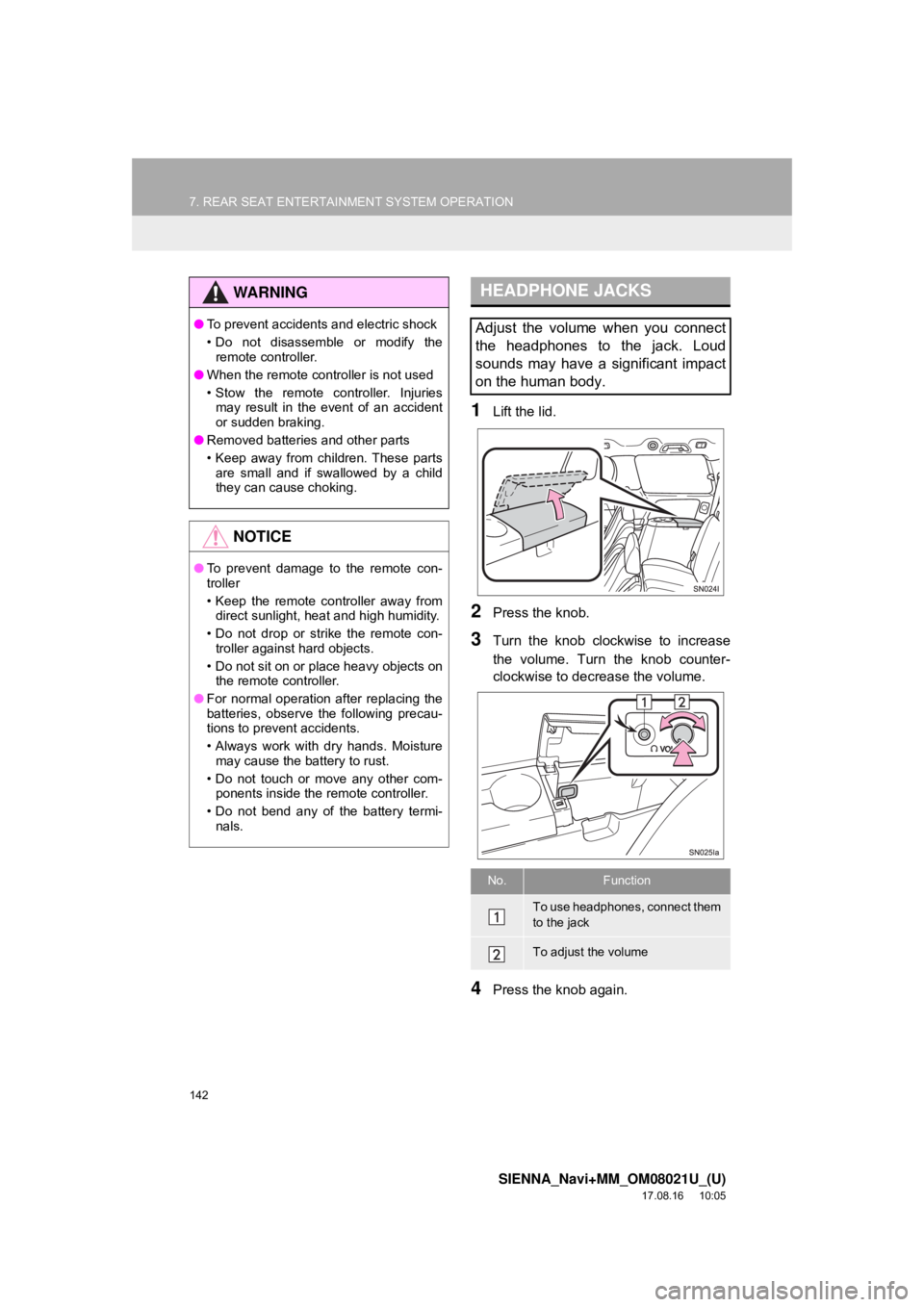
1Lift the lid.
2Press the knob.
3Turn the knob clockwise to increase
the volume. Turn the knob counter-
clockwise to decrease the volume.
4Press the knob again.
WA R N I N G
● To prevent accidents and electric shock
• Do not disassemble or modify the
remote controller.
● When the remote controller is not used
• Stow the remote controller. Injuries
may result in the event of an accident
or sudden braking.
● Removed batteries and other parts
• Keep away from children. These parts
are small and if swallowed by a child
they can cause choking.
NOTICE
● To prevent damage to the remote con-
troller
• Keep the remote controller away from
direct sunlight, heat and high humidity.
• Do not drop or strike the remote con- troller against hard objects.
• Do not sit on or place heavy objects on the remote controller.
● For normal operation after replacing the
batteries, observe the following precau-
tions to prevent accidents.
• Always work with dry hands. Moisture
may cause the battery to rust.
• Do not touch or move any other com- ponents inside the remote controller.
• Do not bend any of the battery termi- nals.
HEADPHONE JACKS
Adjust the volume when you connect
the headphones to the jack. Loud
sounds may have a significant impact
on the human body.
No.Function
To use headphones, connect them
to the jack
To adjust the volume
Page 178 of 435
178
7. REAR SEAT ENTERTAINMENT SYSTEM OPERATION
SIENNA_Navi+MM_OM08021U_(U)
17.08.16 10:05
5. USING THE DLNA MODE*1
Plays or displays music, pictures and
video that are stored on a DLNA serv-
er.
This device supports a DLNA renderer
function.
This device can play and display con-
tent from devices equipped with a
DLNA server function.
Make sure to install DMC-compatible
software on the DLNA server.
Press the “SOURCE” button to turn on
the “R-Wi-Fi*
2” mode. If the “R-DLNA”
screen is not displayed, select
“DLNA” .
*1: If equipped
*2: Wi-Fi® is a registered trademark of Wi-Fi Alliance®.
WA R N I N G
● Use Wi-Fi® devices only when safe and
legal to do so.
● Your audio unit is fitted with Wi-Fi
®
antennas. People with implantable car-
diac pacemakers, cardiac resynchroni-
zation therapy-pacemakers or
implantable cardioverter defibrillators
should maintain a reasonable distance
between themselves and the Wi-Fi
®
antennas.
The radio waves may affect the opera-
tion of such devices.
● Before using Wi-Fi
® devices, users of
any electrical medical device other than
implantable cardiac pacemakers, car-
diac resynchronization therapy-pace-
makers or implantable cardioverter
defibrillators should consult the manu-
facturer of the device for information
about its operation under the influence
of radio waves.
Radio waves could have unexpected
effects on the operation of such medical
devices.
● The Wi-Fi
® networks serve best-effort
traffic.
NOTICE
● Do not leave your smartphone in the
vehicle. In particular, high temperatures
inside the vehicle may damage the
smartphone.
Page 181 of 435
181
7. REAR SEAT ENTERTAINMENT SYSTEM OPERATION
SIENNA_Navi+MM_OM08021U_(U)
17.08.16 10:05
AUDIO/VISUAL SYSTEM
3
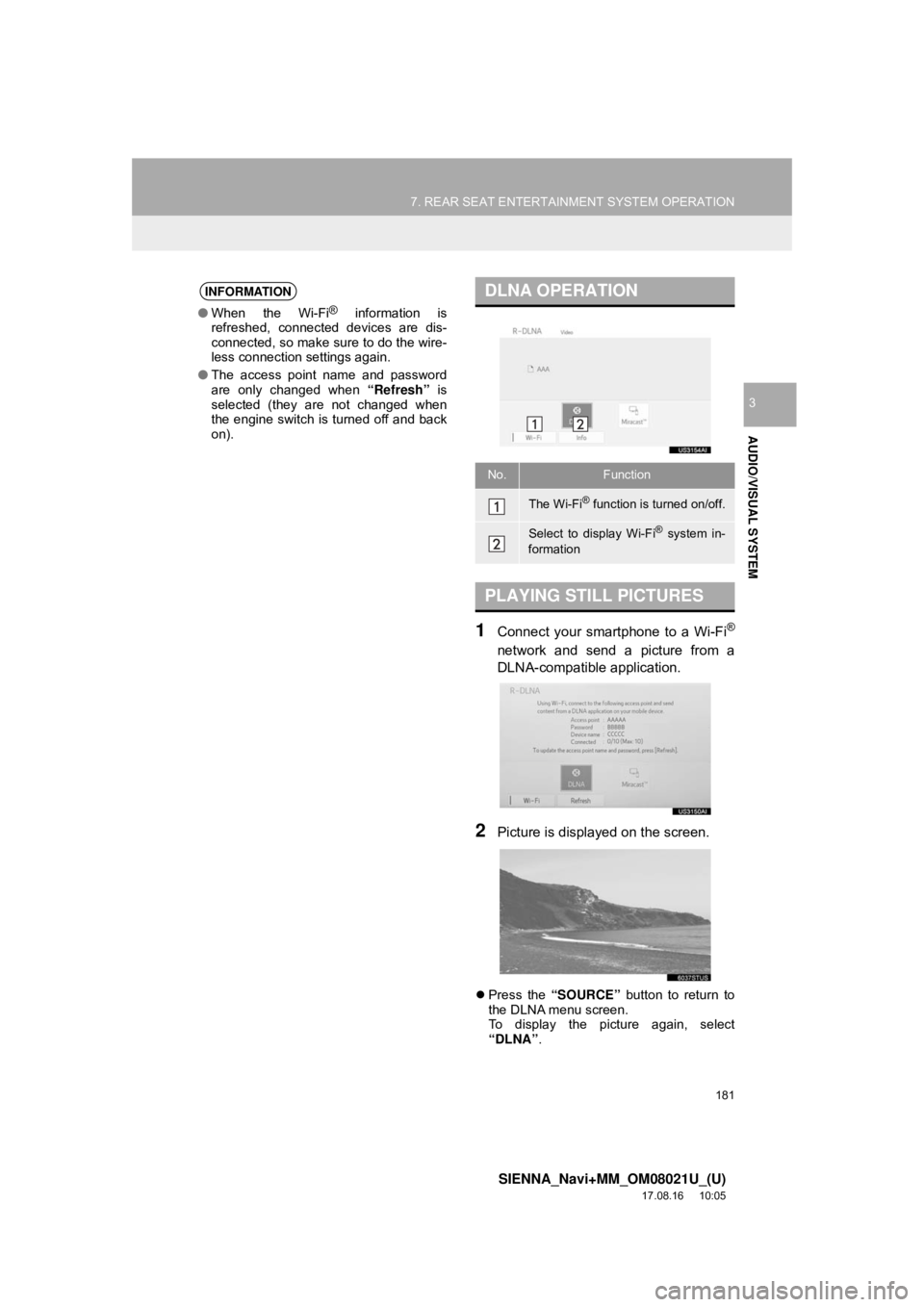
1Connect your smartphone to a Wi-Fi®
network and send a picture from a
DLNA-compatible application.
2Picture is displayed on the screen.
Press the “SOURCE” button to return to
the DLNA menu screen.
To display the picture again, select
“DLNA” .
INFORMATION
●When the Wi-Fi® information is
refreshed, connected devices are dis-
connected, so make sure to do the wire-
less connection settings again.
● The access point name and password
are only changed when “Refresh” is
selected (they are not changed when
the engine switch is turned off and back
on).
DLNA OPERATION
No.Function
The Wi-Fi® function is turned on/off.
Select to display Wi-Fi® system in-
formation
PLAYING STILL PICTURES
Page 182 of 435
182
7. REAR SEAT ENTERTAINMENT SYSTEM OPERATION
SIENNA_Navi+MM_OM08021U_(U)
17.08.16 10:05
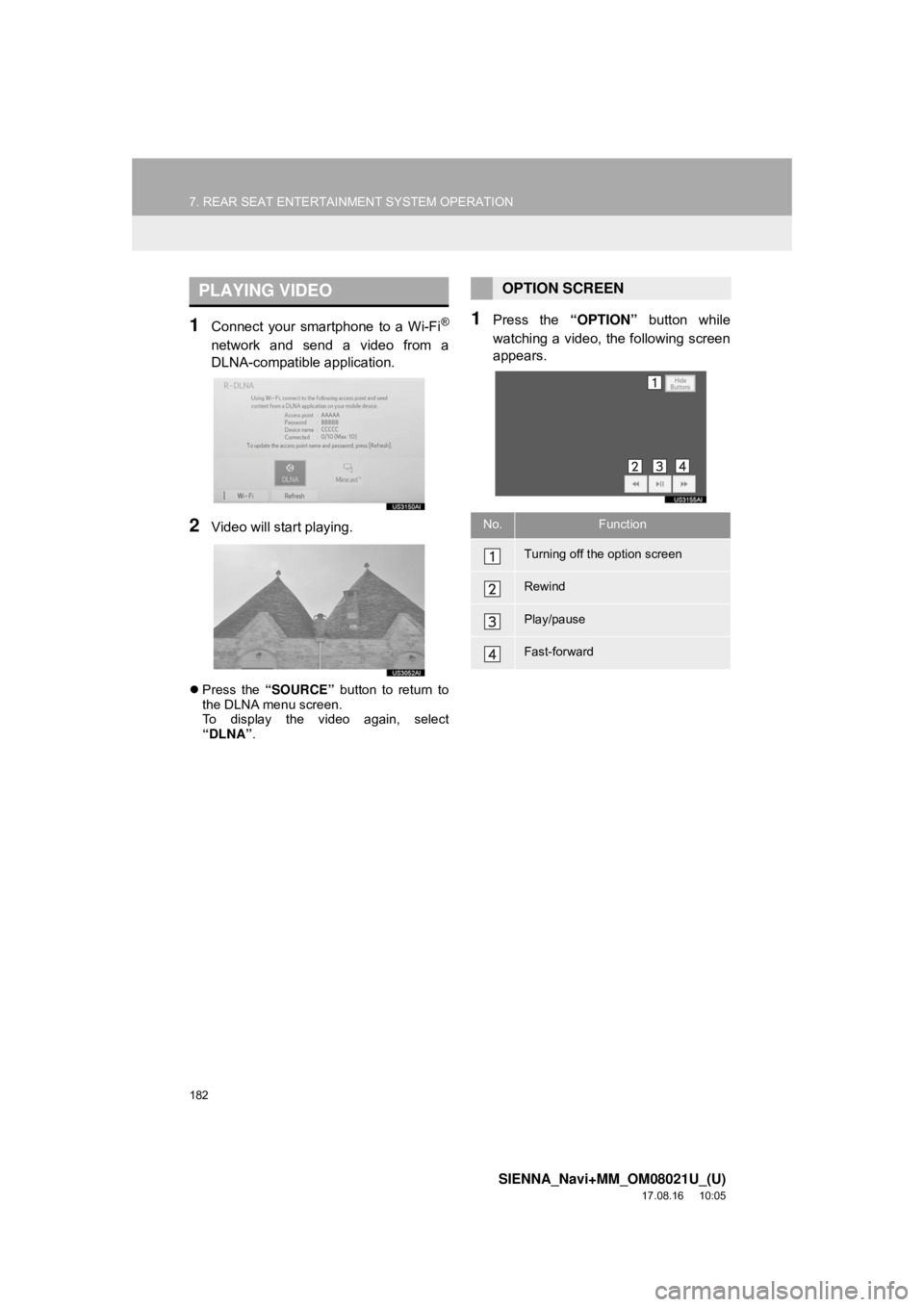
1Connect your smartphone to a Wi-Fi®
network and send a video from a
DLNA-compatible application.
2Video will start playing.
Press the “SOURCE” button to return to
the DLNA menu screen.
To display the video again, select
“DLNA” .
1Press the “OPTION” button while
watching a video, the following screen
appears.
PLAYING VIDEOOPTION SCREEN
No.Function
Turning off the option screen
Rewind
Play/pause
Fast-forward
Page 183 of 435
183
7. REAR SEAT ENTERTAINMENT SYSTEM OPERATION
SIENNA_Navi+MM_OM08021U_(U)
17.08.16 10:05
AUDIO/VISUAL SYSTEM
3
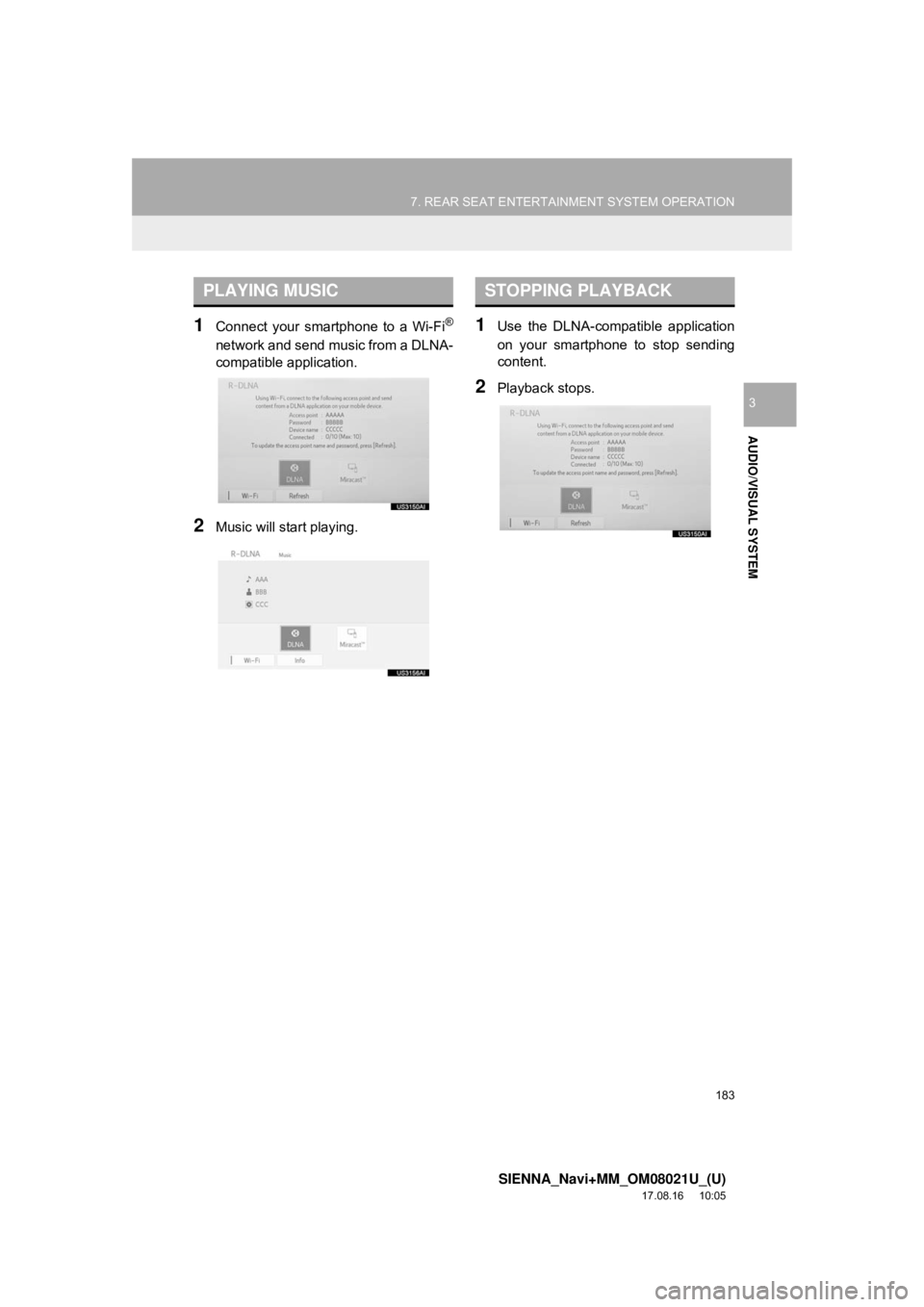
1Connect your smartphone to a Wi-Fi®
network and send music from a DLNA-
compatible application.
2Music will start playing.
1Use the DLNA-compatible application
on your smartphone to stop sending
content.
2Playback stops.
PLAYING MUSICSTOPPING PLAYBACK
Page 185 of 435
185
7. REAR SEAT ENTERTAINMENT SYSTEM OPERATION
SIENNA_Navi+MM_OM08021U_(U)
17.08.16 10:05
AUDIO/VISUAL SYSTEM
3
6. USING THE Miracast™ MODE*1, 2
The screen of a Miracast™-compatible
device*
3 can be displayed on the rear
seat entertainment system display.
This function is not available if the smart-
phone is not certified by Wi-Fi Alliance as
Miracast™ device.
Refer to the instruction manual and
other documentation included with the
external device to determine whether it
supports Miracast™.
Press the “SOURCE” button to turn on
the “R-Wi-Fi*
4” mode. If the “R-Mira-
cast™” screen is not displayed, select
“Miracast™” .
*1: If equipped
*2: Miracast™ is a trademark of Wi-Fi Alliance®.
*3: With Android OS version 4.4 or later
*4: Wi-Fi® is a registered trademark of Wi-Fi Alliance®.
WA R N I N G
● Use Wi-Fi® devices only when safe and
legal to do so.
● Your audio unit is fitted with Wi-Fi
®
antennas. People with implantable car-
diac pacemakers, cardiac resynchroni-
zation therapy-pacemakers or
implantable cardioverter defibrillators
should maintain a reasonable distance
between themselves and the Wi-Fi
®
antennas.
The radio waves may affect the opera-
tion of such devices.
● Before using Wi-Fi
® devices, users of
any electrical medical device other than
implantable cardiac pacemakers, car-
diac resynchronization therapy-pace-
makers or implantable cardioverter
defibrillators should consult the manu-
facturer of the device for information
about its operation under the influence
of radio waves.
Radio waves could have unexpected
effects on the operation of such medical
devices.
● The Wi-Fi
® networks serve best-effort
traffic.
NOTICE
● Do not leave your smartphone in the
vehicle. In particular, high temperatures
inside the vehicle may damage the
smartphone.
Page 200 of 435
200
SIENNA_Navi+MM_OM08021U_(U)
17.08.16 10:05
1. VOICE COMMAND SYSTEM OPERATION
1. VOICE COMMAND SYSTEM
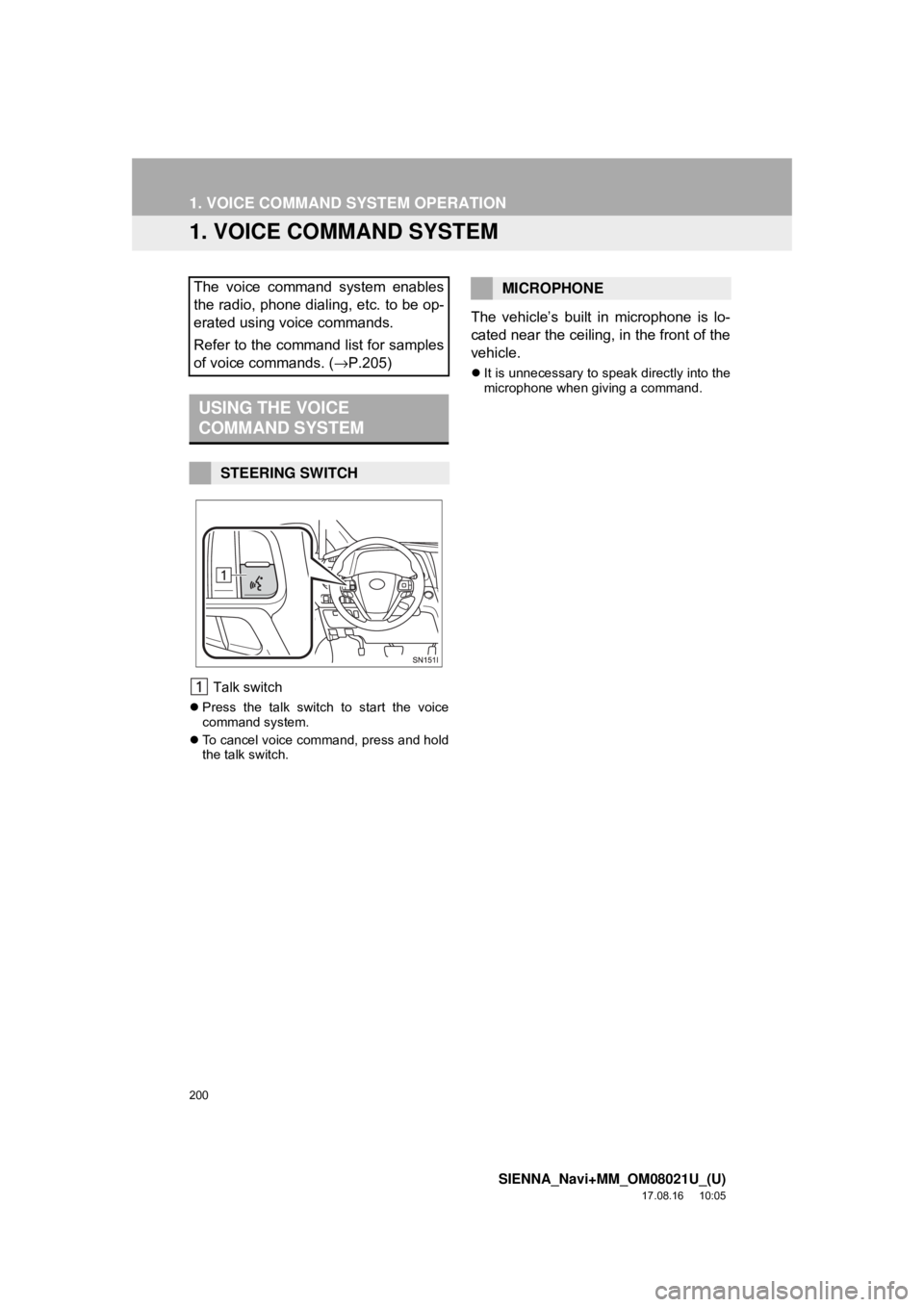
Talk switch
Press the talk switch to start the voice
command system.
To cancel voice command, press and hold
the talk switch.
The vehicle’s built in microphone is lo-
cated near the ceiling, in the front of the
vehicle.
It is unnecessary to speak directly into the
microphone when giving a command.
The voice command system enables
the radio, phone dialing, etc. to be op-
erated using voice commands.
Refer to the command list for samples
of voice commands. ( →P.205)
USING THE VOICE
COMMAND SYSTEM
STEERING SWITCH
MICROPHONE
Page 201 of 435
201
1. VOICE COMMAND SYSTEM OPERATION
SIENNA_Navi+MM_OM08021U_(U)
17.08.16 10:05
VOICE COMMAND SYSTEM
4
1Press the talk switch.
Voice guidance for the voice command
system can be skipped by pressing the
talk switch.
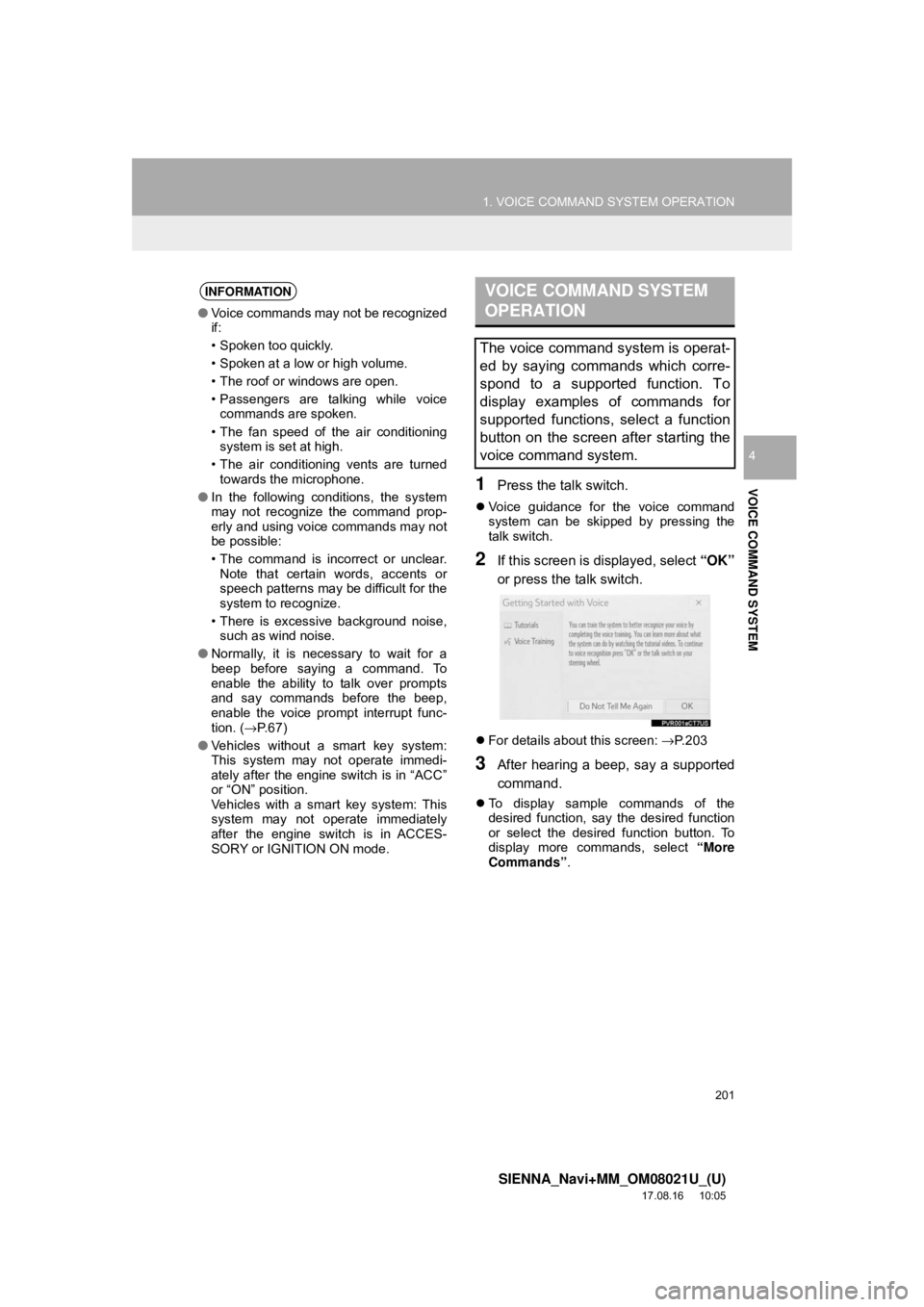
2If this screen is displayed, select “OK”
or press the talk switch.
For details about this screen: →P.203
3After hearing a beep, say a supported
command.
To display sample commands of the
desired function, say the desired function
or select the desired function button. To
display more commands, select “More
Commands” .
INFORMATION
●Voice commands may not be recognized
if:
• Spoken too quickly.
• Spoken at a low or high volume.
• The roof or windows are open.
• Passengers are talking while voice
commands are spoken.
• The fan speed of the air conditioning system is set at high.
• The air conditioning vents are turned towards the microphone.
● In the following conditions, the system
may not recognize the command prop-
erly and using voice commands may not
be possible:
• The command is incorrect or unclear.
Note that certain words, accents or
speech patterns may be difficult for the
system to recognize.
• There is excessive background noise, such as wind noise.
● Normally, it is necessary to wait for a
beep before saying a command. To
enable the ability to talk over prompts
and say commands before the beep,
enable the voice prompt interrupt func-
tion. ( →P. 6 7 )
● Vehicles without a smart key system:
This system may not operate immedi-
ately after the engine switch is in “ACC”
or “ON” position.
Vehicles with a smart key system: This
system may not operate immediately
after the engine switch is in ACCES-
SORY or IGNITION ON mode.
VOICE COMMAND SYSTEM
OPERATION
The voice command system is operat-
ed by saying commands which corre-
spond to a supported function. To
display examples of commands for
supported functions, select a function
button on the screen after starting the
voice command system.
Page 203 of 435
203
1. VOICE COMMAND SYSTEM OPERATION
SIENNA_Navi+MM_OM08021U_(U)
17.08.16 10:05
VOICE COMMAND SYSTEM
4
1Press the talk switch.
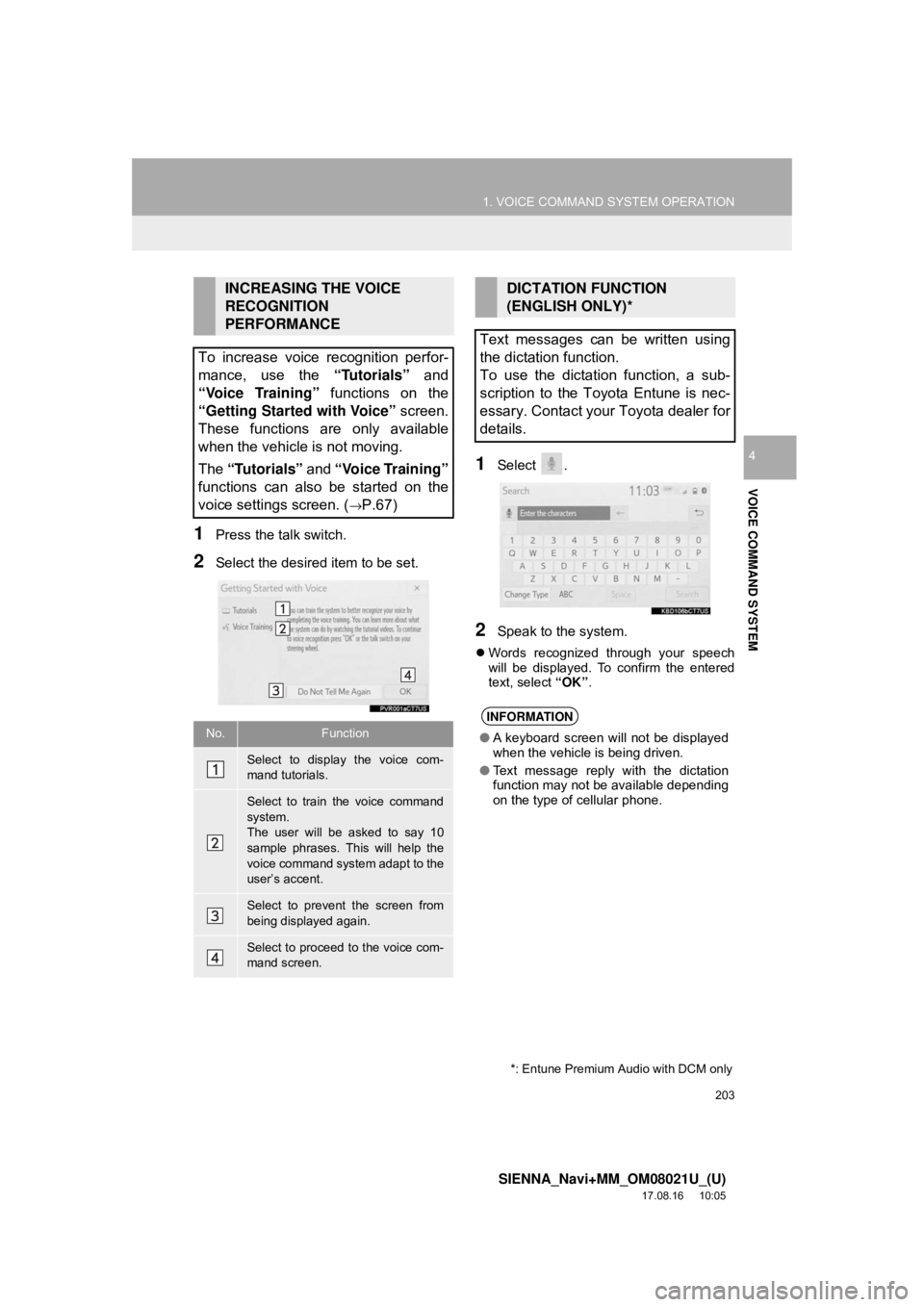
2Select the desired item to be set.
1Select .
2Speak to the system.
Words recognized through your speech
will be displayed. To confirm the entered
text, select “OK”.
INCREASING THE VOICE
RECOGNITION
PERFORMANCE
To increase voice recognition perfor-
mance, use the “Tutorials” and
“Voice Training” functions on the
“Getting Started with Voice” screen.
These functions are only available
when the vehicle is not moving.
The “Tutorials” and “Voice Training”
functions can also be started on the
voice settings screen. (
→P.67)
No.Function
Select to display the voice com-
mand tutorials.
Select to train the voice command
system.
The user will be asked to say 10
sample phrases. This will help the
voice command system adapt to the
user’s accent.
Select to prevent the screen from
being displayed again.
Select to proceed to the voice com-
mand screen.
DICTATION FUNCTION
(ENGLISH ONLY)*
Text messages can be written using
the dictation function.
To use the dictation function, a sub-
scription to the Toyota Entune is nec-
essary. Contact your Toyota dealer for
details.
INFORMATION
● A keyboard screen will not be displayed
when the vehicle is being driven.
● Text message reply with the dictation
function may not be available depending
on the type of cellular phone.
*: Entune Premium Audio with DCM only
Page 207 of 435
207
1. VOICE COMMAND SYSTEM OPERATION
SIENNA_Navi+MM_OM08021U_(U)
17.08.16 10:05
VOICE COMMAND SYSTEM
4
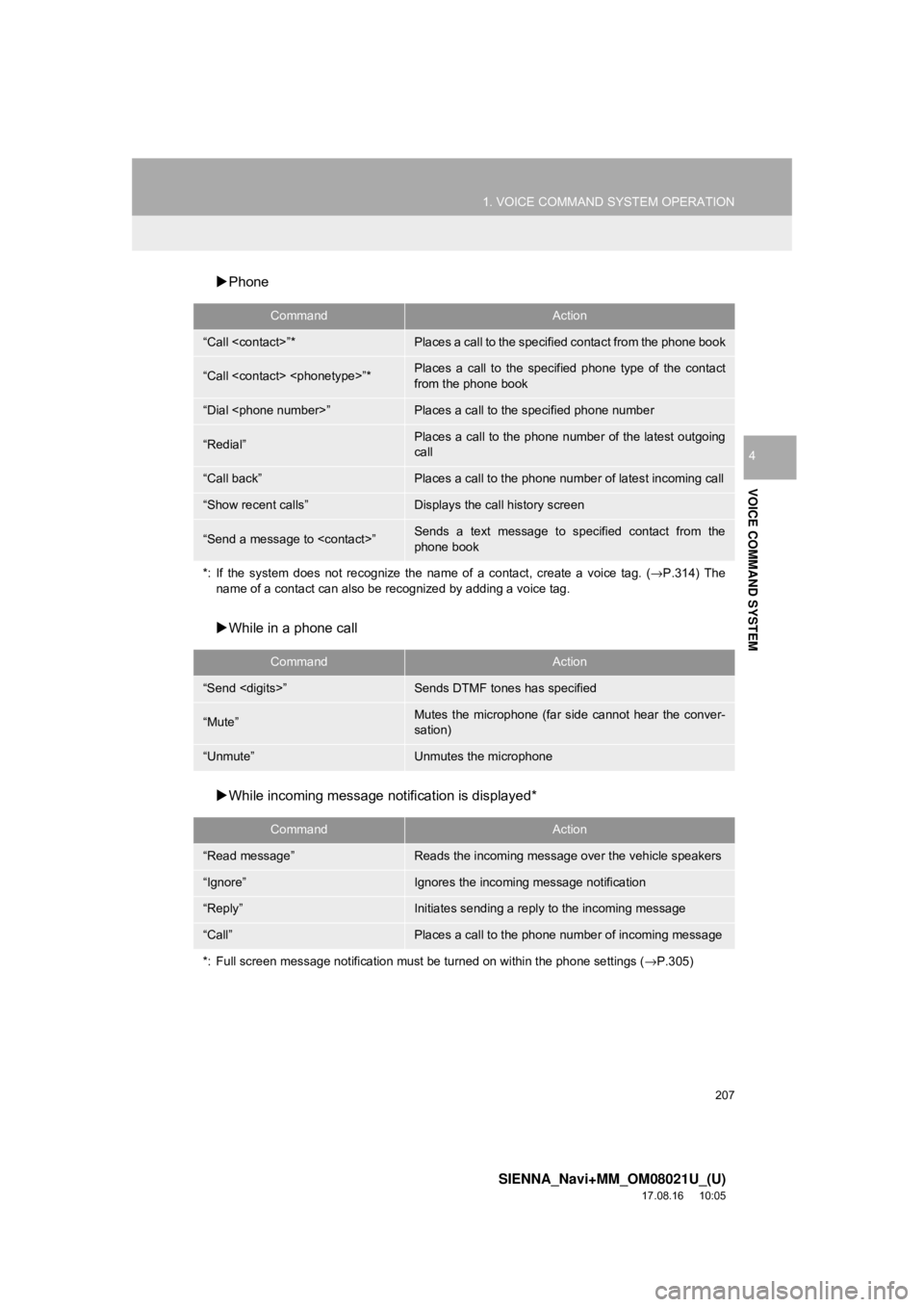
Phone
While in a phone call
While incoming message notification is displayed*
CommandAction
“Call
“Call
from the phone book
“Dial
“Redial”Places a call to the phone number of the latest outgoing
call
“Call back”Places a call to the phone number of latest incoming call
“Show recent calls”Displays the call history screen
“Send a message to
phone book
*: If the system does not recognize the name of a contact, create a voice tag. ( →P.314) The
name of a contact can also be recognized by adding a voice tag.
CommandAction
“Send
“Mute”Mutes the microphone (far side cannot hear the conver-
sation)
“Unmute”Unmutes the microphone
CommandAction
“Read message”Reads the incoming message over the vehicle speakers
“Ignore”Ignores the incoming message notification
“Reply”Initiates sending a reply to the incoming message
“Call”Places a call to the phone number of incoming message
*: Full screen message notification must be turned on within the phone settings ( →P.305)