wheel TOYOTA SIENNA 2019 Accessories, Audio & Navigation (in English)
[x] Cancel search | Manufacturer: TOYOTA, Model Year: 2019, Model line: SIENNA, Model: TOYOTA SIENNA 2019Pages: 441, PDF Size: 9.89 MB
Page 288 of 441
288
3. PANORAMIC VIEW MONITOR
SIENNA_Navi+MM_OM08027U_(U)
18.05.08 11:51
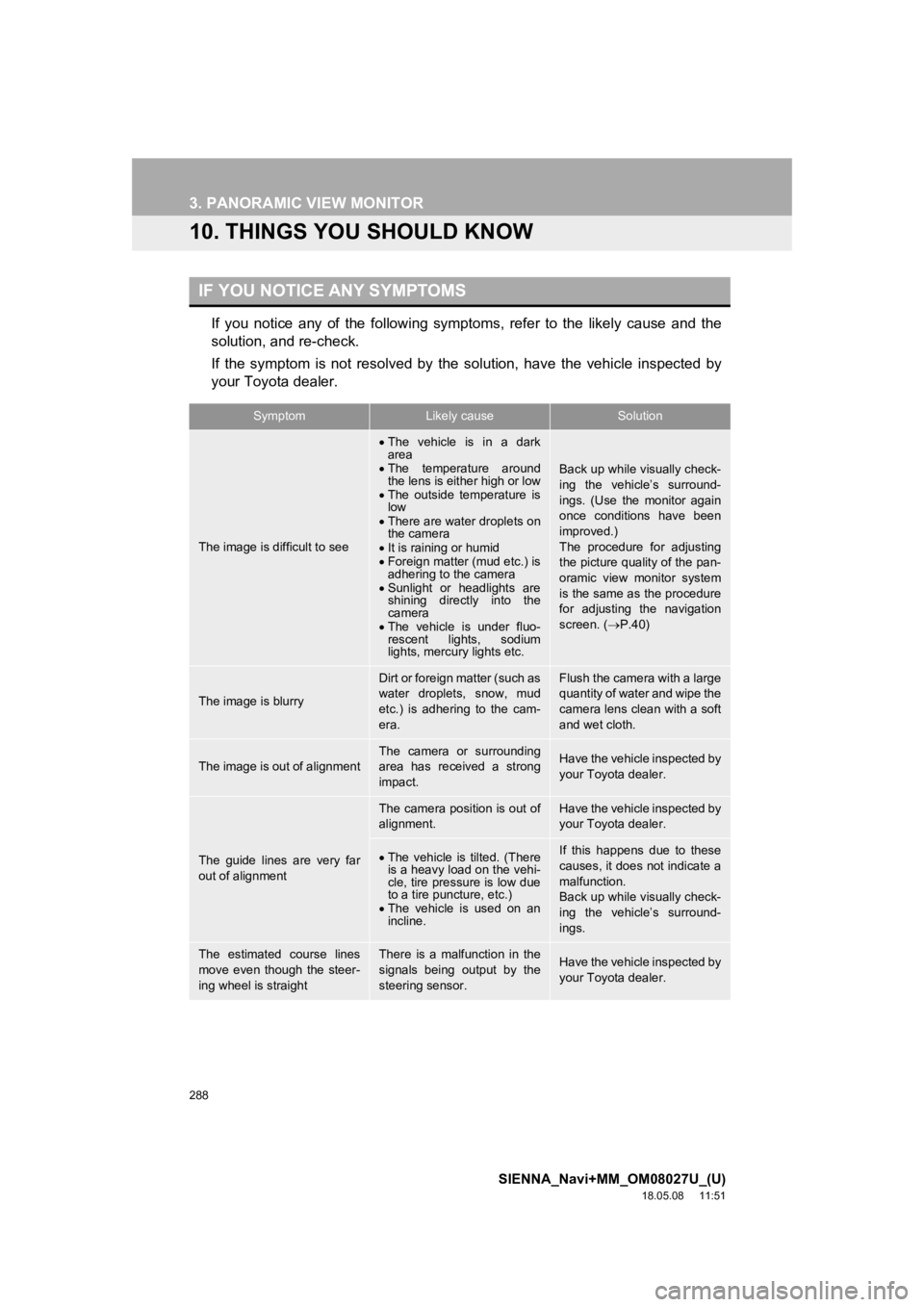
10. THINGS YOU SHOULD KNOW
If you notice any of the following symptoms, refer to the likely cause and the
solution, and re-check.
If the symptom is not resolved by the solution, have the vehicle inspected by
your Toyota dealer.
IF YOU NOTICE ANY SYMPTOMS
SymptomLikely causeSolution
The image is difficult to see
The vehicle is in a dark
area
The temperature around
the lens is either high or low
The outside temperature is
low
There are water droplets on
the camera
It is raining or humid
Foreign matter (mud etc.) is
adhering to the camera
Sunlight or headlights are
shining directly into the
camera
The vehicle is under fluo-
rescent lights, sodium
lights, mercury lights etc.
Back up while visually check-
ing the vehicle’s surround-
ings. (Use the monitor again
once conditions have been
improved.)
The procedure for adjusting
the picture quality of the pan-
oramic view monitor system
is the same as the procedure
for adjusting the navigation
screen. ( P.40)
The image is blurry
Dirt or foreign matter (such as
water droplets, snow, mud
etc.) is adhering to the cam-
era.Flush the camera with a large
quantity of water and wipe the
camera lens clean with a soft
and wet cloth.
The image is out of alignmentThe camera or surrounding
area has received a strong
impact.Have the vehicle inspected by
your Toyota dealer.
The guide lines are very far
out of alignment
The camera position is out of
alignment.Have the vehicle inspected by
your Toyota dealer.
The vehicle is tilted. (There
is a heavy load on the vehi-
cle, tire pressure is low due
to a tire puncture, etc.)
The vehicle is used on an
incline.If this happens due to these
causes, it does not indicate a
malfunction.
Back up while visually check-
ing the vehicle’s surround-
ings.
The estimated course lines
move even though the steer-
ing wheel is straightThere is a malfunction in the
signals being output by the
steering sensor.Have the vehicle inspected by
your Toyota dealer.
Page 289 of 441
289
3. PANORAMIC VIEW MONITOR
SIENNA_Navi+MM_OM08027U_(U)
18.05.08 11:51
PERIPHERAL MONITORING SYSTEM
6
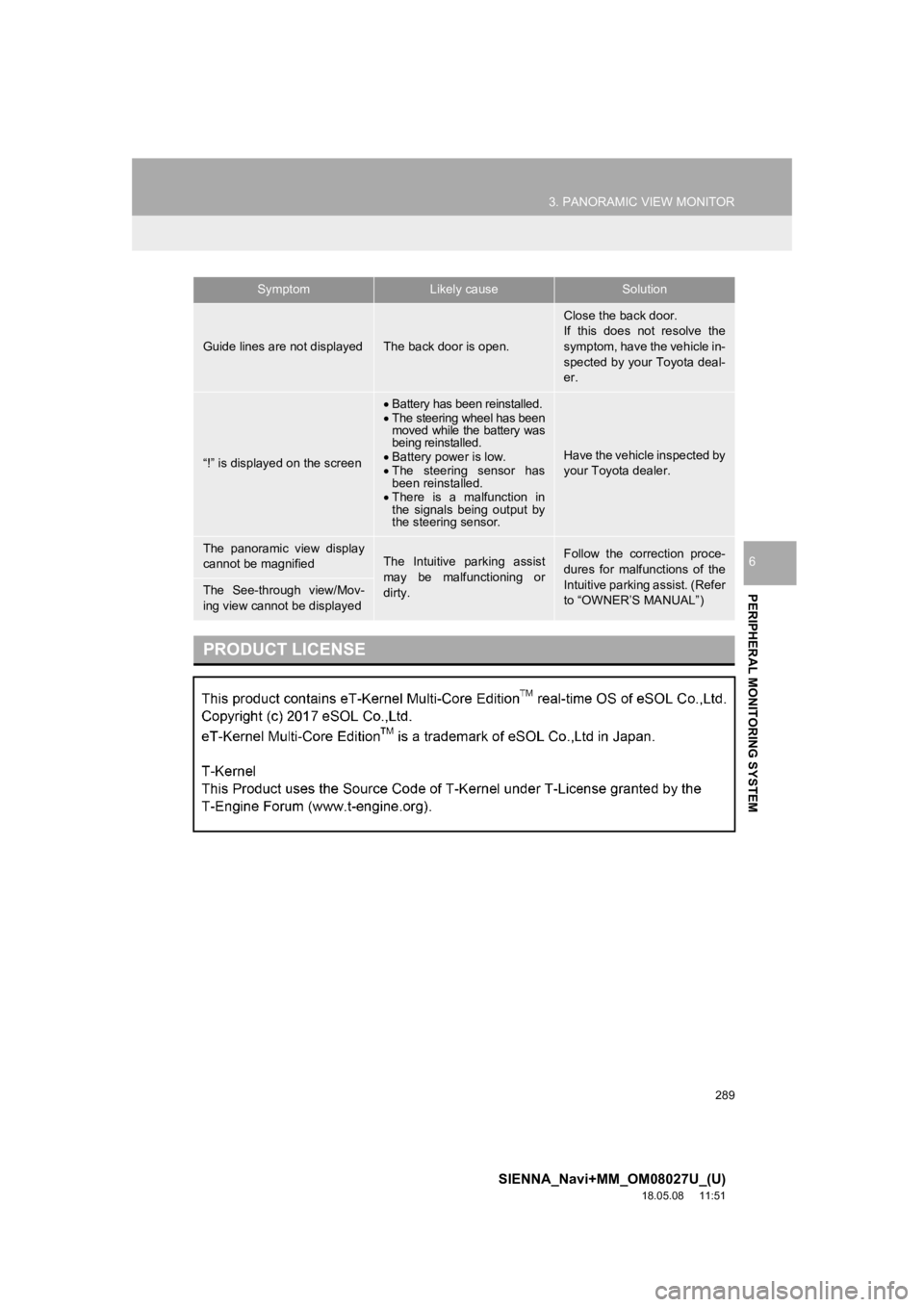
Guide lines are not displayedThe back door is open.
Close the back door.
If this does not resolve the
symptom, have the vehicle in-
spected by your Toyota deal-
er.
“!” is displayed on the screen
Battery has been reinstalled.
The steering wheel has been
moved while the battery was
being reinstalled.
Battery power is low.
The steering sensor has
been reinstalled.
There is a malfunction in
the signals being output by
the steering sensor.
Have the vehicle inspected by
your Toyota dealer.
The panoramic view display
cannot be magnifiedThe Intuitive parking assist
may be malfunctioning or
dirty.Follow the correction proce-
dures for malfunctions of the
Intuitive parking assist. (Refer
to “OWNER’S MANUAL”)
The See-through view/Mov-
ing view cannot be displayed
PRODUCT LICENSE
SymptomLikely causeSolution
Page 293 of 441
293
1. PHONE OPERATION (HANDS-FREE SYSTEM FOR CELLULAR PHONES)
SIENNA_Navi+MM_OM08027U_(U)
18.05.08 11:51
PHONE
7
2. SOME BASICS
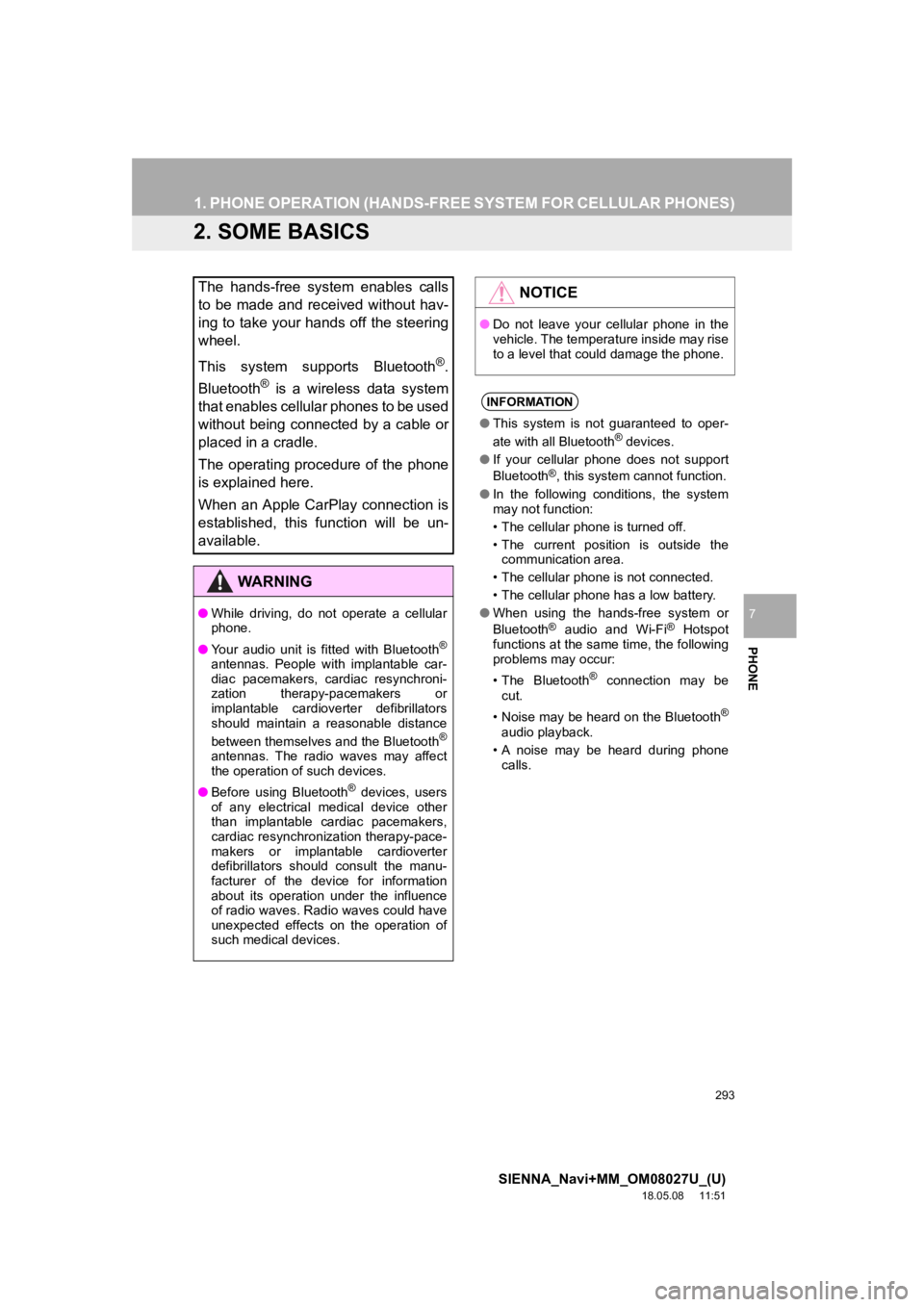
The hands-free system enables calls
to be made and received without hav-
ing to take your hands off the steering
wheel.
This system supports Bluetooth
®.
Bluetooth
® is a wireless data system
that enables cellular phones to be used
without being connected by a cable or
placed in a cradle.
The operating procedure of the phone
is explained here.
When an Apple CarPlay connection is
established, this function will be un-
available.
WA R N I N G
● While driving, do not operate a cellular
phone.
● Your audio unit is fitted with Bluetooth
®
antennas. People with implantable car-
diac pacemakers, cardiac resynchroni-
zation therapy-pacemakers or
implantable cardioverter defibrillators
should maintain a reasonable distance
between themselves and the Bluetooth
®
antennas. The radio waves may affect
the operation of such devices.
● Before using Bluetooth
® devices, users
of any electrical medical device other
than implantable cardiac pacemakers,
cardiac resynchronization therapy-pace-
makers or implantable cardioverter
defibrillators should consult the manu-
facturer of the device for information
about its operation under the influence
of radio waves. Radio waves could have
unexpected effects on the operation of
such medical devices.
NOTICE
● Do not leave your cellular phone in the
vehicle. The temperature inside may rise
to a level that could damage the phone.
INFORMATION
●This system is not guaranteed to oper-
ate with all Bluetooth® devices.
● If your cellular phone does not support
Bluetooth
®, this system cannot function.
● In the following conditions, the system
may not function:
• The cellular phone is turned off.
• The current position is outside the
communication area.
• The cellular phone is not connected.
• The cellular phone has a low battery.
● When using the hands-free system or
Bluetooth
® audio and Wi-Fi® Hotspot
functions at the same time, the following
problems may occur:
• The Bluetooth
® connection may be
cut.
• Noise may be heard on the Bluetooth
®
audio playback.
• A noise may be heard during phone calls.
Page 294 of 441
294
1. PHONE OPERATION (HANDS-FREE SYSTEM FOR CELLULAR PHONES)
SIENNA_Navi+MM_OM08027U_(U)
18.05.08 11:51
Registering an add itional device
1Display the phone top screen.
(P.292)
2Select “Select Device” .
3Select “Add Device” .
When another Bluetooth® device is con-
nected, a confirmation screen will be dis-
played. To disconnect the Bluetooth
®
device, select “Yes”.
4Follow the steps in “REGISTERING A
Bluetooth
® PHONE FOR THE FIRST
TIME” from “STEP 5”. ( P.43)
Selecting a registered device
1Display the phone top screen.
(P.292)
2Select “Select Device” .
3Select the desired device to be con-
nected.
4Check that a confirmation screen is
displayed when the connection is com-
plete.
If an error message is displayed, follow
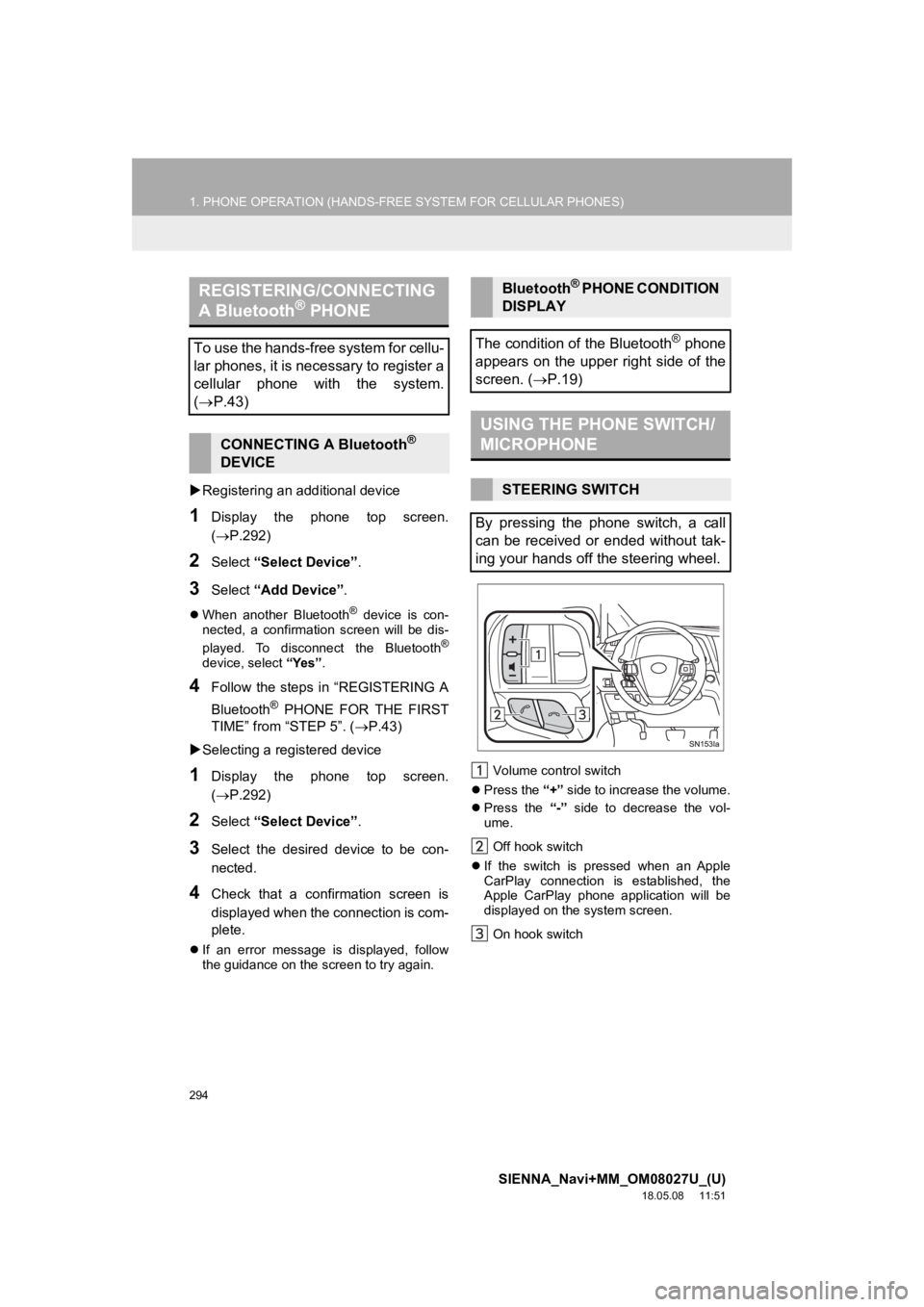
the guidance on the screen to try again. Volume control switch
Press the “+” side to increase the volume.
Press the “-” side to decrease the vol-
ume.
Off hook switch
If the switch is pressed when an Apple
CarPlay connection is established, the
Apple CarPlay phone application will be
displayed on t he system screen.
On hook switch
REGISTERING/CONNECTING
A Bluetooth® PHONE
To use the hands-free system for cellu-
lar phones, it is necessary to register a
cellular phone with the system.
( P.43)
CONNECTING A Bluetooth®
DEVICE
Bluetooth® PHONE CONDITION
DISPLAY
The condition of the Bluetooth
® phone
appears on the upper right side of the
screen. ( P.19)
USING THE PHONE SWITCH/
MICROPHONE
STEERING SWITCH
By pressing the phone switch, a call
can be received or ended without tak-
ing your hands off the steering wheel.
Page 300 of 441
300
1. PHONE OPERATION (HANDS-FREE SYSTEM FOR CELLULAR PHONES)
SIENNA_Navi+MM_OM08027U_(U)
18.05.08 11:51
1Display the phone top screen.
(P.292)
2Select “Keypad” and enter the phone
number.
3Select or press the switch on
the steering wheel.
4Check that the “Dialing...” screen is
displayed.
INFORMATION
● Manual transfer operation cannot be
performed while driving.
● If your cellular phone is neither PBAP
nor OPP compatible, the contacts can-
not be transferred.
● Depending on the type of Bluetooth
®
phone:
• It may be necessary to perform addi-
tional steps on the phone when trans-
ferring contact data.
• The registered image in the contact list may not transfer depending on the
type of Bluetooth
® phone connected.
BY KEYPAD
INFORMATION
● Depending on the type of Bluetooth®
phone being connected, it may be nec-
essary to perform additional steps on
the phone.
Page 302 of 441
302
1. PHONE OPERATION (HANDS-FREE SYSTEM FOR CELLULAR PHONES)
SIENNA_Navi+MM_OM08027U_(U)
18.05.08 11:51
4. RECEIVING A CALL USING THE Bluetooth® HANDS-FREE SYSTEM
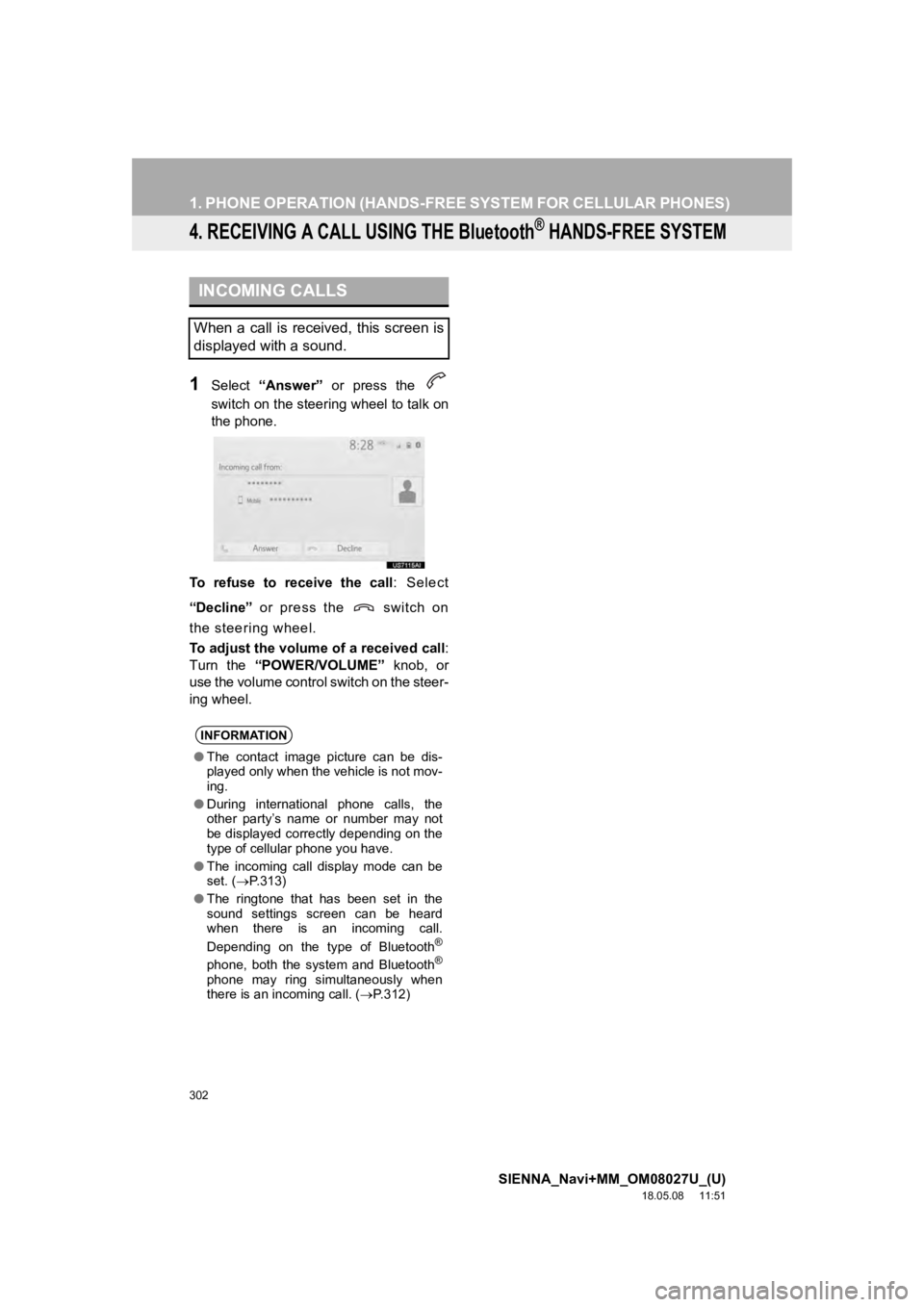
1Select “Answer” or press the
switch on the steering wheel to talk on
the phone.
To refuse to receive the call : Select
“Decline” or press the switch on
the steering wheel.
To adjust the volume of a received call :
Turn the “POWER/VOLUME” knob, or
use the volume control switch on the steer-
ing wheel.
INCOMING CALLS
When a call is received, this screen is
displayed with a sound.
INFORMATION
● The contact image picture can be dis-
played only when the vehicle is not mov-
ing.
● During international phone calls, the
other party’s name or number may not
be displayed correctly depending on the
type of cellular phone you have.
● The incoming call display mode can be
set. ( P.313)
● The ringtone that has been set in the
sound settings screen can be heard
when there is an incoming call.
Depending on the type of Bluetooth
®
phone, both the system and Bluetooth®
phone may ring simultaneously when
there is an incoming call. ( P.312)
Page 305 of 441
305
1. PHONE OPERATION (HANDS-FREE SYSTEM FOR CELLULAR PHONES)
SIENNA_Navi+MM_OM08027U_(U)
18.05.08 11:51
PHONE
7
1Select “Answer” or press the
switch on the steering wheel to start
talking with th e other party.
To refuse to receive the call : Select
“Decline” or press the switch on
the steering wheel.
■CHANGING PARTIES
1Press the on the steering wheel.
Each time press the on the steering
wheel is selected during an interrupted
call, the party who is on hold will be
switched.
INCOMING CALL WAITING
When a call is interrupted by a third
party while talking, the incoming call
screen is displayed.
INFORMATION
●This function may not be available
depending on the type of cellular phone.
Page 308 of 441
308
1. PHONE OPERATION (HANDS-FREE SYSTEM FOR CELLULAR PHONES)
SIENNA_Navi+MM_OM08027U_(U)
18.05.08 11:51
1Display the message screen.(P.306)
2Select the desired message from the
list.
3Select “Reply” .
4Select “Dictation”.
5When the “Say Your Message”
screen is displayed, speak message
that you want to send.
6Select “Send” to send message.
“Cancel” : Select to cancel sending the
message.
“Retry” : Select to retry speaking message
that you want to send.
While the message is being sent, a send-
ing message screen is displayed.
7Check that a confirmation screen is
displayed when the operation is com-
plete.
If an error message is displayed, follow
the guidance on the screen to try again.
INFORMATION
●Reading a text message is not available
while driving.
● Depending on the type of Bluetooth
®
phone being connected, it may be
necessary to perform additional steps on
the phone.
● Messages are displayed in the
appropriate connected Bluetooth
®
phone’s registered mail address folder.
Select the desired folder to be
displayed.
● Only received messages on the
connected Bluetooth
® phone can be
displayed.
● The text of the message is not displayed
while driving.
● Turn the “POWER/VOLUME” knob, or
use the volume control switch on the
steering wheel to adjust the message
read out volume.
● E-mail only: Select “Mark Unread” or
“Mark Read” to mark mail unread or
read on the message screen.
This function is available when “Update
Message Read Status on Phone” is
set to on. ( P.321)
REPLYING TO A MESSAGE
(DICTATION REPLY)*
INFORMATION
● Depending on the type of Bluetooth®
phone, reply function is not available.
*: If equipped
Page 310 of 441
310
1. PHONE OPERATION (HANDS-FREE SYSTEM FOR CELLULAR PHONES)
SIENNA_Navi+MM_OM08027U_(U)
18.05.08 11:51
■CALLING FROM E-MAIL/SMS/MMS
MESSAGE DISPLAY
1Display the message screen.
(P.306)
2Select the desired message.
3Select , or press the switch on
the steering wheel.
If there are 2 or more phone numbers,
select the desired number.
4Check that the “Dialing...” screen is
displayed.
■CALLING FROM A NUMBER WITH-
IN A MESSAGE
1Display the message screen.
( P.306)
2Select the desired message.
3Select the text area.
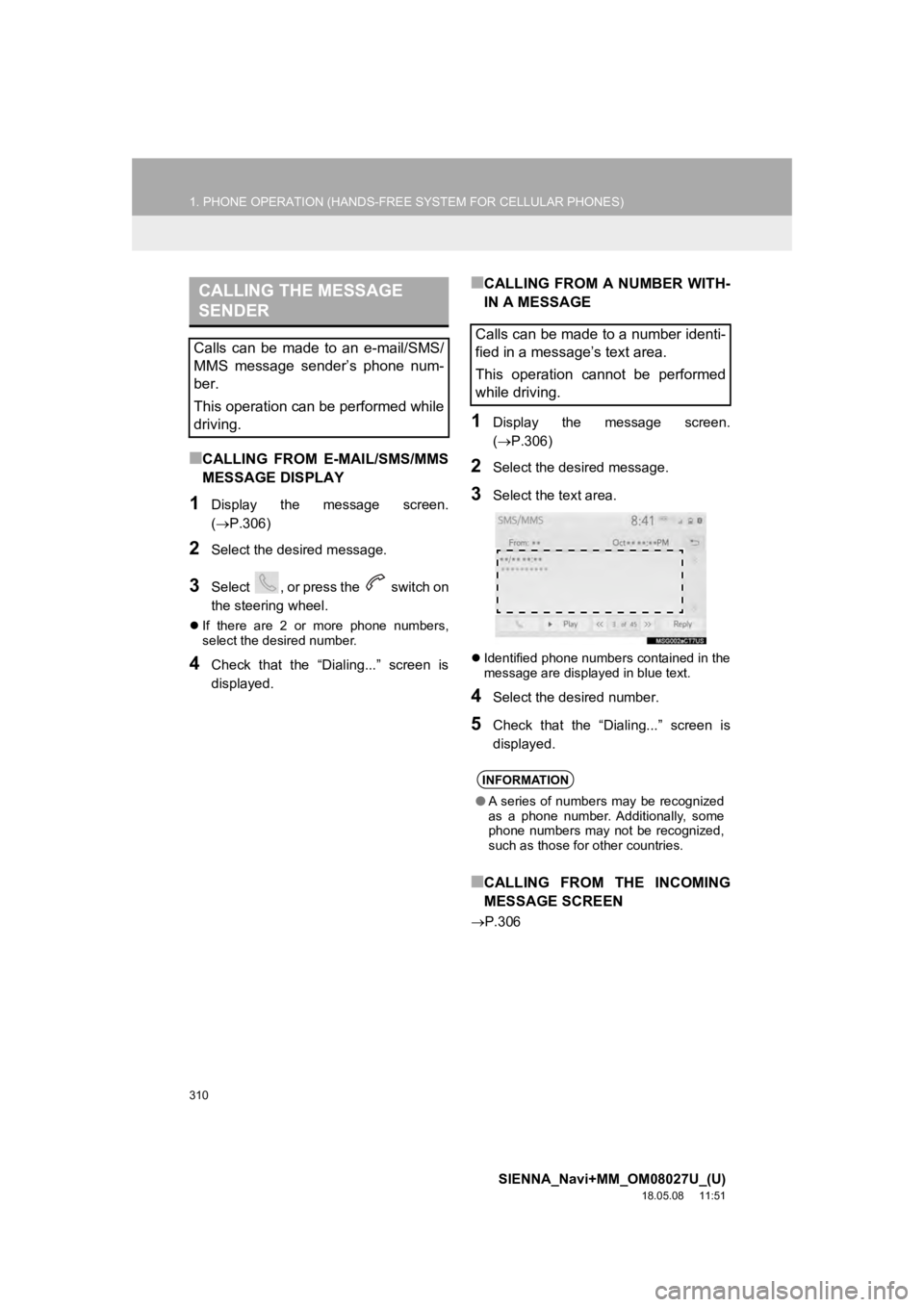
Identified phone numbers contained in the
message are displayed in blue text.
4Select the desired number.
5Check that the “Dialing...” screen is
displayed.
■CALLING FROM THE INCOMING
MESSAGE SCREEN
P.306
CALLING THE MESSAGE
SENDER
Calls can be made to an e-mail/SMS/
MMS message sender’s phone num-
ber.
This operation can be performed while
driving.Calls can be made to a number identi-
fied in a message’s text area.
This operation cannot be performed
while driving.
INFORMATION
●A series of numbers may be recognized
as a phone number. Additionally, some
phone numbers may not be recognized,
such as those for other countries.
Page 401 of 441
401
1. Toyota Entune-OVERVIEW
SIENNA_Navi+MM_OM08027U_(U)
18.05.08 11:51
Toyota Entune
9
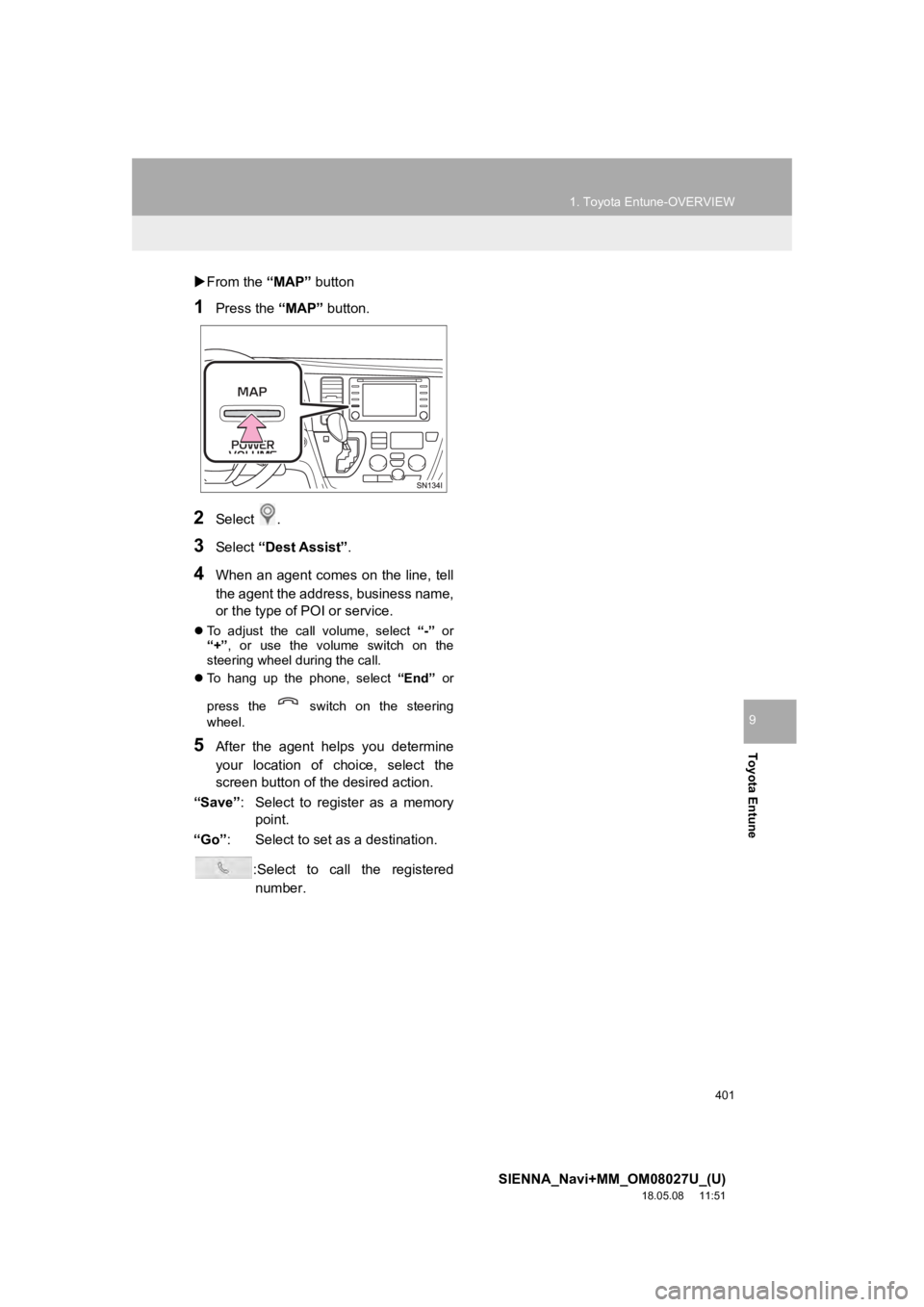
From the “MAP” button
1Press the “MAP” button.
2Select .
3Select “Dest Assist” .
4When an agent comes on the line, tell
the agent the address, business name,
or the type of POI or service.
To adjust the call volume, select “-” or
“+”, or use the volume switch on the
steering wheel during the call.
To hang up the phone, select “End” or
press the switch on the steering
wheel.
5After the agent helps you determine
your location of choice, select the
screen button of the desired action.
“Save” : Select to register as a memory
point.
“Go” : Select to set as a destination.
:Select to call the registerednumber.