radio controls TOYOTA SUPRA 2019 Owners Manual
[x] Cancel search | Manufacturer: TOYOTA, Model Year: 2019, Model line: SUPRA, Model: TOYOTA SUPRA 2019Pages: 456, PDF Size: 88.65 MB
Page 42 of 456
42
Supra Owner's Manual3-1. CONTROLS
14 To release the bonnet
P. 3 0 615 Unlocking the boot lid P.77
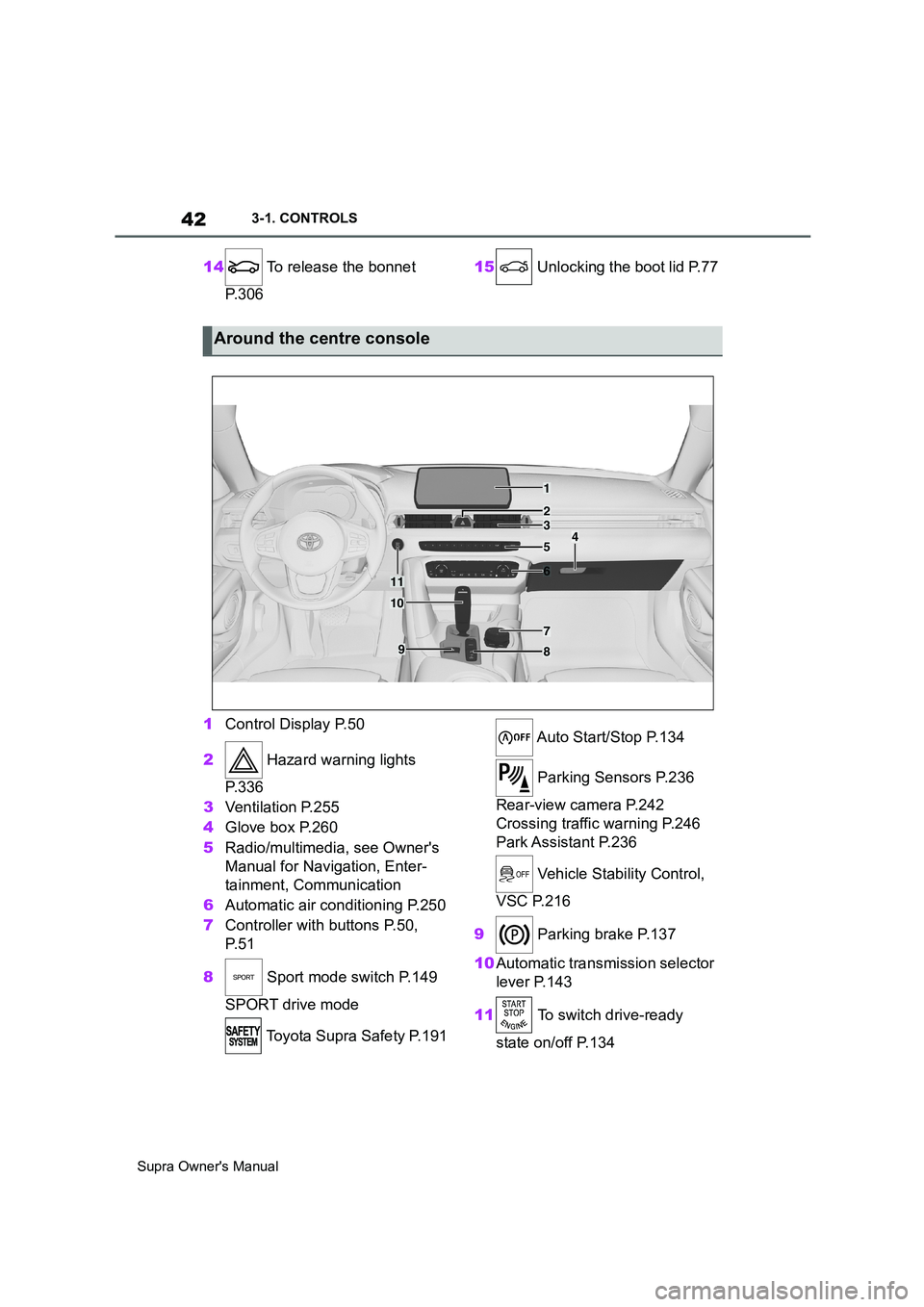
1Control Display P.50
2 Hazard warning lights
P. 3 3 6
3Ventilation P.255
4Glove box P.260
5Radio/multimedia, see Owner's
Manual for Navigation, Enter-
tainment, Communication
6Automatic air conditioning P.250
7Controller with buttons P.50,
P. 5 1
8 Sport mode switch P.149
SPORT drive mode
Toyota Supra Safety P.191 Auto Start/Stop P.134
Parking Sensors P.236
Rear-view camera P.242
Crossing traffic warning P.246
Park Assistant P.236
Vehicle Stability Control,
VSC P.216
9 Parking brake P.137
10Automatic transmission selector
lever P.143
11 To switch drive-ready
state on/off P.134
Around the centre console
1
4
23
5
6
7
89
10
11
Page 51 of 456

51
3
Supra Owner's Manual3-1. CONTROLS
CONTROLS
Supra Command can be operated
with the touchpad of the Controller,
see page 56.
• Turn to switch between menu
items, for example.
• Press to select a menu item, for
example.
• Tilt in four directions to switch
between screens, for example.
The buttons can be used to call up
menus directly. The Controller can
be used to select menu items and
perform settings.
• Turn to switch between menu
items, for example. OperationButtons on the Controller
ButtonFunction
Press once: to call up the
main menu.
Press twice: shows all menu
items of the main menu.
To call up the Communica-
tion menu.
To call up the Media/Radio
menu.
To call up the Destination
input menu of the navigation
system.
To call up the navigation
map.
Press once: to call up the
previous screen.
Press and hold: to call up
the last menus used.
To call up the Options menu.
Controller without naviga-
tion system
General
Operation
Page 52 of 456
52
Supra Owner's Manual3-1. CONTROLS
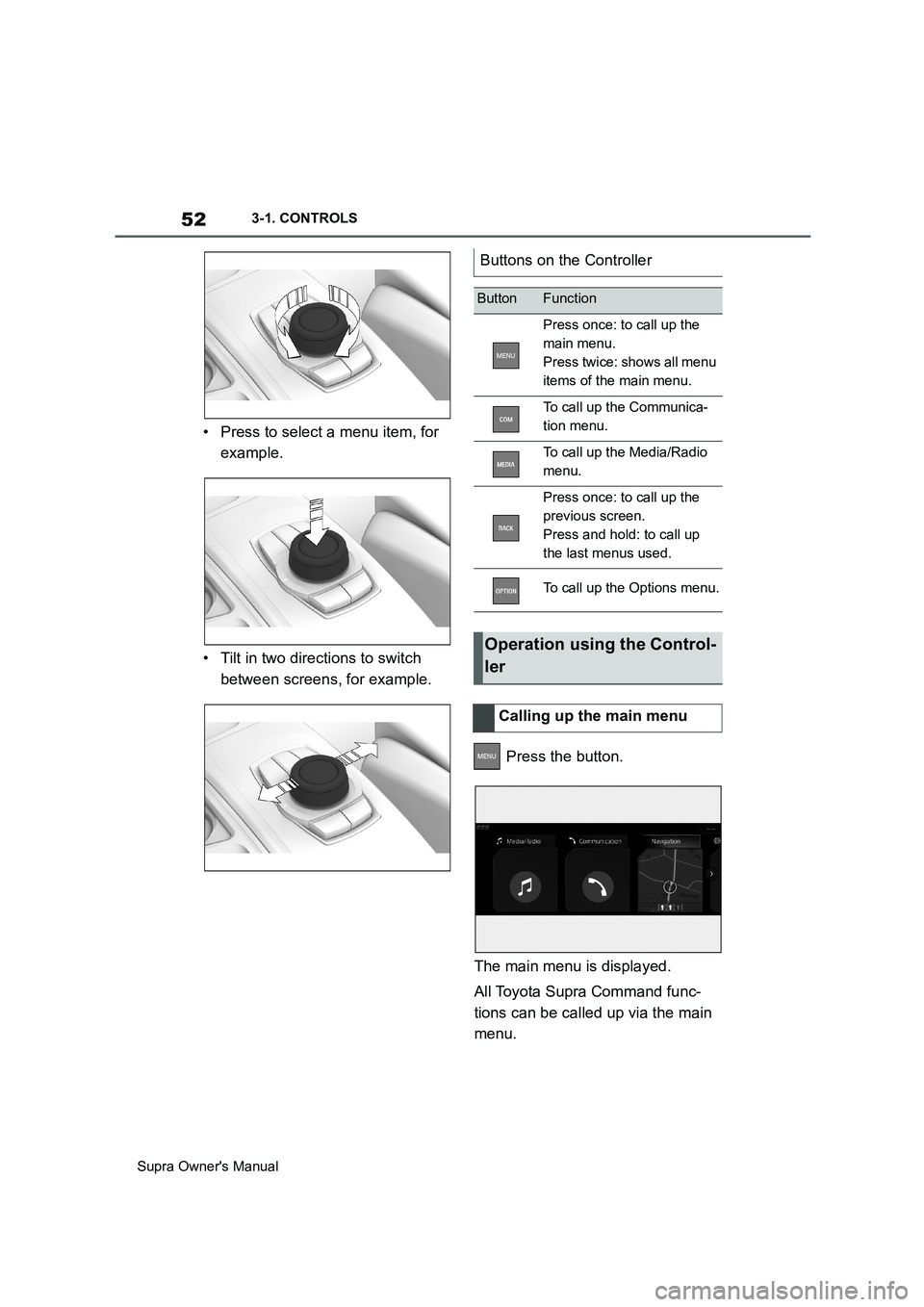
• Press to select a menu item, for
example.
• Tilt in two directions to switch
between screens, for example.
Press the button.
The main menu is displayed.
All Toyota Supra Command func-
tions can be called up via the main
menu.
Buttons on the Controller
ButtonFunction
Press once: to call up the
main menu.
Press twice: shows all menu
items of the main menu.
To call up the Communica-
tion menu.
To call up the Media/Radio
menu.
Press once: to call up the
previous screen.
Press and hold: to call up
the last menus used.
To call up the Options menu.
Operation using the Control-
ler
Calling up the main menu
Page 53 of 456
53
3
Supra Owner's Manual3-1. CONTROLS
CONTROLS
1 Press the button twice.
All menu items of the main menu are
displayed.
2Select a menu item.
3To move a menu item to the
desired position, tilt the Control-
ler to the right or left.
Highlighted menu items can be
selected.
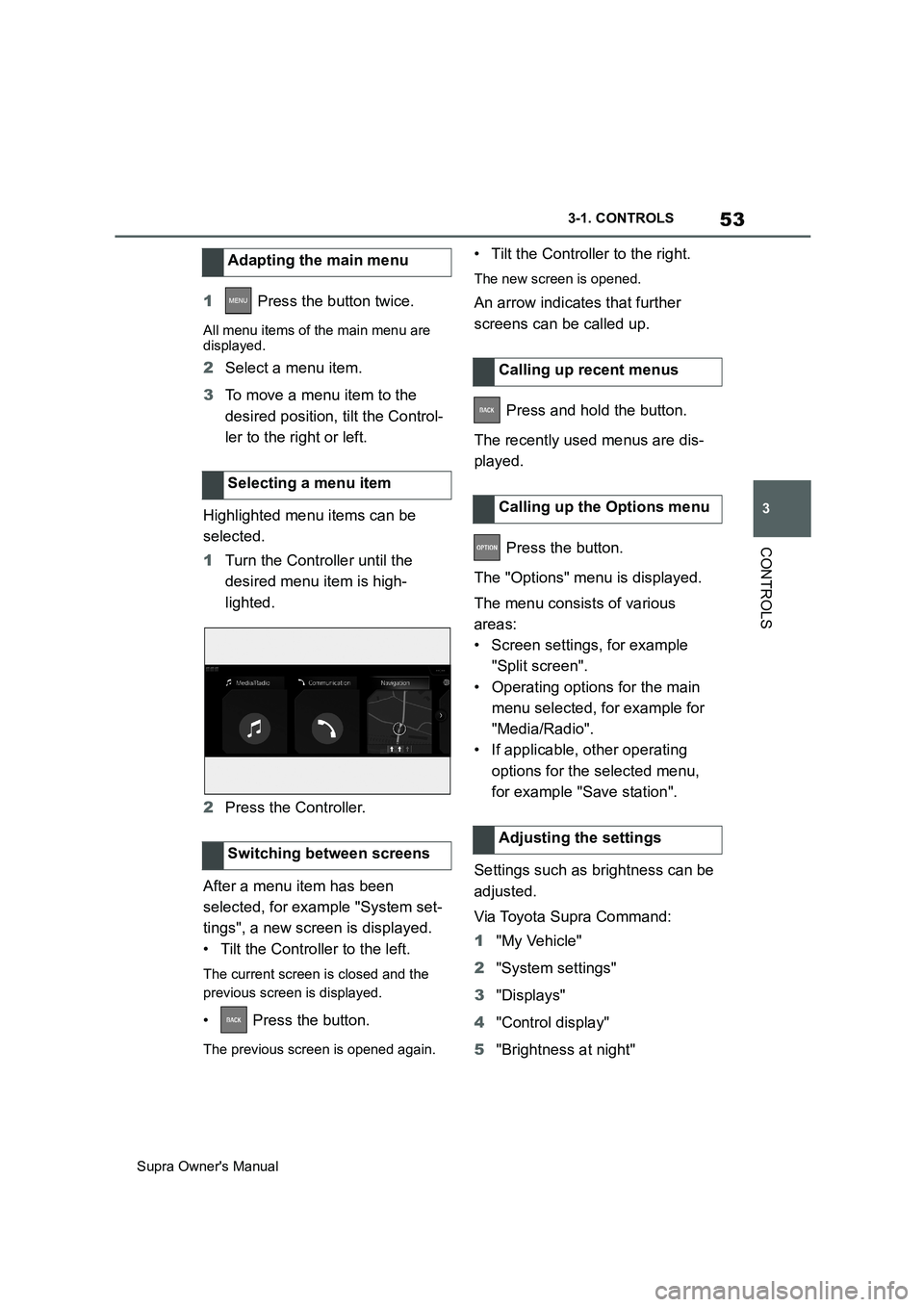
1Turn the Controller until the
desired menu item is high-
lighted.
2Press the Controller.
After a menu item has been
selected, for example "System set-
tings", a new screen is displayed.
• Tilt the Controller to the left.
The current screen is closed and the
previous screen is displayed.
• Press the button.
The previous screen is opened again.
• Tilt the Controller to the right.
The new screen is opened.
An arrow indicates that further
screens can be called up.
Press and hold the button.
The recently used menus are dis-
played.
Press the button.
The "Options" menu is displayed.
The menu consists of various
areas:
• Screen settings, for example
"Split screen".
• Operating options for the main
menu selected, for example for
"Media/Radio".
• If applicable, other operating
options for the selected menu,
for example "Save station".
Settings such as brightness can be
adjusted.
Via Toyota Supra Command:
1"My Vehicle"
2"System settings"
3"Displays"
4"Control display"
5"Brightness at night" Adapting the main menu
Selecting a menu item
Switching between screens
Calling up recent menus
Calling up the Options menu
Adjusting the settings
Page 57 of 456
57
3
Supra Owner's Manual3-1. CONTROLS
CONTROLS
Toyota Supra Command functions,
for example radio stations, naviga-
tion destinations and telephone
numbers, can be saved to Favour-
ites buttons and called up directly.
The settings are saved for the cur-
rently used driver profile.
1Select function via Toyota Supra
Command.
2 Press and hold the
desired button until a signal
sounds.
Press the button.
The function is carried out immedi-
ately. If you have selected a tele-
phone number for example, the
connection will also be established.
Touch the buttons with your finger.
Do not wear gloves or use objects.
The button assignment is displayed
at the top edge of the screen.1Press and hold buttons 1 and 8
simultaneously for approx. 5
seconds.
2"OK"
Favourites buttons
General
Saving a function
Performing a function
Displaying the button assign-
ment
Clearing the button assign-
ment
Page 58 of 456
58
Supra Owner's Manual3-1. CONTROLS
This chapter describes all standard,
country-specific and special equip-
ment available for the model series.
It may therefore describe equip-
ment which is not installed in your
vehicle, for example on account of
the optional equipment selected or
the country specification. This also
applies to safety-relevant functions
and systems. Please comply with
the relevant laws and regulations
when using the corresponding func-
tions and systems.
The voice control system enables
most of the functions shown in the
Control Display to be operated by
spoken commands. The system
provides spoken announcements to
assist you with input.
• Functions that can only be used
when the vehicle is stationary
can only be operated via the
voice control system to a limited
extent.
• The system has a special micro-
phone on the driver's side.
• ›...‹ indicates commands for the
voice control system in the
Owner's Manual.• Commands, numbers and let-
ters should be spoken fluently,
with the usual emphasis and at a
normal volume and speed.
• Always say the commands in the
language of the voice control
system.
• When selecting the radio sta-
tion, use the customary pronun-
ciation of the station name as it is
displayed on the Control Display.
›[...] Station ...‹, for example,
Classic Radio station.
In order for the voice commands to
be detected, a language must be
set using Toyota Supra Command
that is supported by the voice con-
trol system.
Selecting the language, see page
61.
1 Press the button on the
steering wheel.
2Wait for the acoustic signal.
3Say the command.
It is possible that no further spoken
commands are available. In this
Voice control system
Vehicle equipment
Principle
General
Operating requirements
Saying voice commands
Activating the voice control
system
This symbol on the Control
Display shows that the voice
control system is active.
Page 60 of 456
60
Supra Owner's Manual3-1. CONTROLS
1If necessary, switch on enter-
tainment audio output.
2 Press the button on the
steering wheel.
3›Media and radio‹
4›Sound‹
You can select whether the system
uses the standard dialogue or the
short variant.
If the short variant is selected, the
system announcements are played
in shortened form.
Via Toyota Supra Command:
1"My Vehicle"
2"System settings"
3"Language"
4"Voice control:"
5Select the desired setting.
Voice recognition via server ena-
bles use of the dictation function,
natural input of destinations and
improves the quality of voice recog-
nition. To use it, data is sent across
an encrypted connection to a ser-
vice provider and stored locally
there.
Via Toyota Supra Command:1"My Vehicle"
2"System settings"
3"Language"
4"Server speech recognition"
It is possible to answer while the
voice control system is querying
your previous spoken instruction.
The function can be deactivated if
the queries are frequently cancelled
inadvertently, for example due to
background noise or speaking.
Via Toyota Supra Command:
1"My Vehicle"
2"System settings"
3"Language"
4"Speaking during voice output"
The language to be used for voice
control and system announcements
can be set.
Via Toyota Supra Command:
1"My Vehicle"
2"System settings"
3If applicable, "Language"
4"Language:"
5Select the desired language.
Turn the volume knob during the
spoken instructions until the
Settings
Setting the speech dialogue
Activating voice recognition
via server
Speaking during voice output
Selecting the language
Adjusting the volume
Page 65 of 456
65
3
Supra Owner's Manual3-1. CONTROLS
CONTROLS
1"My Vehicle"
2"System settings"
3"Notifications"
4Select the desired setting.
The vehicle offers various functions
which require data to be transferred
to Toyota or a service provider. The
transfer of data can be deactivated
for some functions.
If data transfer has been deacti-
vated for a function, then that func-
tion cannot be used.
Only perform settings with the vehi-
cle at a standstill.
Follow the instructions on the Con-
trol Display.
Via Toyota Supra Command:
1"My Vehicle"
2"System settings"
3"Data privacy"
4Select the desired setting.Depending on use, the vehicle
stores personal data such as saved
radio stations. This personal data
can be permanently deleted using
Toyota Supra Command.
Depending on the equipment in
your vehicle, the following data can
be deleted:
• Driver profile settings.
• Saved radio stations.
• Saved Favourites buttons.
• Trip and on-board computer val-
ues.
• Music hard disc.
• Navigation, for example saved
destinations.
• Phone book.
• Online data, for example Favour-
ites, cookies.
• Office data, for example voice
memos.
• Login accounts.
It can take up to 15 minutes in total
to delete data.
Data can only be deleted with the
vehicle at a standstill.
Data protection
Data transfer
Principle
General
Activating/deactivating
Deleting personal data in the
vehicle
Principle
General
Operating requirements
Page 70 of 456

70
Supra Owner's Manual3-1. CONTROLS
When connecting, bear the follow-
ing in mind:
• Do not use force when inserting
the plug into the USB interface.
• Use a flexible adapter cable.
• Protect the USB device from
mechanical damage.
• Due to the large variety of USB
devices available on the market,
operation via the vehicle cannot
be ensured for every device.
• Do not expose the USB devices
to extreme environmental condi-
tions, for example very high tem-
peratures, see the operating
instructions of the device.
• Due to the large variety of differ-
ent compression techniques,
correct playback of the media
stored on the USB device cannot
be guaranteed in every case.
• To ensure correct transfer of the
stored data, do not charge a
USB device from the socket in
the vehicle when the device is
also connected to the USB inter-
face.
• Depending on how the USB
device is being used, it may be
necessary to perform settings on
the USB device, see the operat-
ing instructions of the device.
Unsuitable USB devices:
• USB hard drives.
• USB hubs.
• USB memory card reader with
several inserts.
• HFS-formatted USB devices.
• Devices such as fans or lamps.Compatible device with USB inter-
face.
Connect the USB device to a USB
interface, see page 259, using a
suitable adapter cable.
The USB device is displayed in the
device list, see page 72.
CarPlay makes it possible to oper-
ate certain functions of a compati-
ble Apple iPhone by Siri voice
operation and using Toyota Supra
Command.
• Compatible iPhone.
iPhone 5 or later with iOS 7.1 or later.
• Corresponding mobile radio con-
tract.
• Bluetooth, WLAN and Siri voice
operation are activated on the
iPhone.
• Booking of the Toyota Supra
Connect service: Apple CarPlay
preparation.
Via Toyota Supra Command:Operating requirements
Connecting a device
Apple CarPlay preparation
Principle
Operating requirements
Switching on Bluetooth and Car-
Play
Page 78 of 456
78
Supra Owner's Manual3-1. CONTROLS
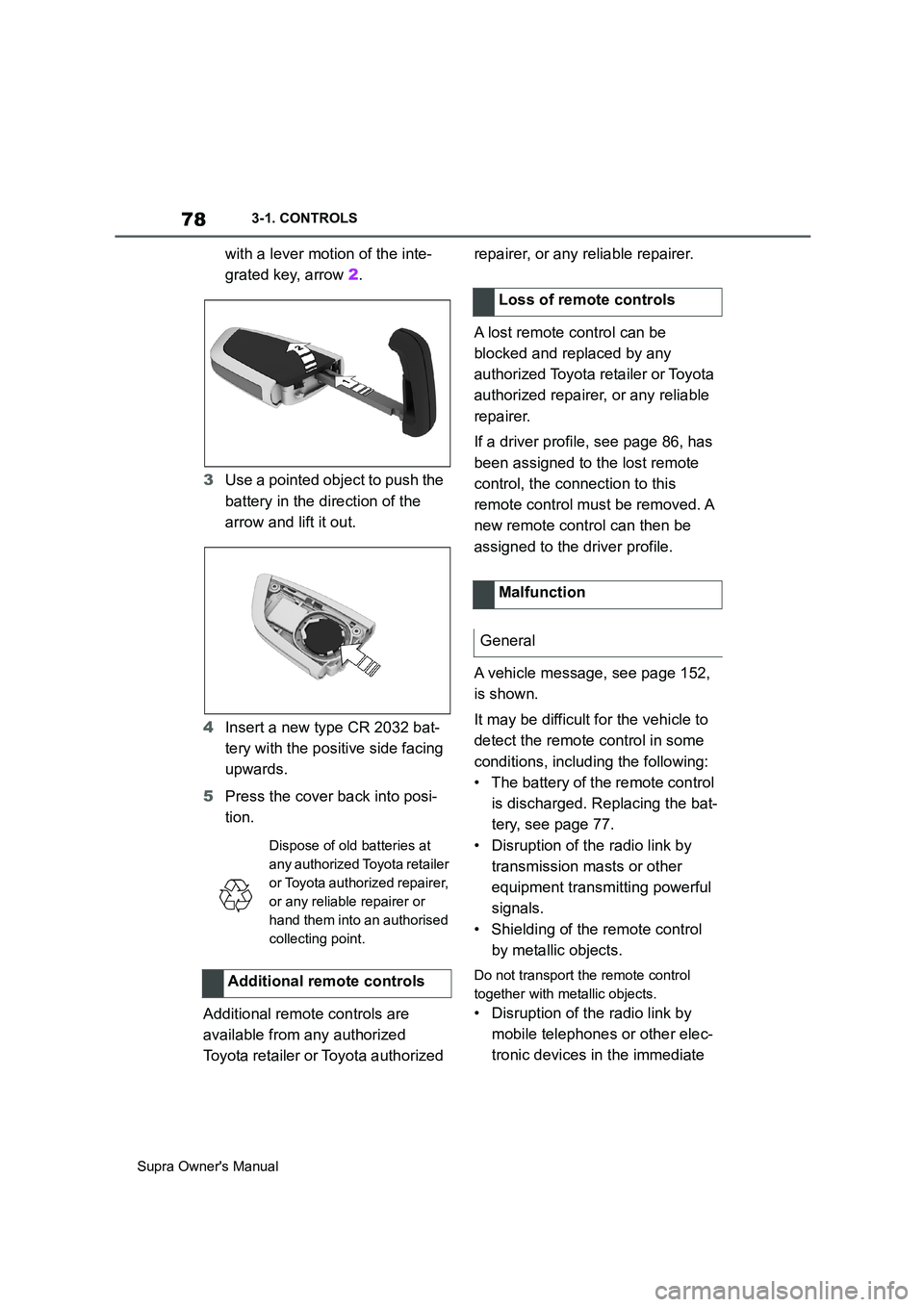
with a lever motion of the inte-
grated key, arrow 2.
3Use a pointed object to push the
battery in the direction of the
arrow and lift it out.
4Insert a new type CR 2032 bat-
tery with the positive side facing
upwards.
5Press the cover back into posi-
tion.
Additional remote controls are
available from any authorized
Toyota retailer or Toyota authorized repairer, or any reliable repairer.
A lost remote control can be
blocked and replaced by any
authorized Toyota retailer or Toyota
authorized repairer, or any reliable
repairer.
If a driver profile, see page 86, has
been assigned to the lost remote
control, the connection to this
remote control must be removed. A
new remote control can then be
assigned to the driver profile.
A vehicle message, see page 152,
is shown.
It may be difficult for the vehicle to
detect the remote control in some
conditions, including the following:
• The battery of the remote control
is discharged. Replacing the bat-
tery, see page 77.
• Disruption of the radio link by
transmission masts or other
equipment transmitting powerful
signals.
• Shielding of the remote control
by metallic objects.
Do not transport the remote control
together with metallic objects.
• Disruption of the radio link by
mobile telephones or other elec-
tronic devices in the immediate
Dispose of old batteries at
any authorized Toyota retailer
or Toyota authorized repairer,
or any reliable repairer or
hand them into an authorised
collecting point.
Additional remote controls
Loss of remote controls
Malfunction
General