Wire TOYOTA SUPRA 2020 Owners Manual (in English)
[x] Cancel search | Manufacturer: TOYOTA, Model Year: 2020, Model line: SUPRA, Model: TOYOTA SUPRA 2020Pages: 360, PDF Size: 5.97 MB
Page 10 of 360

101-1. NOTES
Supra Owner's Manual
any time.
For example, this includes:
• Setting for the seat position.
• Suspension and climate con-trol settings.
If necessary, data can be trans-
ferred to the entertainment and
communication system of the
vehicle, e.g. via smartphone.
This includes the following
depending on the respective
equipment:
• Multimedia data such as music, films or photos for
playback in an integrated mul-
timedia system.
• Address book data for use in conjunction with an integrated
hands-free system or an inte-
grated navigation system.
• Entered navigation destina- tions.
• Data on the use of Internet services.
This data can be stored locally
in the vehicle or is found on a
device that has been connected
to the vehicle, e.g., a smart-
phone, USB stick or MP3 player.
If this data is stored in the vehi-
cle, it can be deleted at any
time.
This data is only transmitted to
third parties upon personal
request as part of the use of
online services. The transmis-
sion depends on the selected
settings for the use of the ser-
vices. Depending on the vehicle equip-
ment, mobile devices connected
to the vehicle, for instance
smartphones, can be controlled
via the vehicle control elements.
The sound and picture from the
mobile device can be played
back and displayed through the
multimedia system. Certain
information is transferred to the
mobile device at the same time.
Depending on the type of incor-
poration, this includes, for
instance position data and other
general vehicle information. This
optimizes the way in which
selected apps, for instance navi-
gation or music playback, work.
There is no further interaction
between the mobile device and
the vehicle, for instance active
access to vehicle data.
How the data will be processed
further is determined by the pro-
vider of the particular app being
used. The extent of the possible
settings depends on the respec-
tive app and the operating sys-
tem of the mobile device.
If the vehicle has a wireless net-
work connection, this enables Incorporation of mobile end
devices
Services
General information
Page 11 of 360

111-1. NOTES
Supra Owner's Manual
1
NOTES
data to be exchanged between
the vehicle and other systems.
The wireless network connec-
tion is realized via an in-vehicle
transmitter and receiver unit or
via personal mobile devices
brought into the vehicle, for
instance smartphones. This
wireless network connection
enables 'online functions' to be
used. These include online ser-
vices and apps supplied by the
vehicle manufacturer or by other
providers.
Where online services from the
vehicle manufacturer are con-
cerned, the corresponding func-
tions are described in the
appropriate place, for instance
the Owner's Manual or manu-
facturer's website. The relevant
legal information pertaining to
data protection is provided there
too. Personal data may be used
to perform online services. Data
is exchanged over a secure con-
nection, for instance with the IT
systems of the vehicle manufac-
turer intended for this purpose.
Any collection, processing, and
use of personal data above and
beyond that needed to provide
the services must always be
based on a legal permission,
contractual arrangement or con-
sent. It is also possible to acti- vate or deactivate the data
connection as a whole. That is,
with the exception of functions
and services required by law
such as Assist systems.
When using online services
from other providers, these ser-
vices are the responsibility of
the relevant provider and sub-
ject to their data privacy condi-
tions and terms of use. The
vehicle manufacturer has no
influence on the content
exchanged during this process.
Information on the way in which
personal data is collected and
used in relation to services from
third parties, the scope of such
data, and its purpose, can be
obtained from the relevant ser-
vice provider.
This vehicle is equipped with an
event data recorder EDR. The
main purpose of an EDR is to
record, in certain crash or near
crash-like situations, such as an
air bag deployment or hitting a
road obstacle, data that will
assist in understanding how a
vehicle’s systems performed.
The EDR is designed to record
data related to vehicle dynamics
and safety systems for a short
Services from the vehicle
manufacturer
Services from other provid-
ers
Event Data Recorder EDR
Page 26 of 360
262-1. QUICK REFERENCE
Supra Owner's Manual
CarPlay allows certain func-
tions of a compatible Apple
iPhone to be used via Siri voice
operation and Toyota Supra
Command.
• Compatible iPhone.
iPhone 5 or later with iOS 7.1 or
later.
• Corresponding mobile wire-
less contract.
• Bluetooth, WiFi, and Siri voice operation are switched on on
the iPhone.
Via Toyota Supra Command:
1 "My Vehicle"
2 "System settings"
3 "Mobile devices"
4 "Settings"
5 Select the following setting:
• "Bluetooth®"
• Corresponding mobile wire- less contract.
Pair iPhone via Bluetooth with
the vehicle.
Select CarPlay as the function: "Apple CarPlay"
The iPhone is connected to the
vehicle and displayed in the
device list.
Apple CarPlay preparation
Concept
Functional requirements
Switching on Bluetooth and
CarPlay
Pairing iPhone with CarPlay
Page 71 of 360
713-1. AT A GLANCE
Supra Owner's Manual
3
AT A GLANCE
Configure the mobile phone and
connect it with the telephone or
additional phone function.
How can the phone connection
quality be improved?
• Adjust the strength of the Bluetooth signal on the mobile
phone, depending on the
mobile phone.
• Insert mobile phone into the wireless charging tray.
• Adjust the volume of the microphone and loudspeak-
ers separately in the sound
settings.
If all points in this list have been
checked and the required func-
tion is still not available, contact
the Toyota dealer.
Mobile devices with a USB port
are connected to the USB inter-
face.
• Mobile phones.
• Audio devices such as MP3 players.
• USB storage devices.
Common file systems are sup-
ported. FAT32 and exFAT are the
recommended formats.
A connected USB storage
device will be supplied with
charging current via the USB
interface if the device supports
this. Observe the maximum charge current of the USB inter-
face.
The following uses are possible
on USB interfaces with data
transfer:
• Exporting and importing driver
profiles, refer to page 64.
• Playing music files via USB audio.
• Playing videos via USB video.
Follow the following when con-
necting:
• Do not use force when plug- ging the connector into the
USB interface.
• Use a flexible adapter cable.
• Protect the USB storage device against mechanical
damage.
• Due to the large number of USB media available on the
market, it cannot be guaran-
teed that every device is oper-
able on the vehicle.
• Do not expose USB media to extreme environmental condi-
tions, such as very high tem-
peratures; refer to the owner's
manual of the device.
• Due to the many different compression techniques,
proper playback of the media
stored on the USB storage
device cannot be guaranteed
in all cases.
• To ensure proper transmis- sion of the stored data, do not
charge a USB storage device
via the onboard socket, when
USB connection
General information
Page 72 of 360
723-1. AT A GLANCE
Supra Owner's Manual
it is connected to the USB
interface.
• Depending on how the USB storage device is being used,
settings may be required on
the USB storage device, refer
to the owner's manual of the
device.
Not compatible USB media:
• USB hard drives.
• USB hubs.
• USB memory card readers with multiple inserts.
• HFS-formatted USB media.
• Devices such as fans or lamps.
Compatible device with USB
interface.
The USB storage device is dis-
played in the device list, refer to
page 74.
CarPlay allows certain func-
tions of a compatible Apple
iPhone to be used via Siri voice
operation and Toyota Supra
Command. • Compatible iPhone.
iPhone 5 or later
with iOS 7.1 or
later.
• Corresponding mobile wire-
less contract.
• Bluetooth, WiFi, and Siri voice operation are activated on the
iPhone.
• Booking the Toyota Supra Connect service: Apple Car-
Play preparation.
Via Toyota Supra Command:
1 "My Vehicle"
2 "System settings"
3 "Mobile devices"
4 "Settings"
5 Select the following settings:
• "Bluetooth®"
• "Apple CarPlay"
Pair iPhone via Bluetooth with
the vehicle, refer to page 68.
Select CarPlay as the function:
"Apple CarPlay"
The iPhone is connected to the
vehicle and displayed in the
device list, refer to page 74.
Functional requirement
Connecting the device
Apple CarPlay prepara-
tion
Concept
Functional requirements
Switching on Bluetooth
and CarPlay
Pairing iPhone with Car-
Play
Page 83 of 360
834-1. CONTROLS
Supra Owner's Manual
4
CONTROLS
ing the battery, refer to page
82.
• Interference of the radio con- nection from transmission
towers or other equipment
with high transmitting power.
• Shielding of the remote con- trol due to metal objects.
Do not transport the remote control
together with metal objects.
• Interference of the radio con-nection from mobile phones
or other electronic devices in
direct proximity to the remote
control.
Do not transport the remote control
together with elec tronic devices.
• Interference of radio transmis-
sion by a charging process of
mobile devices, for instance
charging of a mobile phone.
• The remote control is in direct proximity of the wireless
charging tray.
Place the remote control down at a
different location.
In the case of interference, the
vehicle can be unlocked and
locked from the outside with the
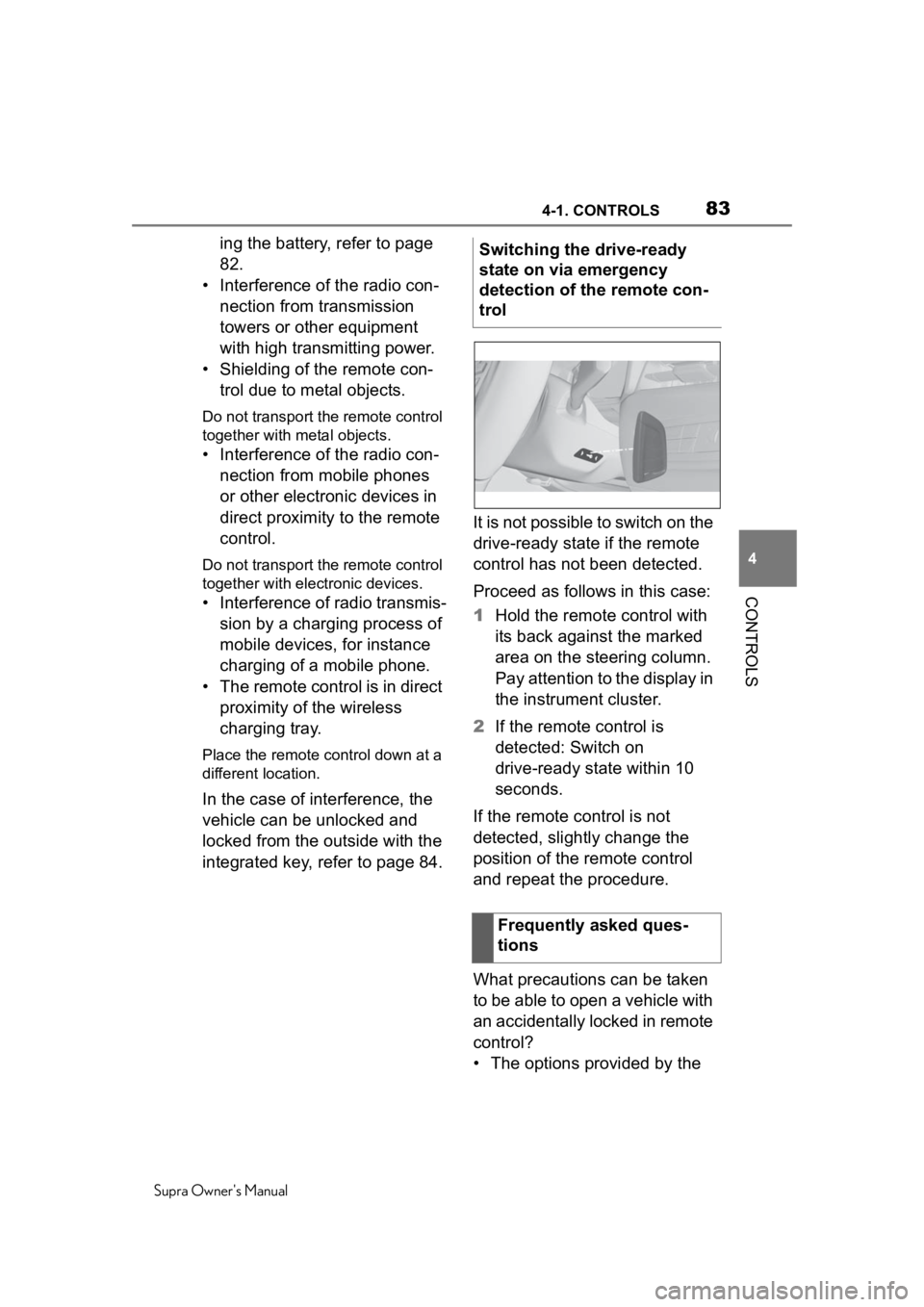
integrated key, refer to page 84. It is not possible to switch on the
drive-ready state if the remote
control has not been detected.
Proceed as follows in this case:
1
Hold the remote control with
its back against the marked
area on the steering column.
Pay attention to the display in
the instrument cluster.
2 If the remote control is
detected: Switch on
drive-ready state within 10
seconds.
If the remote control is not
detected, slightly change the
position of the remote control
and repeat the procedure.
What precautions can be taken
to be able to open a vehicle with
an accidentally locked in remote
control?
• The options provided by the Switching the drive-ready
state on via emergency
detection of the remote con-
trol
Frequently asked ques-
tions
Page 238 of 360
2384-1. CONTROLS
Supra Owner's Manual
until the LED flashes green
rapidly. This erases all pro-
gramming of the buttons on
the interior mirror.
3 Press the interior mirror but-
ton to be programmed. The
LED on the interior mirror will
slowly begin flashing orange.
4 Hold the hand-held transmit-
ter for the system to be used
approx. 1 to 12 in/2.5 to 30
cm away from the buttons on
the interior mirror. The
required distance depends
on the hand-held transmitter.
5 Press and hold the button of
the desired function on the
hand-held transmitter.
Canada: if programming with the
hand-held transmitter was inter-
rupted, hold down the interior mirror
button and repeatedly press and
release the hand-held transmitter
button for 2 seconds.
6
The LED lights up green: pro-
gramming completed.
Release the button.
The LED flashes fast: pro-
gramming is not complete.
Press the button on the interior mir-
ror for 2 seconds and release. Per-
form this procedure three times to
complete the programming proce-
dure.
If the integrated universal remote
control remains nonoperational,
continue with the special features
for change code wireless systems.
LED does not flash green
after 60 seconds: program-
ming not completed.
Repeat steps 3 to 6.
To program other functions on
other buttons, repeat steps 3 to
5.
If you are unable to operate the
remote-controlled system after
repeated programming, please
check if the system to be con-
trolled features a rolling code
radio system.
Refer to the owner's manual for
the system.
For systems with a rolling code
radio system, the integrated
Universal Remote Control and
the system also have to be syn-
chronized.
Please read the owner's manual
to find out how to synchronize
the system.
Synchronizing is easier with the
aid of a second person.
Synchronizing the universal
remote control with the system:
1 Park the vehicle within range
of the remote-controlled sys-
tem.
2 Program the relevant button
on the interior mirror as
described.
Special feature of the rolling
code wireless system
Page 239 of 360
2394-1. CONTROLS
Supra Owner's Manual
4
CONTROLS
3 Locate and press the syn-
chronizing button on the sys-
tem being programmed, e.g.
at the garage gate. You have
approx. 30 seconds for the
next step.
4 Hold down the programmed
button on the interior mirror
for approximately 3 seconds
and then release it. If neces-
sary, repeat this step up to
three times in order to finish
synchronization. Once syn-
chronization is complete, the
programmed function will be
carried out.
1 Switch on standby state.
2 Press and hold the interior
mirror button to be pro-
grammed.
3 As soon as the LED on the
interior mirror flashes orange
after approx. 20 seconds,
release the button.
4 Hold the hand-held transmit-
ter for the system to be used
approx. 1 to 12 in/2.5 to 30
cm away from the buttons on
the interior mirror. The
required distance depends
on the hand-held transmitter.
5 Press and hold the button of
the desired function on the
hand-held transmitter.
Canada: if programming with the hand-held transmitter was inter-
rupted, hold down the interior mirror
button and repeat
edly press and
release the hand-held transmitter
button for 2 seconds.
6 The LED can light up in dif-
ferent ways.
The LED lights up green: the
programming procedure is
completed.
Release the button.
The LED flashes fast: the
hand-held transmitter was
detected but programming is
not complete.
Press the button on the interior mir-
ror for 2 seconds and release. Per-
form this procedure three times to
complete the programming proce-
dure.
If the universal remote control
remains nonoperational, continue
with the special features for change
code wireless systems.
LED does not flash green
after 60 seconds: program-
ming not completed.
Repeat steps 3 to 6.
If the programming procedure is
not completed, the previous pro-
gramming will remain
unchanged.
Reprogramming individ-
ual buttons
Page 240 of 360
2404-1. CONTROLS
Supra Owner's Manual
The system, such as the garage
door, can be operated using the
button on the interior mirror
while the drive-ready or standby
state is switched on. To do this,
hold down the button within
receiving range of the system
until the function is activated.
The interior mirror LED stays lit
while the wireless signal is being
transmitted.
All stored functions will be
deleted. The functions cannot
be deleted individually.
Press and hold the two outer
buttons on the interior mirror
simultaneously for approxi-
mately 10 seconds until the LED
on the interior mirror flashes
green rapidly.Fold the sun visor down or up.
A vanity mirror is located in the
sun visor behind a cover. When
the cover is opened, the mirror
lighting switches on.
The lighter socket can be used
as a socket for electrical equip-
ment when standby and
drive-ready state are switched
on.
The total load of all sockets
must not exceed 140 watts at 12
volts.
Do not damage the socket by
using non-compatible connec-
tors.
Operation
WARNING
The operation of remote-con-
trolled systems with the integrated
universal remote c
ontrol, such as
the garage door, may result in
pinched body parts. There is a
risk of injury or risk of damage to
property. Make sure that the area
of movement of the respective
system is clear during program-
ming and operati on. Also follow
the safety information of the
hand-held transmitter.
Deleting stored functions
Sun visor
Glare shield
Vanity mirror
Sockets
Concept
General information
Page 242 of 360
2424-1. CONTROLS
Supra Owner's Manual
Charging current:
max. 1.5 A (vehicles without wire-
less charger)
max. 2.1 A (vehicles with wireless
charger)
For data transfer.
The wireless charging tray
enables the following functions
to be performed without cables:
Charging the rechargeable
battery of a mobile phone with
Qi capability and of other
mobile devices, which support
the Qi standard.
Connect the mobile phone to
the external antenna.
Depending on the country, this pro-
vides for better network reception
and a consistent r eproduction qual-
ity.
When inserting the mobile
phone, make sure there are no
objects between it and the wire-
less charging tray.
During charging, the surface of
the tray and the mobile phone
may become warm. Higher tem-
peratures may lead to a reduc-
tion in the charge current
through the mobile phone, and
in isolated cases the charging process is paused temporarily.
Follow the relevant instructions
in the mobile phone owner's
manual.
If the vehicle is equipped
with a charge indicator, the Con-
trol Display shows whether a
mobile phone with Qi capability
is being charged.
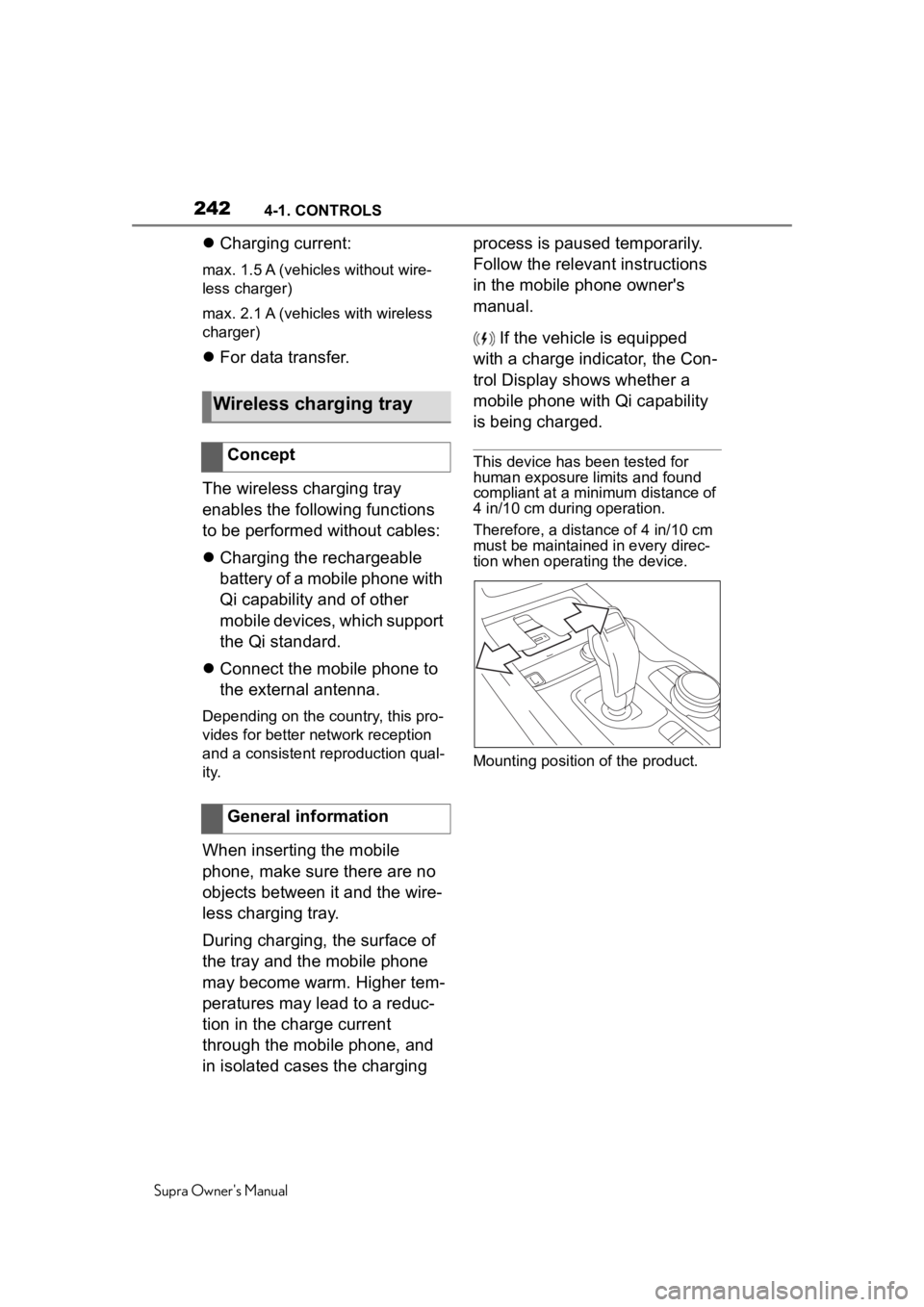
This device has been tested for
human exposure limits and found
compliant at a minim um distance of
4 in/10 cm during operation.
Therefore, a distance of 4 in/10 cm
must be maintained in every direc-
tion when operating the device.
Mounting position of the product.
Wireless charging tray
Concept
General information