warning TOYOTA VENZA 2014 Accessories, Audio & Navigation (in English)
[x] Cancel search | Manufacturer: TOYOTA, Model Year: 2014, Model line: VENZA, Model: TOYOTA VENZA 2014Pages: 15, PDF Size: 3.58 MB
Page 2 of 15
12
TABLE OF CONTENTS
The Quick Reference Guide is designed to provide information on the basic operation and key
features of the navigation system and Entune® App Suite (apps and data services). The Quick
Reference Guide is not intended as a substitute for the Navigation Owner’s Manual. We strongly
encourage you to review the Navigation Owner’s Manual, the quick reference guide and visit
www.toyota.com/entune so you will have a better understanding of all your v\
ehicle(s) features and
controls.
OVERVIEW
OVERVIEW 2
Limitations of the Quick Reference Guide 2
Basic Operation 2
CONNECT A BLUETOOTH PHONE 3
CALLING BY VOICE RECOGNITION 4
Dial by Number 4
Dial by Name 5
DESTINATION INPUT 6
By Address 6
Note on Voice Recognition 8
Tips for Using Voice Recognition 8
By Address - Voice Recognition 8
DESTINATION INPUT - POINT OF INTEREST (POI) 10
Point of Interest by Name 10
Point of Interest by Category 11
Point of Interest by Category - Voice Recognition 12
SET HOME 13
ADDITIONAL NAVIGATION FEATURES 15
Operation of Emergency Screen 15
Search Area 15
Route Preferences 15
3 Routes 15
Screen Configurations 15
Beep Setting 16
Voice Volume 16
Language 16
System time 16
Auto Screen Change 16
Estimated Distance and Time 16
NAVTRAFFIC 17
Show Navtraffic Information 17
Automatically Avoid Traffic 18
Traffic Incident Warning 18
Show Free Flowing Traffic 19
NAVWEATHER, SPORTS, STOCKS AND FUEL 20
ENTUNE ® APP SUITE
- INTRODUCTION 21
What is Entune App Suite? 21
Entune App Suite 21
Phone Compatibility 22
ENTUNE APP SUITE
- HOW TO GET STARTED 23
Basic Overview 23
ENTUNE APP SUITE
- NEW CUSTOMER REGISTRATION 24
Account Creation 24
Downloading Entune App Suite to Your Phone 24
Launch App 24
Connect Phone 24
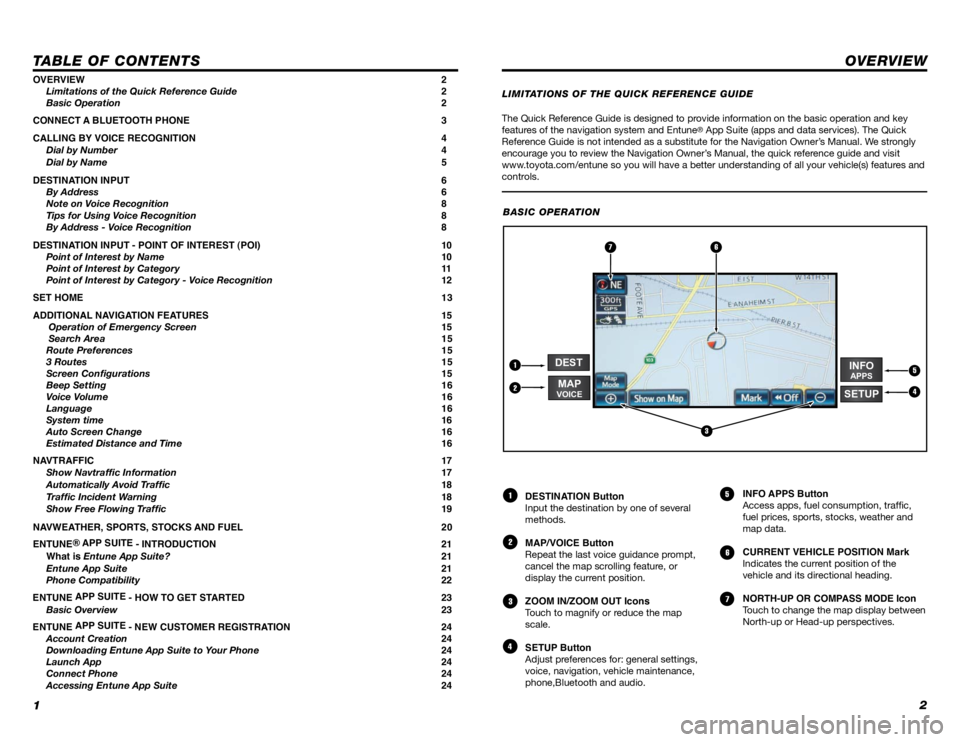
Accessing Entune App Suite 24 DESTINATION Button
Input the destination by one of several
methods.
MAP/VOICE Button
Repeat the last voice guidance prompt,
cancel the map scrolling feature, or
display the current position.
ZOOM IN/ZOOM OUT Icons
Touch to magnify or reduce the map
scale.
SETUP Button
Adjust preferences for: general settings,
voice, navigation, vehicle maintenance,
phone,Bluetooth and audio.
INFO APPS Button
Access apps, fuel consumption, traffic,
fuel prices, sports, stocks, weather and
map data.
CURRENT VEHICLE POSITION Mark
Indicates the current position of the
vehicle and its directional heading.
NORTH-UP OR COMPASS MODE Icon
Touch to change the map display between
North-up or Head-up perspectives.
1
2
3
4
5
6
7
LIMITATIONS OF THE QUICK REFERENCE GUIDE
BASIC OPERATION
2
5
6
4
1
3
7
INFOAPPS
DEST
SETUPMAPVOICE
Page 10 of 15
1718
NavTraffic integrates with your navigation system to display continuously updated traffic
information for over 100 markets.
For more information, see www.siriusxm.com/navtraffic
NAVTRAFFIC
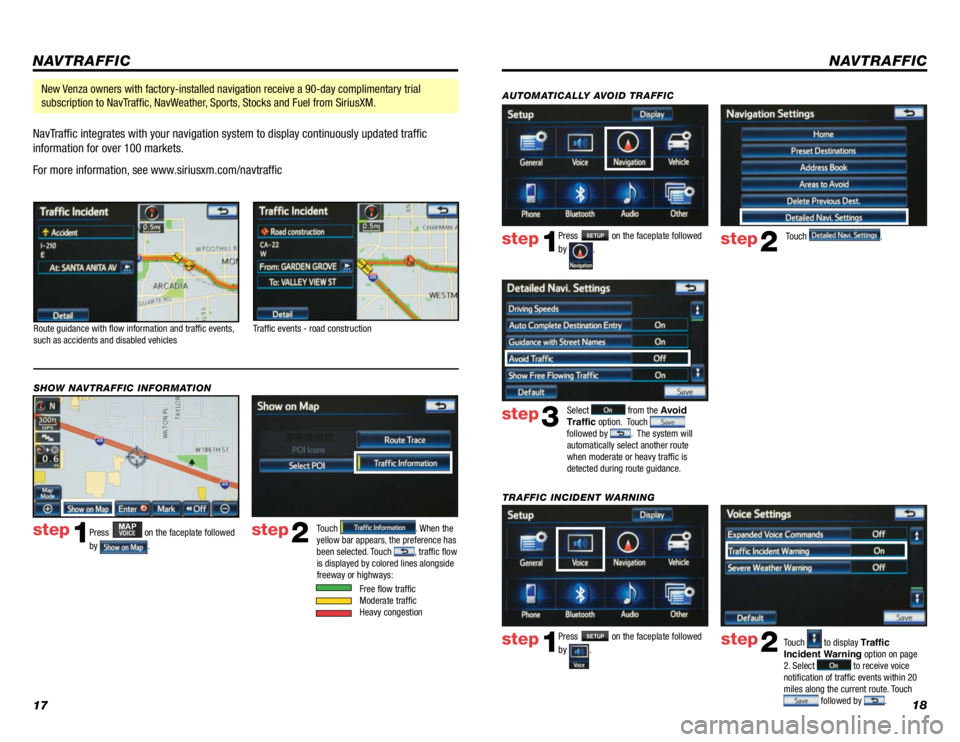
Route guidance with flow information and traffic events,
such as accidents and disabled vehicles
Traffic events - road construction
Press
MAPVOICE on the faceplate followed
by
.
step1step2Touch . When the
yellow bar appears, the preference has
been selected. Touch
, traffic flow
is displayed by colored lines alongside
freeway or highways:
SHOW NAVTRAFFIC INFORMATION
Free flow traffic
Moderate traffic
Heavy congestion
New Venza owners with factory-installed navigation receive a 90-day complimentary trial
subscription to NavTraffic, NavWeather, Sports, Stocks and Fuel from SiriusXM.
Press SETUP on the faceplate followed
by
. step1step2Touch to display Traffic
Incident Warning option on page
2. Select
to receive voice
notification of traffic events within 20
miles along the current route. Touch
followed by .
TRAFFIC INCIDENT WARNING Press
SETUP on the faceplate followed
by
. step1step2Touch .
AUTOMATICALLY AVOID TRAFFIC
step3
Select from the Avoid
Traffic option. Touch
followed by . The system will
automatically select another route
when moderate or heavy traffic is
detected during route guidance.
NAVTRAFFIC
Page 11 of 15
1920
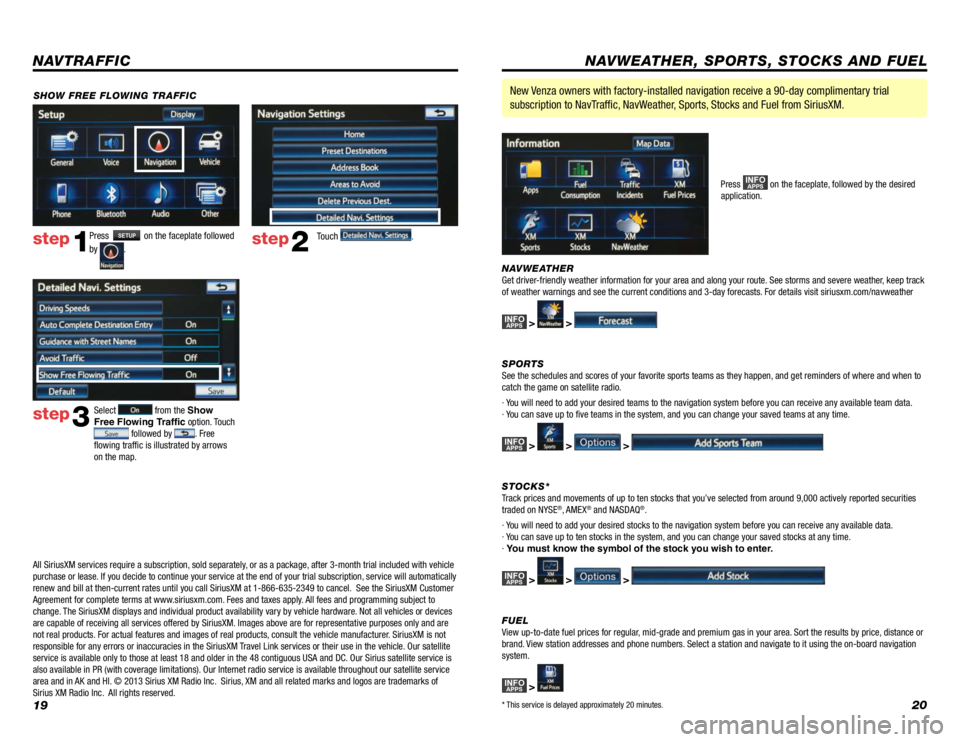
Press SETUP on the faceplate followed
by
. step1step2Touch .
SHOW FREE FLOWING TRAFFIC
step3
Select from the Show
Free Flowing Traffic option. Touch
followed by . Free
flowing traffic is illustrated by arrows
on the map.
NAVTRAFFIC
NAVWEATHER
Get driver-friendly weather information for your area and along your route. See storms and severe weather, keep track
of weather warnings and see the current conditions and 3-day forecasts. For details visit siriusxm.com/navweather
INFOAPPS > >
SPORTS
See the schedules and scores of your favorite sports teams as they happen, and get reminders of where and when to
catch the game on satellite radio.
· You will need to add your desired teams to the navigation system before you can receive any available team data.
· You can save up to five teams in the system, and you can change your saved teams at any time.
INFOAPPS > > >
STOCKS*
Track prices and movements of up to ten stocks that you’ve selected from around 9,000 actively reported securities
traded on NYSE
®, AMEX® and NASDAQ®.
· You will need to add your desired stocks to the navigation system before you can receive any available data.
· You can save up to ten stocks in the system, and you can change your saved stocks at any time.
· You must know the symbol of the stock you wish to enter.
INFOAPPS > > >
FUEL
View up-to-date fuel prices for regular, mid-grade and premium gas in your area. Sort the results by price, distance or
brand. View station addresses and phone numbers. Select a station and navigate to it using the on-board navigation
system.
INFOAPPS >
New Venza owners with factory-installed navigation receive a 90-day complimentary trial
subscription to NavTraffic, NavWeather, Sports, Stocks and Fuel from SiriusXM.
Press INFOAPPS on the faceplate, followed by the desired
application.
NAVWEATHER, SPORTS, STOCKS AND FUEL
* This service is delayed approximately 20 minutes.
All SiriusXM services require a subscription, sold separately, or as a package, after 3-month trial included with vehicle
purchase or lease. If you decide to continue your service at the end of your trial subscription, service will automatically
renew and bill at then-current rates until you call SiriusXM at 1-866-635-2349 to cancel. See the SiriusXM Customer
Agreement for complete terms at www.siriusxm.com. Fees and taxes apply. All fees and programming subject to
change. The SiriusXM displays and individual product availability vary by vehicle hardware. Not all vehicles or devices
are capable of receiving all services offered by SiriusXM. Images above are for representative purposes only and are
not real products. For actual features and images of real products, consult the vehicle manufacturer. SiriusXM is not
responsible for any errors or inaccuracies in the SiriusXM Travel Link services or their use in the vehicle. Our satellite
service is available only to those at least 18 and older in the 48 contiguous USA and DC. Our Sirius satellite service is
also available in PR (with coverage limitations). Our Internet radio service is available throughout our satellite service
area and in AK and HI. © 2013 Sirius XM Radio Inc. Sirius, XM and all related marks and logos are trademarks of
Sirius XM Radio Inc. All rights reserved.