display TOYOTA VENZA 2016 Owners Manual
[x] Cancel search | Manufacturer: TOYOTA, Model Year: 2016, Model line: VENZA, Model: TOYOTA VENZA 2016Pages: 688, PDF Size: 18.51 MB
Page 394 of 688
3943-2. Using the audio system (Entune Audio)
VENZA_OM_OM73030U_(U) Replying to a message
Display the “Messa ge Inbox” screen. ( P. 391)
Select the desired message from the list.
Select “Quick Message”.
Select the desired message.
Select “Send”. If an error message is displayed, follow the guidance on the screen
to try again.
■ Editing quick reply message
Select “Quick Message”.
Select corresponding to the desired message to edit.
Select “OK” when editing is completed.■ Check the messages
● Depending on the type of Bluetooth ®
phone being connected, it may be
necessary to perform additional steps on the phone.
● Messages are displayed in the appropriate connected Bluetooth ®
phone’s registered mail address folder.
Select the tab of the desired folder to be displayed.
● Only received messages on the connected Bluetooth ®
phone can be dis-
played.
● The text of the message is not displayed while driving.
● When “Automatic Message Readout” is set to on, messages will be auto-
matically read out. ( P. 408)
● Turn the “PWR VOL” knob, or use the volume switch on the steering
wheel to adjust the message read out volume.
● The message read out function is available even while driving. STEP 1
STEP 2
STEP 3
STEP 4
STEP 5
STEP 1
STEP 2
STEP 3
Page 395 of 688
3953-2. Using the audio system (Entune Audio)
VENZA_OM_OM73030U_(U) 3
Interior features Calling the message sender
Calls can be made to an e-mail /SMS/MMS message sender’s phone
number.
Display the “Messa ge Inbox” screen. ( P. 391)
Select the desired message.
Select .
Check that the “Call” screen is displayed.
■ Calling from a number within a message
Calls can be made to a number identified in a message’s text area.
This operation cannot be performed while driving.
Display the “Messa ge Inbox” screen. ( P. 391)
Select the desired message.
Select the text area.
Select corresponding to the desired number.
Check that the “Call” screen is displayed.
■ Calling from the incoming message screen
P. 3 8 9 STEP 1
STEP 2
STEP 3
STEP 4
STEP 1
STEP 2
STEP 3
STEP 4
STEP 5
Page 396 of 688
3963-2. Using the audio system (Entune Audio)
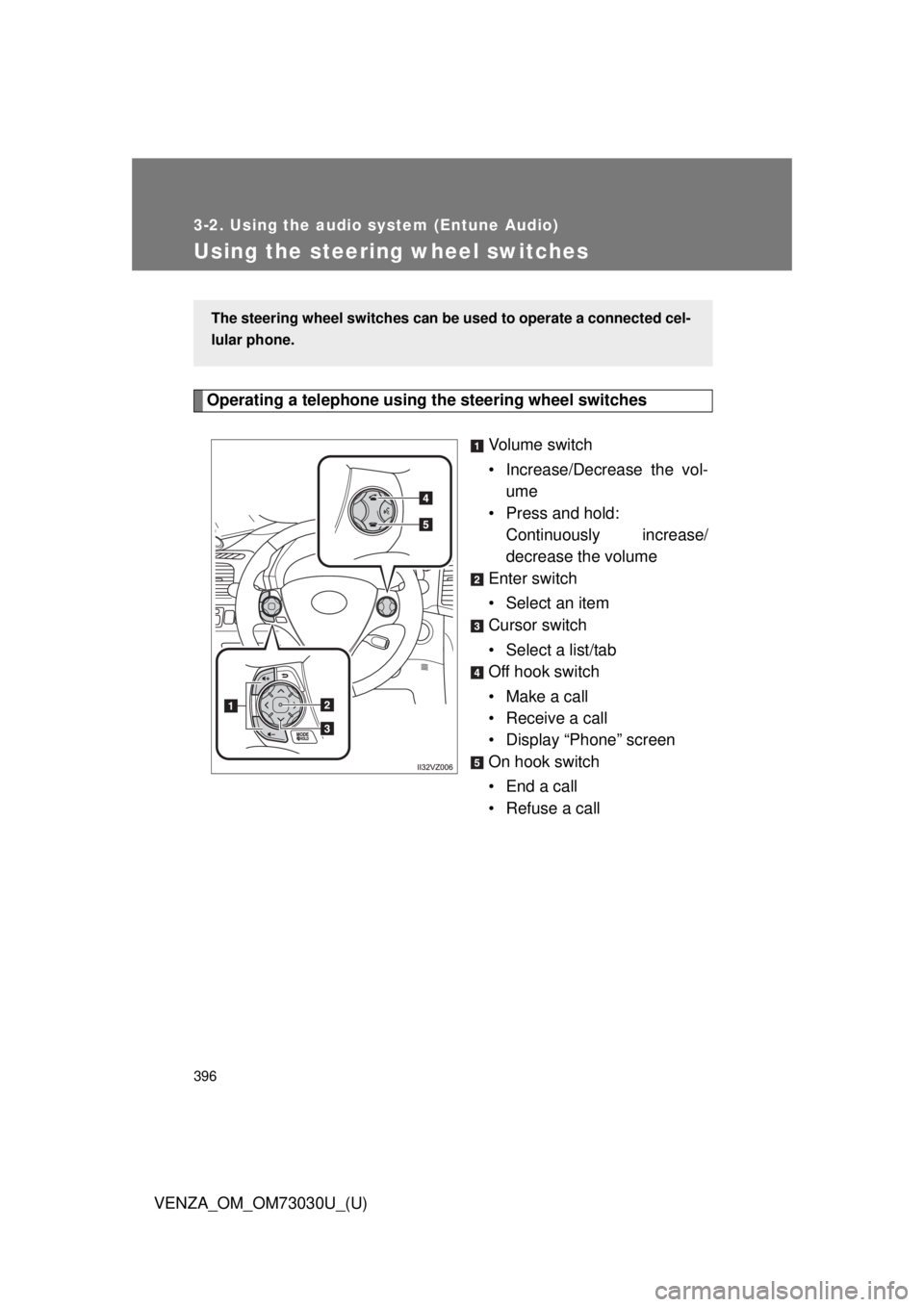
VENZA_OM_OM73030U_(U)Using the steering wheel switches Operating a telephone using the steering wheel switches
Volume switch
• Increase/Decrease the vol-
ume
• Press and hold:
Continuously increase/
decrease the volume
Enter switch
• Select an item
Cursor switch
• Select a list/tab
Off hook switch
• Make a call
• Receive a call
• Display “Phone” screen
On hook switch
•End a call
• Refuse a callThe steering wheel switches can be used to operate a connected cel-
lular phone.
Page 397 of 688
3973-2. Using the audio system (Entune Audio)
VENZA_OM_OM73030U_(U) 3
Interior features
Bluetooth ®
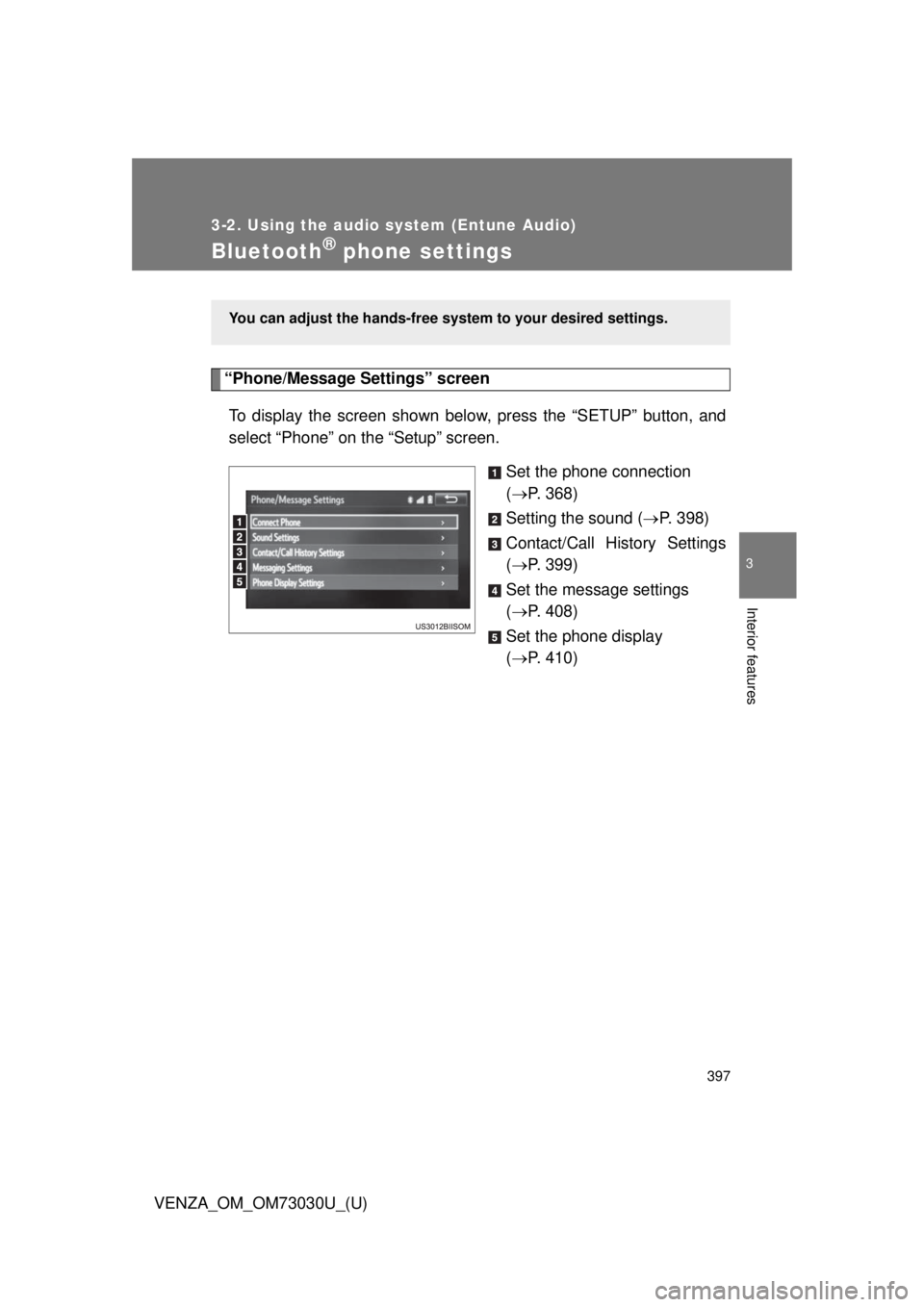
phone settings“Phone/Message Settings” screen
To display the screen shown belo w, press the “S ETUP” button, and
select “Phone” on the “Setup” screen.
Set the phone connection
( P. 368)
Setting the sound ( P. 398)
Contact/Call History Settings
( P. 399)
Set the message settings
( P. 408)
Set the phone display
( P. 410)You can adjust the hands-free syst em to your desired settings.
Page 398 of 688
3983-2. Using the audio system (Entune Audio)
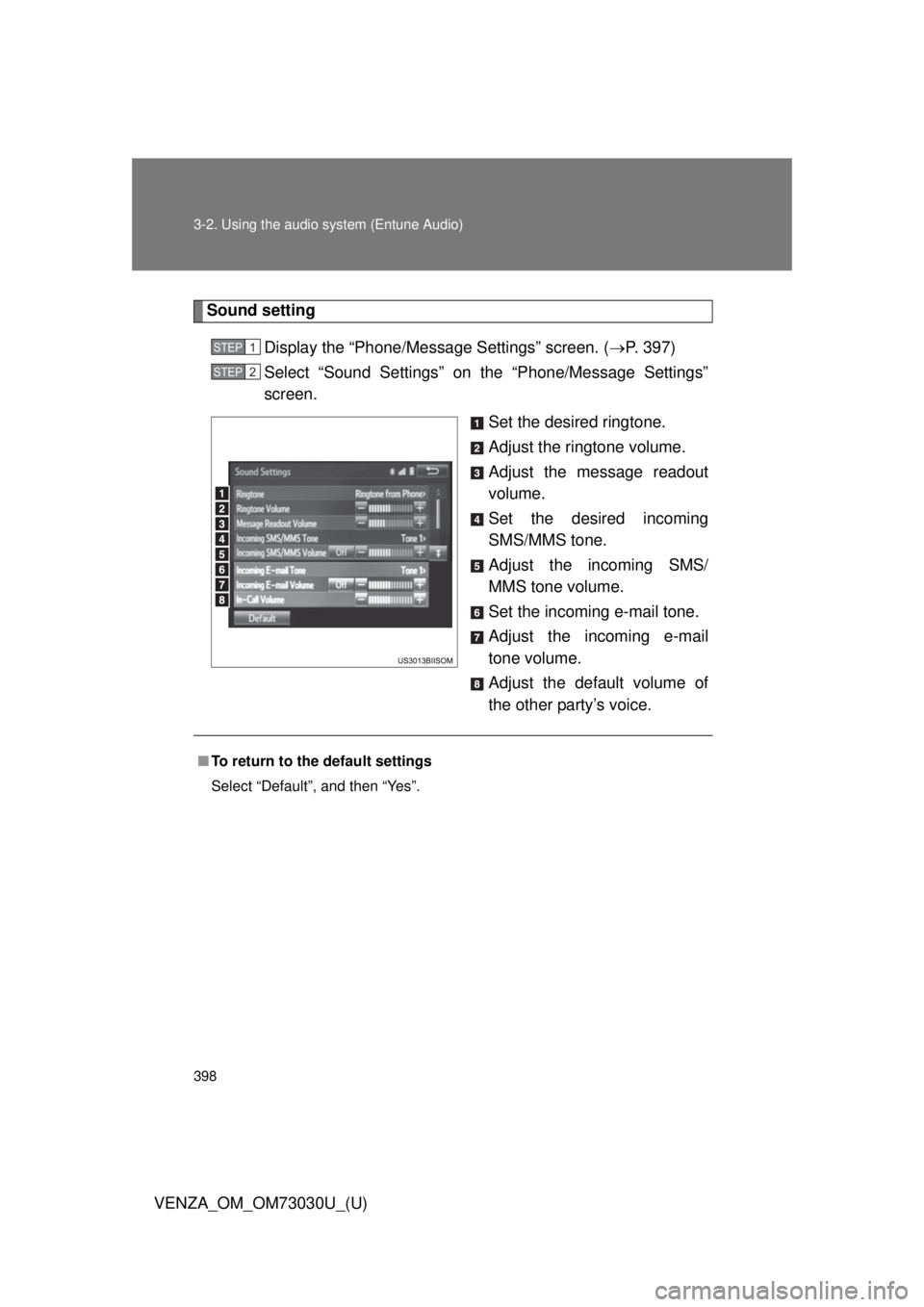
VENZA_OM_OM73030U_(U) Sound setting
Display the “Phone/Message Settings” screen. ( P. 397)
Select “Sound Settings” on the “Phone/Message Settings”
screen.
Set the desired ringtone.
Adjust the ringtone volume.
Adjust the message readout
volume.
Set the desired incoming
SMS/MMS tone.
Adjust the incoming SMS/
MMS tone volume.
Set the incoming e-mail tone.
Adjust the incoming e-mail
tone volume.
Adjust the default volume of
the other party’s voice.STEP 1
STEP 2
■ To return to the default settings
Select “Default”, and then “Yes”.
Page 399 of 688
3993-2. Using the audio system (Entune Audio)
VENZA_OM_OM73030U_(U) 3
Interior features
Contact/Call Histor y Settings The contact can be transferred from a Bluetooth ®
phone to the sys-
tem. The contact also can be added, edited and deleted.
The call history can be deleted and contact and favorites can be
changed.
Display the “Phone/Message Settings” screen. ( P. 397)
Select “Contact/Ca ll History Settings”.STEP 1
STEP 2
Page 401 of 688
4013-2. Using the audio system (Entune Audio)
VENZA_OM_OM73030U_(U) 3
Interior features Update contacts from phone
Operation methods differ between PBAP compatible and PBAP
incompatible but OPP compatible Bluetooth ®
phones.
If your cellular phone is neither PBAP nor OPP compatible, the con-
tacts cannot be transferred.
■ For PBAP compatible Bluetooth ®
Phones
Select “Update Contacts from Phone”.
Check that a confirmation screen is displayed when the oper-
ation is complete. This operation may be unnecessary depending on the type of cellu-
lar phone.
Depending on the type of cellular phone, OBEX authentication may
be required when transferring contact data. Enter “1234” into the
Bluetooth ®
phone.
If another Bluetooth ®
device is connected when transferring contact
data, depending on the phone, the connected Bluetooth ®
device
may need to be disconnected.
Depending on the type of Bluetooth ®
phone being connected, it may
be necessary to perform additional steps on the phone. STEP 1
STEP 2
Page 402 of 688
4023-2. Using the audio system (Entune Audio)
VENZA_OM_OM73030U_(U) ■ For PBAP incompatible but OPP compatible Bluetooth ®
Phones
Select “Update Contacts from Phone”.
Transfer the contact data to the system using a Bluetooth ®
phone. This operation may be unnecessary depending on the type of cellu-
lar phone.
Depending on the type of cellular phone, OBEX authentication may
be required when transferring contact data. Enter “1234” into the
Bluetooth ®
phone.
To cancel this function, select “Cancel”.
Select “Done” when it appears on the screen.
Check that a confirmation screen is displayed when the oper-
ation is complete.
■ Updating the contacts in a different way (From the “Call His-
tory” screen)
For PBAP compatible Bluetooth ®
phones, this function is available
when “Automatic Contact/History Transfer” is set to off. ( P. 399)
Display the phone screen. ( P. 379)
Select the “Call History” tab and select a contact not yet regis-
tered in the contact list.
Select “Update Contact”.
Select the desired contact.
Select a phone type for the phone number. STEP 1
STEP 2
STEP 3
STEP 4
STEP 1
STEP 2
STEP 3
STEP 4
STEP 5
Page 403 of 688
4033-2. Using the audio system (Entune Audio)
VENZA_OM_OM73030U_(U) 3
Interior features Registering a new contact to the contact list
New contact data can be registered. Up to 4 numbers per person can
be registered. For PBAP compatible Bluetooth ®
phones, this function
is available when “Automatic Cont act/History Transfer” is set to off.
( P. 399)
Select “New Contact”.
Enter the name and select “OK”.
Enter the phone number and select “OK”.
Select the phone type for the phone number.
To add another number to this contact, select “Yes”.
■ Registering a new contact in a different way (From the “Call
History” screen)
Display the phone screen. ( P. 379)
Select the “Call History” tab and select a contact not yet regis-
tered in the contact list.
Select “Add to Contacts”.
Follow the steps in “Registering a new contact to the contacts
list” from . ( P. 403)STEP 1
STEP 2
STEP 3
STEP 4
STEP 5
STEP 1
STEP 2
STEP 3
STEP 4
STEP3
Page 404 of 688
4043-2. Using the audio system (Entune Audio)
VENZA_OM_OM73030U_(U) Editing the contact data
For PBAP compatible Bluetooth ®
phones, this function is available
when “Automatic Contact/History Transfer” is set to off. ( P. 399)
Select “Edit Contact”.
Select the desired contact.
Select corresponding to the desired name or number.
For editing the name
Follow the steps in “Registering a new contact to the contacts
list” from . ( P. 403)
For editing the number
Follow the steps in “Registering a new contact to the contacts
list” from . ( P. 403)
■ Editing the contacts in a different way (From the “Contact
Details” screen)
Display the phone screen. ( P. 379)
Select the “Contacts”, “Call History” tab or the “Favorites” tab
and select the desired contact.
Select “Edit Contact”. “E-mail Addresses”: Select to disp lay all registered e-mail addresses
for the contact.
Follow the steps in “Editing the contact data” from .
( P. 404) STEP 1
STEP 2
STEP 3
STEP 4
STEP2
STEP 4
STEP3
STEP 1
STEP 2
STEP 3
STEP 4 STEP4