display TOYOTA YARIS 2016 Owners Manual
[x] Cancel search | Manufacturer: TOYOTA, Model Year: 2016, Model line: YARIS, Model: TOYOTA YARIS 2016Pages: 592, PDF Size: 10.44 MB
Page 344 of 592
342
YARIS_SEDAN_OM_OM99M18z_(U)
4-3. Bluetooth®
●If the pairing failed, “Err” flashes for three seconds.
● Pairing cannot be performed while the vehicle is moving. If you attempt to
perform pairing while the vehicle is moving, “PAIR DISABLE” is displayed.
● If seven Bluetooth
® audio devices have already been paired to the vehicle,
pairing cannot be performed and “MEMORY FULL” is displayed. Delete one
paired device to pair another one.
● If pairing cannot be completed, try “1234” instead. Refer to the owner’s
manual of your mobile device for the right PIN code.
● If a hands-free type mobile phone has been the most recently paired device,
the Bluetooth
® unit links this device. If you would like to use a Bluetooth®
audio type device which has been previously paired to the Bluetooth® unit,
the link must be changed to this device.
● If an error occurs while trying to link a device, “Err” flashes in the audio dis-
play for three seconds, and the display returns to “LINK CHANGE”. If this
occurs, check the pairing status of the Bluetooth
® audio device and the
location of the device in the vehicle (not in the luggage compartment/trunk
or a metal-type box), and then try the link operation again.
● When “GO BACK” is selected and the audio control dial is pressed, the dis-
play returns to “DEVICE INFO”.
YARIS_SEDAN_OM_OM99M18z_(U).book Page 342 Monday, June 1, 2015 9:22 PM
Page 353 of 592
![TOYOTA YARIS 2016 Owners Manual YARIS_SEDAN_OM_OM99M18z_(U)
3514-3. Bluetooth®
4
Interior Features
●Voice recognition learning on/off
Press the pick-up button or talk button with a short press.
Say: [Beep] “Voice training”
Pr](/img/14/60787/w960_60787-352.png "TOYOTA YARIS 2016 Owners Manual YARIS_SEDAN_OM_OM99M18z_(U)
3514-3. Bluetooth®
4
Interior Features
●Voice recognition learning on/off
Press the pick-up button or talk button with a short press.
Say: [Beep] “Voice training”
Pr")
YARIS_SEDAN_OM_OM99M18z_(U)
3514-3. Bluetooth®
4
Interior Features
●Voice recognition learning on/off
Press the pick-up button or talk button with a short press.
Say: [Beep] “Voice training”
Prompt: “Enrollment is enabled/ disabled. Would you like to
disable/ enable or retrain?”
Say: [Beep] “Disable” or “Enable”
When “Disable” is spoken, the voice recognition learning is
turned off. When “Enable” is spoken, the voice recognition
learning is turned on.
Prompt: “Speaker Enrollment is disabled/enabled.”
■Voice Recognition Learning Funct ion (Speaker Enrollment) (Type A)
● If an error occurred in the voice recognition learning, re-learning can be
done by pressing the talk button with a short press.
● The applicable phrase appears in the audio display.
● After user voice registration is completed, voice guidance “Speaker enroll-
ment is complete” is announced.
■
Device pairing
To use Bluetooth
® audio and Hands-Free, the device equipped with
Bluetooth® has to be paired to the unit using the following proce-
dure. A maximum of seven devices including Bluetooth® audio
devices and hands-free mobile phones can be paired.
● Pairing Procedure
Select the icon on the home screen and display the
Settings screen.
Select the tab.
Select .
Turn the Bluetooth
® setting on.
Select to display the message and switch to the
device operation.
Using your device, perform a search for the Bluetooth
® device
(Peripheral device).
Select “Toyota” from the device list searched by the device.
Bluetooth® Preparation (Type B)
1
2
3
4
5
6
1
2
3
4
5
6
7
YARIS_SEDAN_OM_OM99M18z_(U).book Page 351 Monday, June 1, 2015 9:22 PM
Page 354 of 592
352
YARIS_SEDAN_OM_OM99M18z_(U)
4-3. Bluetooth®
(Device with Bluetooth® version 2.0)
Input the displayed 4-digit pairing code into the device.
(Device with Bluetooth
® version 2.1 or higher)
Make sure the displayed 6-digit code on the audio is also dis-
played on the device, and touch the .
Connection permission and phonebook access permission for
your mobile device may be required depending on the mobile
device.
If pairing is successful, the functions of the device connected
to Bluetooth
® are displayed.
(Devices compatible with Toyota/Scion Email/SMS function)
SMS (Short Message Service) messages, and E-mail for the
device are downloaded automatically. A download permission
operation for your device may be required depending on the
device.
After a device is registered, the system automatically identifies the
device. By activating Bluetooth
® Hands-Free again, or by activating
Bluetooth® Hands-Free first after switching the ignition from OFF to
ACC, the device connection condition is indicated in the center dis-
play.
● IMPORTANT note about pairing and automatic reconnection:
• If pairing is redone on the same mobile phone device, first
clear “Toyota” displayed on the Bluetooth
® setting screen of
the mobile device.
• When the OS of the device is updated, the pairing information may be deleted. If this happens, reprogram the pairing infor-
mation to the Bluetooth
® unit.
• Before you pair your device, make sure that Bluetooth® is
“ON”, both on your phone and on the vehicle.
8
9
10
YARIS_SEDAN_OM_OM99M18z_(U).book Page 352 Monday, June 1, 2015 9:22 PM
Page 355 of 592
YARIS_SEDAN_OM_OM99M18z_(U)
3534-3. Bluetooth®
4
Interior Features
■Device selection
If several devices have been paired, the Bluetooth
® unit links the
device last paired. If you would like to link a different paired device,
it is necessary to change the link. The order of device priority after
the link has been changed is maintained even when the ignition is
switched off.
● Connecting other devices
Select the icon on the home screen and display the
Settings screen.
Select the tab.
Select .
Turn the Bluetooth
® setting on.
Select the name of the device you would like to connect. selection
Connects both devices as hands-free and Bluetooth
® audio.
selection
Connects as a hands-free device.
selection
Connects as Bluetooth
® audio.
● Disconnecting a device
Select the icon on the home screen and display the
Settings screen.
Select the tab.
Select .
Turn the Bluetooth
® setting on.
Select the device name which is currently connected.
Select .
1
2
3
4
5
6
1
2
3
4
5
6
YARIS_SEDAN_OM_OM99M18z_(U).book Page 353 Monday, June 1, 2015 9:22 PM
Page 356 of 592
354
YARIS_SEDAN_OM_OM99M18z_(U)
4-3. Bluetooth®
■Deleting a device
●Selecting and deleting devices
Select the icon on the home screen and display the
Settings screen.
Select the tab.
Select .
Turn the Bluetooth
® setting on.
Select the device name which you would like to delete.
Select .
Select .
● Deleting all devices
Select the icon on the home screen and display the
Settings screen.
Select the tab.
Select .
Select .
Select .
Select .
■Changing PIN code
PIN code (4 digits) can be changed.Select the icon on the home screen and display the Set-
tings screen.
Select the tab.
Select .
Select .
Select .
Input the new PIN code to be set.
Select .
1
2
3
4
5
6
7
1
2
3
4
5
6
1
2
3
4
5
6
7
YARIS_SEDAN_OM_OM99M18z_(U).book Page 354 Monday, June 1, 2015 9:22 PM
Page 358 of 592
356
YARIS_SEDAN_OM_OM99M18z_(U)
4-3. Bluetooth®
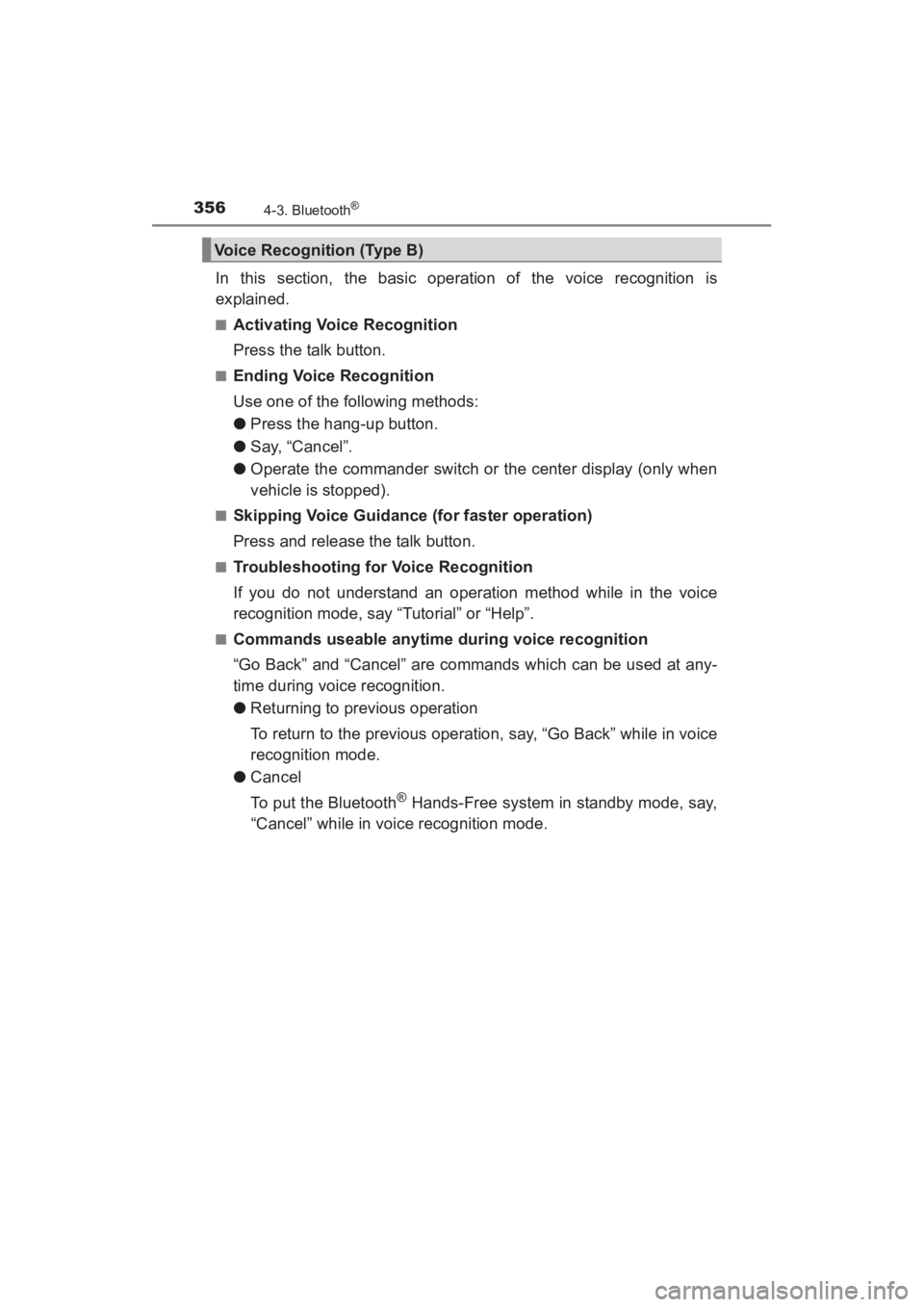
In this section, the basic operation of the voice recognition is
explained.
■Activating Voice Recognition
Press the talk button.
■Ending Voice Recognition
Use one of the following methods:
●Press the hang-up button.
● Say, “Cancel”.
● Operate the commander switch or the center display (only when
vehicle is stopped).
■Skipping Voice Guidance (for faster operation)
Press and release the talk button.
■Troubleshooting for Voice Recognition
If you do not understand an operation method while in the voice
recognition mode, say “Tutorial” or “Help”.
■Commands useable anytime during voice recognition
“Go Back” and “Cancel” are commands which can be used at any-
time during voice recognition.
●Returning to previous operation
To return to the previous operation, say, “Go Back” while in voice
recognition mode.
● Cancel
To put the Bluetooth
® Hands-Free system in standby mode, say,
“Cancel” while in voice recognition mode.
Voice Recognition (Type B)
YARIS_SEDAN_OM_OM99M18z_(U).book Page 356 Monday, June 1, 2015 9:22 PM
Page 373 of 592

371
YARIS_SEDAN_OM_OM99M18z_(U)
4-3. Bluetooth®
4
Interior Features
Bluetooth® Hands-Free (Type B)
■Phonebook Usage
Telephone calls can be made by saying the contact name in the
downloaded phonebook or the name of a person whose phone
number has been registered in the Bluetooth
® Hands-Free. Refer
to Import contact (Download Phonebook).
Press the talk button.
Wait for the beep sound.
Say: “Call XXXXX... (Ex. “John”) Mobile”.
Follow the voice guidance to place the call.
● Screen operation
Select the icon on the home screen and display the
Communication screen.
Select to display the contact list.
Select the contact you would like to call to display the details
for the contact.
Select the desired phone number to make the call.
● Import contact (Download Phonebook)
Phonebook data from your device (Mobile phone) can be sent
and registered to your Bluetooth
® Hands-Free phonebook using
Bluetooth®.
Automatic downloading:
The “Auto Download Contacts” setting must be on. When hands-
free is connected to the device, the phonebook is downloaded
automatically.
Refer to Communication Settings on P. 382.
Manually downloading:
If the “Auto Download Contacts” setting is off, download the
phonebook using the following procedure. Select the icon on the home screen and display the
Communication screen.
Select to display the contact list.
Select .
Making a Call
1
2
3
4
1
2
3
4
1
2
3
YARIS_SEDAN_OM_OM99M18z_(U).book Page 371 Monday, June 1, 2015 9:22 PM
Page 374 of 592

372
YARIS_SEDAN_OM_OM99M18z_(U)
4-3. Bluetooth®
Select or to switch to the
device operation.
If is selected, select .
Download will be started from the mobile phone.
■Favorites Contacts
A maximum of 50 contacts can be registered. It will take less time to
make a call after registering the telephone number. In addition, you
do not have to look for the person you want to call in the phone-
book.
● Registering to your favorites
Select the icon on the home screen and display the
Communication screen.
Select to display the favorites list.
Select .
Select or .
Select from the displayed list.
● Making a call from your favorites
Select the icon on the home screen and display the
Communication screen.
Select to display the favorites list.
Only one phone number is registered to contact:
Select the contact information you would like to call. Go to
Step 5.
Multiple phone numbers are registered to contact:
Select the contact you would like to call to display the screen
indicating the details for the contact. Go to Step 4.
Select the phone number you would like to call.
Select .
4
5
6
1
2
3
4
5
1
2
3
4
5
YARIS_SEDAN_OM_OM99M18z_(U).book Page 372 Monday, June 1, 2015 9:22 PM
Page 375 of 592

YARIS_SEDAN_OM_OM99M18z_(U)
3734-3. Bluetooth®
4
Interior Features
●Deleting from your favorites
Select the icon on the home screen and display the
Communication screen.
Select to display the favorites list.
Select .
Select .
Select the contact information which you would like to delete.
Select .
● Changing the display order of your favorites list
Select the icon on the home screen and display the
Communication screen.
Select to display the favorites list.
Select .
Select .
The contact can be moved after it is selected.
Slide the contact or move it using the commander switch, then
select .
● Changing contact name of your favorites
Select the icon on the home screen and display the
Communication screen.
Select to display the favorites list.
Select .
Select .
Select the contact to display the keyboard screen.
If a new name is input and is selected, the contact name is
stored.
1
2
3
4
5
6
1
2
3
4
5
6
1
2
3
4
5
6
YARIS_SEDAN_OM_OM99M18z_(U).book Page 373 Monday, June 1, 2015 9:22 PM
Page 376 of 592
374
YARIS_SEDAN_OM_OM99M18z_(U)
4-3. Bluetooth®
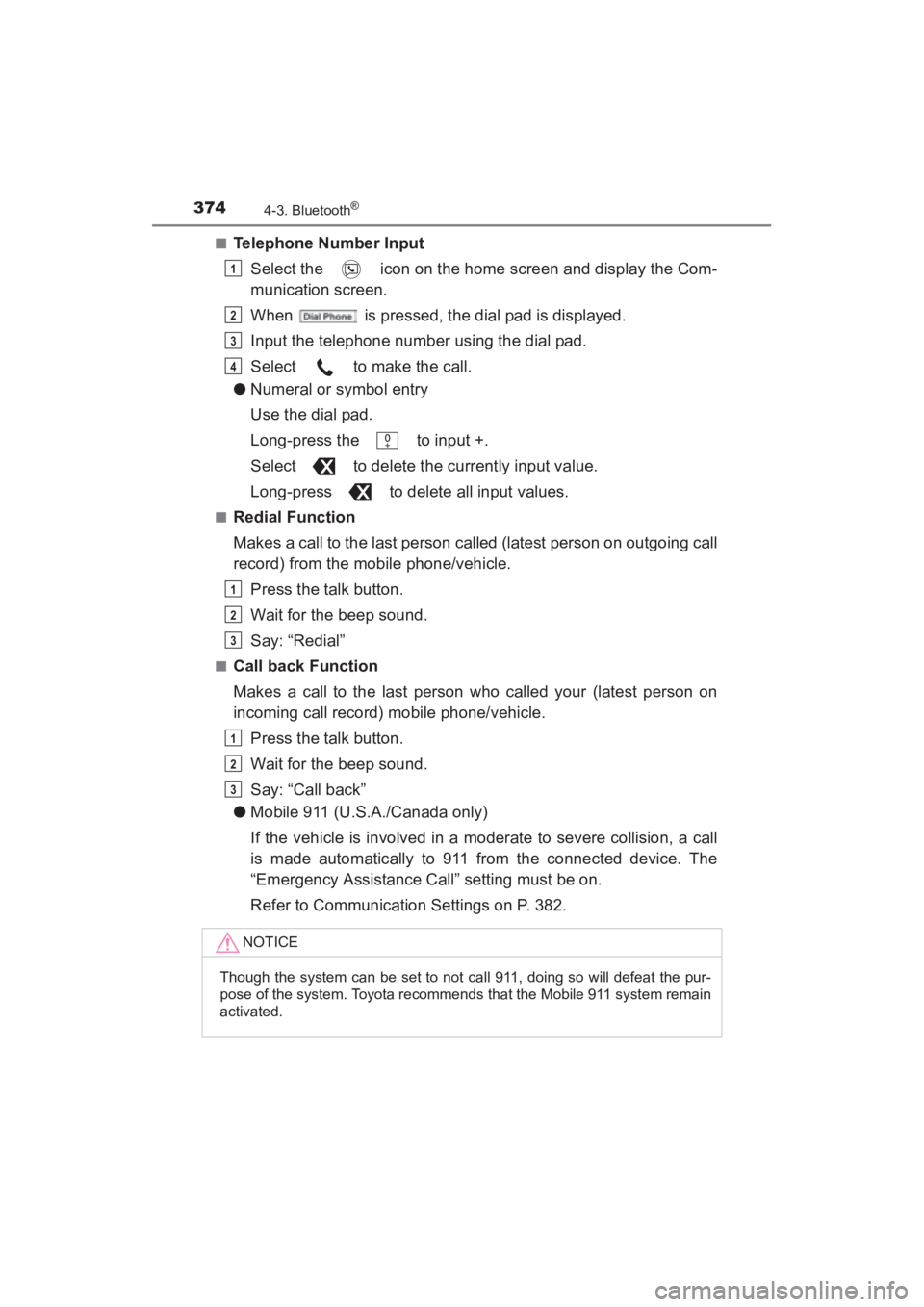
■Telephone Number InputSelect the icon on the home screen and display the Com-
munication screen.
When is pressed, the dial pad is displayed.
Input the telephone number using the dial pad.
Select to make the call.
● Numeral or symbol entry
Use the dial pad.
Long-press the to input +.
Select to delete the currently input value.
Long-press to delete all input values.
■Redial Function
Makes a call to the last person called (latest person on outgoing call
record) from the mobile phone/vehicle.
Press the talk button.
Wait for the beep sound.
Say: “Redial”
■Call back Function
Makes a call to the last person who called your (latest person on
incoming call record) mobile phone/vehicle.Press the talk button.
Wait for the beep sound.
Say: “Call back”
● Mobile 911 (U.S.A./Canada only)
If the vehicle is involved in a moderate to severe collision, a call
is made automatically to 911 from the connected device. The
“Emergency Assistance Call” setting must be on.
Refer to Communication Settings on P. 382.
NOTICE
Though the system can be set to not call 911, doing so will defeat the pur-
pose of the system. Toyota recommends that the Mobile 911 system remain
activated.
1
2
3
4
1
2
3
1
2
3
YARIS_SEDAN_OM_OM99M18z_(U).book Page 374 Monday, June 1, 2015 9:22 PM