display TOYOTA YARIS 2016 Manual Online
[x] Cancel search | Manufacturer: TOYOTA, Model Year: 2016, Model line: YARIS, Model: TOYOTA YARIS 2016Pages: 592, PDF Size: 10.44 MB
Page 326 of 592
324
YARIS_SEDAN_OM_OM99M18z_(U)
4-3. Bluetooth®
Bluetooth®
■Bluetooth® Hands-Free outline
When a Bluetooth
® device (mobile phone) is connected to the vehi-
cle’s Bluetooth® unit via radio wave transmission, a call can be
made or received by pressing the talk button, pickup button, or
hang-up button on the audio remote control switch, or by operating
the center display. For example, even if a device (mobile phone) is
in your coat pocket, a call can be made without taking the device
(mobile phone) out and operating it directly.
■Bluetooth® audio outline
When a portable audio unit equipped with the Bluetooth
® communi-
cation function is paired to the vehicle, you can listen to music
stored on the paired portable audio device from the vehicle’s speak-
ers. It is not necessary to connect the portable audio device to the
vehicle’s external input terminal. After programming, operate the
vehicle audio control panel to play/ stop the audio.
■Applicable Bluetooth® specification (Recommended)
Type A: Ver. 2.0
Type B: Ver. 1.1/1.2/2.0 + EDR/2.1 + EDR/3.0 (conformity)
■ Bluetooth® audio outline
● For your safety, a device can be paired only when the vehicle is parked. If
the vehicle starts to move, the pairing procedure will end. Park the vehicle in
a safe place before pairing.
● The communication range of a Bluetooth
® equipped device is about 32 ft.
(10 m) or less.
● Basic audio operation is available using voice commands even if Bluetooth
®
is not connected.
YARIS_SEDAN_OM_OM99M18z_(U).book Page 324 Monday, June 1, 2015 9:22 PM
Page 328 of 592
326
YARIS_SEDAN_OM_OM99M18z_(U)
4-3. Bluetooth®
■Microphone (hands-free)
The microphone is used for speaking voice commands or when
making a Hands-free call.
■Talk button, Pick-Up button and Hang-Up button (hands-free)
The basic functions of Bluetooth
® Hands-Free can be used for such
things as making calls or hanging up using the talk, pick-up and
hang-up buttons on the steering wheel.
■Commander switch (Type B)
The commander switch is used for volume adjustment and display
operation. Tilt or turn the commander knob to move the cursor.
Press the commander knob to select the icon.
■Volume adjustment
The power/volume dial of the audio unit
*1 or the volume dial of the
commander switch
*2 is used to adjust the volume. Turn the dial to
the right to increase volume, to the left to decrease it.
The volume can also be adjusted using the volume button on the
steering wheel.
*1Type A
*2Type B
Type B only:
Conversation volume and the volume of the voice guidance and
ringtone can each be set in advance.
Select the icon on the home screen and display the Com-
munication screen.
Select .
Adjust the and the using the slider.
■Volume adjustment
If the volume is lower compared to other audio modes, increase the volume
from the device side.
1
2
3
YARIS_SEDAN_OM_OM99M18z_(U).book Page 326 Monday, June 1, 2015 9:22 PM
Page 336 of 592
334
YARIS_SEDAN_OM_OM99M18z_(U)
4-3. Bluetooth®
■Bluetooth® Audio Preparation
● Bluetooth
® audio device set-up
Bluetooth
® audio pairing, changes, deletions, and display of
paired device information can be performed.
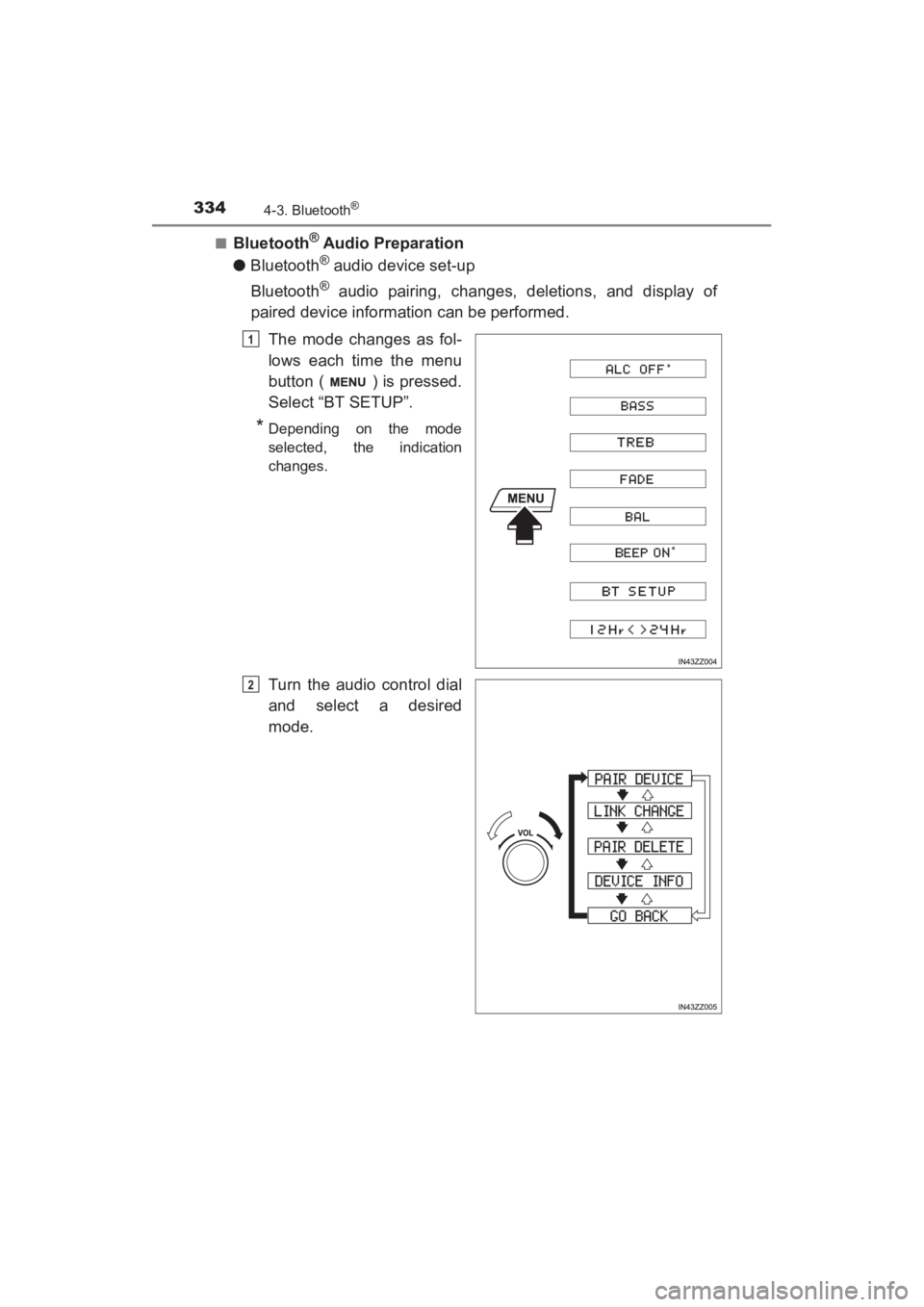
The mode changes as fol-
lows each time the menu
button ( ) is pressed.
Select “BT SETUP”.
*Depending on the mode
selected, the indication
changes.
Turn the audio control dial
and select a desired
mode.
1
2
YARIS_SEDAN_OM_OM99M18z_(U).book Page 334 Monday, June 1, 2015 9:22 PM
Page 337 of 592
YARIS_SEDAN_OM_OM99M18z_(U)
3354-3. Bluetooth®
4
Interior Features
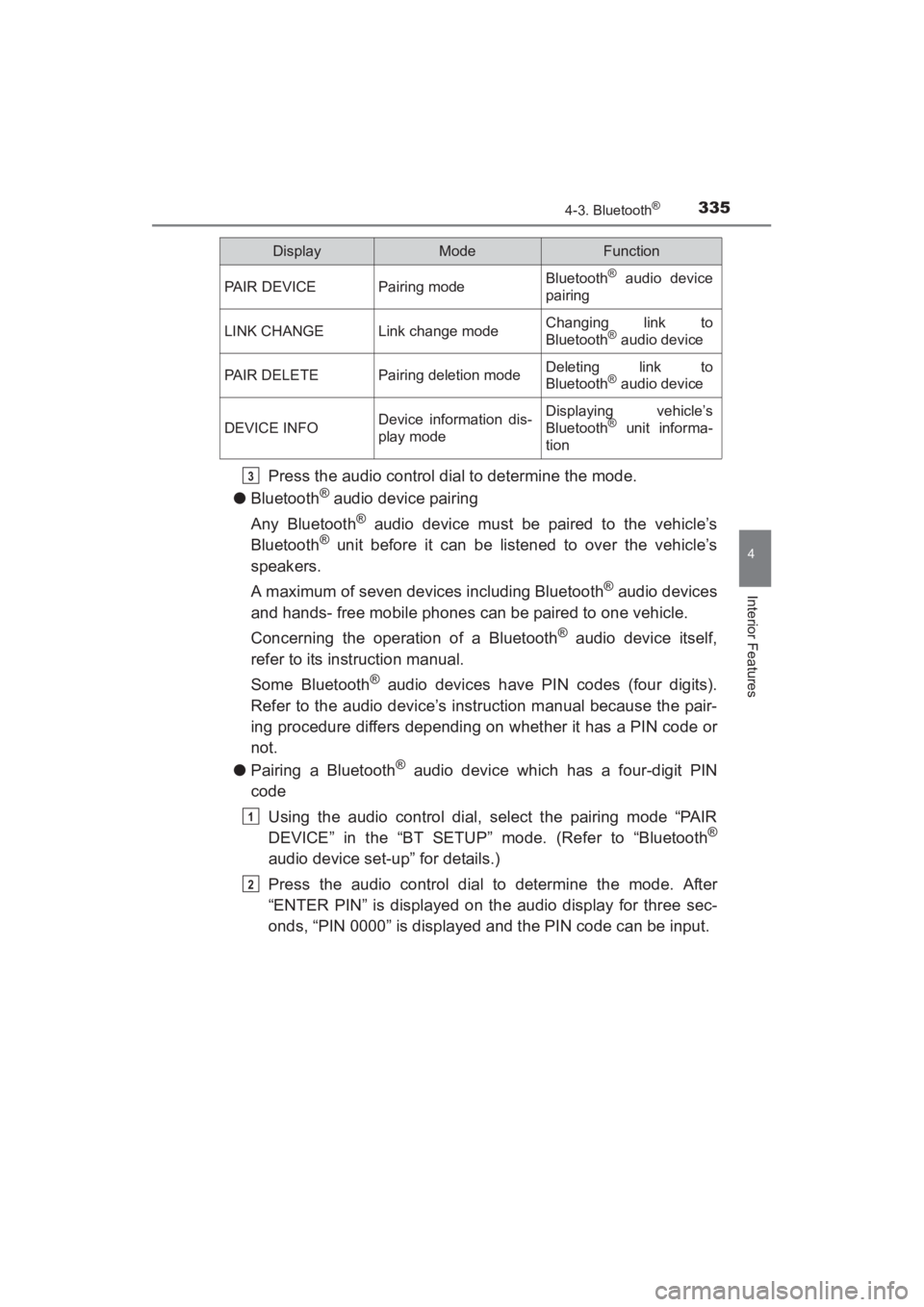
Press the audio control dial to determine the mode.
● Bluetooth
® audio device pairing
Any Bluetooth
® audio device must be paired to the vehicle’s
Bluetooth® unit before it can be listened to over the vehicle’s
speakers.
A maximum of seven devices including Bluetooth
® audio devices
and hands- free mobile phones can be paired to one vehicle.
Concerning the operation of a Bluetooth
® audio device itself,
refer to its instruction manual.
Some Bluetooth
® audio devices have PIN codes (four digits).
Refer to the audio device’s instruction manual because the pair-
ing procedure differs depending on whether it has a PIN code or
not.
● Pairing a Bluetooth
® audio device which has a four-digit PIN
code
Using the audio control dial, select the pairing mode “PAIR
DEVICE” in the “BT SETUP” mode. (Refer to “Bluetooth
®
audio device set-up” for details.)
Press the audio control dial to determine the mode. After
“ENTER PIN” is displayed on the audio display for three sec-
onds, “PIN 0000” is displayed and the PIN code can be input.
DisplayModeFunction
PAIR DEVICEPairing modeBluetooth® audio device
pairing
LINK CHANGELink change modeChanging link to
Bluetooth® audio device
PAIR DELETEPairing deletion modeDeleting link to
Bluetooth® audio device
DEVICE INFODevice information dis-
play modeDisplaying vehicle’s
Bluetooth® unit informa-
tion
3
1
2
YARIS_SEDAN_OM_OM99M18z_(U).book Page 335 Monday, June 1, 2015 9:22 PM
Page 338 of 592
336
YARIS_SEDAN_OM_OM99M18z_(U)
4-3. Bluetooth®
Input the PIN code of your Bluetooth® audio device by press-
ing channel preset buttons 1 to 4 while “PIN 0000” is dis-
played.
Press channel preset button 1 to input the first digit, 2 for the
second, 3 for the third, and 4 for the forth. For example, if the
PIN code were “4213” press channel preset button 1 four
times (1, 2, 3, 4), button 2 twice (1, 2), button 3 once (1), and
button 4 three times (1, 2, 3). If the “PIN 0000” display disap-
pears before finishing the PIN code input, repeat the proce-
dure from Step 1.
Some devices accept only a particular pairing code (Usually, “0000”
or “1234”).
If pairing cannot be completed, refer to the owner’s manual of your
mobile device, and try those numbers if necessary.
Press the audio control dial while the input PIN code is dis-
played. “PAIRING” flashes on the audio display.
Operate the Bluetooth
® audio device and set it to the pairing
mode while “PAIRING” is flashing.
When the pairing is completed, and “PAIR SUCCESS”
are displayed after about 10-30 seconds, after which “PAIR
SUCCESS” continues to be displayed for three seconds, and
then the unit returns to the normal display.
3
4
5
6
YARIS_SEDAN_OM_OM99M18z_(U).book Page 336 Monday, June 1, 2015 9:22 PM
Page 339 of 592
YARIS_SEDAN_OM_OM99M18z_(U)
3374-3. Bluetooth®
4
Interior Features
●Pairing a Bluetooth® audio device which does not have a four-
digit PIN code
Using the audio control dial, select the pairing mode “PAIR
DEVICE” in the “BT SETUP” mode. (Refer to “Bluetooth
®
audio set up” for details.)
Press the audio control dial to determine the mode. After
“ENTER PIN” is displayed on the audio display for three sec-
onds, “PIN 0000” is displayed and the PIN code can be input.
Press the audio control dial while “PIN 0000” is displayed.
“PAIRING” flashes on the audio display.
Operate the Bluetooth
® audio device and set it to the pairing
mode while “PAIRING” is flashing.
As the Bluetooth
® audio device requires a PIN code, input
“0000”.
When the pairing is completed, and “PAIR SUCCESS”
are displayed after about 10-30 seconds, after which “PAIR
SUCCESS” continues to be displayed for three seconds, and
then the unit returns to the normal display.
1
2
3
4
5
6
YARIS_SEDAN_OM_OM99M18z_(U).book Page 337 Monday, June 1, 2015 9:22 PM
Page 340 of 592
338
YARIS_SEDAN_OM_OM99M18z_(U)
4-3. Bluetooth®
●Device selection
If several devices have been paired, the Bluetooth
® unit links the
device last paired. If you would like to link a different paired
device, it is necessary to change the link. The order of device pri-
ority after the link has been changed is maintained even when
the ignition is switched off.
Using the audio control dial, select the link change mode
“LINK CHANGE” in the “BT SETUP” mode. (Refer to
“Bluetooth
® audio device set-up” for details.)
Press the audio control dial to determine the mode.
The name of the currently linked Bluetooth
® audio device is
displayed. If no Bluetooth® audio device is currently linked, the
name of the first device among the paired devices is dis-
played.
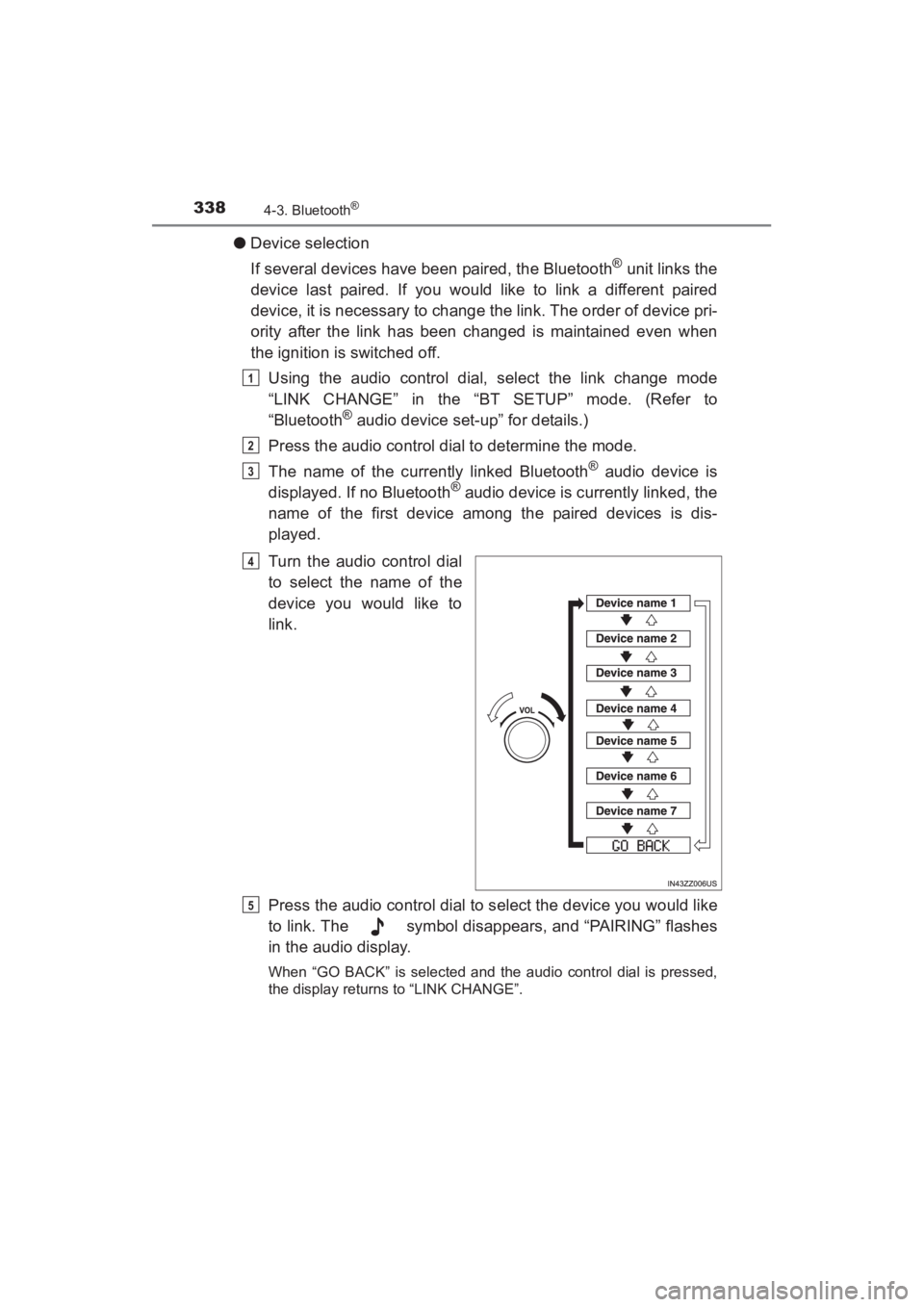
Turn the audio control dial
to select the name of the
device you would like to
link.
Press the audio control dial to select the device you would like
to link. The symbol disappears, and “PAIRING” flashes
in the audio display.
When “GO BACK” is selected and the audio control dial is pressed,
the display returns to “LINK CHANGE”.
1
2
3
4
5
YARIS_SEDAN_OM_OM99M18z_(U).book Page 338 Monday, June 1, 2015 9:22 PM
Page 341 of 592
YARIS_SEDAN_OM_OM99M18z_(U)
3394-3. Bluetooth®
4
Interior Features
If the link to the desired device is successful, the sym-
bol is displayed again, together with “LINK CHANGED”. “LINK
CHANGED” is displayed for three seconds, then it returns to
the normal display.
● How to confirm the device currently linked
Switch to the link-change mode. (Refer to “Changing the link to a
Bluetooth
® audio device”)
The device name displayed first is the device which is currently
linked.
● Deleting a device
Using the audio control dial, select the pairing delete mode
“PAIR DELETE” in the “BT SETUP” mode. (Refer to
“Bluetooth
® audio device set-up” for details.)
Press the audio control dial to determine the mode.
The name of the first device among the paired devices is dis-
played.
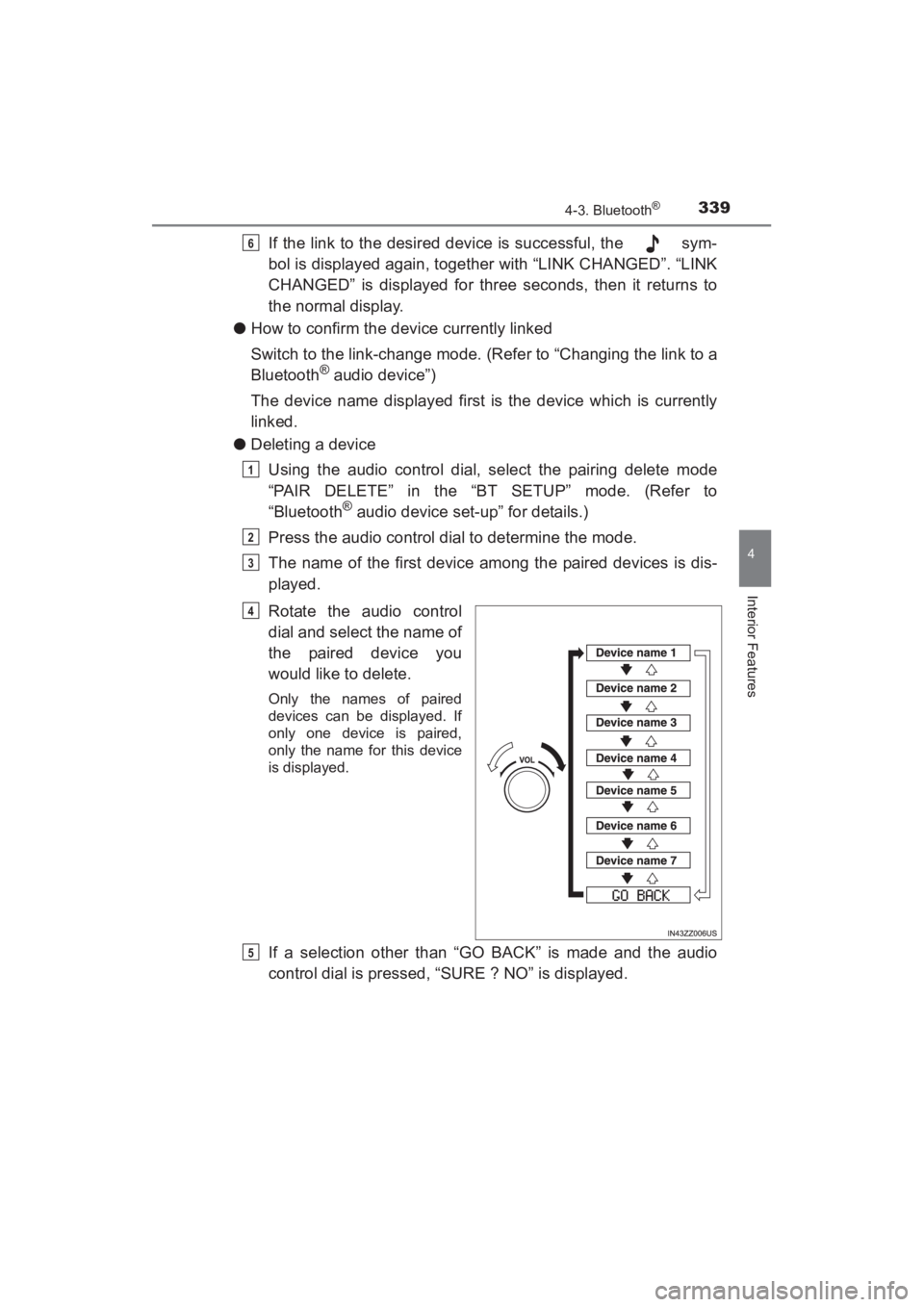
Rotate the audio control
dial and select the name of
the paired device you
would like to delete.
Only the names of paired
devices can be displayed. If
only one device is paired,
only the name for this device
is displayed.
If a selection other than “GO BACK” is made and the audio
control dial is pressed, “SURE ? NO” is displayed.
6
1
2
3
4
5
YARIS_SEDAN_OM_OM99M18z_(U).book Page 339 Monday, June 1, 2015 9:22 PM
Page 342 of 592
340
YARIS_SEDAN_OM_OM99M18z_(U)
4-3. Bluetooth®
Rotate the audio control dial clockwise and switch the display
to “SURE ? YES”.
The display changes as follows depending on whether the audio con-
trol dial is rotated clockwise or counterclockwise.• Clockwise: “SURE ? YES” displayed
• Counterclockwise: “SURE ? NO” displayed
Press the audio control dial to delete the selected device.
Select “GO BACK” and press the audio control dial to return to the
“PAIR DELETE” display.
“PAIR DELETED” is displayed for three seconds after the dele-
tion is completed, and then it returns to the normal display.
If an error occurs while trying to delete the paired device, “Err”
flashes in the display for three seconds and the display returns to
“LINK DELETE”.
6
7
8
YARIS_SEDAN_OM_OM99M18z_(U).book Page 340 Monday, June 1, 2015 9:22 PM
Page 343 of 592
YARIS_SEDAN_OM_OM99M18z_(U)
3414-3. Bluetooth®
4
Interior Features
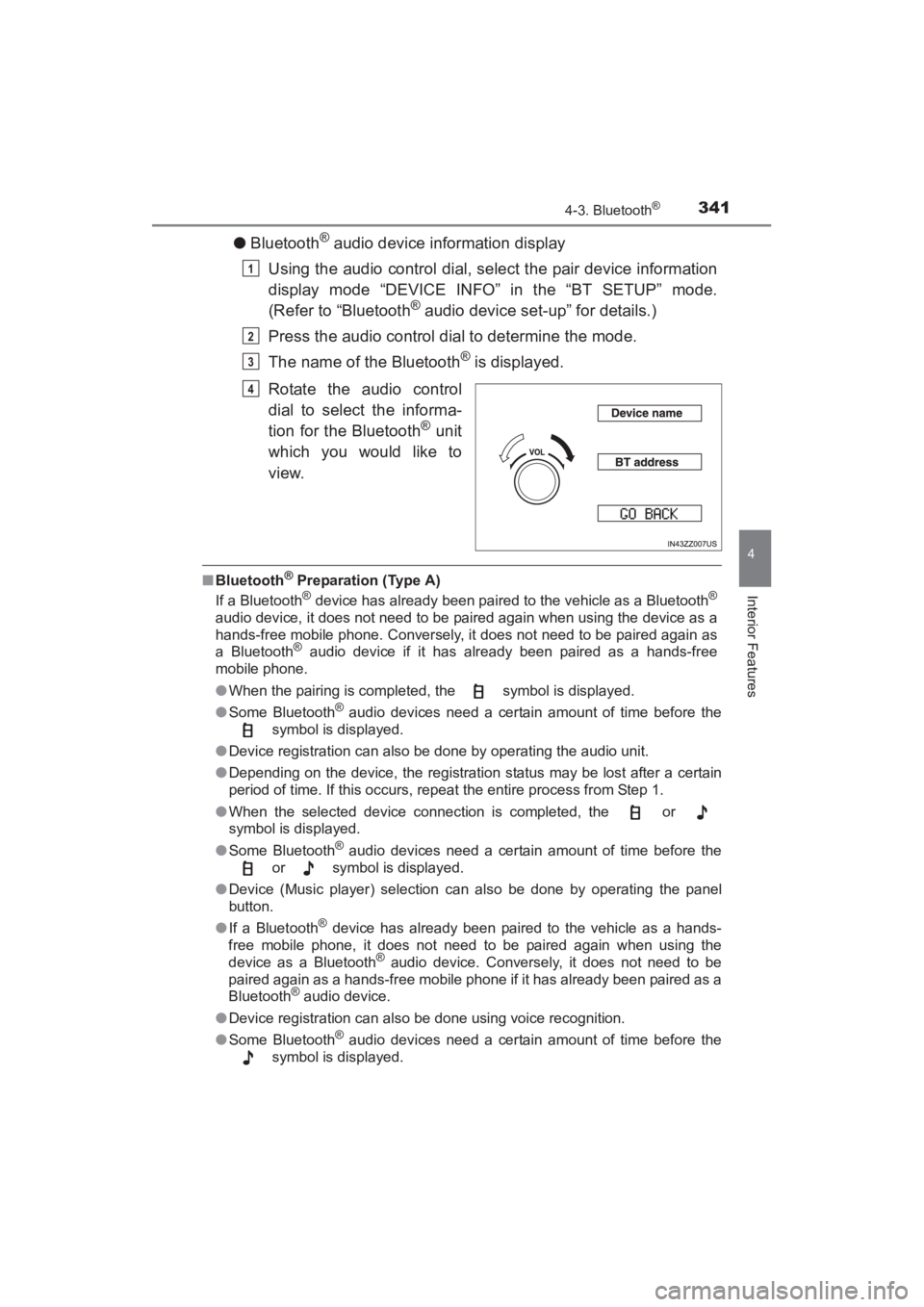
●Bluetooth® audio device information display
Using the audio control dial, select the pair device information
display mode “DEVICE INFO” in the “BT SETUP” mode.
(Refer to “Bluetooth
® audio device set-up” for details.)
Press the audio control dial to determine the mode.
The name of the Bluetooth
® is displayed.
Rotate the audio control
dial to select the informa-
tion for the Bluetooth
® unit
which you would like to
view.
■ Bluetooth® Preparation (Type A)
If a Bluetooth® device has already been paired to the vehicle as a Bluetooth®
audio device, it does not need to be paired again when using the device as a
hands-free mobile phone. Conversely, it does not need to be paired again as
a Bluetooth
® audio device if it has already been paired as a hands-free
mobile phone.
● When the pairing is completed, the symbol is displayed.
● Some Bluetooth
® audio devices need a certain amount of time before the
symbol is displayed.
● Device registration can also be done by operating the audio unit.
● Depending on the device, the registration status may be lost after a certain
period of time. If this occurs, repeat the entire process from Step 1.
● When the selected device connection is completed, the or
symbol is displayed.
● Some Bluetooth
® audio devices need a certain amount of time before the
or symbol is displayed.
● Device (Music player) selection can also be done by operating the panel
button.
● If a Bluetooth
® device has already been paired to the vehicle as a hands-
free mobile phone, it does not need to be paired again when using the
device as a Bluetooth
® audio device. Conversely, it does not need to be
paired again as a hands-free mobile phone if it has already been paired as a
Bluetooth
® audio device.
● Device registration can also be done using voice recognition.
● Some Bluetooth
® audio devices need a certain amount of time before the
symbol is displayed.
1
2
3
4
YARIS_SEDAN_OM_OM99M18z_(U).book Page 341 Monday, June 1, 2015 9:22 PM