audio TOYOTA YARIS 2018 Owner's Manual
[x] Cancel search | Manufacturer: TOYOTA, Model Year: 2018, Model line: YARIS, Model: TOYOTA YARIS 2018Pages: 632, PDF Size: 44.1 MB
Page 325 of 632
3255-2. Using the audio system
5
Audio system
YARIS_HV_OM_Europe_OM52J66E
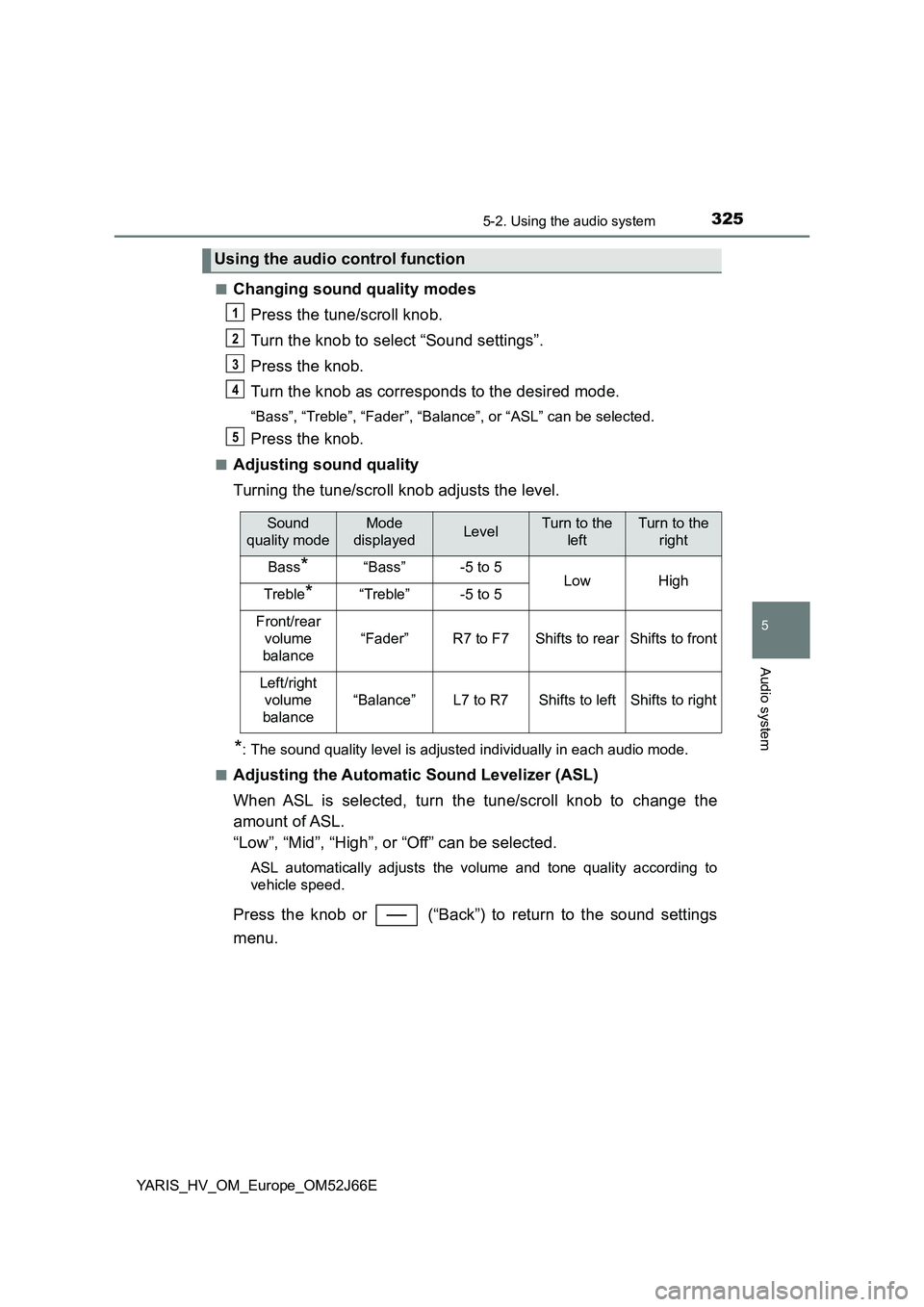
■Changing sound quality modes
Press the tune/scroll knob.
Turn the knob to select “Sound settings”.
Press the knob.
Turn the knob as corresponds to the desired mode.
“Bass”, “Treble”, “Fader”, “Balance”, or “ASL” can be selected.
Press the knob.
■Adjusting sound quality
Turning the tune/scroll knob adjusts the level.
*: The sound quality level is adjusted individually in each audio mode.
■Adjusting the Automatic Sound Levelizer (ASL)
When ASL is selected, turn the tune/scroll knob to change the
amount of ASL.
“Low”, “Mid”, “High”, or “Off” can be selected.
ASL automatically adjusts the volume and tone quality according to
vehicle speed.
Press the knob or (“Back”) to return to the sound settings
menu.
Using the audio control function
1
2
3
4
5
Sound
quality mode
Mode
displayedLevelTurn to the
left
Turn to the
right
Bass*“Bass”-5 to 5LowHighTreble*“Treble”-5 to 5
Front/rear
volume
balance
“Fader”R7 to F7Shifts to rearShifts to front
Left/right
volume
balance
“Balance”L7 to R7Shifts to leftShifts to right
Page 326 of 632
3265-3. Using the radio
YARIS_HV_OM_Europe_OM52J66E
Radio operation
Search for desired stations by turning the tune/scroll knob or press-
ing the “ ” or “” button of “SEEK TRACK”.
Press and hold a desired station selector button until you hear a
beep.
: If equipped
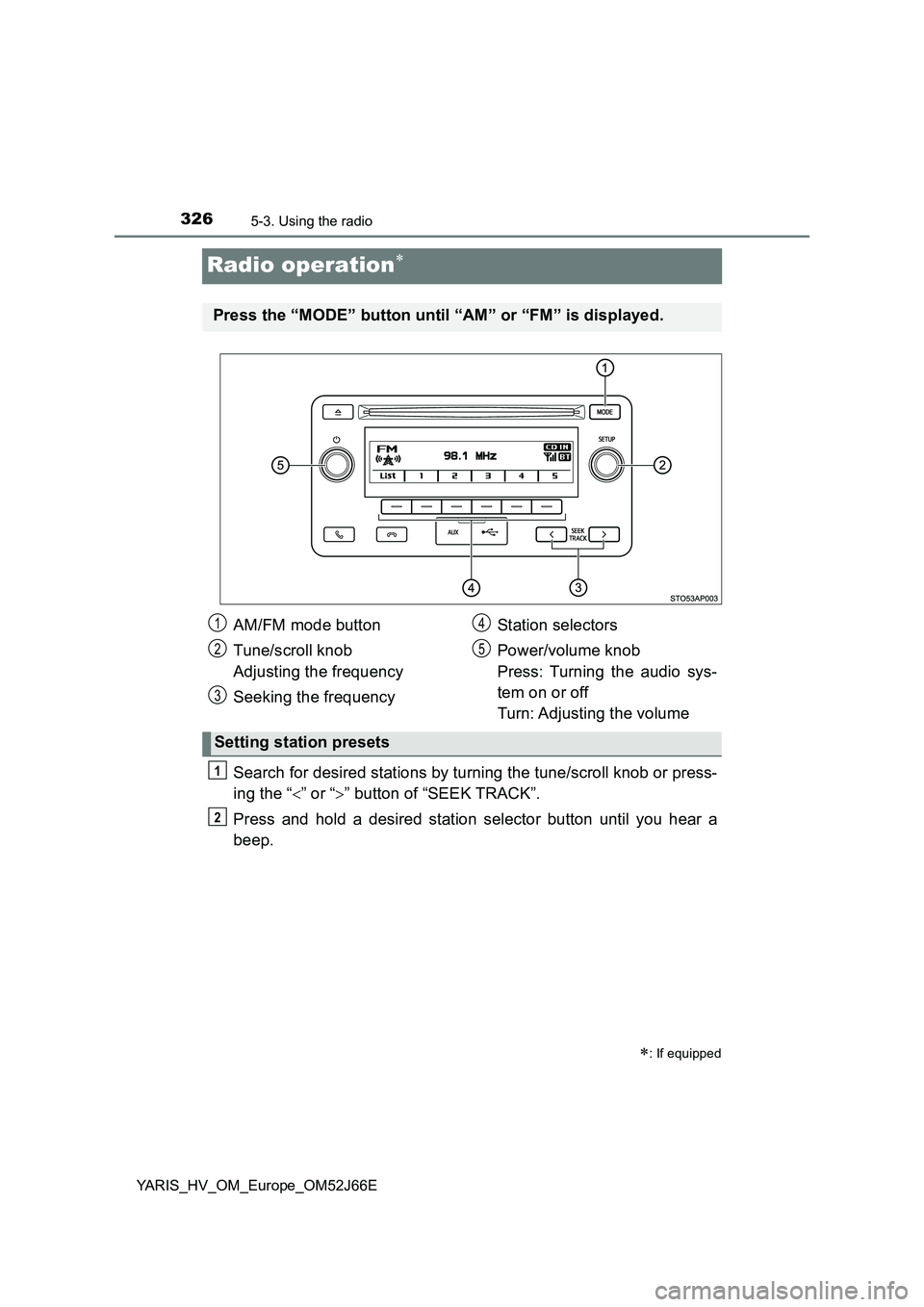
Press the “MODE” button until “AM” or “FM” is displayed.
AM/FM mode button
Tune/scroll knob
Adjusting the frequency
Seeking the frequency
Station selectors
Power/volume knob
Press: Turning the audio sys-
tem on or off
Turn: Adjusting the volume
Setting station presets
1
2
3
4
5
1
2
Page 327 of 632
3275-3. Using the radio
5
Audio system
YARIS_HV_OM_Europe_OM52J66E
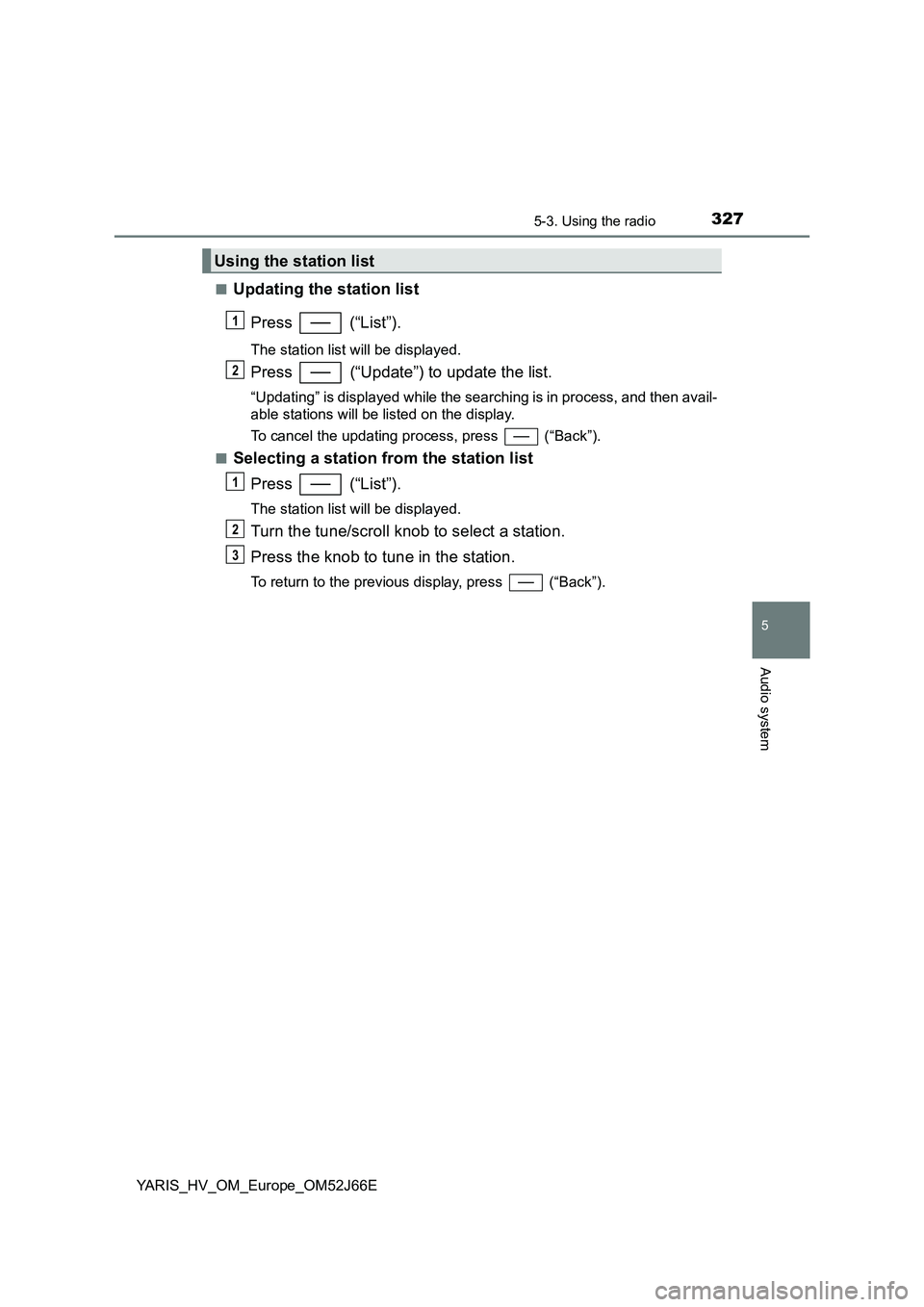
■Updating the station list
Press (“List”).
The station list will be displayed.
Press (“Update”) to update the list.
“Updating” is displayed while the searching is in process, and then avail-
able stations will be listed on the display.
To cancel the updating process, press (“Back”).
■Selecting a station from the station list
Press (“List”).
The station list will be displayed.
Turn the tune/scroll knob to select a station.
Press the knob to tune in the station.
To return to the previous display, press (“Back”).
Using the station list
1
2
1
2
3
Page 329 of 632
3295-3. Using the radio
5
Audio system
YARIS_HV_OM_Europe_OM52J66E
■EON (Enhanced Other Network) system (for traffic announcement func-
tion)
If the RDS station (with EON data) you are listening to is not broadcasting a
traffic information program and the audio system is in the TA (traffic
announcement) mode, the radio will be switched automatically to a station
broadcasting a traffic information program in the EON AF list when traffic
information begins.
■ When the battery is disconnected
Station presets are erased.
■ Reception sensitivity
● Maintaining perfect radio reception at all times is difficult due to the continu-
ally changing position of the antenna, differences in signal strength and sur-
rounding objects, such as trains, transmitters, etc.
● The radio antenna is mounted on the rear roof. The antenna can be
removed from the base by turning it.
NOTICE
■ To prevent damage, remove the antenna in the following cases
● The antenna will touch the ceiling of a garage.
● A cover will be put on the roof.
Page 330 of 632
3305-4. Playing audio CDs and MP3/WMA discs
YARIS_HV_OM_Europe_OM52J66E
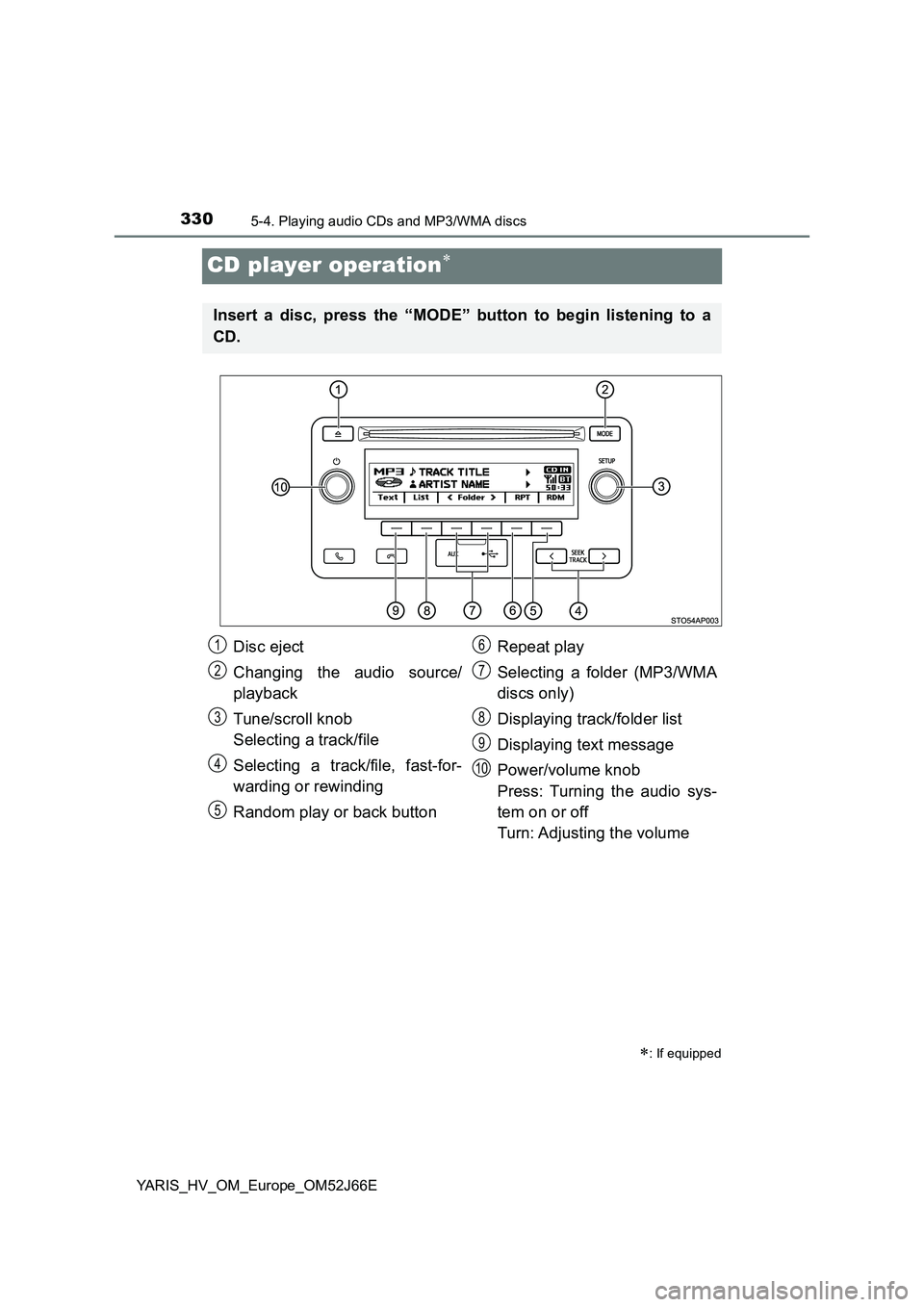
CD player operation
: If equipped
Insert a disc, press the “MODE” button to begin listening to a
CD.
Disc eject
Changing the audio source/
playback
Tune/scroll knob
Selecting a track/file
Selecting a track/file, fast-for-
warding or rewinding
Random play or back button
Repeat play
Selecting a folder (MP3/WMA
discs only)
Displaying track/folder list
Displaying text message
Power/volume knob
Press: Turning the audio sys-
tem on or off
Turn: Adjusting the volume
1
2
3
4
5
6
7
8
9
10
Page 331 of 632
3315-4. Playing audio CDs and MP3/WMA discs
5
Audio system
YARIS_HV_OM_Europe_OM52J66E
Insert a disc.
Press the disc eject button and remove the disc.
■Selecting a track
Turn the tune/scroll knob or press the “ ” or “” button of “SEEK
TRACK” to move up or down until the desired track number is dis-
played.
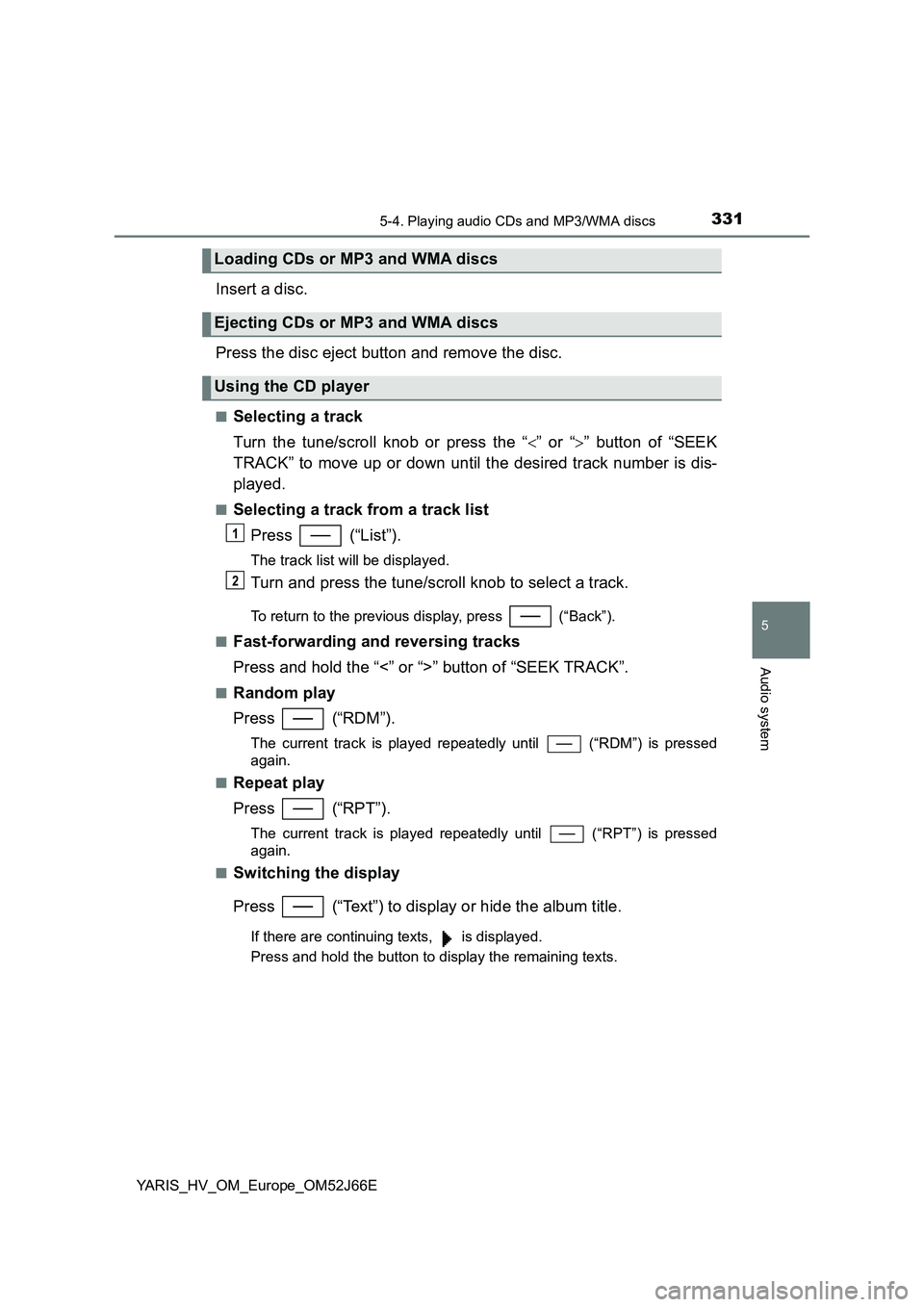
■Selecting a track from a track list
Press (“List”).
The track list will be displayed.
Turn and press the tune/scroll knob to select a track.
To return to the previous display, press (“Back”).
■Fast-forwarding and reversing tracks
Press and hold the “<” or “>” button of “SEEK TRACK”.
■Random play
Press (“RDM”).
The current track is played repeatedly until (“RDM”) is pressed
again.
■Repeat play
Press (“RPT”).
The current track is played repeat edly until (“RPT”) is pressed
again.
■Switching the display
Press (“Text”) to display or hide the album title.
If there are continuing texts, is displayed.
Press and hold the button to display the remaining texts.
Loading CDs or MP3 and WMA discs
Ejecting CDs or MP3 and WMA discs
Using the CD player
1
2
Page 332 of 632
3325-4. Playing audio CDs and MP3/WMA discs
YARIS_HV_OM_Europe_OM52J66E
■Selecting a folders one at a time
Press (“
folder.
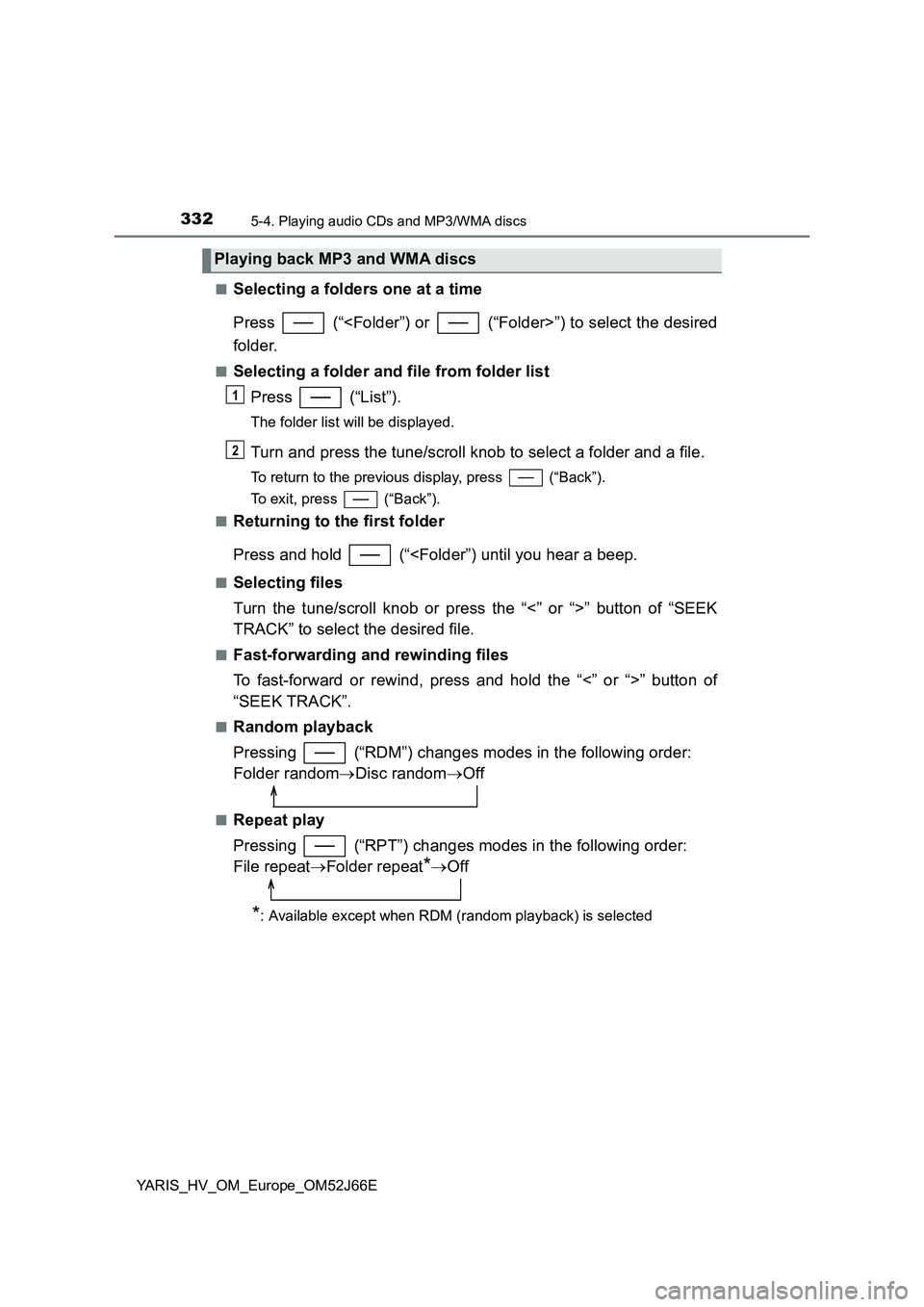
■Selecting a folder and file from folder list
Press (“List”).
The folder list will be displayed.
Turn and press the tune/scroll knob to select a folder and a file.
To return to the previous display, press (“Back”).
To exit, press (“Back”).
■Returning to the first folder
Press and hold (“
Turn the tune/scroll knob or press the “<” or “>” button of “SEEK
TRACK” to select the desired file.
■Fast-forwarding and rewinding files
To fast-forward or rewind, press and hold the “<” or “>” button of
“SEEK TRACK”.
■Random playback
Pressing (“RDM”) changes modes in the following order:
Folder random Disc randomOff
■Repeat play
Pressing (“RPT”) changes modes in the following order:
File repeat Folder repeat*Off
*: Available except when RDM (random playback) is selected
Playing back MP3 and WMA discs
1
2
Page 333 of 632
3335-4. Playing audio CDs and MP3/WMA discs
5
Audio system
YARIS_HV_OM_Europe_OM52J66E
■Switching the display
Press (“Text”) to display or hide the album title.
If there are continuing texts, is displayed.
Press and hold the button to display the remaining texts.
■ Display
Depending on the contents recorded, the characters may not be displayed
properly or may not be displayed at all.
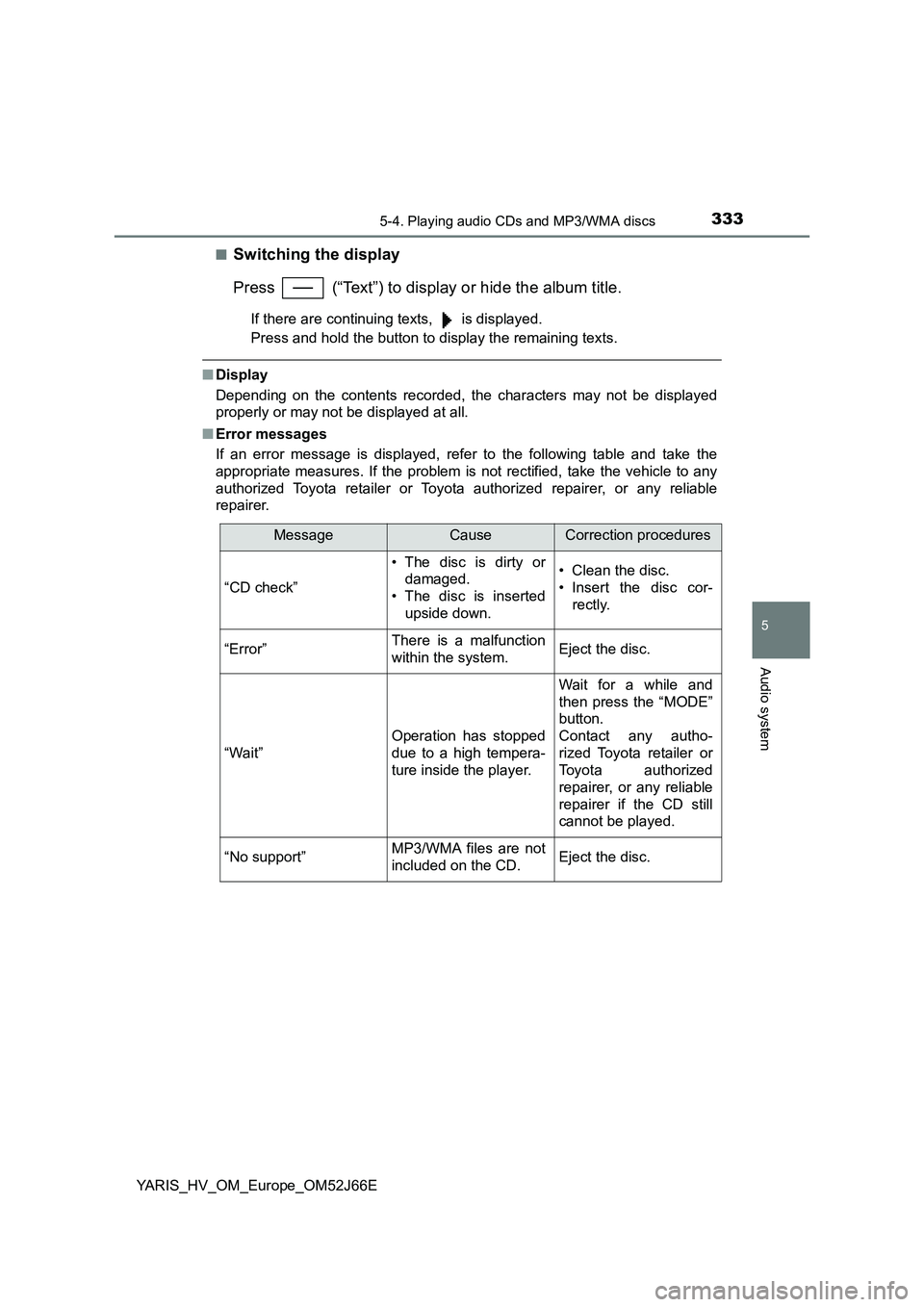
■ Error messages
If an error message is displayed, refer to the following table and take the
appropriate measures. If the problem is not rectified, take the vehicle to any
authorized Toyota retailer or Toyota authorized repairer, or any reliable
repairer.
MessageCauseCorrection procedures
“CD check”
• The disc is dirty or
damaged.
• The disc is inserted
upside down.
• Clean the disc.
• Insert the disc cor-
rectly.
“Error”There is a malfunction
within the system.Eject the disc.
“Wait”
Operation has stopped
due to a high tempera-
ture inside the player.
Wait for a while and
then press the “MODE”
button.
Contact any autho-
rized Toyota retailer or
Toyota authorized
repairer, or any reliable
repairer if the CD still
cannot be played.
“No support”MP3/WMA files are not
included on the CD.Eject the disc.
Page 334 of 632
3345-4. Playing audio CDs and MP3/WMA discs
YARIS_HV_OM_Europe_OM52J66E
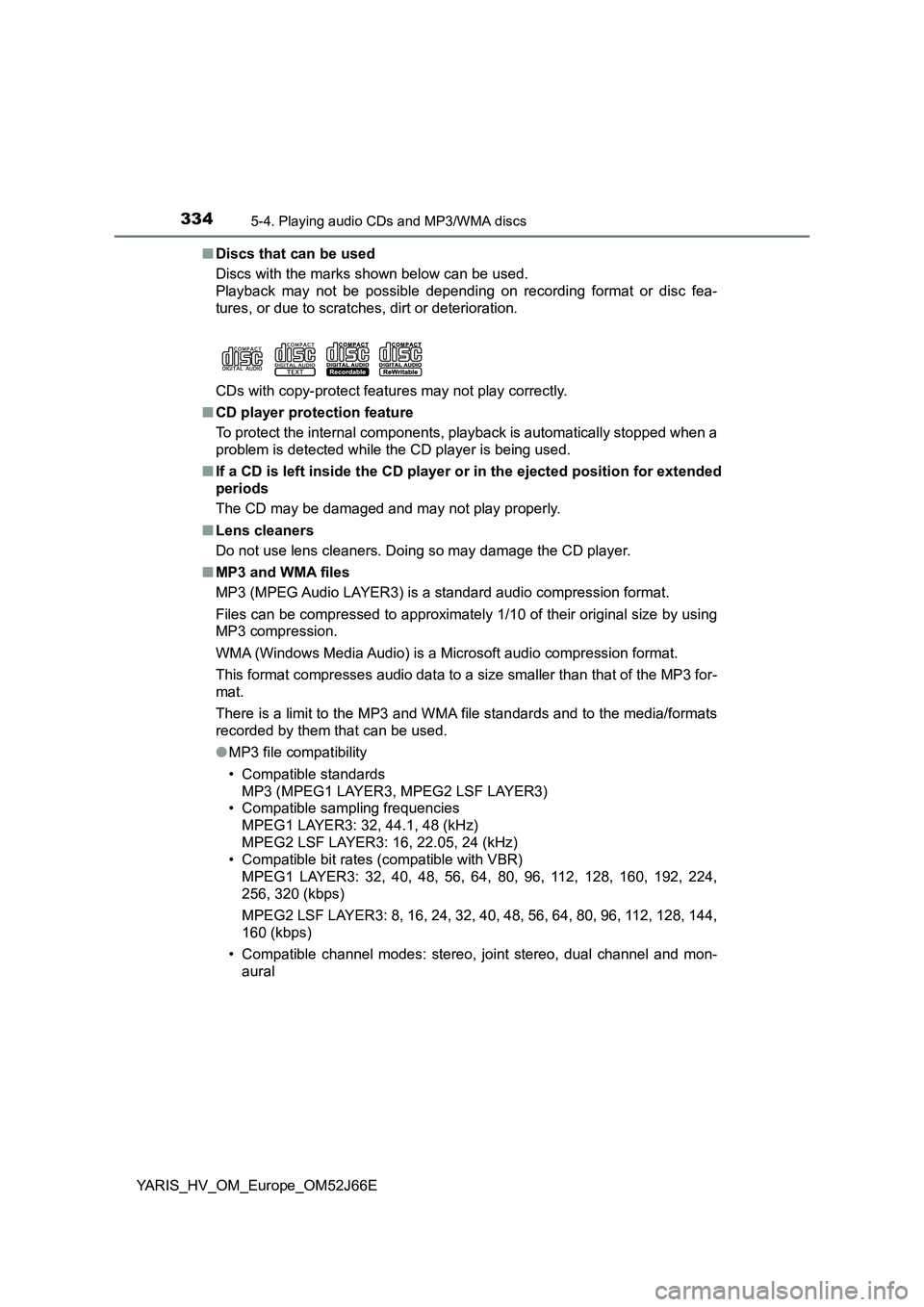
■ Discs that can be used
Discs with the marks shown below can be used.
Playback may not be possible depending on recording format or disc fea-
tures, or due to scratches, dirt or deterioration.
CDs with copy-protect features may not play correctly.
■ CD player protection feature
To protect the internal components, playback is automatically stopped when a
problem is detected while the CD player is being used.
■ If a CD is left inside the CD player or in the ejected position for extended
periods
The CD may be damaged and may not play properly.
■ Lens cleaners
Do not use lens cleaners. Doing so may damage the CD player.
■ MP3 and WMA files
MP3 (MPEG Audio LAYER3) is a standard audio compression format.
Files can be compressed to approximately 1/10 of their original size by using
MP3 compression.
WMA (Windows Media Audio) is a Microsoft audio compression format.
This format compresses audio data to a size smaller than that of the MP3 for-
mat.
There is a limit to the MP3 and WMA file standards and to the media/formats
recorded by them that can be used.
● MP3 file compatibility
• Compatible standards
MP3 (MPEG1 LAYER3, MPEG2 LSF LAYER3)
• Compatible sampling frequencies
MPEG1 LAYER3: 32, 44.1, 48 (kHz)
MPEG2 LSF LAYER3: 16, 22.05, 24 (kHz)
• Compatible bit rates (compatible with VBR)
MPEG1 LAYER3: 32, 40, 48, 56, 64, 80, 96, 112, 128, 160, 192, 224,
256, 320 (kbps)
MPEG2 LSF LAYER3: 8, 16, 24, 32, 40, 48, 56, 64, 80, 96, 112, 128, 144,
160 (kbps)
• Compatible channel modes: stereo, joint stereo, dual channel and mon-
aural
Page 335 of 632
3355-4. Playing audio CDs and MP3/WMA discs
5
Audio system
YARIS_HV_OM_Europe_OM52J66E
● WMA file compatibility
• Compatible standards
WMA Ver. 7, 8, 9
• Compatible sampling frequencies
32, 44.1, 48 (kHz)
• Compatible bit rates (only compatible with 2-channel playback)
Ver. 7, 8: CBR 48—192 (kbps)
Ver. 9: CBR 32, 48, 64, 80, 96, 128, 160, 192, 256, 320 (kbps)
● Compatible media
Media that can be used for MP3 and WMA playback are CD-Rs and CD-
RWs.
Playback in some instances may not be possible, depending on the status
of the CD-R or CD-RW. Playback may not be possible or the audio may
jump if the disc is scratched or marked with fingerprints.
● Compatible disc formats
The following disc formats can be used.
• Disc formats: CD-ROM Mode 1 and Mode 2
CD-ROM XA Mode 2, Form 1 and Form 2
• File formats: ISO9660 Level 1, Level 2, (Romeo, Joliet)
MP3 and WMA files written in any format other than those listed above
may not play correctly, and their file names and folder names may not be
displayed correctly.
Items related to standards and limitations are as follows.
• Maximum directory hierarchy: 8 levels
• Maximum length of folder names/file names: 32 characters
• Maximum number of folders: 192 (including the root)
• Maximum number of files per disc: 255
● File names
The only files that can be recognized as MP3/WMA and played are those
with the extension .mp3 or .wma.
● Multi-sessions
As the audio system is compatible with multi-sessions, it is possible to play
discs that contain MP3 and WMA files. However, only the first session can
be played.