audio TOYOTA YARIS 2018 Service Manual
[x] Cancel search | Manufacturer: TOYOTA, Model Year: 2018, Model line: YARIS, Model: TOYOTA YARIS 2018Pages: 632, PDF Size: 44.1 MB
Page 350 of 632
3505-5. Using an external device
YARIS_HV_OM_Europe_OM52J66E
■ USB memory
● Compatible devices
USB memory that can be used for MP3 and WMA playback
● Compatible device formats
The following device formats can be used:
• USB communication formats: USB2.0 FS (12 Mbps)
• File formats: FAT12/16/32 (Windows)
• Correspondence class: Mass storage class
MP3 and WMA files written in any format other than those listed above may
not play correctly, and their file names and folder names may not be dis-
played correctly.
Items related to standards and limitations are as follows:
• Maximum directory hierarchy: 8 levels
• Maximum number of folders in a device: 999 (including the root)
• Maximum number of files in a device: 9999
• Maximum number of files per folder: 255
● MP3 and WMA files
MP3 (MPEG Audio LAYER 3) is a standard audio compression format.
Files can be compressed to approximately 1/10 of their original size by
using MP3 compression.
WMA (Windows Media Audio) is a Microsoft audio compression format.
This format compresses audio data to a size smaller than that of the MP3
format.
There is a limit to the MP3 and WMA file standards and to the media/for-
mats recorded by them that can be used.
● MP3 file compatibility
• Compatible standards
MP3 (MPEG1 AUDIO LAYERII, III, MPEG2 AUDIO LAYERII, III, MPEG2.5)
• Compatible sampling frequencies
MPEG1 AUDIO LAYERII, III: 32, 44.1, 48 (kHz)
MPEG2 AUDIO LAYERII, III: 16, 22.05, 24 (kHz)
• Compatible bit rates (compatible with VBR)
MPEG1 AUDIO LAYERII, III: 32-320 (kbps)
MPEG2 AUDIO LAYERII, III: 8-160 (kbps)
• Compatible channel modes: stereo, joint stereo, dual channel and mon-
aural
Page 351 of 632
3515-5. Using an external device
5
Audio system
YARIS_HV_OM_Europe_OM52J66E
● WMA file compatibility
• Compatible standards
WMA Ver. 7, 8, 9
• Compatible sampling frequencies
32, 44.1, 48 (kHz)
• Compatible bit rates (only compatible with 2-channel playback)
Ver. 7, 8: CBR 48, 64, 80, 96, 128, 160, 192 (kbps)
Ver. 9: CBR 32, 48, 64, 80, 96, 128, 160, 192, 256, 320 (kbps)
● File names
The only files that can be recognized as MP3/WMA and played are those
with the extension .mp3 or .wma.
● ID3 and WMA tags
ID3 tags can be added to MP3 files, making it possible to record the track
title, artist name, etc.
The system is compatible with ID3 Ver. 1.0, 1.1, and Ver. 2.2, 2.3, 2.4 ID3
tags. (The number of characters is based on ID3 Ver. 1.0 and 1.1.)
WMA tags can be added to WMA files, making it possible to record the
track title and artist name in the same way as with ID3 tags.
● MP3 and WMA playback
• When a device containing MP3 or WMA files is connected, all files in the
USB memory are checked. Once the file check is finished, the first MP3
or WMA file is played. To make the file check finish more quickly, we rec-
ommend that you do not include any files other than MP3 or WMA files or
create any unnecessary folders.
• When the USB memory is connected and the audio source is changed to
USB memory mode, the USB memory will start playing the first file in the
first folder.
If the same device is removed and reinserted (and the contents have not
been changed), the USB memory will resume play from the same point in
which it was last used.
Page 353 of 632
353
5
5-5. Using an external device
Audio system
YARIS_HV_OM_Europe_OM52J66E
Using the AUX port
P. 3 2 3
■Operating portable audio devices connected to the audio system
The volume can be adjusted using the vehicle’s audio controls. All other
adjustments must be made on the portable audio device itself.
■ When using a portable audio device connected to the power outlet
Noise may occur during playback. Use the power source of the portable
audio device.
: If equipped
This port can be used to connect a portable audio device and lis-
ten to it using the vehicle’s speakers. Press the “MODE” button
until “AUX” is displayed.
Connecting a portable player
Page 354 of 632
3545-6. Using Bluetooth® devices
YARIS_HV_OM_Europe_OM52J66E
Bluetooth® audio/phone
◆Bluetooth® audio
The Bluetooth® audio system enables you to enjoy music played on
a portable digital audio player (portable player) from the vehicle
speakers via wireless communication.
This audio system supports Bluetooth®, a wireless data system
capable of playing portable audio music without cables. If your por-
table player does not support Bluetooth®, the Bluetooth® audio sys-
tem will not function.
◆Bluetooth® phone (hands-free phone system)
This system supports Bluetooth®, which allows you to make or
receive calls without using cables to connect a cellular phone and
the system, and without operating the cellular phone.
: If equipped
The following can be performed using Bluetooth® wireless com-
munication:
Page 355 of 632
3555-6. Using Bluetooth® devices
5
Audio system
YARIS_HV_OM_Europe_OM52J66E
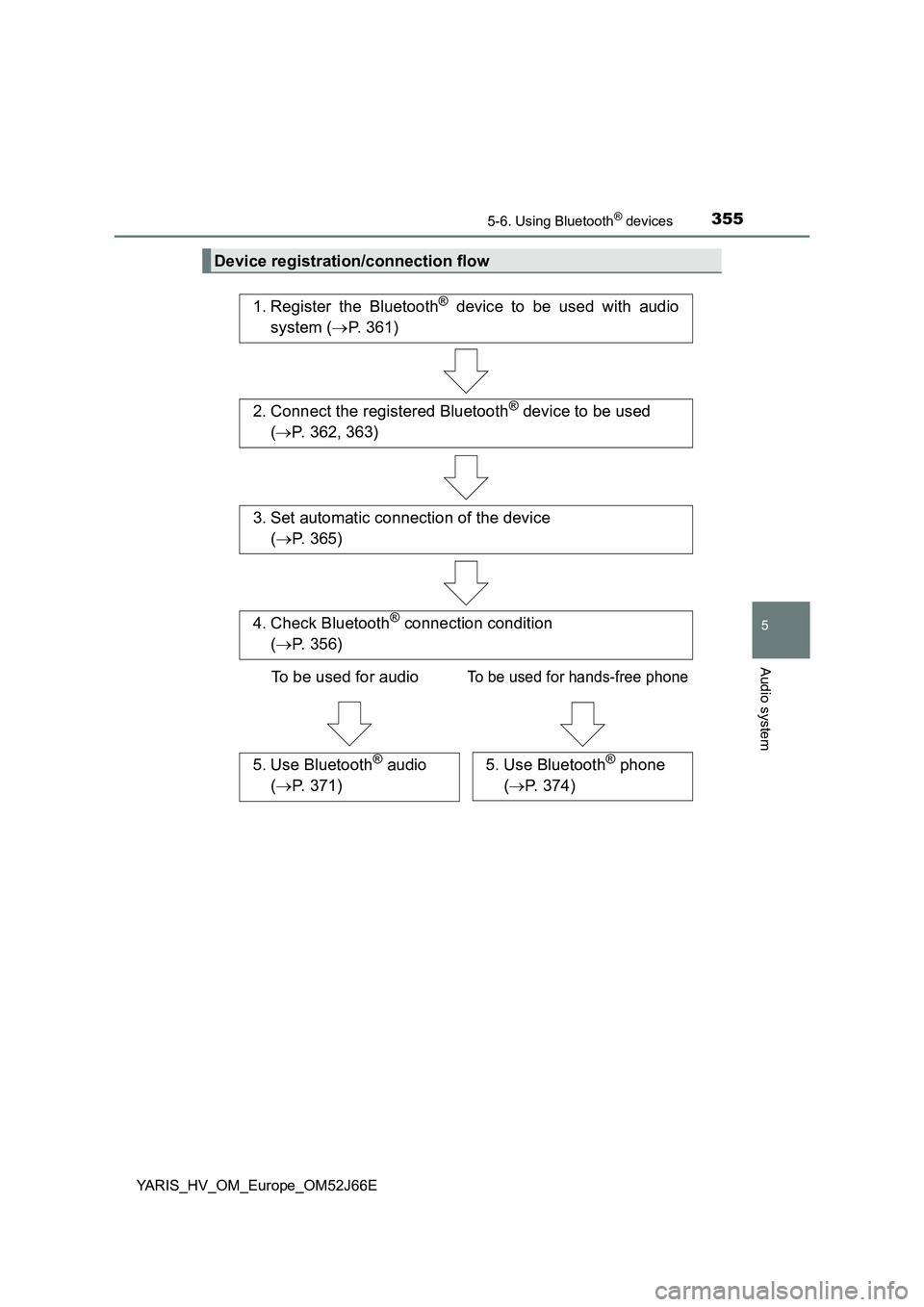
Device registration/connection flow
1. Register the Bluetooth® device to be used with audio
system ( P. 361)
2. Connect the registered Bluetooth® device to be used
( P. 362, 363)
5. Use Bluetooth® audio
( P. 371)
5. Use Bluetooth® phone
( P. 374)
3. Set automatic connection of the device
( P. 365)
4. Check Bluetooth® connection condition
( P. 356)
To be used for audioTo be used for hands-free phone
Page 356 of 632
3565-6. Using Bluetooth® devices
YARIS_HV_OM_Europe_OM52J66E
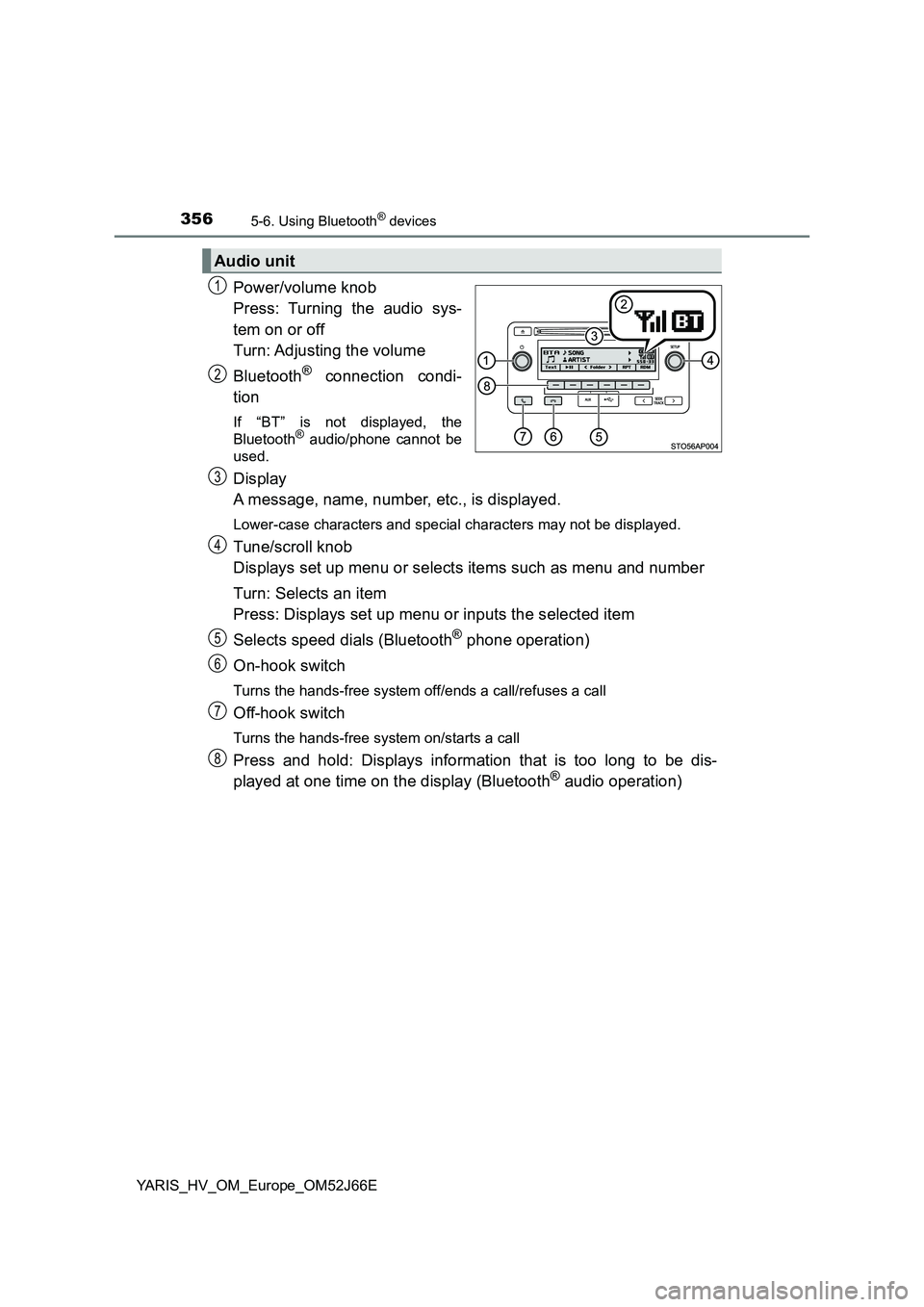
Power/volume knob
Press: Turning the audio sys-
tem on or off
Turn: Adjusting the volume
Bluetooth® connection condi-
tion
If “BT” is not displayed, the
Bluetooth® audio/phone cannot be
used.
Display
A message, name, number, etc., is displayed.
Lower-case characters and special characters may not be displayed.
Tune/scroll knob
Displays set up menu or selects items such as menu and number
Turn: Selects an item
Press: Displays set up menu or inputs the selected item
Selects speed dials (Bluetooth® phone operation)
On-hook switch
Turns the hands-free system off/ends a call/refuses a call
Off-hook switch
Turns the hands-free system on/starts a call
Press and hold: Displays information that is too long to be dis-
played at one time on the display (Bluetooth® audio operation)
Audio unit
1
2
3
4
5
6
7
8
Page 357 of 632
3575-6. Using Bluetooth® devices
5
Audio system
YARIS_HV_OM_Europe_OM52J66E
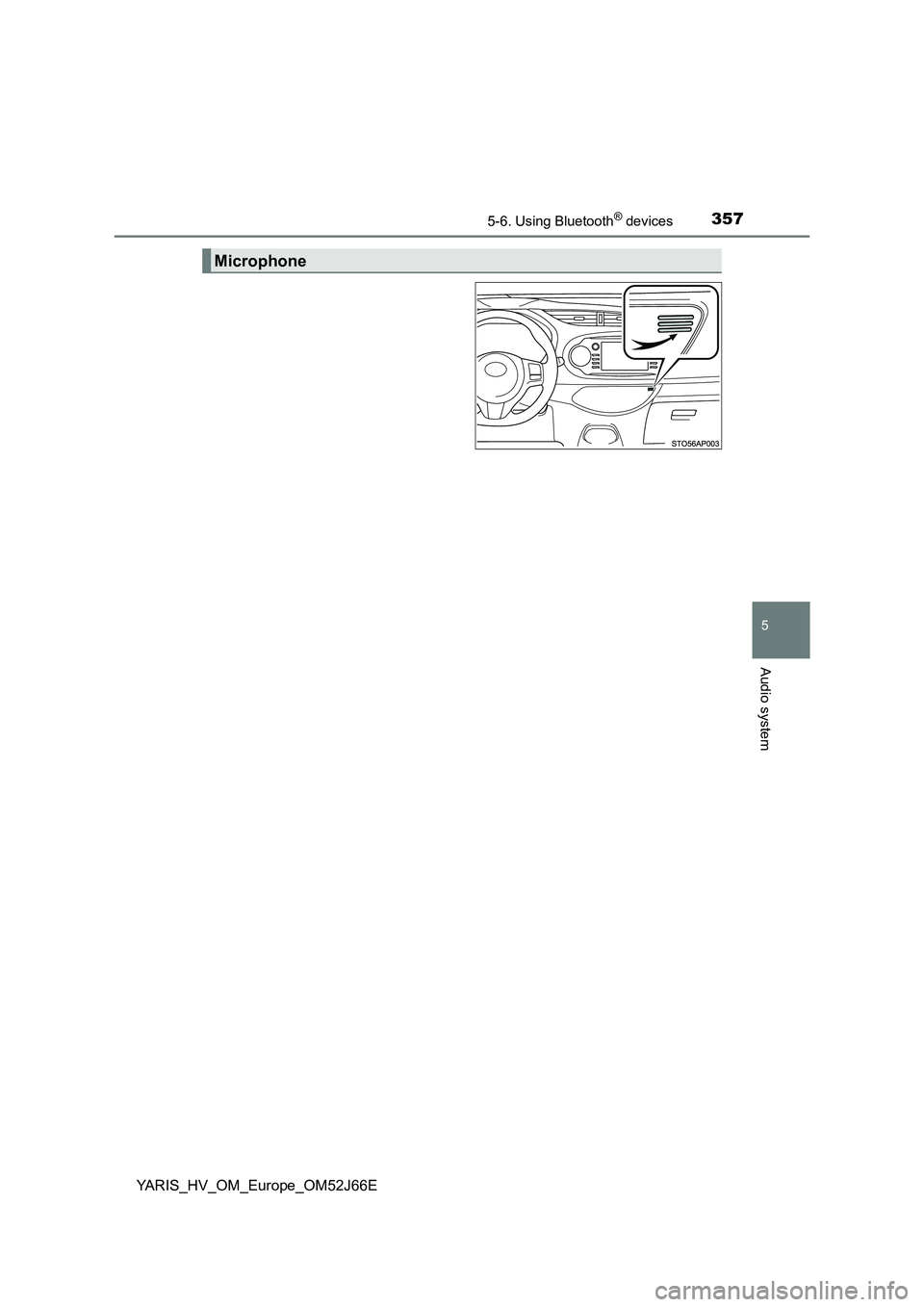
Microphone
Page 358 of 632
3585-6. Using Bluetooth® devices
YARIS_HV_OM_Europe_OM52J66E
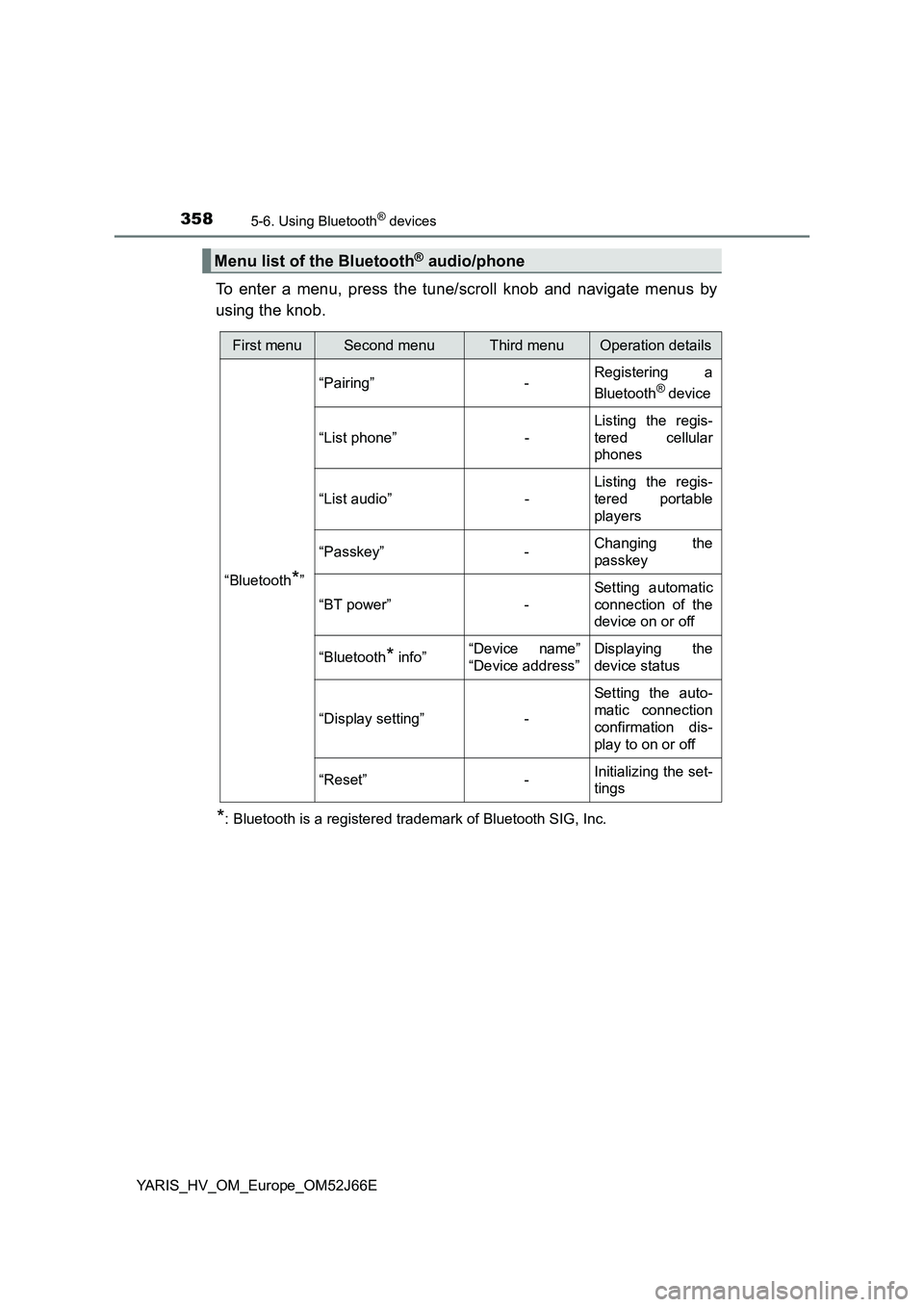
To enter a menu, press the tune/scroll knob and navigate menus by
using the knob.
*: Bluetooth is a registered trademark of Bluetooth SIG, Inc.
Menu list of the Bluetooth® audio/phone
First menuSecond menuThird menuOperation details
“Bluetooth*”
“Pairing” - Registering a
Bluetooth® device
“List phone” -
Listing the regis-
tered cellular
phones
“List audio” -
Listing the regis-
tered portable
players
“Passkey” - Changing the
passkey
“BT power” -
Setting automatic
connection of the
device on or off
“Bluetooth* info” “Device name”
“Device address”
Displaying the
device status
“Display setting” -
Setting the auto-
matic connection
confirmation dis-
play to on or off
“Reset” - Initializing the set-
tings
Page 359 of 632
3595-6. Using Bluetooth® devices
5
Audio system
YARIS_HV_OM_Europe_OM52J66E
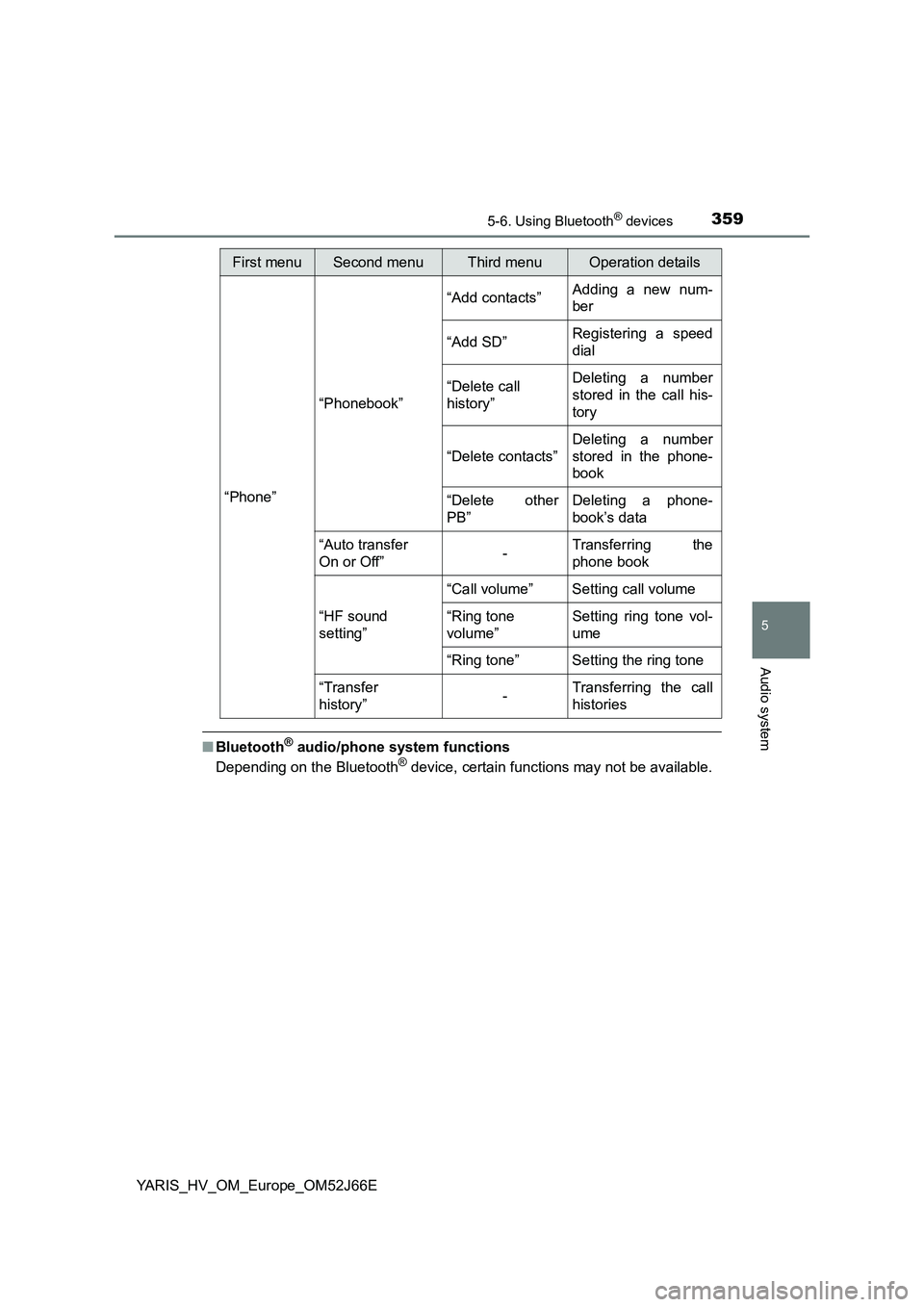
■Bluetooth® audio/phone system functions
Depending on the Bluetooth® device, certain functions may not be available.
First menuSecond menuThird menuOperation details
“Phone”
“Phonebook”
“Add contacts” Adding a new num-
ber
“Add SD” Registering a speed
dial
“Delete call
history”
Deleting a number
stored in the call his-
tory
“Delete contacts”
Deleting a number
stored in the phone-
book
“Delete other
PB”
Deleting a phone-
book’s data
“Auto transfer
On or Off” - Transferring the
phone book
“HF sound
setting”
“Call volume” Setting call volume
“Ring tone
volume”
Setting ring tone vol-
ume
“Ring tone” Setting the ring tone
“Transfer
history” -Transferring the call
histories
Page 360 of 632
3605-6. Using Bluetooth® devices
YARIS_HV_OM_Europe_OM52J66E
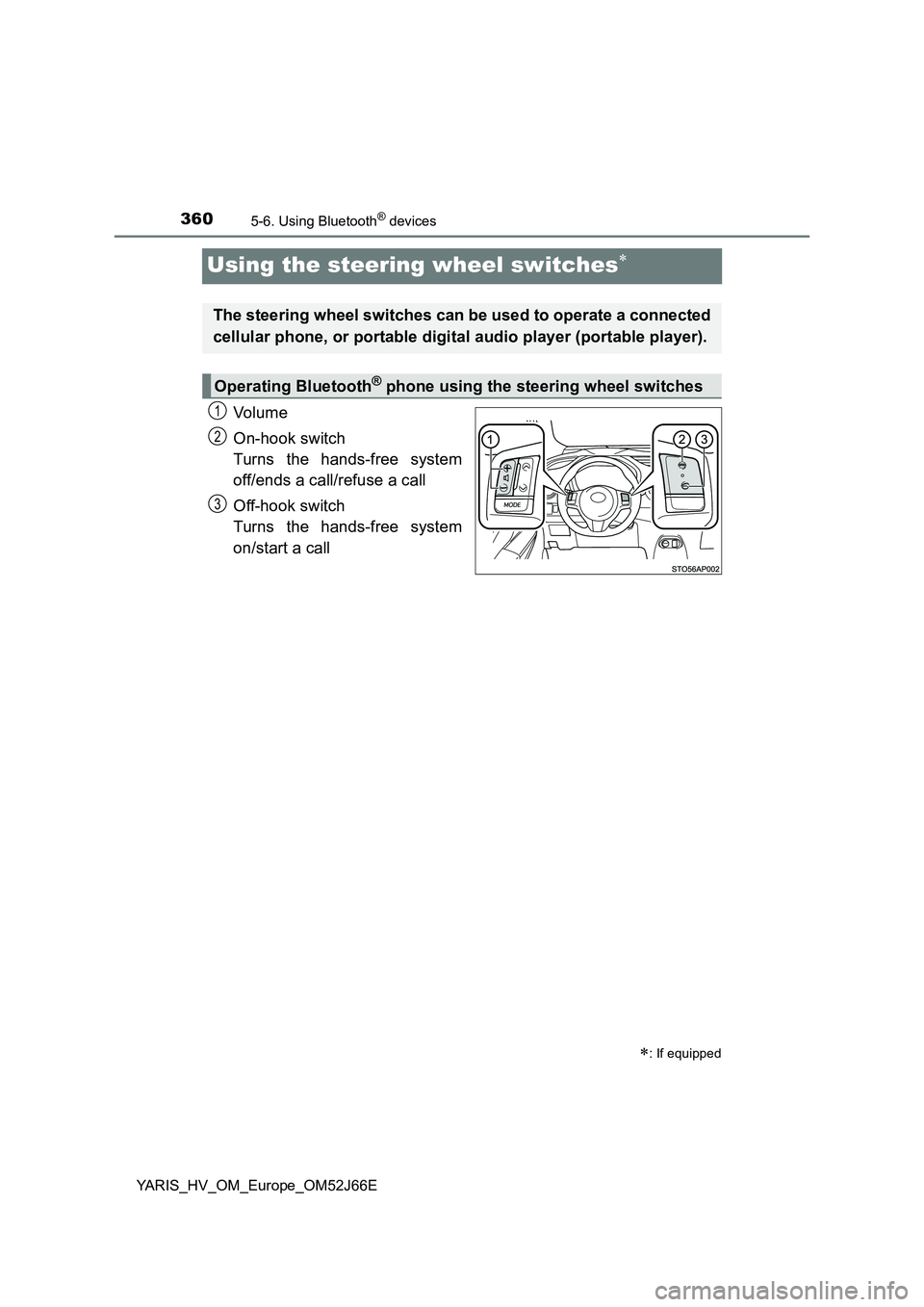
Using the steering wheel switches
Vo lu m e
On-hook switch
Turns the hands-free system
off/ends a call/refuse a call
Off-hook switch
Turns the hands-free system
on/start a call
: If equipped
The steering wheel switches can be used to operate a connected
cellular phone, or portable digital audio player (portable player).
Operating Bluetooth® phone using the steering wheel switches
1
2
3