audio TOYOTA YARIS 2018 Owner's Guide
[x] Cancel search | Manufacturer: TOYOTA, Model Year: 2018, Model line: YARIS, Model: TOYOTA YARIS 2018Pages: 632, PDF Size: 44.1 MB
Page 336 of 632
3365-4. Playing audio CDs and MP3/WMA discs
YARIS_HV_OM_Europe_OM52J66E
● ID3 and WMA tags
ID3 tags can be added to MP3 files, making it possible to record the track
title, artist name, etc.
The system is compatible with ID3 Ver. 1.0, 1.1, and Ver. 2.2, 2.3 ID3 tags.
(The number of characters is based on ID3 Ver. 1.0 and 1.1.)
WMA tags can be added to WMA files, making it possible to record the
track title and artist name in the same way as with ID3 tags.
● MP3 and WMA playback
When a disc containing MP3 or WMA files is inserted, all files on the disc
are first checked. Once the file check is finished, the first MP3 or WMA file
is played. To make the file check finish more quickly, we recommend you do
not write in any files other than MP3 or WMA files or create any unneces-
sary folders.
If the discs contain a mixture of music data and MP3 or WMA format data,
only music data can be played.
● Extensions
If the file extensions .mp3 and .wma are used for files other than MP3 and
WMA files, they will be mistakenly recognized and played as MP3 and
WMA files. This may result in large amounts of interference and damage to
the speakers.
● Playback
• To play MP3 file with steady sound quality, we recommend a fixed bit rate
of 128 kbps and a sampling frequency of 44.1 kHz.
• CD-R or CD-RW playback may not be possible in some instances,
depending on the characteristics of the disc.
• There is a wide variety of freewar e and other encoding software for MP3
and WMA files on the market, and depending on the status of the encod-
ing and the file format, poor sound quality or noise at the start of playback
may result. In some cases, playback may not be possible at all.
• When files other than MP3 or WMA files are recorded on a disc, it may
take more time to recognize the disc and in some cases, playback may
not be possible at all.
• Microsoft, Windows, and Windows Media are the registered trademarks
of Microsoft Corporation in the U.S. and other countries.
Page 337 of 632
3375-4. Playing audio CDs and MP3/WMA discs
5
Audio system
YARIS_HV_OM_Europe_OM52J66E
WARNING
■Certification for the CD player
CAUTION:
THIS PRODUCT IS A CLASS 1 LASER PRODUCT. USE OF CONTROLS
OR ADJUSTMENTS OR PERFORMANCE OF PROCEDURES OTHER
THAN THOSE SPECIFIED HEREIN MAY RESULT IN HAZARDOUS
RADIATION EXPOSURE. DO NOT OPEN COVERS AND DO NOT
REPAIR BY YOURSELF. REFER SERVICING TO QUALIFIED
PERSONNEL.
Page 338 of 632
3385-4. Playing audio CDs and MP3/WMA discs
YARIS_HV_OM_Europe_OM52J66E
NOTICE
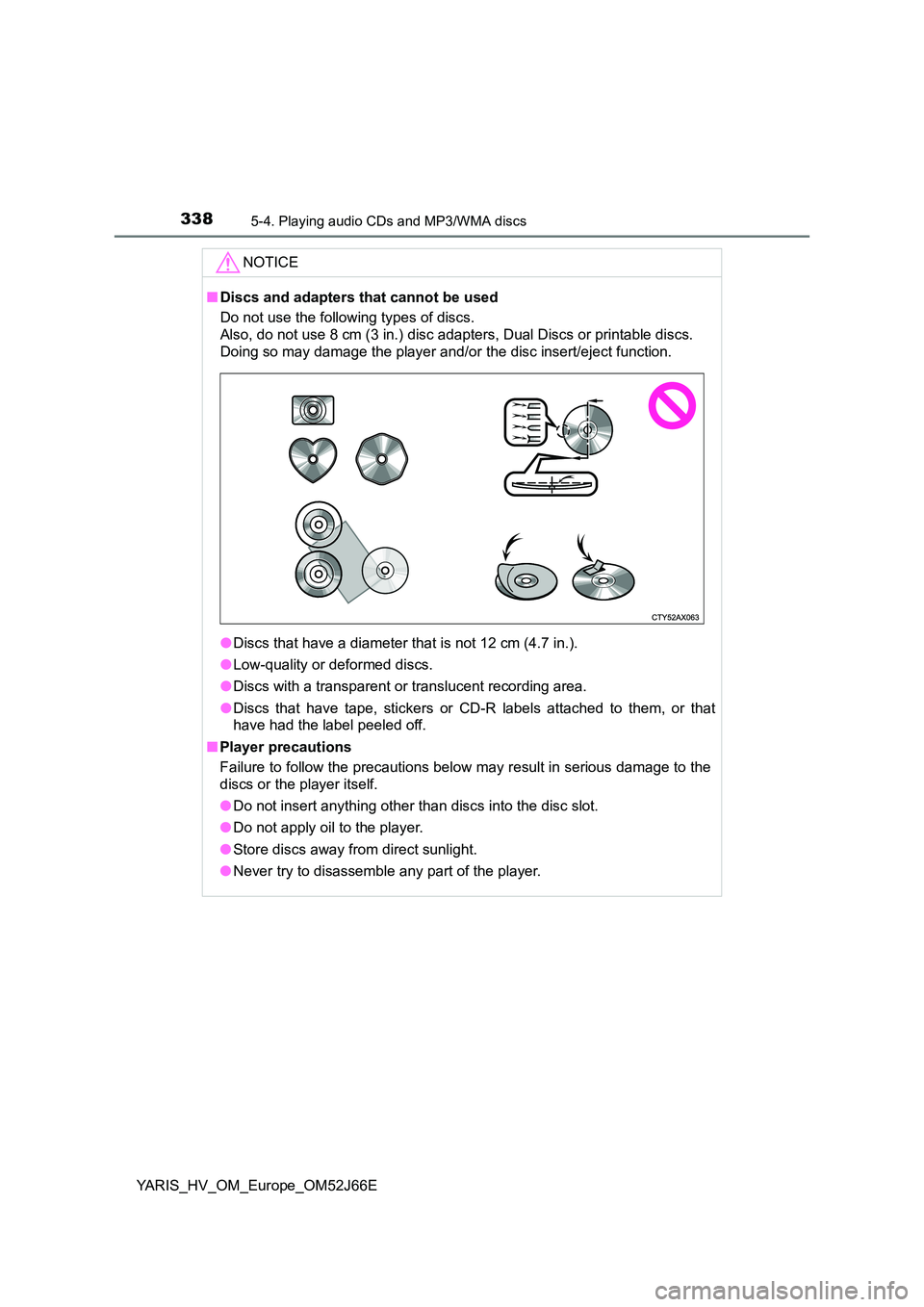
■Discs and adapters that cannot be used
Do not use the following types of discs.
Also, do not use 8 cm (3 in.) disc adapters, Dual Discs or printable discs.
Doing so may damage the player and/or the disc insert/eject function.
● Discs that have a diameter that is not 12 cm (4.7 in.).
● Low-quality or deformed discs.
● Discs with a transparent or translucent recording area.
● Discs that have tape, stickers or CD-R labels attached to them, or that
have had the label peeled off.
■ Player precautions
Failure to follow the precautions below may result in serious damage to the
discs or the player itself.
● Do not insert anything other than discs into the disc slot.
● Do not apply oil to the player.
● Store discs away from direct sunlight.
● Never try to disassemble any part of the player.
Page 339 of 632
339
5
5-5. Using an external device
Audio system
YARIS_HV_OM_Europe_OM52J66E
Listening to an iPod
P. 3 2 3
: If equipped
Connecting an iPod enables you to enjoy music from the vehicle
speakers. Press the “MODE” button until “iPod” is displayed.
Connecting an iPod
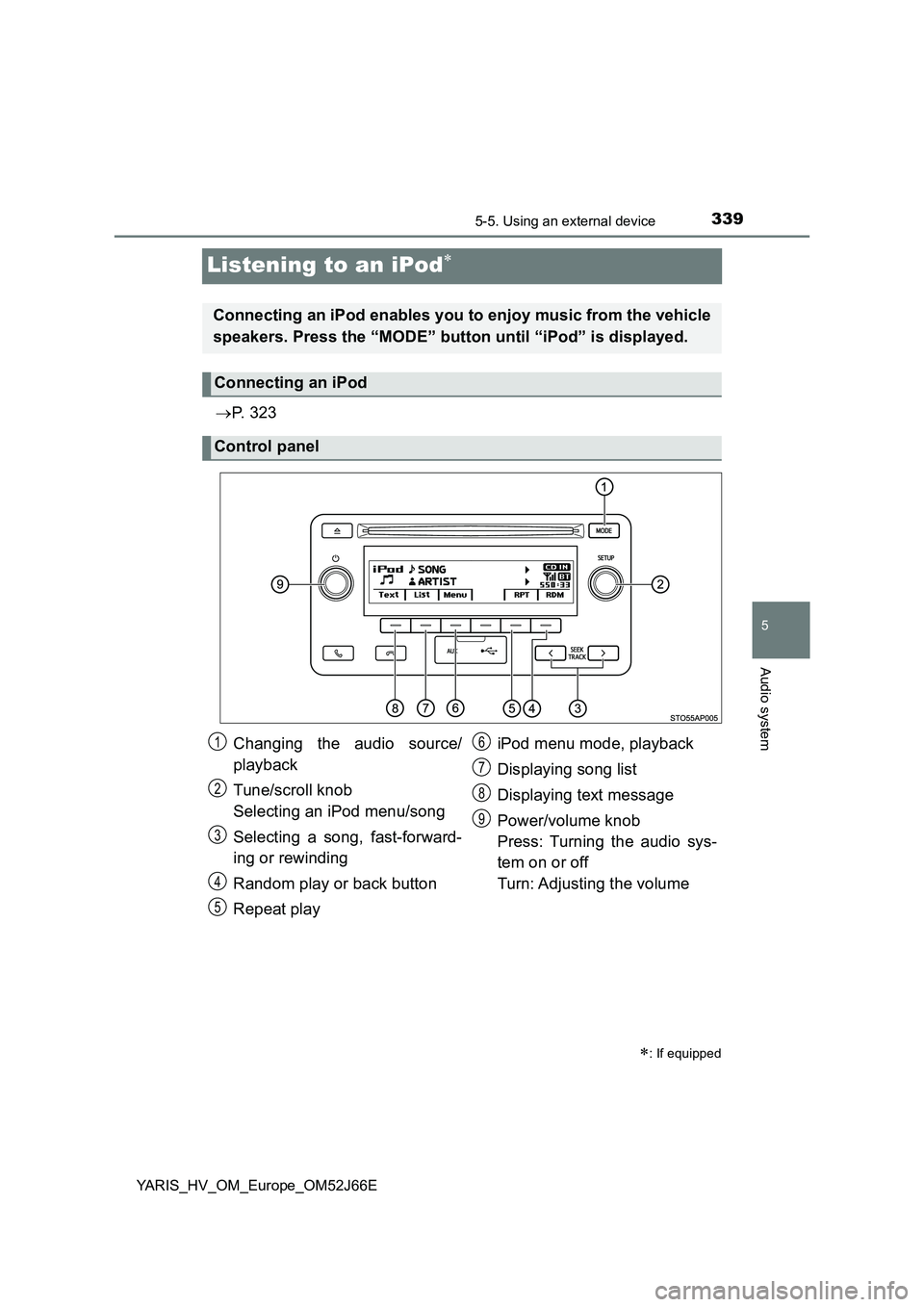
Control panel
Changing the audio source/
playback
Tune/scroll knob
Selecting an iPod menu/song
Selecting a song, fast-forward-
ing or rewinding
Random play or back button
Repeat play
iPod menu mode, playback
Displaying song list
Displaying text message
Power/volume knob
Press: Turning the audio sys-
tem on or off
Turn: Adjusting the volume
1
2
3
4
5
6
7
8
9
Page 340 of 632
3405-5. Using an external device
YARIS_HV_OM_Europe_OM52J66E
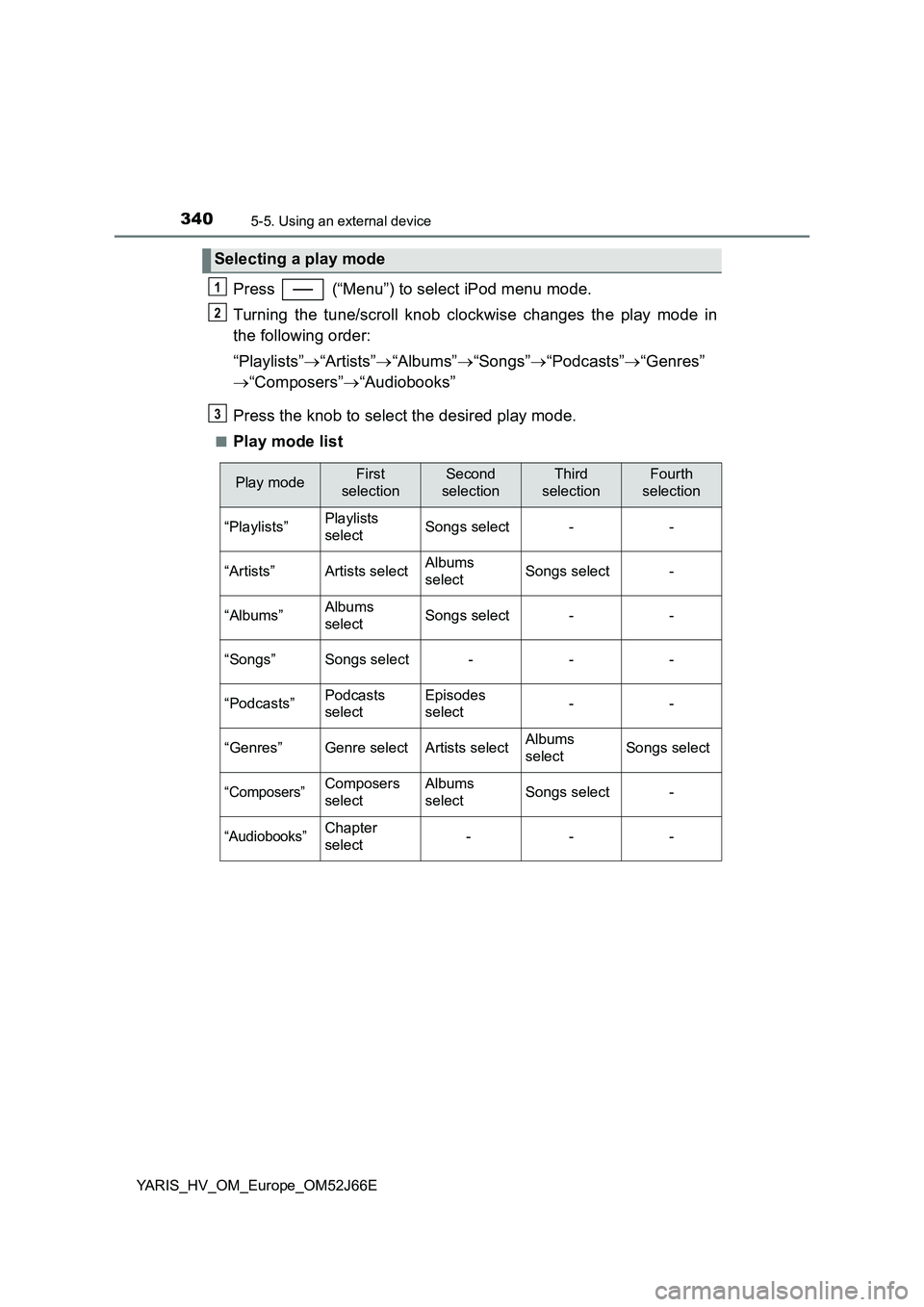
Press (“Menu”) to select iPod menu mode.
Turning the tune/scroll knob clockwise changes the play mode in
the following order:
“Playlists” “Artists”“Albums”“Songs”“Podcasts”“Genres”
“Composers”“Audiobooks”
Press the knob to select the desired play mode.
■Play mode list
Selecting a play mode
1
2
3
Play modeFirst
selection
Second
selection
Third
selection
Fourth
selection
“Playlists”Playlists
selectSongs select--
“Artists”Artists selectAlbums
selectSongs select-
“Albums”Albums
selectSongs select--
“Songs”Songs select---
“Podcasts”Podcasts
select
Episodes
select--
“Genres”Genre selectArtists selectAlbums
selectSongs select
“Composers”Composers
select
Albums
selectSongs select-
“Audiobooks”Chapter
select---
Page 341 of 632
3415-5. Using an external device
5
Audio system
YARIS_HV_OM_Europe_OM52J66E
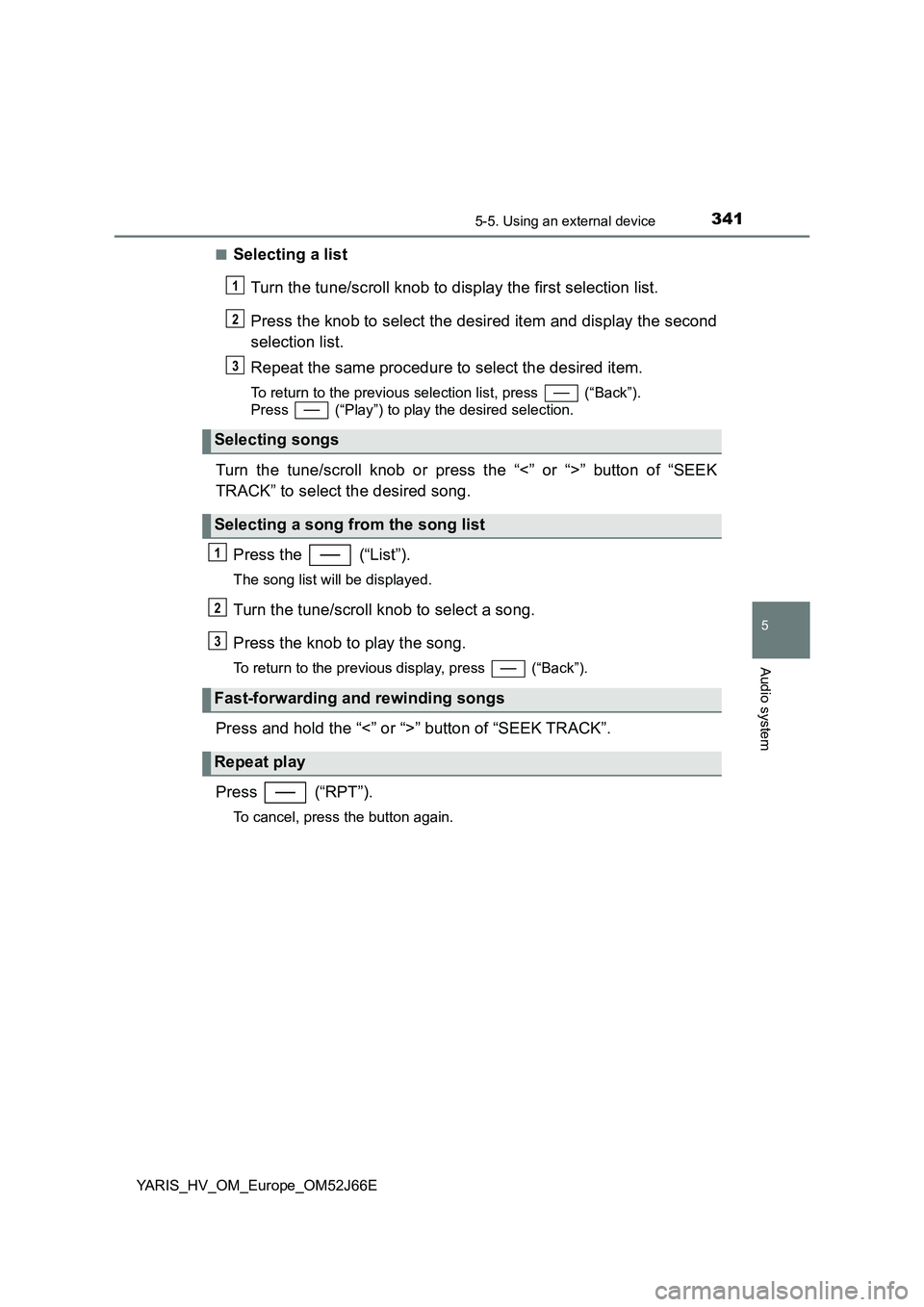
■Selecting a list
Turn the tune/scroll knob to display the first selection list.
Press the knob to select the desired item and display the second
selection list.
Repeat the same procedure to select the desired item.
To return to the previous selection list, press (“Back”).
Press (“Play”) to play the desired selection.
Turn the tune/scroll knob or press the “<” or “>” button of “SEEK
TRACK” to select the desired song.
Press the (“List”).
The song list will be displayed.
Turn the tune/scroll knob to select a song.
Press the knob to play the song.
To return to the previous display, press (“Back”).
Press and hold the “<” or “>” button of “SEEK TRACK”.
Press (“RPT”).
To cancel, press the button again.
Selecting songs
Selecting a song from the song list
Fast-forwarding and rewinding songs
Repeat play
1
2
3
1
2
3
Page 343 of 632
3435-5. Using an external device
5
Audio system
YARIS_HV_OM_Europe_OM52J66E
■ iPod functions
● When an iPod is connected and the audio source is changed to iPod mode,
the iPod will resume play from the same point in which it was last used.
● Depending on the iPod that is connected to the system, certain functions
may not be available. If a function is unavailable due to a malfunction (as
opposed to a system specification), disconnecting the device and recon-
necting it once again may resolve the problem.
● While connected to the system, the iPod cannot be operated with its own
controls. It is necessary to use the controls of the vehicle’s audio system
instead.
● When the battery level of an iPod is very low, the iPod may not operate. If
so, charge the iPod before use.
● Supported models (P. 345)
■ iPod problems
To resolve most problems encountered when using your iPod, disconnect
your iPod from the vehicle iPod connection and reset it.
For instructions on how to reset your iPod, refer to your iPod Owner’s Man-
ual.
■ Display
P. 333
Page 345 of 632
3455-5. Using an external device
5
Audio system
YARIS_HV_OM_Europe_OM52J66E
■ Compatible models
The following iPod®, iPod nano®, iPod classic®, iPod touch® and iPhone®
devices can be used with this system.
● Made for
• iPod (5th generation)
• iPod touch (5th generation)
• iPod touch (4th generation)
• iPod touch (Late 2009)
• iPod touch (3rd generation)
• iPod touch (2nd generation)
• iPod touch (1st generation)
• iPod classic (Late 2009)
• iPod classic (2nd generation)
• iPod classic
• iPod nano (7th generation)
• iPod nano (6th generation)
• iPod nano (5th generation)
• iPod nano (4th generation)
• iPod nano (3rd generation)
• iPod nano (2nd generation)
• iPod nano (1st generation)
• iPhone 5s
• iPhone 5c
• iPhone 5
• iPhone 4S
• iPhone 4
• iPhone 3GS
• iPhone 3G
• iPhone
This system only supports audio playback.
Depending on differences between models or software versions, etc., some
models might be incompatible with this system.
Items related to standards and limitations are as follows:
● Maximum number of lists in device: 9999
● Maximum number of songs in device: 65535
● Maximum number of songs per list: 65535
Page 347 of 632
347
5
5-5. Using an external device
Audio system
YARIS_HV_OM_Europe_OM52J66E
Listening to a USB memory device
P. 3 2 3
: If equipped
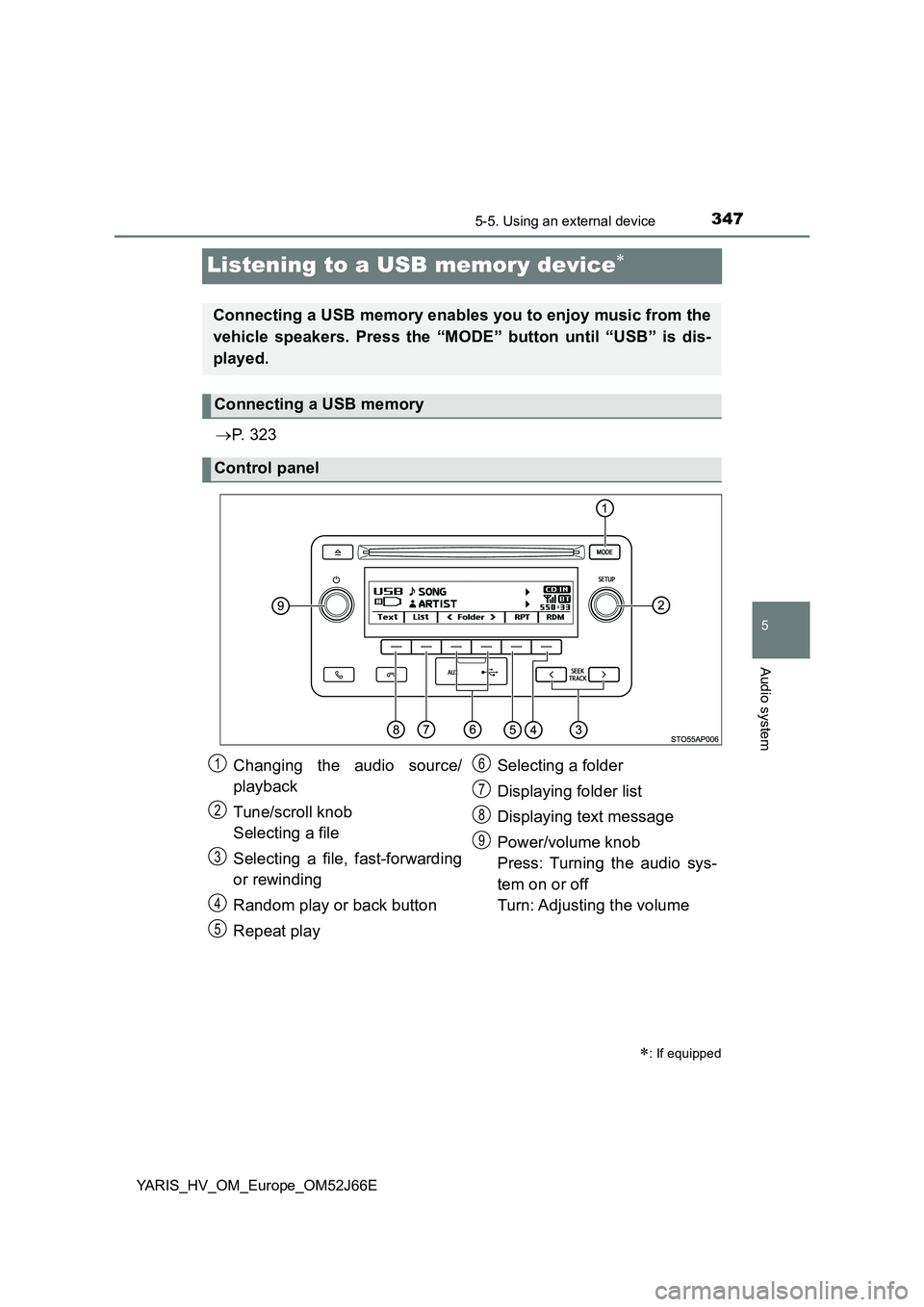
Connecting a USB memory enables you to enjoy music from the
vehicle speakers. Press the “MODE” button until “USB” is dis-
played.
Connecting a USB memory
Control panel
Changing the audio source/
playback
Tune/scroll knob
Selecting a file
Selecting a file, fast-forwarding
or rewinding
Random play or back button
Repeat play
Selecting a folder
Displaying folder list
Displaying text message
Power/volume knob
Press: Turning the audio sys-
tem on or off
Turn: Adjusting the volume
1
2
3
4
5
6
7
8
9
Page 349 of 632
3495-5. Using an external device
5
Audio system
YARIS_HV_OM_Europe_OM52J66E
Press (“Text”) display or hide the album title.
If there are continuing texts, is displayed.
Press and hold the button to display the remaining texts.
■ USB memory functions
● Depending on the USB memory that is connected to the system, the device
itself may not be operable and certain functions may not be available.
If the device is inoperable or a function is unavailable due to a malfunction
(as opposed to a system specification), disconnecting the device and recon-
necting it once again may resolve the problem.
● If the USB memory still does not begin operation after being disconnected
and reconnected, format the memory.
■ Display
P. 333
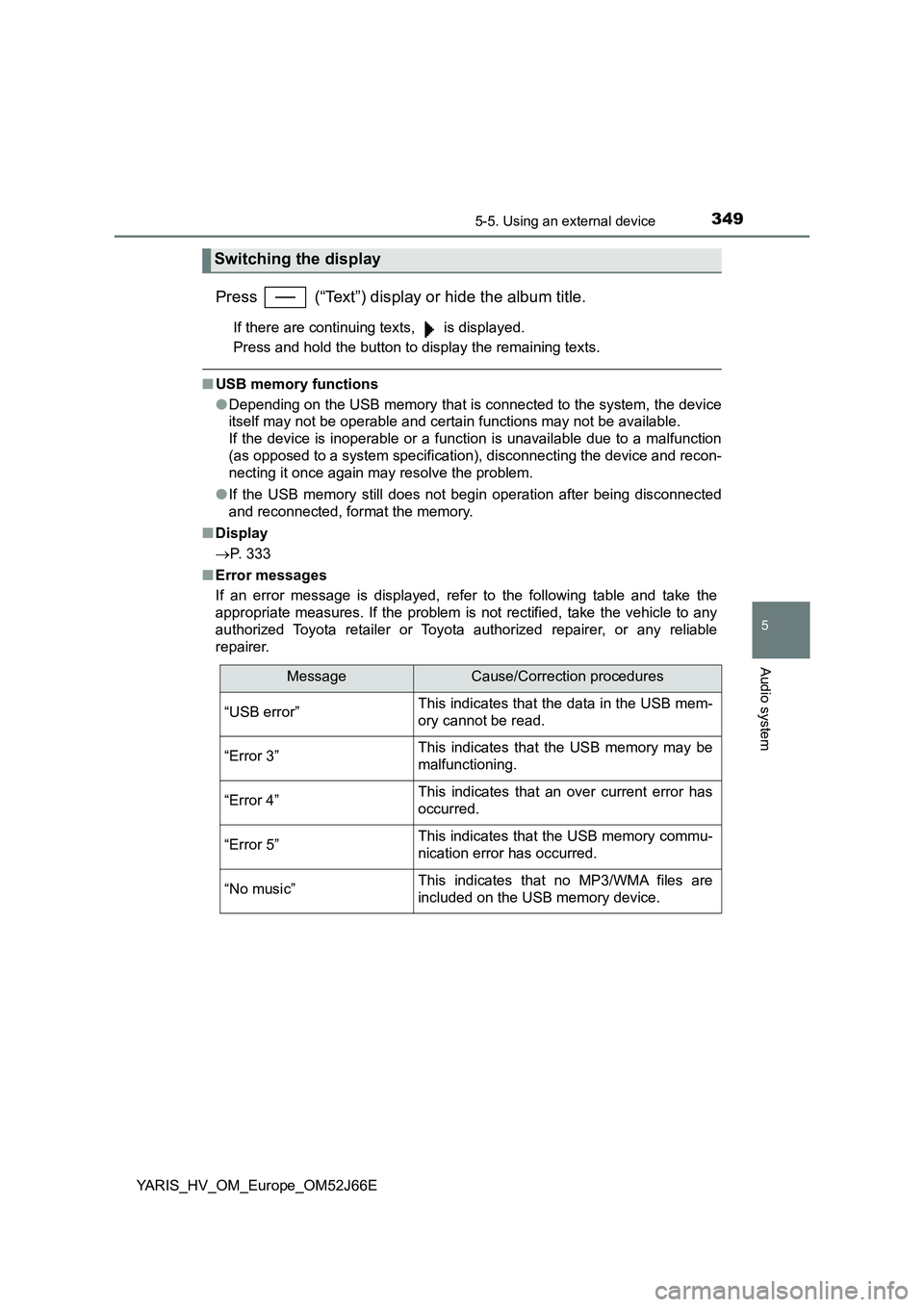
■ Error messages
If an error message is displayed, refer to the following table and take the
appropriate measures. If the problem is not rectified, take the vehicle to any
authorized Toyota retailer or Toyota authorized repairer, or any reliable
repairer.
Switching the display
MessageCause/Correction procedures
“USB error”This indicates that the data in the USB mem-
ory cannot be read.
“Error 3”This indicates that the USB memory may be
malfunctioning.
“Error 4”This indicates that an over current error has
occurred.
“Error 5”This indicates that the USB memory commu-
nication error has occurred.
“No music”This indicates that no MP3/WMA files are
included on the USB memory device.