ac system VAUXHALL INSIGNIA 2016 Repair Manual
[x] Cancel search | Manufacturer: VAUXHALL, Model Year: 2016, Model line: INSIGNIA, Model: VAUXHALL INSIGNIA 2016Pages: 327, PDF Size: 9.26 MB
Page 111 of 327

Instruments and controls109Flashes
Fuel used up. Refuel immediately.
Never run the fuel tank dry.
Refuelling 3 215.
Catalytic converter 3 164.
Bleeding the diesel fuel system
3 233.
Immobiliser
d flashes yellow.
Fault in the immobiliser system. The
engine cannot be started.
Autostop D illuminates when engine is in an
Autostop.
Stop-start system 3 159.
Exterior light 8 illuminates green.
The exterior lights are on 3 128.
High beam C illuminates blue.Illuminated when high beam is on or
during headlight flash 3 129.
High beam assist l illuminates green.
The high beam assist is activated,
see adaptive forward lighting 3 132.
Adaptive forward lighting f illuminates or flashes yellow.
Illuminates
Fault in the system.
Seek the assistance of a workshop.
Flashes
System is switched to symmetrical
low beam.
Control indicator f flashes for approx.
4 seconds after the ignition is
switched on as a reminder for
symmetrical headlight 3 131.
Fog light > illuminates green.The front fog lights are on 3 135.
Rear fog light r illuminates yellow.
The rear fog light is on 3 135.
Cruise control
m illuminates white or green.
Illuminates white The system is on.
Illuminates green
Cruise control is active. Set speed is
indicated on midlevel or uplevel
display near m symbol.
Cruise control 3 180.
Adaptive cruise control
C or m illuminates white or green.
Illuminates white The system is on.
Page 112 of 327

110Instruments and controlsIlluminates green
Adaptive cruise control is active. Set
speed is indicated near C or m
symbol.
Adaptive cruise control 3 183.
Vehicle detected ahead
A illuminates green or yellow.
Illuminates green
A vehicle ahead is detected in the
same lane.
Illuminates yellow The distance to a preceding moving
vehicle gets too small or when
approaching another vehicle too
rapidly.
Forward collision alert 3 190,
Adaptive cruise control 3 183.
Speed limiter
L illuminates white or green.
Illuminates white The system is on.Illuminates green
Speed limiter is active. Set speed is
indicated near L symbol.
Speed limiter 3 182.
Traffic sign assistant
L displays detected traffic signs as
control indicator.
Traffic sign assistant 3 208.
Door open h illuminates red.
A door or the tailgate is open.Information displays
Driver Information Centre The Driver Information Centre is
located in the instrument cluster.
Depending on the version and the
instrument cluster, the Driver
Information Centre is available as
Baselevel display, Midlevel display or Uplevel display.
Driver Information Centre indicates
depending on the equipment:
● overall and trip odometer
● vehicle information
● trip/fuel information
● economic information
● performance information
● vehicle and warning messages ● audio and infotainment information
● phone information
● navigation information
● vehicle settings
Page 119 of 327

Instruments and controls117Software information
Displays the open source software
information.
Valet mode
Some functions of the Driver
Information Centre and the Colour-
Info-Display can be limited for some
drivers.
Activation or deactivation of valet
mode can be set in the menu
Settings in the vehicle personalisation
menu.
Colour-Info-Display 3 117.
Vehicle personalisation 3 121.
For more information see
Infotainment manual.
Colour-Info-Display The Colour-Info-Display is located in
the instrument panel near the
instrument cluster.Depending on the vehicle
configuration the vehicle has a
● 4.2'' colour display
or
● 8'' colour display with Touch-
Screen functionality
The Info displays indicate: ● time 3 89
● outside temperature 3 89
● date 3 89
● Infotainment system, see description in the Infotainment
manual
● navigation, see description in the
Infotainment manual
● system messages
● vehicle messages 3 119
● settings for vehicle personalisation 3 121
4.2'' Colour display
Selecting menus and settings
Menus and settings are accessed via the display.
Press X to switch on the display.
Press ; to display the homepage.
Turn MENU to select a menu display
icon.
Press MENU to confirm a selection
Press BACK to exit a menu without
changing a setting.
Press ; to return to the homepage.
For further information, see
Infotainment manual.
Vehicle personalisation 3 121.
Page 120 of 327
118Instruments and controls8'' Colour display
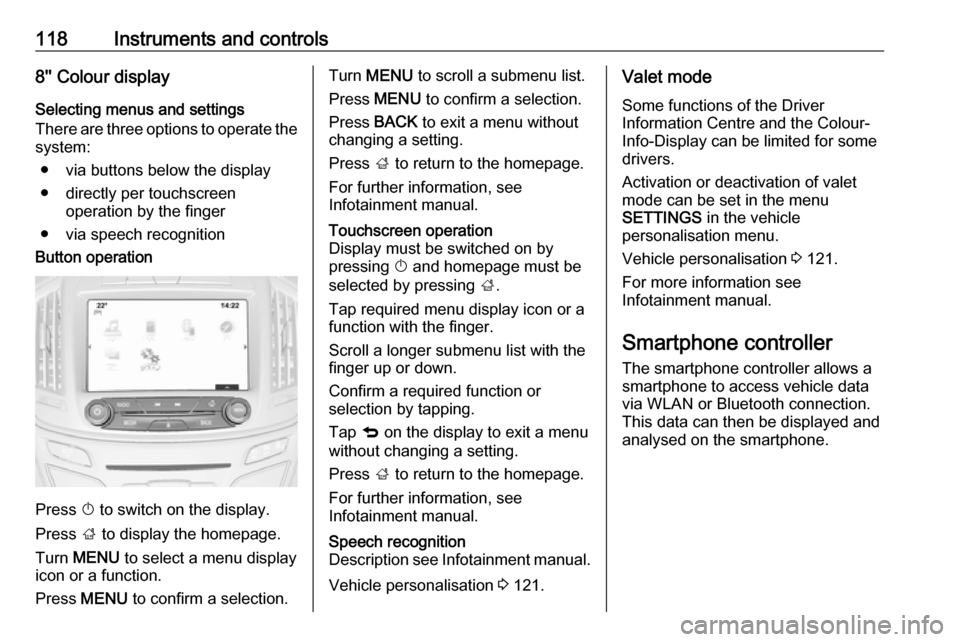
Selecting menus and settings
There are three options to operate the
system:
● via buttons below the display
● directly per touchscreen operation by the finger
● via speech recognitionButton operation
Press X to switch on the display.
Press ; to display the homepage.
Turn MENU to select a menu display
icon or a function.
Press MENU to confirm a selection.
Turn MENU to scroll a submenu list.
Press MENU to confirm a selection.
Press BACK to exit a menu without
changing a setting.
Press ; to return to the homepage.
For further information, see
Infotainment manual.Touchscreen operation
Display must be switched on by
pressing X and homepage must be
selected by pressing ;.
Tap required menu display icon or a function with the finger.
Scroll a longer submenu list with the
finger up or down.
Confirm a required function or
selection by tapping.
Tap q on the display to exit a menu
without changing a setting.
Press ; to return to the homepage.
For further information, see
Infotainment manual.Speech recognition
Description see Infotainment manual.
Vehicle personalisation 3 121.
Valet mode
Some functions of the Driver
Information Centre and the Colour-
Info-Display can be limited for some
drivers.
Activation or deactivation of valet
mode can be set in the menu
SETTINGS in the vehicle
personalisation menu.
Vehicle personalisation 3 121.
For more information see
Infotainment manual.
Smartphone controller
The smartphone controller allows a
smartphone to access vehicle data
via WLAN or Bluetooth connection.
This data can then be displayed and analysed on the smartphone.
Page 121 of 327
Instruments and controls119Vehicle messages
Messages are indicated in the Driver
Information Centre, in some cases
together with a warning and signal
buzzer.
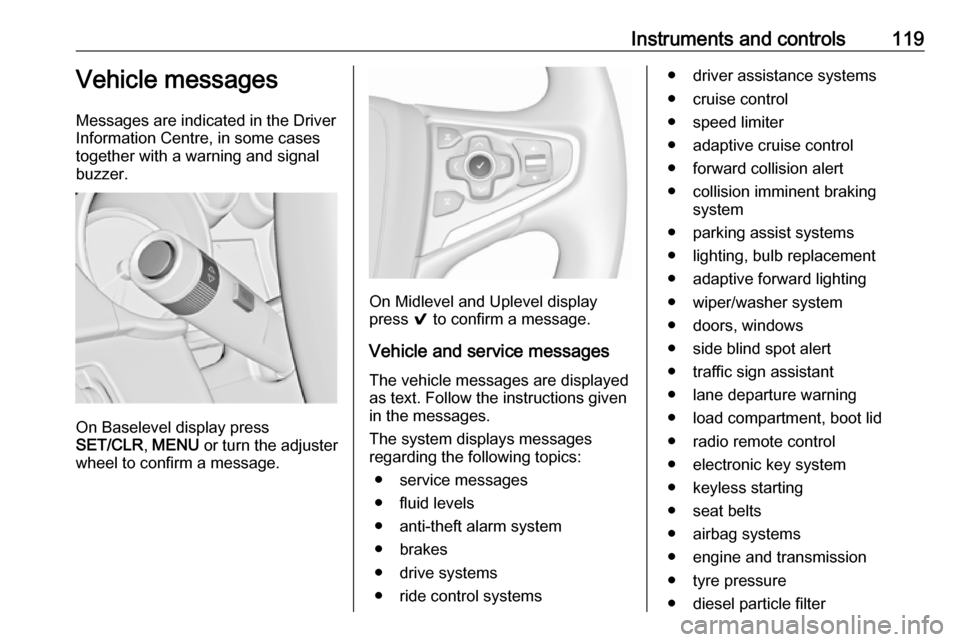
On Baselevel display press
SET/CLR , MENU or turn the adjuster
wheel to confirm a message.
On Midlevel and Uplevel display
press 9 to confirm a message.
Vehicle and service messages The vehicle messages are displayed
as text. Follow the instructions given
in the messages.
The system displays messages
regarding the following topics:
● service messages
● fluid levels
● anti-theft alarm system
● brakes
● drive systems
● ride control systems
● driver assistance systems
● cruise control
● speed limiter
● adaptive cruise control
● forward collision alert
● collision imminent braking system
● parking assist systems
● lighting, bulb replacement
● adaptive forward lighting
● wiper/washer system
● doors, windows
● side blind spot alert
● traffic sign assistant
● lane departure warning
● load compartment, boot lid
● radio remote control
● electronic key system
● keyless starting
● seat belts
● airbag systems
● engine and transmission
● tyre pressure
● diesel particle filter
Page 124 of 327

122Instruments and controls●Sport Suspension : Damping
becomes harder.
● All Wheel Drive : Engine torque is
distributed to a greater extent to the rear axle.
Language (Language)
Selection of the desired language.
See Infotainment manual.
Valet Mode
See Infotainment manual.
Radio
See Infotainment manual.
Vehicle ● Climate and Air Quality
Auto Fan Speed : Modifies the
level of the cabin airflow of the
climate control in automatic
mode.
Air Conditioning Mode : Controls
the state of the cooling
compressor when the vehicle is
started. Last setting
(recommended) or at vehicle
start is either always on or always
off.Auto Compartment Zone Temp :
Change between single zone or
dual zone temperature setting.
Auto Demist : Supports
windscreen dehumidification by
automatically selecting the
necessary settings and
automatic air conditioning mode.
Auto Rear Demist : Activates
automatically the heated rear
window.
● Collision / Detection Systems
Park Assist : Activates or
deactivates the ultrasonic
parking assist.
Auto Collision Preparation :
Activates or deactivates the
automatic brake functionality of
the vehicle in the event of
imminent collision danger. The
following is selectable: the
system will take over brake
control, warn by chimes only or is
deactivated completely.
Go Notifier : Activates or
deactivates the reminder function of the adaptive cruise control.Side Blind Zone Alert : Activates
or deactivates side blind zone alert.
Rear Cross Traffic Alert :
Activates or deactivates rear
cross traffic alert.
● Comfort and Convenience
Auto Memory Recall : Changes
the settings to the recall of
memorised settings for power
seat adjustment and exterior
mirrors.
Easy Exit Driver Seat : Activates
or deactivates easy exit function
of the power seat.
Chime Volume : Changes the
volume of warning chimes.
Reverse Tilt Mirror : Activates or
deactivates the parking assist function of the exterior mirror on
the passenger side.
Auto Mirror Folding : Activates or
deactivates folding of the exterior
mirrors with the remote control.
Personalisation by Driver :
Activates or deactivates the
personalisation function.
Page 126 of 327
124Instruments and controlsRear Park Assist Symbols: Activates
or deactivates the rear park assist
symbols.
Return to Factory Settings
Restore Vehicle Settings : Resets all
settings to the default settings.
Clear All Private Data : Deletes all
private information from the vehicle.
Restore Radio Settings : Resets all
radio settings to the default settings.
See Infotainment manual.
Software Information
See Infotainment manual.OnStar® system
OnStar is a personal connectivity and mobility assistant with integrated
Wi-Fi hotspot. The OnStar service is
available 24 hours a day, seven days
a week.
Notice
OnStar is not available for all
markets. For further information,
contact your workshop.
Notice
In order to be available and
operational, OnStar needs a valid
OnStar subscription, functioning
vehicle electrics, mobile service and
GPS satellite link.
To activate the OnStar services and
set up an account, press Z and speak
with an OnStar advisor.
Depending on the equipment of the vehicle, the following services areavailable:
● OnStar emergency services and support in the case of a vehicle
breakdown
● Wi-Fi hotspot● OnStar smartphone application
● OnStar remote services, e.g. location of the vehicle, activation
of horn and lights, control of
central locking system
● Stolen vehicle assistance
● Vehicle health check
● Destination download
Notice
All functions requiring data
connection to the vehicle are no
longer available if the vehicle ignition
has not been turned on for ten days.
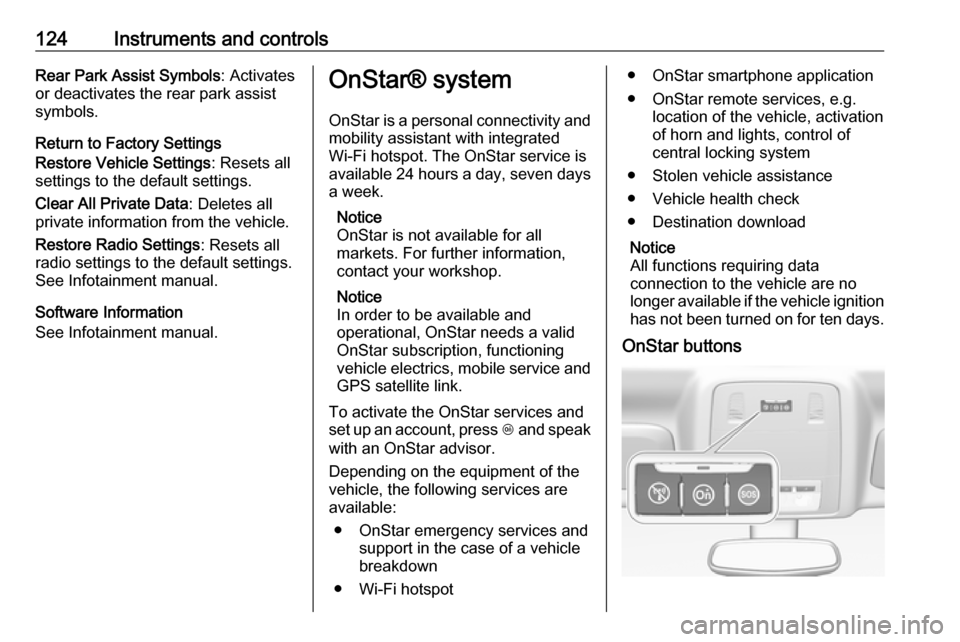
OnStar buttons
Page 127 of 327

Instruments and controls125Notice
Depending on the equipment, the
OnStar buttons can also be
integrated in the rear view mirror.
Privacy button
Press and hold j until an audio
message is heard to activate or
deactivate the transmission of the
vehicle location.
Press j to answer a call or to end a
call to an OnStar advisor.
Press j to access the Wi-Fi settings.
OnStar button
Press Z to establish a connection to
an OnStar advisor.
SOS button
Press [ to establish a priority
emergency connection to a specially
trained emergency advisor.
Status light
Green: The system is ready.
Green flashing: The system is on a
call.
Red: A problem arose.
Off: System is off.Red / green flashing for a short period
of time: Transmission of the vehicle
location has been deactivated.
OnStar services
OnStar emergency services
OnStar emergency provides a service
with specially trained emergency
advisors for contact, assistance and
information during an emergency.
In the case of an emergency situation including vehicle breakdown, a flat
tyre or empty fuel tank, press [ and
talk to the advisor. The advisor then contacts emergency or assistance
service providers and directs them to
your vehicle.
In the case of an accident with
activation of airbags or belt
tensioners, an automatic emergency
call is established. The advisor is
immediately connected to your
vehicle to see whether help is
needed.
OnStar Wi-Fi hotspot
The Wi-Fi hotspot of the vehicle
provides internet connectivity through
the 4G/LTE mobile network.Notice
The Wi-Fi hotspot functionality is not
available for all markets.
Up to seven devices may be
connected.
To connect a mobile device with the
OnStar Wi-Fi hotspot:
1. Press j and then select Wi-Fi
settings on the Info-Display. The
settings displayed include the Wi- Fi hotspot name (SSID),
password and connection type.
2. Start a Wi-Fi network search on your mobile device.
3. Select your vehicle hotspot (SSID) when listed.
4. When prompted, enter the password on your mobile device.
Notice
To change the SSID or password,
select Z and talk to an OnStar
advisor or logon to your account.
To switch off the Wi-Fi hotspot
functionality, press Z to call an
OnStar advisor.
Page 128 of 327

126Instruments and controlsSmartphone app
With the My Vauxhall smartphone
app, some vehicle functions can be
operated via a smartphone.
The following functions are available: ● Lock or unlock doors.
● Honk horn or flash lights.
● Check fuel level, engine oil life and tyre pressure (only with tyre
pressure monitoring system).
● Send navigation destination to the vehicle, if equipped with a
built-in navigation system.
● Locate vehicle on a map.
● Manage Wi-Fi settings.
To operate these functions, download the app from the respective app store.
Remote service
If desired, use any phone to call an
OnStar advisor, who can remotely
operate specific vehicle functions.
Find the respective OnStar phone
number on our country-specific
website.The following functions are available:
● Lock or unlock doors.
● Provide information on the vehicle location.
● Honk horn or flash lights.
Stolen vehicle assistance
If a vehicle is stolen, the OnStar
stolen vehicle assistance service can
provide support in locating and
recovering the vehicle.Theft alert
When the anti-theft alarm system is
triggered, a notification is sent to
OnStar. You are then informed about
this event by text message or email.
If required, report the theft to the
authorities and request OnStar stolen
vehicle assistance. Use any phone to call an OnStar advisor. Find the
respective OnStar phone number on
our country-specific website.Remote ignition block
By sending remote signals, OnStar
can block the ignition cycle
preventing the vehicle from restarting once it has been turned off.On-demand diagnostics
At any time e.g. if the vehicle displays a service message, press Z to
contact an OnStar advisor and ask to complete a real-time diagnostic check
to directly determine the issue.
Depending on the results, the advisor
will provide further support.
Monthly vehicle diagnostics
The vehicle automatically transmits
diagnostic data to OnStar which
sends a monthly email report to you
and your preferred workshop.
Notice
The workshop notification function
can be disabled in your account.
The report contains the status of key
operating systems of the vehicle like
engine, transmission, airbags,
antilock brakes, and other major
systems. It also provides information
on possible maintenance items and
tyre pressure (only with tyre pressure
monitoring system).
To look at the information in greater
detail, select the link within the email
and log into your account.
Page 129 of 327

Instruments and controls127Destination download
A desired destination can be directly downloaded to the navigation system.
Press Z to call an OnStar advisor and
describe the destination or point of
interest.
The OnStar advisor can look up any
address or point of interest and
directly download the destination to
the built-in navigation system.
OnStar settings
OnStar PIN
To have full access to all OnStar
services, a four-digit PIN is required. The PIN has to be personalised when first talking to an OnStar advisor.
To change the PIN, press Z to call an
OnStar advisor.
Account data
An OnStar subscriber has an
account, where all the data is stored.
To request a change of the account
information, press Z and talk to an
OnStar advisor or logon to your
account.If the OnStar service is used on
another vehicle, press Z and request
that the account be transferred to the
new vehicle.
Notice
In any case, if the vehicle is disposed
of, sold or otherwise transferred,
immediately inform OnStar about
the changes and terminate the
OnStar service on this vehicle.
Vehicle location
The vehicle location is transmitted to OnStar when service is requested ortriggered. A message on the Info-
Display informs about this
transmission.
To activate or deactivate the
transmission of the vehicle location,
press and hold j until an audio
message is heard.
The deactivation is indicated by the
status light flashing red and green for a short period of time and each time
the vehicle is started.
Notice
If the transmission of the vehicle
location is deactivated, some
services are no longer available.Notice
The vehicle location always remains
accessible to OnStar in the case of
an emergency.
Find the privacy policy in your
account.
Software updates
OnStar may remotely carry out software updates without further
notice or consent. These updates are to enhance or maintain safety and
security or the operation of the
vehicle.
These updates may concern privacy
issues. Find the privacy policy in your
account.