rds VAUXHALL MOKKA X 2017 Infotainment system
[x] Cancel search | Manufacturer: VAUXHALL, Model Year: 2017, Model line: MOKKA X, Model: VAUXHALL MOKKA X 2017Pages: 155, PDF Size: 2.85 MB
Page 10 of 155

10Introduction2SRC (Source) ........................ 10
Press: select audio source ....10
Turn upwards/
downwards: select next/
previous preset radio
station when radio active ......29
or select next/previous
track/chapter/picture
when external devices
active ..................................... 35
or select next/previous
entry in call list when
phone portal active and
call list open .......................... 67
Turn upwards/downwards
and hold: scroll quickly
through the entries in the
call list ................................... 67
3 +
Press: increase volume
4 -
Press: reduce volume
5 xn
Press: end/decline call ..........67or deactivate speech
recognition ............................ 59
or activate/deactivate
mute function ........................ 10Usage
Switching Infotainment system
on/off
Press X briefly. After switching on,
the last selected Infotainment source
becomes active.
Automatic switch-off
If the Infotainment system is switched
on by pressing X while the ignition is
switched off, it switches off again
automatically after 10 minutes.
Setting the volume Turn X.
The current setting is shown on the display.
When the Infotainment system is switched on, the last selected volume is set, provided that the volume is
lower than the maximum start-up
volume 3 24.
Page 12 of 155
12Basic operationBasic operationBasic operation............................ 12
Menu operation ............................ 14
Keyboards .................................... 15
Favourites .................................... 16
Contacts ....................................... 20
Tone settings ............................... 24
Volume settings ........................... 24
System settings ........................... 25Basic operation
The centre display has a touch-
sensitive surface that allows direct
interaction with the screen.
m screen button
To return to the next higher menu
level, select m.
Exit screen button To leave the menu currently active,
select Exit.
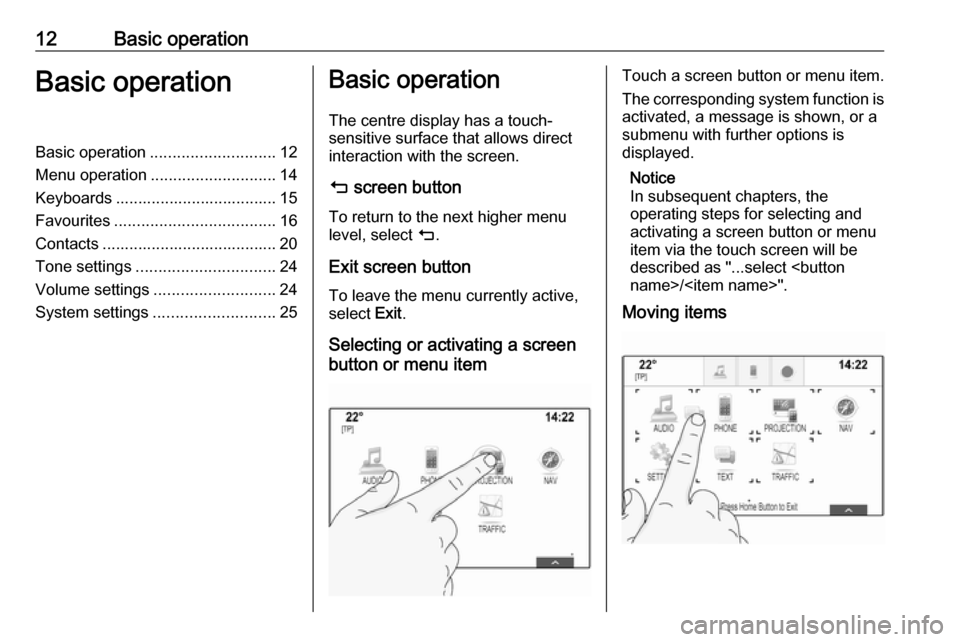
Selecting or activating a screen
button or menu itemTouch a screen button or menu item.
The corresponding system function is activated, a message is shown, or a
submenu with further options is
displayed.
Notice
In subsequent chapters, the
operating steps for selecting and
activating a screen button or menu
item via the touch screen will be
described as "...select
Moving items
Page 13 of 155
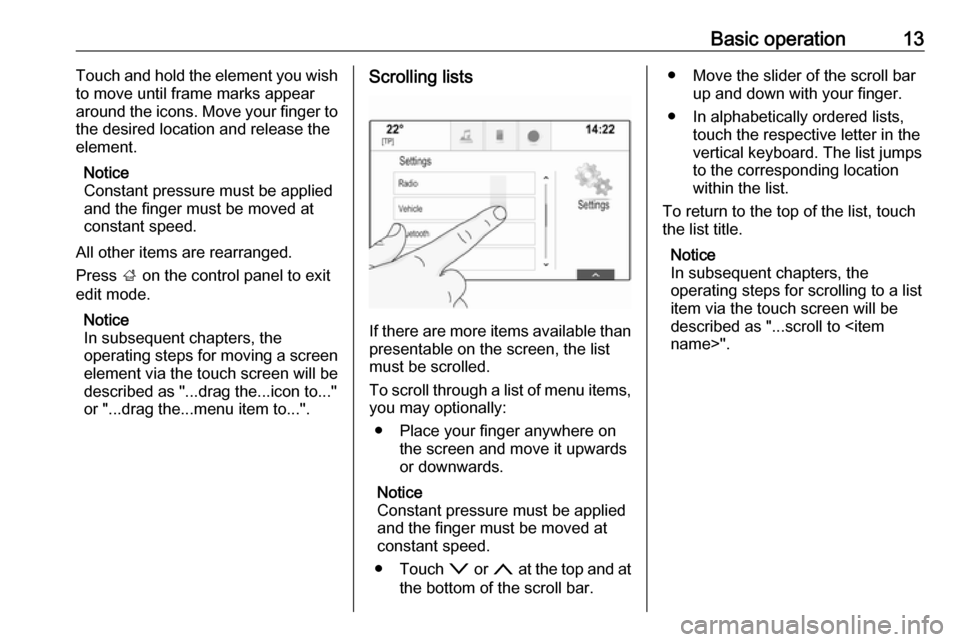
Basic operation13Touch and hold the element you wish
to move until frame marks appear
around the icons. Move your finger to
the desired location and release the
element.
Notice
Constant pressure must be applied
and the finger must be moved at
constant speed.
All other items are rearranged.
Press ; on the control panel to exit
edit mode.
Notice
In subsequent chapters, the
operating steps for moving a screen
element via the touch screen will be
described as "...drag the...icon to..."
or "...drag the...menu item to...".Scrolling lists
If there are more items available than
presentable on the screen, the list
must be scrolled.
To scroll through a list of menu items, you may optionally:
● Place your finger anywhere on the screen and move it upwards
or downwards.
Notice
Constant pressure must be applied and the finger must be moved at
constant speed.
● Touch o or n at the top and at
the bottom of the scroll bar.
● Move the slider of the scroll bar up and down with your finger.
● In alphabetically ordered lists, touch the respective letter in the
vertical keyboard. The list jumps
to the corresponding location
within the list.
To return to the top of the list, touch
the list title.
Notice
In subsequent chapters, the
operating steps for scrolling to a list item via the touch screen will be
described as "...scroll to
Page 15 of 155
Basic operation15MessagesIn the case of a system event, before
the execution of a system function, or due to an outside trigger, e.g.
incoming phone call, you may be
prompted with a message.
Select one of the available options.
If ignored, most of the messages are
dismissed automatically after a
certain period of time. Alerts that are
not dismissed automatically remain
on the screen until they are
acknowledged or the trigger becomes
invalid.
Keyboards
Keyboard
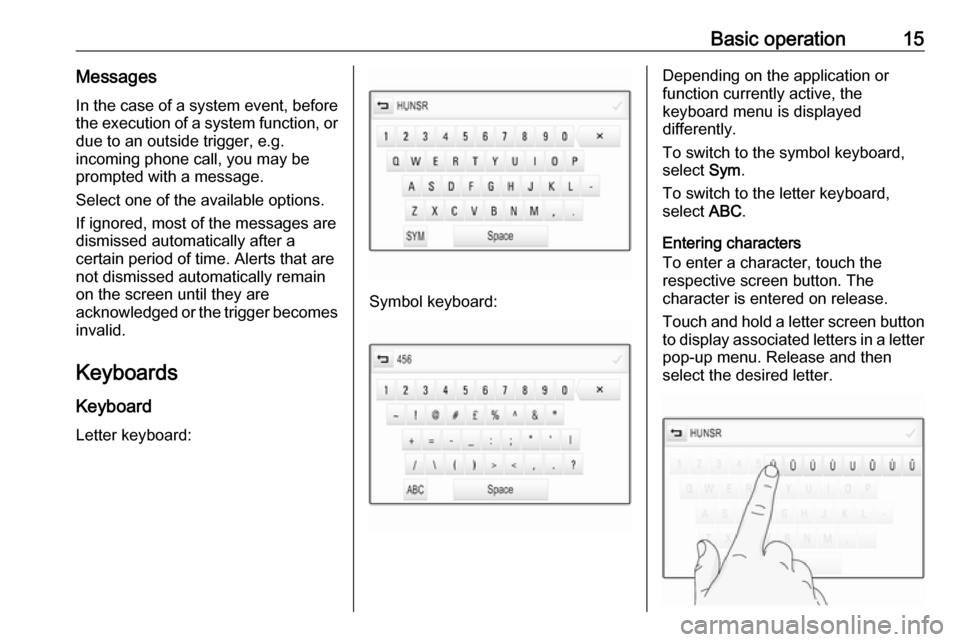
Letter keyboard:
Symbol keyboard:
Depending on the application or
function currently active, the
keyboard menu is displayed
differently.
To switch to the symbol keyboard,
select Sym.
To switch to the letter keyboard,
select ABC.
Entering characters
To enter a character, touch the
respective screen button. The
character is entered on release.
Touch and hold a letter screen button
to display associated letters in a letter pop-up menu. Release and then
select the desired letter.
Page 17 of 155
Basic operation17● albums or artists
● telephone numbers
● destinations and routes
● POIs
● contact entries
● tone settings
● Home screen applications
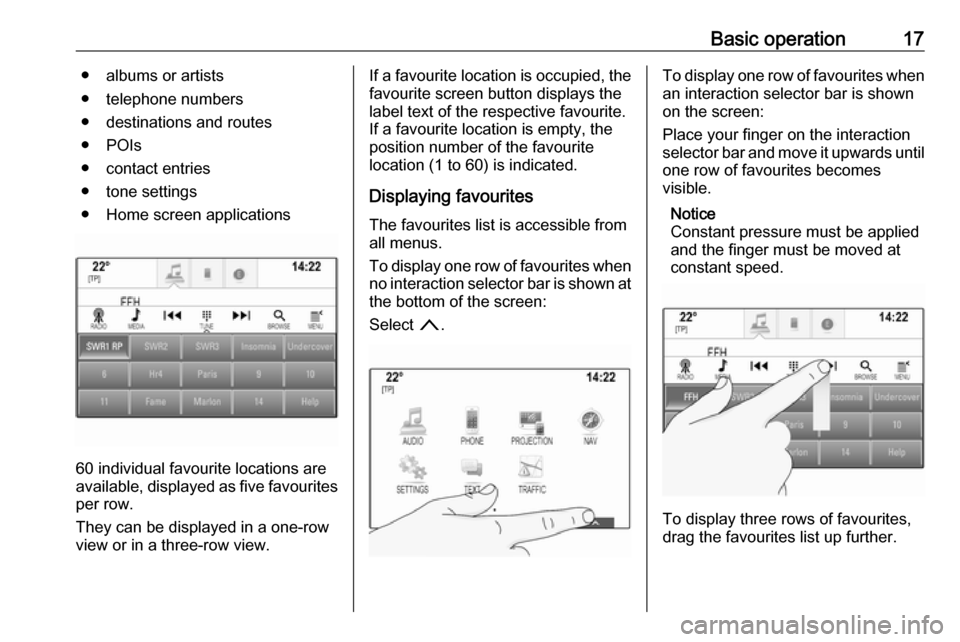
60 individual favourite locations are
available, displayed as five favourites
per row.
They can be displayed in a one-row
view or in a three-row view.
If a favourite location is occupied, the favourite screen button displays the
label text of the respective favourite. If a favourite location is empty, the
position number of the favourite
location (1 to 60) is indicated.
Displaying favourites
The favourites list is accessible from
all menus.
To display one row of favourites when no interaction selector bar is shown atthe bottom of the screen:
Select n.To display one row of favourites when
an interaction selector bar is shown
on the screen:
Place your finger on the interaction
selector bar and move it upwards until one row of favourites becomes
visible.
Notice
Constant pressure must be applied
and the finger must be moved at
constant speed.
To display three rows of favourites,
drag the favourites list up further.
Page 25 of 155

Basic operation25Scroll through the list and select
Radio and then Maximum Start-Up
Volume .
Touch ─ or w to set the desired
volume.
Automatic volume adjustment
Press ; and select SETTINGS on
the Home screen.
Scroll through the list and select
Radio and then Auto Volume .
To adjust the degree of volume adaptation, set Auto Volume to one of
the available options.
Off : no enhancement of volume with
increasing vehicle speed.
High : maximum enhancement of
volume with increasing vehicle
speed.
Volume of traffic announcements To adjust the volume of traffic
announcements, set the desired
volume while a traffic announcement
is given out by the system. The
respective setting is then stored by
the system.System settings
Various settings and adaptions for theInfotainment system can be made via
the SETTINGS application.
Time and Date
Press ; and select SETTINGS on
the Home screen.
Select Time and Date .
Set time
Select Set Time to enter the
respective submenu.
Select Auto Set at the bottom of the
screen. Activate either On - RDS or
Off - Manual .
If Off - Manual is selected, adjust
hours and minutes by touching n or
o .
Touch 12-24 Hr on the right side of the
screen to select a time mode.
If 12-hour mode is selected, a third
column for AM and PM setting is
displayed. Select the desired option.
Set date
Select Set Date to enter the
respective submenu.
Page 26 of 155
26Basic operationNotice
If date information is automatically
provided, this menu item is not
available.
Select Auto Set at the bottom of the
screen. Activate either On - RDS or
Off - Manual .
If Off - Manual is selected, adjust the
date by touching n or o.
Clock display
Select Clock Display to enter the
respective submenu.
To turn off the digital clock display in
the menus, select Off.
Language Press ; and select SETTINGS on
the Home screen.
Scroll through the list and select
Language .
Notice
The language currently active is
marked with 9.
Scroll through the list and select the
desired language.Valet mode
If valet mode is activated, all vehicle
displays are locked and no changes
may be performed within the system.
Notice
Vehicle-related messages and the
rear backup camera remain
enabled.
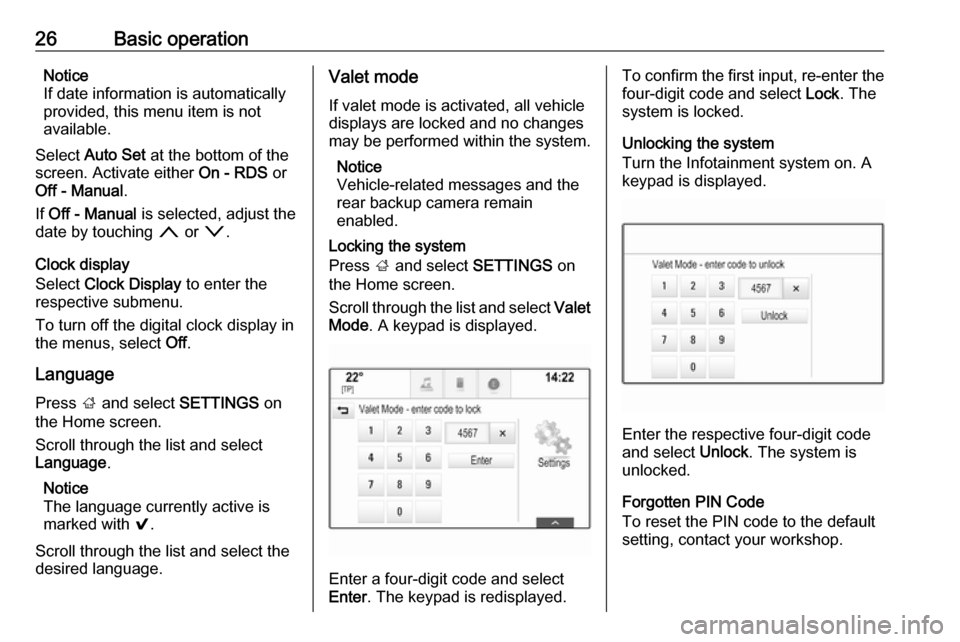
Locking the system
Press ; and select SETTINGS on
the Home screen.
Scroll through the list and select Valet
Mode . A keypad is displayed.
Enter a four-digit code and select
Enter . The keypad is redisplayed.
To confirm the first input, re-enter the
four-digit code and select Lock. The
system is locked.
Unlocking the system
Turn the Infotainment system on. A
keypad is displayed.
Enter the respective four-digit code
and select Unlock. The system is
unlocked.
Forgotten PIN Code
To reset the PIN code to the default
setting, contact your workshop.
Page 29 of 155

Radio29RadioUsage.......................................... 29
Station search .............................. 29
Radio data system (RDS) ............30
Digital audio broadcasting ...........31Usage
The radio function is part of the
AUDIO application.
Activating the radio function
Press ; and select AUDIO on the
Home screen. Select RADIO in the
interaction selector bar.
Selecting the waveband Repeatedly select RADIO to toggle
between the different wavebands.
Station search
Automatic station search
Press t or v to play the previous
or next station.
Manual station search
Press and hold t or v . Release the
respective button when the desired frequency has almost been reached.
Station tuning
Select TUNE in the interaction
selector bar. A keypad is displayed.
Page 30 of 155
30RadioTouch the Direct Tune field and then
enter the desired frequency. Confirm your input.
Station lists In the station lists, all receivable radio stations within the current reception
area are available for selection.
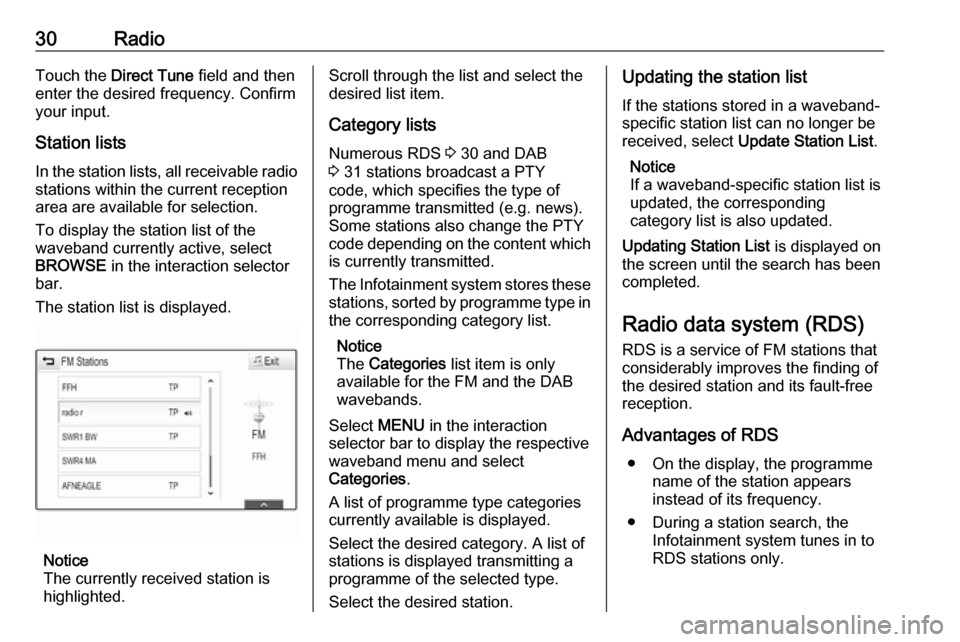
To display the station list of the
waveband currently active, select
BROWSE in the interaction selector
bar.
The station list is displayed.
Notice
The currently received station is
highlighted.
Scroll through the list and select the
desired list item.
Category lists
Numerous RDS 3 30 and DAB
3 31 stations broadcast a PTY
code, which specifies the type of
programme transmitted (e.g. news).
Some stations also change the PTY
code depending on the content which is currently transmitted.
The Infotainment system stores these
stations, sorted by programme type in
the corresponding category list.
Notice
The Categories list item is only
available for the FM and the DAB wavebands.
Select MENU in the interaction
selector bar to display the respective waveband menu and select
Categories .
A list of programme type categories
currently available is displayed.
Select the desired category. A list of
stations is displayed transmitting a
programme of the selected type.
Select the desired station.Updating the station list
If the stations stored in a waveband-
specific station list can no longer be
received, select Update Station List .
Notice
If a waveband-specific station list is
updated, the corresponding
category list is also updated.
Updating Station List is displayed on
the screen until the search has been
completed.
Radio data system (RDS)
RDS is a service of FM stations that considerably improves the finding of
the desired station and its fault-free
reception.
Advantages of RDS ● On the display, the programme name of the station appears
instead of its frequency.
● During a station search, the Infotainment system tunes in to
RDS stations only.
Page 31 of 155

Radio31● The Infotainment system alwaystunes into the best receivable
broadcasting frequency of the set station by means of AF
(alternative frequency).
● Depending on the station received, the Infotainment
system displays radio text that
can contain e.g. information on the current programme.
RDS settings To configure the RDS settings
options, activate the radio function
and then select the FM waveband.
Select MENU in the interaction
selector bar to display the FM menu.RDS
Set RDS - On or RDS - Off .
Traffic Programme (TP)
Radio traffic service stations are RDS
stations that broadcast traffic news. If the traffic service is switched on, the
function currently active is interrupted for the duration of the traffic
announcement.
If the radio traffic service is activated,
[TP] is shown in the top line of all main
menus. If the current station or media played is not a radio traffic service
station, [ ] is displayed and a search
is started automatically for the next
radio traffic service station available.
As soon as a radio traffic service
station is found, [TP] is highlighted. If
no radio traffic service station is
found, [ ] remains on the screen.
If a traffic announcement is
broadcasted on the respective radio
traffic service station, a message is
displayed.
To interrupt the announcement and
return to the function previously
activated, dismiss the alert.Set Traffic Programme (TP) - On or
Traffic Programme (TP) - Off .
Region
Sometimes RDS stations broadcast
regionally different programmes on
different frequencies.
If regionalisation is switched on,
alternative frequencies with the same
regional programmes are selected if
necessary. If regionalisation is
switched off, alternative frequencies
of the stations are selected without
regard to regional programmes.
Set Region - On or Region - Off .
Digital audio broadcasting
DAB broadcasts radio stations
digitally.
Advantages of DAB ● DAB stations are indicated by the
programme name instead of the
broadcasting frequency.
● With DAB, several radio programmes (services) can be
broadcasted on a single
ensemble.