rds VAUXHALL MOKKA X 2017 Infotainment system
[x] Cancel search | Manufacturer: VAUXHALL, Model Year: 2017, Model line: MOKKA X, Model: VAUXHALL MOKKA X 2017Pages: 155, PDF Size: 2.85 MB
Page 79 of 155

79Deleting..................................... 16
Displaying.................................. 16
Renaming .................................. 16
Retrieving .................................. 16
Storing ....................................... 16
File formats Audio files.................................. 34
Movie files ................................. 34
Forgotten PIN ............................... 25
Frequency list ............................... 29
Frequently asked questions .........75
G
General information ....34, 40, 59, 64
Bluetooth music......................... 34
Infotainment system ....................6
Navigation ................................. 40
Phone portal .............................. 64
Radio ......................................... 29
USB ........................................... 34
Guidance ..................................... 53
H
Home button ................................. 14
Home screen ................................ 14
I
Individual POIs ............................. 41
Infotainment control panel ..............8
Intellitext ....................................... 31
Interaction selector bar .................14K
Keyboard Letter keyboard ......................... 15
Symbol keyboard ......................15
Keyboards .................................... 15
Keypad ......................................... 15
L Language ..................................... 25
L-Band .......................................... 31
M Maps ............................................. 41
Maximum startup volume .............24
Menu operation............................. 14
Messages ..................................... 14
Midrange....................................... 24
Mobile phones and CB radio equipment ................................ 73
Movie files..................................... 34
Movies .......................................... 36
Mute.............................................. 10
N Navigation..................................... 53 Contacts .............................. 20, 47
Current location ......................... 41
Destination input .......................47
Favourites ................................. 16
Individual POIs .......................... 41
Map display ............................... 41Map manipulation......................41
Map update ............................... 40
OVERVIEW screen button ........41
Recent destinations ..................47
Route guidance ......................... 53
Route guidance menu ...............53
TMC stations ....................... 40, 53
Traffic incidents ......................... 53
Turn list ..................................... 53
Voice prompts ........................... 53
Waypoint list .............................. 53
Waypoint trip ............................. 47
O Operation ...................................... 67
Bluetooth music......................... 35
Contacts .................................... 20
Favourites ................................. 16
Infotainment system ..................10
Keyboards ................................. 15
Navigation system .....................41
Phone ........................................ 67
Radio ......................................... 29
Touch screen ............................ 12
USB ..................................... 35, 36
OVERVIEW screen button ...........41
Page 80 of 155

80PPairing .......................................... 65
Phone Bluetooth ................................... 64
Bluetooth connection ................65
Contacts .................................... 20
Emergency calls ........................67
Favourites ................................. 16
Handsfree mode........................ 67
Phone book ......................... 20, 67
Recent calls............................... 67
Ringtone .................................... 67
Text messages .......................... 71
Phone book ............................ 20, 67
Phone call Initiating ..................................... 67
Rejecting ................................... 67
Taking ....................................... 67
Phone projection .......................... 37
Playing audio ................................ 35
Playing movies ............................. 36
POIs.............................................. 47
R Radio Category list .............................. 29
DAB ........................................... 31
DAB announcements ................31
DAB menu ................................. 31
Digital audio broadcasting .........31Favourites ................................. 16
FM menu ................................... 30
Frequency list ............................ 29
Intellitext .................................... 31
L-Band....................................... 31
Radio Data System ...................30
RDS........................................... 30
Region ....................................... 30
Regionalisation ......................... 30
Station list.................................. 29
Station search ........................... 29
TP.............................................. 30
Traffic Programme ....................30
Waveband ................................. 29
Radio data system (RDS) ............30
Region .......................................... 30
Regionalisation ............................. 30
RESET screen button ...................41
Retrieving favourites .....................16
Return to factory settings.............. 25
Ringtone ....................................... 67
Route guidance ............................ 53
Route style.................................... 53
S Shop ............................................. 37
Smartphone Phone projection .......................37
Speech recognition .......................59
Station list ..................................... 29Station search............................... 29
Storing favourites.......................... 16
Switching the Infotainment system on .................................. 10
System settings ............................ 25
Display ...................................... 25
Language .................................. 25
Return to factory settings ..........25
Time and Date........................... 25
Valet mode ................................ 25
T
TA ................................................. 30
Text messages ............................. 71
Theft-deterrent feature ................... 7
Time.............................................. 25
TMC stations ................................ 40
Tone settings ................................ 24
Touch screen ................................ 12
Touch screen calibration ..............25
Touch screen operation ................12
TP ................................................. 30
Traffic incidents ............................ 53
Traffic Programme ........................30
Treble ........................................... 24
Turn list ......................................... 53
U Usage ......................... 10, 29, 41, 61
Bluetooth music......................... 35
Infotainment system ..................10
Page 88 of 155

88IntroductionSteering wheel controls
1qw
Short press: open OnStar
menu if no phone
connected ............................. 89
or take phone call if phone connected ........................... 112
or dial last number in call
list when phone menu
displayed ............................. 116
or switch between calls
when calls are waiting .........116
Long press: activate
speech recognition ..............111
2 SRC (Source) ........................ 89
Press: select audio source ....89
Turn upwards/
downwards: select next/
previous preset radio
station when radio active ......98
or select next/previous
track/chapter/picture
when external devices
active ................................... 106
or select next/previous
entry in call list when
phone portal active and
call list open ........................ 116
Turn upwards/downwards
and hold: scroll quickly
through the entries in the
call list ................................. 116
3 +
Press: increase volume4 -Press: reduce volume
5 xn
Press: end/decline call ........116
or deactivate speech
recognition .......................... 111
or activate/deactivate
mute function ........................ 89
Page 93 of 155

Basic operation93Notice
In subsequent chapters, the
operating steps for selecting and
activating a screen button or menu
item via the touch screen will be
described as "...select
Moving items on the home menu
Touch and hold the element you wish
to move until red boxes appear
around the icons. Move your finger to
the desired location and release the
element.
Notice
Constant pressure must be applied and the finger must be moved at
constant speed.
All other items are rearranged.
Press one of the buttons on the
control panel to exit edit mode.
Notice
Edit mode exits automatically after
30 seconds of inactivity.
Scrolling lists
If there are more items available than
presentable on the screen, the list
must be scrolled.
To scroll through a list of menu items, you may optionally:
● Place your finger anywhere on the screen and move it upwards
or downwards.
Notice
Constant pressure must be applied and the finger must be moved at
constant speed.
● Touch S or R at the top and at
the bottom of the scroll bar.
● Move the slider of the scroll bar up and down with your finger.
To return to the top of the list, touch
the list title.
Notice
In subsequent chapters, the
operating steps for scrolling to a list item via the touch screen will be
described as "...scroll to
Page 96 of 155

96Basic operationVolume of traffic announcementsTo adjust the volume of traffic
announcements, set the desired
volume while a traffic announcement is given out by the system. The
respective setting is then stored by
the system.
System settings
The following settings concern the
whole system. All other settings are
described by theme in the respective chapters of this manual.
Time and date settings
Press ; and then select Settings.
Select Time and Date to display the
respective submenu.
Set Time Format
To select the desired time format,
touch the screen buttons 12 h or 24 h .
Set Date Format To select the desired date format,
select Set Date Format and choose
between the available options in the
submenu.
Auto Set
To choose whether time and date are
to be set automatically or manually,
select Auto Set .
For time and date to be set
automatically, select On - RDS.
For time and date to be set manually,
select Off - Manual . If Auto Set is set
to Off - Manual , the submenu items
Set Time and Set Date become
available.
Set time and date
To adjust the time and date settings,
select Set Time or Set Date .
Touch + and - to adjust the settings.
Language settings
Press ; and then select Settings.
Select Language to display the
respective menu.
To adjust the language for the menu
texts: touch the desired language.
Text scroll function If long text is displayed on the screen
e.g. song titles or station names, the
text may either be scrolled continually or it may be scrolled once and
displayed in truncated form.
Press ; and then select Settings.
Select Radio.
Page 98 of 155

98RadioRadioUsage.......................................... 98
Station search .............................. 98
Favourite lists ............................. 100
Radio data system (RDS) ..........101
Digital audio broadcasting .........102Usage
Activating radio
Press ; and then select AUDIO. The
audio main menu last selected is
displayed.
Select Source in the bottom line of the
active radio main menu to open the
interaction selector bar.
Select the desired waveband.
The station last played in the selected waveband will be received.
Station search
Automatic station search
Briefly press or touch t or v on the
control panel or on the screen to play the previous or next station in the
station memory.
Manual station search
Press and hold t or v on the
control panel. Release when the
required frequency has almost been
reached.
A search is made for the next station that can be received and it is played
automatically.
Page 99 of 155
Radio99Notice
FM waveband: when the RDS
function is activated, only RDS
stations 3 101 are searched for, and
when the radio traffic service (TP) is activated, only traffic service
stations 3 101 are searched for.
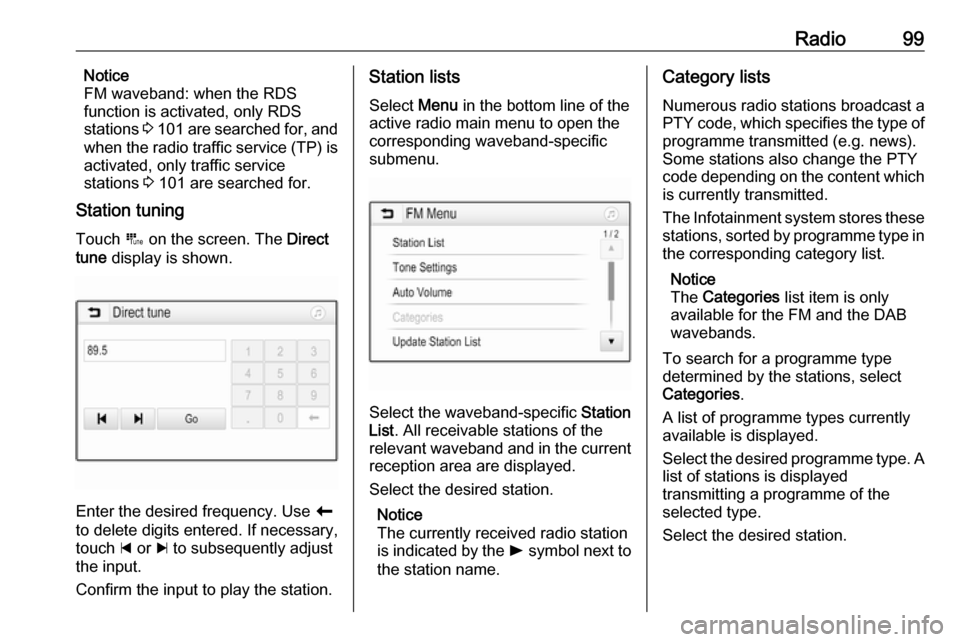
Station tuning
Touch B on the screen. The Direct
tune display is shown.
Enter the desired frequency. Use r
to delete digits entered. If necessary, touch d or c to subsequently adjust
the input.
Confirm the input to play the station.
Station lists
Select Menu in the bottom line of the
active radio main menu to open the
corresponding waveband-specific
submenu.
Select the waveband-specific Station
List . All receivable stations of the
relevant waveband and in the current
reception area are displayed.
Select the desired station.
Notice
The currently received radio station
is indicated by the l symbol next to
the station name.
Category lists
Numerous radio stations broadcast a
PTY code, which specifies the type of programme transmitted (e.g. news).
Some stations also change the PTY
code depending on the content which is currently transmitted.
The Infotainment system stores these
stations, sorted by programme type in
the corresponding category list.
Notice
The Categories list item is only
available for the FM and the DAB wavebands.
To search for a programme type
determined by the stations, select
Categories .
A list of programme types currently
available is displayed.
Select the desired programme type. A
list of stations is displayed
transmitting a programme of the
selected type.
Select the desired station.
Page 101 of 155

Radio101Radio data system (RDS)
RDS is a service of FM stations that considerably facilitates the finding of
the desired station and its fault-free
reception.
Advantages of RDS ● On the display, the programme name of the station appears
instead of its frequency.
● During a station search, the Infotainment system tunes in to
RDS stations only.
● The Infotainment system always tunes into the best receivable
broadcasting frequency of the set station by means of AF
(alternative frequency).
● Depending on the station that is received, the Infotainment
system displays radio text that
can contain e.g. information on
the current programme.RDS configuration
Touch Menu in the bottom line of the
FM radio main menu to open the corresponding waveband-specific
submenu.
Scroll to RDS.
Activate or deactivate RDS.
Traffic Programme Radio traffic service stations are RDS
stations that broadcast traffic news. If
the traffic service is switched on, the
currently playing audio source is
interrupted for the duration of the
traffic announcement.
Activating the traffic programme
function
Select Menu in the bottom line of the
FM radio main menu to open the corresponding waveband-specific
submenu.
Touch the screen button next to
Traffic Programme to activate or
deactivate the function.Notice
In the station list, TP is displayed
next to the stations providing a traffic
programme.
If the radio traffic service is activated, [TP] is shown in the top line of all main
menus. If the current station is not a
radio traffic service station, TP is
greyed-out and a search is started
automatically for the next radio traffic
service station. As soon as a radio
traffic service station is found, TP is
highlighted. If no radio traffic service
station is found, TP remains greyed-
out.
If a traffic announcement is
broadcasted on the respective
station, a message is displayed.
To interrupt the announcement and
return to the function previously
activated, touch the screen or press
m .
Regionalisation Sometimes RDS stations broadcast
regionally different programmes on
different frequencies.
Page 120 of 155

120PhoneMobile phones and CB radio
equipment
Installation instructions and
operating guidelines
The vehicle specific installation
instructions and the operating
guidelines of the mobile phone and
handsfree manufacturer must be observed when installing and
operating a mobile telephone. Failure to do so could invalidate the vehicle
type approval (EU directive 95/54/
EC).
Recommendations for fault-free
operation:
● Professionally installed exterior antenna to obtain the maximum
range possible.
● Maximum transmission power 10 watts.
● Installation of the phone in a suitable spot, consider relevant
Note in the Owner's Manual,
section Airbag system .
Seek advice on predetermined
installation points for the external
antenna or equipment holder andways of using devices with a
transmission power exceeding
10 watts.
Use of a handsfree attachment
without external antenna with mobile
telephone standards GSM
900/1800/1900 and UMTS is only
permitted if the maximum
transmission power of the mobile
telephone is 2 watts for GSM 900 or
1 watt for the other types.
For reasons of safety, do not use the
phone while driving. Even use of a handsfree set can be a distractionwhile driving.9 Warning
Operation of radio equipment and
mobile telephones which fail to
meet above mentioned mobile
telephone standards is only
permitted using an antenna
located outside of the vehicle.
Caution
Mobile telephones and radio
equipment may lead to
malfunctions in the vehicle
electronics when operated inside
the vehicle with no exterior
antenna, unless the above
mentioned regulations are
observed.
Page 123 of 155

123HHome menu .................................. 92
I Infotainment control panel ............86
Intellitext ..................................... 102
M Maximum startup volume .............95
Menu operation............................. 92 Mobile phones and CB radio equipment .............................. 120
Movie files................................... 104 Mute.............................................. 89
O Operation .................................... 116
External devices ......................104
Menu ......................................... 92
Phone ...................................... 116
Radio ......................................... 98
P Pairing ........................................ 113
Personalisation of home menu .....92
Phone Bluetooth ................................. 112
Bluetooth connection ..............113
Call history .............................. 116
Emergency calls ......................115
Entering a number ..................116Functions during a call ............116
General information ................112
Incoming call ........................... 116
Phone book ............................. 116
Phone main menu ...................116
Selecting the ring tone ............116
Speed dial number ..................116
Phone book ................................ 116
Phone projection ........................109
Picture files ................................. 104
Playing audio .............................. 106
Playing movies ........................... 108
R Radio Activating................................... 98
Configuring DAB .....................102
Configuring RDS .....................101
DAB announcements ..............102
Digital audio broadcasting
(DAB) ...................................... 102
Favourite lists .......................... 100
Intellitext .................................. 102
Radio data system (RDS) .......101
Regional .................................. 101
Regionalisation ....................... 101
Retrieving stations................... 100
Selecting the waveband ............98
Station search ........................... 98
Station tuning ............................ 98Storing stations.......................100
Usage ........................................ 98
Radio data system (RDS) ..........101
RDS ............................................ 101
Regional ..................................... 101
Regionalisation ........................... 101
Retrieving stations ......................100
Ring tone Changing the ring tone ............116
Ring tone volume ......................95
S Smartphone ................................ 104
Phone projection .....................109
Speech recognition .....................111
Speed dial numbers ...................116
Station search............................... 98
Steering wheel audio controls ......86
Storing stations ........................... 100
Switching the Infotainment system on .................................. 89
System settings ............................ 96
T
Theft-deterrent feature ................. 85
Tone settings ................................ 94
Touch beep volume ......................95
TP volume .................................... 95