rds VAUXHALL MOKKA X 2017 Infotainment system
[x] Cancel search | Manufacturer: VAUXHALL, Model Year: 2017, Model line: MOKKA X, Model: VAUXHALL MOKKA X 2017Pages: 155, PDF Size: 2.85 MB
Page 130 of 155
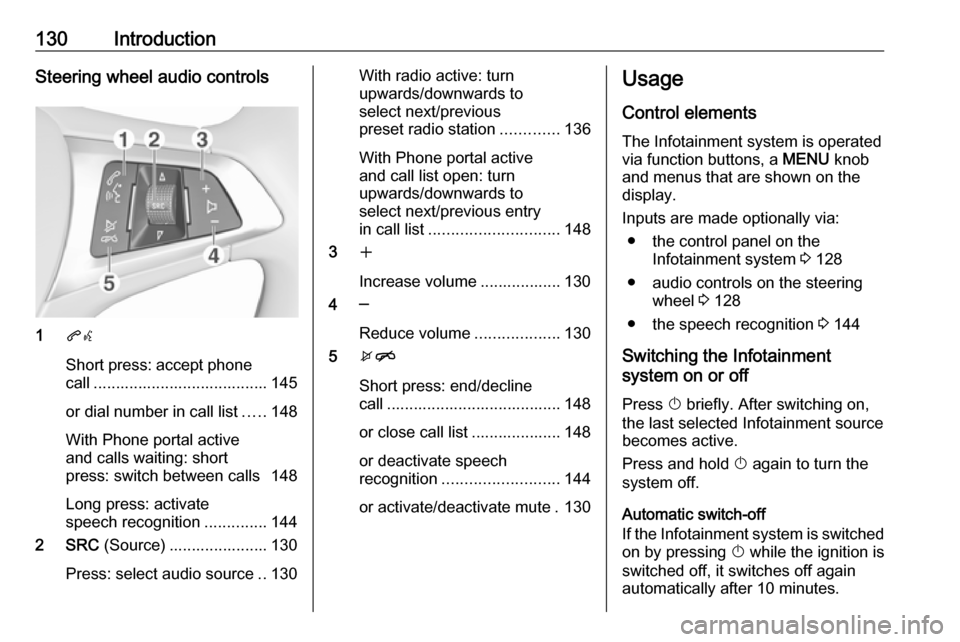
130IntroductionSteering wheel audio controls
1qw
Short press: accept phone
call ....................................... 145
or dial number in call list .....148
With Phone portal active
and calls waiting: short
press: switch between calls 148
Long press: activate
speech recognition ..............144
2 SRC (Source) ...................... 130
Press: select audio source ..130
With radio active: turn
upwards/downwards to
select next/previous
preset radio station .............136
With Phone portal active
and call list open: turn
upwards/downwards to
select next/previous entry
in call list ............................. 148
3 w
Increase volume .................. 130
4 ─
Reduce volume ...................130
5 xn
Short press: end/decline
call ....................................... 148
or close call list .................... 148
or deactivate speech
recognition .......................... 144
or activate/deactivate mute . 130Usage
Control elements
The Infotainment system is operated
via function buttons, a MENU knob
and menus that are shown on the display.
Inputs are made optionally via: ● the control panel on the Infotainment system 3 128
● audio controls on the steering wheel 3 128
● the speech recognition 3 144
Switching the Infotainment
system on or off
Press X briefly. After switching on,
the last selected Infotainment source
becomes active.
Press and hold X again to turn the
system off.
Automatic switch-off
If the Infotainment system is switched
on by pressing X while the ignition is
switched off, it switches off again
automatically after 10 minutes.
Page 134 of 155

134Basic operationSelect Time and Date .
Set Time
Select Set Time to enter the
respective submenu.
Select Auto Set at the bottom of the
screen. Activate either On - RDS or
Off (Manual) .
If Off (Manual) is selected, adjust
hours and minutes.
Repeatedly select 12-24 HR at the
bottom of the screen to choose a time mode.
If the 12-hour mode is selected, a
third column for AM and PM selection
is displayed. Select the desired
option.
Set Date
Select Set Date to enter the
respective submenu.
Select Auto Set at the bottom of the
screen. Activate either On - RDS or
Off (Manual) .
If Off (Manual) is selected, adjust the
date settings.Language
Press MENU to open the respective
audio menu.
Select Settings , scroll through the list
and select Vehicle Settings .
Select Languages .
Scroll through the list and select the
desired language.
Restore Factory Settings
Press MENU to open the respective
audio menu.
Select Settings , scroll through the list
and select Vehicle Settings .
Select Restore Factory Settings to
enter the respective submenu.
Select the desired option and confirm the message.
Software Information The Software Information menu
contains specific information on the
software.
Press MENU to open the respective
audio menu.Select Settings , scroll through the list
and select Vehicle Settings .
Select Software Information .
Valet mode
If valet mode is activated, all vehicle
displays are locked and no changes
may be performed within the system.
Notice
Vehicle-related messages remain
enabled.
Locking the system
Press MENU to open the respective
audio menu.
Select Settings , scroll through the list
and select Vehicle Settings .
Select Valet Mode . A keypad is
displayed.
Enter a four-digit code and select
Enter . The keypad is redisplayed.
To confirm the first input, reenter the
four-digit code and select Lock. The
system is locked.
Unlocking the system
Turn the Infotainment system on. A
keypad is displayed.
Page 136 of 155

136RadioRadioUsage........................................ 136
Station search ............................ 136
Favourite lists ............................. 137
Radio data system (RDS) ..........137
Digital audio broadcasting .........138Usage
Activating the radio function
Press RADIO .
Selecting the waveband
Repeatedly press RADIO on the
control panel to toggle between the different wavebands.
Station search Automatic station search
Press t or v to play the previous
or next station.
Manual station search
Press and hold t or v . Release the
button when the required frequency
has almost been reached.
Manual tuning
Press MENU to open the waveband
menu and then select Manual Tuning.
Depending on the waveband selected, a list of all frequencies is displayed.
Select the desired frequency.
Station lists Turn MENU to display a list of all
stations currently receivable.
Scroll through the list and select the
desired station.
Category lists
Numerous RDS 3 137 and DAB
3 138 stations broadcast a PTY
code, which specifies the type of
programme transmitted (e.g. news). Some stations also change the PTY
code depending on the content which
is currently transmitted.
The Infotainment system stores these stations, sorted by programme type in
the corresponding category list.
Page 137 of 155

Radio137Notice
The Categories list item is only
available for the FM and the DAB wavebands.
Press MENU to display the respective
waveband menu and select
Categories .
A list of programme type categories currently available is displayed.
Select the desired category. A list of
stations is displayed transmitting a
programme of the selected type.
Select the desired station.
Updating the station lists Press MENU to open the waveband
menu and select Update Station List .
The respective station list is updated.
Notice
If a waveband-specific station list is
updated, the corresponding
category list is also updated.
Favourite lists Stations of all wavebands can be
stored manually in the favourite lists.
24 individual favourite locations are
available, displayed in four favourites
per favourites page.
To display the favourites list, select
FAV .
Storing a station Set the station to be stored.
Select and hold the respective
favourite screen button until a
beeping sound is given out and the
station name is displayed on the
respective favourites screen button.
The station is stored as a favourite.
Retrieving a station
If necessary, repeatedly press FAV to
scroll to the respective favourites
page.
Select the desired favourite screen
button. The respective radio station is
played.
Notice
The active favourite is highlighted.
Defining the number of favourites
shown
Press MENU , scroll through the list
and select Set Number of Favourite
Pages .
Select the desired option.
Notice
If the number of favourites stored
exceeds the number of favourites
activated in the settings menu, the
additionally stored favourites are not
deleted but just hidden from the
view. They may be reactivated by
increasing the number of viewable favourites.
Radio data system (RDS) RDS is a service of FM stations that
considerably improves the finding of
the desired station and its fault-free
reception.
Page 138 of 155

138RadioAdvantages of RDS● On the display, the programme name of the station appears
instead of its frequency.
● During a station search the Infotainment system tunes in to
RDS stations only.
● The Infotainment system always tunes into the best receivable
broadcasting frequency of the set station by means of AF
(alternative frequency).
● Depending on the station that is received, the Infotainment
system displays radio text that
can contain e.g. information on
the current programme.
RDS settings
To configure the RDS settings
options, activate the radio function
and then select the FM waveband.
Press MENU to display the FM
waveband menu.
RDS
Set RDS to On or Off.Notice
If RDS is set to Off, RDS functions
are not available.
Traffic Programme
Radio traffic service stations are RDS stations that broadcast traffic news. Ifthe traffic service is switched on, the
currently active function is interrupted
for the duration of the traffic
announcement.
Activate or deactivate Traffic Program
(TP) .
If the radio traffic service is activated,
[TP] is shown in the top line of all main
menus. If the current station or media played is not a radio traffic service
station, [ ] is displayed and a search
is started automatically for the next
radio traffic service station. As soon
as a radio traffic service station is
found, [TP] is highlighted. If no radio
traffic service station is found, [ ]
remains on the screen.
If a traffic announcement is
broadcasted on the respective radio
traffic service station, a message is
displayed.To interrupt the announcement and
return to the function previously
activated, dismiss the alert.
Region
Sometimes RDS stations broadcast
regionally different programmes on
different frequencies.
Set Region to On or Off.
If regionalisation is switched on,
alternative frequencies with the same
regional programmes are selected
where necessary.
If regionalisation is switched off,
alternative frequencies of the stations are selected without regard to
regional programmes.
Digital audio broadcasting
DAB broadcasts radio stations
digitally.
Page 150 of 155
150Phone● The respective phone must bepaired and connected to the
Infotainment system. For a
detailed description 3 146.
● The respective phone must support Bluetooth Message
Access Profile (BT MAP).
Viewing a message Notice
If the vehicle is going faster than 5
mph, the text message is not
displayed on the screen.
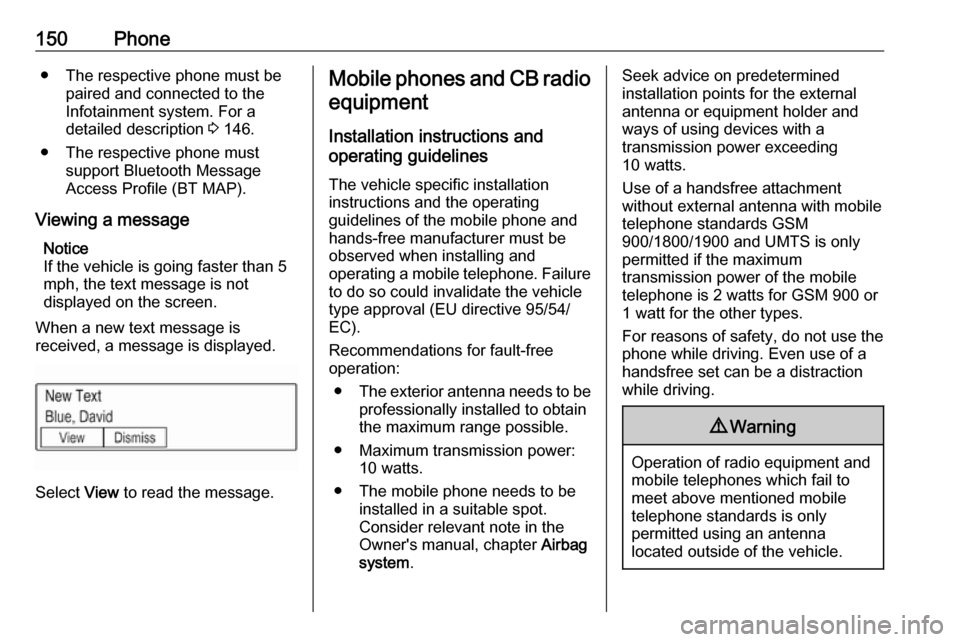
When a new text message is
received, a message is displayed.
Select View to read the message.
Mobile phones and CB radio
equipment
Installation instructions and
operating guidelines
The vehicle specific installation
instructions and the operating
guidelines of the mobile phone and
hands-free manufacturer must be
observed when installing and
operating a mobile telephone. Failure to do so could invalidate the vehicletype approval (EU directive 95/54/
EC).
Recommendations for fault-free
operation:
● The exterior antenna needs to be
professionally installed to obtain
the maximum range possible.
● Maximum transmission power: 10 watts.
● The mobile phone needs to be installed in a suitable spot.
Consider relevant note in the
Owner's manual, chapter Airbag
system .Seek advice on predetermined
installation points for the external
antenna or equipment holder and
ways of using devices with a
transmission power exceeding
10 watts.
Use of a handsfree attachment
without external antenna with mobile
telephone standards GSM
900/1800/1900 and UMTS is only
permitted if the maximum
transmission power of the mobile
telephone is 2 watts for GSM 900 or 1 watt for the other types.
For reasons of safety, do not use the
phone while driving. Even use of a handsfree set can be a distractionwhile driving.9 Warning
Operation of radio equipment and
mobile telephones which fail to
meet above mentioned mobile
telephone standards is only
permitted using an antenna
located outside of the vehicle.
Page 153 of 155

153Mobile phones and CB radioequipment .............................. 150
Mute............................................ 130
O Operation .................................... 148
Bluetooth music....................... 142
Infotainment system ................130
Menu ....................................... 132
Phone ...................................... 148
Radio ....................................... 136
USB ......................................... 142
P Pairing ........................................ 146
Phone Bluetooth ................................. 145
Bluetooth connection ..............146
Emergency calls ......................147
General information ................145
Handsfree mode .....................148
Phone book ............................. 148
Recent calls............................. 148
Ringtone .................................. 148
Text messages ........................ 149
Phone book ................................ 148
Phone call Initiating ................................... 148
Rejecting ................................. 148
Taking ..................................... 148
Playing audio .............................. 142R
Radio Category list ............................ 136
DAB ......................................... 138
DAB announcements ..............138
DAB menu ............................... 138
Digital audio broadcasting .......138
Favourite lists .......................... 137
FM menu ................................. 137
Frequency list .......................... 136
Intellitext .................................. 138
L-Band..................................... 138
Radio data system ..................137
RDS......................................... 137
Region ..................................... 137
Regionalisation ....................... 137
Retrieving stations................... 137
Station list................................ 136
Station search ......................... 136
Storing stations .......................137
TP............................................ 137
Traffic programme ...................137
Waveband ............................... 136
Radio data system (RDS) ..........137
Region ........................................ 137
Regionalisation ........................... 137
Restore factory settings ..............133
Retrieving stations ......................137
Ringtone ..................................... 148S
Speech recognition .....................144
Station list ................................... 136
Station search............................. 136
Storing stations ........................... 137
Switching the Infotainment system on ................................ 130
System settings .......................... 133
Language ................................ 133
Restore factory settings ..........133
Time and date ......................... 133
Valet mode .............................. 133
T
Text messages ........................... 149
Theft-deterrent feature ..............127
Time............................................ 133
Tone settings .............................. 132
TP ............................................... 137
Traffic programme ......................137
U Usage ......................... 130, 136, 144
Bluetooth music....................... 142
Infotainment system ................130
Menu ....................................... 132
Phone ...................................... 148
USB ......................................... 142
USB ............................................ 141