rds VAUXHALL MOKKA X 2017 Infotainment system
[x] Cancel search | Manufacturer: VAUXHALL, Model Year: 2017, Model line: MOKKA X, Model: VAUXHALL MOKKA X 2017Pages: 155, PDF Size: 2.85 MB
Page 40 of 155

40NavigationNavigationGeneral information.....................40
Usage .......................................... 41
Destination input ..........................47
Guidance ..................................... 53General information
The navigation system will reliably guide you to your destination.
The current traffic situation is taken
into account in the route calculation.
For this purpose, the Infotainment
system receives traffic
announcements in the current
reception area via RDS-TMC.
The navigation system cannot,
however, take into account traffic
incidents, traffic regulations changed
at short notice and hazards or
problems that arise suddenly (e.g.
road works).Caution
The usage of the navigation
system does not release the driver
from the responsibility for a
correct, vigilant attitude in road
traffic. The relevant traffic
regulations must always be
followed. If a navigation instruction contradicts traffic regulations, the
traffic regulations always apply.
Functioning of the navigation
system
The position and movement of the
vehicle are detected by the navigation
system using sensors. The travelled
distance is determined by the
vehicle's speedometer signal, turning
movements on bends by a gyro
sensor. The position is determined by the GPS (Global Positioning System)
satellites.
By comparing the sensor signals with the digital maps, it is possible to
determine the position with an
accuracy of approx. 10 metres.
The system will also work with poor
GPS reception. However, the
accuracy of the determination of the
position will be reduced.
After the entry of the destination
address or point of interest (nearest
petrol station, hotel, etc.), the route is
calculated from the current location to
the destination selected.
Route guidance is provided by voice
output and an arrow, as well as with
the aid of a multi-colour map display.
Page 47 of 155

Navigation47Organising the POI data in several
subfolders
Optionally, you can organise the text
files in several randomly named
subfolders (max. depth of subfolder
structure: 2).
Examples: F:\myPOIs\AnnsPOIs or
F:\myPOIs\MyJourney\London,
where F:\ is the root directory of the
USB drive.
Notice
In a folder only subfolders or only POI files may be stored. A mixture of
both will not be imported correctly to the system.
After downloading individual POI data
organised in that way to the
Infotainment system (see download description further below), the My
POIs menu will show a list of
selectable submenus.
After selecting a submenu, further
submenus or the related list of
imported POI categories will be
displayed.Downloading the POI data to the
Infotainment system
Connect the USB device with your
user defined POI data to the USB port
3 34 of the Infotainment system.
A message is displayed that prompts
you to confirm the download.
After confirmation, the POI data will
be downloaded to the Infotainment system.
The downloaded POIs are then
selectable as destinations via the My
POIs menu, see "POIs entry" in
chapter "Destination input" 3 47.
Destination input The navigation application provides
different options to set a destination
for route guidance.
Press ; and select NAV on the Home
screen to display the navigation map.
Select DESTINATION in the
interaction selector bar and then
select one of the different address
entry options.
One-shot destination entry
Touch the entry field in the top line of
the menu. A keyboard is displayed.
For a detailed description on the
keyboards 3 15.
Enter an address or search term and
confirm your input.
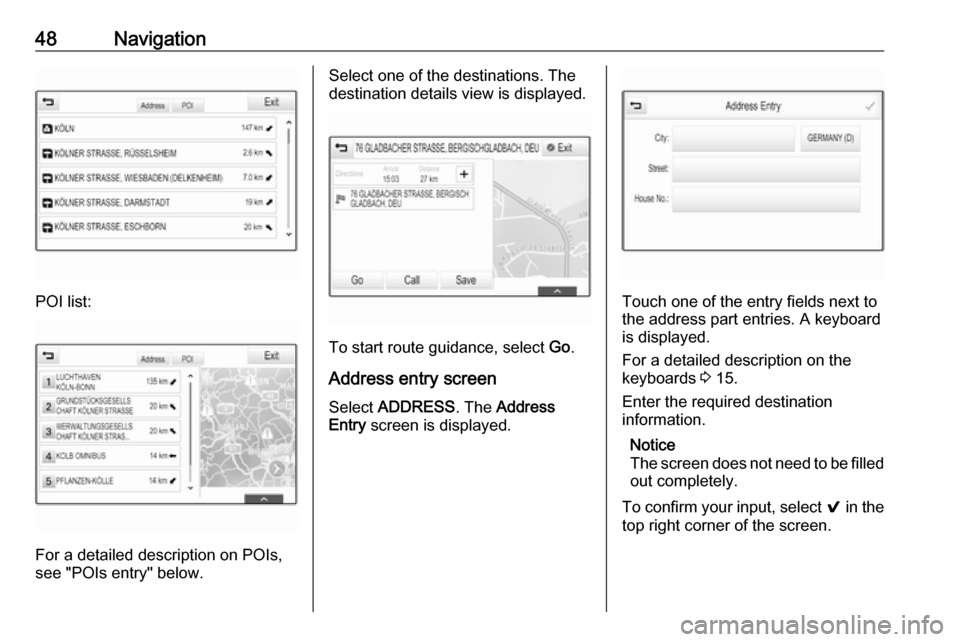
Two lists with possible destinations
are created. To switch between the
list tabs, touch Address or POI in the
top line of the screen.
Address list:
Page 48 of 155
48Navigation
POI list:
For a detailed description on POIs,
see "POIs entry" below.
Select one of the destinations. The
destination details view is displayed.
To start route guidance, select Go.
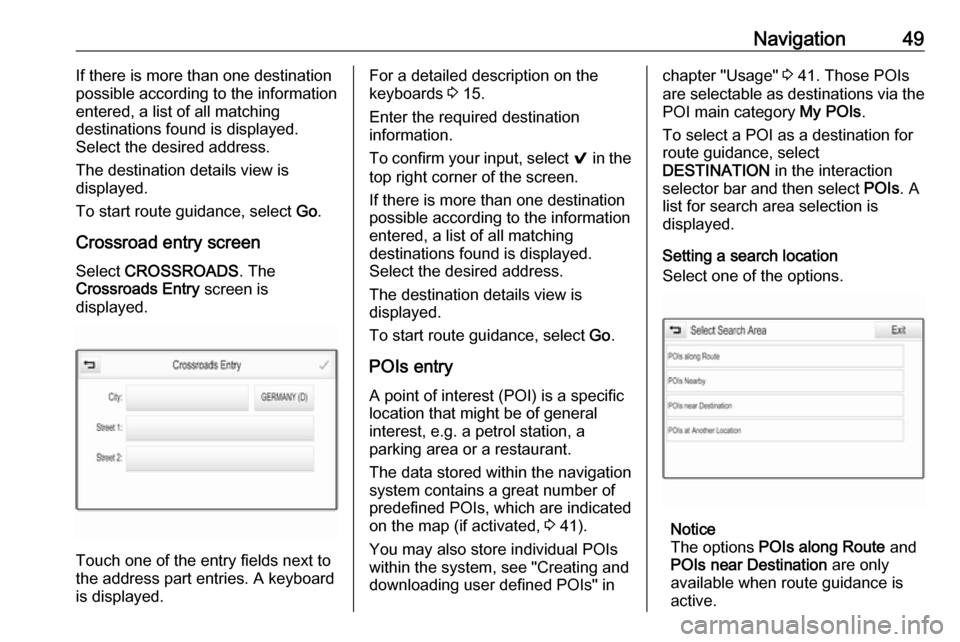
Address entry screen
Select ADDRESS . The Address
Entry screen is displayed.
Touch one of the entry fields next to
the address part entries. A keyboard
is displayed.
For a detailed description on the
keyboards 3 15.
Enter the required destination
information.
Notice
The screen does not need to be filled out completely.
To confirm your input, select 9 in the
top right corner of the screen.
Page 49 of 155
Navigation49If there is more than one destination
possible according to the information
entered, a list of all matching
destinations found is displayed.
Select the desired address.
The destination details view is
displayed.
To start route guidance, select Go.
Crossroad entry screen
Select CROSSROADS . The
Crossroads Entry screen is
displayed.
Touch one of the entry fields next to
the address part entries. A keyboard
is displayed.
For a detailed description on the
keyboards 3 15.
Enter the required destination
information.
To confirm your input, select 9 in the
top right corner of the screen.
If there is more than one destination
possible according to the information
entered, a list of all matching
destinations found is displayed.
Select the desired address.
The destination details view is
displayed.
To start route guidance, select Go.
POIs entry
A point of interest (POI) is a specific
location that might be of general interest, e.g. a petrol station, a
parking area or a restaurant.
The data stored within the navigation
system contains a great number of
predefined POIs, which are indicated
on the map (if activated, 3 41).
You may also store individual POIs
within the system, see "Creating and downloading user defined POIs" inchapter "Usage" 3 41. Those POIs
are selectable as destinations via the
POI main category My POIs.
To select a POI as a destination for
route guidance, select
DESTINATION in the interaction
selector bar and then select POIs. A
list for search area selection is
displayed.
Setting a search location
Select one of the options.
Notice
The options POIs along Route and
POIs near Destination are only
available when route guidance is active.
Page 50 of 155
50NavigationIf POIs at Another Location is
selected, a keyboard is displayed.
For a detailed description on the
keyboards 3 15.
Enter the desired location and
confirm your entry.
A list of POI categories is displayed.
Searching POIs via categories
Select one of the main categories in
the list. A list with subcategories is
displayed.
To display all POIs available in the
respective main category, select List
All . Scroll through the list and select
the desired POI.
To display all POIs within one
subcategory, select the respective
subcategory. Scroll through the list
and select the desired POI.
The destination details view is
displayed.
For more information on the POI
selected, touch Info in the top right
corner of the screen.
To start route guidance, select Go.Searching POIs via name input
To search for a particular POI, a
category or a specific location, select
Spell Name in the POI main
categories list or in one of the
subcategory lists. A keyboard is
displayed.
For a detailed description on the keyboards 3 15.
Enter the desired name or category.
Select 9 to confirm your input. The
destination details view is displayed.
For more information on the POI
selected, touch Info in the top right
corner of the screen.
To start route guidance, select Go.
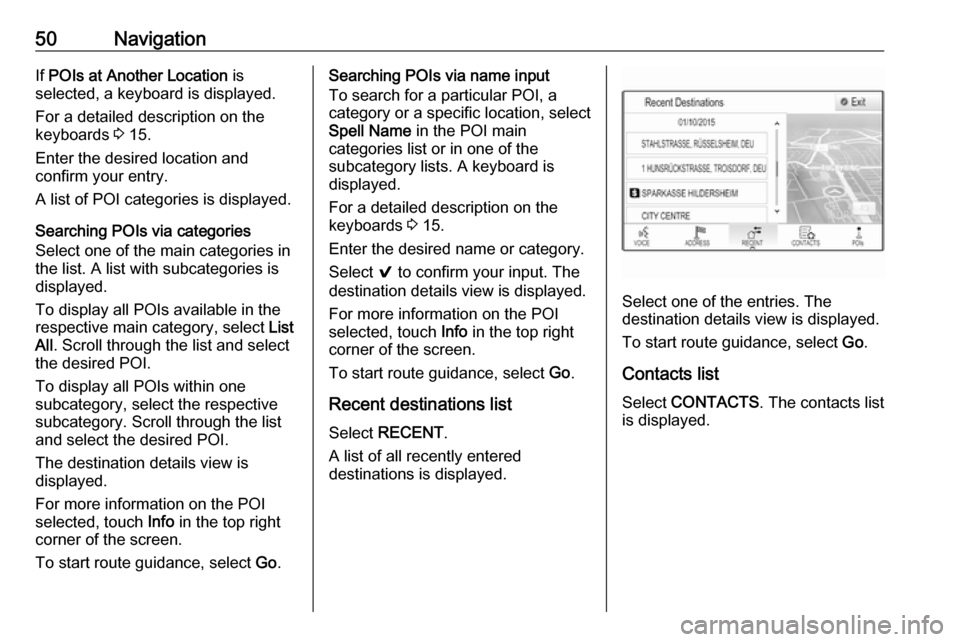
Recent destinations list Select RECENT .
A list of all recently entered
destinations is displayed.
Select one of the entries. The
destination details view is displayed.
To start route guidance, select Go.
Contacts list Select CONTACTS . The contacts list
is displayed.
Page 59 of 155

Speech recognition59Speech recognitionGeneral information.....................59
Usage .......................................... 61General information
Embedded speech recognition
The embedded speech recognition of
the Infotainment system enables you to operate various functions of the
Infotainment system via voice input. It recognises commands and numeric
sequences independently of the
relevant speaker. The commands
and numeric sequences can be
spoken without a voice pause
between the individual words.
In the event of incorrect operation or
commands, the speech recognition
gives visual and/or acoustic feedback
and requests you to re-enter the
desired command. Apart from this,
the speech recognition
acknowledges important commands
and will enquire if necessary.
In general, there are different ways to
speak commands for performing the
desired actions.
Notice
To ensure that conversations inside
the vehicle do not lead to
unintentional triggering of thesystem functions, the speech
recognition does not start until it has
been activated.
Important informationLanguage support ● Not all languages available for the display of the Infotainment
system are also available for the
speech recognition.
● If the display language currently selected is not supported by the
speech recognition, speech
recognition is not available.
In such a case, you need to select
another language for the display
if you want to control the
Infotainment system via voice
input. For changing the display
language, see "Language" in
chapter "System settings" 3 25.Address input of destinations in
foreign countries
In case you want to enter the address
of a destination located in a foreign
country via voice input, you need to
change the language of the Info-
Display to the language of the foreign country.
Page 62 of 155

62Speech recognitionAdjusting the volume of voice
prompts
Press ! or # on the steering wheel
upwards (increase volume) or
downwards (decrease volume).
Interrupting a voice prompt
As an experienced user, you can
interrupt a voice prompt by briefly
pressing w on the steering wheel.
A beep is heard immediately, the
speech recognition symbol changes
to red, and a command can be stated
without having to wait.
Cancelling a dialogue sequence
There are various possibilities to
cancel a dialogue sequence and to
deactivate the speech recognition:
● Say " Cancel" or "Exit".
● Press n on the steering wheel.
● If the speech recognition session
was started via the VOICE
screen button on the centre
display, you may alternatively:
● Press ; on the control panel.
● Select m or Exit in the help
menu.In the following situations, a dialogue
sequence is automatically cancelled:
● If you do not say any command for a certain period of time (by
default you are prompted three times to say a command).
● If you say commands that are not
recognised by the system (by
default you are prompted three
times to say a correct command).
Operation via speech commands
The speech recognition can
understand commands that are either naturally stated in sentence form, or
direct commands stating the
application and the action.
For best results: ● Listen for the voice prompt and wait for the beep before saying a
command or replying.
● Say " Help" or read the example
commands on the screen.● The voice prompt can be interrupted by pressing w again.
● Wait for the beep and then speak
the command naturally, not toofast, not too slow. Use short and
direct commands.
Usually commands can be spoken in
a single command. For example,
"Call David Smith at work", "Play"
followed by the artist or song name,
"Tune to" followed by the radio
waveband and frequency/station
name, or "Find address" followed by
the address e.g. "123 Main Road,
London".
In case of complex commands or
when information are missing, the
system starts a dialogue sequence.
When searching for a "Place of
Interest", only major chains may be
selected by name. Chains are
businesses with at least 20 locations.
For other POIs, say the name of a
category like "Restaurants",
"Shopping centres", or "Hospitals".
If you say "Phone" or "Phone
commands", the system understands
that a phone call is requested and
responds with relevant questions until
Page 63 of 155

Speech recognition63enough details are gathered. If the
phone number has been saved with a
name and a place, the direct
command should include both, for
example "Call David Smith at work".Selecting list items
When a list is displayed, a voice
prompt asks to confirm or select an
item from that list. A list item may be
manually selected, or by speaking the
line number of the item.
The list on a speech recognition
screen functions the same as a list on
other screens. Manually scrolling the
list on a screen during a speech
recognition session suspends the
current speech recognition event and
plays a prompt like "Make your
selection from the list using the
manual controls, press the back
button on the faceplate, or press the
back screen button to try again".
If no manual selection is made within
15 seconds, the speech recognition session terminates, you are prompted with a message, and the former
screen is redisplayed.The "Back" command
To return to the previous menu,
optionally: say " Back", press k
BACK on the control panel, or press
m .The "Help" command
After saying " Help", the help prompt
for the current screen is read aloud.
Additionally, the prompt is displayed
on the screen.
To interrupt the help prompt, press w.
A beep is heard. You may say a command.
Voice pass-thru application
Activating speech recognition
Press and hold s on the steering
wheel until a speech recognition icon is displayed.
Adjusting the volume of voice
prompts
Turn m on the control panel or
press ! or # on the steering wheel
upwards (increase volume) or
downwards (decrease volume).
Deactivating speech recognition
Press n on the steering wheel. The
speech recognition session is ended.
Page 74 of 155

74PhoneSeek advice on predetermined
installation points for the external
antenna or equipment holder and
ways of using devices with a
transmission power exceeding
10 watts.
Use of a handsfree attachment without external antenna with mobile
telephone standards GSM
900/1800/1900 and UMTS is only
permitted if the maximum
transmission power of the mobile
telephone is 2 watts for GSM 900 or
1 watt for the other types.
For reasons of safety, do not use the
phone while driving. Even use of a handsfree set can be a distraction
while driving.9 Warning
Operation of radio equipment and
mobile telephones which fail to
meet above mentioned mobile
telephone standards is only
permitted using an antenna
located outside of the vehicle.
Caution
Mobile telephones and radio
equipment may lead to
malfunctions in the vehicle
electronics when operated inside
the vehicle with no exterior
antenna, unless the above
mentioned regulations are
observed.
Page 76 of 155

76Frequently asked questions?Where are the favourites stored
and how can I recall them?
! The favourites are stored in the
favourites list. To recall a favourite, select the respective screen button
on the favourites row displayed.
On certain screens, the favourites list is hidden to extend the main
content view. On these screens,
select n on the lower right of the
screen or drag the interaction
selector bar upwards with a finger.
Detailed description 3 16.
Navigation? After entering a destination
address, an error message is
shown. What am I doing wrong?
! For full address entry, the
navigation system expects a
certain input order. Depending on
the country in which the entered
address is located, a different input
order might be required. Add the
country name at the end of the
entry if a destination in another
country has been entered.
Detailed description 3 47.? How can I cancel active route
guidance?
! To cancel route guidance, select
MENU in the interaction selector
bar and then select Cancel Route.
Detailed description 3 53.
Audio? How can I change the audio
source?
! By selecting
RADIO repeatedly,
you can toggle through all
available radio sources (AM/FM/
DAB). By selecting MEDIA
repeatedly, you can toggle through all available media sources.
Detailed description for radio 3 29,
external devices 3 34.? How can I browse radio stations or
media music?
! To browse radio stations or media
music, such as playlists or albums, select BROWSE on the audio
screen.
Detailed description for radio 3 29,
external devices 3 35.Other? How can I improve the
performance of the voice
recognition?
! The voice recognition is designed
to understand naturally
pronounced voice commands.
Wait for the beep tone and speak
afterwards. Try to speak naturally,
not too fast or too loud.
Detailed description 3 59.? How can I improve the touch
screen's performance?
! The touch screen is pressure-
sensitive. Especially when doing
drag gestures, try to apply more
pressure with the finger.
Detailed description 3 12.