AUX VAUXHALL MOVANO_B 2016 Infotainment system
[x] Cancel search | Manufacturer: VAUXHALL, Model Year: 2016, Model line: MOVANO_B, Model: VAUXHALL MOVANO_B 2016Pages: 147
Page 27 of 147
Introduction27
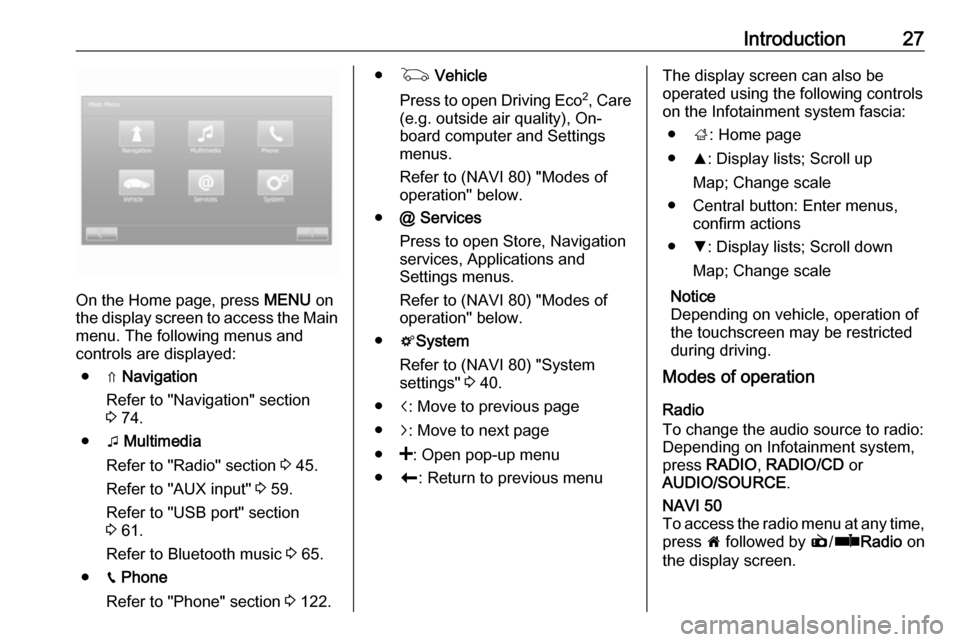
On the Home page, press MENU on
the display screen to access the Main
menu. The following menus and
controls are displayed:
● ⇑ Navigation
Refer to "Navigation" section
3 74.
● t Multimedia
Refer to "Radio" section 3 45.
Refer to "AUX input" 3 59.
Refer to "USB port" section
3 61.
Refer to Bluetooth music 3 65.
● g Phone
Refer to "Phone" section 3 122.
● G Vehicle
Press to open Driving Eco 2
, Care
(e.g. outside air quality), On- board computer and Settings
menus.
Refer to (NAVI 80) "Modes of operation" below.
● @ Services
Press to open Store, Navigation
services, Applications and
Settings menus.
Refer to (NAVI 80) "Modes of
operation" below.
● tSystem
Refer to (NAVI 80) "System
settings" 3 40.
● i: Move to previous page
● j: Move to next page
● <: Open pop-up menu
● r: Return to previous menuThe display screen can also be
operated using the following controls on the Infotainment system fascia:
● ;: Home page
● R: Display lists; Scroll up
Map; Change scale
● Central button: Enter menus, confirm actions
● S: Display lists; Scroll down
Map; Change scale
Notice
Depending on vehicle, operation of
the touchscreen may be restricted
during driving.
Modes of operation
Radio
To change the audio source to radio:
Depending on Infotainment system, press RADIO , RADIO/CD or
AUDIO/SOURCE .NAVI 50
To access the radio menu at any time, press 7 followed by è/ñ Radio on
the display screen.
Page 28 of 147

28IntroductionNAVI 80
To access the radio menu from the Home page, press MENU then
Multimedia followed by Radio on the
display screen
Detailed description of the radio
functions 3 45.
Audio players
To change the audio source to CD,
USB , AUX , Bluetooth or iPod (where
applicable): Depending on
Infotainment system, press MEDIA,
RADIO/CD or AUDIO/SOURCE .
NAVI 50 : To access the menu for
connected auxiliary devices ( USB,
iPod , BT (Bluetooth) or AUX) at any
time, press 7 followed by t/
ü Media on the display screen. Press
S in top left corner and select
auxiliary source.
For Aha Ⓡ application (available
depending on version), refer to
"Additional features (NAVI 50)"
below.
NAVI 80 : To access the menu for
auxiliary devices (USB, SD card, AUX
input, Audio CD, Bluetooth) from the
Home page, press MENU thenMultimedia followed by Media on the
display screen. Select auxiliary
source from the display list.R15 BT USB, R16 BT USB
Detailed descriptions of:
● AUX input functions 3 59
● USB port functions 3 61
● Bluetooth music operation 3 65CD16 BT USB, CD18 BT USB
Detailed descriptions of:
● CD player functions 3 56
● AUX input functions 3 59
● USB port functions 3 61
● Bluetooth music operation 3 65CD35 BT USB
Detailed descriptions of:
● CD player functions 3 56
● AUX input functions 3 59
● USB port functions 3 61
● Bluetooth music operation 3 65NAVI 50
Detailed descriptions of:
● AUX input functions 3 59
● USB port (including iPod) functions 3 61
● Bluetooth music operation 3 65NAVI 80
Detailed descriptions of:
● AUX input functions 3 59
● USB port functions 3 61
● Bluetooth music operation 3 65
Navigation, Map
(CD35 BT USB NAVI, NAVI 50,
NAVI 80)
Detailed description of the Navigation system 3 74, Browse map 3 106.
Phone
Use the display options in the
following menus to connect mobile
phones, make telephone calls, create
contacts lists and adjust various
settings.
Detailed description of the handsfree
phone system functions 3 122.
Page 32 of 147

32Introductiona list of email addresses and press
ë alongside the required email
address.Navigation services
In addition to the free navigation
services (e.g. traffic information, fixed
speed cameras), extra features can be added by subscribing to paid LIVE services.
Refer to (NAVI 80) "LIVE services" in
the "Navigation" section 3 78.Settings
The following menus are displayed:
● Applications manager
Select to delete application data,
uninstall applications and view
the "about", "system usage" and
"confidentiality" information.
To delete content, select the
application then press < followed
by Delete application or Delete
application data .
● Connectivity manager
Select to manage Bluetooth
auxiliary devices.● Navigation services
Select to access navigation
related features, e.g. traffic,
speed cameras, local search,
My TomTom LIVE, weather.
Refer to (NAVI 80) "LIVE
services" in the "Navigation" section 3 78.
● Update applications
Select to search for updates to
downloaded applications.
● Data sharing settings
Select to switch data sharing on/
off.
Notice
When data sharing is switched off, certain applications may not operate
correctly.
● Activate/deactivate Bluetooth
Select to switch Bluetooth on/off.
A confirmation message is
displayed.Applications
Icons for various applications,
services and other content
downloaded to the Infotainmentsystem are displayed. Select the
appropriate icon to start the
application.
Some applications are free to use
during the initial trial period. Renew
subscriptions via the Store.
Favourites (NAVI 80)
When the Home page is displayed, press f to view, add or delete
favourites for the following features:
● ⇑ Navigation 3 74.
● t Multimedia - refer to "Radio"
3 45.
● g Phone 3 122.
● @ Services 3 78.Navigation favourites
Select an empty slot in the display or
press < (to open a pop-up menu),
then select Add Favourite .
Choose from the displayed list to add a saved destination to the favourites.
For further information, refer to
(NAVI 80) "Destination input" in the
"Navigation" section 3 97.
Page 36 of 147

36Introductiondisplay screen. Press S in top left
corner to display the list of auxiliary
sources, then select aha.
The following menus are displayed: ● Player
● List
● Presets
● Nearby
To access your AhaⓇ favourites,
select Presets .
While using the navigation system
3 74, to find a nearby point of
interest (POI) with AhaⓇ press
Nearby and select a group (e.g. hotel,
restaurant). A range of POIs in the
vicinity are displayed; press on the
required POI. The POI can be set as
either a destination or a waypoint by
pressing y.
Depending on POI type, contact
details and further information may be displayed. When phone numbers are
provided for POIs, they can also be
dialled using the handsfree phone
system by pressing y.For further information, refer to
"Operation" in the "Phone" section 3 131.
Tone settings R15 BT USB - Tone settings
In the audio settings menu, the tone characteristics can be set.
Press SETUP to access the settings
menu.
Select Audio settings and turn OK
until the desired setting is selected from:
● BASS (bass)
● TREBLE (treble)
● FADER (front/rear balance)
● BALANCE (left/right balance)
The display indicates the type of
setting followed by the adjustment
value.
Set the desired value by turning OK
and press the knob to confirm
selections.
To exit the audio settings menu,
press /.Notice
If there is no activity, the system will
exit the audio settings menu
automatically.
Setting bass and treble
Select Bass or Treble .
Set the desired value by turning OK
and press the knob to confirm setting.
Setting the volume distribution
between right - left
Select Balance .
Set the desired value by turning OK
and press the knob to confirm setting.
Setting the volume distribution
between front - rear
Select Fader.
Set the desired value by turning OK
and press the knob to confirm setting.
CD35 BT USB - Tone settings
In the audio settings menu, the tone
characteristics can be set.
Press SETUP / TEXT to access the
settings menu.
Page 53 of 147

Radio53●Region /AF (On/Off)
See below.
● News (On/Off)
See below.
● AM (On/Off)
Switch off if not required.
● Update list (On/Off)
Refer to (NAVI 50) "Autostore
lists" 3 50.TA (Traffic announcements)
If TA is switched on:
● Traffic announcements from certain FM radio stations (and
DAB stations, if available) are
broadcast automatically.
● Radio and auxiliary audio source
playback is interrupted for the
duration of the traffic
announcement.
Notice
Automatic broadcasting of traffic
announcements is deactivated if
waveband is set to AM.Region/AF
If the RDS function is activated and
Region /AF is switched on:The frequency of certain FM radio
stations may change depending on
the geographical area.
Poor reception can sometimes cause erratic and unwelcome changes in
frequency. Switch off Region/AF if
necessary.News
If News is switched on:
● News announcements from certain FM radio stations (and
DAB stations, if available) are
broadcast automatically.
● Radio and auxiliary audio source
playback is interrupted for the
duration of the traffic
announcement.
Text information (Radio text)
Certain FM radio stations (and DAB
stations, if available) issue text
information relating to the broadcast
program (e.g. song name).
NAVI 80 - RDS functions
Configuring RDS
To access the Radio settings menu
from the Home page, press MENU
then Multimedia , followed by
Settings then Radio on the display
screen.
Press < to open a pop-up menu, and
access the 'Radio settings' option.
The following radio settings can be
updated:
● switch searching for alternative frequencies (AF) on/off
● switch I-Traffic on/off
● switch programme type on/off ● update list of saved radio stationsAlternative Frequency (AF)
Switch on the RDS-AF function to
always tune into the best receivable
broadcasting frequency of the chosen station
Poor reception can sometimes cause
erratic and unwelcome changes in
frequency. Switch off RDS-AF
function if necessary.
Page 59 of 147
AUX input59AUX inputGeneral information.....................59
Usage .......................................... 59General information
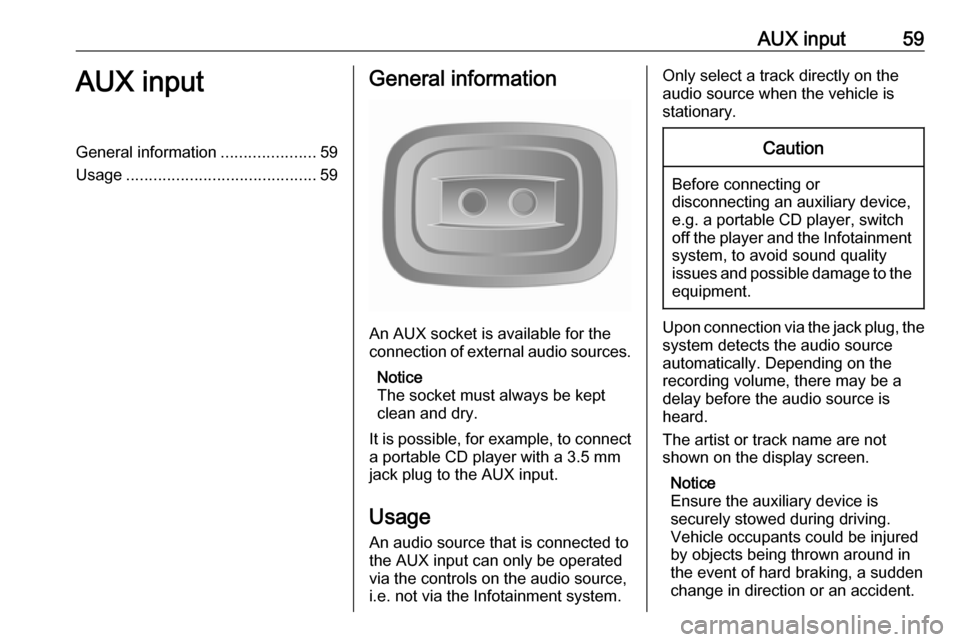
An AUX socket is available for the
connection of external audio sources.
Notice
The socket must always be kept
clean and dry.
It is possible, for example, to connect a portable CD player with a 3.5 mm
jack plug to the AUX input.
Usage
An audio source that is connected to
the AUX input can only be operated
via the controls on the audio source, i.e. not via the Infotainment system.
Only select a track directly on the
audio source when the vehicle is
stationary.Caution
Before connecting or
disconnecting an auxiliary device,
e.g. a portable CD player, switch off the player and the Infotainment system, to avoid sound quality
issues and possible damage to the
equipment.
Upon connection via the jack plug, thesystem detects the audio source
automatically. Depending on the
recording volume, there may be a
delay before the audio source is
heard.
The artist or track name are not
shown on the display screen.
Notice
Ensure the auxiliary device is
securely stowed during driving.
Vehicle occupants could be injured
by objects being thrown around in
the event of hard braking, a sudden
change in direction or an accident.
Page 60 of 147

60AUX inputR15 BT USB, R16 BT USB,
CD16 BT USB, CD18 BT USB-
AUX input usage
Press MEDIA or AUDIO/SOURCE to
change the audio source to AUX
mode, then switch on the auxiliary
device. AUX appears on the display
screen.
AUX settings
Press SETUP to access the settings
menu.
Select AUX IN and turn OK until the
desired setting is selected from:
● HI (300 mV)
● MID (600 mV)
● LO (1200 mV)
CD35 BT USB - AUX input usage
Press MEDIA to activate the AUX
mode, then switch on the auxiliary
device. Jack appears on the display
screen.NAVI 50 - AUX input usage
To access the media menu at anytime, press 7 followed by t/
ü MEDIA on the display screen.
To switch between auxiliary sources,
press S in top left corner. The
following options are available:
● USB : Refer to (NAVI 50) "USB
port" 3 61.
● iPod : Refer to (NAVI 50) "USB
port" 3 61.
● BT: Refer to (NAVI 50) "Bluetooth
music" 3 65.
● Aha : AhaⓇ application for
smartphones (available
depending on version).
Refer to "Usage", Additional
features (NAVI 50) in the
"Introduction" section 3 24.
● AUX : Select to change the audio
source to AUX mode, then switch on the auxiliary device.
NAVI 80 - AUX input usage Change the audio source to AUX
mode to playback content from a
connected auxiliary device.To access the media menu from the Home page, press MENU then
Multimedia , followed by Media on the
display screen.
Press < to open a pop-up menu. The
following options are available:
● Auxiliary socket : Change the
audio source to AUX mode, then
switch on the auxiliary device.
● USB : Refer to (NAVI 80) "USB
port" 3 61
● Bluetooth connection : Refer to
(NAVI 80) "Bluetooth music"
3 65
● SD card
● CD player
Page 63 of 147

USB port63player/USB drive or iPod) is also
recognised and the relevant audio source mode (USB or iPod) is
selected automatically.
When the t/ü MEDIA menu is
active, the following submenus are
available:
● Main /Player
● List
● Options
To switch between audio sources,
press S in top left corner. The
following options are available:
● USB : Select to change the audio
source to USB mode.
Notice
During use, the battery of a
connected USB device is charged or
maintained.
● iPod : Select to change the audio
source to iPod mode.
● BT: Refer to NAVI 50 "Bluetooth
music" - 3 65.
● Aha : AhaⓇ application for
smartphones (available
depending on version).Refer to "Usage", Additional
features (NAVI 50) in the
"Introduction" section 3 24.
● AUX : Refer to NAVI 50 - "Aux
input usage" 3 59.Main/Player
Press to display the current track. In this display screen, the following
options are available:
● l (press to skip to previous
track, press and hold to fast
rewind)
● =/l (press to pause/play)
● m (press to skip to next track,
press and hold to fast forward)List
Displays a list of the tracks in the
current album/folder. Press a
particular track to play it directly.
Notice
By default, albums are listed in
alphabetical order.
If a USB drive is connected, all the
folders will be at the same level on
the tree structure.
To return to the previous level on the
folder tree structure, press ò.Options
Press to display the following options:
● Repeat (Off/Track/Folder/All)
● Shuffle (On/Off)
NAVI 80 - Playing music via USB
socket
MP3 player / USB drives
Change the audio source to USB
mode to playback files from a
connected USB device.
To access the media menu from the
Home page, press MENU then
Multimedia , followed by Media on the
display screen.
Press < to open a pop-up menu. The
following options are available:
● USB : Change the audio source to
USB mode.
● Auxiliary socket : Refer to
NAVI 80 "AUX input" 3 59.
● Bluetooth connection : Refer to
NAVI 80 "Bluetooth music"
3 65.
● SD card
● CD player : Refer to NAVI 80
"AUX input" 3 59.
Page 65 of 147

Bluetooth music65Bluetooth musicGeneral information.....................65
Operation ..................................... 65General information
Bluetooth-enabled auxiliary audio
sources (e.g. music mobile phones,
MP3 players etc.), which support
Bluetooth music protocol A2DP, can
be connected wirelessly to the
Infotainment system.
Important information ● The Infotainment system only connects to Bluetooth devices
that support A2DP (Advanced Audio Distribution Profile).
Connection issues may arise with
early versions.
● The Bluetooth device must support AVRCP (Audio VideoRemote Control Profile)
version 1.0 or higher. If the
device does not support AVRCP, only the volume can be controlled via the Infotainment system.
● Before connecting the Bluetooth device to the Infotainment
system, become acquainted with
its operating instructions for
Bluetooth functions.Operation
Prerequisites The following prerequisites must be
met, in order to control a Bluetooth-
enabled audio device via the
Infotainment system:
● The Bluetooth function of the Infotainment system must be
activated.
Refer to "Bluetooth connection"
in the "Phone" section 3 127.
● The Bluetooth function of the Bluetooth-enabled auxiliary
audio source must be activated
(see audio device operating
instructions).
● Dependent upon the audio source, it may be required to set
that device to "visible" (see audio
device operating instructions).
● The audio source must be paired
and connected to the
Infotainment system.
Page 66 of 147

66Bluetooth musicR15 BT USB, R16 BT USB,
CD16 BT USB, CD18 BT USB -
Playing music via Bluetooth
Bluetooth connection
A connection must be set up between
the audio device and the Infotainment system via Bluetooth, i.e. the device
must be paired to the vehicle before
using it.
Refer to "Bluetooth connection" in the "Phone" section 3 127.
● A maximum of 5 audio devices can be paired and saved in the
device list, but only one can be
connected at a time.
● If the device has both audio player and telephone functions,
both functions will be paired.
Pairing a mobile phone 3 124.
● Phone functions will remain active while the audio player is inuse, and audio playback will be
suspended during phone use.Pairing an auxiliary audio device to the Infotainment system
To pair the audio device, press TEL
and select Pair device by turning and
pressing OK. The Ready to Pair
screen is displayed.
Then, on the audio device, search for
Bluetooth equipment in the vicinity of
the device.
Select My Radio (i.e. the name of the
system) from the list on the audio
device, then, if applicable, on the
audio device keypad enter the pairing
code shown on the Infotainment
system display screen.
Notice
If the audio device does not have a
screen, enter the default pairing
code on the device, then on the
Infotainment system. Refer to the
operating instructions for this default audio device pairing code, usually
0000 . Depending on the device, the
pairing code may need to be entered
in reverse order, i.e. on the
Infotainment system first.If pairing fails, the system returns to
the previous menu and a
corresponding message is displayed. Repeat procedure if necessary.
When pairing is completed, a
confirmation message followed by the
name of the paired audio device is shown on the Infotainment system
display screen.
Notice
When a Bluetooth connection is
active, controlling the audio device
via the Infotainment system will
discharge the audio device battery more rapidly.
Connecting an audio device
Audio devices are automatically
connected to the Infotainment system
after the pairing procedure is
completed.
To connect any audio device that has been paired, or to connect to a
different paired audio device than the
current one, press TEL and select the
Select Device menu. The device list
shows the audio devices already
paired.