service VAUXHALL ZAFIRA TOURER 2018.5 User Guide
[x] Cancel search | Manufacturer: VAUXHALL, Model Year: 2018.5, Model line: ZAFIRA TOURER, Model: VAUXHALL ZAFIRA TOURER 2018.5Pages: 339, PDF Size: 10.02 MB
Page 130 of 339

128Instruments and controlsmaintenance items and tyre pressure(only with tyre pressure monitoring
system).
To look at the information in greater
detail, select the link within the email and log in to your account.
Destination download
A desired destination can be directly
downloaded to the navigation system.
Press Z to call an advisor and
describe the destination or point of
interest.
The advisor can look up any address
or point of interest and directly send
the destination to the built-in
navigation system.
OnStar settings
OnStar PIN
To have full access to all OnStar
services, a four-digit PIN is required. The PIN has to be personalised when first talking to an advisor.
To change the PIN, press Z to call an
advisor.Account data
An OnStar subscriber has an account
where all the data is stored. To
request a change of the account
information, press Z and talk to an
advisor or log in to your account.
If the OnStar service is used on
another vehicle, press Z and request
that the account be transferred to the
new vehicle.
Notice
In any case, if the vehicle is disposed of, sold or otherwise transferred,
immediately inform OnStar about
the changes and terminate the
OnStar service on this vehicle.
Vehicle location
The vehicle location is transmitted to OnStar when service is requested ortriggered. A message on the Info-
Display informs about this
transmission.
To activate or deactivate the
transmission of the vehicle location,
press and hold j until an audio
message is heard.The deactivation is indicated by the
status light flashing red and green for a short period of time and each time
the vehicle is started.
Notice
If the transmission of the vehicle
location is deactivated, some
services are no longer available.
Notice
The vehicle location always remains
accessible to OnStar in the case of
an emergency.
Find the privacy policy in your
account.
Software updates
OnStar may remotely carry out
software updates without further
notice or consent. These updates are
to enhance or maintain safety and
security or the operation of the
vehicle.
These updates may concern privacy
issues. Find the privacy policy in your account.
Page 155 of 339
Infotainment system153Station searchAutomatic station search
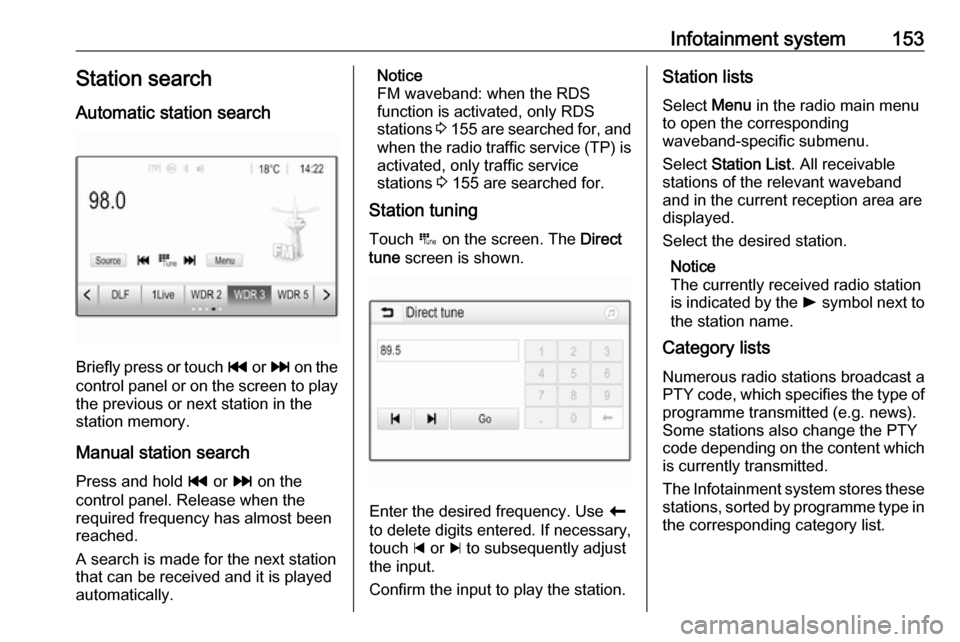
Briefly press or touch t or v on the
control panel or on the screen to play the previous or next station in the
station memory.
Manual station search
Press and hold t or v on the
control panel. Release when the
required frequency has almost been
reached.
A search is made for the next station that can be received and it is played
automatically.
Notice
FM waveband: when the RDS
function is activated, only RDS
stations 3 155 are searched for, and
when the radio traffic service (TP) is
activated, only traffic service
stations 3 155 are searched for.
Station tuning
Touch B on the screen. The Direct
tune screen is shown.
Enter the desired frequency. Use r
to delete digits entered. If necessary, touch d or c to subsequently adjust
the input.
Confirm the input to play the station.
Station lists
Select Menu in the radio main menu
to open the corresponding
waveband-specific submenu.
Select Station List . All receivable
stations of the relevant waveband
and in the current reception area are
displayed.
Select the desired station.
Notice
The currently received radio station
is indicated by the l symbol next to
the station name.
Category lists
Numerous radio stations broadcast a
PTY code, which specifies the type of programme transmitted (e.g. news).
Some stations also change the PTY
code depending on the content which
is currently transmitted.
The Infotainment system stores these
stations, sorted by programme type in the corresponding category list.
Page 157 of 339

Infotainment system155Retrieving a station
If required, touch < or > to scroll to
the desired favourite list.
Select the desired favourite.
Defining the number of available
favourite lists
To define the number of favourite lists
displayed for selection, press ; and
then select Settings on the screen.
Select Radio and then Manage
Favourites to display the respective
submenu.
Activate or deactivate the favourite
lists to be displayed.
Radio data system Radio data system (RDS) is a service
of FM stations that considerably
facilitates the finding of the desired
station and its fault-free reception.Advantages of RDS
● On the display, the programme name of the station appears
instead of its frequency.
● During a station search, the Infotainment system tunes in to
RDS stations only.
● The Infotainment system always tunes into the best receivable
broadcasting frequency of the set station by means of AF
(alternative frequency).
● Depending on the station that is received, the Infotainment
system displays radio text that
can contain e.g. information on
the current programme.
RDS configuration
Touch Menu in the FM radio main
menu to open the corresponding
waveband-specific submenu.
Scroll to RDS.
Activate or deactivate RDS.Traffic Programme
Radio traffic service stations are RDS
stations that broadcast traffic news. If the traffic service is switched on, the
currently playing audio source is
interrupted for the duration of the
traffic announcement.
Activating the traffic programme
function
Select Menu in the FM radio main
menu to open the corresponding
waveband-specific submenu.
Touch the screen button next to
Traffic Programme to activate or
deactivate the function.
Notice
In the station list, TP is displayed
next to the stations providing a traffic programme.
If the radio traffic service is activated,
[TP] is shown in the top line of all main
menus. If the current station is not a
radio traffic service station, TP is
greyed-out and a search is started
automatically for the next radio traffic
service station. As soon as a radio
traffic service station is found, TP is
Page 158 of 339

156Infotainment systemhighlighted. If no radio traffic servicestation is found, TP remains greyed-
out.
If a traffic announcement is broadcast
on the respective station, a message
is displayed.
To interrupt the announcement and
return to the function previously
activated, touch the screen or press
m .
Regionalisation Sometimes RDS stations broadcast
regionally different programmes on
different frequencies.
Select Menu in the FM radio main
menu to open the corresponding
waveband-specific submenu and
scroll to Region
Activate or deactivate Region.
If regionalisation is activated,
alternative frequencies with the same
regional programmes are selected
where necessary. If regionalisation is
switched off, alternative frequencies
of the stations are selected without
regard to regional programmes.Digital audio broadcasting
Digital audio broadcasting (DAB)
broadcasts radio stations digitally.
DAB stations are indicated by the
programme name instead of the
broadcasting frequency.
General information ● With DAB, several radio programmes (services) can bebroadcast on a single ensemble.
● Besides high-quality digital audio
services, DAB is also able to
transmit programme-associated
data and a multitude of other data services including travel andtraffic information.
● As long as a given DAB receiver can pick up the signal sent out bya broadcasting station (even if
the signal is very weak), sound
reproduction is ensured.
● In the event of poor reception, the
volume is reduced automatically
to avoid the output of
disagreeable noises.
If the DAB signal is too weak to
be picked up by the receiver,reception is interrupted
completely. This incident can be
avoided by activating DAB-DAB
Linking or DAB-FM Linking in the
DAB menu (see below).
● Interference caused by stations that are on nearby frequencies (a
phenomenon that is typical of AM and FM reception) does not
occur with DAB.
● If the DAB signal is reflected by natural obstacles or buildings,
the reception quality of DAB is
improved, whereas AM or FM
reception is considerably
impaired in such cases.
● When DAB reception is enabled, the FM tuner of the Infotainmentsystem remains active in the
background and continually
searches for the FM stations with
the best reception. If TP 3 155 is
activated, traffic announcements
of the FM station with the best
reception are issued. Deactivate
TP if DAB reception should not
be interrupted by FM traffic
announcements.
Page 159 of 339

Infotainment system157DAB AnnouncementsBesides their music programmes, a
lot of DAB stations also broadcast
announcements of various
categories. If you activate some or all categories, the currently received
DAB service is interrupted when an
announcement of these categories is
made.
Select Menu in the DAB radio main
menu to open the corresponding
waveband-specific submenu.
Scroll through the list and select DAB
Announcements to display a list of the
categories available.
Activate all or just the desired
announcement categories. Different
announcement categories can be
selected at the same time.
DAB-DAB Linking
If this function is activated, the device switches over to the same service
(programme) on another DAB
ensemble (if available) when the DAB
signal is too weak to be picked up by
the receiver.Select Menu in the DAB radio main
menu to open the corresponding
waveband-specific submenu.
Scroll through the list and activate or
deactivate DAB-DAB Linking .
DAB-FM Linking
This function enables switching from
a DAB station to a corresponding FM
station and vice versa.
If this function is activated, the device switches over to a corresponding FM
station of the active DAB service (if
available) when the DAB signal is too
weak to be picked up by the receiver.
Scroll through the list and activate or
deactivate DAB-FM Linking .
L Band
With this function, you may define
which DAB wavebands are to be
received by the Infotainment system.
L Band (earth and satellite radio) is
another radio band that can be
received additionally.
Select Menu in the DAB radio main
menu to open the corresponding
waveband-specific submenu.Scroll through the list and activate or
deactivate L Band.
Intellitext
The Intellitext function allows the
reception of additional information
such as financial information, sports,
news etc.
Notice
The content available depends on
the station and region.
Select Menu in the DAB radio main
menu to open the corresponding
waveband-specific submenu.
Scroll through the list and select
Intellitext .
Select one of the categories and choose a specific item to display
detailed information.
EPG
The Electronic Programme Guide
provides information on the current and upcoming programme of the
respective DAB station.
Select Menu in the DAB radio main
menu and then select Station List.
Page 169 of 339
Infotainment system167
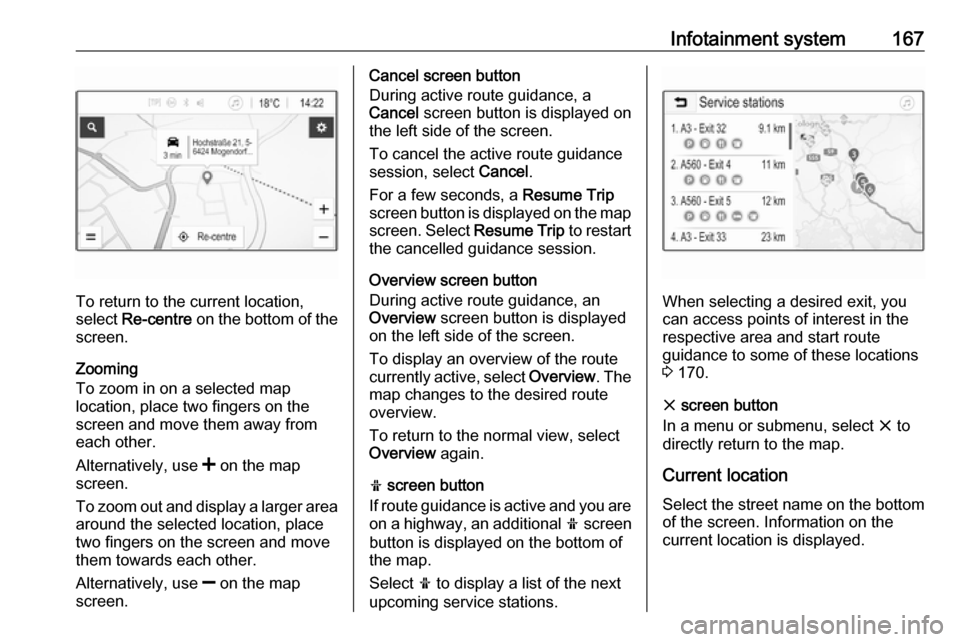
To return to the current location,
select Re-centre on the bottom of the
screen.
Zooming
To zoom in on a selected map
location, place two fingers on the
screen and move them away from
each other.
Alternatively, use < on the map
screen.
To zoom out and display a larger area around the selected location, place
two fingers on the screen and move
them towards each other.
Alternatively, use ] on the map
screen.
Cancel screen button
During active route guidance, a
Cancel screen button is displayed on
the left side of the screen.
To cancel the active route guidance session, select Cancel.
For a few seconds, a Resume Trip
screen button is displayed on the map screen. Select Resume Trip to restart
the cancelled guidance session.
Overview screen button
During active route guidance, an
Overview screen button is displayed
on the left side of the screen.
To display an overview of the route
currently active, select Overview. The
map changes to the desired route
overview.
To return to the normal view, select
Overview again.
f screen button
If route guidance is active and you are
on a highway, an additional f screen
button is displayed on the bottom of
the map.
Select f to display a list of the next
upcoming service stations.
When selecting a desired exit, you
can access points of interest in the
respective area and start route
guidance to some of these locations
3 170.
x screen button
In a menu or submenu, select x to
directly return to the map.
Current location
Select the street name on the bottom of the screen. Information on the
current location is displayed.
Page 184 of 339
182Infotainment systemDisconnecting a devicePress ; and then select Settings.
Select Bluetooth and then Device
Management to display the
respective menu.
Select the Bluetooth device currently connected. You are prompted with a
message.
Select Yes to disconnect the device.
Deleting a device Press ; and then select Settings.
Select Bluetooth and then Device
Management to display the
respective menu.
Select e next to the Bluetooth device.
You are prompted with a message.
Select Yes to delete the device.
Device info Press ; and then select Settings.
Select Bluetooth and then Device
Information to display the respective
menu.The information displayed includes
Device Name , Address , and PIN
Code .
Emergency call9 Warning
Connection setup cannot be
guaranteed in all situations.For this reason you should not rely
exclusively on a mobile phone
when a vitally important
communication (e.g. a medical
emergency) is concerned.
In some networks it may be
necessary for a valid SIM card to
be properly inserted in the mobile
phone.
9 Warning
Bear in mind that you can make
and receive calls with the mobile
phone if it is in a service area with
a sufficiently strong signal. Under
certain circumstances,
emergency calls cannot be made
in all mobile phone networks;
problems may occur when certain
network services and / or
telephone functions are active.
You can enquire about this with
the local network operators.
The emergency call number can
differ depending on the region and
country. Please enquire
beforehand about the correct
emergency call number for the
relevant region.
Making an emergency call
Dial the emergency call number (e.g.
112 ).
The telephone connection to the
emergency call centre is set up.
Answer when the service personnel
questions you about the emergency.
9 Warning
Do not end the call until you are
requested to do so by the
emergency call centre.
Page 190 of 339
188Climate controlClimate controlClimate control systems.............188
Heating and ventilation system 188
Air conditioning system ...........189
Electronic climate control system .................................... 190
Auxiliary heater ........................194
Air vents ..................................... 194
Adjustable air vents .................194
Fixed air vents ......................... 195
Maintenance .............................. 195
Air intake ................................. 195
Air conditioning regular operation ................................ 195
Service .................................... 195Climate control systems
Heating and ventilation system
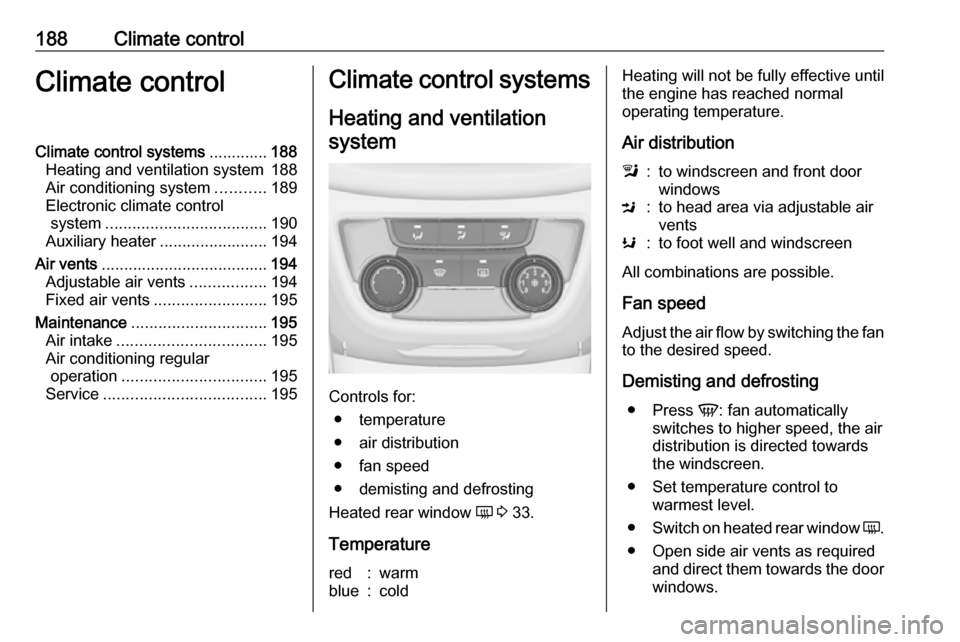
Controls for: ● temperature
● air distribution
● fan speed
● demisting and defrosting
Heated rear window Ü 3 33.
Temperature
red:warmblue:coldHeating will not be fully effective until
the engine has reached normal
operating temperature.
Air distributionl:to windscreen and front door
windowsM:to head area via adjustable air
ventsK:to foot well and windscreen
All combinations are possible.
Fan speed
Adjust the air flow by switching the fan to the desired speed.
Demisting and defrosting ● Press V: fan automatically
switches to higher speed, the air
distribution is directed towards
the windscreen.
● Set temperature control to warmest level.
● Switch on heated rear window Ü.
● Open side air vents as required and direct them towards the doorwindows.
Page 197 of 339
Climate control195
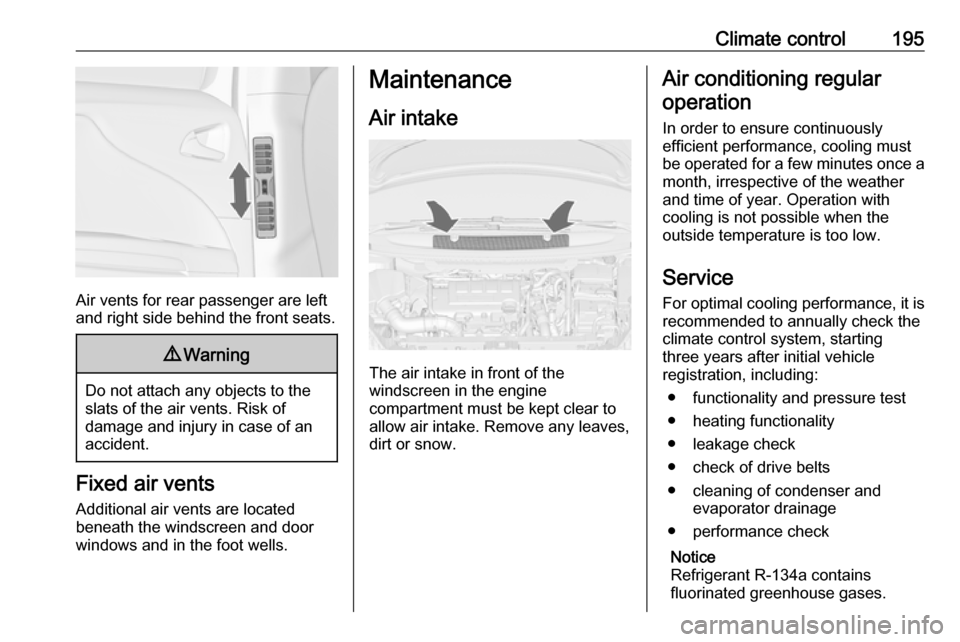
Air vents for rear passenger are left
and right side behind the front seats.
9 Warning
Do not attach any objects to the
slats of the air vents. Risk of
damage and injury in case of an
accident.
Fixed air vents
Additional air vents are located
beneath the windscreen and door windows and in the foot wells.
Maintenance
Air intake
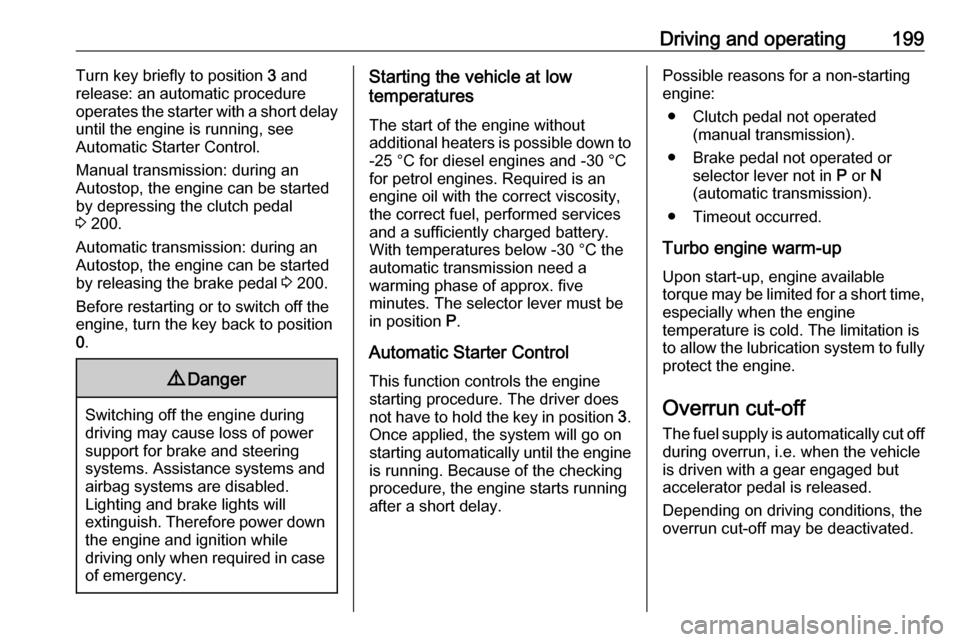
The air intake in front of the
windscreen in the engine
compartment must be kept clear to
allow air intake. Remove any leaves,
dirt or snow.
Air conditioning regular
operation
In order to ensure continuously
efficient performance, cooling must
be operated for a few minutes once a
month, irrespective of the weather
and time of year. Operation with
cooling is not possible when the
outside temperature is too low.
Service For optimal cooling performance, it is recommended to annually check the
climate control system, starting
three years after initial vehicle
registration, including:
● functionality and pressure test
● heating functionality
● leakage check
● check of drive belts
● cleaning of condenser and evaporator drainage
● performance check
Notice
Refrigerant R-134a contains
fluorinated greenhouse gases.
Page 201 of 339
Driving and operating199Turn key briefly to position 3 and
release: an automatic procedure
operates the starter with a short delay
until the engine is running, see
Automatic Starter Control.
Manual transmission: during an
Autostop, the engine can be started
by depressing the clutch pedal
3 200.
Automatic transmission: during an
Autostop, the engine can be started
by releasing the brake pedal 3 200.
Before restarting or to switch off the
engine, turn the key back to position
0 .9 Danger
Switching off the engine during
driving may cause loss of power
support for brake and steering
systems. Assistance systems and
airbag systems are disabled.
Lighting and brake lights will
extinguish. Therefore power down
the engine and ignition while
driving only when required in case of emergency.
Starting the vehicle at low
temperatures
The start of the engine without
additional heaters is possible down to -25 °С for diesel engines and -30 °C
for petrol engines. Required is an engine oil with the correct viscosity,
the correct fuel, performed services
and a sufficiently charged battery.
With temperatures below -30 °C the
automatic transmission need a
warming phase of approx. five
minutes. The selector lever must be
in position P.
Automatic Starter Control This function controls the engine
starting procedure. The driver does
not have to hold the key in position 3.
Once applied, the system will go on
starting automatically until the engine
is running. Because of the checking
procedure, the engine starts running
after a short delay.Possible reasons for a non-starting
engine:
● Clutch pedal not operated (manual transmission).
● Brake pedal not operated or selector lever not in P or N
(automatic transmission).
● Timeout occurred.
Turbo engine warm-up
Upon start-up, engine available
torque may be limited for a short time,
especially when the engine
temperature is cold. The limitation is
to allow the lubrication system to fully protect the engine.
Overrun cut-off The fuel supply is automatically cut off
during overrun, i.e. when the vehicle
is driven with a gear engaged but accelerator pedal is released.
Depending on driving conditions, the
overrun cut-off may be deactivated.