instrument panel VOLVO S60 INSCRIPTION 2016 Owner´s Manual
[x] Cancel search | Manufacturer: VOLVO, Model Year: 2016, Model line: S60 INSCRIPTION, Model: VOLVO S60 INSCRIPTION 2016Pages: 344, PDF Size: 7.24 MB
Page 82 of 344
03 Instruments and controls
03
80
Instrument and "theater" lighting
Instrument lightingIllumination of the display and instrument lights will vary, depending on ignition mode. The display lighting is automatically subdued in darkness and the sensitivity is set with thethumb wheel. The intensity of the instrument lighting is adjusted with the thumb wheel.
"Theater" lightingWhen the overhead courtesy lighting hasgone out and the engine is running, severalLEDs located near the roof console illuminateto provide faint lighting for the occupants ofthe front seats. This lighting goes out justafter the overhead courtesy lighting when thevehicle is locked.
Related information
•Lighting panel (p. 76)
• Front interior lighting (p. 82)
• Rear interior lighting (p. 83)
• Ignition modes (p. 69)
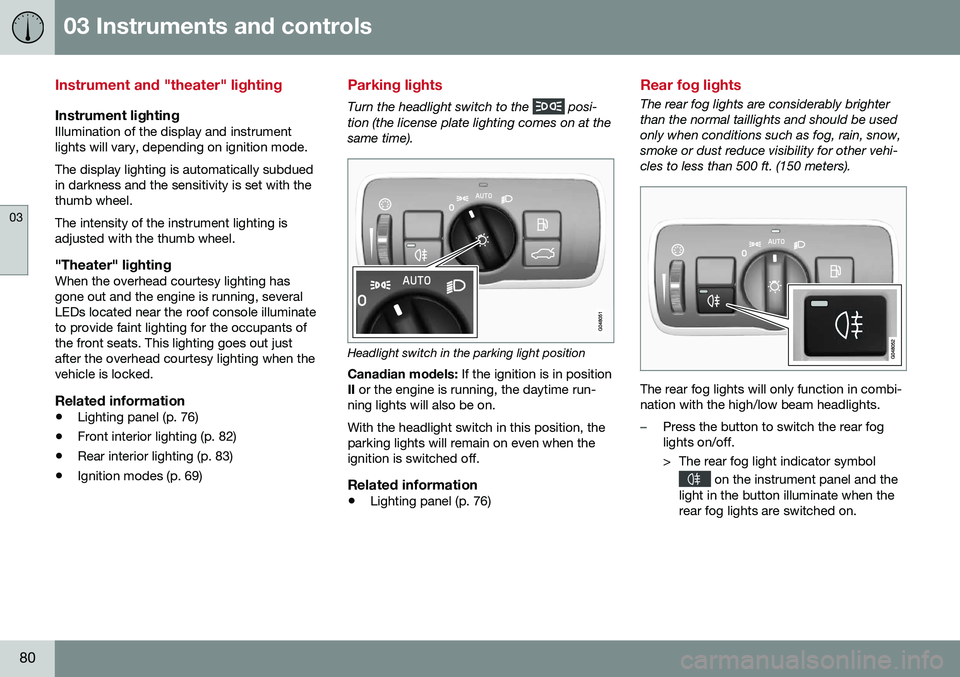
Parking lights
Turn the headlight switch to the posi-
tion (the license plate lighting comes on at the same time).
Headlight switch in the parking light position
Canadian models: If the ignition is in position
II or the engine is running, the daytime run-
ning lights will also be on. With the headlight switch in this position, the parking lights will remain on even when theignition is switched off.
Related information
• Lighting panel (p. 76)
Rear fog lights
The rear fog lights are considerably brighter than the normal taillights and should be usedonly when conditions such as fog, rain, snow,smoke or dust reduce visibility for other vehi-cles to less than 500 ft. (150 meters).
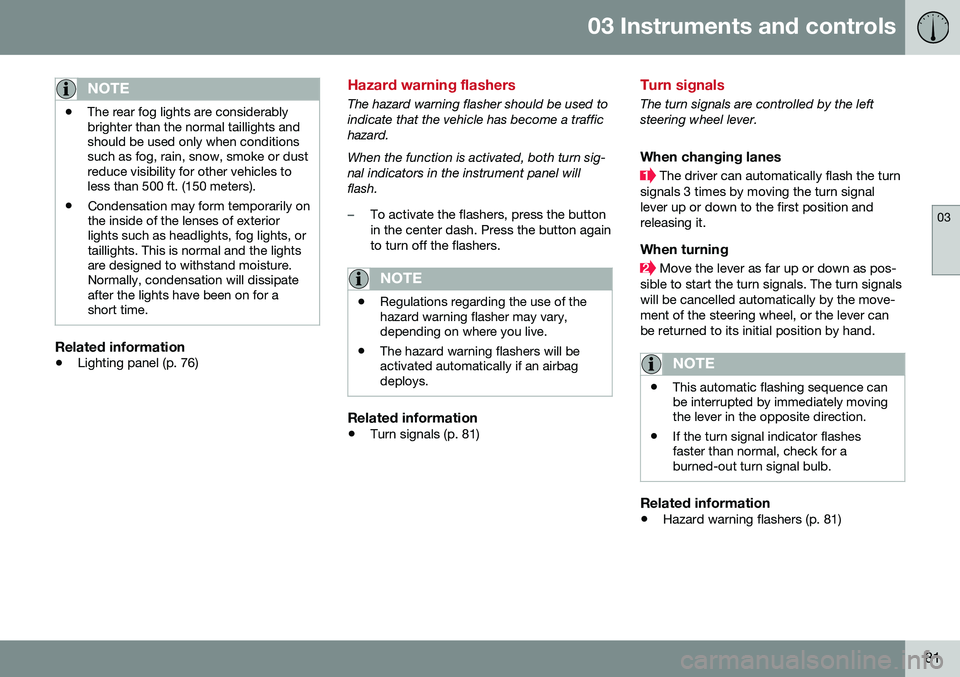
The rear fog lights will only function in combi- nation with the high/low beam headlights.
–Press the button to switch the rear fog lights on/off.
> The rear fog light indicator symbol
on the instrument panel and the
light in the button illuminate when the rear fog lights are switched on.
Page 83 of 344
03 Instruments and controls
03
81
NOTE
•The rear fog lights are considerably brighter than the normal taillights andshould be used only when conditionssuch as fog, rain, snow, smoke or dustreduce visibility for other vehicles toless than 500 ft. (150 meters).
• Condensation may form temporarily onthe inside of the lenses of exteriorlights such as headlights, fog lights, ortaillights. This is normal and the lightsare designed to withstand moisture.Normally, condensation will dissipateafter the lights have been on for ashort time.
Related information
•
Lighting panel (p. 76)
Hazard warning flashers
The hazard warning flasher should be used to indicate that the vehicle has become a traffichazard. When the function is activated, both turn sig- nal indicators in the instrument panel willflash.
–To activate the flashers, press the button in the center dash. Press the button againto turn off the flashers.
NOTE
•Regulations regarding the use of the hazard warning flasher may vary,depending on where you live.
• The hazard warning flashers will beactivated automatically if an airbagdeploys.
Related information
•
Turn signals (p. 81)
Turn signals
The turn signals are controlled by the left steering wheel lever.
When changing lanes
The driver can automatically flash the turn
signals 3 times by moving the turn signal lever up or down to the first position andreleasing it.
When turning
Move the lever as far up or down as pos-
sible to start the turn signals. The turn signals will be cancelled automatically by the move-ment of the steering wheel, or the lever canbe returned to its initial position by hand.
NOTE
• This automatic flashing sequence can be interrupted by immediately movingthe lever in the opposite direction.
• If the turn signal indicator flashesfaster than normal, check for aburned-out turn signal bulb.
Related information
•
Hazard warning flashers (p. 81)
Page 86 of 344
03 Instruments and controls
03
84* Option/accessory, for more information, see Introduction.
Windshield wipers
Move the lever toward the steering wheel to start the windshield and headlight washers.After the lever is released the wipers makeseveral extra sweeps.
CAUTION
• Use ample washer fluid when washing the windshield. The windshield shouldbe thoroughly wet when the wipers arein operation.
• Before using the wipers, ice and snowshould be removed from the wind-shield/rear window. Be sure the wiperblades are not frozen in place.
Windshield wipers offMove the lever to position
0 to
switch off the windshield wipers.
Single sweepMove the lever upward from posi- tion 0 to sweep the windshield one
stroke at a time for as long as the
lever is held up.
Intermittent wipingWith the lever in this position, you can set the wiper interval by twistingthe thumb wheel upward to increase
wiper speed or downward to decrease thespeed.
Continuous wipingThe wipers operate at normal speed.
The wipers operate at high speed.
Windshield wiper service positionThe windshield wipers must be in the service position before the wiper blades can becleaned or replaced. See Wiper blades –service position (p. 293) for additional infor-mation.
Related information
• Engine compartment – washer fluid (p. 295)
Rain sensor*
The rain sensor automatically regulates wiper speed according to the amount of water onthe windshield. The sensitivity of the rain sensor can be adjusted moving the thumb wheel up (thewipers will sweep the windshield more fre-quently) or down (the wipers will sweep thewindshield less frequently).
NOTE
The wipers will make an extra sweep each time the thumb wheel is adjusted upward.
When the rain sensor is activated, the symbol
will illuminate in the instrument panel.
Activating and setting the sensitivityWhen activating the rain sensor, the vehicle must be running or in ignition mode
II and the
windshield wiper lever must be in position 0
or in the single sweep position. Activate the rain sensor by pressing the but- ton
. The windshield wipers will make
one sweep. Press the lever up for the wipers to make an extra sweep. The rain sensor returns to activemode when the stalk is released back toposition 0.
Page 88 of 344
03 Instruments and controls
03
86
Tailgate wiper/washer
The tailgate wiper operates at two speeds: intermittent and continuous.
NOTE
The rear wiper is equipped with a cut-off function, which means that it will not oper-ate if its electric motor overheats. Thewiper will function again after a cool-downperiod (30 seconds or longer, dependingon the heat of the motor and ambient tem-perature conditions).
Tailgate wiper and reverse gearIf the windshield wipers are on and the trans- mission is put into reverse gear, the tailgatewiper will go into intermittent wiping func- tion18
. This function is deactivated when a dif-
ferent gear is selected.
NOTE
On vehicles with the optional rain sensor, the tailgate wiper will be activated whenreverse is selected, if the rain sensor isactivated and it is raining.
If the tailgate wiper is in the normal (continu- ous) wiping mode, selecting different gearswill not affect its function.
Related information
• Engine compartment – washer fluid (p. 295)
Power windows
All power windows can be operated using the control panel in the driver's door. The controlpanels in the other doors only operate thewindow in the respective doors.
WARNING
•Always remove the ignition key when the vehicle is unattended to put theignition in mode
0 (see Ignition modes
(p. 69) for information about the igni-tion modes).
• Never leave children unattended in thevehicle.
• Make sure that the windows are com-pletely unobstructed before they areoperated.
OperatingFor the power windows to function, the igni- tion must be in at least mode
I. When the
vehicle has been running, the power windowscan be operated for several minutes after theremote key has been removed from the igni-tion slot, or until a door has been opened.
18 Consult your Volvo retailer if you would like to have this function deactivated.
Page 97 of 344
03 Instruments and controls
03
* Option/accessory, for more information, see Introduction.95
Volvo Sensus
Volvo Sensus is the core of the contact inter- face with your vehicle. Sensus provides infor-mation, entertainment and offers access tofunctions that make owning and operating aVolvo easier.
Volvo Sensus is the operating system in your vehicle and it enables you to interact intui-tively with the vehicle’s various features andfunctions, including accessing the Internet,when it suits you. Volvo Sensus uses the center console screen to display information and menus, and tooffer a user interface that enables you tomake personalized settings for e.g., vehicle,infotainment and climate system functions. The buttons on the center console or the steering wheel keypad are used to activate/deactivate functions and change numeroussettings. Pressing the MY CAR button on the center
console displays all of the settings related to driving and operating the vehicle, such as City Safety, lock and alarm functions, auto-matic blower speed, setting the clock, etc. Pressing the source buttons on the center console (
RADIO, MEDIA , TEL ,
, NAV * and
CAM *, etc.) make it possible to select e.g.,
AM or FM radio, play a CD or DVD, use the Bluetooth ®
hands-free feature, the navigation
system* or the park assist camera*. See your on-board owner’s manual or the separate printed supplements for detailedinformation about the functionality offered byVolvo Sensus.
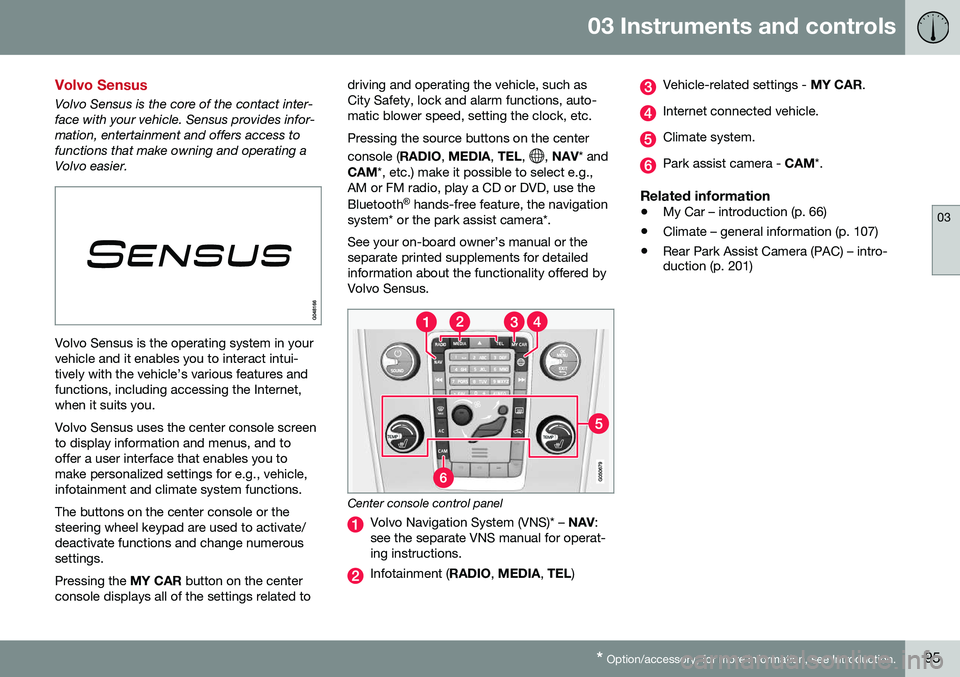
Center console control panel
Volvo Navigation System (VNS)* – NAV:
see the separate VNS manual for operat- ing instructions.
Infotainment ( RADIO, MEDIA , TEL )
Vehicle-related settings - MY CAR.
Internet connected vehicle.
Climate system.
Park assist camera - CAM*.
Related information
•My Car – introduction (p. 66)
• Climate – general information (p. 107)
• Rear Park Assist Camera (PAC) – intro- duction (p. 201)
Page 98 of 344
03 Instruments and controls
03
96* Option/accessory, for more information, see Introduction.
Information display – menu controls
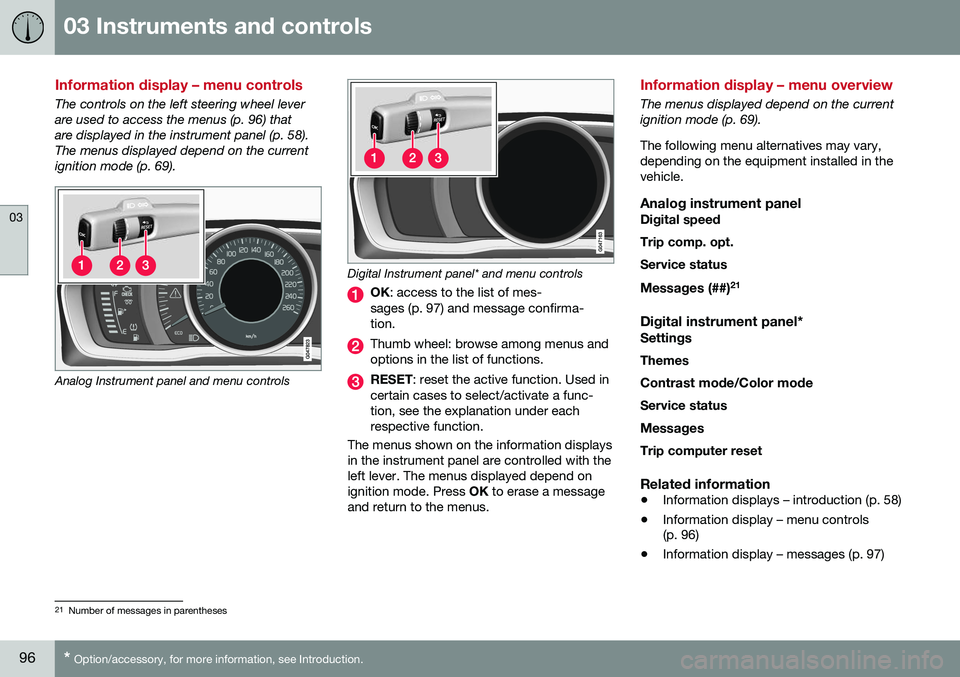
The controls on the left steering wheel lever are used to access the menus (p. 96) thatare displayed in the instrument panel (p. 58).The menus displayed depend on the currentignition mode (p. 69).
Analog Instrument panel and menu controls
Digital Instrument panel* and menu controls
OK : access to the list of mes-
sages (p. 97) and message confirma- tion.
Thumb wheel: browse among menus and options in the list of functions.
RESET : reset the active function. Used in
certain cases to select/activate a func- tion, see the explanation under eachrespective function.
The menus shown on the information displaysin the instrument panel are controlled with theleft lever. The menus displayed depend onignition mode. Press OK to erase a message
and return to the menus.
Information display – menu overview
The menus displayed depend on the current ignition mode (p. 69). The following menu alternatives may vary, depending on the equipment installed in thevehicle.
Analog instrument panelDigital speed Trip comp. opt.Service status
Messages (##) 21
Digital instrument panel*
Settings
Themes
Contrast mode /Color mode
Service status
Messages Trip computer reset
Related information
• Information displays – introduction (p. 58)
• Information display – menu controls (p. 96)
• Information display – messages (p. 97)
21
Number of messages in parentheses
Page 99 of 344
03 Instruments and controls
03
}}
97
Information display – messages
The controls on the left steering wheel lever are used to scroll among messages displayedin the instrument panel and to confirm selec-tions. When information, indicator or warning sym- bols illuminate, an explanatory message willbe displayed in the instrument panel. When a warning (p. 64), information (p. 62) or indicator symbol (p. 62) comes on, a corres-ponding message appears in the informationpanel. An error message is stored in a mem-ory list until the fault is rectified. Press OK to acknowledge and scroll among
the messages.
NOTE
If a warning message appears while you are using the trip computer, the messagemust be read and confirmed by pressingOK before the previous activity can be
resumed.
MessageDescription
Stop engineAStop and switch off the engine as soon as possi-ble. Serious risk of dam-age. Contact an author-ized Volvo workshop.
Stop safelyAStop and switch off the engine. Serious risk ofdamage. Contact anauthorized Volvo work-shop.
Service urgentAHave the vehicle checked by an authorized Volvoworkshop immediately.
Service requiredAHave the vehicle checked by an authorized Volvoworkshop as soon as pos-sible.
See man- ualARead the owner's manual.
Book time for mainte-nanceTime to book service at an authorized Volvo retailer.
MessageDescription
Time for regularmainte-nanceTime for regular service at an authorized Volvo work-shop. The timing is deter-mined by the number ofmiles driven, number ofmonths since the lastservice, engine runningtime.
Mainte- nance over-dueIf the service intervals are not followed, the warrantydoes not cover any dam-aged parts. Contact anauthorized Volvo work-shop for service.
Temporarily OFFAA function has been tem- porarily switched off andis reset automatically whiledriving or after startingagain.
Low battery Power savemodeThe audio system is switched off to save cur-rent. Charge the battery.
A There will also be a system-specific part of this message
Page 100 of 344
||
03 Instruments and controls
03
98
Related information
•Information displays – introduction (p. 58)
• Information display – menu overview (p. 96)
• Information display – menu controls(p. 96)
Trip computer – introduction
The content and appearance of the trip com- puter varies depending on whether the vehi-cle is equipped with an
Analog or Digital
instrument panel.
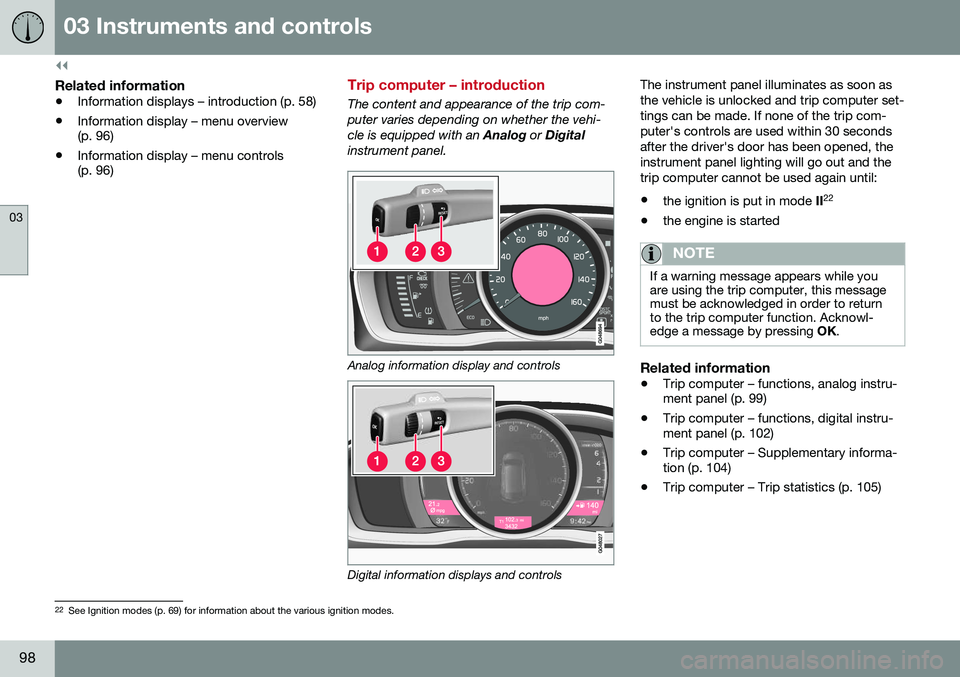
Analog information display and controls
Digital information displays and controls The instrument panel illuminates as soon as the vehicle is unlocked and trip computer set-tings can be made. If none of the trip com-puter's controls are used within 30 secondsafter the driver's door has been opened, theinstrument panel lighting will go out and thetrip computer cannot be used again until: •
the ignition is put in mode II22
• the engine is started
NOTE
If a warning message appears while you are using the trip computer, this messagemust be acknowledged in order to returnto the trip computer function. Acknowl-edge a message by pressing
OK.
Related information
• Trip computer – functions, analog instru- ment panel (p. 99)
• Trip computer – functions, digital instru-ment panel (p. 102)
• Trip computer – Supplementary informa-tion (p. 104)
• Trip computer – Trip statistics (p. 105)
22
See Ignition modes (p. 69) for information about the various ignition modes.
Page 101 of 344
03 Instruments and controls
03
}}
99
Trip computer – functions, analog instrument panel
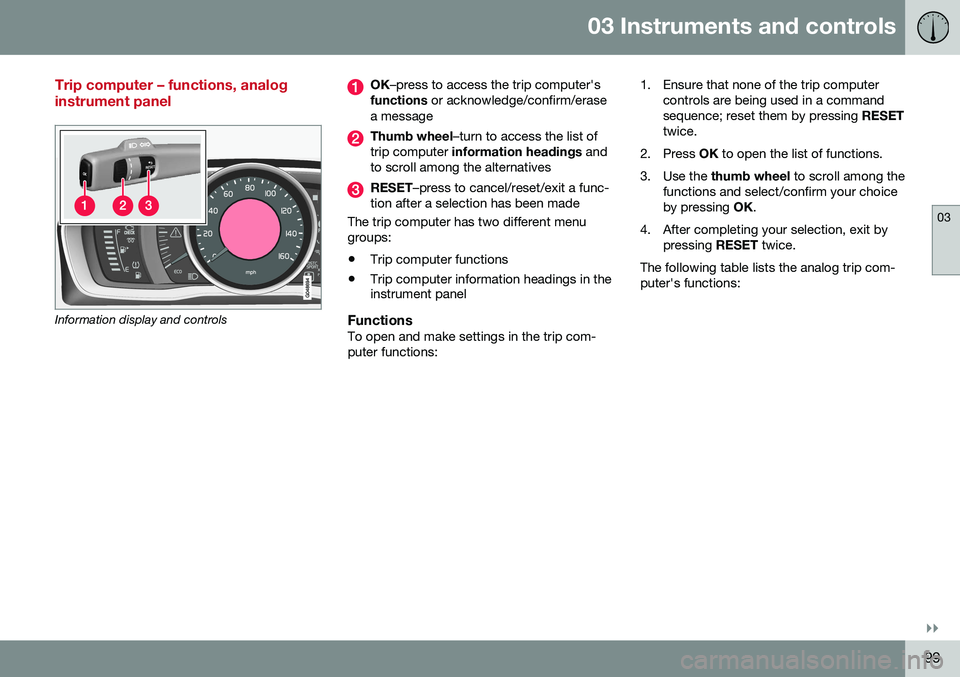
Information display and controls
OK–press to access the trip computer's
functions or acknowledge/confirm/erase
a message
Thumb wheel –turn to access the list of
trip computer information headings and
to scroll among the alternatives
RESET –press to cancel/reset/exit a func-
tion after a selection has been made
The trip computer has two different menu groups:
• Trip computer functions
• Trip computer information headings in the instrument panel
FunctionsTo open and make settings in the trip com- puter functions: 1. Ensure that none of the trip computer
controls are being used in a commandsequence; reset them by pressing RESET
twice.
2. Press OK to open the list of functions.
3. Use the thumb wheel to scroll among the
functions and select/confirm your choiceby pressing OK.
4. After completing your selection, exit by pressing RESET twice.
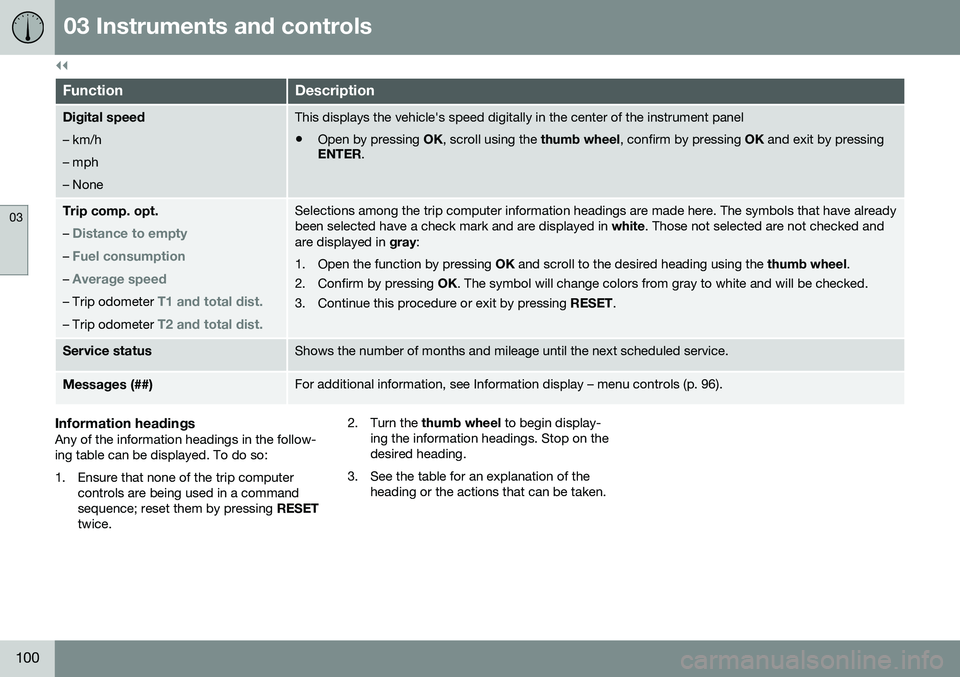
The following table lists the analog trip com-puter's functions:
Page 102 of 344
||
03 Instruments and controls
03
100
FunctionDescription
Digital speed – km/h – mph– NoneThis displays the vehicle's speed digitally in the center of the instrument panel
• Open by pressing
OK, scroll using the thumb wheel, confirm by pressing OK and exit by pressing
ENTER .
Trip comp. opt.
–
Distance to empty
– Fuel consumption
– Average speed
– Trip odometer T1 and total dist.
– Trip odometer T2 and total dist.
Selections among the trip computer information headings are made here. The symbols that have already been selected have a check mark and are displayed in white. Those not selected are not checked and
are displayed in gray:
1. Open the function by pressing OK and scroll to the desired heading using the thumb wheel.
2. Confirm by pressing OK. The symbol will change colors from gray to white and will be checked.
3. Continue this procedure or exit by pressing RESET.
Service statusShows the number of months and mileage until the next scheduled service.
Messages (##)For additional information, see Information display – menu controls (p. 96).
Information headingsAny of the information headings in the follow- ing table can be displayed. To do so:
1. Ensure that none of the trip computer
controls are being used in a command sequence; reset them by pressing RESET
twice. 2. Turn the
thumb wheel to begin display-
ing the information headings. Stop on thedesired heading.
3. See the table for an explanation of the heading or the actions that can be taken.