instrument panel VOLVO S60 TWIN ENGINE 2019 Owners Manual
[x] Cancel search | Manufacturer: VOLVO, Model Year: 2019, Model line: S60 TWIN ENGINE, Model: VOLVO S60 TWIN ENGINE 2019Pages: 645, PDF Size: 13.96 MB
Page 437 of 645

STARTING AND DRIVING
}}
* Option/accessory.435
Follow applicable regulations regarding per-mitted speed and weight.
Drive slowly when towing a trailer up a longand steep incline.
The maximum trailer weights given only applyto altitudes up to 1000 meters (3280 feet)above sea level. At higher altitudes, enginepower (and thus the vehicle's climbing ability)is decreased due to the reduced air density,and the maximum trailer weight must there-fore be reduced. The weight of the vehicleand trailer must be decreased by 10% foreach additional 1000 m (3280 feet) or partthereof.
Avoid driving with a trailer on inclines of morethan 12%.
Avoid overloading and other incorrect use.
The trailer's brakes must be balanced withthe vehicle's brakes to help ensure safestops (follow applicable local regulations).
CAUTION
Bumper-attached trailer hitches must notbe used on Volvos, nor should safetychains be attached to the bumper.
Trailer hitches attaching to the vehiclerear axle must not be used.
Never connect a trailer's hydraulic brakesystem directly to the vehicle brake sys-tem, nor a trailer's lighting system directlyto the vehicle lighting system. Consultyour nearest authorized Volvo retailer forcorrect installation.
When towing a trailer, the trailer's safetychains or wire must be correctly fastenedto the attachment points provided in thetrailer hitch on the vehicle. The safetychain or wire must never be fastened toor wound around the towing ball.
NOTE
The optional detachable trailer hitch may notbe available in all markets or on all models.Consult your Volvo retailer.
NOTE
Extreme weather conditions, towing a trailer,high altitude and lower fuel grade than rec-ommended are factors that can significantlyincrease the vehicle's fuel consumption.
Trailer weights
WARNING
Please adhere to the recommendations provi-ded for trailer weight. If the recommendationsare not followed, the vehicle and trailer maybe difficult to control during evasive maneu-vers and braking.
NOTE
The specified maximum trailer weights arethose permitted by Volvo. National vehicleregulations may set additional restrictions ontrailer weight and speed. The trailer hitchesmay be certified for higher towing weightsthan the vehicle is permitted to tow.
Self-leveling suspension *
The vehicle's self-leveling system attempts tokeep the vehicle at a constant level, regardless ofload (up to the maximum permitted weight).When the vehicle is stationary, the rear end of thevehicle will be slightly lowered, which is normal.
Driving in hilly terrain or hot weather
In certain conditions, there is a risk of overheat-ing when driving with a trailer. If overheating ofthe engine and drive system is detected, a warn-ing symbol will illuminate in the instrument paneland a message will appear.
Page 439 of 645
STARTING AND DRIVING
}}
* Option/accessory.437
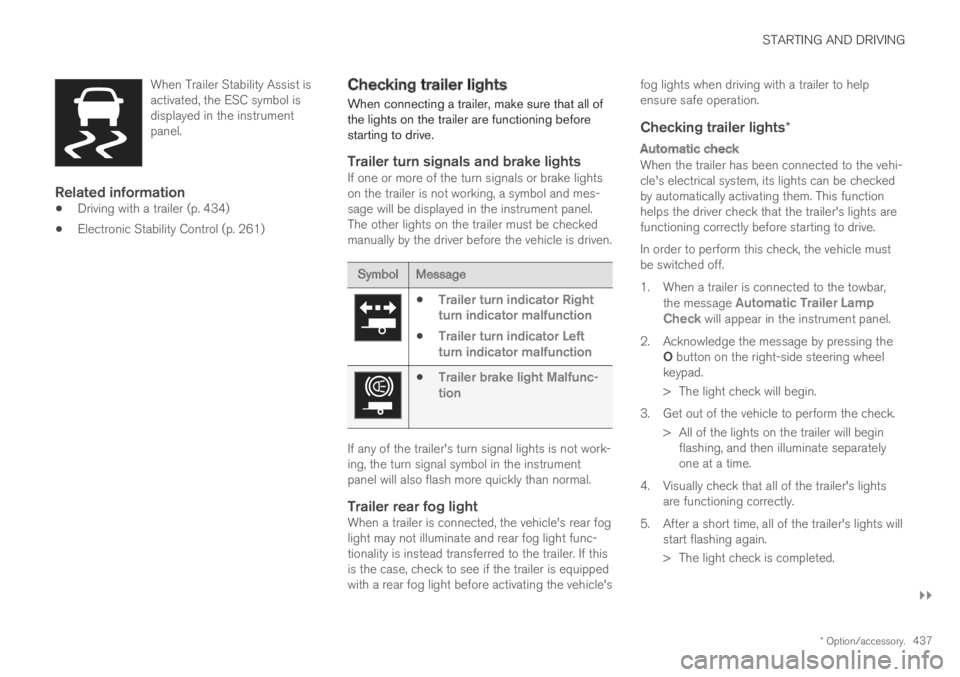
When Trailer Stability Assist isactivated, the ESC symbol isdisplayed in the instrumentpanel.
Related information
Driving with a trailer (p. 434)
Electronic Stability Control (p. 261)
Checking trailer lights
When connecting a trailer, make sure that all ofthe lights on the trailer are functioning beforestarting to drive.
Trailer turn signals and brake lights
If one or more of the turn signals or brake lightson the trailer is not working, a symbol and mes-sage will be displayed in the instrument panel.The other lights on the trailer must be checkedmanually by the driver before the vehicle is driven.
SymbolMessage
Trailer turn indicator Rightturn indicator malfunction
Trailer turn indicator Leftturn indicator malfunction
Trailer brake light Malfunc-tion
If any of the trailer's turn signal lights is not work-ing, the turn signal symbol in the instrumentpanel will also flash more quickly than normal.
Trailer rear fog light
When a trailer is connected, the vehicle's rear foglight may not illuminate and rear fog light func-tionality is instead transferred to the trailer. If thisis the case, check to see if the trailer is equippedwith a rear fog light before activating the vehicle's
fog lights when driving with a trailer to helpensure safe operation.
Checking trailer lights *
Automatic check
When the trailer has been connected to the vehi-cle's electrical system, its lights can be checkedby automatically activating them. This functionhelps the driver check that the trailer's lights arefunctioning correctly before starting to drive.
In order to perform this check, the vehicle mustbe switched off.
1. When a trailer is connected to the towbar,the message Automatic Trailer LampCheck will appear in the instrument panel.
2.Acknowledge the message by pressing theO button on the right-side steering wheelkeypad.
> The light check will begin.
3. Get out of the vehicle to perform the check.
> All of the lights on the trailer will beginflashing, and then illuminate separatelyone at a time.
4. Visually check that all of the trailer's lightsare functioning correctly.
5. After a short time, all of the trailer's lights willstart flashing again.
> The light check is completed.
Page 456 of 645
AUDIO, MEDIA AND INTERNET
454
Changing waveband and radio station(p. 454)
Storing radio favorites (p. 455)
Radio settings (p. 456)
Voice control for radio and media (p. 146)
Changing waveband and radiostation
Instructions for changing wavebands, wavebandlists and radio stations in the selected list areprovided here.
Changing wavebands
Swipe from App view on the center display andselect the desired waveband (e.g. FM) or openthe App menu in the instrument panel with theright-side steering wheel keypad and make yourselection there.
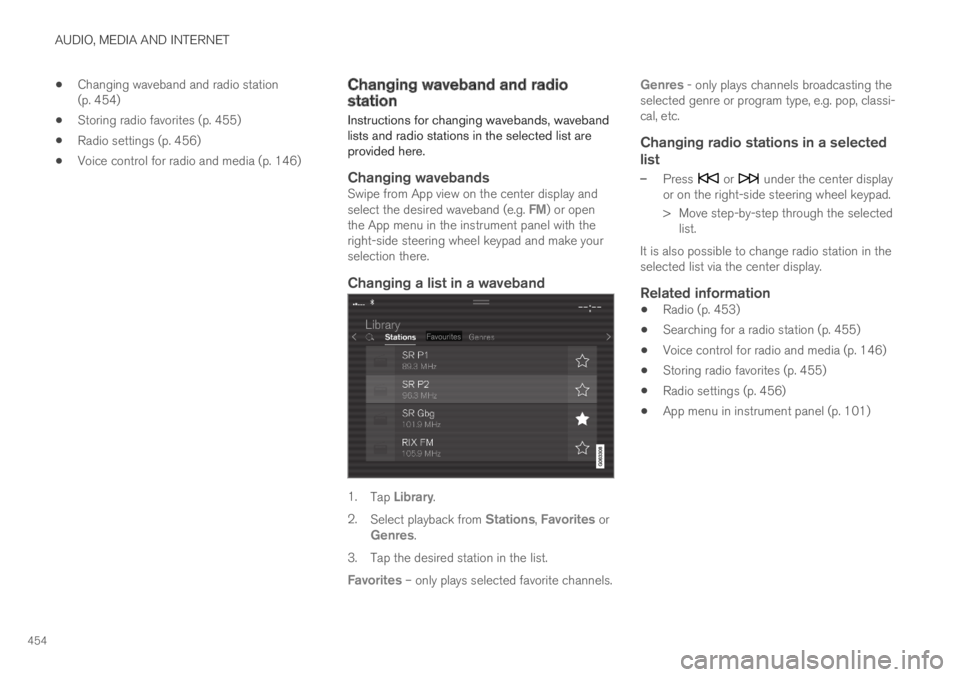
Changing a list in a waveband
1.Tap Library.
2.Select playback from Stations, Favorites orGenres.
3.Tap the desired station in the list.
Favorites – only plays selected favorite channels.
Genres - only plays channels broadcasting theselected genre or program type, e.g. pop, classi-cal, etc.
Changing radio stations in a selected
list
–Press or under the center displayor on the right-side steering wheel keypad.
>Move step-by-step through the selectedlist.
It is also possible to change radio station in theselected list via the center display.
Related information
Radio (p. 453)
Searching for a radio station (p. 455)
Voice control for radio and media (p. 146)
Storing radio favorites (p. 455)
Radio settings (p. 456)
App menu in instrument panel (p. 101)
Page 458 of 645
AUDIO, MEDIA AND INTERNET
* Option/accessory.456
Voice control for radio and media (p. 146)
Radio settings (p. 456)
App menu in instrument panel (p. 101)
Radio settings
There are a number of different radio functionsthat can be activated and deactivated.
Canceling a traffic message
A current broadcast (e.g. a traffic message) can
be temporarily interrupted by pressing in theright-side steering wheel keypad or tappingCancel in the center display.
Activating and deactivating radio
functions
Pull down Top view and select SettingsMedia and the desired waveband to see availablefunctions.
FM Radio
HD Radio FM: HD Radio™ Technology:makes it possible to achieve a sound qualitycomparable with a CD.
Show Broadcast Information: showsinformation on program content, artists, etc.
Freeze Program Name: select to stop theprogram service name from scrolling continu-ously. Instead it freezes after 20 seconds.
SiriusXM ®
Satellite radio *
Pull down Top view and select Settings
MediaSiriusXM to show a list of availableoptions.
Related information
Radio (p. 453)
Settings for SiriusXM® Satellite radio*(p. 463)
Symbols in the center display status bar(p. 122)
Page 473 of 645
AUDIO, MEDIA AND INTERNET
* Option/accessory.471
CD *
1. Insert a CD.
2.Open the CD app from App view.
3.Select the track you would like to play.
> Playback will begin.
USB flash drive
1. Inset a USB flash drive.
2.Open the USB app from App view.
3.Select the track you would like to play.
> Playback will begin.
MP3 player and iPod ®
NOTE
To start playback from an iPod, the iPod appmust be used (not USB).
When an iPod is used as source, the car'saudio and media system has a menu struc-ture similar to the iPod player's own menustructure.
1. Connect a media source.
2.Start playback in the connected mediasource.
3.Open the app (iPod, USB) from App view.
>Playback will begin.
Bluetooth-connected device
1. Activate Bluetooth in the media source.
2. Connect a media source.
3. Start playback in the connected mediasource.
4.Open the Bluetooth app from App view.
>Playback will begin.
Media with Internet connection
Medial playback from apps with Internet connec-tion:
1. Connect the vehicle to the Internet.
2. Open the app from the App view.
> Playback will begin.
Read the separate section on how to downloadapps.
Video
1. Connect a media source.
2.Open the USB app from App view.
3.Tap the title you would like to play.
> Playback will begin.
Apple CarPlay
CarPlay is described in a separate section.
Android Auto
Android Auto is described in a separate section.
Related information
Handling the App menu in the instrumentpanel (p. 102)
Radio (p. 453)
Controlling and changing media (p. 472)
Connecting a device via the USB port(p. 477)
Connecting a device via Bluetooth® (p. 476)
Download apps (p. 451)
Internet-connected vehicle* (p. 494)
Video (p. 474)
Apple® CarPlay®* (p. 479)
Android Auto* (p. 482)
Voice control for radio and media (p. 146)
Compatible file formats for media (p. 478)
Page 481 of 645

AUDIO, MEDIA AND INTERNET
}}
* Option/accessory.479
Apple® CarPlay®*
With CarPlay, you can listen to music, makephone calls, get driving instructions, send/receive messages and use Siri, all while remain-ing focused on driving.
CarPlay works with select iOSdevices. If the car does notalready support CarPlay, thiscan be retrofitted. Contact aVolvo retailer to install CarPlay.
Information about supported apps and compati-ble iOS devices are available on the Apple web-site: www.apple.com/ios/carplay/. Using appsthat are not compatible with CarPlay may some-times mean that the connection between thedevice and the vehicle is broken. Please note thatVolvo is not responsible for the content ofCarPlay.
When using map navigation via CarPlay, guidancewill only be shown on the center display and notin the instrument panel or head-up display.
When navigation is started through AppleCarPlay, any current route guidance from thevehicle's own systems will be discontinued.
CarPlay apps can be controlled from the centerdisplay, an iOS device or with the right-side steer-ing wheel keypad (for certain functions). The
apps can also be voice-controlled using Siri.
Press and hold the button on the steeringwheel to start voice control with Siri. Press brieflyto activate the vehicle's own voice control system.
If Siri cuts off too soon, press and hold the 6
button on the steering wheel.
By using Apple CarPlay you acknowledgethe following: Apple CarPlay is a serviceprovided by Apple Inc. under its terms andconditions. Volvo Cars is thus notresponsible for Apple CarPlay or itsfeatures/applications. When using AppleCarPlay, certain information from your car(including its position) is transferred to youriPhone. In relation to Volvo Cars, you arefully responsible for your and any othersperson
Page 484 of 645
AUDIO, MEDIA AND INTERNET
* Option/accessory.482
Android Auto*
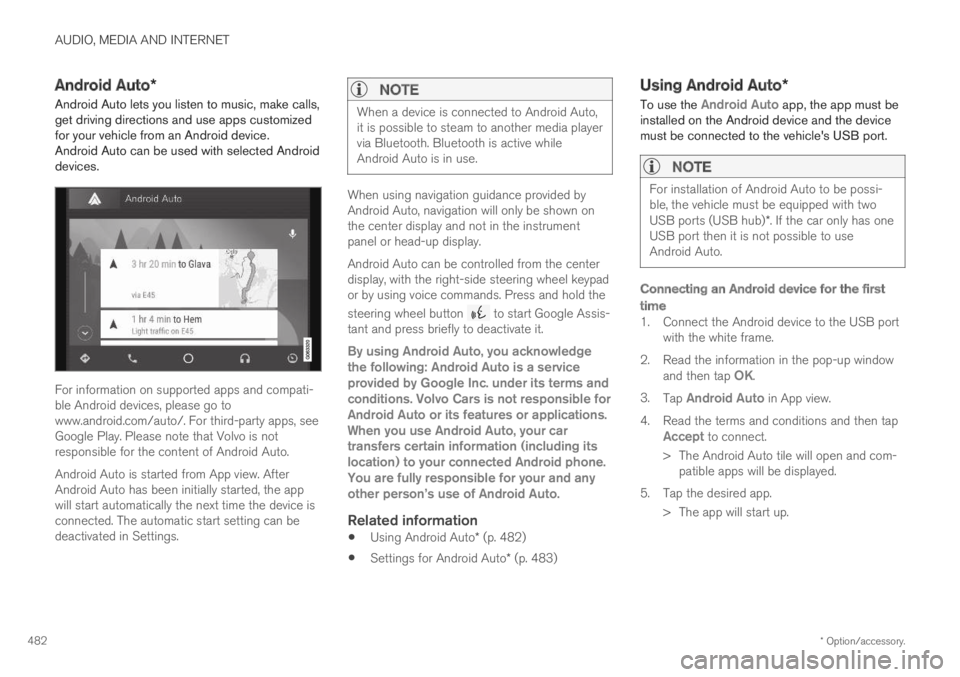
Android Auto lets you listen to music, make calls,get driving directions and use apps customizedfor your vehicle from an Android device.Android Auto can be used with selected Androiddevices.
For information on supported apps and compati-ble Android devices, please go towww.android.com/auto/. For third-party apps, seeGoogle Play. Please note that Volvo is notresponsible for the content of Android Auto.
Android Auto is started from App view. AfterAndroid Auto has been initially started, the appwill start automatically the next time the device isconnected. The automatic start setting can bedeactivated in Settings.
NOTE
When a device is connected to Android Auto,it is possible to steam to another media playervia Bluetooth. Bluetooth is active whileAndroid Auto is in use.
When using navigation guidance provided byAndroid Auto, navigation will only be shown onthe center display and not in the instrumentpanel or head-up display.
Android Auto can be controlled from the centerdisplay, with the right-side steering wheel keypador by using voice commands. Press and hold the
steering wheel button to start Google Assis-tant and press briefly to deactivate it.
By using Android Auto, you acknowledgethe following: Android Auto is a serviceprovided by Google Inc. under its terms andconditions. Volvo Cars is not responsible forAndroid Auto or its features or applications.When you use Android Auto, your cartransfers certain information (including itslocation) to your connected Android phone.You are fully responsible for your and anyother person
Page 487 of 645
AUDIO, MEDIA AND INTERNET
}}
485
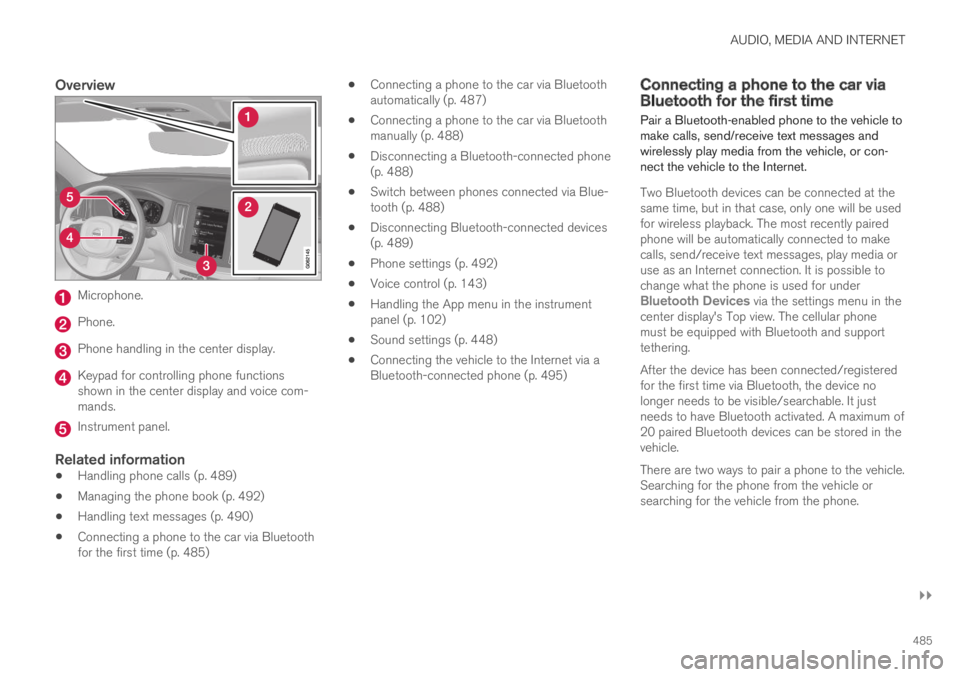
Overview
Microphone.
Phone.
Phone handling in the center display.
Keypad for controlling phone functionsshown in the center display and voice com-mands.
Instrument panel.
Related information
Handling phone calls (p. 489)
Managing the phone book (p. 492)
Handling text messages (p. 490)
Connecting a phone to the car via Bluetoothfor the first time (p. 485)
Connecting a phone to the car via Bluetoothautomatically (p. 487)
Connecting a phone to the car via Bluetoothmanually (p. 488)
Disconnecting a Bluetooth-connected phone(p. 488)
Switch between phones connected via Blue-tooth (p. 488)
Disconnecting Bluetooth-connected devices(p. 489)
Phone settings (p. 492)
Voice control (p. 143)
Handling the App menu in the instrumentpanel (p. 102)
Sound settings (p. 448)
Connecting the vehicle to the Internet via aBluetooth-connected phone (p. 495)
Connecting a phone to the car viaBluetooth for the first time
Pair a Bluetooth-enabled phone to the vehicle tomake calls, send/receive text messages andwirelessly play media from the vehicle, or con-nect the vehicle to the Internet.
Two Bluetooth devices can be connected at thesame time, but in that case, only one will be usedfor wireless playback. The most recently pairedphone will be automatically connected to makecalls, send/receive text messages, play media oruse as an Internet connection. It is possible tochange what the phone is used for underBluetooth Devices via the settings menu in thecenter display's Top view. The cellular phonemust be equipped with Bluetooth and supporttethering.
After the device has been connected/registeredfor the first time via Bluetooth, the device nolonger needs to be visible/searchable. It justneeds to have Bluetooth activated. A maximum of20 paired Bluetooth devices can be stored in thevehicle.
There are two ways to pair a phone to the vehicle.Searching for the phone from the vehicle orsearching for the vehicle from the phone.
Page 492 of 645
||
AUDIO, MEDIA AND INTERNET
490
Incoming calls while another call is in
progress
1.Tap Answer/Reject.
2.Tap to end the call.
Privacy
–While a call is in progress, tap Privacy andselect setting:
Switch to mobile phone - the hands-free function will be disabled and the callwill proceed on the cellular phone.
Driver focused - the microphone in theceiling liner on the passenger side will bemuted and the call will proceed using thevehicle's hands-free function.
Related information
Phone (p. 484)
Connecting a phone to the car via Bluetoothfor the first time (p. 485)
Voice control for cellular phones (p. 145)
Handling the App menu in the instrumentpanel (p. 102)
Entering characters, letters and words byhand in the center display (p. 127)
Managing the phone book (p. 492)
Handling text messages (p. 490)
Sound settings (p. 448)
Handling text messages10
A Bluetooth-connected cellular phone's textmessages can be handled in the vehicle.
Text message functionality needs to be activatedin certain phones. Not all phones are fully com-patible and therefore cannot display contacts andmessages in the vehicle. For additional informa-tion on compatibility, see support.volvocars.com.
Handling text messages in the center
display
Text messages are only shown in the center dis-play if the relevant setting is made.
Tap Messages in App view tohandle text messages in thecenter display.
NOTE
When the vehicle is moving:
Only one row of the message will be dis-played. Tap Read out to have the entiremessage read aloud.
The center display's keyboard cannot beused.
Reading text messages in the center display
aloud
Tap the icon to have the message readaloud.
10Only applies to certain markets. Contact a Volvo retailer for more information.
Page 493 of 645
AUDIO, MEDIA AND INTERNET
* Option/accessory.491
Sending text messages in the center
display 11
1. It is possible to reply to text messages orcreate a new message.
To reply to a text message - tap the nameof the contact who sent the message andthen tap Answer.
To create a new message - tap Createnew. Select a contact or enter a phonenumber.
2.Write the message.
3.Tap Send.
Handling test messages in the
instrument panel
Text messages are only shown in the instrumentpanel if the relevant setting is made.
Reading new text messages in the
instrument panel aloud
–To have the message read aloud, selectRead out using the steering wheel keypad.
Dictating replies in the instrument panel
After the test message has been read aloud, it ispossible to answer briefly with dictation if thevehicle has an Internet connection.
–Tap Answer using the steering wheel key-pad. A dictation dialog will start.
Message alert
Alerts can be activated and deactivated in thetext message settings.
Related information
Phone (p. 484)
Text message settings (p. 491)
Phone settings (p. 492)
Internet-connected vehicle* (p. 494)
Voice control for cellular phones (p. 145)
Entering characters, letters and words byhand in the center display (p. 127)
Connecting a phone to the car via Bluetoothfor the first time (p. 485)
Terms of use and data sharing (p. 500)
Text message settings
Settings for handling text messages receivedthrough a connected phone can be personal-ized.
1.Tap Settings in the Top view.
2.Tap CommunicationText Messagesand select settings:
Notification in center display - displaytext message notifications in the centerdisplay's status bar.
Notification in driver display - displaysnotifications in the driver's display andincoming messages can be managedusing the steering wheel's right-hand key-pad.
Text message tone - select tone forincoming text messages.
Related information
Phone (p. 484)
Connecting a phone to the car via Bluetoothfor the first time (p. 485)
Handling text messages (p. 490)
Phone settings (p. 492)
11
Only certain phones can send messages via the vehicle. For additional information on compatibility, see support.volvocars.com.