phone VOLVO S60 TWIN ENGINE 2019 User Guide
[x] Cancel search | Manufacturer: VOLVO, Model Year: 2019, Model line: S60 TWIN ENGINE, Model: VOLVO S60 TWIN ENGINE 2019Pages: 645, PDF Size: 13.96 MB
Page 42 of 645
||
YOUR VOLVO
40
WARNING
Never use a hand-held cellular telephonewhile driving. Some jurisdictions prohibitcellular telephone use by a driver whilethe vehicle is moving.
If your vehicle is equipped with a naviga-tion system, set and make changes toyour travel itinerary only with the vehicleparked.
Never program your audio system whilethe vehicle is moving. Program radio pre-sets with the vehicle parked, and use yourprogrammed presets to make radio usequicker and simpler.
Never use portable computers or per-sonal digital assistants while the vehicleis moving.
Related information
Audio, media and Internet (p. 448)
Page 46 of 645

||
SAFETY
44
Occupant safety reminders
How safely you drive doesn't depend on how oldyou are but rather on:
How well you see.
Your ability to concentrate.
How quickly you make decisions understress to avoid an accident.
The following suggestions are intended to helpyou cope with the ever changing traffic environ-ment.
Never drink and drive.
If you are taking any medication, consult yourphysician about its potential effects on yourdriving abilities.
Take a driver-retraining course.
Have your eyes checked regularly.
Keep your windshield and headlights clean.
Replace wiper blades when they start toleave streaks.
Take into account the traffic, road, andweather conditions, particularly with regard tostopping distance.
Never send text messages while driving.
Refrain from using or minimize the use of acell phone while driving.
Related information
Safety (p. 42)
Reporting safety defects (p. 44)
Recall information (p. 45)
Reporting safety defects
The following information will help you report anyperceived safety-related defects in your vehicle.
Reporting safety defects in the U.S.
If you believe that your vehicle has a
defect which could cause a crash or
could cause injury or death, you should
immediately inform the National High-
way Traffic Safety Administration
(NHTSA) in addition to notifying Volvo
Car USA, LLC. If NHTSA receives simi-
lar complaints, it may open an investi-
gation, and if it finds that a safety
defect exists in a group of vehicles, it
may order a recall and remedy cam-
paign. However, NHTSA cannot
become involved in individual problems
between you, your retailer, or Volvo Car
USA, LLC. To contact NHTSA, you may
either call the Auto Safety Hotline toll-
free at
1-888-327-4236
(TTY: 1-800-424-9153) or write to:
NHTSA, U.S. Department of Transpor-
tation, Washington D.C. 20590.
Page 47 of 645
SAFETY
}}
45
You can also obtain other information
about motor vehicle safety from http://
www.safercar.gov, where you can also
enter your vehicle's VIN (Vehicle Identi-
fication Number) to see if it has any
open recalls.
Volvo strongly recommends that if your
vehicle is covered under a service cam-
paign, safety or emission recall or simi-
lar action, it should be completed as
soon as possible. Please check with
your local retailer or Volvo Car USA,
LLC if your vehicle is covered under
these conditions.
NHTSA can be reached at:
Internet:
http://www.nhtsa.gov
Telephone:
1-888-DASH-2-DOT
(1-888-327-4236).
Reporting safety defects in Canada
If you believe your vehicle has a defect that couldcause a crash or could cause injury or death, youshould immediately inform Transport Canada inaddition to notifying Volvo Car Canada Ltd.
Transport Canada can be contacted at:
1-800-333-0510
Teletypewriter (TTY): 613 990-4500
Fax: 1-819-994-3372
Mailing Address: Transport Canada - RoadSafety, 80 rue Noël, Gatineau, (Quebec) J8Z 0A1
Related information
Safety (p. 42)
Occupant safety (p. 43)
Recall information (p. 45)
Viewing the Vehicle Identification Number(VIN) (p. 38)
Recall information
On our website, select the "Own" tab on theupper left side of the screen and click the head-ing "Recall Information" on the right side of thescreen. Enter your Vehicle Identification Number(VIN) for your vehicle (found at the base of thewindshield). If your vehicle has any open Recalls,they will be displayed on this page.
You can also enter the Vehicle IdentificationNumber in the search field on the NationalHighway Traffic Safety Administration's (NHTSA)website at: www.nhtsa.gov.
Volvo customers in Canada
For any questions regarding open recalls for yourvehicle, please contact your authorized Volvoretailer. If your retailer is unable to answer yourquestions, please contact Volvo Customer Rela-tions at 800-663-8255, Monday through Friday,8:30 A.M. to 5:00 P.M. EST or volvocars.com/ca.You may also write us at:
Volvo Car Canada Ltd.
Customer Care Centre
9130 Leslie Street, Suite 101
Richmond Hill, Ontario L4B 0B9
www.tc.gc.ca
Page 85 of 645
DISPLAYS AND VOICE CONTROL
* Option/accessory.83
Left sideIn the centerRight side
–Navigation system map*Current fuel consumption
–PhoneApp menu (activated using steering wheel keypad)
–Voice Control–
ADepends on selected drive mode.BTotal distance.
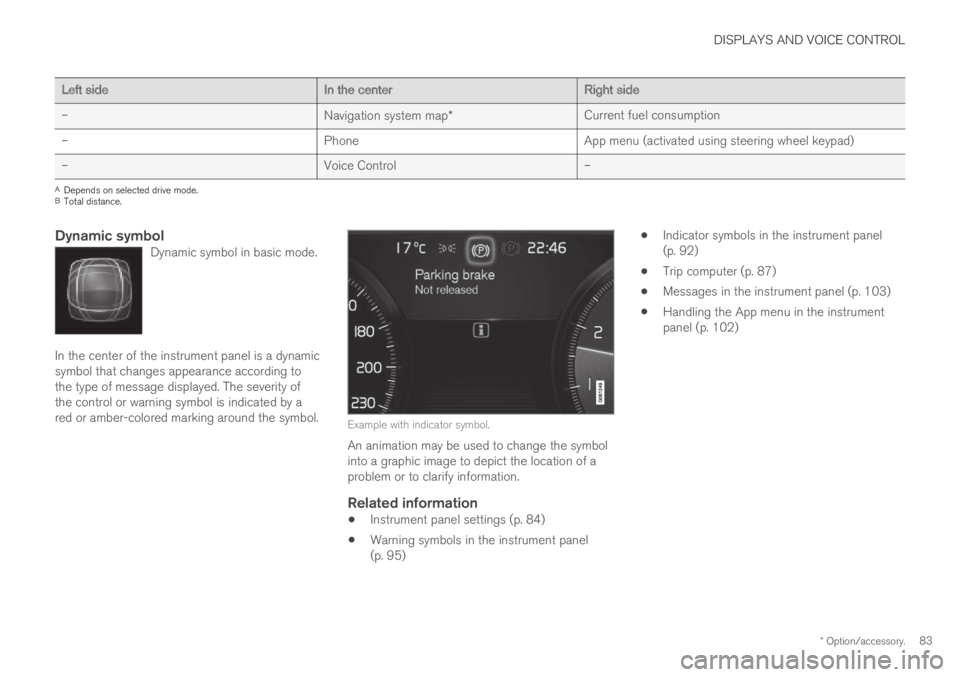
Dynamic symbol
Dynamic symbol in basic mode.
In the center of the instrument panel is a dynamicsymbol that changes appearance according tothe type of message displayed. The severity ofthe control or warning symbol is indicated by ared or amber-colored marking around the symbol.Example with indicator symbol.
An animation may be used to change the symbolinto a graphic image to depict the location of aproblem or to clarify information.
Related information
Instrument panel settings (p. 84)
Warning symbols in the instrument panel(p. 95)
Indicator symbols in the instrument panel(p. 92)
Trip computer (p. 87)
Messages in the instrument panel (p. 103)
Handling the App menu in the instrumentpanel (p. 102)
Page 86 of 645
DISPLAYS AND VOICE CONTROL
* Option/accessory.84
Instrument panel settings
Display settings for the instrument panel can beset via the instrument panel's app menu and viathe center display's Settings menu.
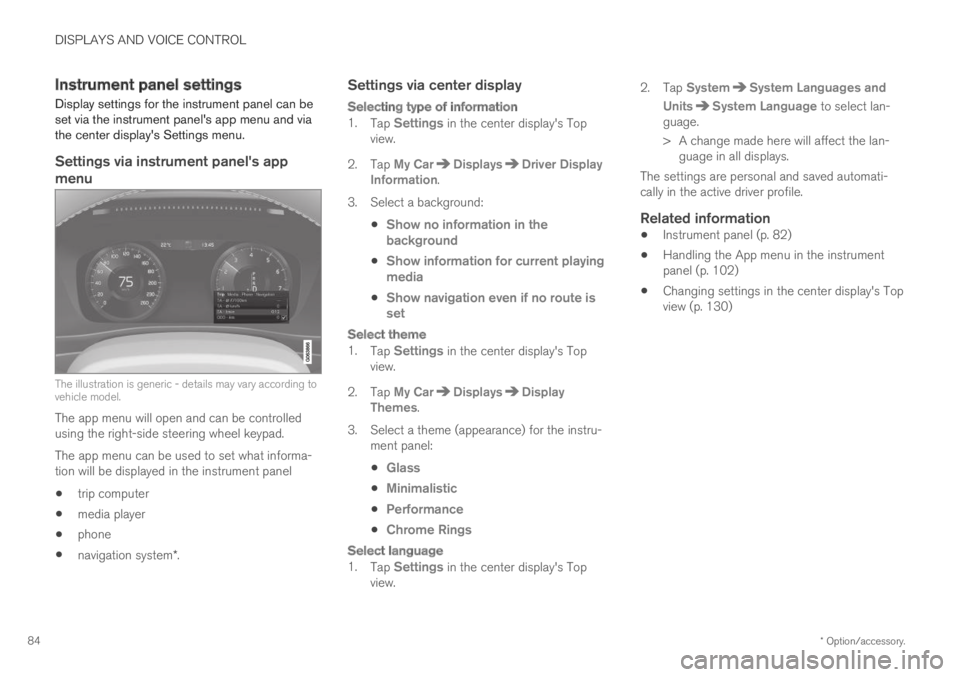
Settings via instrument panel's app
menu
The illustration is generic - details may vary according tovehicle model.
The app menu will open and can be controlledusing the right-side steering wheel keypad.
The app menu can be used to set what informa-tion will be displayed in the instrument panel
trip computer
media player
phone
navigation system*.
Settings via center display
Selecting type of information
1.Tap Settings in the center display's Topview.
2.Tap My CarDisplaysDriver DisplayInformation.
3.Select a background:
Show no information in thebackground
Show information for current playingmedia
Show navigation even if no route isset
Select theme
1.Tap Settings in the center display's Topview.
2.Tap My CarDisplaysDisplayThemes.
3.Select a theme (appearance) for the instru-ment panel:
Glass
Minimalistic
Performance
Chrome Rings
Select language
1.Tap Settings in the center display's Topview.
2.Tap SystemSystem Languages and
UnitsSystem Language to select lan-guage.
> A change made here will affect the lan-guage in all displays.
The settings are personal and saved automati-cally in the active driver profile.
Related information
Instrument panel (p. 82)
Handling the App menu in the instrumentpanel (p. 102)
Changing settings in the center display's Topview (p. 130)
Page 104 of 645
||
DISPLAYS AND VOICE CONTROL
102
AppFunctions
Trip com-puterSelect a trip odometer, changeinstrument panel display set-tings, etc.
Media playerSelect active source for mediaplayer.
Phone Call a contact from the call list.
Navigation Guide to destination, etc.
Related information
Instrument panel (p. 82)
Center display overview (p. 107)
Handling the App menu in the instrumentpanel (p. 102)
Handling the App menu in theinstrument panel
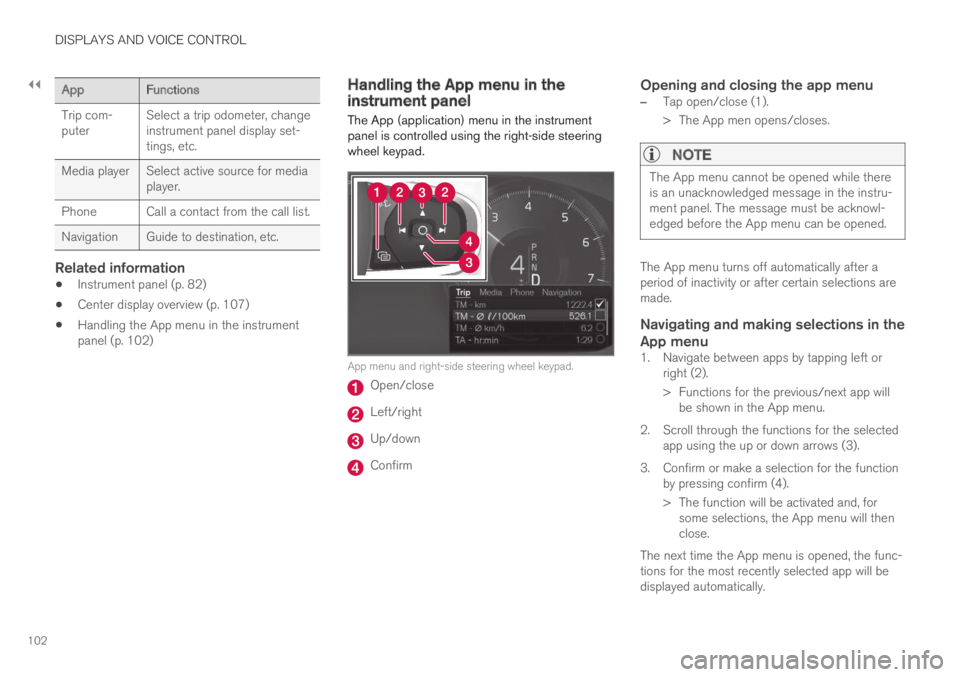
The App (application) menu in the instrumentpanel is controlled using the right-side steeringwheel keypad.
App menu and right-side steering wheel keypad.
Open/close
Left/right
Up/down
Confirm
Opening and closing the app menu
–Tap open/close (1).
>The App men opens/closes.
NOTE
The App menu cannot be opened while thereis an unacknowledged message in the instru-ment panel. The message must be acknowl-edged before the App menu can be opened.
The App menu turns off automatically after aperiod of inactivity or after certain selections aremade.
Navigating and making selections in the
App menu
1. Navigate between apps by tapping left orright (2).
> Functions for the previous/next app willbe shown in the App menu.
2. Scroll through the functions for the selectedapp using the up or down arrows (3).
3. Confirm or make a selection for the functionby pressing confirm (4).
> The function will be activated and, forsome selections, the App menu will thenclose.
The next time the App menu is opened, the func-tions for the most recently selected app will bedisplayed automatically.
Page 107 of 645

DISPLAYS AND VOICE CONTROL
}}
105
Handling messages saved from theinstrument panel
Messages saved from the instrument panel andcenter displays are handled in the center display.
Saved messages can be viewed in the Car Status app.
The messages displayed in theinstrument panel that need tobe saved are stored in the CarStatus app in the center dis-play. The message Vehiclemessage stored in CarStatus app will simultaneouslyappear in the center display.
Reading saved messages
To read a saved message immediately:
–Tap the button to the right of the messageVehicle message stored in Car Statusapp in the center display.
>The saved message will be displayed inthe Car Status app.
To read saved messages at a later time:
1.Open the Car Status app from App view inthe center display.
>The app will open in the bottom tile ofHome view.
2.Select the Messages tab in the app.
>A list of saved messages will be displayed.
3. Tap a message to expand/minimize it.
> More information about the message willappear in the list and the image to the leftof the app will display information aboutthe message in graphic form.
Handling saved messages
In expanded form, some messages have two but-tons available for booking service or reading theOwner's Manual.
Booking service for saved messages:
–With the message in expanded form, tapRequest appoint.Call to make
Appointment4 for assistance booking serv-ice.
>With Request appoint.: TheAppointments tab will open in the appand create a request for a service/repairappointment.
With Call to make Appointment: Thephone app will open and call a servicecenter to make an appointment for serviceor repairs.
Reading the Owner's Manual for saved mes-sages:
–With the message in expanded form, tapOwner's manual to read relevant informa-tion about the message in the Owner's Man-ual.
>The Owner's Manual will open in the cen-ter display and provide information relatedto the message.
Saved messages in the app are automaticallydeleted each time the engine is started.
4Market dependent. Volvo ID and selected workshop also need to be registered
Page 111 of 645
DISPLAYS AND VOICE CONTROL
* Option/accessory.109
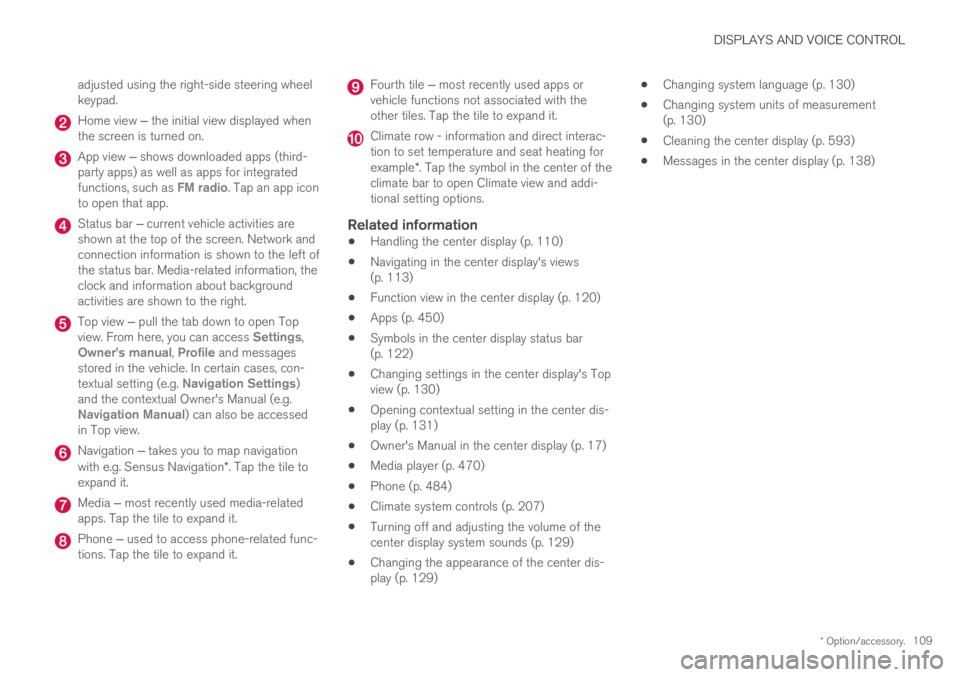
adjusted using the right-side steering wheelkeypad.
Home view ‒ the initial view displayed whenthe screen is turned on.
App view ‒ shows downloaded apps (third-party apps) as well as apps for integratedfunctions, such as FM radio. Tap an app iconto open that app.
Status bar ‒ current vehicle activities areshown at the top of the screen. Network andconnection information is shown to the left ofthe status bar. Media-related information, theclock and information about backgroundactivities are shown to the right.
Top view ‒ pull the tab down to open Topview. From here, you can access Settings,Owner's manual, Profile and messagesstored in the vehicle. In certain cases, con-textual setting (e.g. Navigation Settings)and the contextual Owner's Manual (e.g.Navigation Manual) can also be accessedin Top view.
Navigation ‒ takes you to map navigationwith e.g. Sensus Navigation*. Tap the tile toexpand it.
Media ‒ most recently used media-relatedapps. Tap the tile to expand it.
Phone ‒ used to access phone-related func-tions. Tap the tile to expand it.
Fourth tile ‒ most recently used apps orvehicle functions not associated with theother tiles. Tap the tile to expand it.
Climate row - information and direct interac-tion to set temperature and seat heating forexample*. Tap the symbol in the center of theclimate bar to open Climate view and addi-tional setting options.
Related information
Handling the center display (p. 110)
Navigating in the center display's views(p. 113)
Function view in the center display (p. 120)
Apps (p. 450)
Symbols in the center display status bar(p. 122)
Changing settings in the center display's Topview (p. 130)
Opening contextual setting in the center dis-play (p. 131)
Owner's Manual in the center display (p. 17)
Media player (p. 470)
Phone (p. 484)
Climate system controls (p. 207)
Turning off and adjusting the volume of thecenter display system sounds (p. 129)
Changing the appearance of the center dis-play (p. 129)
Changing system language (p. 130)
Changing system units of measurement(p. 130)
Cleaning the center display (p. 593)
Messages in the center display (p. 138)
Page 115 of 645
DISPLAYS AND VOICE CONTROL
}}
* Option/accessory.113
Activating and deactivating thecenter display
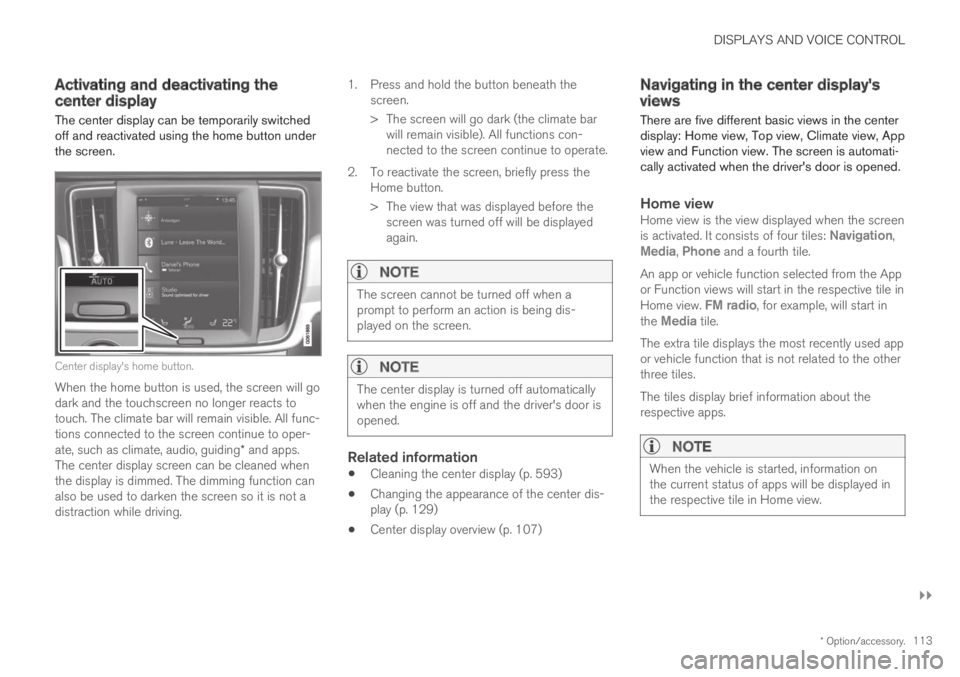
The center display can be temporarily switchedoff and reactivated using the home button underthe screen.
Center display's home button.
When the home button is used, the screen will godark and the touchscreen no longer reacts totouch. The climate bar will remain visible. All func-tions connected to the screen continue to oper-ate, such as climate, audio, guiding* and apps.The center display screen can be cleaned whenthe display is dimmed. The dimming function canalso be used to darken the screen so it is not adistraction while driving.
1.Press and hold the button beneath thescreen.
> The screen will go dark (the climate barwill remain visible). All functions con-nected to the screen continue to operate.
2. To reactivate the screen, briefly press theHome button.
> The view that was displayed before thescreen was turned off will be displayedagain.
NOTE
The screen cannot be turned off when aprompt to perform an action is being dis-played on the screen.
NOTE
The center display is turned off automaticallywhen the engine is off and the driver's door isopened.
Related information
Cleaning the center display (p. 593)
Changing the appearance of the center dis-play (p. 129)
Center display overview (p. 107)
Navigating in the center display'sviews
There are five different basic views in the centerdisplay: Home view, Top view, Climate view, Appview and Function view. The screen is automati-cally activated when the driver's door is opened.
Home view
Home view is the view displayed when the screenis activated. It consists of four tiles: Navigation,Media, Phone and a fourth tile.
An app or vehicle function selected from the Appor Function views will start in the respective tile inHome view. FM radio, for example, will start inthe Media tile.
The extra tile displays the most recently used appor vehicle function that is not related to the otherthree tiles.
The tiles display brief information about therespective apps.
NOTE
When the vehicle is started, information onthe current status of apps will be displayed inthe respective tile in Home view.
Page 119 of 645
DISPLAYS AND VOICE CONTROL
}}
117
Handling tiles in the center display
Home view consists of four tiles: Navigation,Media, Phone and a fourth tile. These viewscan be expanded.