ECO mode VOLVO S90 2017 Owner´s Manual
[x] Cancel search | Manufacturer: VOLVO, Model Year: 2017, Model line: S90, Model: VOLVO S90 2017Pages: 548, PDF Size: 11.42 MB
Page 58 of 548
SAFETY
56
General safety information The vehicle is equipped with a number of safety systems for the driver and passengers.
In the event of an accident, there are a number of sensors in the vehicle that react and triggersafety systems such as Roll Stability Control, air-bags, seat belt pretensioners, etc., depending onthe severity of the collision. There are alsomechanical systems such as the WhiplashProtection System.
Warning symbol in the instrument panelThe warning symbol in the instrumentpanel illuminates when the ignition is in mode II or higher. It will go out after
approx. 6 seconds if no faults are
detected in the airbag system.
WARNING
• If the SRS warning light stays on after the engine has started or if it illuminateswhile you are driving, have the vehicleinspected by a trained and qualified Volvoservice technician as soon as possible.
• Never try to repair any component or partof the SRS yourself. Any interference inthe system could cause malfunction andserious injury. All work on these systemsshould be performed by a trained andqualified Volvo service technician. If the dedicated warning symbol is notfunctioning, the general warning sym-bol will illuminate instead and the samemessage will be displayed in the instru-
ment panel.
Related information
• Safety during pregnancy (p. 58)
• Seat belts (p. 60)
• Airbag system (p. 65)
• Safety mode (p. 73)
• Whiplash protection system (p. 59)
• Child safety (p. 75)
Occupant safety Safety is Volvo's cornerstone.
Volvo's concern for safetyOur concern for safety dates back to 1927 when the first Volvo rolled off the production line.Three-point seat belts (a Volvo invention), safetycages, and energy-absorbing impact zones weredesigned into Volvo vehicles long before it wasfashionable or required by government regulation. We will not compromise our commitment to safety. We continue to seek out new safety fea-tures and to refine those already in our vehicles.You can help. We would appreciate hearing yoursuggestions about improving automobile safety.We also want to know if you ever have a safetyconcern with your vehicle. Call us in the U.S. at:1-800-458-1552 or in Canada at:1-800-663-8255.
Page 76 of 548
||
SAFETY
74
WARNING
•Never attempt to repair the vehicle your- self or to reset the electrical system after the vehicle has displayed
Safety mode.
This could result in injury or improper sys- tem function.
• Restoring the vehicle to normal operatingstatus should only be done by a trainedand qualified Volvo service technician.
• After
Safety mode has been displayed, if
you detect the odor of fuel vapor, or see any signs of fuel leakage, do not attemptto start the vehicle. Leave the vehicleimmediately.
Related information
• Starting or moving a vehicle in safety mode(p. 74)
• General safety information (p. 56)
Starting or moving a vehicle in safety mode
If
Safety mode has been set, it may be possible
to start and move the vehicle, for example, if it is blocking traffic.
Starting the vehicle in safety mode1. Check the vehicle for damage, particularly for fuel leakage or the smell of gasoline fumes. If the damage to the vehicle is minor and there is no fuel leakage/fumes, you mayattempt to start the engine and move thevehicle.
WARNING
If you smell gasoline fumes or detect fuel leakage while Safety mode See Owner's
manual is displayed in the instrument panel,
do not attempt to start the vehicle . Leave
the vehicle immediately.
2. Turn the start knob to STOP and release it.
3. Try to start the vehicle. >
Vehicle start System check, wait will
be displayed in the instrument panel while the vehicle's electrical system attempts toreset to normal mode.
WARNING
If the message Safety mode See Owner's
manual is still displayed, the vehicle should
not be driven and must be towed. Concealed faults may make the vehicle difficult to control.
Moving the vehicle after safety mode has been set
If the message Normal mode The vehicle is
now in normal mode is displayed, the vehicle
may be moved carefully from its present position if, for example, it is blocking traffic. It should, however, not be moved farther than is absolutely necessary.
WARNING
After Safety mode has been set, the vehicle
should not be driven or towed (pulled on the ground by another vehicle). It must be trans-ported on a flatbed tow truck to a trained andqualified Volvo service technician for inspec-tion/repairs.
Related information
• Safety mode (p. 73)
• Towing recommendations (p. 359)
Page 78 of 548
||
SAFETY
* Option/accessory.
76
WARNING
• Do not use child safety seats or child booster cushions/backrests in the frontpassenger's seat. We also recommendthat children under 4 feet 7 inches(140 cm) in height who have outgrownthese devices sit in the rear seat with theseat belt fastened.
• Sedan models: Keep vehicle doors andtrunk locked and keep remote controlsout of a child
Page 101 of 548
INSTRUMENTS AND CONTROLS
}}
* Option/accessory.99
for security purposes. See the article "Program- ming HomeLink."
Related information
•
Programming the HomeLink ®
Wireless Con-
trol System * (p. 99)
Programming the HomeLink ®
Wireless Control System *
NOTE
Some vehicles may require the ignition to be switched on or be in the “accessories” posi-tion for programming and/or operation ofHomeLink. It is also recommended that a newbattery be placed in the hand-held transmitterof the device being programmed to Home-Link for quicker training and accurate trans-mission of the radio-frequency signal. TheHomeLink buttons must be reset first. Whenthis has been completed, Homelink is inlearning mode so that you can perform pro-gramming.
To program HomeLink®
1. Press the HomeLink ®
button to be pro-
grammed. The HomeLink ®
indicator will
begin flashing yellow once a second. You do not need to continue holding the button.
2. Point the hand-held transmitter toward the HomeLink ®
button to be programmed and
hold it approx. 6–12 inches (15–30 cm) away from the HomeLink ®
button. Do not
obstruct the HomeLink ®
indicator light. 3. Press and hold the button on the original
remote control that is to be programmed onHomeLink ®
and observe the HomeLink ®
indicator light. Hold the button until the indi- cator light has changed from flashing yellowonce a second to either flashing green 10times a second or by glowing steadily green. When the HomeLink ®
indicator light flashes
or glows steadily green, the button on the original remote control can be released. Note : for certain remote controls, the
instructions listed under "Gate operators/ Canadian programming" at the end of thisarticle should be used instead of step 3.
Page 103 of 548
INSTRUMENTS AND CONTROLS
* Option/accessory.101
indicator light will glow steadily or flash when the button has been pressed. Activation will nowoccur for the trained device (i.e., garage dooropener, gate operator, security system, entry doorlock, home/office lighting, etc.).
NOTE
If the ignition is switched off, HomeLink will function for 30 minutes after the driver's doorhas been opened.
For convenience, the hand-held transmitter of the device may also be used at any time. In the event that there are still programming diffi- culties or questions, contact HomeLink at:www.HomeLink.com, www.youtube.com/HomeLinkGentex or by phoning the hotline at 1–800–355–3515.
Resetting HomeLink
®
buttonsUse the following procedure to reset (erase pro- gramming) from the three HomeLink ®
buttons
(individual buttons cannot be reset but can be “reprogrammed” as outlined in the following sec-tion): 1. Press and hold HomeLink ®
buttons 1 and 3
for approx. 10 seconds until the indicator light begins to flash green. 2. Release both buttons.
>HomeLink ®
is now in the training (or
learning) mode and can be programmedat any time beginning with “To program HomeLink ®
" above.
Reprogramming a single HomeLink ®
button
To reprogram an individual HomeLink ®
button:
1. Press and hold the desired HomeLink ®
but-
ton. DO NOT release the button.
2. The yellow indicator light will begin to flash after 20 seconds. Without releasing the HomeLink button, proceed with “To program HomeLink ®
" step 1 above.
For questions or comments, contact HomeLink at: www.HomeLink.com, www.youtube.com/HomeLinkGentex or by phoning the hotline at 1–800–355–3515.
FCC (USA) and IC (Canada)This device complies with FCC rules part 15 andIndustry Canada RSS-210. Operation is subjectto the following two conditions: (1) This devicemay not cause harmful interference, and (2) Thisdevice must accept any interference that may bereceived including interference that may causeundesired operation. WARNING: The transmitterhas been tested and complies with FCC and IC rules. Changes or modifications not expresslyapproved by the party are prohibited.
NOTE
The transmitter has been tested and complies with FCC and IC rules. Changes or modifica-tions not expressly approved by the partyresponsible for compliance could void the user
Page 104 of 548
INSTRUMENTS AND CONTROLS
* Option/accessory.
102
Adjusting the power door mirrors
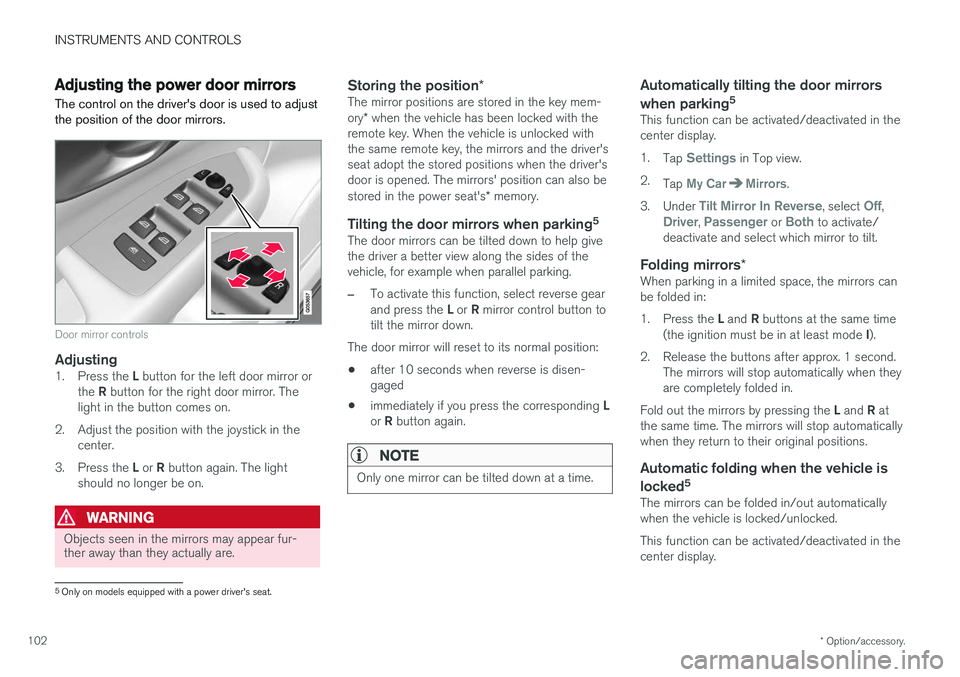
The control on the driver's door is used to adjust the position of the door mirrors.
Door mirror controls
Adjusting1. Press the L button for the left door mirror or
the R button for the right door mirror. The
light in the button comes on.
2. Adjust the position with the joystick in the center.
3. Press the L or R button again. The light
should no longer be on.
WARNING
Objects seen in the mirrors may appear fur- ther away than they actually are.
Storing the position *The mirror positions are stored in the key mem- ory* when the vehicle has been locked with the
remote key. When the vehicle is unlocked with the same remote key, the mirrors and the driver'sseat adopt the stored positions when the driver'sdoor is opened. The mirrors' position can also be stored in the power seat's * memory.
Tilting the door mirrors when parking 5The door mirrors can be tilted down to help give the driver a better view along the sides of thevehicle, for example when parallel parking.
–To activate this function, select reverse gear and press the
L or R mirror control button to
tilt the mirror down.
The door mirror will reset to its normal position:
• after 10 seconds when reverse is disen- gaged
• immediately if you press the corresponding
L
or R button again.
NOTE
Only one mirror can be tilted down at a time.
Automatically tilting the door mirrors when parking 5
This function can be activated/deactivated in the center display. 1.
Tap
Settings in Top view.
2. Tap
My CarMirrors.
3. Under
Tilt Mirror In Reverse, select Off,Driver, Passenger or Both to activate/
deactivate and select which mirror to tilt.
Folding mirrors *When parking in a limited space, the mirrors can be folded in: 1.
Press the L and R buttons at the same time
(the ignition must be in at least mode I).
2. Release the buttons after approx. 1 second. The mirrors will stop automatically when they are completely folded in.
Fold out the mirrors by pressing the L and R at
the same time. The mirrors will stop automaticallywhen they return to their original positions.
Automatic folding when the vehicle is
locked 5
The mirrors can be folded in/out automaticallywhen the vehicle is locked/unlocked. This function can be activated/deactivated in the center display.
5
Only on models equipped with a power driver's seat.
Page 108 of 548
||
INSTRUMENTS AND CONTROLS
* Option/accessory.
106
Sun shadeThe moonroof has a sun shade that can be opened and closed manually. The sun shadeopens automatically along with the moonroof. Toclose it, grasp its handle and pull forward.
Pinch protection (auto-stop)The moonroof has a pinch protection feature thatis triggered if the moonroof is blocked in any waywhen it is being closed. In this case, the moon-roof will stop and reverse automatically approxi-mately 2 in. (5 cm) from the point at which it wasblocked (or will open fully to the tilt position). The pinch protection feature also functions when the moonroof is being opened.
WARNING
If the pinch protection (auto-stop) feature has been triggered, the moonroof can still be operated once more within 10 seconds with-
out pinch protection . Pinch protection can
be overridden if the closing procedure has been interrupted (e.g., due to ice around themoonroof) by pressing and holding the con-trol forward/downward until the moonroof isclosed.
Related information
• Moonroof
* (p. 103)
• Locking/unlocking from outside the vehicle (p. 223)
• Ignition modes (p. 370)
Power windows
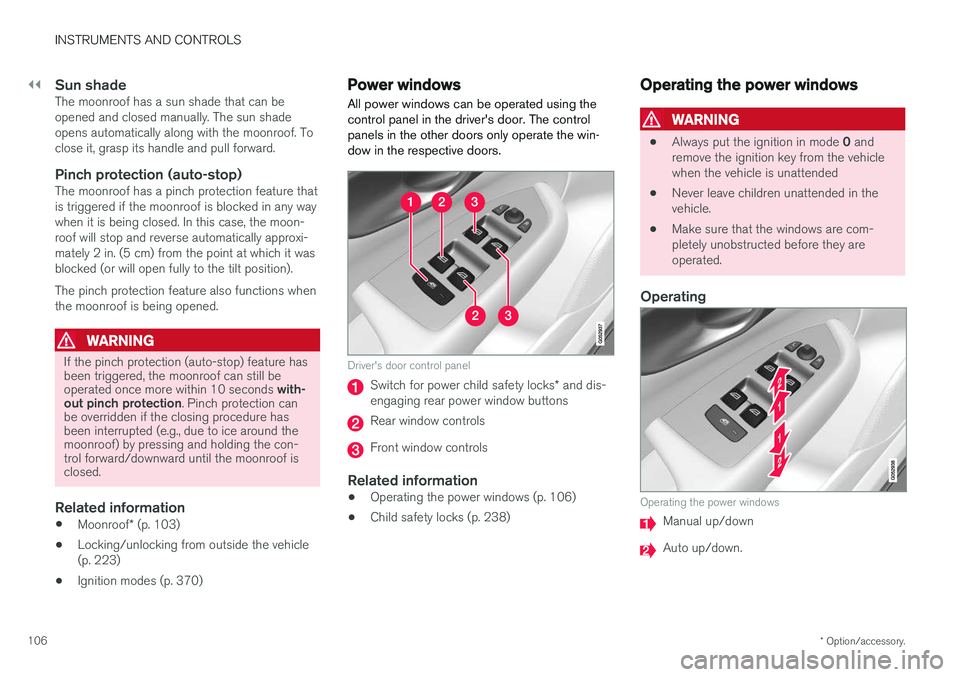
All power windows can be operated using the control panel in the driver's door. The controlpanels in the other doors only operate the win-dow in the respective doors.
Driver's door control panel
Switch for power child safety locks * and dis-
engaging rear power window buttons
Rear window controls
Front window controls
Related information
• Operating the power windows (p. 106)
• Child safety locks (p. 238)
Operating the power windows
WARNING
•
Always put the ignition in mode
0 and
remove the ignition key from the vehicle when the vehicle is unattended
• Never leave children unattended in thevehicle.
• Make sure that the windows are com-pletely unobstructed before they areoperated.
Operating
Operating the power windows
Manual up/down
Auto up/down.
Page 109 of 548

INSTRUMENTS AND CONTROLS
}}
107
For the power windows to function, the ignition must be in at least mode
I. When the vehicle has
been running, the power windows can be oper- ated for several minutes after the ignition hasbeen switched off, or until a door has beenopened.
NOTE
• Movement of the windows will stop if they are obstructed in any way. If this happenstwice in succession, the automatic func-tion will not work for several minutes andthe window can be closed by holding thebutton up.
• To reduce buffeting wind noise if the rearwindows are opened, also open the frontwindows slightly.
Manual up/down
–Move one of the controls up/down slightly.
> The power windows move up/down as
long as the control is held in position.
Auto up/down
–Move one of the controls up/down as far as possible and release it.
> The window will open or close completely.
ResettingIf the battery has been disconnected, the auto open function must be reset so that it will workproperly
1. Gently raise the front section of the button to close the window and hold it for one second.
2. Release the button briefly.
3. Raise the front section of the button again for one second.
Related information
• Child safety locks (p. 238)
Rearview mirror The interior rearview mirror has an auto-dim function that helps reduce glare from followingvehicle's headlights.
Auto-dim functionThe auto-dim function is controlled by two sen- sors: one pointing forward (located on the for-ward-facing side of the mirror, which monitors theamount of ambient light) and one pointing rear-ward (located on the side of the mirror facing thedriver at the upper edge, which senses thestrength of following vehicles' headlights), andwork together to help eliminate glare.
NOTE
Obstructing the sensors with e.g., parking stickers, transponders, etc., or by placingobjects on the seats or parcel shelf in such away that light is prevented from reaching thesensors will reduce the auto-dim function inthe interior rearview mirror and optional auto-dim function in the door mirrors.
The auto-dim function is always active while the vehicle is being driven except when the reversegear has been selected. The level of sensitivityfor this function can be set to three levels, whichaffect the rearview mirror and door mirrors.
Page 112 of 548
||
INSTRUMENTS AND CONTROLS
* Option/accessory.
110
Types of settings
Type of setting Description
Trigger function Starts an app or a separate viewfor more advanced settings. Tapthe text to e.g., connect aBluetooth device.
Radiobutton Select one of the possible set-tings by tapping the desired radiobutton to e.g., change the systemlanguage.
Multi-selectionbutton Select a level for a particular set-ting by pressing the desired partof the button e.g., to set thedesired level for City Safety.
Checkbox Tap to activate/deactivate a func-tion e.g., to select automatic startfor steering wheel heating.
Slider Select a level for a function by pressing and dragging the slidercontrol e.g., to set a volume level.
Informa-tion dis-play This is not an actual setting butdisplays information such as thevehicle's VIN number.
Related information
•
Center display overview (p. 28)
• Navigating in the center display's views (p. 38)
• Using the center display (p. 44)
• Changing system settings in Settings view(p. 112)
• Categories in Settings view (p. 110)
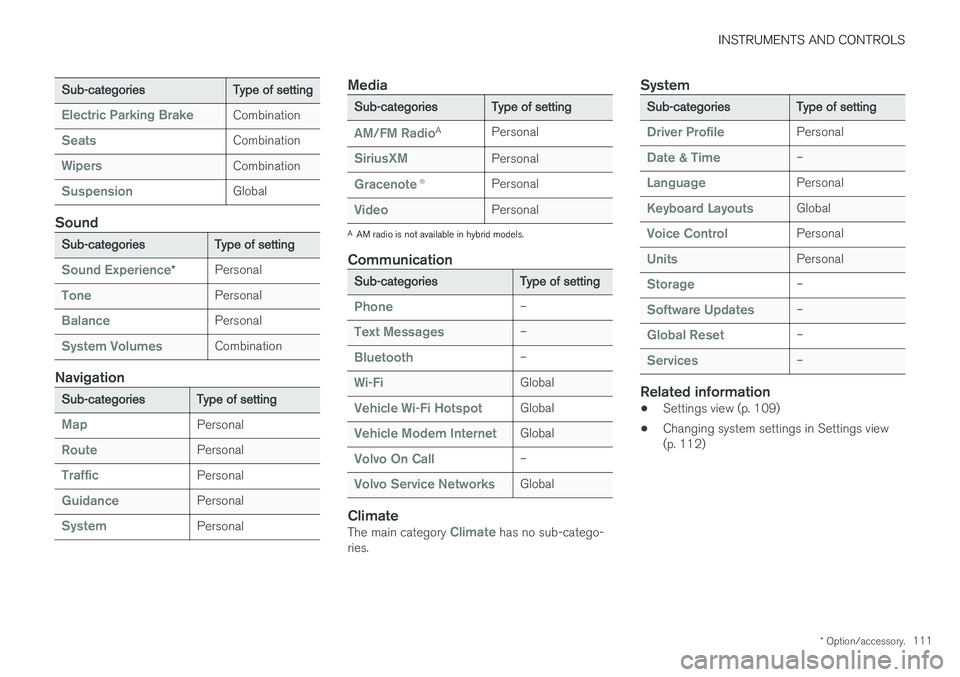
Categories in Settings view
Settings view consists of a number of main cate- gories and sub-categories that contain settingsand information for many of the vehicle's fea-tures and functions.
The main categories in Settings view are: My
Car, Sound, Navigation, Media,Communication, Climate and System.
Each main category, in turn, contains several sub- categories with possible settings. The tableshows the first level of sub-categories. The possi-ble settings for a function or area are describedin greater detail in their respective articles in theowner's manual. For system settings not descri-bed in the respective articles, see "Changing sys-tem settings in Settings view."
My Car
Sub-categories Type of setting
DisplaysPersonal
IntelliSafeCombination
Park AssistGlobal
Drive Mode/Individual
Drive Mode* Combination
LightsCombination
MirrorsPersonal
LockingCombination
Page 113 of 548
INSTRUMENTS AND CONTROLS
* Option/accessory.111
Sub-categories Type of setting
Electric Parking BrakeCombination
SeatsCombination
WipersCombination
SuspensionGlobal
Sound
Sub-categoriesType of setting
Sound Experience*Personal
TonePersonal
BalancePersonal
System VolumesCombination
Navigation
Sub-categories
Type of setting
MapPersonal
RoutePersonal
TrafficPersonal
GuidancePersonal
SystemPersonal
Media
Sub-categories Type of setting
AM/FM RadioA
Personal
SiriusXMPersonal
Gracenote ®Personal
VideoPersonal
A
AM radio is not available in hybrid models.
Communication
Sub-categories Type of setting
Phone–
Text Messages–
Bluetooth–
Wi-FiGlobal
Vehicle Wi-Fi HotspotGlobal
Vehicle Modem InternetGlobal
Volvo On Call–
Volvo Service NetworksGlobal
ClimateThe main category Climate has no sub-catego-
ries.
System
Sub-categories Type of setting
Driver ProfilePersonal
Date & Time–
LanguagePersonal
Keyboard LayoutsGlobal
Voice ControlPersonal
UnitsPersonal
Storage–
Software Updates–
Global Reset–
Services–
Related information
•Settings view (p. 109)
• Changing system settings in Settings view (p. 112)