park VOLVO S90 2017 Owner´s Manual
[x] Cancel search | Manufacturer: VOLVO, Model Year: 2017, Model line: S90, Model: VOLVO S90 2017Pages: 548, PDF Size: 11.42 MB
Page 97 of 548
INSTRUMENTS AND CONTROLS
}}
* Option/accessory.95
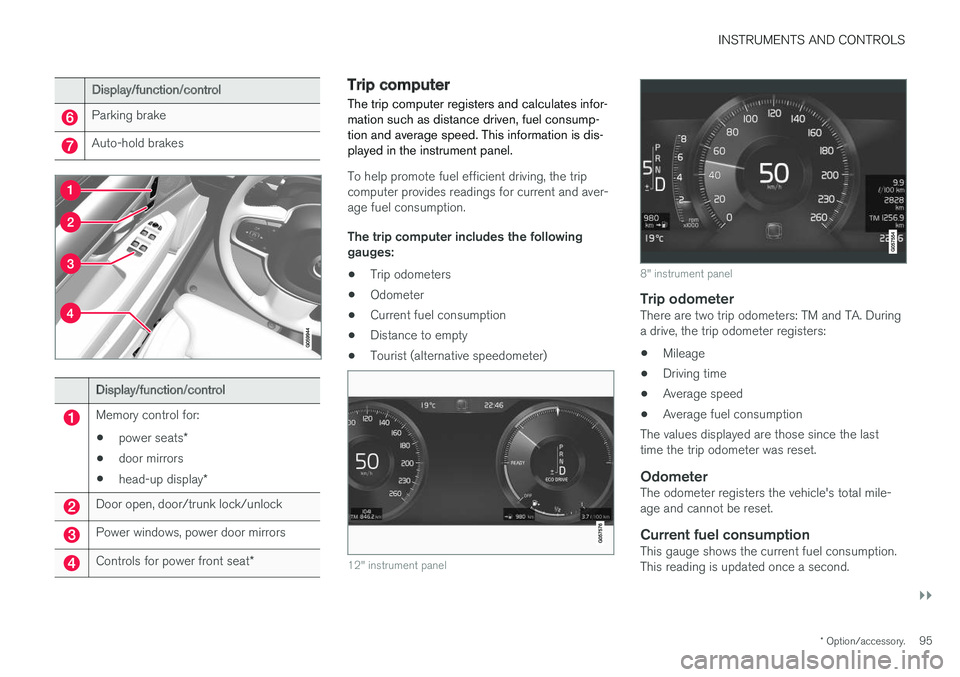
Display/function/control
Parking brake
Auto-hold brakes
Display/function/control
Memory control for:
• power seats
*
• door mirrors
• head-up display
*
Door open, door/trunk lock/unlock
Power windows, power door mirrors
Controls for power front seat *
Trip computer The trip computer registers and calculates infor- mation such as distance driven, fuel consump-tion and average speed. This information is dis-played in the instrument panel.
To help promote fuel efficient driving, the trip computer provides readings for current and aver-age fuel consumption. The trip computer includes the following gauges:
• Trip odometers
• Odometer
• Current fuel consumption
• Distance to empty
• Tourist (alternative speedometer)
12" instrument panel
8" instrument panel
Trip odometerThere are two trip odometers: TM and TA. During a drive, the trip odometer registers:
• Mileage
• Driving time
• Average speed
• Average fuel consumption
The values displayed are those since the lasttime the trip odometer was reset.
OdometerThe odometer registers the vehicle's total mile-age and cannot be reset.
Current fuel consumptionThis gauge shows the current fuel consumption.This reading is updated once a second.
Page 99 of 548
INSTRUMENTS AND CONTROLS
}}
* Option/accessory.97
Resetting a trip odometer
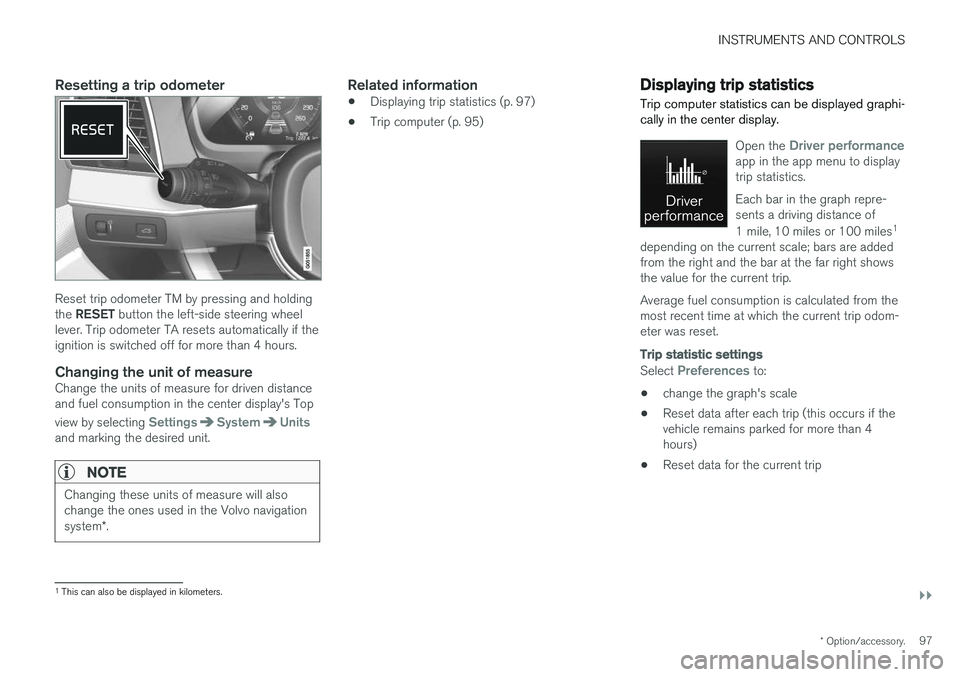
Reset trip odometer TM by pressing and holding the RESET button the left-side steering wheel
lever. Trip odometer TA resets automatically if the ignition is switched off for more than 4 hours.
Changing the unit of measureChange the units of measure for driven distanceand fuel consumption in the center display's Top view by selecting
SettingsSystemUnitsand marking the desired unit.
NOTE
Changing these units of measure will also change the ones used in the Volvo navigation system *.
Related information
• Displaying trip statistics (p. 97)
• Trip computer (p. 95)
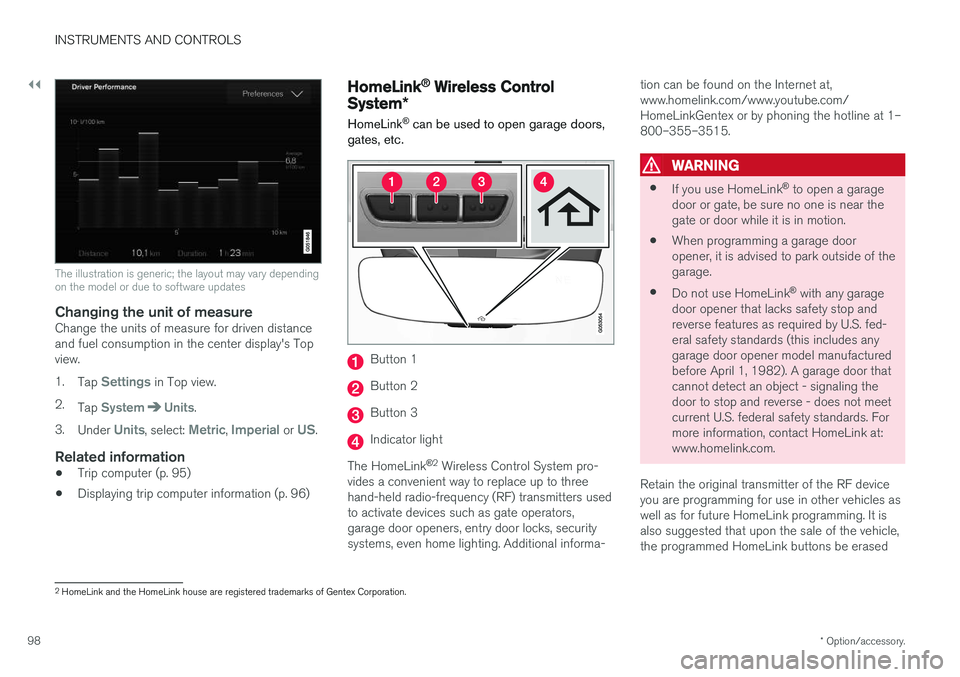
Displaying trip statistics Trip computer statistics can be displayed graphi- cally in the center display.
Open the Driver performanceapp in the app menu to display trip statistics. Each bar in the graph repre- sents a driving distance of 1 mile, 10 miles or 100 miles 1
depending on the current scale; bars are added from the right and the bar at the far right showsthe value for the current trip. Average fuel consumption is calculated from the most recent time at which the current trip odom-eter was reset.
Trip statistic settings
Select Preferences to:
• change the graph's scale
• Reset data after each trip (this occurs if the vehicle remains parked for more than 4hours)
• Reset data for the current trip
1
This can also be displayed in kilometers.
Page 100 of 548
||
INSTRUMENTS AND CONTROLS
* Option/accessory.
98
The illustration is generic; the layout may vary depending on the model or due to software updates
Changing the unit of measureChange the units of measure for driven distance and fuel consumption in the center display's Topview. 1.
Tap
Settings in Top view.
2. Tap
SystemUnits.
3. Under
Units, select: Metric, Imperial or US.
Related information
• Trip computer (p. 95)
• Displaying trip computer information (p. 96)
HomeLink ®
Wireless Control
System *
HomeLink ®
can be used to open garage doors,
gates, etc.
Button 1
Button 2
Button 3
Indicator light
The HomeLink ®
2
Wireless Control System pro-
vides a convenient way to replace up to three hand-held radio-frequency (RF) transmitters usedto activate devices such as gate operators,garage door openers, entry door locks, securitysystems, even home lighting. Additional informa- tion can be found on the Internet at,www.homelink.com/www.youtube.com/HomeLinkGentex or by phoning the hotline at 1–800–355–3515.
WARNING
•
If you use HomeLink ®
to open a garage
door or gate, be sure no one is near the gate or door while it is in motion.
• When programming a garage dooropener, it is advised to park outside of thegarage.
• Do not use HomeLink ®
with any garage
door opener that lacks safety stop andreverse features as required by U.S. fed-eral safety standards (this includes anygarage door opener model manufacturedbefore April 1, 1982). A garage door thatcannot detect an object - signaling thedoor to stop and reverse - does not meetcurrent U.S. federal safety standards. Formore information, contact HomeLink at:www.homelink.com.
Retain the original transmitter of the RF deviceyou are programming for use in other vehicles aswell as for future HomeLink programming. It isalso suggested that upon the sale of the vehicle,the programmed HomeLink buttons be erased
2 HomeLink and the HomeLink house are registered trademarks of Gentex Corporation.
Page 104 of 548
INSTRUMENTS AND CONTROLS
* Option/accessory.
102
Adjusting the power door mirrors
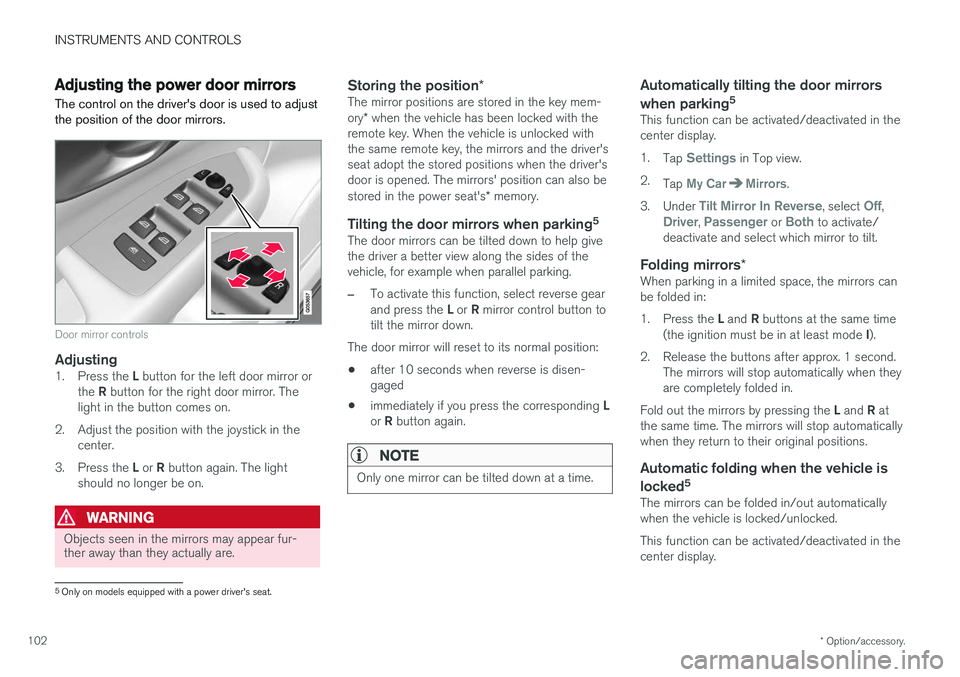
The control on the driver's door is used to adjust the position of the door mirrors.
Door mirror controls
Adjusting1. Press the L button for the left door mirror or
the R button for the right door mirror. The
light in the button comes on.
2. Adjust the position with the joystick in the center.
3. Press the L or R button again. The light
should no longer be on.
WARNING
Objects seen in the mirrors may appear fur- ther away than they actually are.
Storing the position *The mirror positions are stored in the key mem- ory* when the vehicle has been locked with the
remote key. When the vehicle is unlocked with the same remote key, the mirrors and the driver'sseat adopt the stored positions when the driver'sdoor is opened. The mirrors' position can also be stored in the power seat's * memory.
Tilting the door mirrors when parking 5The door mirrors can be tilted down to help give the driver a better view along the sides of thevehicle, for example when parallel parking.
–To activate this function, select reverse gear and press the
L or R mirror control button to
tilt the mirror down.
The door mirror will reset to its normal position:
• after 10 seconds when reverse is disen- gaged
• immediately if you press the corresponding
L
or R button again.
NOTE
Only one mirror can be tilted down at a time.
Automatically tilting the door mirrors when parking 5
This function can be activated/deactivated in the center display. 1.
Tap
Settings in Top view.
2. Tap
My CarMirrors.
3. Under
Tilt Mirror In Reverse, select Off,Driver, Passenger or Both to activate/
deactivate and select which mirror to tilt.
Folding mirrors *When parking in a limited space, the mirrors can be folded in: 1.
Press the L and R buttons at the same time
(the ignition must be in at least mode I).
2. Release the buttons after approx. 1 second. The mirrors will stop automatically when they are completely folded in.
Fold out the mirrors by pressing the L and R at
the same time. The mirrors will stop automaticallywhen they return to their original positions.
Automatic folding when the vehicle is
locked 5
The mirrors can be folded in/out automaticallywhen the vehicle is locked/unlocked. This function can be activated/deactivated in the center display.
5
Only on models equipped with a power driver's seat.
Page 105 of 548
INSTRUMENTS AND CONTROLS
}}
* Option/accessory.103
1.
Tap
Settings in Top view.
2. Tap
My CarMirrors.
3. Select
Fold Mirrors When Locking to acti-
vate/deactivate.
Resetting the mirrors' positionA mirror that has been moved manually (e.g., bumped into in a parking lot, etc.) has to bereturned to its normal position electrically beforeautomatic folding will function correctly. 1. Fold in the mirrors with the L and R buttons.
2. Fold out the mirrors with the L and R buttons.
The mirrors have now been reset to their original positions.
Auto-dim *Settings can be made for the auto-dim functionin the rearview and door mirrors. The auto-dim function is always active while the vehicle is being driven except when the reversegear has been selected. The level of sensitivityfor this function can be set to three levels, whichaffect the rearview mirror and door mirrors.
NOTE
When the level of sensitivity is changed, this change will not be noticeable immediately butwill take effect after a short period of time.
The level of sensitivity is set from the center dis- play: 1.
Tap
Settings in Top view.
2. Tap
My CarMirrors.
3. Under
Auto Dim Mirrors, select Normal,Dark or Light.
Related information
• Using the power seat memory function
*
(p. 164)
• Rearview mirror (p. 107)
Moonroof
*
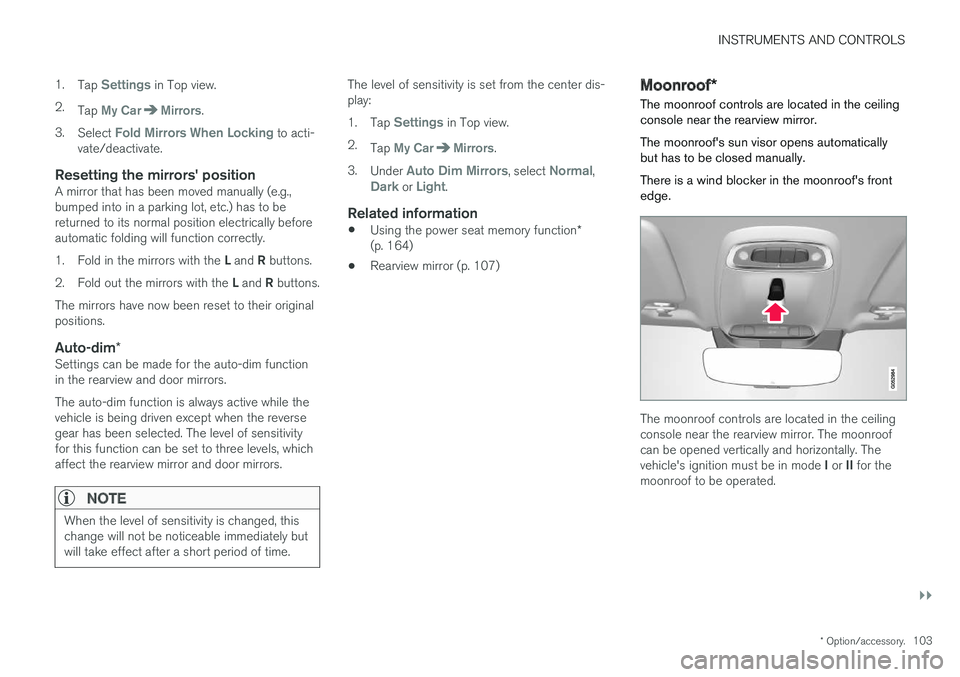
The moonroof controls are located in the ceiling console near the rearview mirror. The moonroof's sun visor opens automatically but has to be closed manually. There is a wind blocker in the moonroof's front edge.
The moonroof controls are located in the ceiling console near the rearview mirror. The moonroofcan be opened vertically and horizontally. The vehicle's ignition must be in mode I or II for the
moonroof to be operated.
Page 109 of 548

INSTRUMENTS AND CONTROLS
}}
107
For the power windows to function, the ignition must be in at least mode
I. When the vehicle has
been running, the power windows can be oper- ated for several minutes after the ignition hasbeen switched off, or until a door has beenopened.
NOTE
• Movement of the windows will stop if they are obstructed in any way. If this happenstwice in succession, the automatic func-tion will not work for several minutes andthe window can be closed by holding thebutton up.
• To reduce buffeting wind noise if the rearwindows are opened, also open the frontwindows slightly.
Manual up/down
–Move one of the controls up/down slightly.
> The power windows move up/down as
long as the control is held in position.
Auto up/down
–Move one of the controls up/down as far as possible and release it.
> The window will open or close completely.
ResettingIf the battery has been disconnected, the auto open function must be reset so that it will workproperly
1. Gently raise the front section of the button to close the window and hold it for one second.
2. Release the button briefly.
3. Raise the front section of the button again for one second.
Related information
• Child safety locks (p. 238)
Rearview mirror The interior rearview mirror has an auto-dim function that helps reduce glare from followingvehicle's headlights.
Auto-dim functionThe auto-dim function is controlled by two sen- sors: one pointing forward (located on the for-ward-facing side of the mirror, which monitors theamount of ambient light) and one pointing rear-ward (located on the side of the mirror facing thedriver at the upper edge, which senses thestrength of following vehicles' headlights), andwork together to help eliminate glare.
NOTE
Obstructing the sensors with e.g., parking stickers, transponders, etc., or by placingobjects on the seats or parcel shelf in such away that light is prevented from reaching thesensors will reduce the auto-dim function inthe interior rearview mirror and optional auto-dim function in the door mirrors.
The auto-dim function is always active while the vehicle is being driven except when the reversegear has been selected. The level of sensitivityfor this function can be set to three levels, whichaffect the rearview mirror and door mirrors.
Page 112 of 548
||
INSTRUMENTS AND CONTROLS
* Option/accessory.
110
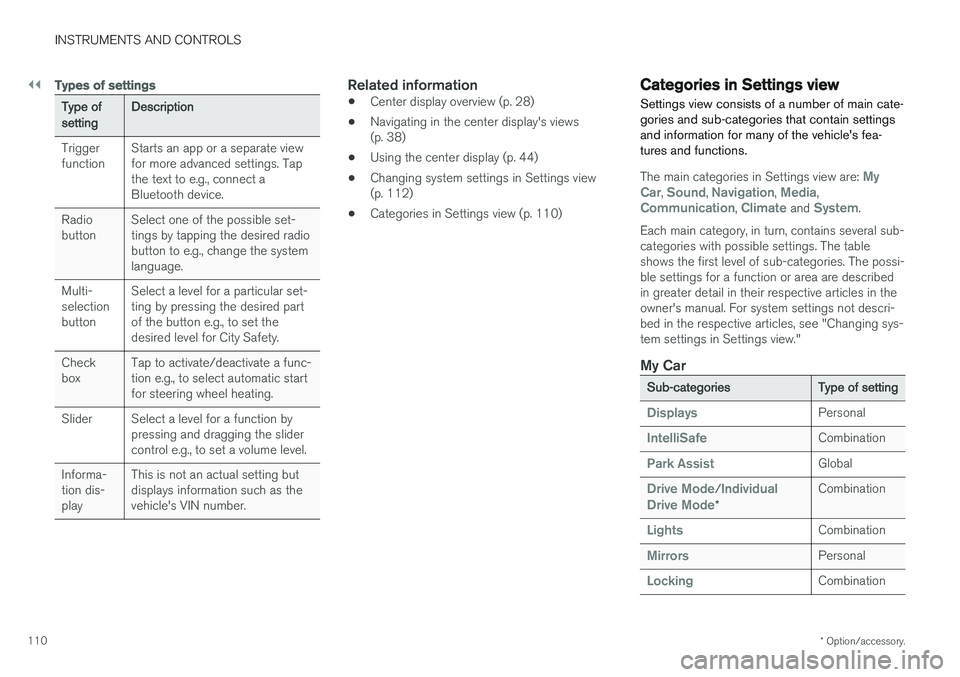
Types of settings
Type of setting Description
Trigger function Starts an app or a separate viewfor more advanced settings. Tapthe text to e.g., connect aBluetooth device.
Radiobutton Select one of the possible set-tings by tapping the desired radiobutton to e.g., change the systemlanguage.
Multi-selectionbutton Select a level for a particular set-ting by pressing the desired partof the button e.g., to set thedesired level for City Safety.
Checkbox Tap to activate/deactivate a func-tion e.g., to select automatic startfor steering wheel heating.
Slider Select a level for a function by pressing and dragging the slidercontrol e.g., to set a volume level.
Informa-tion dis-play This is not an actual setting butdisplays information such as thevehicle's VIN number.
Related information
•
Center display overview (p. 28)
• Navigating in the center display's views (p. 38)
• Using the center display (p. 44)
• Changing system settings in Settings view(p. 112)
• Categories in Settings view (p. 110)
Categories in Settings view
Settings view consists of a number of main cate- gories and sub-categories that contain settingsand information for many of the vehicle's fea-tures and functions.
The main categories in Settings view are: My
Car, Sound, Navigation, Media,Communication, Climate and System.
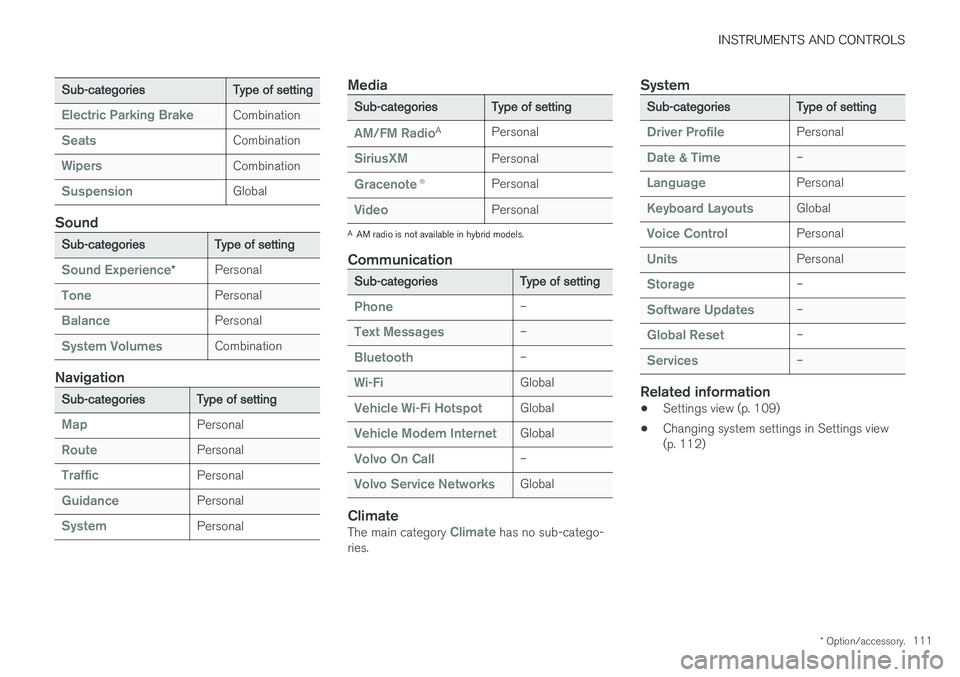
Each main category, in turn, contains several sub- categories with possible settings. The tableshows the first level of sub-categories. The possi-ble settings for a function or area are describedin greater detail in their respective articles in theowner's manual. For system settings not descri-bed in the respective articles, see "Changing sys-tem settings in Settings view."
My Car
Sub-categories Type of setting
DisplaysPersonal
IntelliSafeCombination
Park AssistGlobal
Drive Mode/Individual
Drive Mode* Combination
LightsCombination
MirrorsPersonal
LockingCombination
Page 113 of 548
INSTRUMENTS AND CONTROLS
* Option/accessory.111
Sub-categories Type of setting
Electric Parking BrakeCombination
SeatsCombination
WipersCombination
SuspensionGlobal
Sound
Sub-categoriesType of setting
Sound Experience*Personal
TonePersonal
BalancePersonal
System VolumesCombination
Navigation
Sub-categories
Type of setting
MapPersonal
RoutePersonal
TrafficPersonal
GuidancePersonal
SystemPersonal
Media
Sub-categories Type of setting
AM/FM RadioA
Personal
SiriusXMPersonal
Gracenote ®Personal
VideoPersonal
A
AM radio is not available in hybrid models.
Communication
Sub-categories Type of setting
Phone–
Text Messages–
Bluetooth–
Wi-FiGlobal
Vehicle Wi-Fi HotspotGlobal
Vehicle Modem InternetGlobal
Volvo On Call–
Volvo Service NetworksGlobal
ClimateThe main category Climate has no sub-catego-
ries.
System
Sub-categories Type of setting
Driver ProfilePersonal
Date & Time–
LanguagePersonal
Keyboard LayoutsGlobal
Voice ControlPersonal
UnitsPersonal
Storage–
Software Updates–
Global Reset–
Services–
Related information
•Settings view (p. 109)
• Changing system settings in Settings view (p. 112)
Page 130 of 548

||
INSTRUMENTS AND CONTROLS
128
SymbolExplanation
A
BABS brake system This symbol indicates a possible fault in the ABS braking function.The vehicle's normal brakes willstill function but without ABSbrake modulation.
A
B
Parking brake/Auto-brake This function keeps the vehicle at a standstill after it has stopped.The symbol is on when the func-tion is activated and the brakes orparking brake are being used.
Tire pressure system The symbol illuminates to indicate low tire pressure or a fault in thetire pressure system.
Malfunction indicator light (check engine light) This symbol will illuminate if there is a fault in the emissions controlsystem. If this happens, pleasehave your vehicle checked by atrained and qualified Volvo servicetechnician as soon as possible.
Symbol
Explanation
Left/right turn signals Both turn signal indicators will flash when the hazard warningflashers are being used.
Forward lights
Active Bending Lights (ABL) This symbol will illuminate if there is a fault in the ABL system or ifany other fault is detected in theheadlight system.
Automatic/active high beams on The symbol will be blue when the automatic high beams are on.
Automatic/active high beams offThe symbol will be white when
the automatic high beams are off.
High beam indicator The symbol will illuminate when the high beams are on or whenhigh beam flash is being used.
Symbol Explanation
Automatic/active high beams on The symbol will be blue when the automatic high beams are on. Theparking lights will also be on.
Automatic/active high beams off The symbol will be white when the automatic high beams are off. Theparking lights will be on.
High beams on The high beams and parking lights will be on.
Front fog lights The symbol illuminates when the front fog lights are on.
Not in use
Rain sensor The symbol illuminates when the rain sensor is on.
Page 137 of 548
INSTRUMENTS AND CONTROLS
}}
135
CLAIM, DAMAGES OR OTHER LIABILITY, WHETHER IN AN ACTION OF CONTRACT,TORT OR OTHERWISE, ARISING FROM, OUTOF OR IN CONNECTION WITH THE SOFTWAREOR THE USE OR OTHER DEALINGS IN THESOFTWARE. Except as contained in this notice, the name of Silicon Graphics, Inc. shall not be used inadvertising or otherwise to promote the sale, useor other dealings in this Software without priorwritten authorization from Silicon Graphics, Inc.
Related information
•
Instrument panel (p. 124)
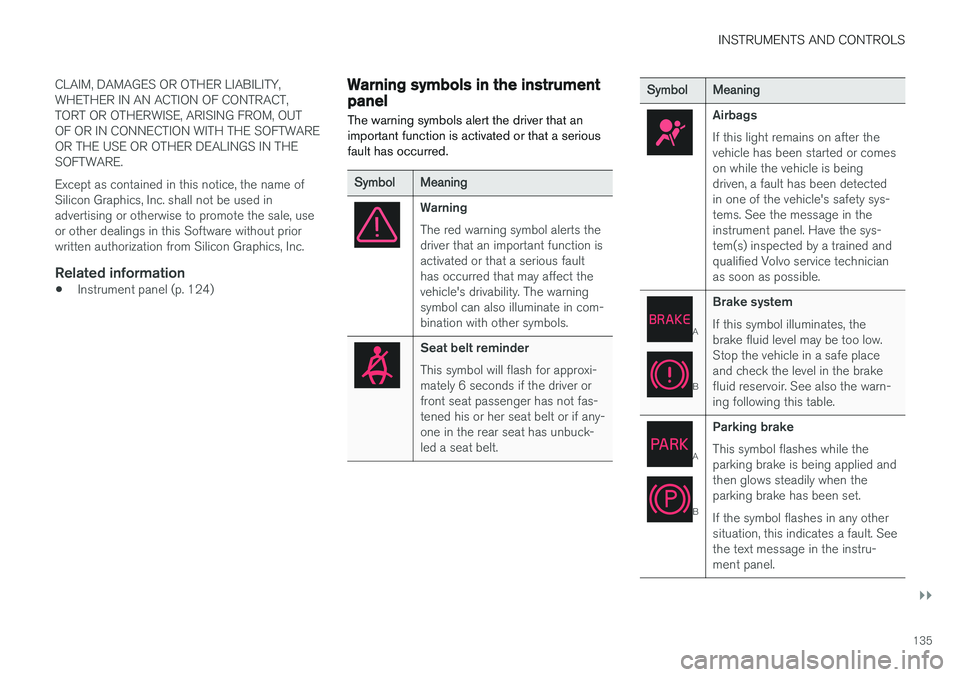
Warning symbols in the instrument panel
The warning symbols alert the driver that an important function is activated or that a seriousfault has occurred.
Symbol Meaning
Warning The red warning symbol alerts the driver that an important function isactivated or that a serious faulthas occurred that may affect thevehicle's drivability. The warningsymbol can also illuminate in com-bination with other symbols.
Seat belt reminder This symbol will flash for approxi- mately 6 seconds if the driver orfront seat passenger has not fas-tened his or her seat belt or if any-one in the rear seat has unbuck-led a seat belt.
Symbol Meaning
Airbags If this light remains on after the vehicle has been started or comeson while the vehicle is beingdriven, a fault has been detectedin one of the vehicle's safety sys-tems. See the message in theinstrument panel. Have the sys-tem(s) inspected by a trained andqualified Volvo service technicianas soon as possible.
A
BBrake system If this symbol illuminates, the brake fluid level may be too low.Stop the vehicle in a safe placeand check the level in the brakefluid reservoir. See also the warn-ing following this table.
A
BParking brake This symbol flashes while the parking brake is being applied andthen glows steadily when theparking brake has been set. If the symbol flashes in any other situation, this indicates a fault. Seethe text message in the instru-ment panel.