park VOLVO S90 2017 Owner´s Manual
[x] Cancel search | Manufacturer: VOLVO, Model Year: 2017, Model line: S90, Model: VOLVO S90 2017Pages: 548, PDF Size: 11.42 MB
Page 5 of 548
3
Top tether anchors86
Integrated booster cushion *
87
Raising the integrated booster cushion *
89
Stowing the integrated booster cushion *
91
INSTRUMENTS AND CONTROLS
Instruments and controls
94
Trip computer 95
Displaying trip computer information 96
Displaying trip statistics 97
HomeLink ®
Wireless Control System *98
Programming the HomeLink ®
Wire-
less Control System * 99
Adjusting the power door mirrors 102
Moonroof *
103
Operating the moonroof *
104
Power windows 106
Operating the power windows 106
Rearview mirror 107
Using sun curtains *
108
Settings view 109
Categories in Settings view 110
Changing system settings in Set- tings view 112
Changing settings in apps 113
Resetting the settings view 113
Resetting user data when the vehiclechanges owners 114
Ambient temperature sensor 114
Clock 115
Head-up display (HUD) *
116
Voice control
119
Using voice commands 119
Voice control for cell phones 120
Voice control for radio and media 121
Climate system voice commands 122
Navigation system voice commands 123
Voice control settings 124
Instrument panel 124
Instrument panel settings 126
Indicator symbols in the instrument panel 127
Instrument panel licenses 130
Warning symbols in the instrument panel 135
Compass 136
Calibrating the compass 137
Lighting panel and controls 138
Parking lights 140
Daytime Running Lights (DRL) 140
Low beam headlights 141
High and low beam headlights 142
Active Bending Lights *
143
Front fog lights *
144
Rear fog lights (certain models only) 145
Brake lights 146
Hazard warning flashers 146
Page 9 of 548
7
Setting a Pilot Assist time interval281
Deactivating/resuming Pilot Assist 282
Changing target vehicles and auto- matic braking with Pilot Assist 284
Pilot Assist limitations 285
Pilot Assist symbols and messages 287
Driver support system radar sensor 288
Radar sensor limitations 289
Radar sensor - type approval 292
Driver support system camera 292
Camera limitations 293
City Safety ™
296
City Safety warning level settings 298
Detecting obstructions with City Safety 299
City Safety in crossing traffic 301
City Safety when evasive action isnot possible 302
City Safety ™ troubleshooting
302
City Safety limitations 304
City Safety symbols and messages 307
Rear Collision Warning (RCW) 308
Blind Spot Information (BLIS) *
309
Blind Spot Information (BLIS) * On/Off
310
Blind Spot Information (BLIS) * limitations
311
Cross Traffic Alert (CTA) *
311
Activating/deactivating Cross Traffic Alert (CTA)* 312
Cross Traffic Alert (CTA) * limitations
313
Blind Spot Information (BLIS) * with
Cross Traffic Alert (CTA) * symbols
and messages 315
Road Sign Information (RSI) *
316
Road Sign Information (RSI) * operation
316
Road Sign Information (RSI) * limitations
318
Driver Alert Control (DAC) 318
Using Driver Alert Control (DAC) 319
Driver Alert Control limitations 320
Driving lane assistance 320
Activating/deactivating Lane Keeping Aid (LKA) 322
Driving lane assistance symbols andmessages 323
Run-off Mitigation 325
Run-off Mitigation * symbols and
messages 327
Park Assist *
328
Activating/deactivating Park Assist 329
Park Assist limitations 330
Park assist symbols and messages 331
Park Assist Camera (PAC) *
332
Park Assist Camera (PAC) * trajectory
lines and fields 334
Starting the Park Assist Camera (PAC)
*
336
Park Assist Camera * (PAC) limitations
337
Park Assist Pilot (PAP) *
338
Using Park Assist Pilot (PAP) *
339
Park Assist Pilot (PAP) * limitations
342
Park Assist Pilot (PAP) * symbols and
messages 344
Page 10 of 548
8
STARTING AND DRIVING
Starting and driving346
Brakes 346
Brake functions 348
Auto-hold brake function 348
Brake assist system 349
Braking effect after a collision 349
Emergency brake lights 350
Hill Start Assist 350
Parking brake 350
Using the parking brake 351
Parking brake malfunctions 353
Before a long distance trip 353
Driving economically 354
Driving through standing water 355
Overheating the engine and transmission 356
Winter driving 357
Towing eyelet 357
Towing recommendations 359
Fuel 361
Octane rating 362
Opening/closing the fuel filler door 363
Emission controls 364
Jump starting 364
Driving with a trailer 366
Detachable trailer hitch*
368
Trailer Stability Assist (TSA) 369
Ignition modes 370
Battery drain 372
Starting the engine 372
Turning the engine off 374
Drive modes *
374
ECO drive mode 377
Start/Stop 379
Using the Start/Stop function 379
Conditions for Start/Stop 381
Automatic transmission 382
Shiftlock 383
Gear shift indicator 384
Gear selector positions 384
Steering wheel paddles *
386
All Wheel Drive (AWD) 387
Leveling control * and suspension
388
INFOTAINMENT
The infotainment system
390
Apps (applications) 390
Sound settings 391
Radio 392
Radio settings 392
RBDS radio 393
Changing and searching for radio stations 393
HD Radio ™reception
394
Switching HD Radio on and off 396
HD Radio sub-channels 396
HD Radio limitations 397
SiriusXM ®
Satellite radio * 398
Using SiriusXM ®
Satellite radio *399
SiriusXM ®
Satellite radio * settings 400
SiriusXM Travel Link *
401
SiriusXM Travel Link - Weather 403
SiriusXM Travel Link - Alerts 404
SiriusXM Travel Link - Fuel 405
SiriusXM Travel Link - Sports 406
Phone 407
Pairing a cell phone 408
Connecting/disconnecting a cell phone 409
Handling phone calls 410
Page 12 of 548
10
Inflating a tire with the tire sealing system compressor465
MAINTENANCE AND SERVICING
Volvo's service program
468
System updates 470
Remote updates 471
Vehicle status 471
Booking service and repairs 472
Wi-Fi connection to a workshop 474
Climate system service 475
Start battery 476
Support battery 478
Battery symbols 479
Fuses 480
Replacing fuses 481
Fuses in the engine compartment 482
Fuses in the passenger compartment 486
Fuses in the trunk 490
Replacing bulbs 493
Replacing low beam headlight bulbs 495
Replacing High Beam headlight bulbs 496
Replacing front turn signal bulbs 496
Replacing front parking light bulbs 497
Replacing the rear fog light 498
Bulb specifications 500
Hoisting the vehicle 501
Opening and closing the hood 503
Engine compartment overview504
Engine oil 505
Checking and refilling engine oil 506
Windshield wipers in the service position 507
Replacing wiper blades 508
Refilling coolant 509
Refilling the windshield washer fluid reservoir 510
Cleaning the exterior 511
Cleaning the interior 513
Cleaning the center display 515
Corrosion protection 516
Paint damage 516
Touching up paint damage 517
Polishing and waxing 518
Page 18 of 548
INTRODUCTION
* Option/accessory.
16
Owner's manual and the environment
The wood pulp in Volvo's printed owner's infor- mation comes from FSC ®
(Forest Stewardship
Council ®
) certified forests and other responsible
sources.
FSC ®
The symbol above indicates that the wood pulp is FSC
®
certified.
Related information
• Volvo and the environment (p. 15)
IntelliSafe
—driver support
IntelliSafe is Volvo's philosophy regarding vehi- cle safety. It encompasses a number of systems,both standard and optional, that are designed tohelp make driving and traveling in a Volvo safer.
SupportSystems that help make driving safer are an inte- gral part of IntelliSafe. These include optional features such as Adaptive Cruise Control * that
helps maintain a set distance to a vehicle ahead,Park Assist Pilot *, which assists in parking the
vehicle, Cross Traffic Alert *, Blind Spot
Information *, etc.
Accident preventionSystems such as City Safety are designed to automatically apply the brakes in situations inwhich the driver does not have time to react. Lane Keeping Aid * alerts the driver if the vehicle
inadvertently crosses a lane's/road's side marker line.
ProtectionThe vehicle is equipped with e.g., seat belt pre-tensioners that pull the seat belts taut in criticalsituations when there is a collision risk andnumerous airbags designed to help provide cush-ioning if certain types of collisions should occur.
Related information
• Adaptive Cruise Control (ACC)
* (p. 261)
• Park Assist Pilot (PAP)
* (p. 338) •
High and low beam headlights (p. 142)
• Cross Traffic Alert (CTA)
* (p. 311)
• Blind Spot Information (BLIS)
* (p. 309)
• City Safety
™ (p. 296)
• Driving lane assistance (p. 320)
• Airbag system (p. 65)
• Roll stability control (RSC) (p. 247)
• Seat belts (p. 60)
• General safety information (p. 56)
Page 26 of 548
||
INTRODUCTION
24
WARNING
The driver is always responsible for operating the vehicle in a safe manner and adhering tocurrent laws and traffic regulations. It is also important that the vehicle be oper- ated, maintained and serviced according toVolvo's recommendations/instructions in theowner's manual.
Changing the language used in the vehicle's center display
Changing languages in the center display could mean that some of the owner's information provi-ded may not comply with national or local stat-utes and regulations. Changing to a languagethat you do not understand may also make it diffi-cult to change back to the original language.
Related information
•Owner's manual in mobile devices (p. 20)
• Navigating in the digital owner's manual(p. 51)
• On-board digital owner's manual (p. 50)
• Navigating in the digital owner's manual(p. 51)
• Using the owner's manual (p. 48)
• Additional information about your vehicle(p. 14)
Driver distraction
Please keep the following warnings in mind when operating/servicing your vehicle.
A driver has a responsibility to do everything pos- sible to ensure his or her own safety and thesafety of passengers in the vehicle and otherssharing the roadway. Avoiding distractions is partof that responsibility. Driver distraction results from driver activities that are not directly related to controlling the vehiclein the driving environment. Your new Volvo is, orcan be, equipped with many feature-rich enter-tainment and communication systems. Theseinclude hands-free cellular telephones, navigationsystems, and multipurpose audio systems. Youmay also own other portable electronic devicesfor your own convenience. When used properlyand safely, they enrich the driving experience.Improperly used, any of these could cause a dis-traction. For all of these systems, we want to provide the following warning that reflects the strong Volvoconcern for your safety. Never use these devicesor any feature of your vehicle in a way that dis-tracts you from the task of driving safely. Distrac-tion can lead to a serious accident. In addition tothis general warning, we offer the following guid-ance regarding specific newer features that maybe found in your vehicle:
WARNING
• Never use a hand-held cellular telephone while driving. Some jurisdictions prohibitcellular telephone use by a driver whilethe vehicle is moving.
• If your vehicle is equipped with a naviga-tion system, set and make changes toyour travel itinerary only with the vehicleparked.
• Never program your audio system whilethe vehicle is moving. Program radio pre-sets with the vehicle parked, and use yourprogrammed presets to make radio usequicker and simpler.
• Never use portable computers or per-sonal digital assistants while the vehicleis moving.
Accessory installation
•We strongly recommend that Volvo ownersinstall only genuine, Volvo-approved acces-sories, and that accessory installations beperformed only by a trained and qualifiedVolvo service technician.
• Genuine Volvo accessories are tested toensure compatibility with the performance,safety, and emission systems in your vehicle.Additionally, a trained and qualified Volvoservice technician knows where accessoriesmay and may not be safely installed in yourVolvo. In all cases, please consult a trained
Page 31 of 548

INTRODUCTION
* Option/accessory.29
Function view: vehicle functions can be acti- vated/deactivated by tapping. Certain func-tions are called "trigger functions", which open settings windows, e.g.,
Camera and
parking functions. Settings for the head-up display * are also started from Function view
but the actual interaction is controlled from the steering wheel keypad buttons and theinstrument panel.
Home view: the initial view shown when the center display is started.
App (Application) view: shows apps that have been downloaded (third-party apps) as well as ones for integrated functions such as
FM
radio. Tap an icon to open the app.
Status bar: vehicle activities are shown at the top of the screen. Network/connection infor-mation is shown on the left side of the bar.Media-related information, the clock andinformation about background activities areshown to the right.
Top view: pull down the tab to open Top view. From here, you can access Settings,Owner's manual and stored messages.
Navigation: leads to map navigation. Tap the sub-view to expand it.
Media: the most recently used media-related apps. Tap the sub-view to expand it.
Phone: used to access phone-related func- tions. Tap the sub-view to expand it.
The extra sub-view: the most recently used apps/vehicle functions that do not belong inany of the other sub-views are listed here.Tap the sub-view to expand it.
Climate bar: information and direct access to settings such as temperature, seat heating *
and blower speed. Tap the symbol at the center of the Climate bar to open Climateview for additional settings.
Related information
• Using the center display (p. 44)
• Function view buttons (p. 36)
• Symbols in the center display status bar(p. 43)
• Settings view (p. 109)
• Media player (p. 415)
• Phone (p. 407)
• Climate system controls in the center display(p. 183)
• Cleaning the center display (p. 515)
Page 38 of 548
INTRODUCTION
36
Function view buttons
The Function view, which is one of the center display's basic views, contains all of the vehicle's on-screen function buttons. From the Homeview, swipe from left to right on the screen tocome to the Function view.Different types of buttonsThere are three different types of vehicle function buttons as listed in the following table.
Type of button
Functions Vehicle function affected
Function buttons Have On/Off modes. An LED indicator light to the left of the button's icon will illuminate when a function is active. Press the button to turn the function on or off. Most of the buttons in the function view arefunction buttons.
Start buttons Do not have On/Off modes. Pressing a start button opens a function's window, e.g., a window for adjusting thedriver's seat. •
Camera.
•
Headrest fold.
• Functions for folding down a seat.
•
Head-up display adjustments.
Parking buttons Have On/Off and scanning modes. Similar to function buttons but have an additional parking scanning mode. •
Park In.
•
Park Out.
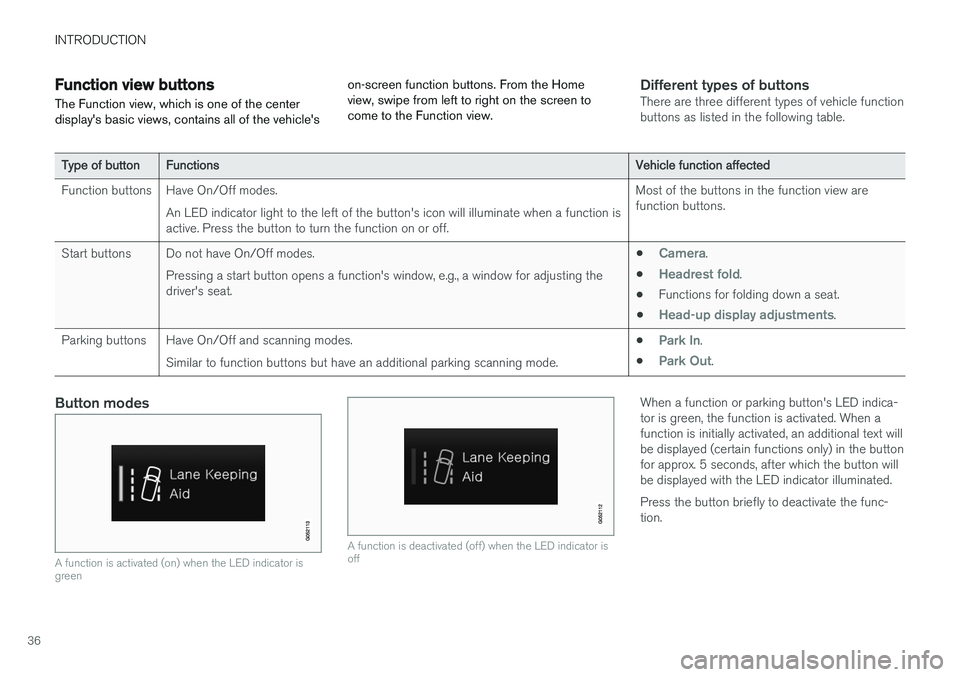
Button modes
A function is activated (on) when the LED indicator is green
A function is deactivated (off) when the LED indicator is off
When a function or parking button's LED indica- tor is green, the function is activated. When afunction is initially activated, an additional text willbe displayed (certain functions only) in the buttonfor approx. 5 seconds, after which the button willbe displayed with the LED indicator illuminated. Press the button briefly to deactivate the func- tion.
Page 44 of 548
||
INTRODUCTION
42Swipe the screen from left to right to access Function view from Home view. From Functionview, you can activate/deactivate various vehicle functions such as
Drive Modes, Speed limit
adaptation and Park Assist.
When applicable, swipe upward to scroll in the list of functions (depending on the number of func-tions). Activate/deactivate a function by tapping its but- ton. Certain functions will open in their own win-dows. To move a function button, press and hold it. It will become slightly smaller and transparent andcan then be dragged to the desired position andreleased.
Related information
• Using the center display (p. 44)
• Center display overview (p. 28)
• Function view buttons (p. 36)
• Symbols in the center display status bar(p. 43)
• Changing settings in different types of apps(p. 43)
• Climate system controls (p. 182)
Page 96 of 548
INSTRUMENTS AND CONTROLS
* Option/accessory.
94
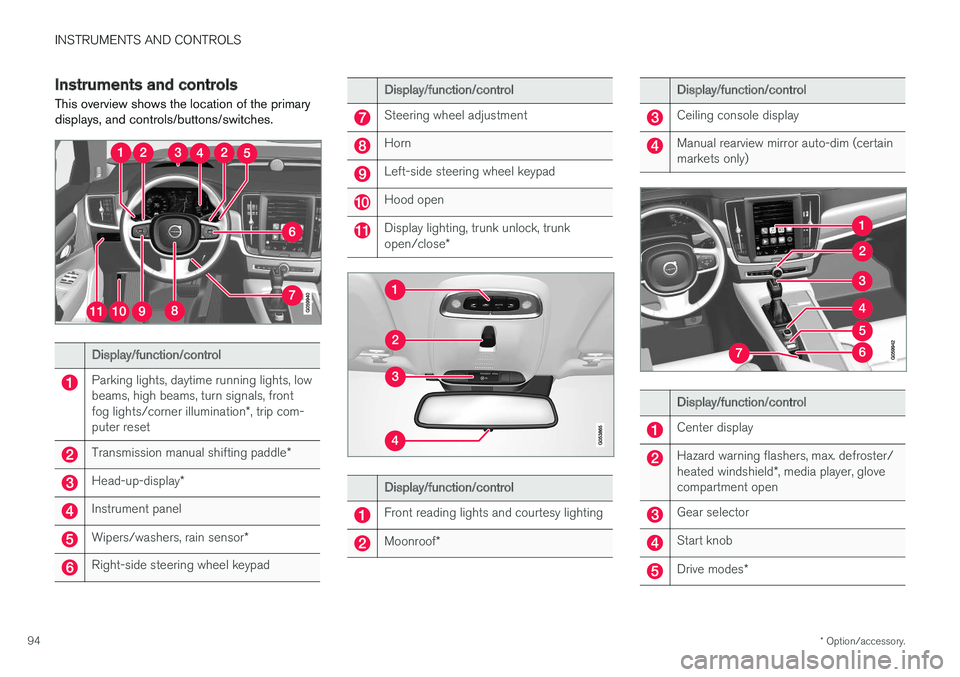
Instruments and controls
This overview shows the location of the primary displays, and controls/buttons/switches.
Display/function/control
Parking lights, daytime running lights, low beams, high beams, turn signals, front fog lights/corner illumination *, trip com-
puter reset
Transmission manual shifting paddle *
Head-up-display*
Instrument panel
Wipers/washers, rain sensor *
Right-side steering wheel keypad
Display/function/control
Steering wheel adjustment
Horn
Left-side steering wheel keypad
Hood open
Display lighting, trunk unlock, trunk open/close*
Display/function/control
Front reading lights and courtesy lighting
Moonroof*
Display/function/control
Ceiling console display
Manual rearview mirror auto-dim (certain markets only)
Display/function/control
Center display
Hazard warning flashers, max. defroster/ heated windshield *, media player, glove
compartment open
Gear selector
Start knob
Drive modes *