phone VOLVO S90 2020 Quick Guide
[x] Cancel search | Manufacturer: VOLVO, Model Year: 2020, Model line: S90, Model: VOLVO S90 2020Pages: 643, PDF Size: 13.68 MB
Page 41 of 643
YOUR VOLVO
}}
39
Volvo Structural Parts StatementVolvo is one of the leading companies for car safety.
Volvo engineers and manufactures vehicles designed to help protect vehicle occupants inthe event of a collision. Volvos are designed to absorb the impact of a collision. This energy absorption systemincluding, but not limited to, structural compo-nents such as bumper reinforcement bars,bumper energy absorbers, frames, rails, fenderaprons, A-pillars, B-pillars and body panelsmust work together to maintain cabin integrityand protect the vehicle occupants. The supplemental restraint system including but not limited to air bags, side curtain airbags, and deployment sensors work togetherwith the above components to provide propertiming for air bag deployment. Due to the above, Volvo Car USA does not support the use of aftermarket, alternative oranything other than original Volvo parts forcollision repair. Volvo Car USA also recommends using Volvo- approved replacement glass. The use of after-market glass, particularly a windshield, canhave an adverse effect on collision avoidanceand advanced lighting systems. In addition Volvo does not support the use or re-use of structural components from an exist-ing vehicle that has been previously damaged. Although these parts may appear equivalent, itis difficult to tell if the parts have been previ-ously replaced with non-OE parts or if the parthas been damaged as a result of a prior colli-sion. The quality of these used parts may alsohave been affected due to environmentalexposure.
Related information
Data recording (p. 33)
Driver distraction A driver has a responsibility to do everything possible to ensure his or her own safety andthe safety of passengers in the vehicle andothers sharing the roadway. Part of thisresponsibility is avoiding distractions, includ-ing performing activities that are not directlyrelated to controlling the vehicle in the drivingenvironment.
Your new Volvo is, or can be, equipped with feature-rich entertainment and communica-tion systems. These include hands-free cellulartelephones, navigation systems, and multipur-pose audio systems. You may also own otherportable electronic devices for your own con-venience. When used properly and safely, theyenrich the driving experience. Improperly used,any of these could cause a distraction. For all of these systems, we want to provide the following warning that reflects the strongVolvo concern for your safety. Never use thesedevices or any feature of your vehicle in a waythat distracts you from the task of drivingsafely. Distraction can lead to a serious acci-dent. In addition to this general warning, weoffer the following guidance regarding specificnew features that may be found in your vehi-cle:
Page 42 of 643

||
YOUR VOLVO
40
WARNING
Never use a hand-held cellular tele- phone while driving. Some jurisdictionsprohibit cellular telephone use by adriver while the vehicle is moving.
If your vehicle is equipped with a navi-gation system, set and make changesto your travel itinerary only with thevehicle parked.
Never program your audio systemwhile the vehicle is moving. Programradio presets with the vehicle parked,and use your programmed presets tomake radio use quicker and simpler.
Never use portable computers or per-sonal digital assistants while the vehi-cle is moving.
Related information
Audio, media and Internet (p. 434)
Page 46 of 643

||
SAFETY
44
Occupant safety reminders
How safely you drive doesn't depend on how old you are but rather on: How well you see.
Your ability to concentrate.
How quickly you make decisions understress to avoid an accident.
The following suggestions are intended tohelp you cope with the ever changing trafficenvironment. Never drink and drive.
If you are taking any medication, consult your physician about its potential effects on your driving abilities.
Take a driver-retraining course.
Have your eyes checked regularly.
Keep your windshield and headlights clean.
Replace wiper blades when they start toleave streaks.
Take into account the traffic, road, andweather conditions, particularly withregard to stopping distance.
Never text while driving.
Refrain from using or minimize the use ofa cell phone while driving.Related information
Safety (p. 42)
Reporting safety defects (p. 44)
Recall information (p. 45)
Reporting safety defects
The following information will help you report any perceived safety-related defects in yourvehicle.
Reporting safety defects in the U.S.
If you believe that your vehicle has a defect which could cause a crash orcould cause injury or death, youshould immediately inform theNational Highway Traffic SafetyAdministration (NHTSA) in additionto notifying Volvo Car USA, LLC. IfNHTSA receives similar complaints,it may open an investigation, and if itfinds that a safety defect exists in agroup of vehicles, it may order arecall and remedy campaign. How-ever, NHTSA cannot becomeinvolved in individual problemsbetween you, your retailer, or VolvoCar USA, LLC. To contact NHTSA,you may either call the Auto SafetyHotline tollfree at 1-888-327-4236
Page 47 of 643

SAFETY
}}
45
(TTY: 1-800-424-9153) or write to: NHTSA, U.S. Department of Trans-portation, Washington D.C. 20590. You can also obtain other informa- tion about motor vehicle safety fromhttp://www.safercar.gov, where youcan also enter your vehicle's VIN(Vehicle Identification Number) tosee if it has any open recalls. Volvo strongly recommends that if your vehicle is covered under a serv-ice campaign, safety or emissionrecall or similar action, it should becompleted as soon as possible.Please check with your local retaileror Volvo Car USA, LLC if your vehicleis covered under these conditions. NHTSA can be reached at:Internet:http://www.nhtsa.govTelephone:1-888-DASH-2-DOT (1-888-327-4236).
Reporting safety defects in CanadaIf you believe your vehicle has a defect that could cause a crash or could cause injury ordeath, you should immediately inform Trans-port Canada in addition to notifying Volvo CarCanada Ltd.
Transport Canada can be contacted at:
1-800-333-0510 Teletypewriter (TTY): 613 990-4500 Fax: 1-819-994-3372Mailing Address: Transport Canada - Road Safety, 80 rue Noël, Gatineau, (Quebec) J8Z0A1
Related information
Safety (p. 42)
Occupant safety (p. 43)
Recall information (p. 45)
Viewing the Vehicle Identification Number(VIN) (p. 38)
Recall information
On our website, click the "Owner" tab in the upper left-hand side of the screen and thenclick on the heading "Recall Information".Enter the vehicle identification number (VIN),which can be found at the bottom of the wind-shield. If your vehicle has any open Recalls,they will be displayed on this page. You can also enter the Vehicle Identification Number in the search field on the NationalHighway Traffic Safety Administration's(NHTSA) website at: www.nhtsa.gov.
Volvo customers in Canada
For any questions regarding open recalls for your vehicle, please contact your authorizedVolvo retailer. If your retailer is unable toanswer your questions, please contact VolvoCustomer Relations at 800-663-8255, Mon-day through Friday, 8:30 A.M. to 5:00 P.M.EST or volvocars.com/ca. You may also writeus at: Volvo Car Canada Ltd.Customer Care Centre9130 Leslie Street, Suite 101Richmond Hill, Ontario L4B 0B9www.tc.gc.ca
Page 82 of 643
DISPLAYS AND VOICE CONTROL
* Option/accessory.
80
Instrument panel The instrument panel displays information related to the vehicle and driving.
The instrument panel contains gauges, indica- tors and monitoring and warning symbols.What is shown in the instrument panel variesdepending on the equipment, settings andfunctions currently active. The instrument panel is activated as soon as a door is opened, i.e. in ignition mode 0. The
panel will power down after a short period oftime if it is not used. To reactivate it, do one ofthe following:
Depress the brake pedal.
Activate ignition mode
I.
Open one of the doors. The instrument panel is available in two ver- sions: 8" and 12"
*.WARNING
If the instrument panel turns off, does not activate when the ignition is switched on,or part/all of the panel cannot be read, donot drive the vehicle. Consult a workshopimmediately. Volvo recommends anauthorized Volvo workshop.
WARNING
If the instrument panel is not functioning properly, information about brakes, airbagsor other safety-related systems may not bedisplayed. The driver will then not be ableto check the status of the vehicle systemsor receive relevant warnings and informa-tion.
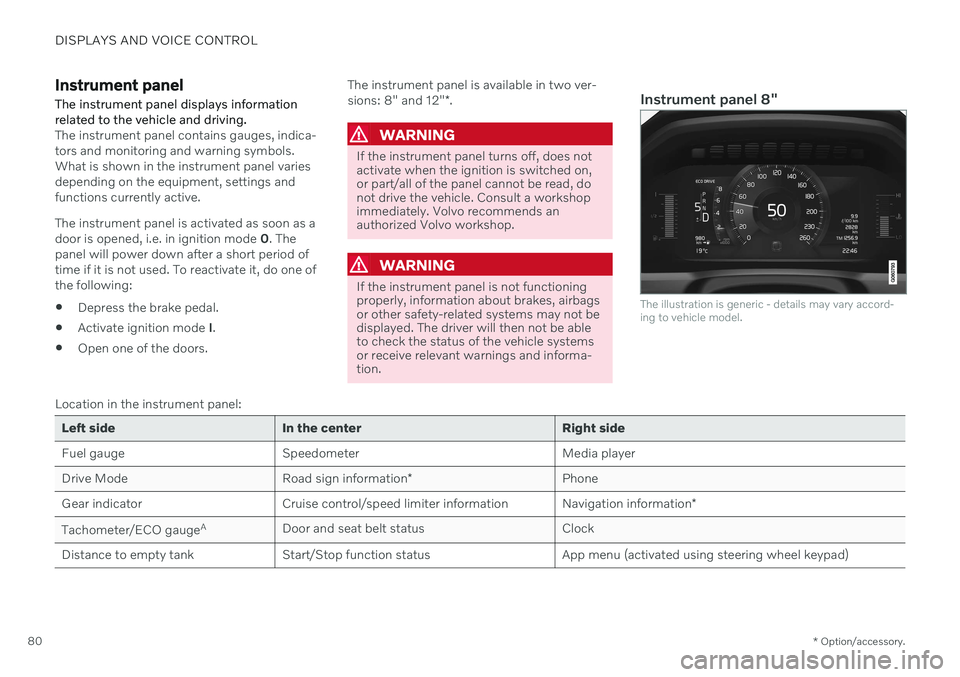
Instrument panel 8"
The illustration is generic - details may vary accord- ing to vehicle model.
Location in the instrument panel:
Left side In the center Right side
Fuel gauge Speedometer Media player Drive Mode
Road sign information* Phone
Gear indicator Cruise control/speed limiter information Navigation information*
Tachometer/ECO gauge A
Door and seat belt status Clock
Distance to empty tank Start/Stop function status App menu (activated using steering wheel keypad)
Page 84 of 643
||
DISPLAYS AND VOICE CONTROL
* Option/accessory.
82 Location in the instrument panel:
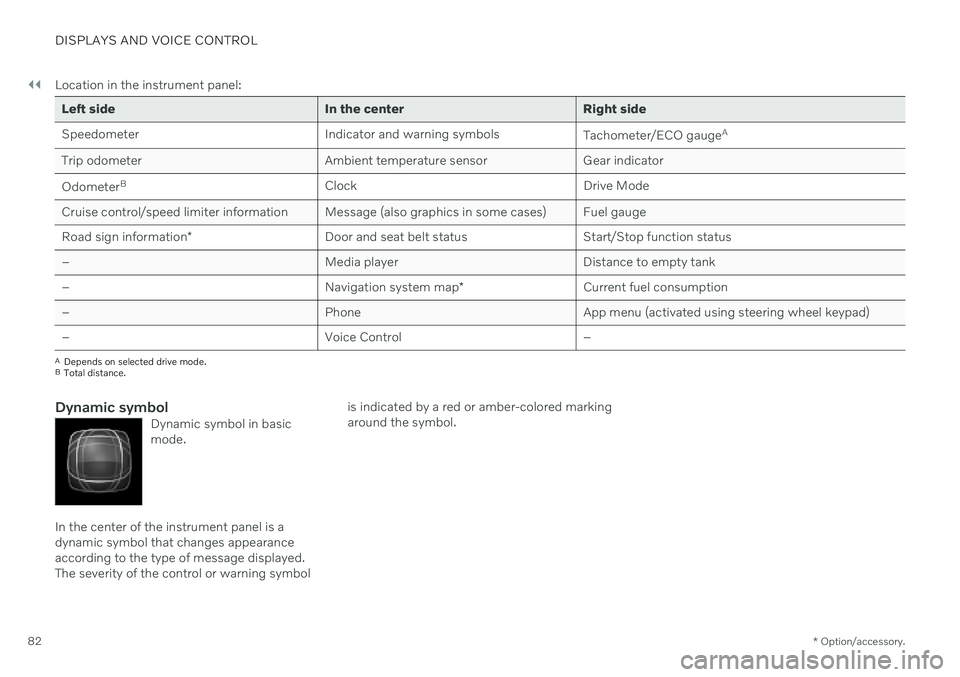
Left side In the center Right side
Speedometer Indicator and warning symbols
Tachometer/ECO gaugeA
Trip odometer Ambient temperature sensor Gear indicator Odometer B
Clock Drive Mode
Cruise control/speed limiter information Message (also graphics in some cases) Fuel gauge Road sign information * Door and seat belt status Start/Stop function status
– Media player Distance to empty tank
– Navigation system map*Current fuel consumption
– PhoneApp menu (activated using steering wheel keypad)
– Voice Control –
A
Depends on selected drive mode.
B Total distance.
Dynamic symbolDynamic symbol in basic mode.
In the center of the instrument panel is a dynamic symbol that changes appearanceaccording to the type of message displayed.The severity of the control or warning symbol is indicated by a red or amber-colored markingaround the symbol.
Page 86 of 643
DISPLAYS AND VOICE CONTROL
* Option/accessory.
84
Instrument panel settings
Display settings for the instrument panel can be set via the instrument panel's app menuand via the center display's Settings menu.
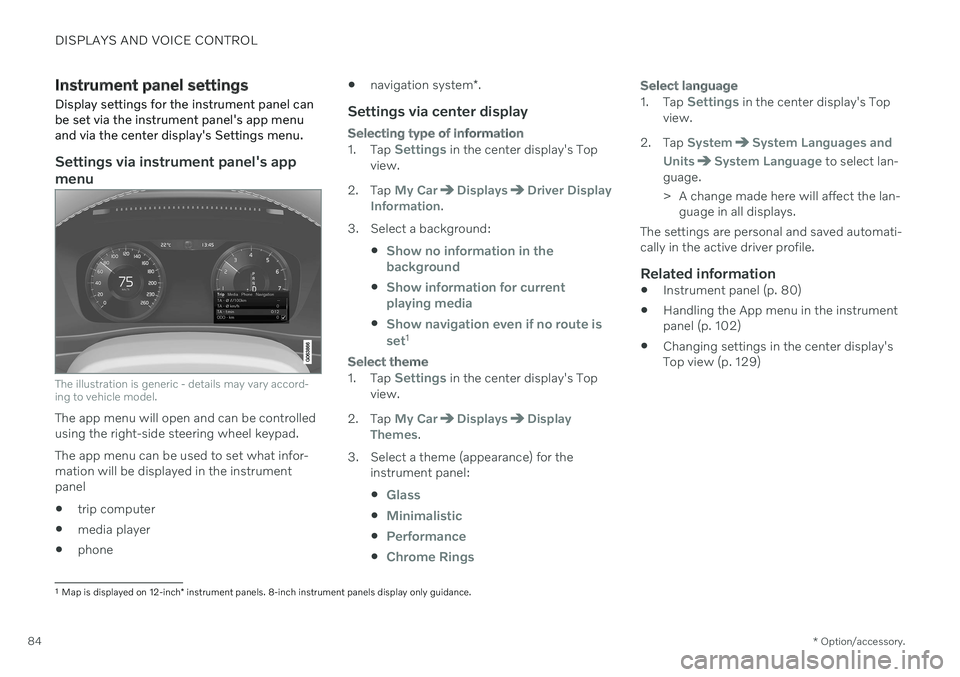
Settings via instrument panel's app menu
The illustration is generic - details may vary accord- ing to vehicle model.
The app menu will open and can be controlled using the right-side steering wheel keypad. The app menu can be used to set what infor- mation will be displayed in the instrumentpanel trip computer
media player
phone
navigation system
*.
Settings via center display
Selecting type of information
1.
Tap Settings in the center display's Top
view.
2. Tap
My CarDisplaysDriver Display
Information.
3. Select a background:
Show no information in the background
Show information for current playing media
Show navigation even if no route is set1
Select theme
1.Tap Settings in the center display's Top
view.
2. Tap
My CarDisplaysDisplay
Themes.
3. Select a theme (appearance) for the instrument panel:
Glass
Minimalistic
Performance
Chrome Rings
Select language
1.Tap Settings in the center display's Top
view.
2. Tap
SystemSystem Languages and
Units
System Language to select lan-
guage.
> A change made here will affect the lan- guage in all displays.
The settings are personal and saved automati- cally in the active driver profile.
Related information
Instrument panel (p. 80)
Handling the App menu in the instrumentpanel (p. 102)
Changing settings in the center display'sTop view (p. 129)
1
Map is displayed on 12-inch * instrument panels. 8-inch instrument panels display only guidance.
Page 103 of 643
DISPLAYS AND VOICE CONTROL
101
advertising or otherwise to promote the sale, use or other dealings in this Software withoutprior written authorization from SiliconGraphics, Inc.
Related information
Instrument panel (p. 80)
App menu in instrument panel
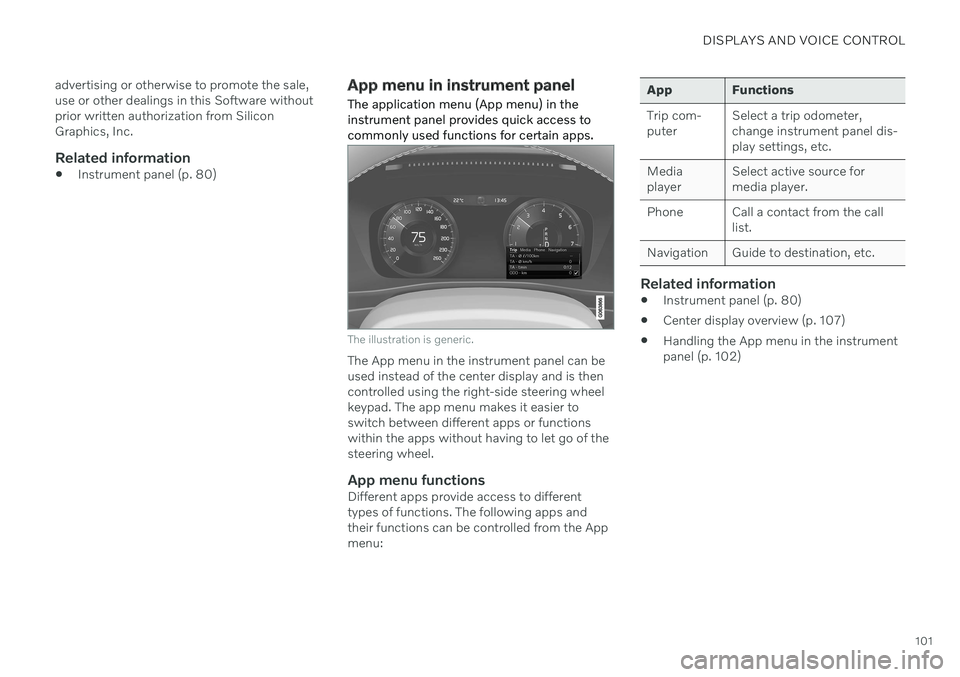
The application menu (App menu) in the instrument panel provides quick access tocommonly used functions for certain apps.
The illustration is generic.
The App menu in the instrument panel can be used instead of the center display and is thencontrolled using the right-side steering wheelkeypad. The app menu makes it easier toswitch between different apps or functionswithin the apps without having to let go of thesteering wheel.
App menu functionsDifferent apps provide access to differenttypes of functions. The following apps andtheir functions can be controlled from the Appmenu:
App Functions Trip com- puter Select a trip odometer,change instrument panel dis-play settings, etc.
Mediaplayer Select active source formedia player.
Phone Call a contact from the call list.
Navigation Guide to destination, etc.
Related information
Instrument panel (p. 80)
Center display overview (p. 107)
Handling the App menu in the instrument panel (p. 102)
Page 108 of 643
||
DISPLAYS AND VOICE CONTROL
106
Reading saved messages
To read a saved message immediately:
–Tap the button to the right of the messageVehicle message stored in Car Status app in the center display.
> The saved message will be displayed in the
Car Status app.
To read saved messages at a later time: 1. Open the
Car Status app from App view
in the center display.
> The app will open in the bottom tile of Home view.
2. Select the
Messages tab in the app.
> A list of saved messages will be dis- played.
3. Tap a message to expand/minimize it. > More information about the messagewill appear in the list and the image to the left of the app will display informa-tion about the message in graphic form.
Handling saved messages
In expanded form, some messages have two buttons available for booking service or read-ing the Owner's Manual. Booking service for saved messages:
–With the message in expanded form, tapRequest appoint./Call to make
Appointment7 for assistance booking
service. > With
Request appoint.: TheAppointments tab will open in the app
and create a request for a service/repair appointment. With
Call to make Appointment: The
phone app will open and call a service center to make an appointment forservice or repairs.
Reading the Owner's Manual for saved mes-sages:
–With the message in expanded form, tapOwner's manual to read relevant infor-
mation about the message in the Owner's Manual.
> The Owner's Manual will open in the center display and provide information related to the message.
Saved messages in the app are automatically deleted each time the engine is started.
Related information
Messages in the instrument panel (p. 103)
Handling messages in the instrument panel (p. 104)
Messages in the center display (p. 137)
7
Market dependent. Volvo ID and selected workshop also need to be registered
Page 110 of 643
||
DISPLAYS AND VOICE CONTROL
* Option/accessory.
108
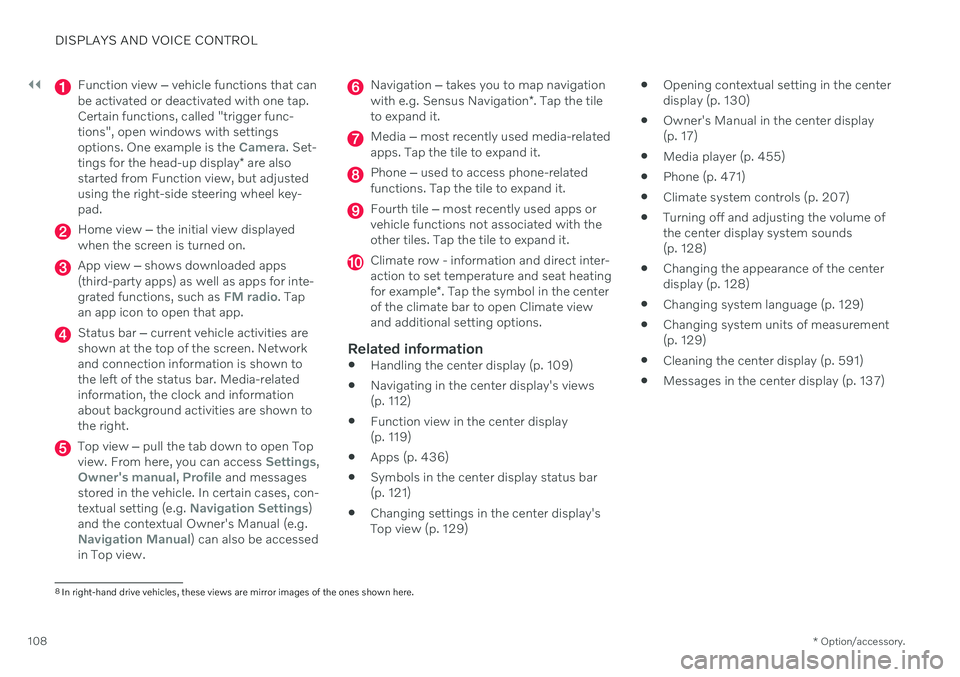
Function view ‒ vehicle functions that can
be activated or deactivated with one tap. Certain functions, called "trigger func-tions", open windows with settingsoptions. One example is the
Camera. Set-
tings for the head-up display * are also
started from Function view, but adjusted using the right-side steering wheel key-pad.
Home view ‒ the initial view displayed
when the screen is turned on.
App view ‒ shows downloaded apps
(third-party apps) as well as apps for inte- grated functions, such as
FM radio. Tap
an app icon to open that app.
Status bar ‒ current vehicle activities are
shown at the top of the screen. Network and connection information is shown tothe left of the status bar. Media-relatedinformation, the clock and informationabout background activities are shown tothe right.
Top view ‒ pull the tab down to open Top
view. From here, you can access Settings,Owner's manual, Profile and messages
stored in the vehicle. In certain cases, con- textual setting (e.g.
Navigation Settings)
and the contextual Owner's Manual (e.g.
Navigation Manual) can also be accessed
in Top view.
Navigation ‒ takes you to map navigation
with e.g. Sensus Navigation *. Tap the tile
to expand it.
Media ‒ most recently used media-related
apps. Tap the tile to expand it.
Phone ‒ used to access phone-related
functions. Tap the tile to expand it.
Fourth tile ‒ most recently used apps or
vehicle functions not associated with the other tiles. Tap the tile to expand it.
Climate row - information and direct inter- action to set temperature and seat heating for example *. Tap the symbol in the center
of the climate bar to open Climate view and additional setting options.
Related information
Handling the center display (p. 109)
Navigating in the center display's views (p. 112)
Function view in the center display (p. 119)
Apps (p. 436)
Symbols in the center display status bar(p. 121)
Changing settings in the center display'sTop view (p. 129)
Opening contextual setting in the centerdisplay (p. 130)
Owner's Manual in the center display(p. 17)
Media player (p. 455)
Phone (p. 471)
Climate system controls (p. 207)
Turning off and adjusting the volume ofthe center display system sounds(p. 128)
Changing the appearance of the centerdisplay (p. 128)
Changing system language (p. 129)
Changing system units of measurement(p. 129)
Cleaning the center display (p. 591)
Messages in the center display (p. 137)
8
In right-hand drive vehicles, these views are mirror images of the ones shown here.