phone VOLVO S90 2020 Quick Guide
[x] Cancel search | Manufacturer: VOLVO, Model Year: 2020, Model line: S90, Model: VOLVO S90 2020Pages: 643, PDF Size: 13.68 MB
Page 114 of 643
DISPLAYS AND VOICE CONTROL
* Option/accessory.
112
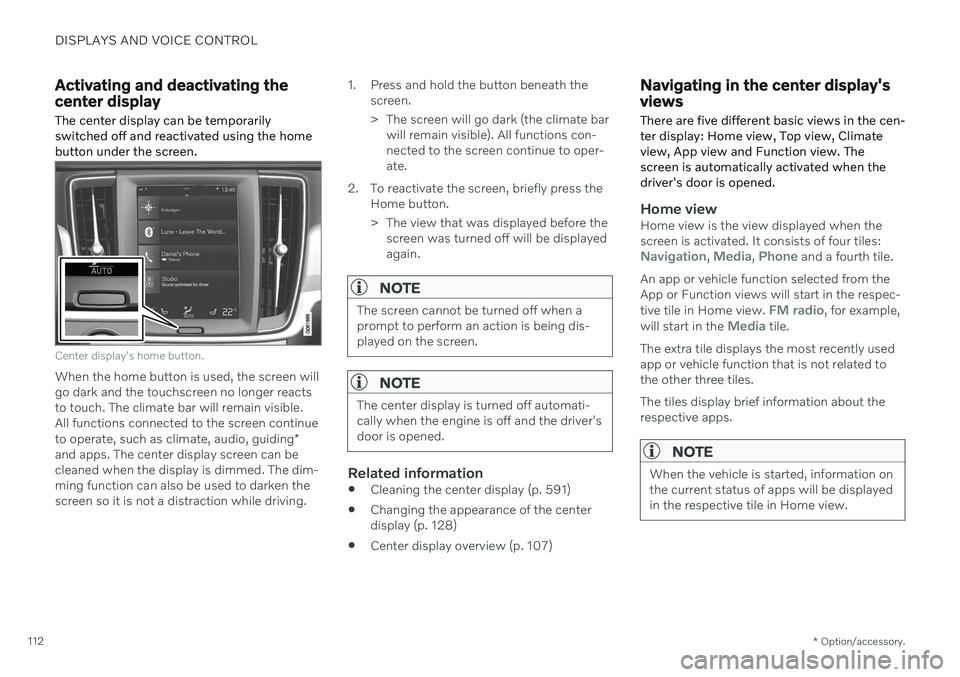
Activating and deactivating the center display The center display can be temporarily switched off and reactivated using the homebutton under the screen.
Center display's home button.
When the home button is used, the screen will go dark and the touchscreen no longer reactsto touch. The climate bar will remain visible.All functions connected to the screen continue to operate, such as climate, audio, guiding *
and apps. The center display screen can be cleaned when the display is dimmed. The dim-ming function can also be used to darken thescreen so it is not a distraction while driving. 1. Press and hold the button beneath the
screen.
> The screen will go dark (the climate barwill remain visible). All functions con- nected to the screen continue to oper-ate.
2. To reactivate the screen, briefly press the Home button.
> The view that was displayed before thescreen was turned off will be displayed again.
NOTE
The screen cannot be turned off when a prompt to perform an action is being dis-played on the screen.
NOTE
The center display is turned off automati- cally when the engine is off and the driver'sdoor is opened.
Related information
Cleaning the center display (p. 591)
Changing the appearance of the center display (p. 128)
Center display overview (p. 107)
Navigating in the center display's views
There are five different basic views in the cen- ter display: Home view, Top view, Climateview, App view and Function view. Thescreen is automatically activated when thedriver's door is opened.
Home viewHome view is the view displayed when the screen is activated. It consists of four tiles:
Navigation, Media, Phone and a fourth tile.
An app or vehicle function selected from the App or Function views will start in the respec- tive tile in Home view.
FM radio, for example,
will start in the Media tile.
The extra tile displays the most recently used app or vehicle function that is not related tothe other three tiles. The tiles display brief information about the respective apps.
NOTE
When the vehicle is started, information on the current status of apps will be displayedin the respective tile in Home view.
Page 118 of 643
DISPLAYS AND VOICE CONTROL
116
Handling tiles in the center display Home view consists of four tiles:
Navigation,Media, Phone and a fourth tile. These views
can be expanded.
Page 120 of 643
||
DISPLAYS AND VOICE CONTROL
118Expanding a tile:
–For tiles Navigation, Media and Phone:
Tap the screen anywhere in the tile. When a tile is expanded, the extra tile in Homeview will be temporarily hidden. The othertwo tiles will be minimized and only showcertain information. When the extra tile istapped, the other three tiles are minimizedand only certain information is displayed. Expanded view provides access to the basic functions of the respective apps.
Closing an expanded tile:
–The tile can be closed in three different ways:
Tap the top section of the expandedtile.
Tap another tile (it will then be openedin expanded mode instead).
Press briefly on the Home button underthe center display.
Opening or closing a tile in full-screen mode
The fourth tile 10
and tile for Navigation can be
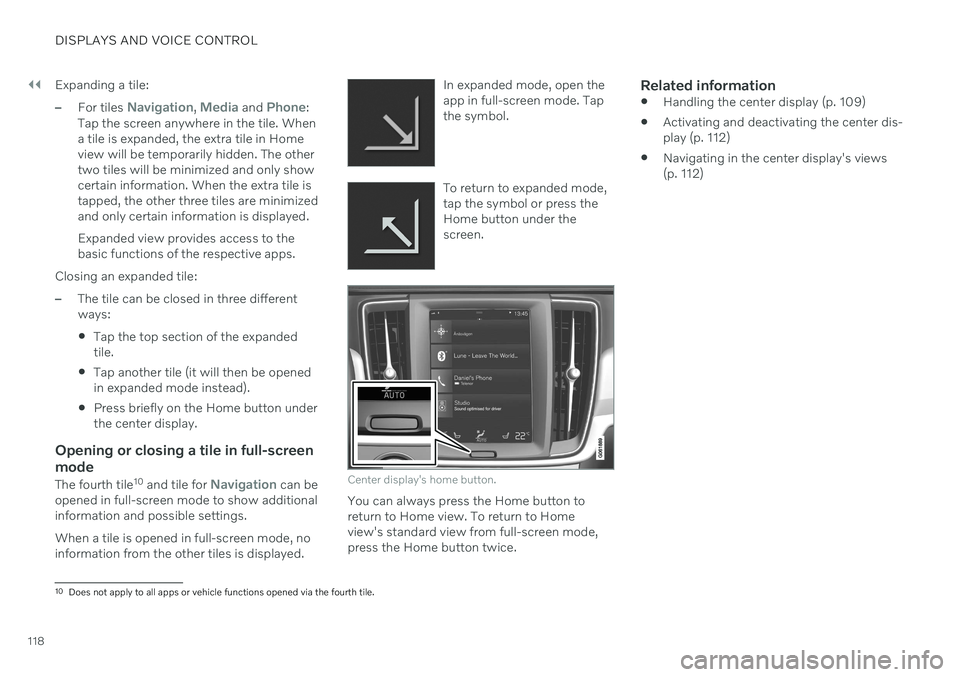
opened in full-screen mode to show additional information and possible settings. When a tile is opened in full-screen mode, no information from the other tiles is displayed. In expanded mode, open theapp in full-screen mode. Tapthe symbol.
To return to expanded mode, tap the symbol or press theHome button under thescreen.
Center display's home button.
You can always press the Home button to return to Home view. To return to Homeview's standard view from full-screen mode,press the Home button twice.
Related information
Handling the center display (p. 109)
Activating and deactivating the center dis-play (p. 112)
Navigating in the center display's views(p. 112)
10
Does not apply to all apps or vehicle functions opened via the fourth tile.
Page 123 of 643
DISPLAYS AND VOICE CONTROL
}}
121
Moving apps and buttons in the center display The apps and buttons for vehicle functions can be moved and organized in the App andFunction views.
1. Swipe from right to left12
to access App
view or swipe from left to right 12
to access
Function view.
2. Press and hold an app or button. > The app or button will change size andbecome slightly transparent. It can then be moved.
3. Drag the app or button to an available position in the view.
A maximum of 48 rows can be used to posi-tion apps or buttons. To move an app or but-ton outside the visible view, drag it to the bot-tom of the view. New rows will be added andthe app or button can be placed in one of these. Apps or buttons placed below the view's nor- mal display will not be visible on the screen. Swipe the screen to scroll up or down in the view to display information outside the view.
NOTE
Hide the apps that are rarely or never used by moving them far down, outside of thevisible view. This makes it easier to find theapps used more frequently.
NOTE
Apps and vehicle function buttons cannot be situated at spots already in use.
Related information
Function view in the center display (p. 119)
Apps (p. 436)
Handling the center display (p. 109)
Symbols in the center display status bar
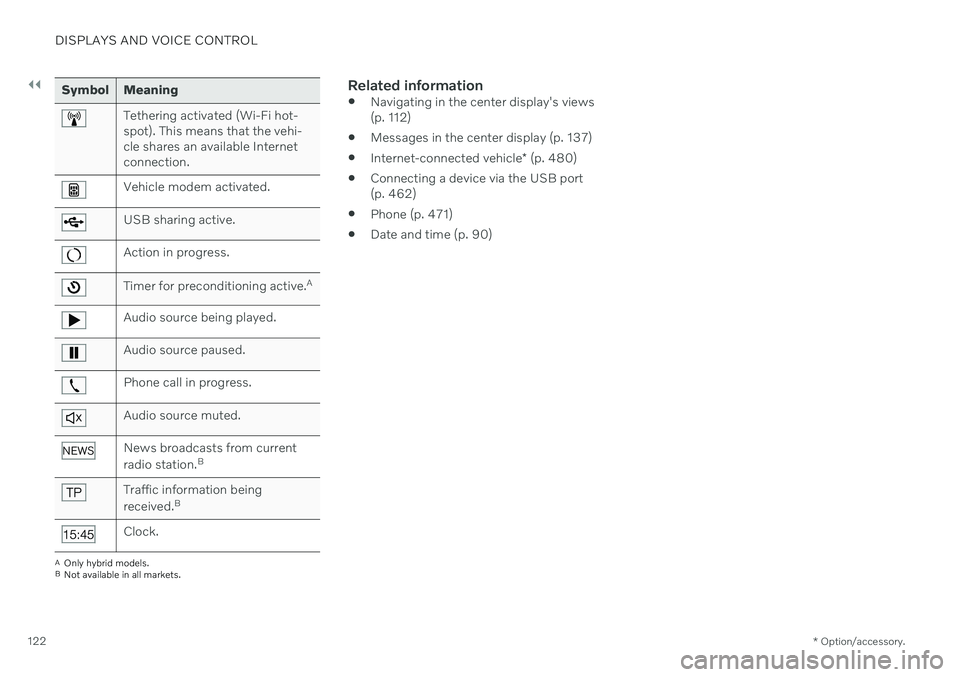
Overview of symbols displayed in the center display status bar.
The status bar shows current vehicle activities and in certain cases, also their status. Due tothe limited space in the status bar, not all sym-bols will be displayed at all times.
Symbol Meaning
Connected to the Internet.
Roaming activated.
Cell phone network signal strength.
Bluetooth device connected.
Bluetooth activated but no device connected.
Information sent to and from GPS.
Connected to Wi-Fi network.
12 Applies for left-hand drive vehicles. For right-hand drive vehicles, swipe in the other direction.
Page 124 of 643
||
DISPLAYS AND VOICE CONTROL
* Option/accessory.
122
Symbol Meaning
Tethering activated (Wi-Fi hot- spot). This means that the vehi-cle shares an available Internetconnection.
Vehicle modem activated.
USB sharing active.
Action in progress.
Timer for preconditioning active. A
Audio source being played.
Audio source paused.
Phone call in progress.
Audio source muted.
News broadcasts from current radio station.B
Traffic information being received.B
Clock.
A
Only hybrid models.
B Not available in all markets.
Related information
Navigating in the center display's views (p. 112)
Messages in the center display (p. 137)
Internet-connected vehicle
* (p. 480)
Connecting a device via the USB port(p. 462)
Phone (p. 471)
Date and time (p. 90)
Page 134 of 643
DISPLAYS AND VOICE CONTROL
* Option/accessory.
132
Table of settings in the center display
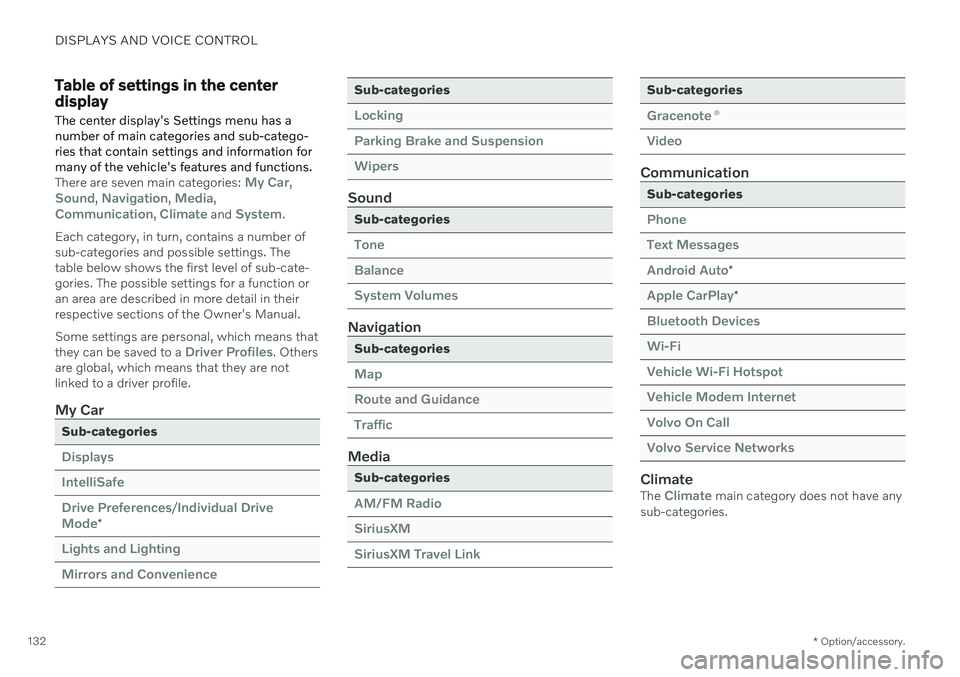
The center display's Settings menu has a number of main categories and sub-catego-ries that contain settings and information formany of the vehicle's features and functions.
There are seven main categories: My Car,Sound, Navigation, Media,Communication, Climate and System.
Each category, in turn, contains a number of sub-categories and possible settings. Thetable below shows the first level of sub-cate-gories. The possible settings for a function oran area are described in more detail in theirrespective sections of the Owner's Manual. Some settings are personal, which means that they can be saved to a
Driver Profiles. Others
are global, which means that they are not linked to a driver profile.
My Car
Sub-categories
Displays IntelliSafeDrive Preferences
/Individual Drive
Mode*
Lights and Lighting Mirrors and Convenience
Sub-categories
Locking Parking Brake and SuspensionWipers
Sound
Sub-categories
Tone BalanceSystem Volumes
Navigation
Sub-categories
Map Route and GuidanceTraffic
Media
Sub-categories
AM/FM Radio SiriusXMSiriusXM Travel Link
Sub-categories
Gracenote ®
Video
Communication
Sub-categories
Phone Text MessagesAndroid Auto
*
Apple CarPlay*
Bluetooth Devices Wi-FiVehicle Wi-Fi Hotspot Vehicle Modem Internet Volvo On Call Volvo Service Networks
ClimateThe Climate main category does not have any
sub-categories.
Page 141 of 643
DISPLAYS AND VOICE CONTROL
}}
* Option/accessory.139
Head-up display *
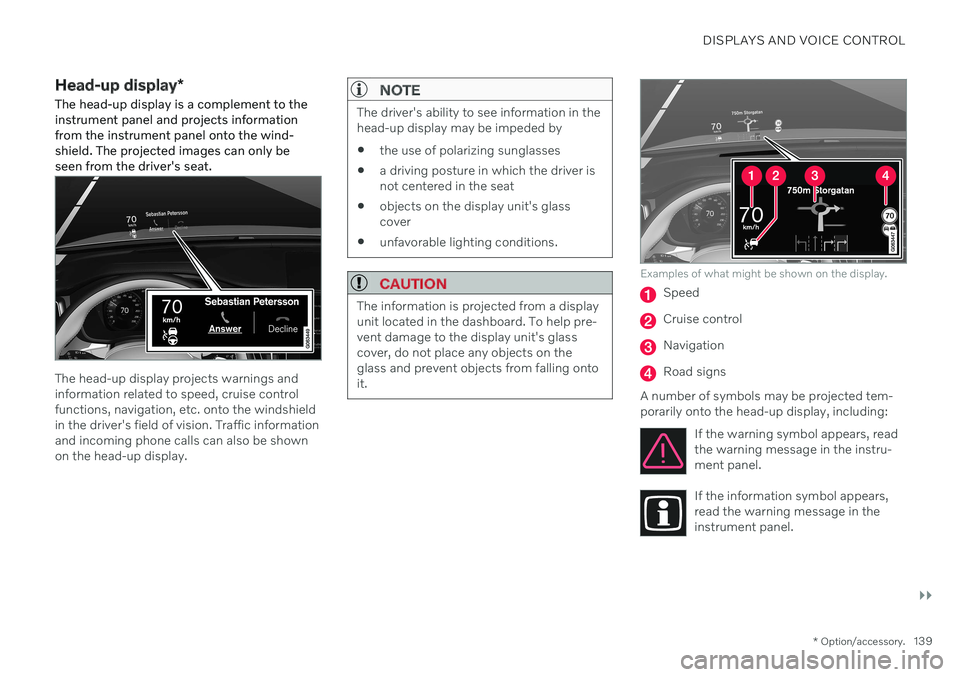
The head-up display is a complement to the instrument panel and projects informationfrom the instrument panel onto the wind-shield. The projected images can only beseen from the driver's seat.
The head-up display projects warnings and information related to speed, cruise controlfunctions, navigation, etc. onto the windshieldin the driver's field of vision. Traffic informationand incoming phone calls can also be shownon the head-up display.
NOTE
The driver's ability to see information in the head-up display may be impeded by
the use of polarizing sunglasses
a driving posture in which the driver isnot centered in the seat
objects on the display unit's glasscover
unfavorable lighting conditions.
CAUTION
The information is projected from a display unit located in the dashboard. To help pre-vent damage to the display unit's glasscover, do not place any objects on theglass and prevent objects from falling ontoit.
Examples of what might be shown on the display.
Speed
Cruise control
Navigation
Road signs
A number of symbols may be projected tem- porarily onto the head-up display, including: If the warning symbol appears, readthe warning message in the instru-ment panel.
If the information symbol appears, read the warning message in theinstrument panel.
Page 143 of 643
DISPLAYS AND VOICE CONTROL
}}
* Option/accessory.141
Head-up display settings *
Adjusting settings for the head-up display.
Settings can be adjusted when the vehicle is started and a projected image is displayed onthe windshield.
Selecting display optionsSelect the functions to be shown in the head-up display. 1. Tap
Settings in the center display's Top
view.
2. Tap
My CarDisplaysHead-Up
Display Options.
3. Select one or more functions:
Show Navigation
Show Road Sign Information
Show Driver Support
Show Phone
This setting is stored as a personal setting in the driver profile.
Adjusting brightness and height position
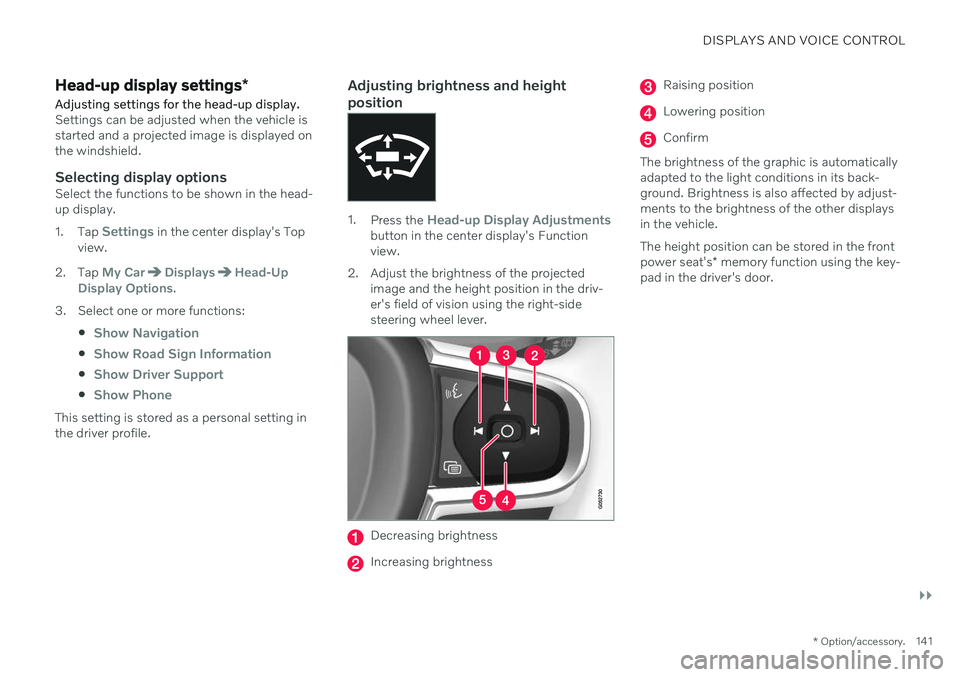
1.Press the Head-up Display Adjustmentsbutton in the center display's Function view.
2. Adjust the brightness of the projected image and the height position in the driv-er's field of vision using the right-sidesteering wheel lever.
Decreasing brightness
Increasing brightness
Raising position
Lowering position
Confirm
The brightness of the graphic is automatically adapted to the light conditions in its back-ground. Brightness is also affected by adjust-ments to the brightness of the other displaysin the vehicle. The height position can be stored in the front power seat's * memory function using the key-
pad in the driver's door.
Page 144 of 643
||
DISPLAYS AND VOICE CONTROL
* Option/accessory.
142
Calibrating the horizontal positionIf the windshield or display unit has been replaced, the head-up display's horizontalposition may need to be calibrated. Calibrationmeans that the projected image is rotatedclockwise or counterclockwise. 1.
Tap
Settings in the center display's Top
view.
2. Select
My CarDisplaysHead-Up
Display Options
Head-Up Display
Calibration.
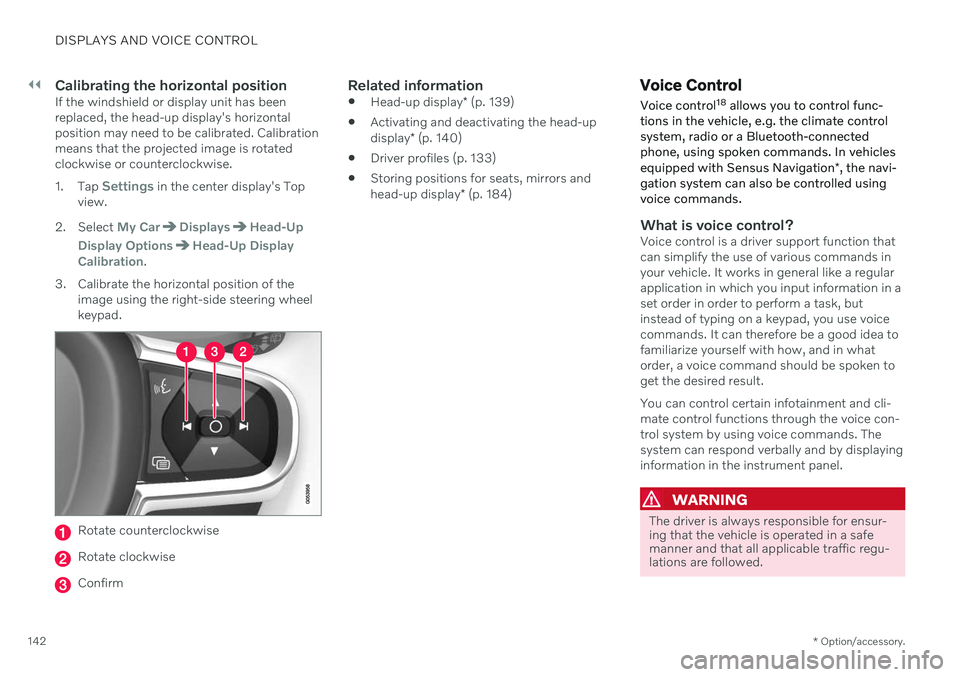
3. Calibrate the horizontal position of the image using the right-side steering wheel keypad.
Rotate counterclockwise
Rotate clockwise
Confirm
Related information
Head-up display
* (p. 139)
Activating and deactivating the head-up display
* (p. 140)
Driver profiles (p. 133)
Storing positions for seats, mirrors andhead-up display
* (p. 184)
Voice Control
Voice control 18
allows you to control func-
tions in the vehicle, e.g. the climate control system, radio or a Bluetooth-connectedphone, using spoken commands. In vehicles equipped with Sensus Navigation *, the navi-
gation system can also be controlled using voice commands.
What is voice control?Voice control is a driver support function that can simplify the use of various commands inyour vehicle. It works in general like a regularapplication in which you input information in aset order in order to perform a task, butinstead of typing on a keypad, you use voicecommands. It can therefore be a good idea tofamiliarize yourself with how, and in whatorder, a voice command should be spoken toget the desired result. You can control certain infotainment and cli- mate control functions through the voice con-trol system by using voice commands. Thesystem can respond verbally and by displayinginformation in the instrument panel.
WARNING
The driver is always responsible for ensur- ing that the vehicle is operated in a safemanner and that all applicable traffic regu-lations are followed.
Page 145 of 643
DISPLAYS AND VOICE CONTROL
}}
* Option/accessory.143
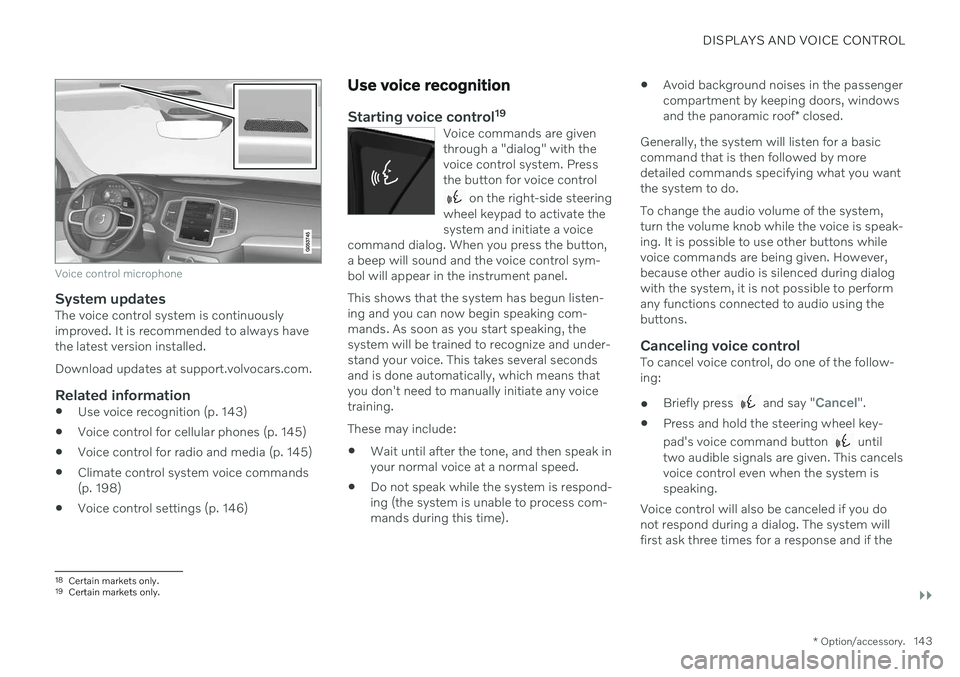
Voice control microphone
System updatesThe voice control system is continuously improved. It is recommended to always havethe latest version installed. Download updates at support.volvocars.com.
Related information
Use voice recognition (p. 143)
Voice control for cellular phones (p. 145)
Voice control for radio and media (p. 145)
Climate control system voice commands (p. 198)
Voice control settings (p. 146)
Use voice recognition
Starting voice control 19Voice commands are given through a "dialog" with thevoice control system. Pressthe button for voice control
on the right-side steering
wheel keypad to activate the system and initiate a voice
command dialog. When you press the button,a beep will sound and the voice control sym-bol will appear in the instrument panel. This shows that the system has begun listen- ing and you can now begin speaking com-mands. As soon as you start speaking, thesystem will be trained to recognize and under-stand your voice. This takes several secondsand is done automatically, which means thatyou don't need to manually initiate any voicetraining.
These may include: Wait until after the tone, and then speak in your normal voice at a normal speed.
Do not speak while the system is respond-ing (the system is unable to process com-mands during this time).
Avoid background noises in the passengercompartment by keeping doors, windows and the panoramic roof
* closed.
Generally, the system will listen for a basic command that is then followed by moredetailed commands specifying what you wantthe system to do. To change the audio volume of the system, turn the volume knob while the voice is speak-ing. It is possible to use other buttons whilevoice commands are being given. However,because other audio is silenced during dialogwith the system, it is not possible to performany functions connected to audio using thebuttons.
Canceling voice controlTo cancel voice control, do one of the follow-ing:
Briefly press
and say "Cancel".
Press and hold the steering wheel key- pad's voice command button
until
two audible signals are given. This cancels voice control even when the system isspeaking.
Voice control will also be canceled if you donot respond during a dialog. The system willfirst ask three times for a response and if the
18 Certain markets only.19Certain markets only.