ESP VOLVO V60 2021 User Guide
[x] Cancel search | Manufacturer: VOLVO, Model Year: 2021, Model line: V60, Model: VOLVO V60 2021Pages: 661, PDF Size: 12.68 MB
Page 43 of 661
YOUR VOLVO
41
Driver distraction A driver has a responsibility to do everything possible to ensure his or her own safety andthe safety of passengers in the vehicle andothers sharing the roadway. Part of thisresponsibility is avoiding distractions, includ-ing performing activities that are not directlyrelated to controlling the vehicle in the drivingenvironment.
Your new Volvo is, or can be, equipped with feature-rich entertainment and communica-tion systems. These include hands-free cellulartelephones, navigation systems, and multipur-pose audio systems. You may also own otherportable electronic devices for your own con-venience. When used properly and safely, theyenrich the driving experience. Improperly used,any of these could cause a distraction. For all of these systems, we want to provide the following warning that reflects the strongVolvo concern for your safety. Never use thesedevices or any feature of your vehicle in a waythat distracts you from the task of drivingsafely. Distraction can lead to a serious acci-dent. In addition to this general warning, weoffer the following guidance regarding specificnew features that may be found in your vehi-cle:
WARNING
Never use a hand-held cellular tele- phone while driving. Some jurisdictionsprohibit cellular telephone use by adriver while the vehicle is moving.
If your vehicle is equipped with a navi-gation system, set and make changesto your travel itinerary only with thevehicle parked.
Never program your audio systemwhile the vehicle is moving. Programradio presets with the vehicle parked,and use your programmed presets tomake radio use quicker and simpler.
Never use portable computers or per-sonal digital assistants while the vehi-cle is moving.
Related information
Audio, media and Internet (p. 448)
Page 64 of 661
||
SAFETY
62
WARNING
Keep the following points in mind with respect to the OWS system. Failure tofollow these instructions couldadversely affect the system's functionand result in serious injury to the occu-pant of the front passenger's seat.
The full weight of the front seat pas-senger should always be on the seatcushion. The passenger should neverlift him/herself off the seat cushionusing the armrest in the door or thecenter console, by pressing the feet onthe floor, by sitting on the edge of theseat cushion, or by pressing againstthe backrest in a way that reducespressure on the seat cushion. Thiscould cause OWS to disable the front,passenger's side airbag.
WARNING
Do not place any type of object on the front passenger's seat in such a waythat jamming, pressing, or squeezingoccurs between the object and thefront seat, other than as a direct resultof the correct use of the AutomaticLocking Retractor/Emergency LockingRetractor (ALR/ELR) seat belt.
No objects should be placed under thefront passenger's seat. This could inter-fere with the OWS system's function.
Related information
Driver/passenger side front airbags (p. 56)
Side airbags
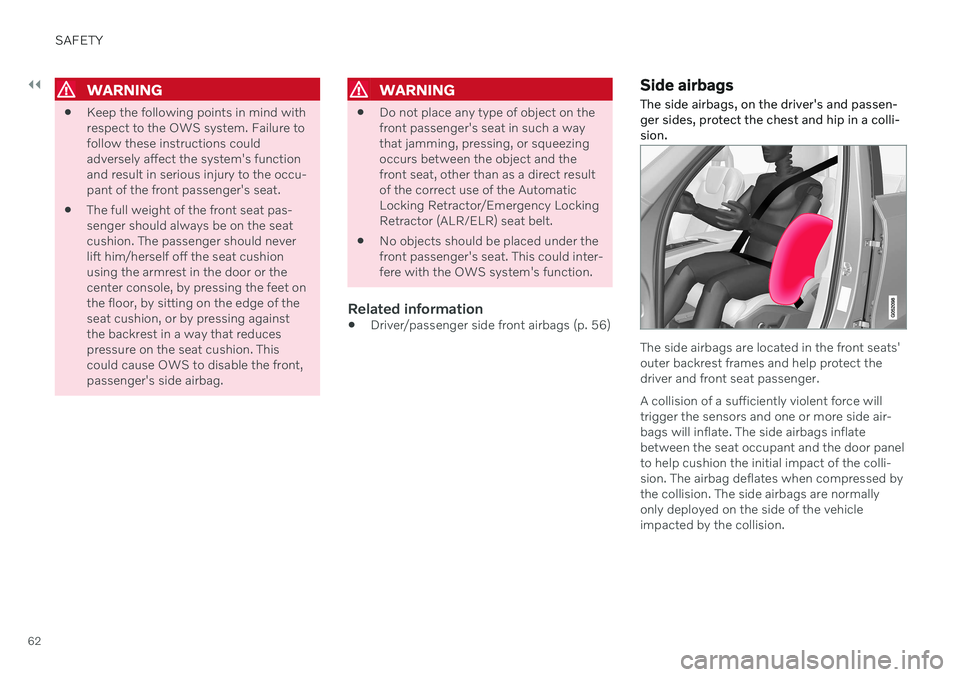
The side airbags, on the driver's and passen- ger sides, protect the chest and hip in a colli-sion.
The side airbags are located in the front seats' outer backrest frames and help protect thedriver and front seat passenger. A collision of a sufficiently violent force will trigger the sensors and one or more side air-bags will inflate. The side airbags inflate between the seat occupant and the door panel to help cushion the initial impact of the colli- sion. The airbag deflates when compressed by the collision. The side airbags are normally only deployed on the side of the vehicle impacted by the collision.
Page 115 of 661
DISPLAYS AND VOICE CONTROL
}}
* Option/accessory.113
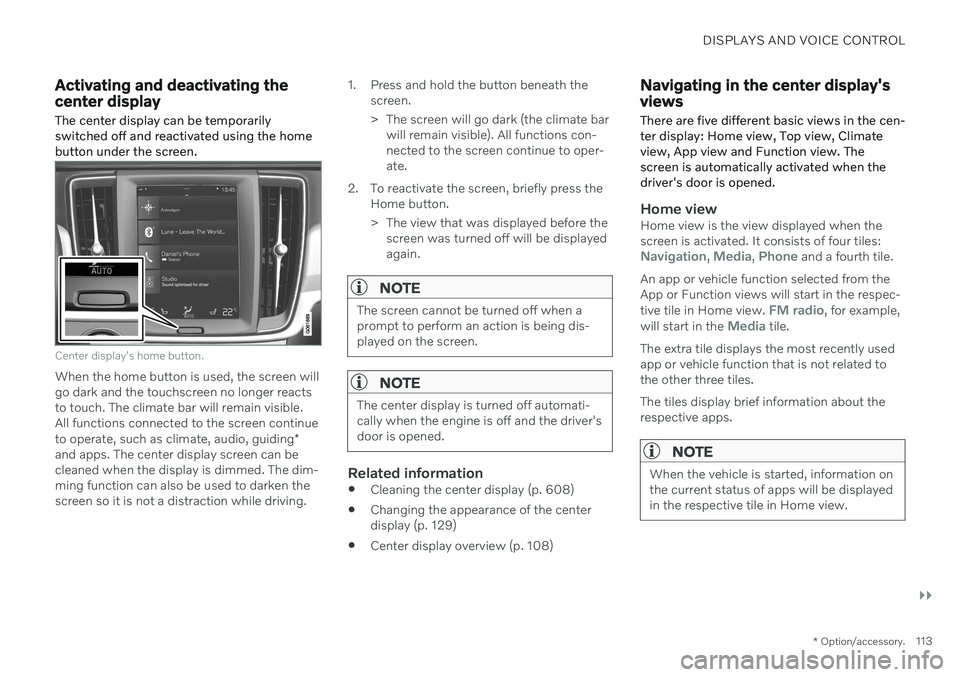
Activating and deactivating the center display The center display can be temporarily switched off and reactivated using the homebutton under the screen.
Center display's home button.
When the home button is used, the screen will go dark and the touchscreen no longer reactsto touch. The climate bar will remain visible.All functions connected to the screen continue to operate, such as climate, audio, guiding *
and apps. The center display screen can be cleaned when the display is dimmed. The dim-ming function can also be used to darken thescreen so it is not a distraction while driving. 1. Press and hold the button beneath the
screen.
> The screen will go dark (the climate barwill remain visible). All functions con- nected to the screen continue to oper-ate.
2. To reactivate the screen, briefly press the Home button.
> The view that was displayed before thescreen was turned off will be displayed again.
NOTE
The screen cannot be turned off when a prompt to perform an action is being dis-played on the screen.
NOTE
The center display is turned off automati- cally when the engine is off and the driver'sdoor is opened.
Related information
Cleaning the center display (p. 608)
Changing the appearance of the center display (p. 129)
Center display overview (p. 108)
Navigating in the center display's views
There are five different basic views in the cen- ter display: Home view, Top view, Climateview, App view and Function view. Thescreen is automatically activated when thedriver's door is opened.
Home viewHome view is the view displayed when the screen is activated. It consists of four tiles:
Navigation, Media, Phone and a fourth tile.
An app or vehicle function selected from the App or Function views will start in the respec- tive tile in Home view.
FM radio, for example,
will start in the Media tile.
The extra tile displays the most recently used app or vehicle function that is not related tothe other three tiles. The tiles display brief information about the respective apps.
NOTE
When the vehicle is started, information on the current status of apps will be displayedin the respective tile in Home view.
Page 121 of 661
DISPLAYS AND VOICE CONTROL
119
Expanding a tile:
–For tiles Navigation, Media and Phone:
Tap the screen anywhere in the tile. When a tile is expanded, the extra tile in Homeview will be temporarily hidden. The othertwo tiles will be minimized and only showcertain information. When the extra tile istapped, the other three tiles are minimizedand only certain information is displayed. Expanded view provides access to the basic functions of the respective apps.
Closing an expanded tile:
–The tile can be closed in three different ways:
Tap the top section of the expandedtile.
Tap another tile (it will then be openedin expanded mode instead).
Press briefly on the Home button underthe center display.
Opening or closing a tile in full-screen mode
The fourth tile 9
and tile for Navigation can be
opened in full-screen mode to show additional information and possible settings. When a tile is opened in full-screen mode, no information from the other tiles is displayed. In expanded mode, open theapp in full-screen mode. Tapthe symbol.
To return to expanded mode, tap the symbol or press theHome button under thescreen.
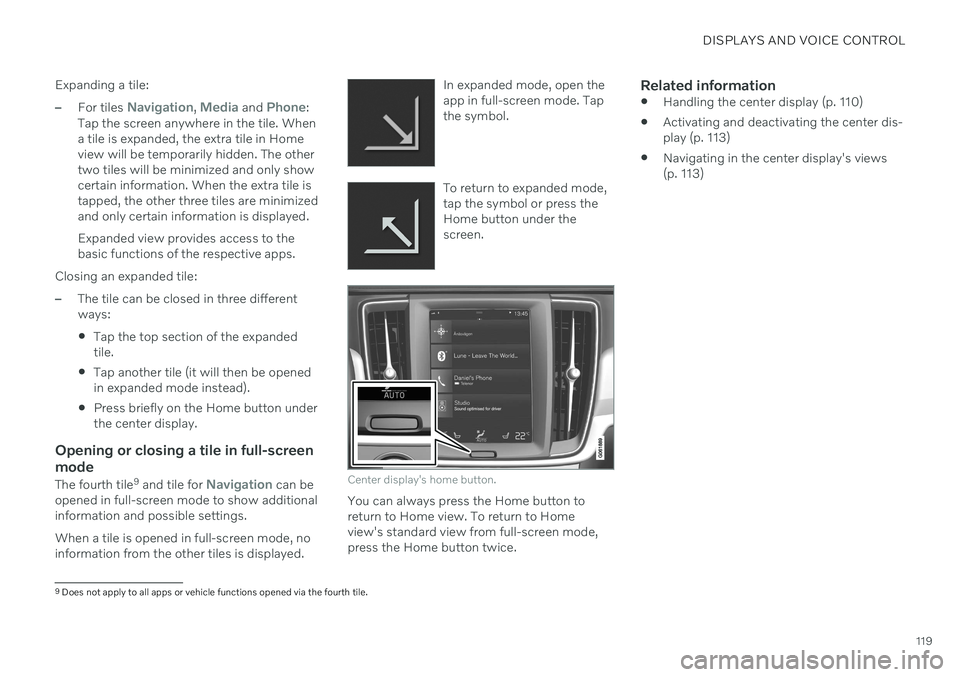
Center display's home button.
You can always press the Home button to return to Home view. To return to Homeview's standard view from full-screen mode,press the Home button twice.
Related information
Handling the center display (p. 110)
Activating and deactivating the center dis-play (p. 113)
Navigating in the center display's views(p. 113)
9
Does not apply to all apps or vehicle functions opened via the fourth tile.
Page 135 of 661
DISPLAYS AND VOICE CONTROL
}}
* Option/accessory.133
Table of settings in the center display
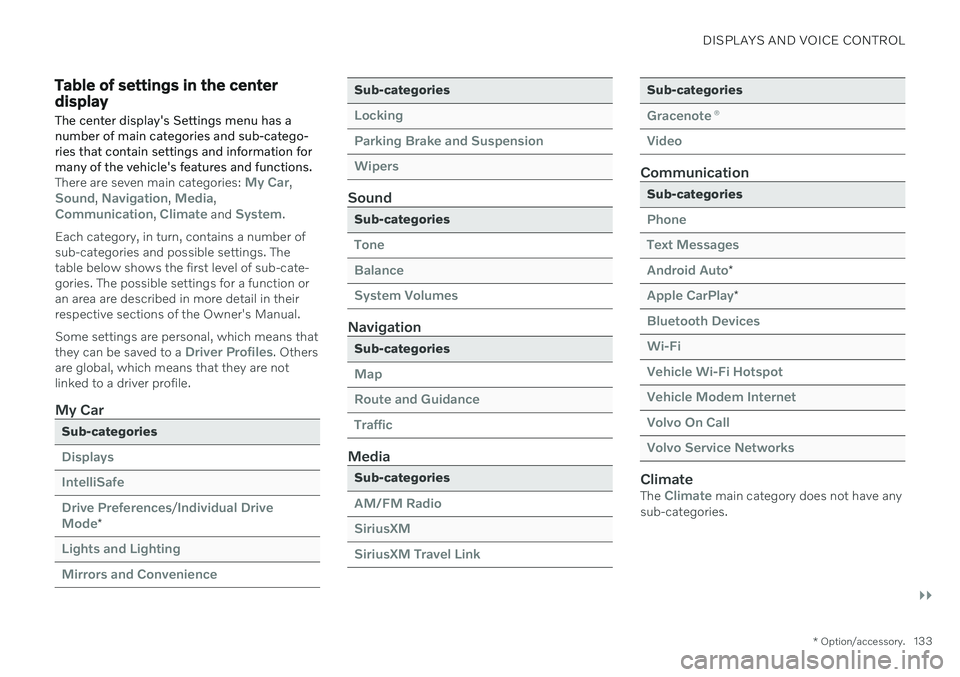
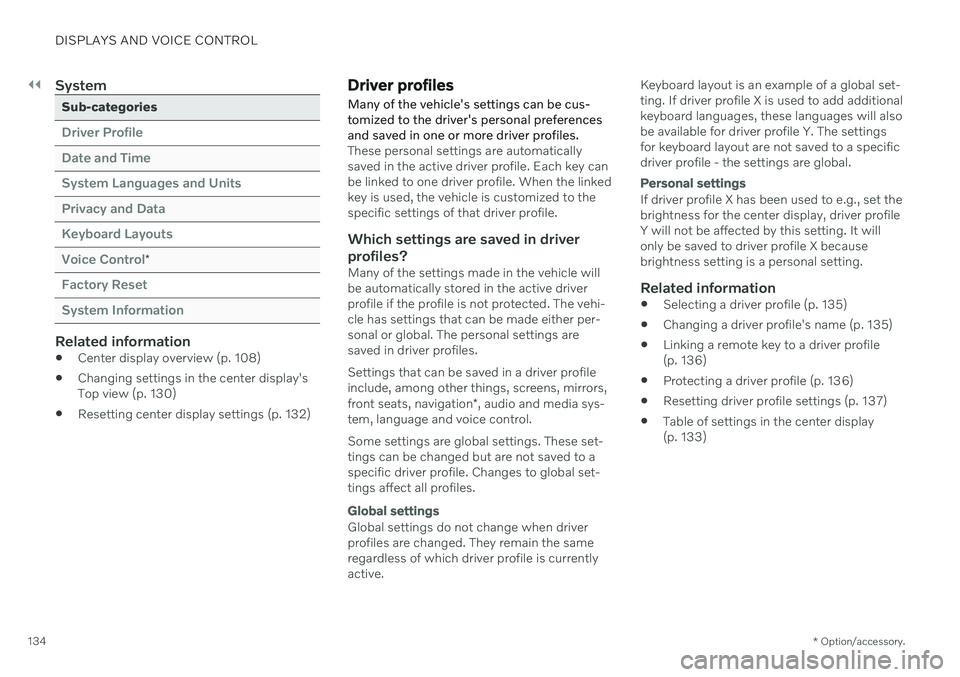
The center display's Settings menu has a number of main categories and sub-catego-ries that contain settings and information formany of the vehicle's features and functions.
There are seven main categories: My Car,Sound, Navigation, Media,Communication, Climate and System.
Each category, in turn, contains a number of sub-categories and possible settings. Thetable below shows the first level of sub-cate-gories. The possible settings for a function oran area are described in more detail in theirrespective sections of the Owner's Manual. Some settings are personal, which means that they can be saved to a
Driver Profiles. Others
are global, which means that they are not linked to a driver profile.
My Car
Sub-categories
Displays IntelliSafeDrive Preferences
/Individual Drive
Mode*
Lights and Lighting Mirrors and Convenience
Sub-categories
Locking Parking Brake and SuspensionWipers
Sound
Sub-categories
Tone BalanceSystem Volumes
Navigation
Sub-categories
Map Route and GuidanceTraffic
Media
Sub-categories
AM/FM Radio SiriusXMSiriusXM Travel Link
Sub-categories
Gracenote ®
Video
Communication
Sub-categories
Phone Text MessagesAndroid Auto
*
Apple CarPlay*
Bluetooth Devices Wi-FiVehicle Wi-Fi Hotspot Vehicle Modem Internet Volvo On Call Volvo Service Networks
ClimateThe Climate main category does not have any
sub-categories.
Page 136 of 661
||
DISPLAYS AND VOICE CONTROL
* Option/accessory.
134
System
Sub-categories
Driver Profile Date and TimeSystem Languages and UnitsPrivacy and DataKeyboard LayoutsVoice Control
*
Factory Reset System Information
Related information
Center display overview (p. 108)
Changing settings in the center display's Top view (p. 130)
Resetting center display settings (p. 132)
Driver profiles
Many of the vehicle's settings can be cus- tomized to the driver's personal preferencesand saved in one or more driver profiles.
These personal settings are automatically saved in the active driver profile. Each key canbe linked to one driver profile. When the linkedkey is used, the vehicle is customized to thespecific settings of that driver profile.
Which settings are saved in driver
profiles?
Many of the settings made in the vehicle willbe automatically stored in the active driverprofile if the profile is not protected. The vehi-cle has settings that can be made either per-sonal or global. The personal settings aresaved in driver profiles. Settings that can be saved in a driver profile include, among other things, screens, mirrors, front seats, navigation *, audio and media sys-
tem, language and voice control. Some settings are global settings. These set- tings can be changed but are not saved to aspecific driver profile. Changes to global set-tings affect all profiles.
Global settings
Global settings do not change when driver profiles are changed. They remain the sameregardless of which driver profile is currentlyactive. Keyboard layout is an example of a global set-ting. If driver profile X is used to add additionalkeyboard languages, these languages will alsobe available for driver profile Y. The settingsfor keyboard layout are not saved to a specificdriver profile - the settings are global.
Personal settings
If driver profile X has been used to e.g., set the brightness for the center display, driver profileY will not be affected by this setting. It willonly be saved to driver profile X becausebrightness setting is a personal setting.
Related information
Selecting a driver profile (p. 135)
Changing a driver profile's name (p. 135)
Linking a remote key to a driver profile(p. 136)
Protecting a driver profile (p. 136)
Resetting driver profile settings (p. 137)
Table of settings in the center display(p. 133)
Page 145 of 661
DISPLAYS AND VOICE CONTROL
}}
* Option/accessory.143
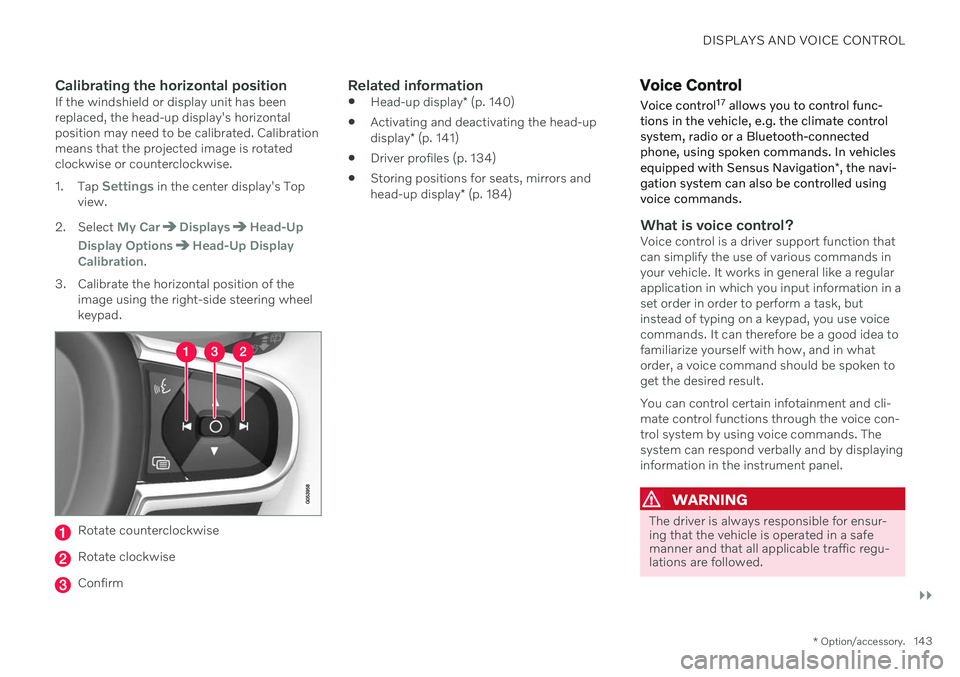
Calibrating the horizontal positionIf the windshield or display unit has been replaced, the head-up display's horizontalposition may need to be calibrated. Calibrationmeans that the projected image is rotatedclockwise or counterclockwise. 1.
Tap
Settings in the center display's Top
view.
2. Select
My CarDisplaysHead-Up
Display Options
Head-Up Display
Calibration.
3. Calibrate the horizontal position of the image using the right-side steering wheel keypad.
Rotate counterclockwise
Rotate clockwise
Confirm
Related information
Head-up display
* (p. 140)
Activating and deactivating the head-up display
* (p. 141)
Driver profiles (p. 134)
Storing positions for seats, mirrors andhead-up display
* (p. 184)
Voice Control
Voice control 17
allows you to control func-
tions in the vehicle, e.g. the climate control system, radio or a Bluetooth-connectedphone, using spoken commands. In vehicles equipped with Sensus Navigation *, the navi-
gation system can also be controlled using voice commands.
What is voice control?Voice control is a driver support function that can simplify the use of various commands inyour vehicle. It works in general like a regularapplication in which you input information in aset order in order to perform a task, butinstead of typing on a keypad, you use voicecommands. It can therefore be a good idea tofamiliarize yourself with how, and in whatorder, a voice command should be spoken toget the desired result. You can control certain infotainment and cli- mate control functions through the voice con-trol system by using voice commands. Thesystem can respond verbally and by displayinginformation in the instrument panel.
WARNING
The driver is always responsible for ensur- ing that the vehicle is operated in a safemanner and that all applicable traffic regu-lations are followed.
Page 147 of 661
DISPLAYS AND VOICE CONTROL
}}
* Option/accessory.145
These may include:
Wait until after the tone, and then speak in your normal voice at a normal speed.
Do not speak while the system is respond-ing (the system is unable to process com-mands during this time).
Avoid background noises in the passengercompartment by keeping doors, windows and the panoramic roof
* closed.
NOTE
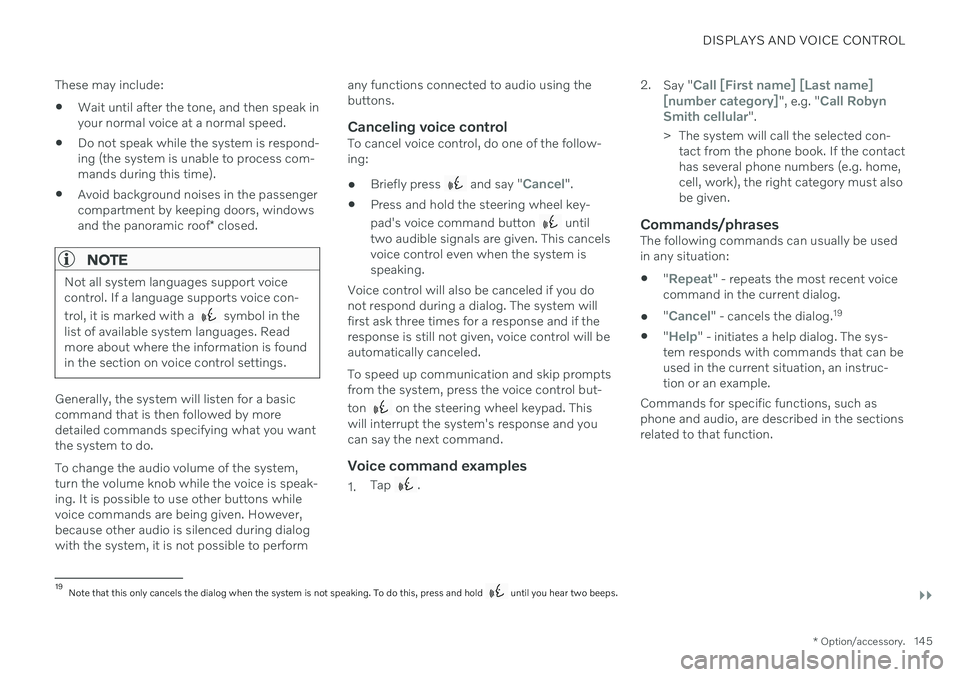
Not all system languages support voice control. If a language supports voice con- trol, it is marked with a
symbol in the
list of available system languages. Read more about where the information is foundin the section on voice control settings.
Generally, the system will listen for a basic command that is then followed by moredetailed commands specifying what you wantthe system to do. To change the audio volume of the system, turn the volume knob while the voice is speak-ing. It is possible to use other buttons whilevoice commands are being given. However,because other audio is silenced during dialogwith the system, it is not possible to perform any functions connected to audio using thebuttons.
Canceling voice controlTo cancel voice control, do one of the follow-ing:
Briefly press
and say "Cancel".
Press and hold the steering wheel key- pad's voice command button
until
two audible signals are given. This cancels voice control even when the system isspeaking.
Voice control will also be canceled if you donot respond during a dialog. The system willfirst ask three times for a response and if theresponse is still not given, voice control will beautomatically canceled. To speed up communication and skip prompts from the system, press the voice control but- ton
on the steering wheel keypad. This
will interrupt the system's response and you can say the next command.
Voice command examples
1. Tap . 2.
Say "
Call [First name] [Last name]
[number category]", e.g. "Call Robyn
Smith cellular".
> The system will call the selected con- tact from the phone book. If the contact has several phone numbers (e.g. home,cell, work), the right category must alsobe given.
Commands/phrasesThe following commands can usually be usedin any situation:
"
Repeat" - repeats the most recent voice
command in the current dialog.
"
Cancel" - cancels the dialog. 19
"
Help" - initiates a help dialog. The sys-
tem responds with commands that can be used in the current situation, an instruc-tion or an example.
Commands for specific functions, such as phone and audio, are described in the sections related to that function.
19 Note that this only cancels the dialog when the system is not speaking. To do this, press and hold until you hear two beeps.
Page 153 of 661
LIGHTING
* Option/accessory.151
WARNING
The vehicle lighting system cannot in all sit- uations determine when the daylight is tooweak or not strong enough, e.g. whenthere is fog or rain. The driver is always responsible for driving the vehicle with lighting that is safe for thetraffic conditions and as specified by appli-cable traffic regulations.
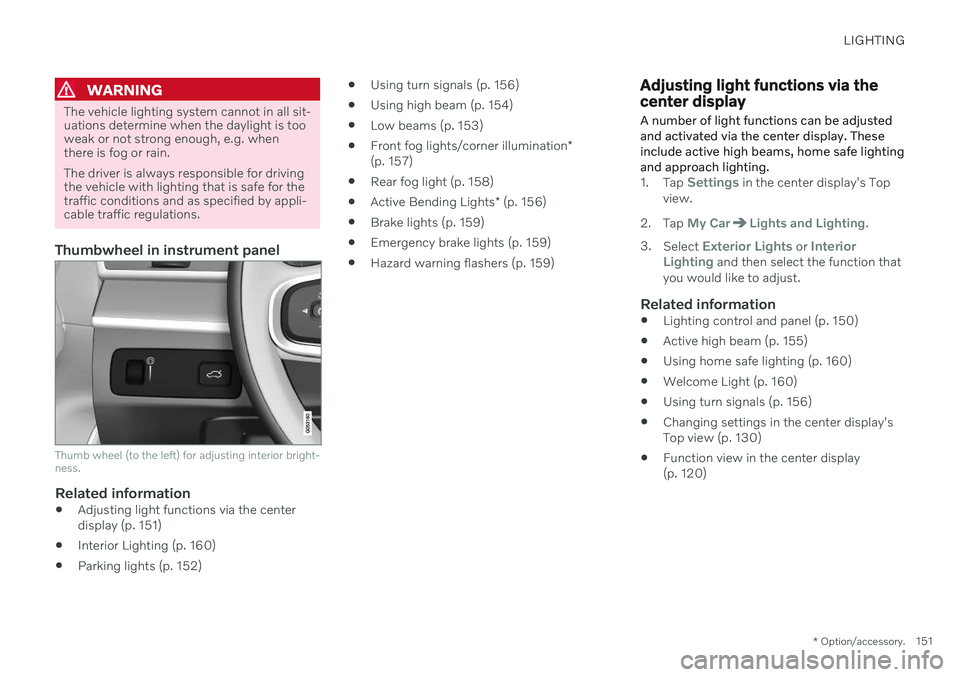
Thumbwheel in instrument panel
Thumb wheel (to the left) for adjusting interior bright- ness.
Related information
Adjusting light functions via the center display (p. 151)
Interior Lighting (p. 160)
Parking lights (p. 152)
Using turn signals (p. 156)
Using high beam (p. 154)
Low beams (p. 153)
Front fog lights/corner illumination
*
(p. 157)
Rear fog light (p. 158)
Active Bending Lights
* (p. 156)
Brake lights (p. 159)
Emergency brake lights (p. 159)
Hazard warning flashers (p. 159)
Adjusting light functions via the center display A number of light functions can be adjusted and activated via the center display. Theseinclude active high beams, home safe lightingand approach lighting.
1.
Tap Settings in the center display's Top
view.
2. Tap
My CarLights and Lighting.
3. Select
Exterior Lights or Interior
Lighting and then select the function that
you would like to adjust.
Related information
Lighting control and panel (p. 150)
Active high beam (p. 155)
Using home safe lighting (p. 160)
Welcome Light (p. 160)
Using turn signals (p. 156)
Changing settings in the center display's Top view (p. 130)
Function view in the center display(p. 120)
Page 155 of 661
LIGHTING
}}
* Option/accessory.153
US models
: When
mode is selected,
the daytime running lights can be deactivated in the center display. The parking lights willalso be deactivated. In weak daylight or darkconditions, the parking lights and low beamswill be illuminated. US models : With the lighting ring in the
or position, the daytime running lights
will be off.
Canadian models : With the lighting ring in
the
or position, the daytime run-
ning lights will be on.
NOTE
Volvo recommends use of Daytime Running Lights in the US. Its use is man-datory in Canada.
WARNING
The system is an energy saving aid – it cannot in all situations determine when thedaylight is too weak or not strong enough,e.g. when there is fog or rain. The driver is always responsible for driving the vehicle with lighting that is safe for thetraffic conditions and as specified by appli-cable traffic regulations.
Related information
Lighting control and panel (p. 150)
Ignition modes (p. 395)
Low beams (p. 153)
Low beams
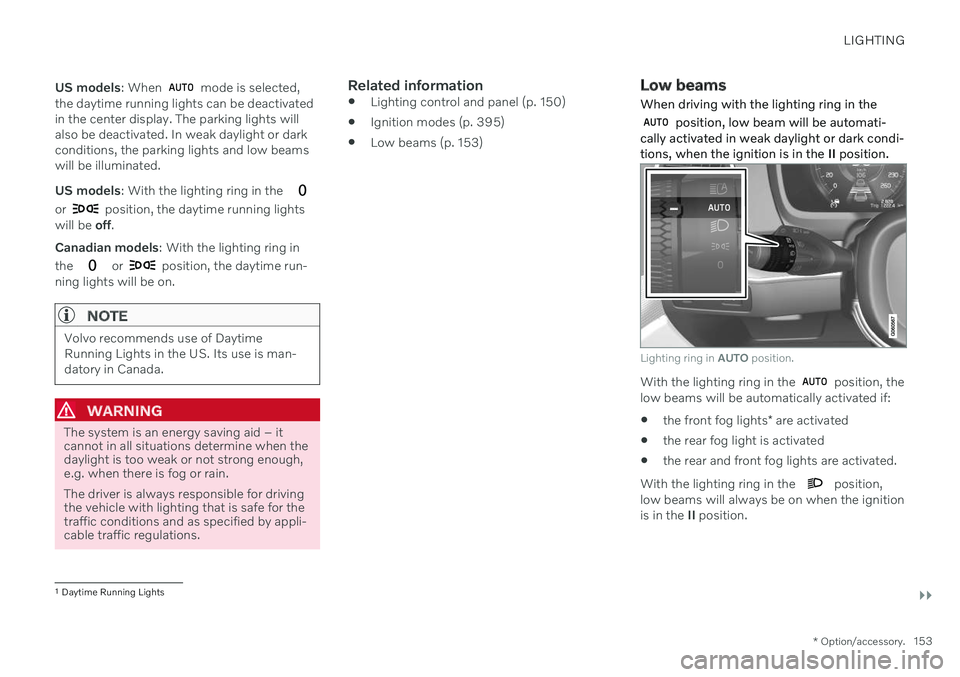
When driving with the lighting ring in the
position, low beam will be automati-
cally activated in weak daylight or dark condi- tions, when the ignition is in the II position.
Lighting ring in AUTO position.
With the lighting ring in the position, the
low beams will be automatically activated if:
the front fog lights
* are activated
the rear fog light is activated
the rear and front fog lights are activated.
With the lighting ring in the
position,
low beams will always be on when the ignition is in the II position.
1
Daytime Running Lights